Checking for Email Scanners
When using magic links, email services like Outlook's "Safe Links" may click links to check for malicious content, potentially invalidating the one-time authentication. The isEmailScanner condition allows detecting such scanners and adding a screen to prevent token invalidation.
Templates with Email Scanner Detection
The following flow templates include built-in email scanner detection:
Using Built-in Flow Actions
The simplest way to add email scanner protection is to use Descope's built-in flow actions that include automatic email scanner detection. These actions handle the detection and protection logic for you, so you don't need to manually configure conditions or screens.
Available Actions
The following actions include built-in email scanner protection:
-
Sign In / Magic Link / Email with Email Scanner Protection - A magic link flow that handles cases where email scanners might click the link before the real user.
-
Sign Up / Magic Link / Email with Email Scanner Protection - A magic link flow that handles cases where email scanners might click the link before the real user.
-
Sign Up or In / Magic Link / Email with Email Scanner Protection - A magic link flow that handles cases where email scanners might click the link before the real user.
-
Update user / Magic Link / Email with Email Scanner Protection - A magic link flow that handles cases where email scanners might click the link before the real user.
Example: Using a Built-in Action
To use a built-in action with email scanner protection:
- Add one of the email scanner protection actions to your flow (e.g., Sign In / Magic Link / Email with Email Scanner Protection)
- Configure the action with your desired settings (email field, redirect URL, etc.)
- The action automatically handles email scanner detection and protection - no additional configuration needed
The built-in actions automatically:
- Detect when a request comes from an email scanner
- Show an intermediate screen with a button for scanners (which they typically won't interact with)
- Allow genuine users to proceed directly to token verification
- Handle token verification only after confirming the request is from a real user
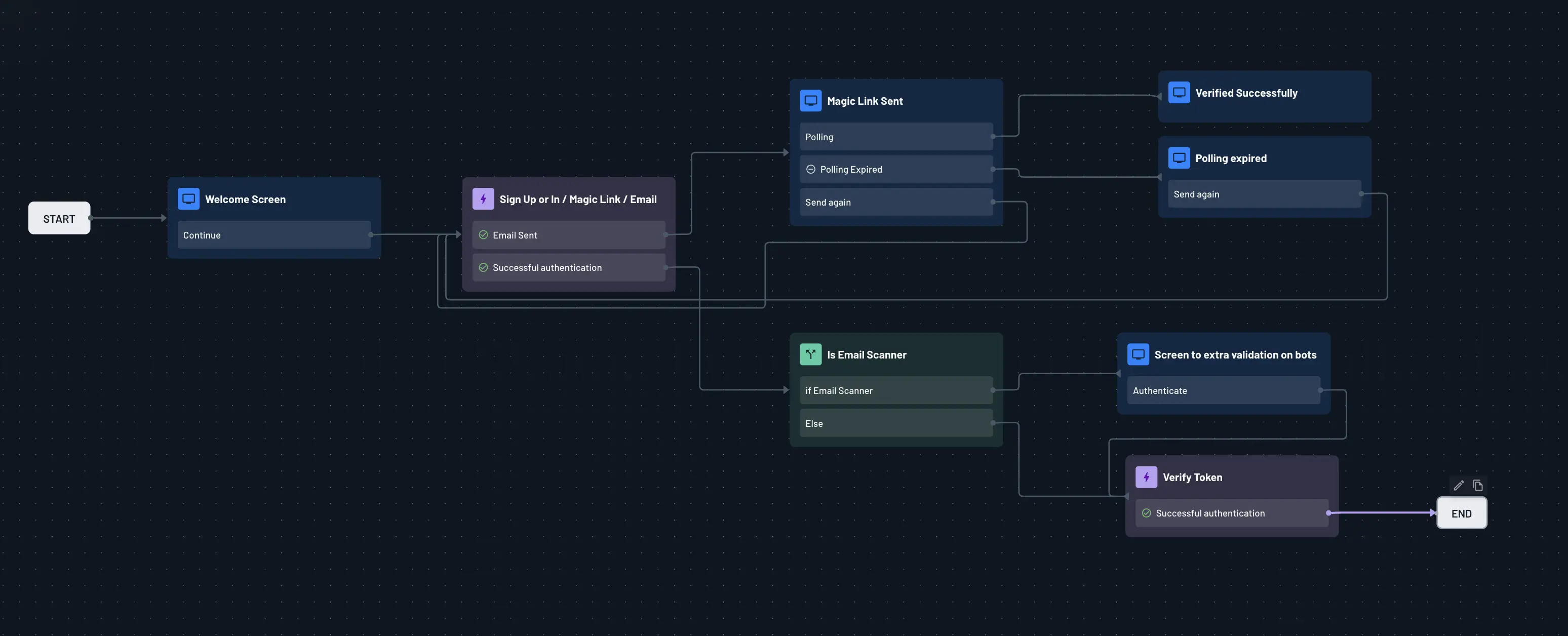
Using the isEmailScanner Condition
If you’ve already built a flow using a magic link, you don’t need to start from scratch. You can simply add an isEmailScanner condition and include a Verify Token action in your existing flow.
This lets you keep your current setup while adding the necessary logic to properly handle email scanner detection.
Example: Custom Flow with isEmailScanner Condition
When a user initiates magic link authentication, any detected email scanner that clicks the link will be redirected to a screen with a button. This prevents the magic link from being invalidated, as scanners typically do not interact with buttons on web pages. If no scanner is detected, the token will be automatically verified.
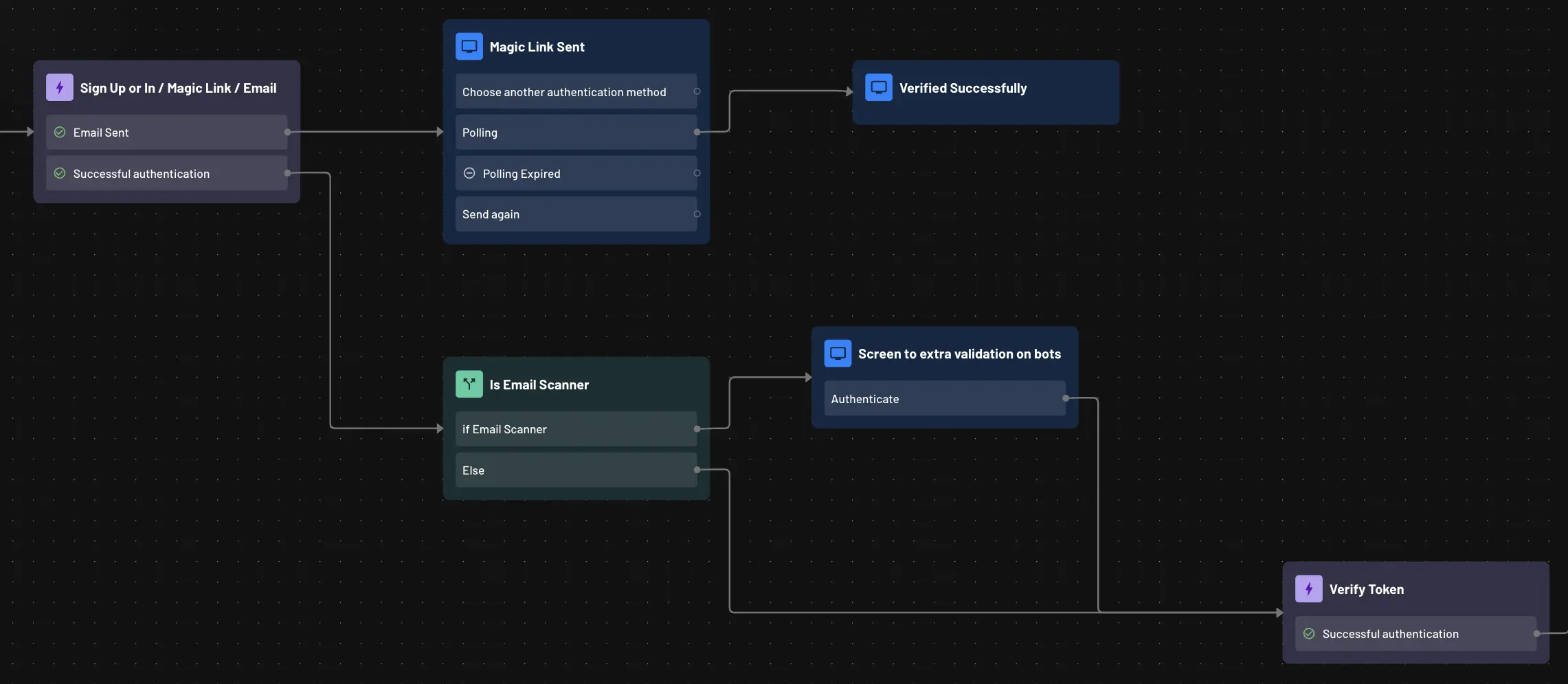
To build this custom flow:
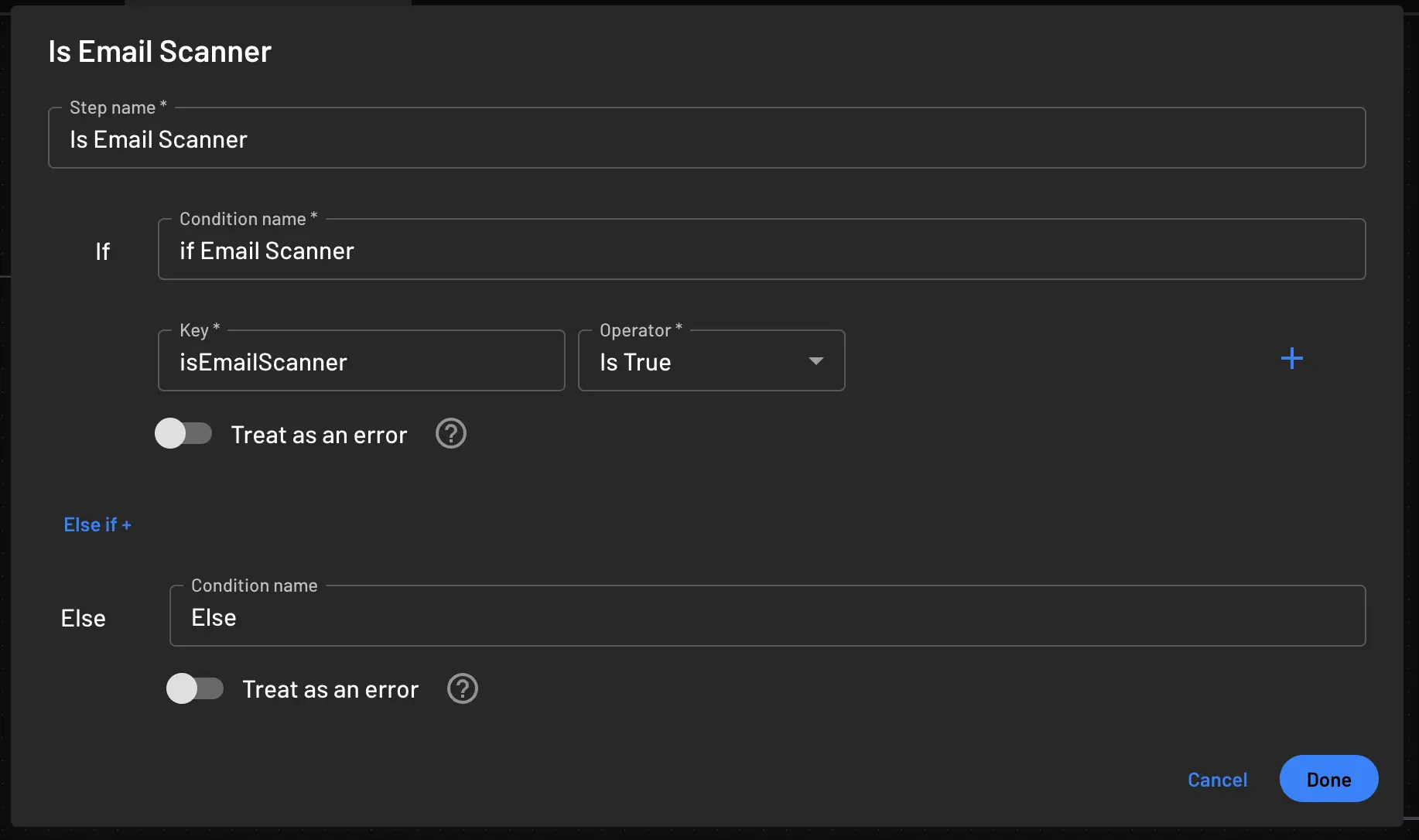
- Add a condition using
isEmailScannerto check if the request is from an email scanner- Set the condition to check if
isEmailScanneristrueorfalse
- Set the condition to check if
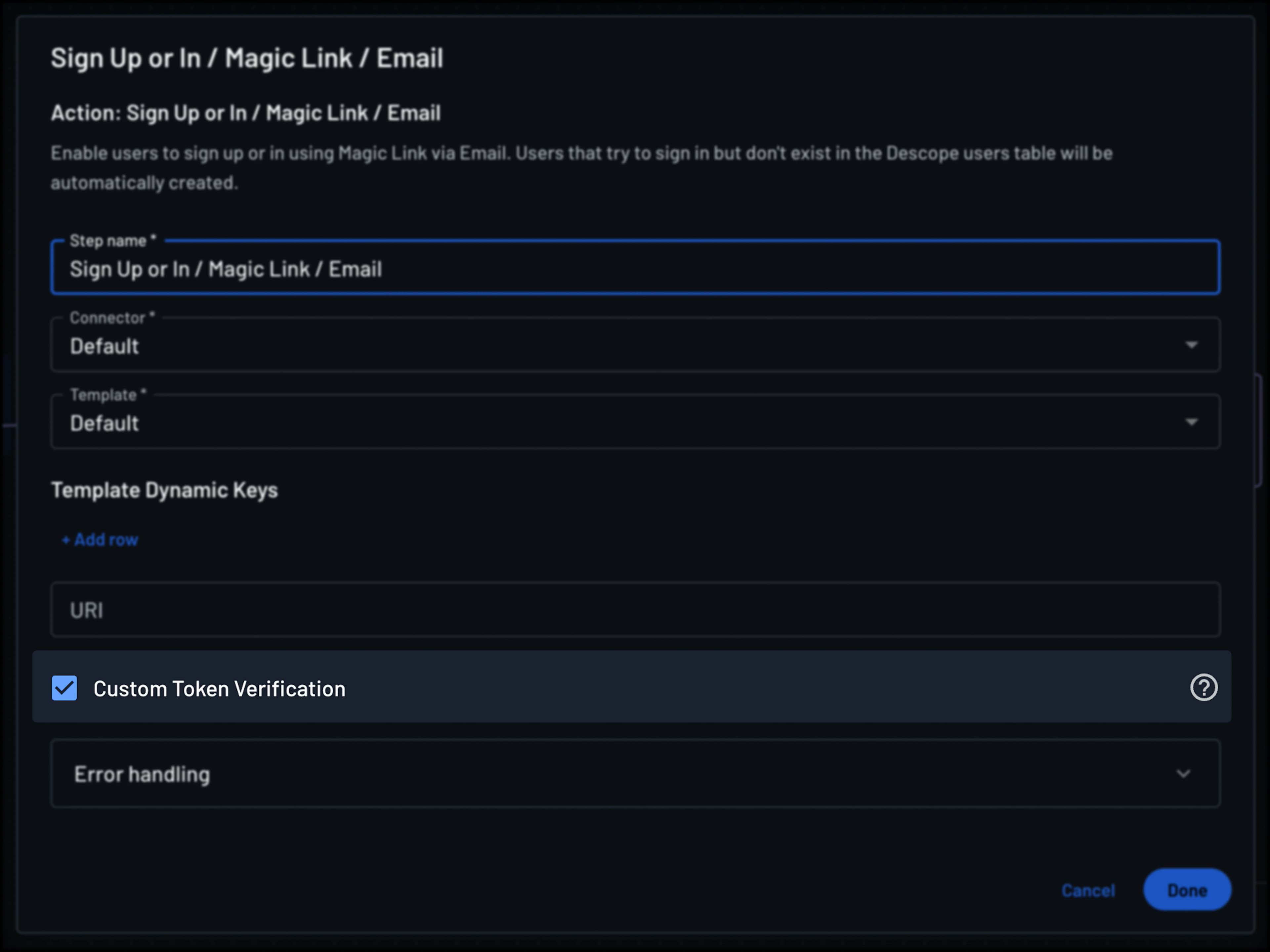
- Enable Custom Token Verification in your magic link action. This setting is required for the flow to delay token validation until it confirms the request is not coming from a bot or email scanner.
-
Route based on the condition:
- If
isEmailScanneristrue: Route to an intermediate screen with a button - If
isEmailScannerisfalse: Route directly to token verification
- If
-
Create an intermediate screen (for the scanner path) with at least one button that continues to the verification process. The extra screen can be anything as long as it has one button which continues on to the verification process.
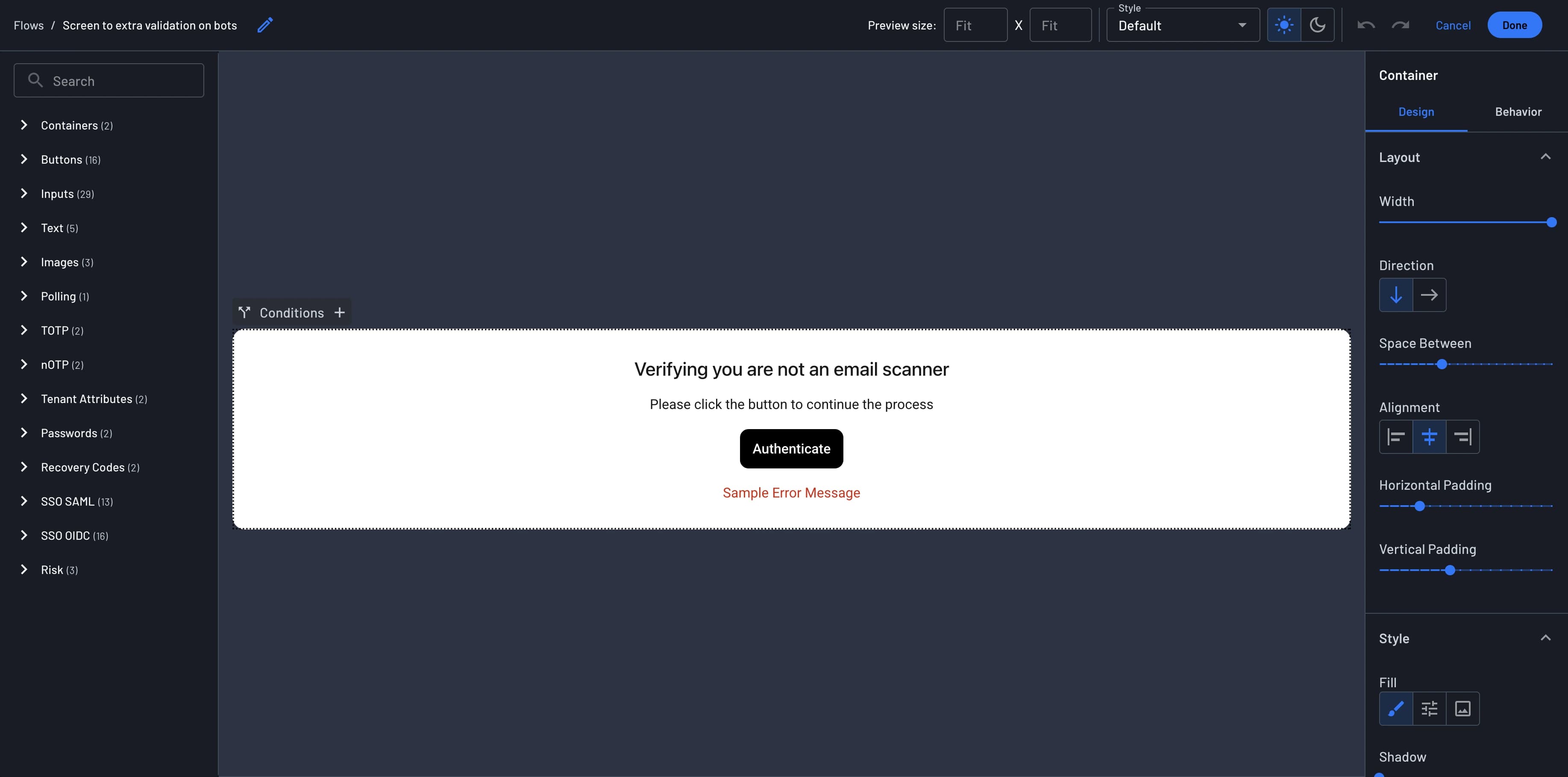
This flow example routes the users/scanners to extra screen only when an email scanner is detected, otherwise the majority of users have no change to their user experience.
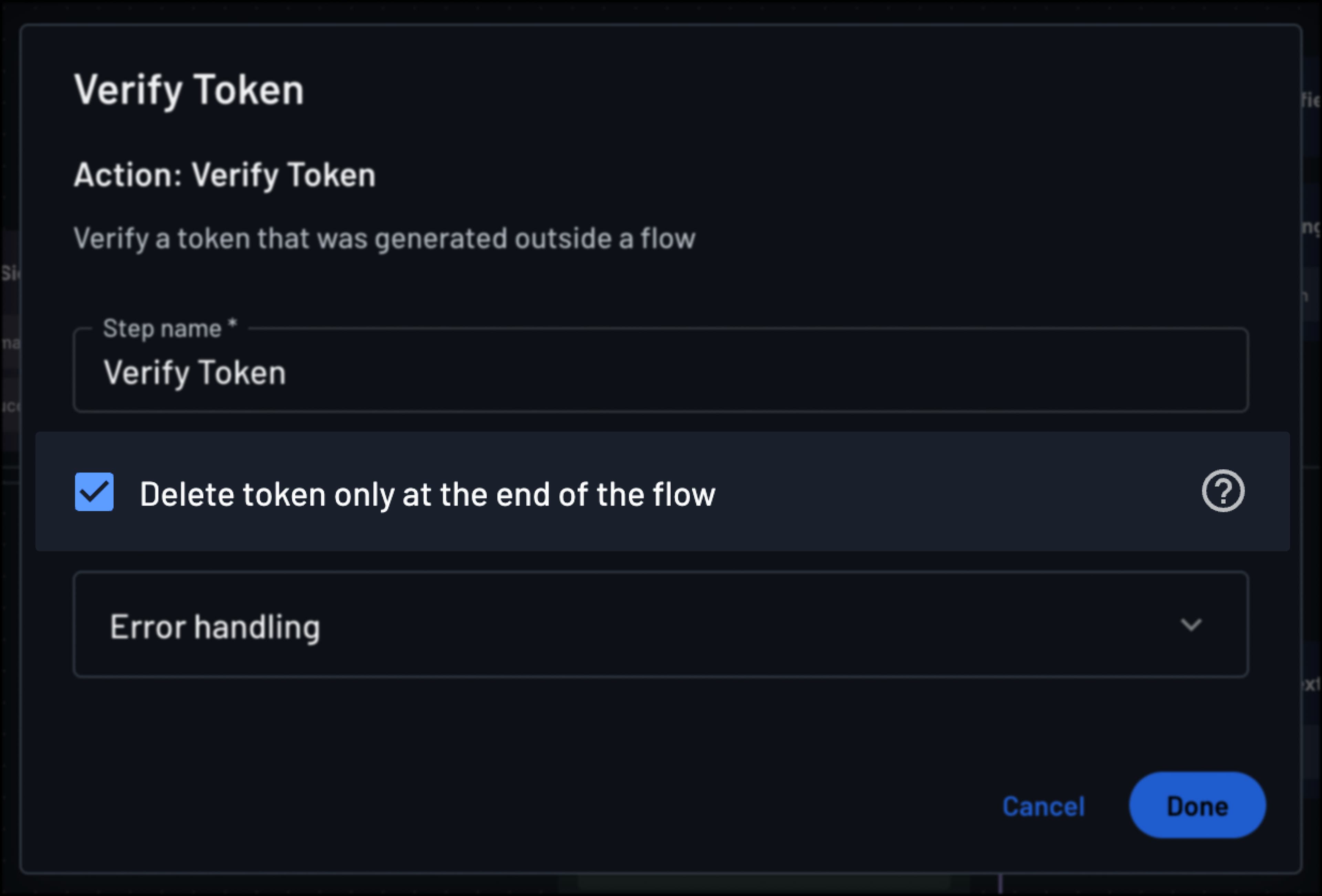
Optional: Enable "Delete Token After Verification" in the Verify Token action. This ensures that the token is invalidated once the flow completes, which helps prevent issues in cases where users may accidentally click the magic link multiple times.
Email Verification Outside of Sign Up/In
Learn how to utilize embedded links to verify a user's email outside of the standard sign up/in flow without magic link.
Embedded OTP with Generic HTTP Connectors
Learn how to utilize embedded OTP codes for authenticating users when sending customized notifications with your messaging connectors within Descope.