Enchanted Link Settings
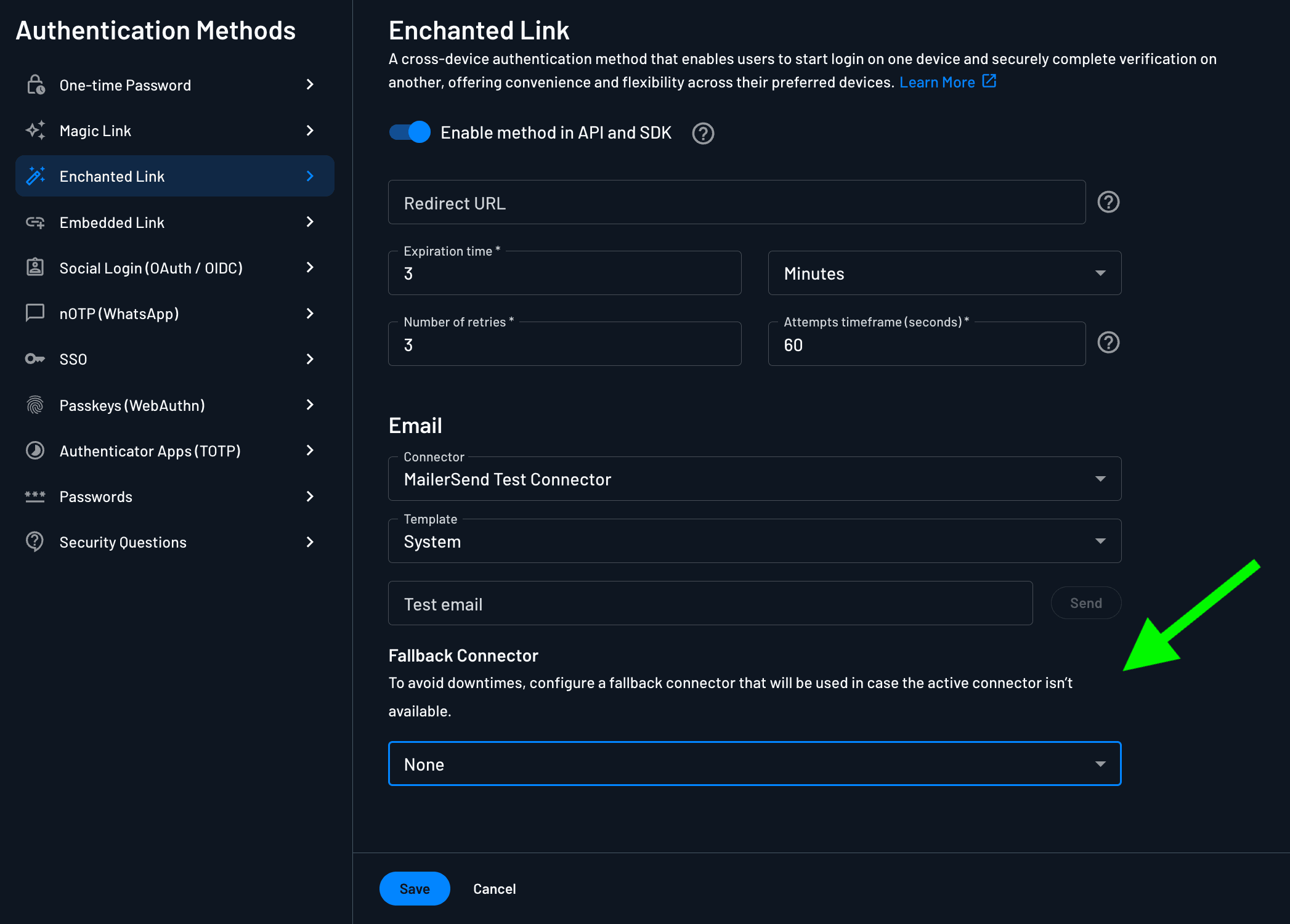
You can customize your Enchanted Link authentication in the Descope console (Settings > Authentication Methods > Enchanted Link).
Note
Unlike Magic Link and OTP, Enchanted Link settings cannot be overridden per tenant.
Enable Method in API and SDK
The Enable method in API and SDK toggle controls whether Enchanted Link authentication can be invoked programmatically via APIs and SDKs.
- When enabled: Authentication works via flows, APIs, and SDKs
- When disabled: Authentication only works with flows or calls made with a valid management key
Available Settings
This section describes additional details about the configuration options available.
Redirect URL
The redirect URL is default URL for the route you implement to verify enchanted link tokens. This is the location to send the user upon successful authentication. The redirect URL will be overridden when specified in the SDK or API call, or by the URI field on the enchanted link flow actions, which also accepts dynamic values.
Expiration Time
Note
For increased security, we recommend an expiration time of 3-5 minutes.
Define length of time after which link or code expires. A shorter expiration time limits how long a malicious actor has to attempt an attack (such as a dictionary or brute force attack) on the code or link.
Number of Retries and Attempts Timeframe (seconds)
Limit the number of email communication attempts a recipient can receive within the defined timeframe. If the limit is exceeded, no further messages will be sent until the timeframe resets.
Allow Unverified Recipient Email Addresses or Phone Numbers:
Note
Enabling this option may increase the risk of spam and fraud.
By default, messages are sent only to verified email addresses or phone numbers. When enabled, this option allows messages to be sent to unverified email addresses or phone numbers.
If a user authenticates using an unverified contact, Descope automatically marks that contact as verified.
Connectors
Configure the connector to utilize to send the enchanted link message. The default is Descope.
Email Connector
Descope supports sending email OTP messages using your email messaging provider, such as AWS SES, SendGrid, or a generic SMTP service. You can configure a email messaging connector by going to the connectors page within the Descope console and searching for the supported email messaging connectors. Then, on the OTP authentication method page, you can select the configured connector and customize the template if you would like.
Text Message Connector
Descope supports sending enchanted links via SMS using your text messaging provider, such as Twilio or Amazon SNS. You can configure a text messaging connector by going to the connectors page within the Descope console and searching for the supported text messaging connectors. Then, on the Enchanted Link authentication method page, you can select the configured connector and customize the template if you would like.
Fallback Connector
To each of the connectors in this authentication method, Descope supports a fallback connector that is available to use to prevent downtimes. Descoper can configure a fallback connector that will be used in case the active connector isn’t available. This fallback connector can either be Descope's default connector or an alternate connector configured for sms/email.
Templates
If you are using a customized connector, you can change the template of the email which your user will receive. The default is System.