Managing Environments
Descope allows you to create many projects to fit your needs. You could have multiple projects for different businesses, or you could have a development, staging, and production projects for the various stages of your development and testing. Descope makes it easy to manage your projects and migrate configurations between projects.
Creating Projects
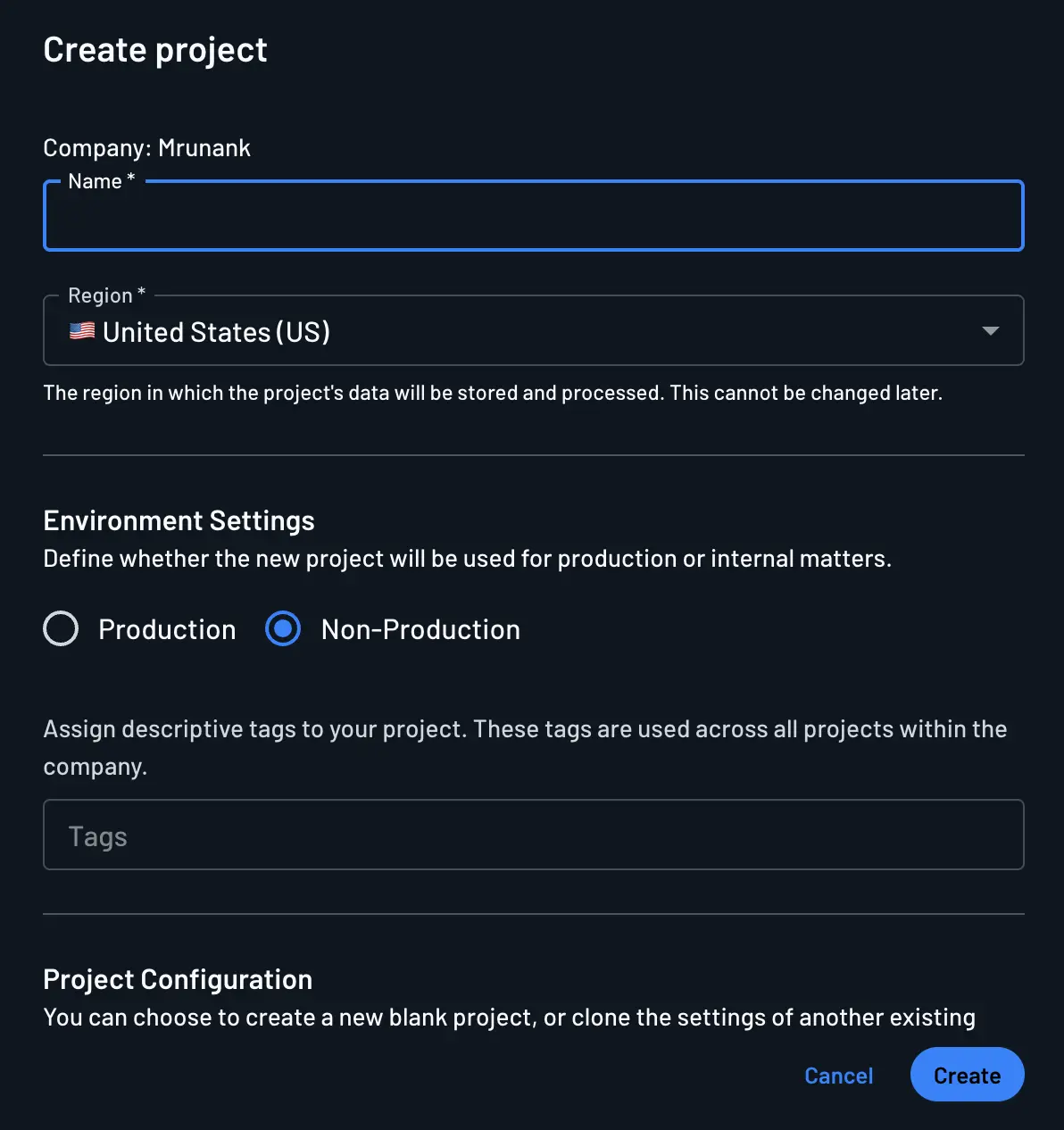
Within the Descope console, clicking the project drop down in the top right allows you to create new projects by
clicking the + Project button at the bottom of the list of your projects. When you create a new project, you can
provide the project with a name and choose whether it is production or non-production. You can later change
whether the project is production or non-production from the Project Settings
page within the console. Note that selecting production or non-production does not effect the features within
the project. This is an internal identifier for Descope to see which projects are marked as production.
Managing Secrets in Environments
When working with environments, it's essential to note Descope's behavior in handling API keys and other related secrets around connectors and OAuth provider configurations. The below outlines how Descope manages secrets and credentials during project cloning, exporting, and importing.
- During the cloning of a project, secrets are cloned to the new project with all of their current configuration and settings.
- While exporting a project, the exported project zip will contain the connector or OAuth provider configuration; however, the credentials will be removed to prevent the export of secrets.
- When you export a project and import it into another project that already has the same connectors or OAuth providers configured, the destination project will keep its existing secrets—unless you explicitly override them by editing the secrets in the exported ZIP file. All other connector or OAuth provider settings will be updated during the import. For details on overriding secrets, refer to the documentation on secret placeholders.
Importing Secrets
When you export your project, you will receive a zip file with the contents, with a structure like the example below:
The connectors directory includes the configuration of each connector associated your Project.
{
  "configuration": {
    "authentication": {
      "apiKey": {},
      "basic": {},
      "method": "bearerToken"
    },
    "baseUrl": "https://api.sendgrid.com/v3/mail",
    "headers": [
      {
        "key": "Content-Type",
        "value": "application/json"
      }
    ],
    "insecure": false
  },
  "contentVersion": "",
  "description": "Sendgrid Generic HTTP",
  "id": "xxxx",
  "name": "Sendgrid Generic",
  "status": "enabled",
  "templateId": "http"
}
To import the secrets within a new project, add them to the downloaded files within the zip, zip the entire directory back up, and then import them to your new project. This will then import the secrets into your project and allow the connectors to be immediately used without further configuration of the connectors after the import.
Secret Placeholders
When you export a project with connectors or OAuth providers configured with secrets, you will see that the secrets will
have a placeholder of PLACEHOLDER_VALUE. There are two options when handling placeholders within the secrets of the
configuration files.
- If you leave
PLACEHOLDER_VALUEin the exported configuration file, the secrets in the project you are importing will be retained. - If you would like to override the configured secrets within the project, you would change the
PLACEHOLDER_VALUEto be the correct secrets for the project. - Removing the line containing the placeholder or replacing
"PLACEHOLDER_VALUE"withnullor""will clear the configured value from the secret on import.
Below are examples of connector and OAuth provider configurations with PLACEHOLDER_VALUE.
{
  "configuration": {
    "authentication": {
      "apiKey": {},
      "basic": {},
      "bearerToken": "PLACEHOLDER_VALUE",
      "method": "bearerToken"
    },
    "baseUrl": "https://example.com",
    "hmacSecret": "PLACEHOLDER_VALUE",
    "hmacSignEntireRequest": true,
    "includeHeadersInContext": true,
    "insecure": false
  },
  "contentVersion": "",
  "description": "",
  "id": "xxxxx",
  "name": "Example Connector",
  "status": "enabled",
  "templateId": "http"
}
Cloning Projects
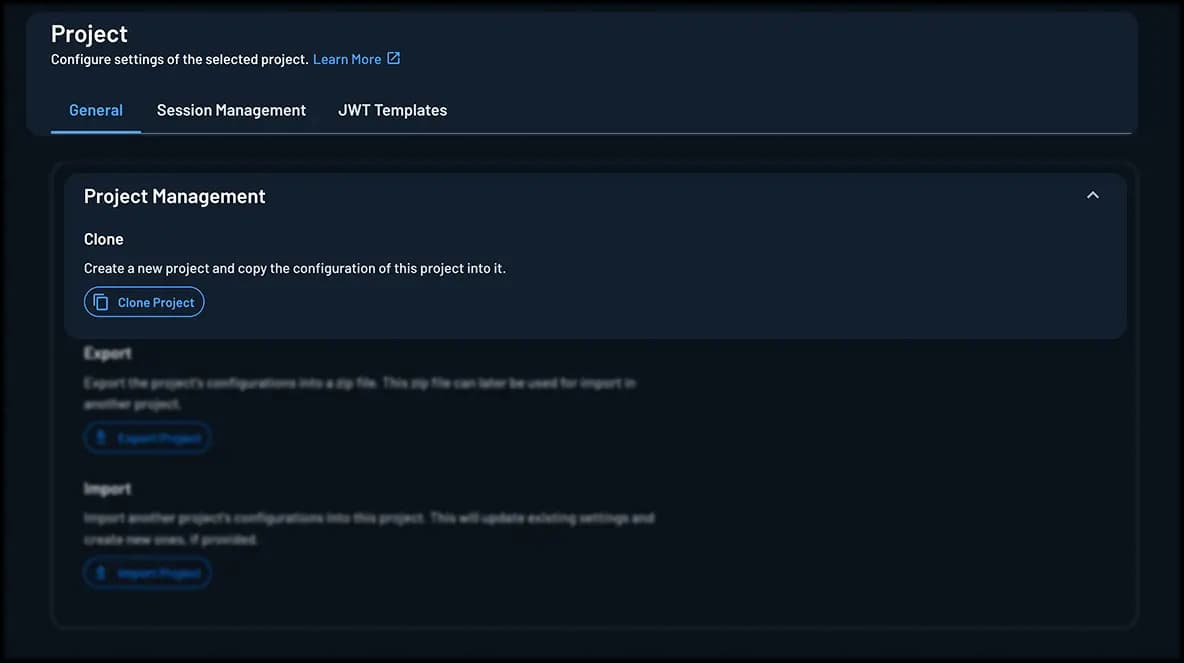
From the Project Settings page, Descope allows you to clone your projects, creating an exact duplicate of your current project. This is useful, for example, when cloning a development project to set up staging and production environments. The cloning process copies your flows, styles, project settings, authentication configurations, email templates, and more.
Exporting Projects
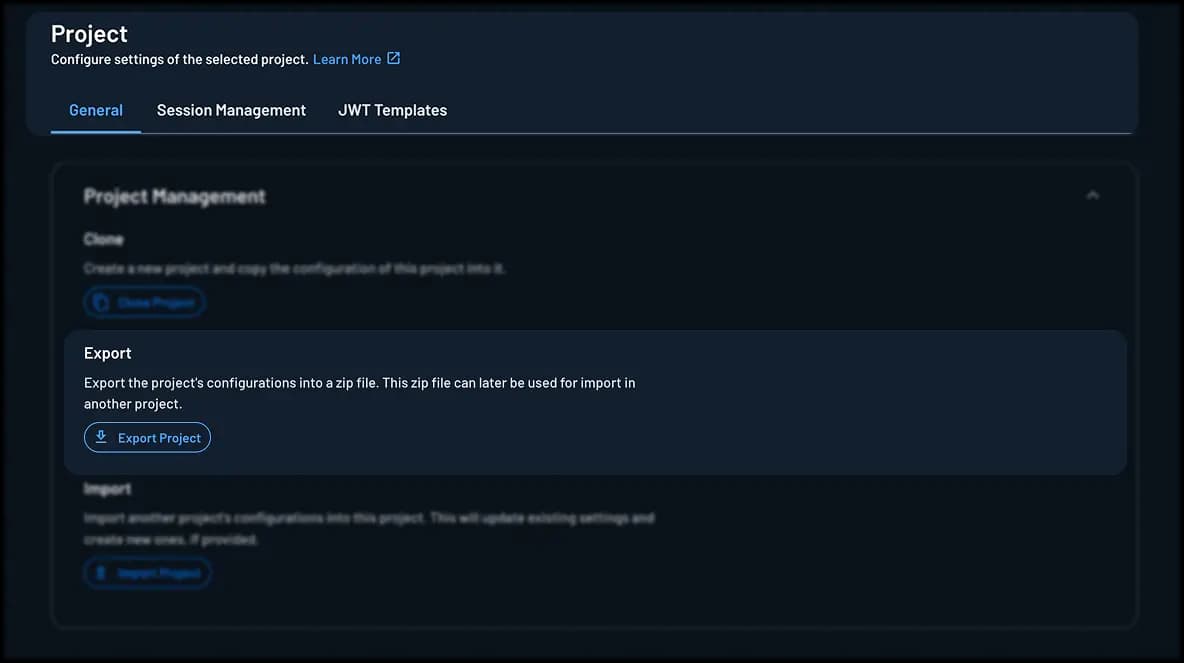
Within Descope, you can export a project from the Project Settings page. This exports your flows, styles, project settings, authentication method configurations, email templates, etc. You can then import the downloaded zip file into another project.
Note
Exporting a project from the console is the same as exporting a snapshot with the CLI. The only difference is packaging: the console downloads a zip file, while the CLI writes the same contents to a folder on disk. See the Project Snapshot guide for the full directory structure and contents of a project export or snapshot.
Importing Projects
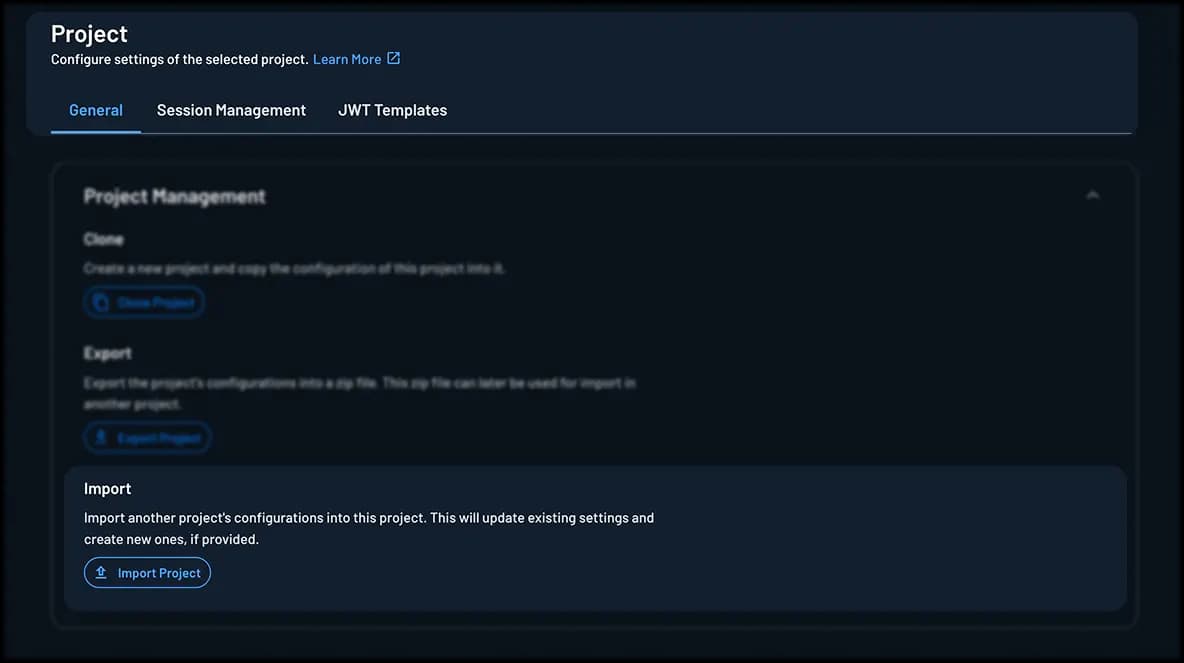
Descope allows you to import an exported project to another existing project. This is useful when you are working between development, staging, and production projects. Once you have tested your configurations within your environments, you can export and import the project into the next level in your deployments.
Tracking Changes
If you would like to track changes between your project configurations, you can export your project and store within your code repository of choice. This allows you to track the configuration changes you have made within your projects over time.
Descope also offers a GitHub template with built in GitHub actions which enable you to quickly configure your CI/CD pipeline within GitHub and a Gitlab CI/CD template to facilitate a smoother transition of resources from development projects to production environments.
We also offer a Terraform provider and a Pulumi provider to help you manage Descope projects and configurations using infrastructure-as-code.