Creating Inbound Apps
Note
Dynamic Client Registration (DCR) is no longer configured on Inbound Apps. To allow clients to self-register (for example with MCP servers), configure an MCP Server instead.
See MCP Client Registration and Dynamic Client Registration (DCR), for more information.
Inbound apps in Descope can be created in a few ways:
- Descope Console — Create and configure the app in the Inbound Apps UI (steps below)
- Management SDK / API — Create the app programmatically with the Management SDK or Management API
- Terraform — Manage Inbound Apps as code with the Descope Terraform provider (
descope_inbound_app); see Terraform → Applications
In addition to how they are created, Inbound Apps can be created either as a confidential or non-confidential application.
Note
Creating the Inbound App does not by itself grant it access to anything. You can create a token with the app's client ID and secret, but it will not have any scopes or permissions, nor will it have an intended audience.
To grant an inbound app access to a Resource, such as an API or MCP server, you must also add a policy whose subject is this Inbound App and whose target is that Resource, with the scopes it may receive. A pop-up reminder for this will appear in the bottom-right corner after you create the app.
Types of Inbound Apps
| Confidential | Public (non-confidential) | |
|---|---|---|
| Best for | Apps that can securely store a client secret (backend servers, server-side web apps) | Apps that cannot securely store secrets (SPAs, mobile apps, desktop apps) |
| Client secret | Required | Not used |
| PKCE | Optional for authorization code | Required for authorization code |
| Token refresh | Requires client_secret | Refresh token only (no client_secret) |
| Grant types | Authorization code, plus Client Credentials, JWT Bearer, and CIBA | Authorization code only — Client Credentials, JWT Bearer, and CIBA are unavailable |
Configure the client type under Client Authentication in the inbound app details.
Manual Inbound App Creation
You can either create an inbound app using the Descope console, or using the Descope Management API.
To manually create an Inbound App in the Descope Console, follow these steps:
- Navigate to the Inbound Apps page of the Descope console.
- Click
+ Add Inbound Appto create a new Inbound Application. - Define the App Name and Description (both can be edited later).
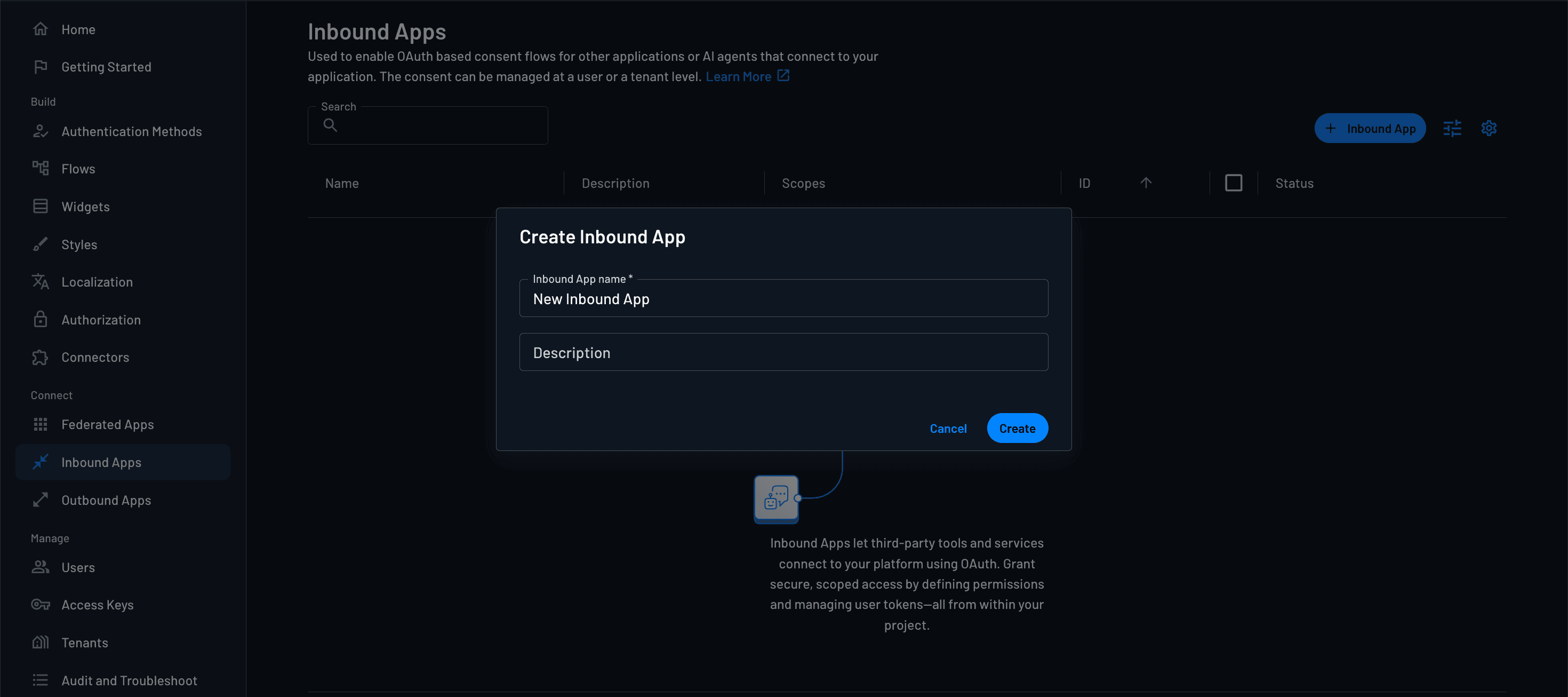
Once the application is created, you can configure its settings, including:
- App Details
- Scopes (Permissions & User Data)
- Grant Types
- Flows (when Authorization Code or CIBA is enabled)
- Connection Information
- Audience
- Custom Attributes
- Session Management
- Consent Management
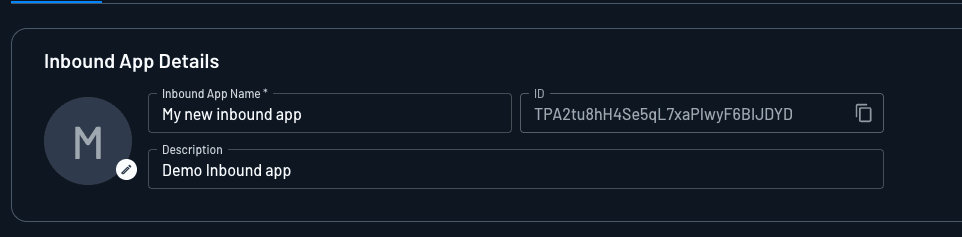
Inbound App Details
This section allows you to configure key information about the inbound app.
- Logo (Optional): Upload a logo for the application. This will be displayed during user consent flows.
- Inbound App Name (Required): The name of the third-party application.
- Description (Optional): A short description of the app.
- App ID (System Generated): A unique identifier for the application (cannot be changed).
Client Authentication
Under Client Authentication, you can view the app's Client ID and Client Secret, and choose whether the inbound app is a Confidential or Public client.
Note
Inbound apps created in the Console or with a Management SDK/API default to confidential clients.
Confidential:
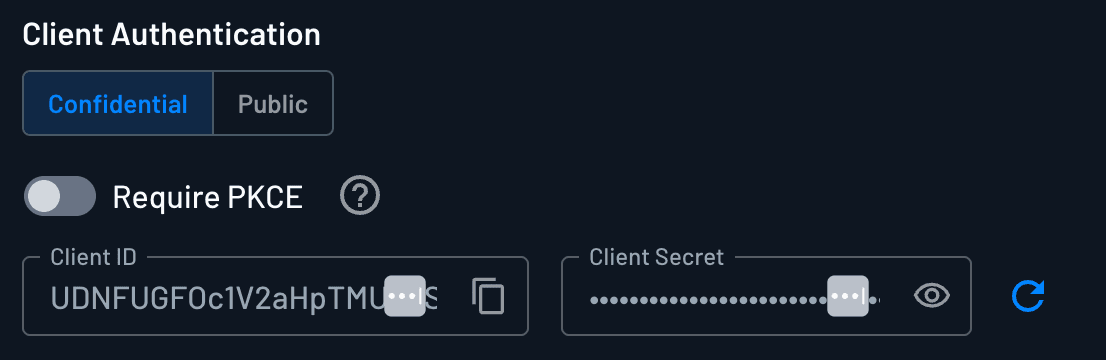
For confidential apps, use the Require PKCE toggle to decide whether OAuth clients must use PKCE with the authorization code flow.
You can also turn on Require DPoP for each confidential or public app. With DPoP required, Descope rejects token requests that don't carry a DPoP proof, so every access token the app receives is bound to a key the client holds.
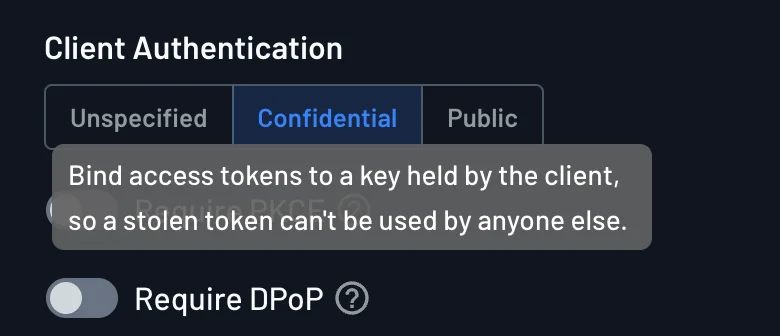
You can switch the app to a public client. When you do:
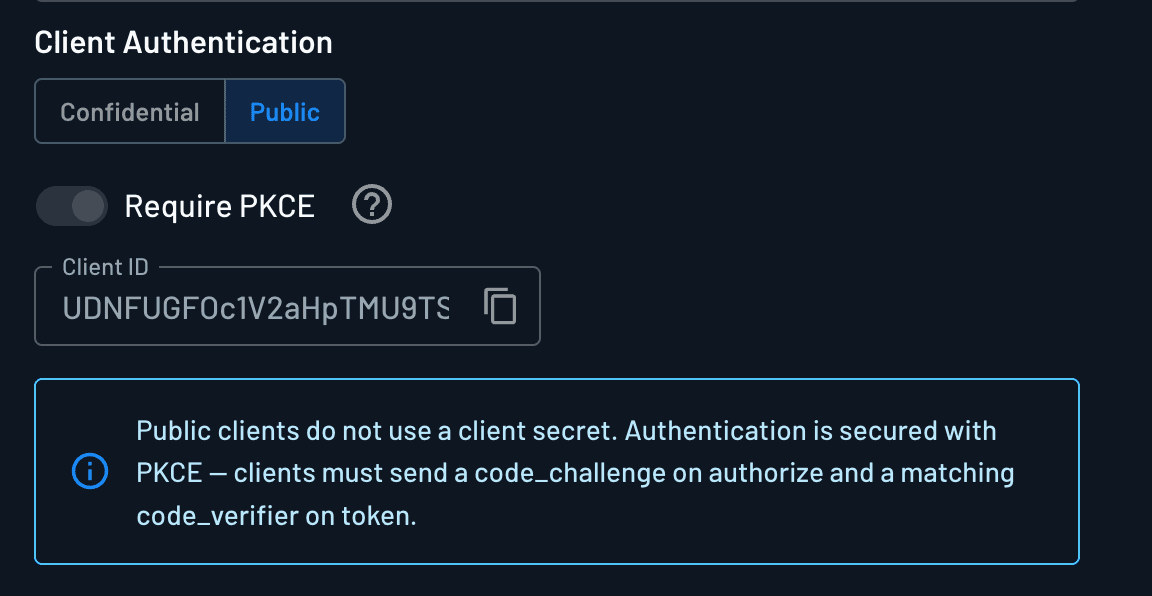
- The Client Secret is removed and is no longer available.
- The Require PKCE toggle will be automatically enabled and grayed out, and therefore you must use PKCE with authorization code flow.
- The Client Credentials, JWT Bearer, and CIBA grant types are grayed out and cannot be enabled for that app.
- The app can't use token exchange, which requires client authentication. To reach other Resources from a public client, put the exchange in your backend, as Exchanging from Your Backend describes.
Public:
Authentication Method
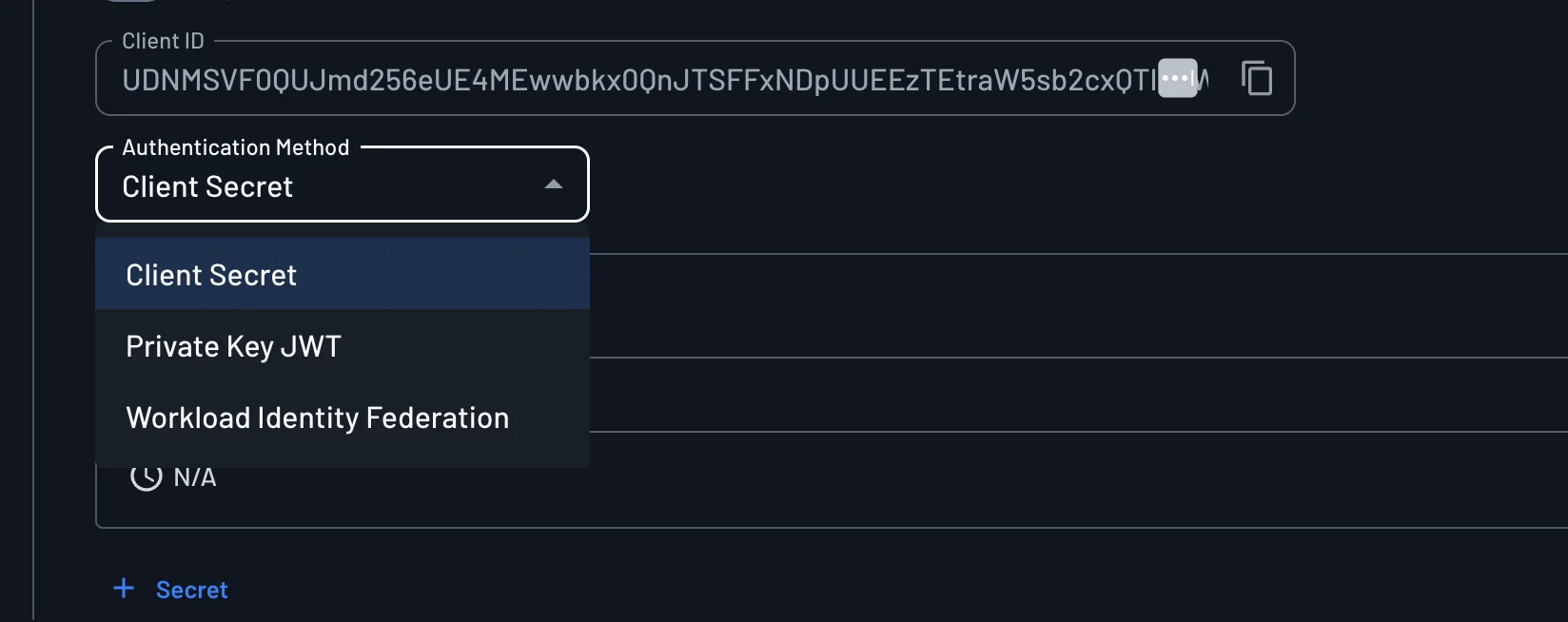
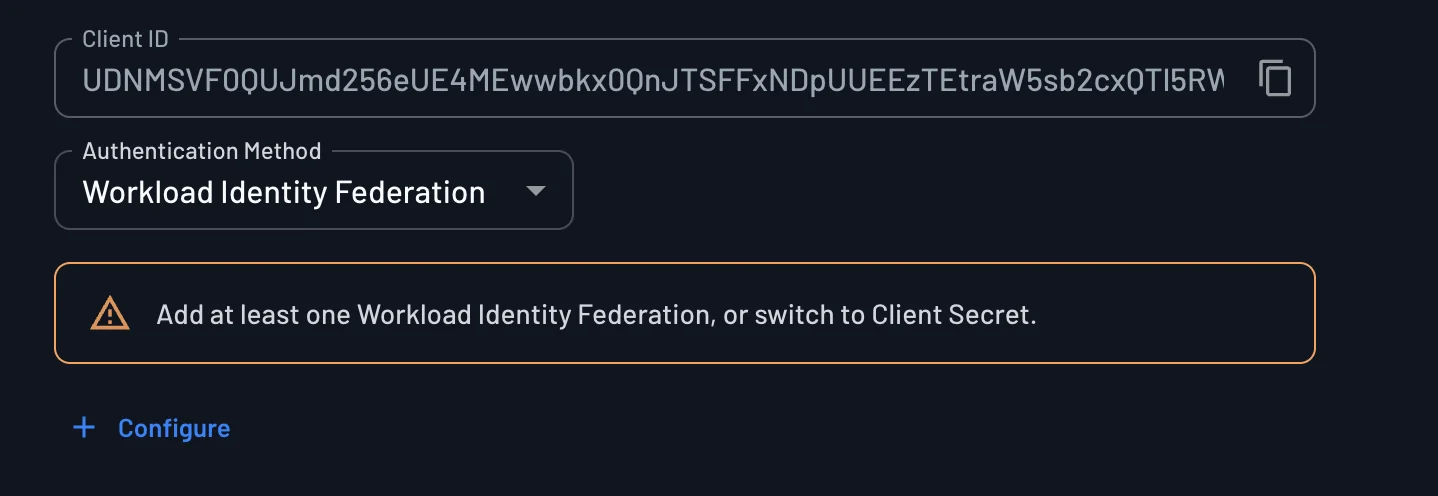
A confidential client has to prove its identity every time it calls the token endpoint. The Authentication Method dropdown under Client Authentication decides how it does that. A shared secret is the simplest option, but anyone who copies the secret can act as the app, and you have to rotate it by hand. The other two methods remove the shared secret entirely, so Descope never stores anything an attacker could replay.
| Method | What the client sends | Best for |
|---|---|---|
| Client Secret | client_id and client_secret | Backend apps where storing a secret is acceptable |
| Private Key JWT | A JWT signed with the app's own private key, as client_assertion | Apps that manage their own key pair and can't hold a shared secret |
| Workload Identity Federation | A token issued to the workload by SPIFFE or an OIDC provider | Workloads that already have a platform identity, such as Kubernetes pods, CI jobs, or cloud services |
The client sends the same grant parameters whichever method you choose. Only the authentication parameters change. See Client authentication for example token requests.
Client Secret
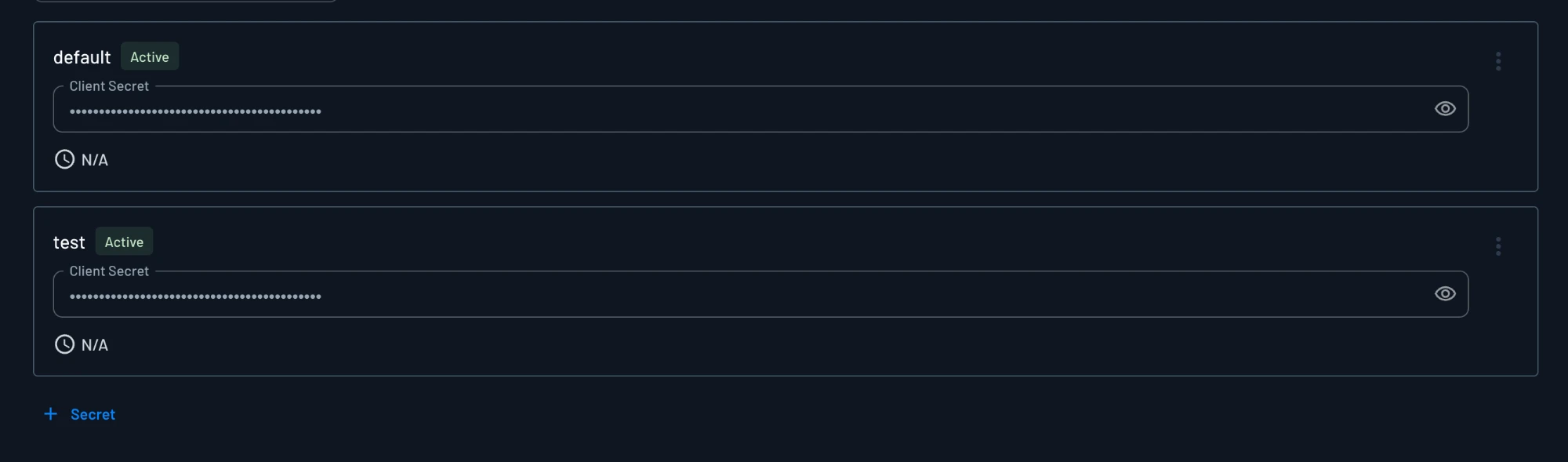
Client Secret is the default method. An app can hold more than one active secret at a time, and Descope accepts any of them. Each secret has its own name and status.
Multiple secrets let you rotate without downtime. Click + Secret to add a new secret, move your clients to it, and then remove the old secret from the menu next to it. You can also give separate secrets to separate deployments of the same client, such as default and test, so you can revoke one without affecting the other.
Private Key JWT
With Private Key JWT (RFC 7523), the client signs a short-lived JWT with a private key that only it holds. Descope validates the signature with the matching public key, so the private key never leaves your infrastructure.
When you select Private Key JWT, you add the public key under Key Source. Choose the source that matches how you manage keys:
- JWKs: Descope fetches your public keys from a JWKs URL that you host. Use this when you rotate keys, because Descope picks up a new key as soon as you publish it.
- Public Key: You paste or upload (with Upload Key) a PEM public key or certificate. Use this when you have one static key and no endpoint to publish it from.
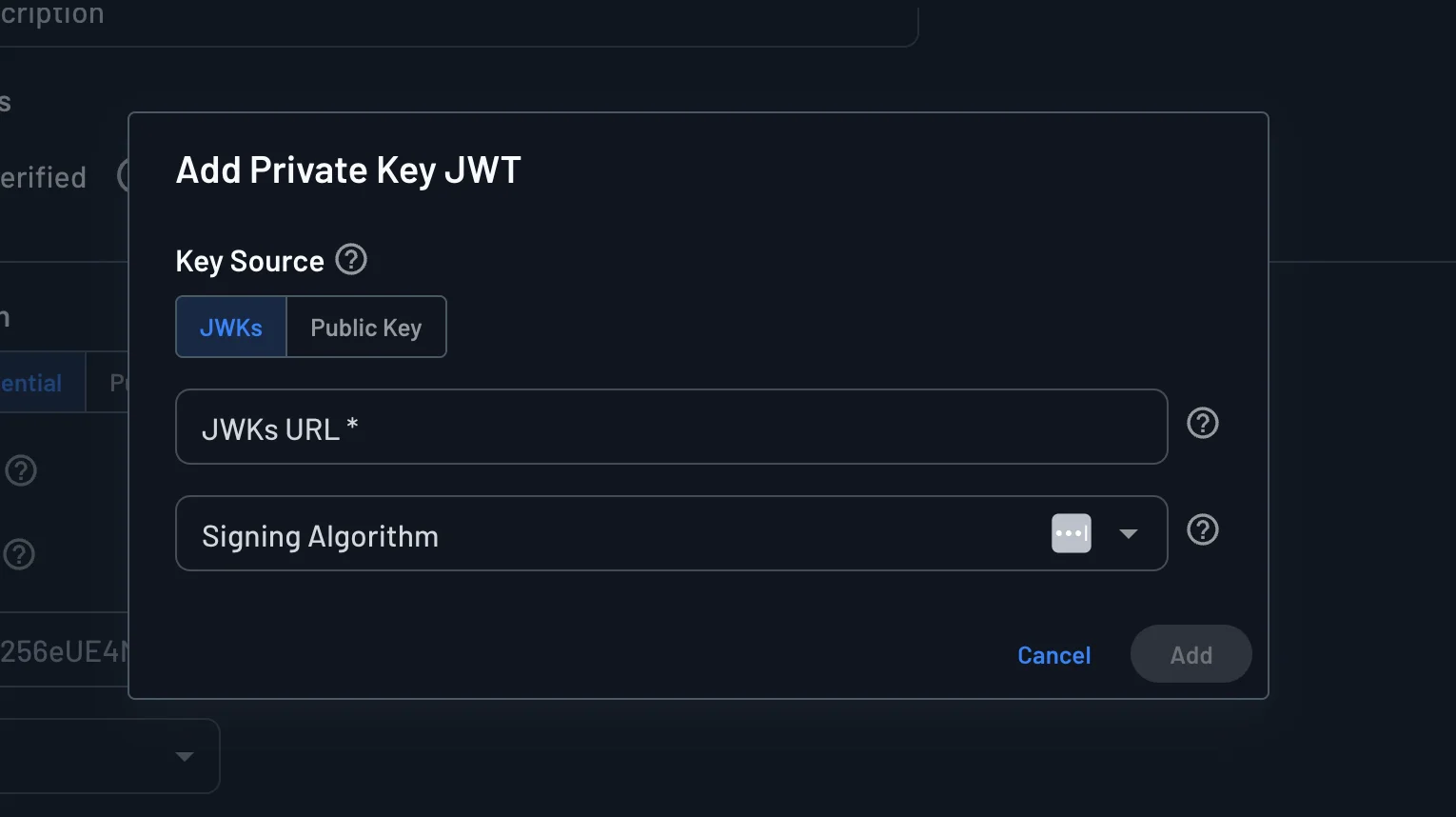
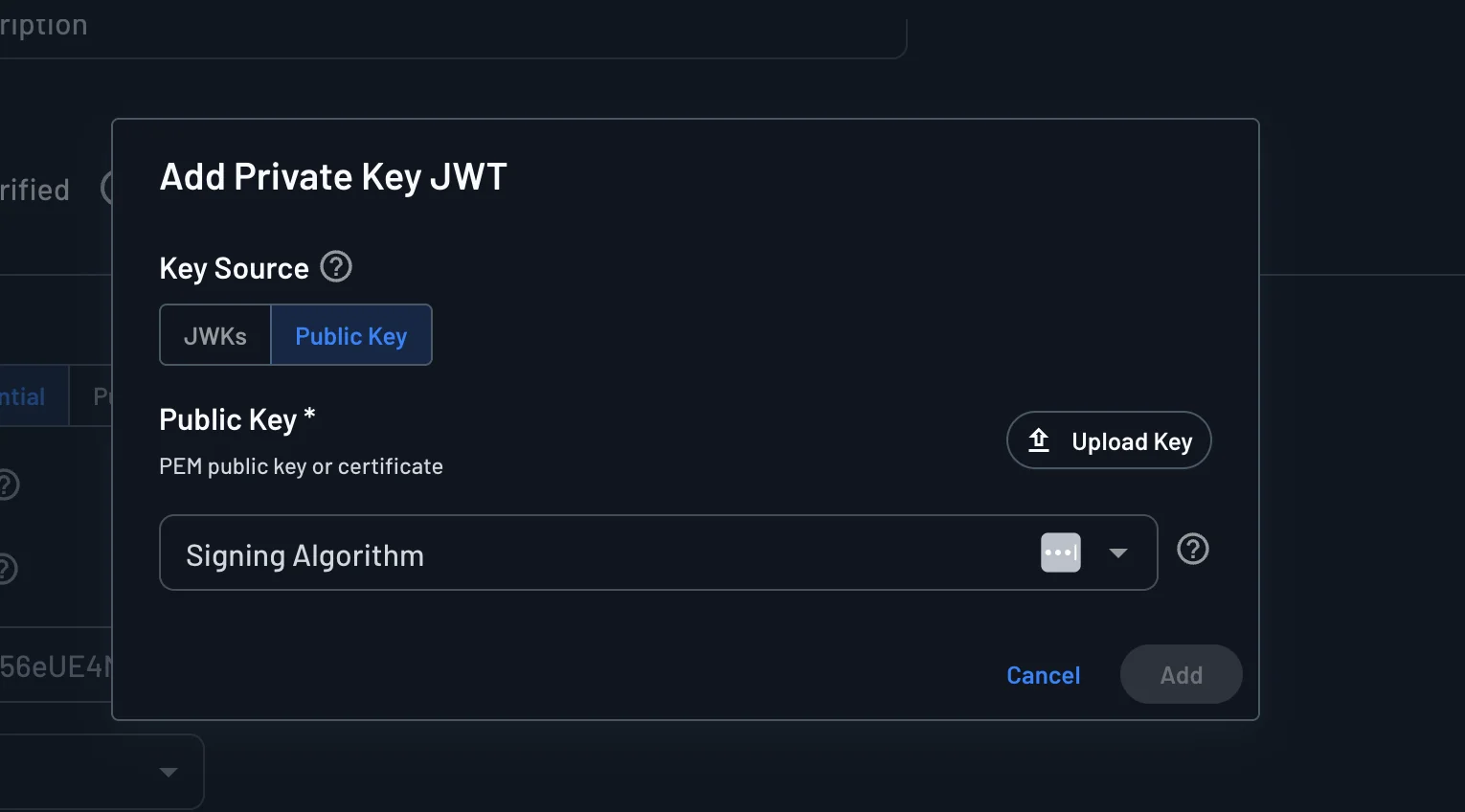
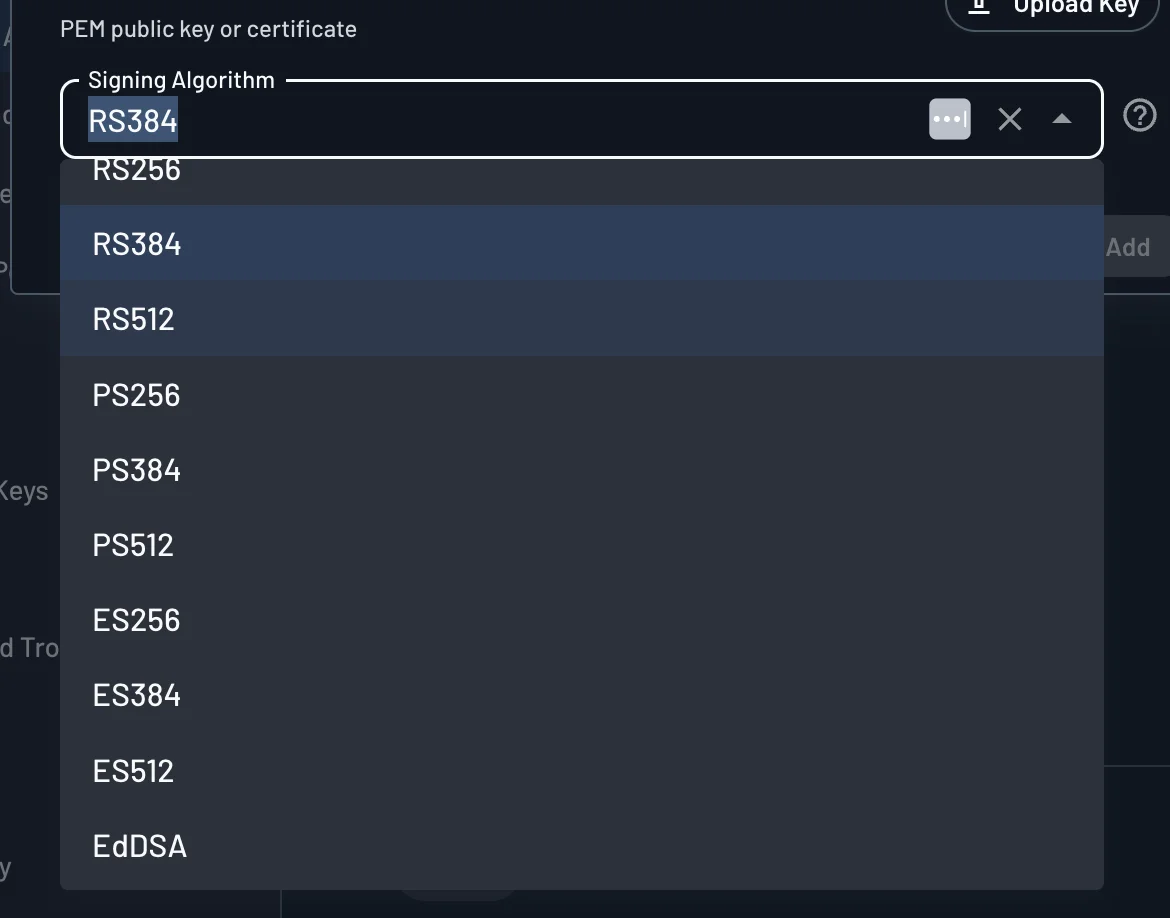
For either source, you can set the Signing Algorithm the client must use. Descope accepts RS256, RS384, RS512, PS256, PS384, PS512, ES256, ES384, ES512, and EdDSA. When you leave the field empty, Descope accepts any of these algorithms that fits the key.
Once you save the app with Private Key JWT, it accepts only signed assertions, and its client secret no longer works. Private key JWT covers the claims the assertion must carry, how Descope caches your JWKS, and how to set the method with the Management API.
Workload Identity Federation
With Workload Identity Federation, the workload presents a token that its platform already issued to it, instead of a credential that Descope issued. A pod with a SPIFFE ID or a CI job with an OIDC token can authenticate as the Inbound App with nothing extra to store or rotate.
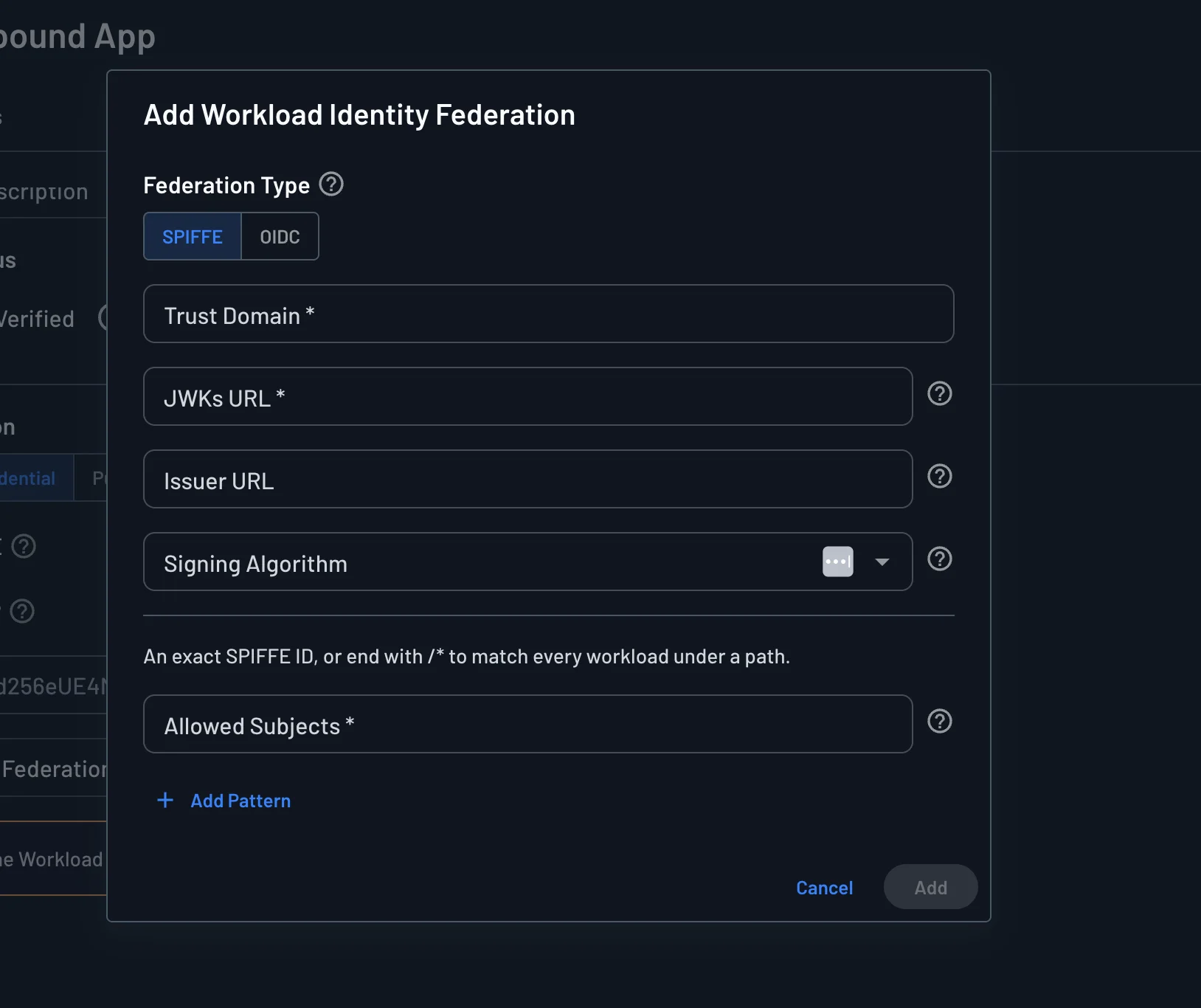
When you select Workload Identity Federation, the Console shows a warning until you add at least one federation. Click + Configure and choose a Federation Type.
SPIFFE trusts JWT-SVIDs from a SPIFFE trust domain, such as one run by SPIRE:
| Field | Required | Description |
|---|---|---|
| Trust Domain | Yes | The SPIFFE trust domain that issues the workload's JWT-SVIDs, for example example.org. |
| JWKs URL | Yes | The URL where the trust domain publishes its signing keys. |
| Issuer URL | No | The expected iss claim, when your SPIFFE deployment sets one. |
| Signing Algorithm | No | The algorithm the token must be signed with. |
| Allowed Subjects | Yes | One or more SPIFFE IDs that may authenticate. Use an exact ID such as spiffe://example.org/ns/prod/sa/billing, or end the pattern with /* to match every workload under a path. |
OIDC trusts tokens from any OpenID Connect issuer, such as GitHub Actions, a Kubernetes cluster, or a cloud provider:
| Field | Required | Description |
|---|---|---|
| Issuer URL | Yes | The issuer of the workload token. It must match the token's iss claim. |
| JWKs URL | No | The URL of the issuer's signing keys. If you leave it blank, Descope finds the keys through the issuer's discovery document. |
| Signing Algorithm | No | The algorithm the token must be signed with. |
| Allowed Subjects | Yes | One or more regular expressions. Descope matches each pattern against the whole sub claim and accepts the token only when one of them matches. |
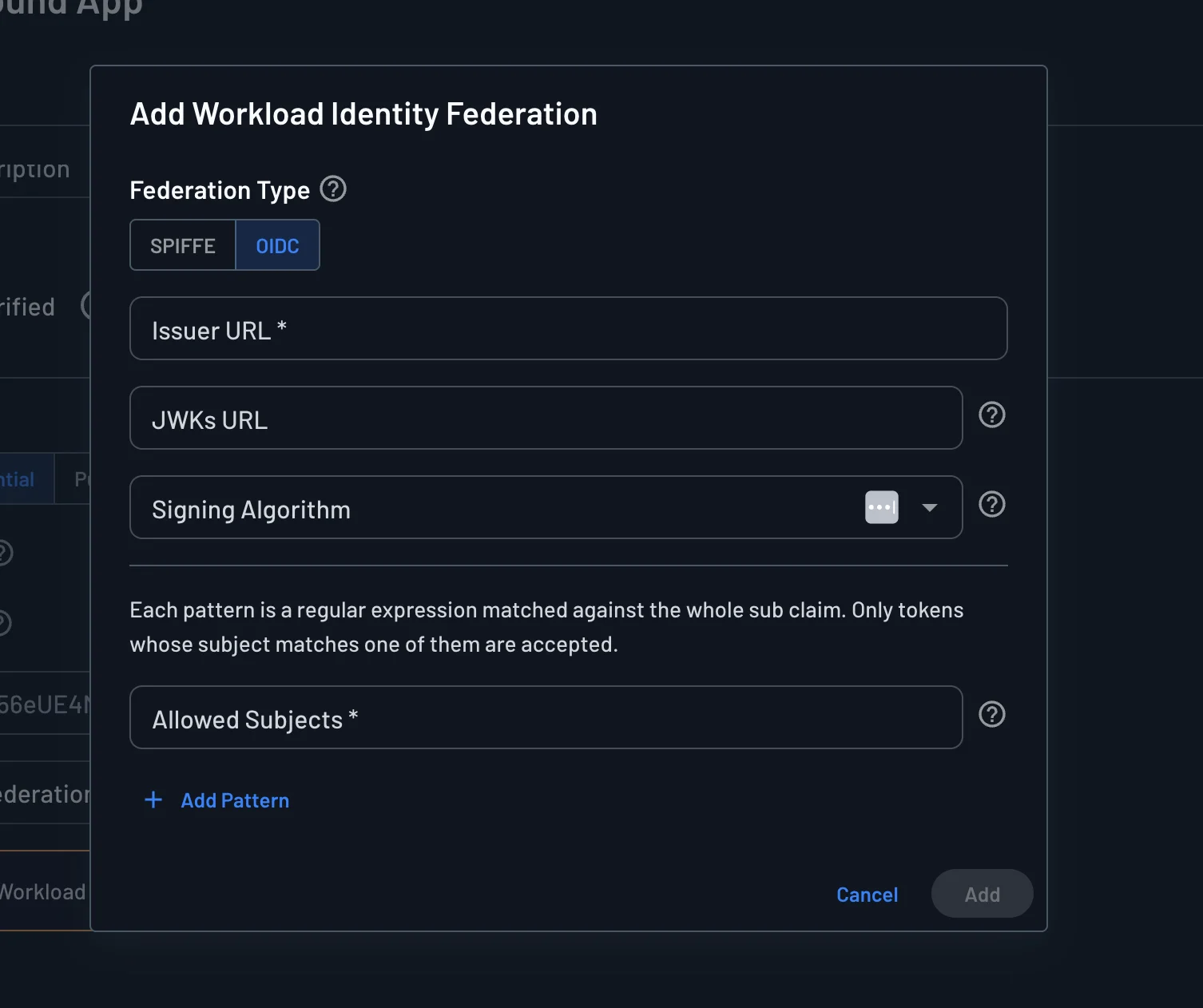
Keep Allowed Subjects as narrow as you can. An issuer such as a CI provider signs tokens for every repository and job on the platform, so the subject pattern is what limits access to your workload. Use Add Pattern to allow more than one subject. You can add more than one federation to the same app, for example one for each cluster.
The workload token's aud claim must be your project's issuer URL and nothing else. Configure your platform to request that audience when it mints the token. See Client authentication for the full request and the rest of the validation rules.
Workload Identity Federation authenticates the client. The JWT Bearer grant is a different feature: it exchanges an external JWT for a Descope token that represents the identity inside that JWT. Workload Identity covers the JWT Bearer approach for AWS and GCP.
Importing Existing Client Credentials
If another authorization server already issued client_id and client_secret values, you can create the Inbound App with those values through the Management API, so existing OAuth clients do not need new credentials. Importing a custom client ID also changes your project's issuer to __BaseURL__/v1/apps/customized/__ProjectID__.
See Migrating OAuth Clients for how to import credentials and which issuer to validate afterward.
Status
In addition to the Client Authentication settings, you'll see the app's Status under the Inbound App Details section, which can be Verified or Unverified.
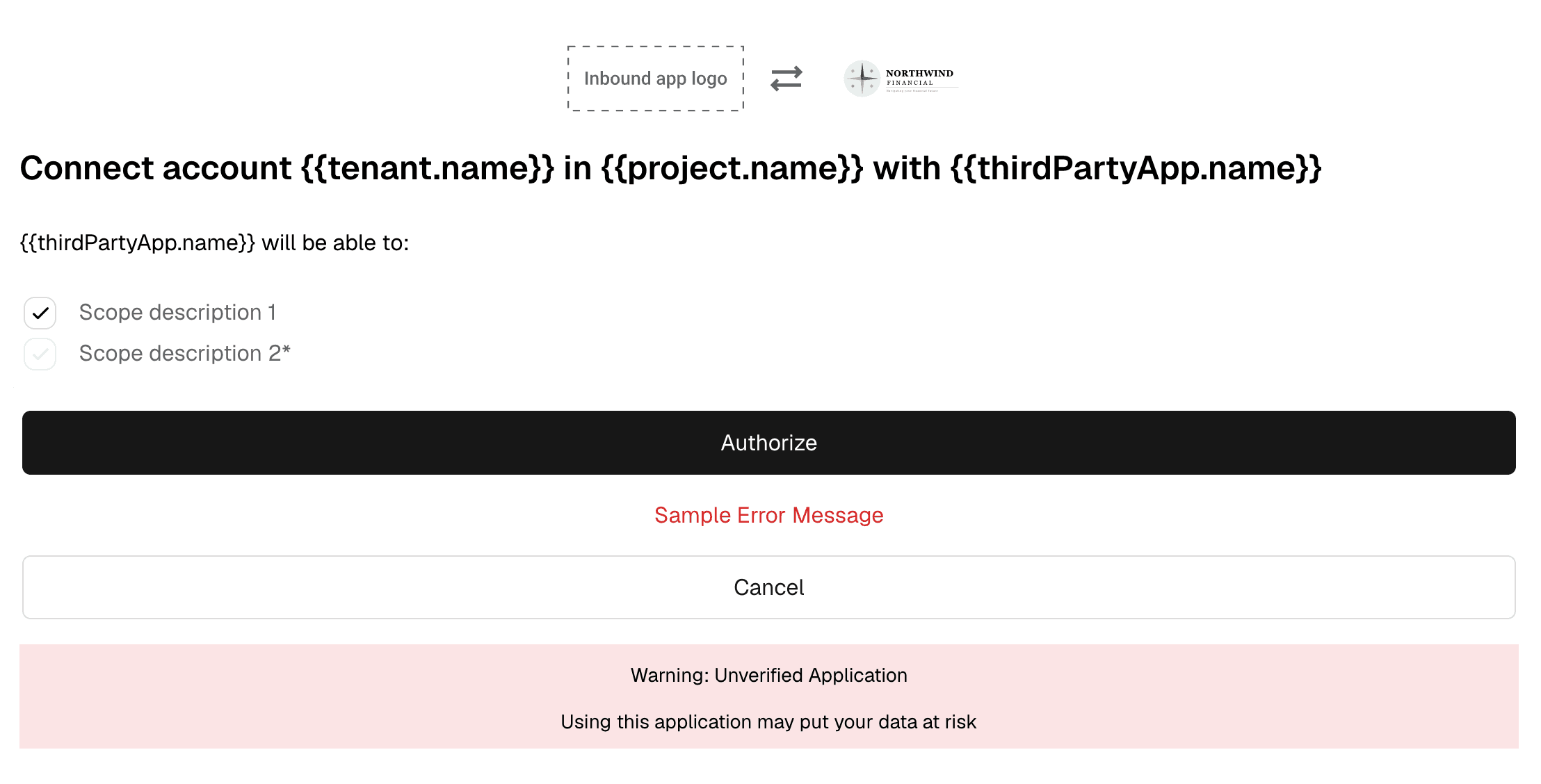
This is effectively a tag that indicates whether the app has been verified, which affects the consent screen using the default consent flow that comes with every Descope project.
This is an example of what an unverified inbound app's consent screen will look like:
Scopes
Note
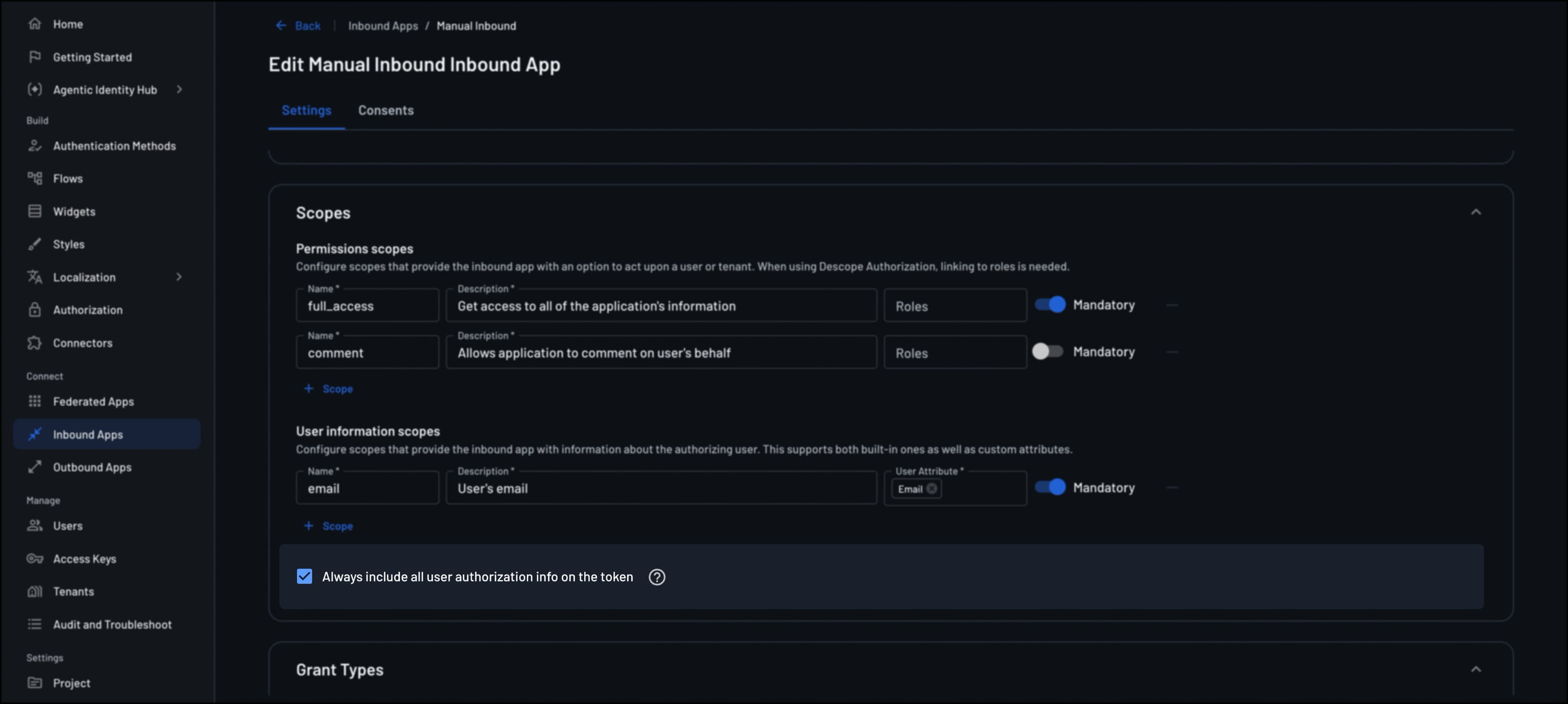
Create the API Resource first and define scopes there with RBAC role mapping, then associate the Resource with this Inbound App.
The Inbound App references that Resource and requests its scopes at authorize time. The console may also show scope configuration on the Inbound App for the linked Resource.
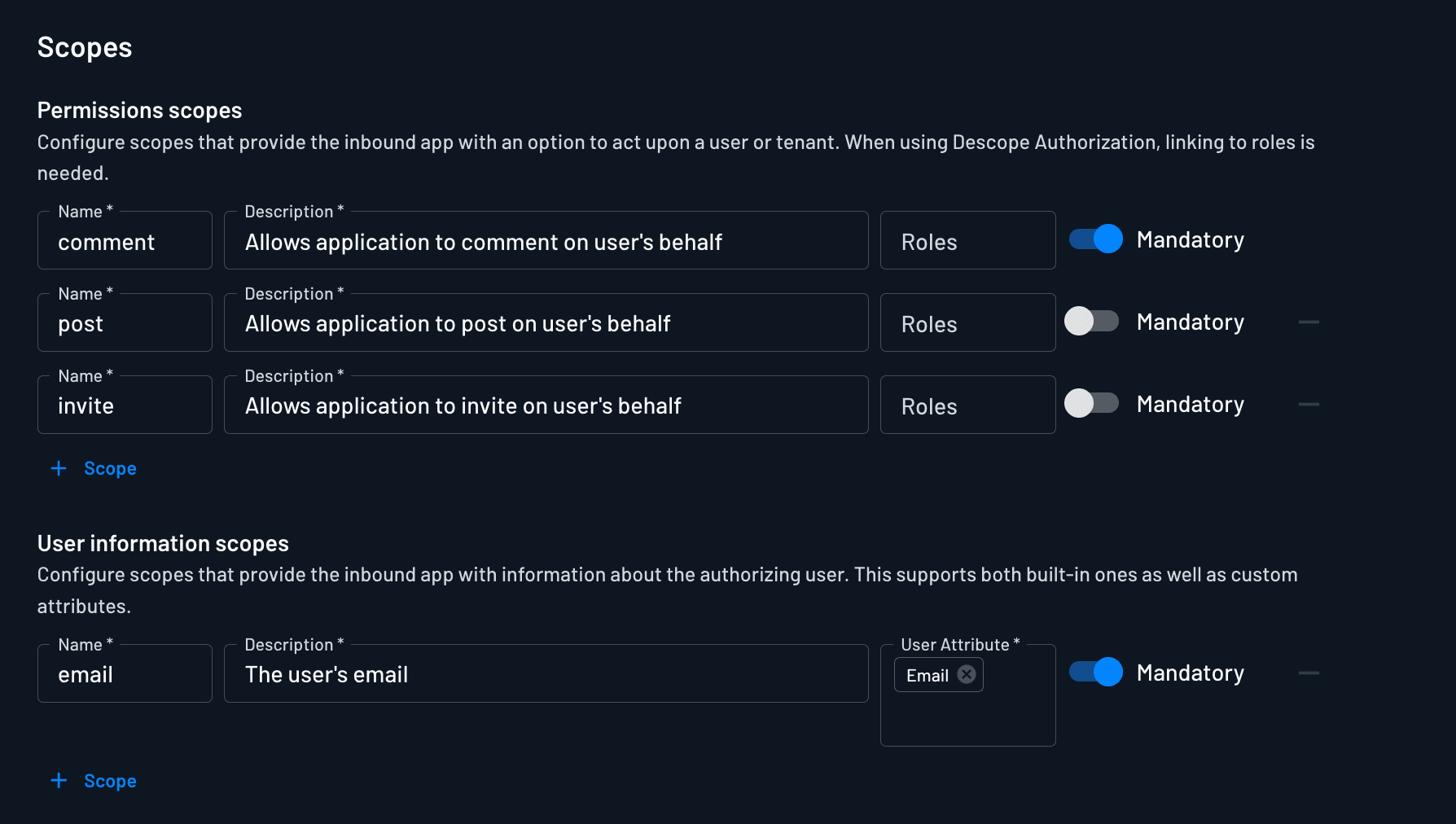
Permission Scopes
Permission scopes allow the inbound app to perform specific actions on behalf of the user or tenant. On API Resources, these scopes are mapped to Descope RBAC roles, ensuring that access is granted only to authorized users.
- Name (Required): The unique identifier for the permission scope.
- Description (Required): A brief summary of the permission.
- Roles (Optional): Assign roles if RBAC is enabled, restricting scope access to users with the appropriate role.
Attribute Scopes
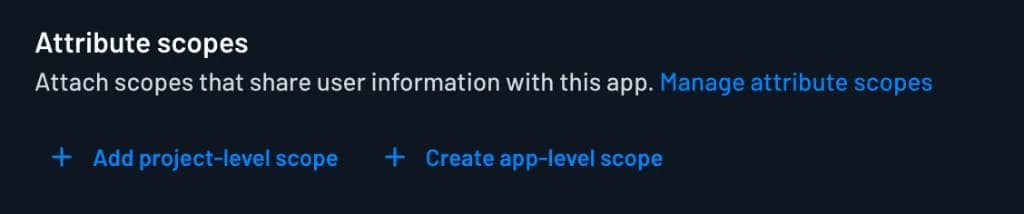
The Attribute scopes section defines what user data the app's clients can request, such as profile and email, and which claims each scope adds to tokens and the /userinfo response. You can add two kinds of scopes:
- Project-level scopes: Click Add project-level scope to add a scope defined for the whole project, under Resources on the Attribute Scopes tab. The app uses that scope's claims and token placement as they are, so when you change the project-level scope, every app that uses it picks up the change. Scopes marked Add to new applications are already included when you create the app.
- App-level scopes: Click Create app-level scope to define a scope that only this app uses. It has the same fields as a project-level scope: a scope name, a description, and claims with their own token placement. If it has the same name as a project-level scope, such as
profile, this app's clients get the app-level version and every other app keeps the project-level one.
Use an app-level scope when one app should get different user information for a scope than the rest of your apps. For example, suppose a partner's integration requests profile, and you only want to share each user's first name with that partner. Create an app-level profile scope on the partner's Inbound App that maps only given_name. The partner's tokens and /userinfo responses leave out name and family_name, while your own apps keep the full project-level profile. The same approach works in the other direction, for example adding an employee_id claim to profile for an internal tool without exposing it to any other app.
See Attribute Scopes for how to define project-level scopes, map claims, and control which tokens each claim appears in.
User Consent and Role-Based Restrictions
Scope ↔ role mapping is defined on the API Resource. Behavior depends on the grant type:
User-delegated (Authorization Code, CIBA)
- If a permission scope is mapped to an RBAC role, only users who hold that role (or an eligible role for that scope) can grant consent.
- Users without the required role cannot approve that scope.
- The issued Resource access token includes the granted scopes and the roles mapped to those granted scopes—not necessarily every role on the user. See User-delegated scopes and roles.
Machine / autonomous (Client Credentials, JWT Bearer, agentic M2M)
- There is no interactive consent. Policies (and client configuration) decide which Resource scopes the client receives—often filtered by
client.tags. - Role mapping on the Resource still applies to the token: granted scopes include their mapped roles in the
rolesclaim so backends can authorize from roles/permissions. See M2M scopes and roles.
Scope Token Settings
In the Scopes section, the Always include all user authorization info on the token checkbox controls what user tokens carry. When checked, Descope includes the user's tenants, roles, and permissions in the JWT regardless of which scopes were requested or approved. This overrides the default Resource behavior of only embedding roles mapped to granted scopes. Scope consent still controls which OAuth scopes appear in scope, and the setting doesn't replace policy-based M2M scope grants.
Partial Scope Grants
By default, when a client requests scopes that the user or policy doesn't grant, Descope issues the token with only the granted scopes instead of failing the request. The request still fails if a scope the user can't decline wasn't granted.
To require all-or-nothing behavior for this app, set allowPartialScopes to false with the Management API. The token request then fails unless every requested scope is granted. This setting isn't available in the Console.
Grant Types
Note
The same settings apply to Agentic Clients.
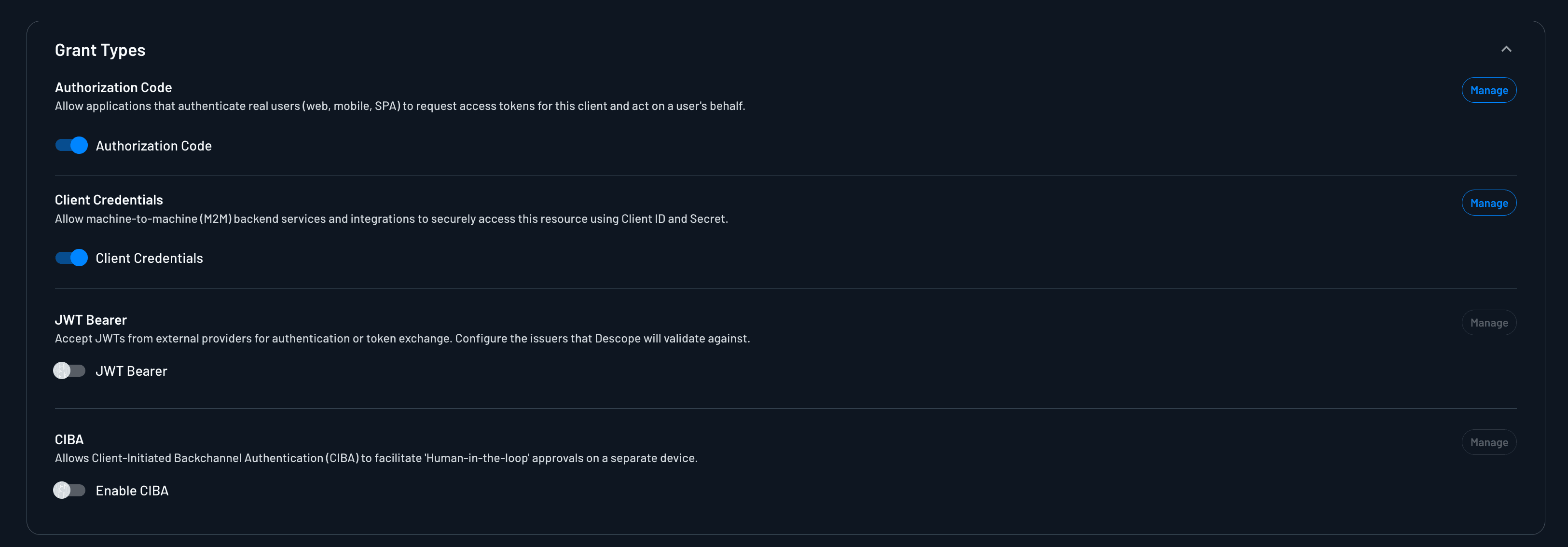
The Grant Types section controls which OAuth grant types the inbound app is allowed to use. Enable a grant type with the toggle on the left, and use the Manage button on the right to configure grant-specific settings.
| Grant Type | Description |
|---|---|
| Authorization Code | Interactive flows where a user authenticates and consents to the app acting on their behalf. |
| Client Credentials | Machine-to-machine authentication where the app authenticates as itself, with no user involved. Confidential clients only. |
| JWT Bearer | The app presents a signed JWT from a trusted issuer to obtain a Descope access token (urn:ietf:params:oauth:grant-type:jwt-bearer). Not enabled by default. Confidential clients only. |
| CIBA | Client-Initiated Backchannel Authentication for asynchronous, decoupled user authorization. Not enabled by default. Confidential clients only. |
For how each grant works and when to use it, see Grant Types. For request examples, see Using Inbound Apps.
Authorization Code Flow
Used when an application redirects a user through Descope for login and consent.
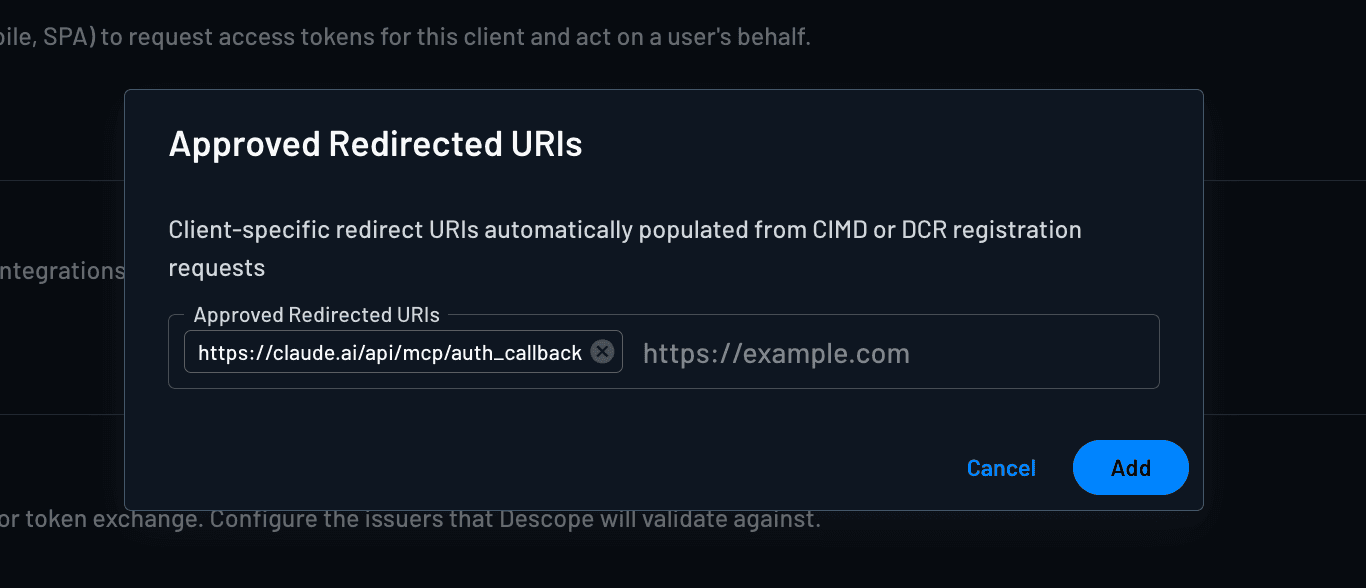
Click Manage to configure approved redirect URLs: the callback URIs Descope may return users to after authentication. Restrict this list to the URLs your app actually uses, so authorization codes cannot be sent to unexpected destinations.
Public clients must use PKCE with this grant type. For confidential clients, PKCE is optional unless you enable Require PKCE under Client Authentication.
Loopback Redirect URIs
Native apps, CLIs, and local agents usually listen for the callback on a random local port, so you won't know the port ahead of time. Register the redirect URI without a port, and Descope will accept the callback on any port, following the loopback rules in RFC 8252:
http://127.0.0.1/callbackYou can also write the port wildcard out explicitly, and it matches the same way:
http://127.0.0.1:*/callbackhttp://localhost/callback also works, but use 127.0.0.1 when you can.
The name localhost has to be resolved, and if it resolves to something other than the loopback interface, the authorization code can leave the machine (RFC 8252 §8.3).
Client Credentials Flow
Used when a backend service authenticates with its client ID and secret and receives a token with no end-user session.
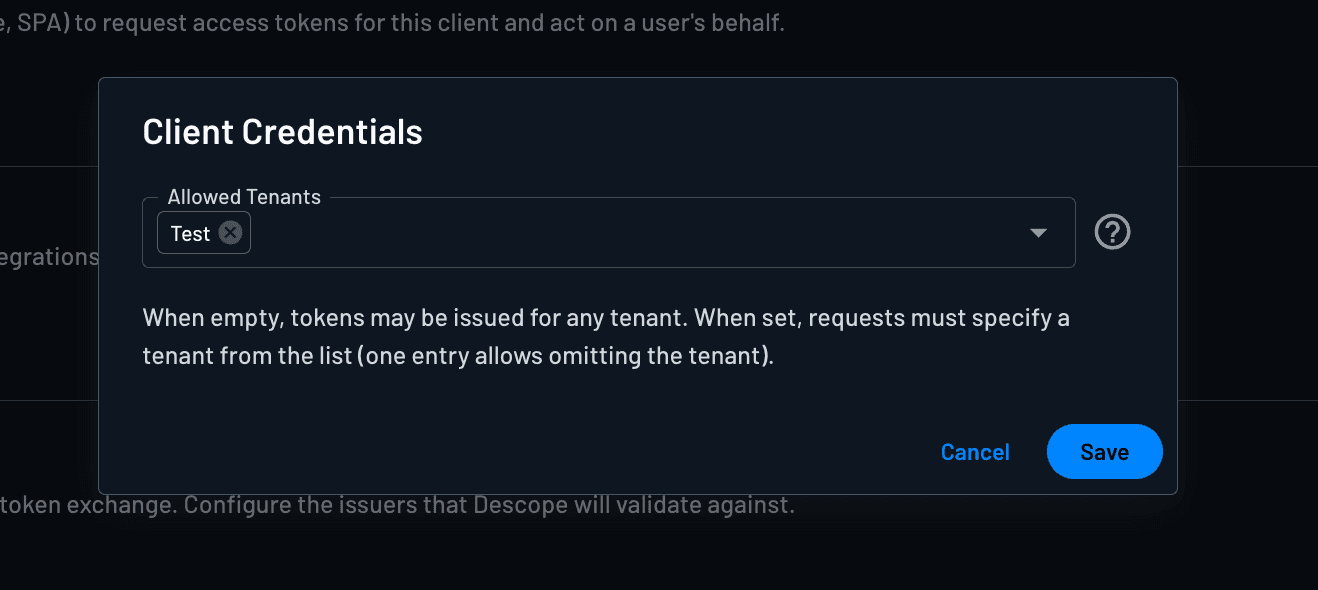
Click Manage to set Allowed Tenants. By default the app can be used across your entire Descope project; add specific tenants to the list when you want to restrict it to particular tenants only (for example a dedicated M2M integration per customer tenant).
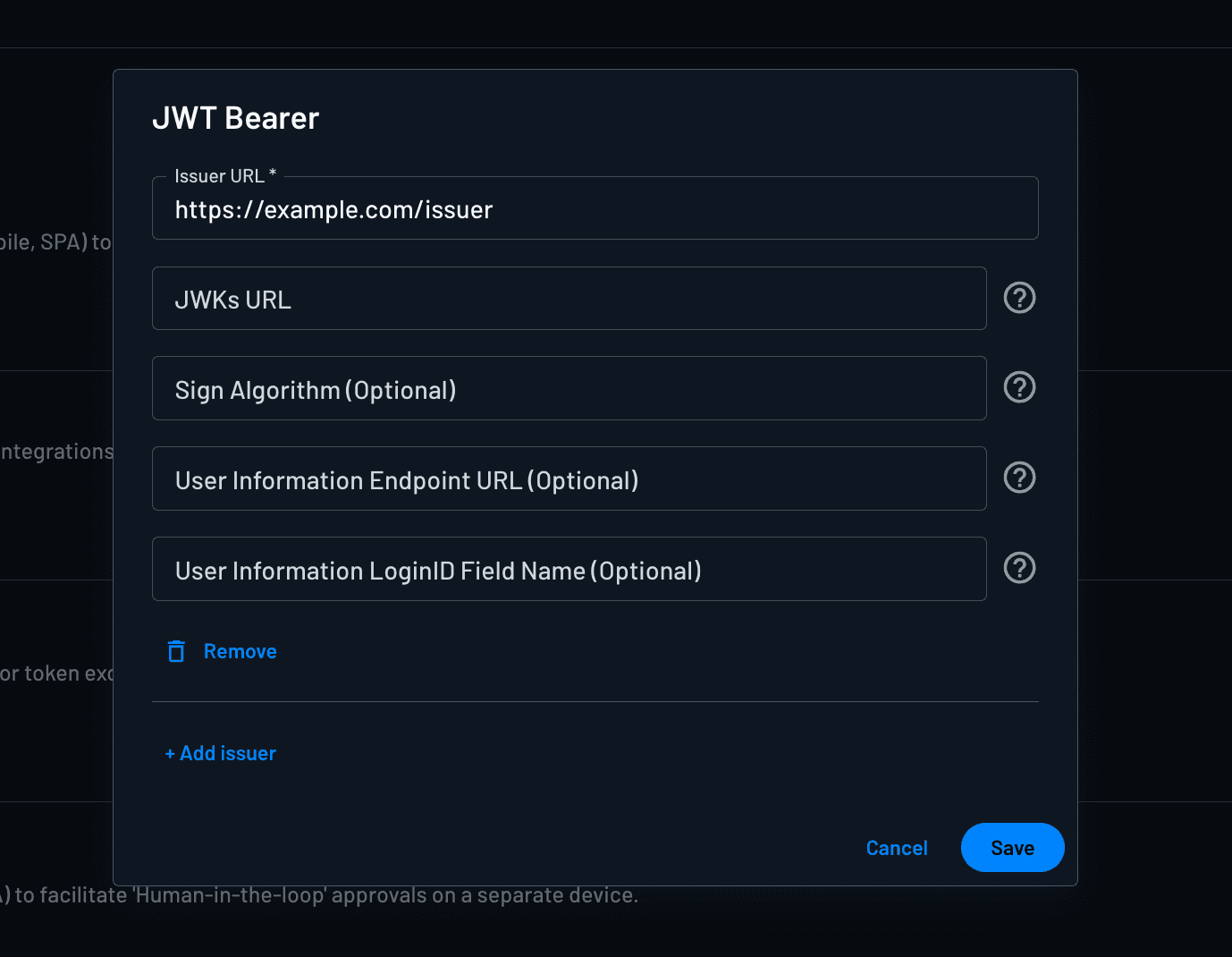
JWT Bearer Flow
Used when the app exchanges an external OIDC JWT for a Descope-issued token at the token endpoint. See External token management for examples.
Click Manage to register one or more trusted issuers for this app. Descope accepts JWTs from any issuer you add. For each issuer you configure:
| Field | Required | Description |
|---|---|---|
| Issuer URL | Yes | Expected iss claim on incoming JWTs. |
| JWKs URL | No | URL for the signing keys used to validate the JWT. If omitted, Descope derives it from the issuer URL. |
| Sign algorithm | No | Acceptable algorithms (for example RS256 or ES256). If omitted, the algorithm is taken from the JWT header. |
| User Information Endpoint URL | No | OIDC UserInfo URL called after JWT validation to load profile attributes not present in the token. |
| User Information LoginID Field Name | No | Field name in the UserInfo response that maps to the Descope login ID for the user (for example sub or email). |
You can add multiple issuers so a single inbound app accepts JWTs from more than one external identity provider.
For exchanging cloud workload identity tokens (AWS / GCP) with this grant type, see Using Descope with Workloads.
Client-Initiated Backchannel Authentication (CIBA)
CIBA handles decoupled or headless approval, where the client cannot present a browser-based login or consent screen and the user approves out of band on another device. It is available to confidential clients only and is off by default.
Enabling the toggle here turns CIBA on for the app. The Manage button opens the delivery connector, message template, link expiration, and the flow that runs on approval.
For those settings and the full flow requirements, see CIBA grant.
Token Exchange
Token exchange is not enabled as a toggle under Grant Types. After the inbound app holds a Descope token from any grant above, it can exchange that token at the token endpoint for a token scoped to a specific Resource, using RFC 8693 (urn:ietf:params:oauth:grant-type:token-exchange).
Which exchanges are allowed is controlled by Policies (subject = the inbound app, target = the Resource and its scopes).
See Token exchange for policy setup, flows, and examples.
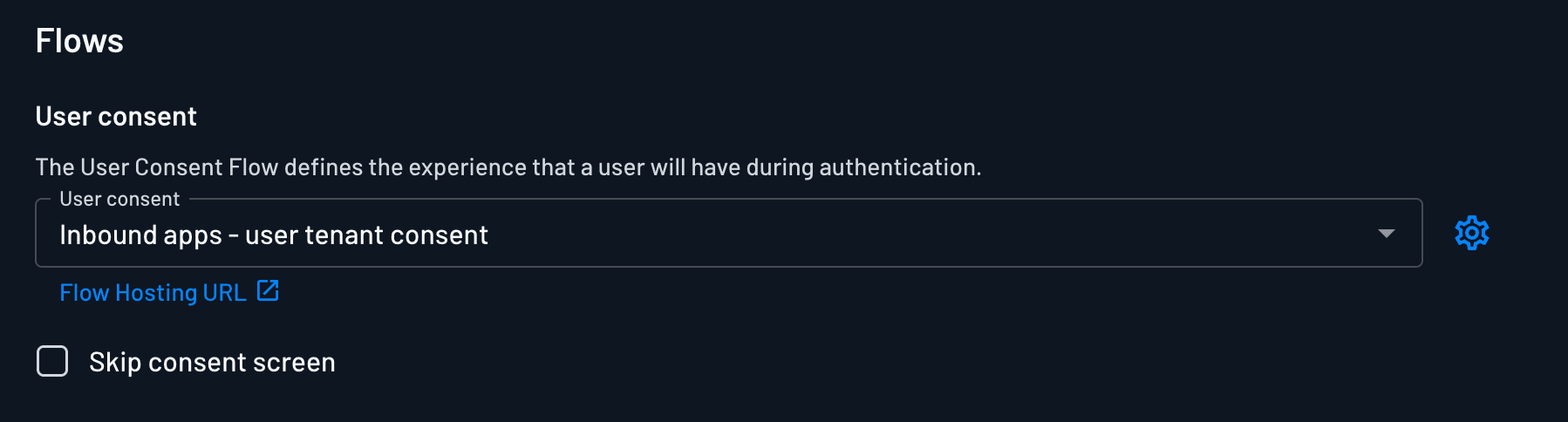
Flows
The Flows section appears only when Authorization Code or CIBA is enabled under Grant Types. If neither grant is enabled, the Flows section is hidden.
| Flow | Shown when | Purpose |
|---|---|---|
| User Consent | Authorization Code is enabled | The Descope flow users run during the authorization code flow (login and consent). See Building a Consent Flow. |
| CIBA | CIBA is enabled | The flow users run when they open the out-of-band CIBA approval link. See Configuring the CIBA Flow. |
Flow hosting (where the flow is served, style, theme, and related hosting options) is configured with the gear icon next to the selected flow. See our Auth Hosting page for more details.
Building a Consent Flow
Screens
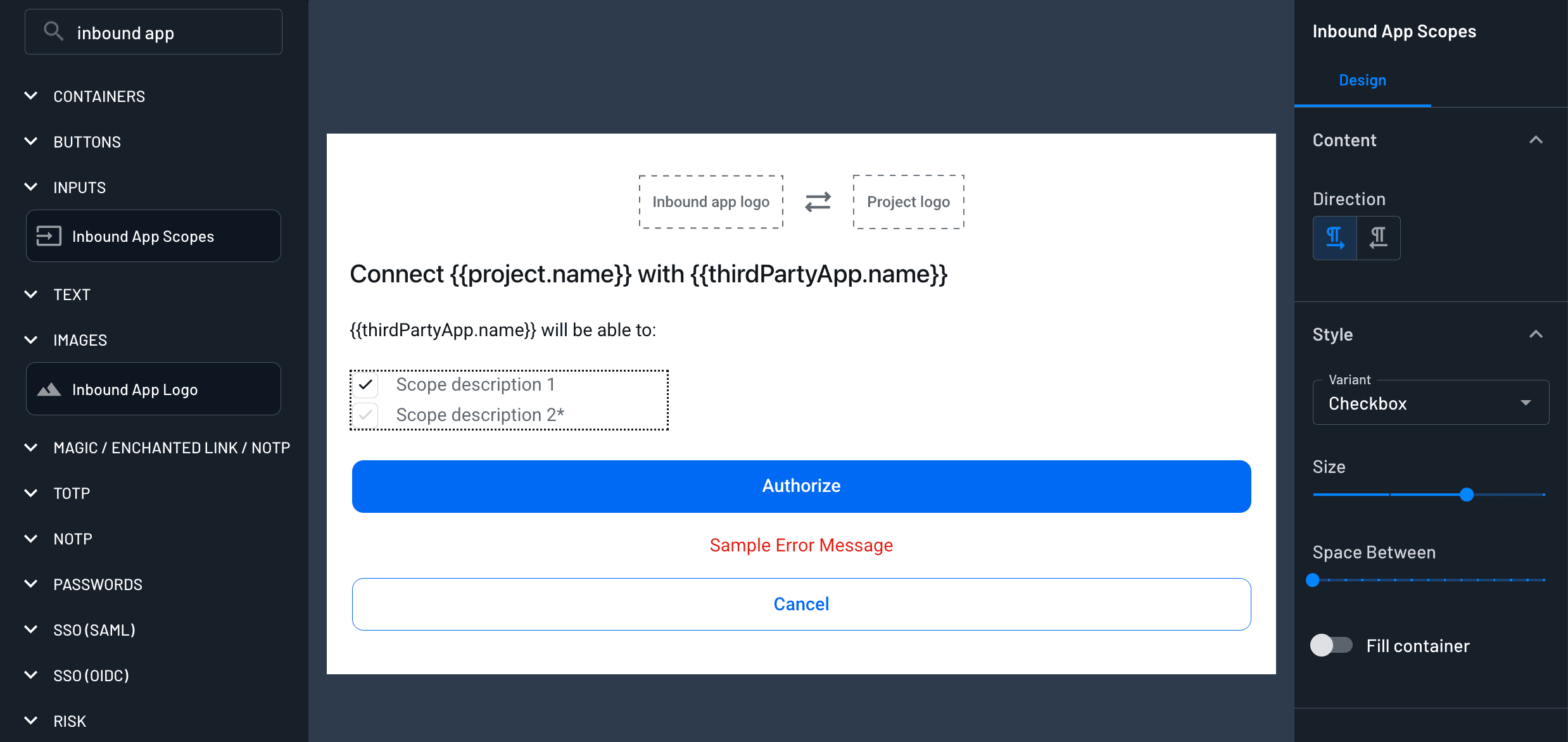
There are two components in Flow screens specifically for Inbound Apps:
- Inbound App Logo - Displays the app's configured logo and connection arrows.
- Inbound App Scopes - Automatically shows the scopes configured for the app, ensuring users can review permissions before proceeding.
Unless the consent action has Scopes auto approval turned on, the screen before it has to include Inbound App Scopes. The action records what the user approves on that component, so the consent fails without it. See A Consent Action Is Always Required.
Actions
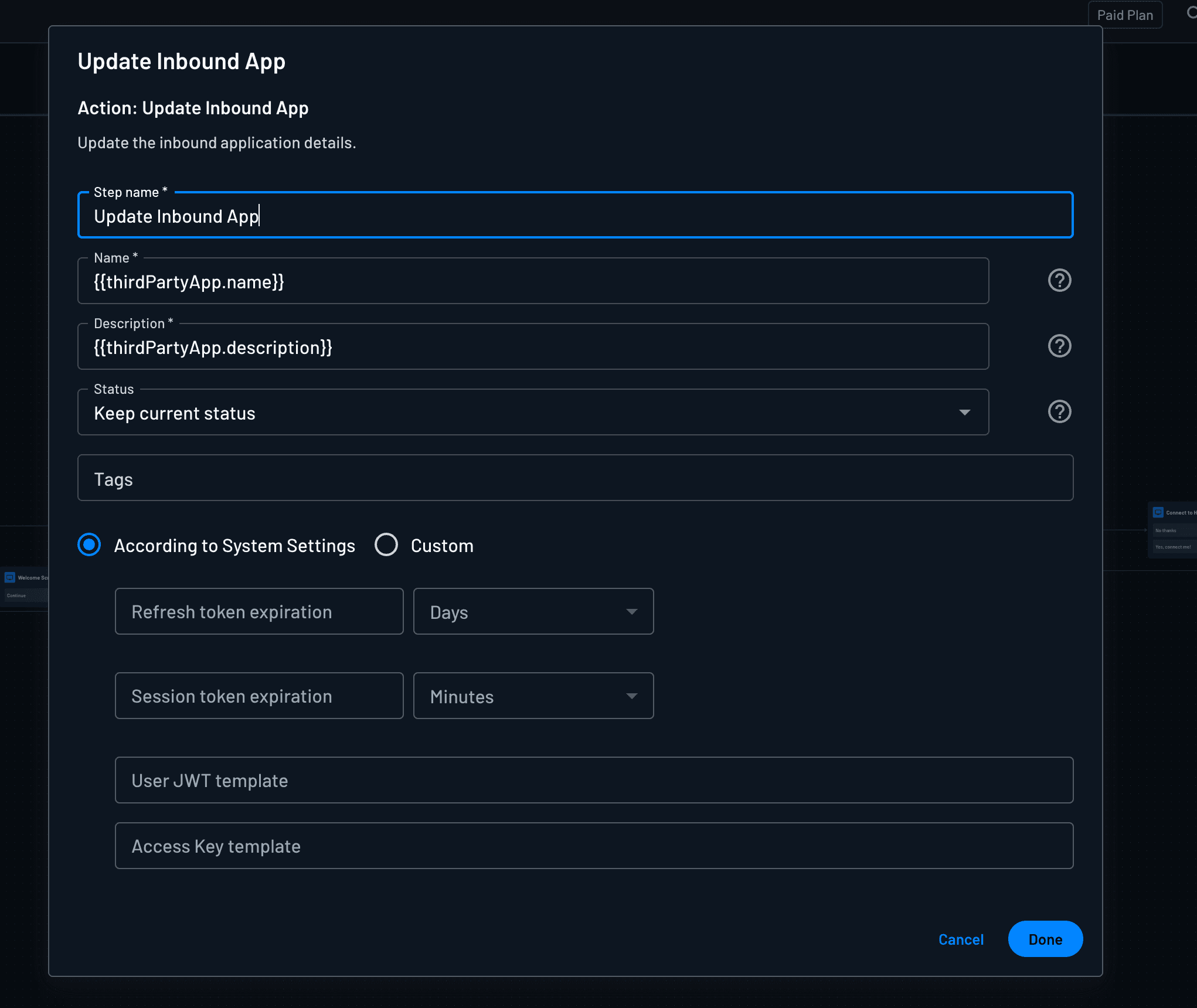
There are a few actions in Flow actions specifically for Inbound Apps:
- Update Inbound App - Update the inbound app's details
- Update Inbound App Status - Turn an unverified inbound app into a verified one.
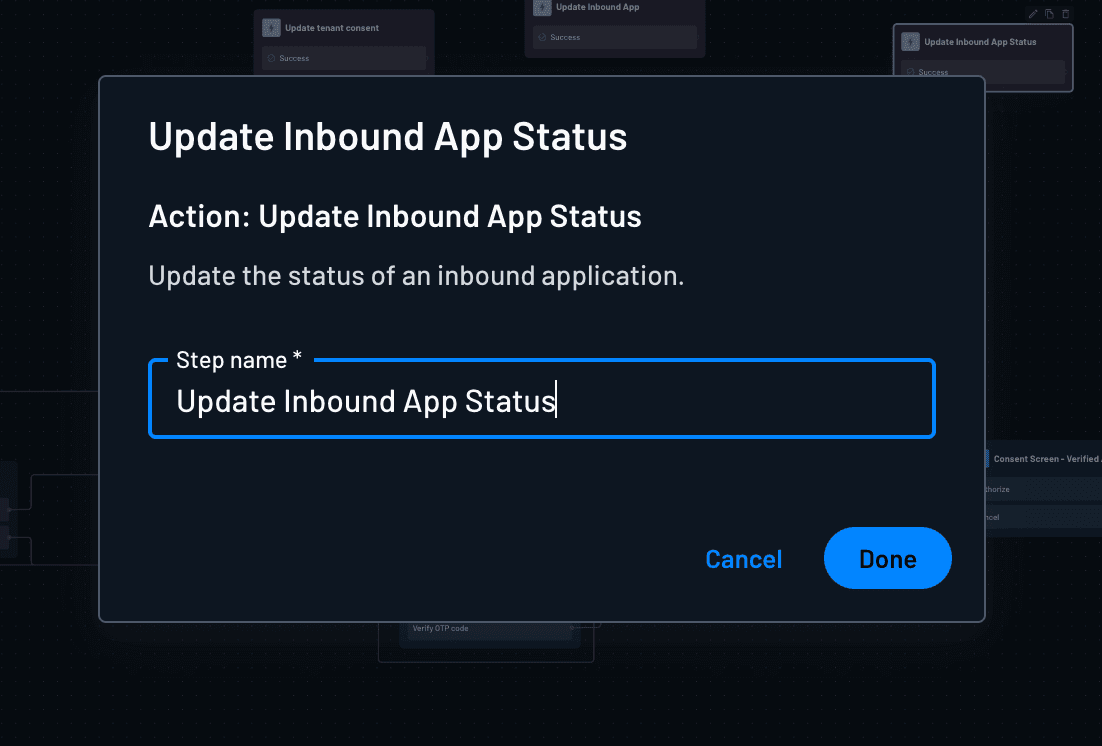
- Update user consent - Update the user's consent
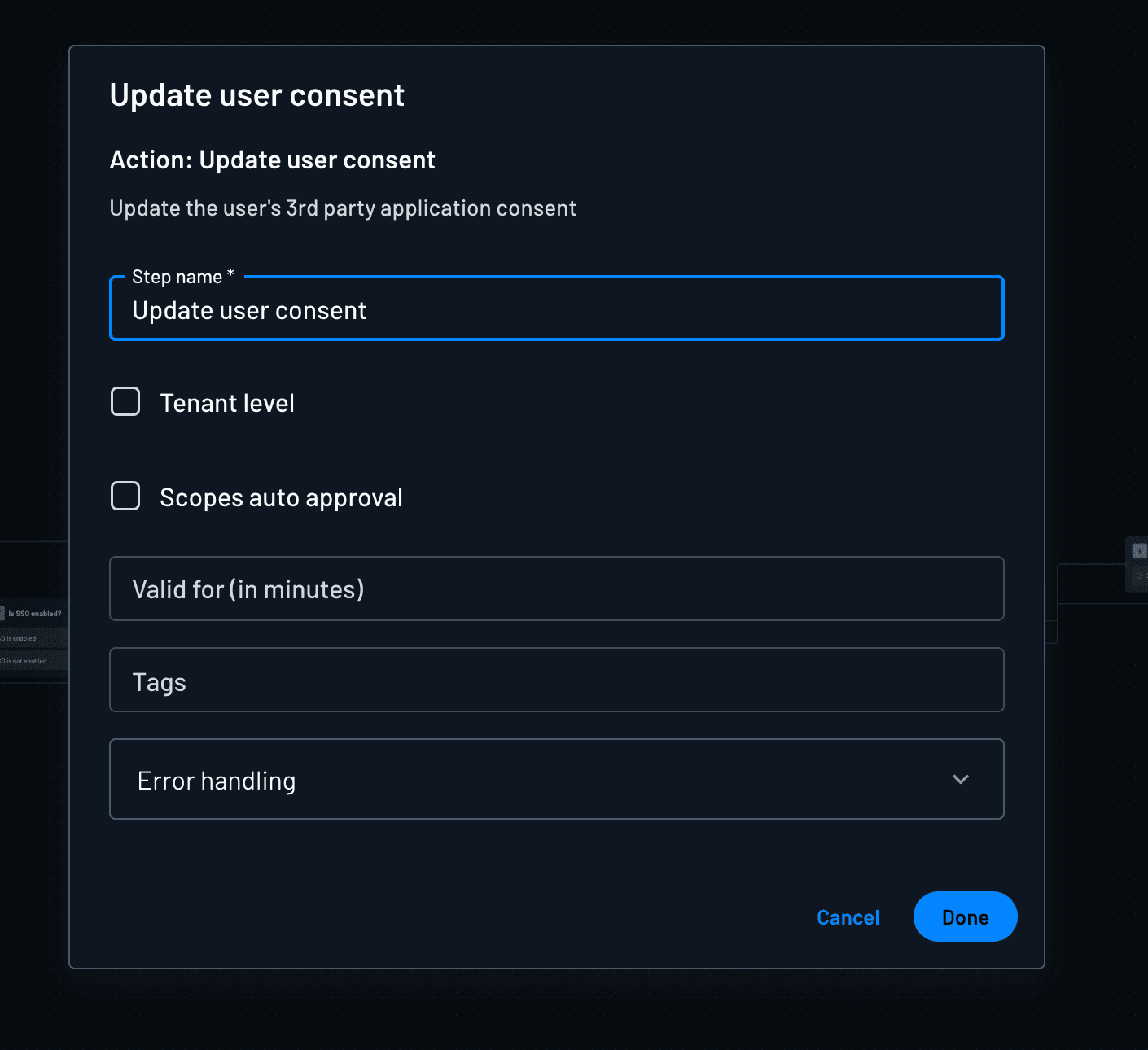
- Update tenant consent - Update the tenant's 3rd party application consent
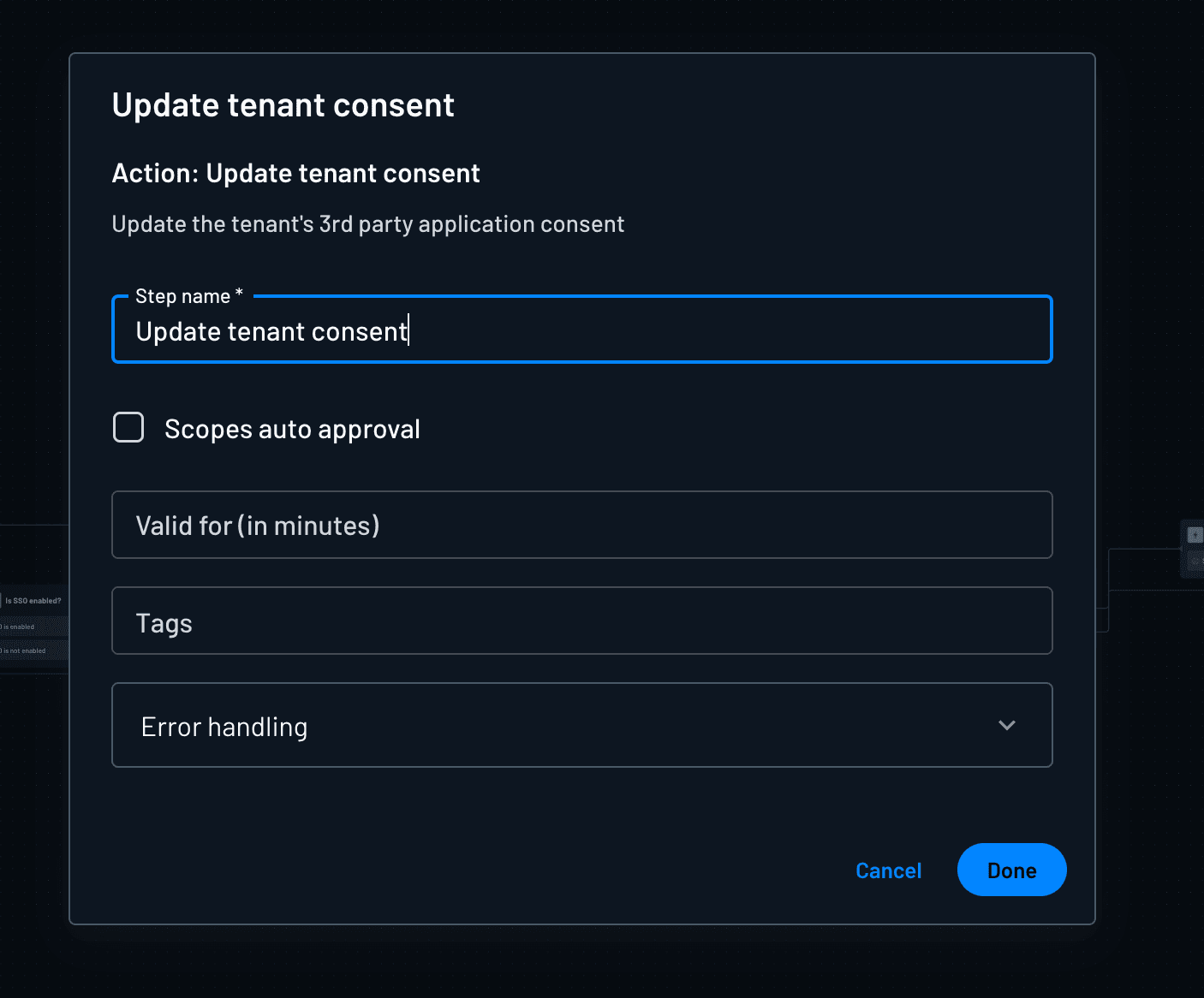
Implementing a Consent Flow
To integrate a consent screen into your flow:
- Use a subflow to keep your authentication flow consistent.
- After authentication, check if the user has already granted consent using
thirdPartyApp.user.consented.- If consent is given, proceed to the next step.
- If not, display the consent screen.
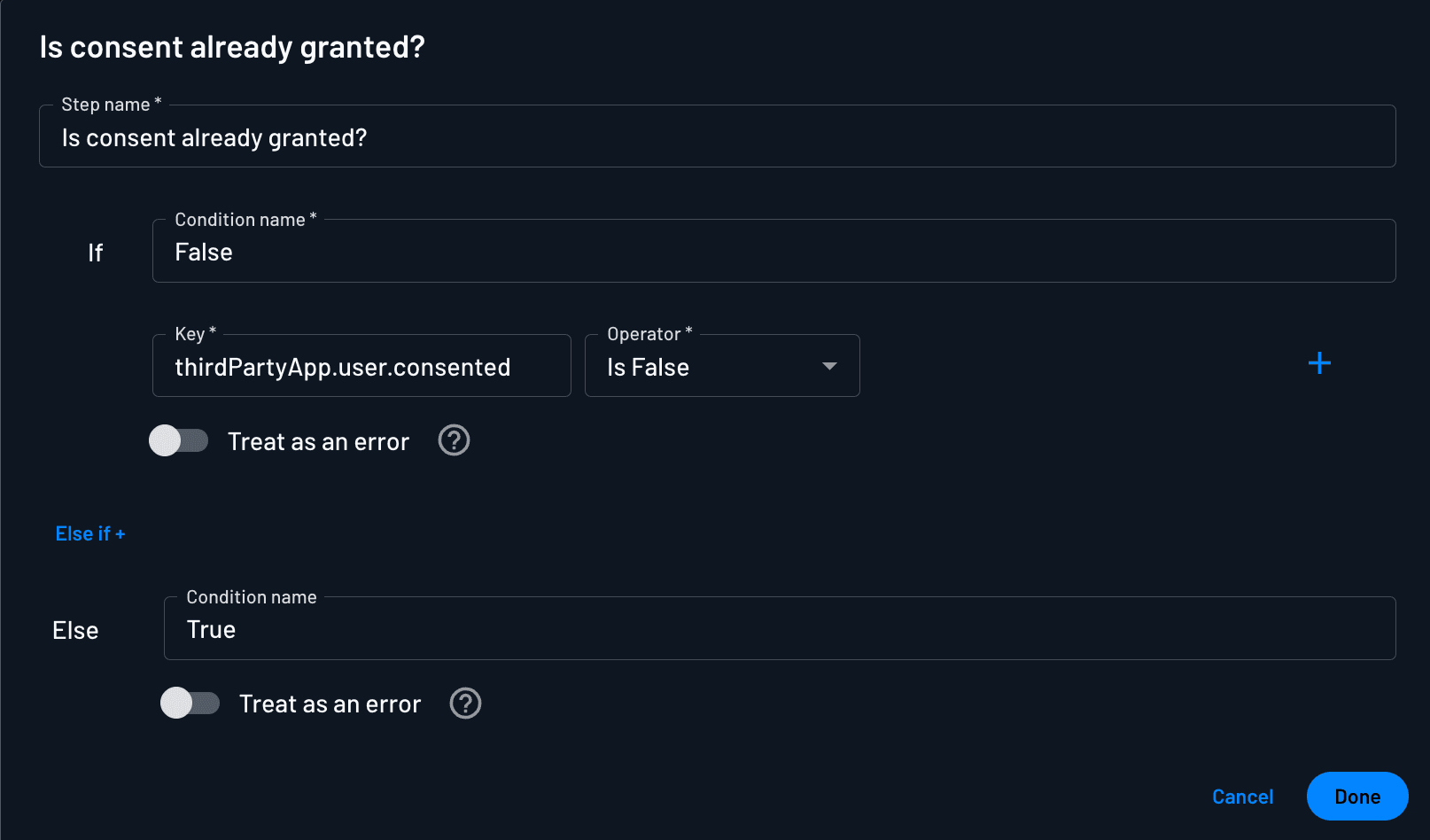
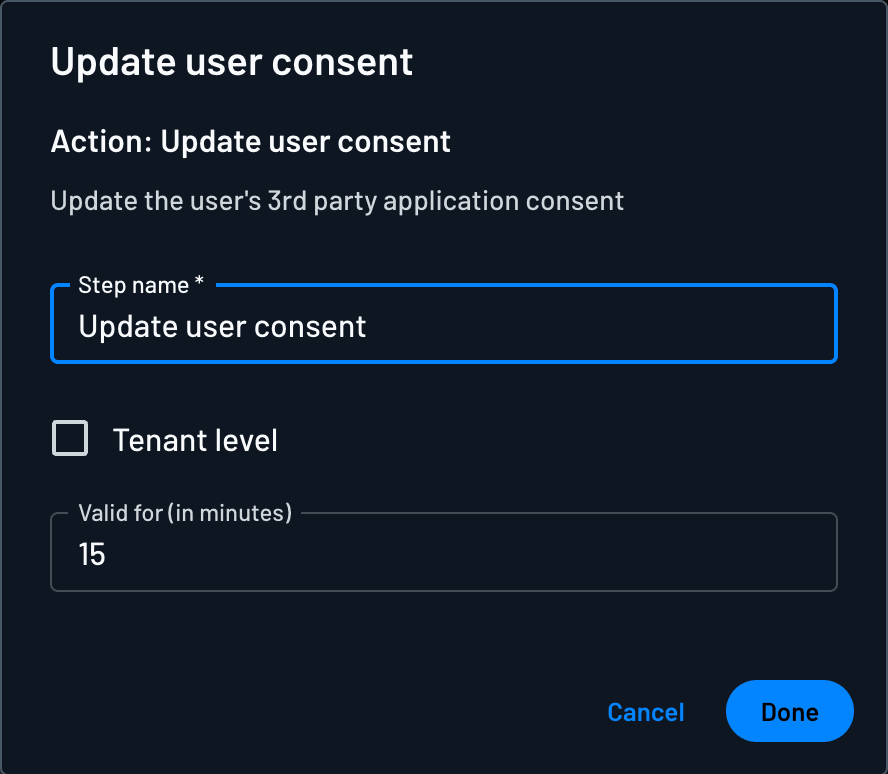
- Use the
Update User Consentaction to save the user's response. Here you can also pass in the amount of time that the user's consent is valid for, by either specifying a number or a dynamic value that you ask the user to provide in the consent screen.
- If the user denies consent, prompt them to review or return.
- Customize the flow as needed for your app's logic and design.
Example Consent Flow
For more consent-based flow examples, visit our Flow Template library in the Descope Console.
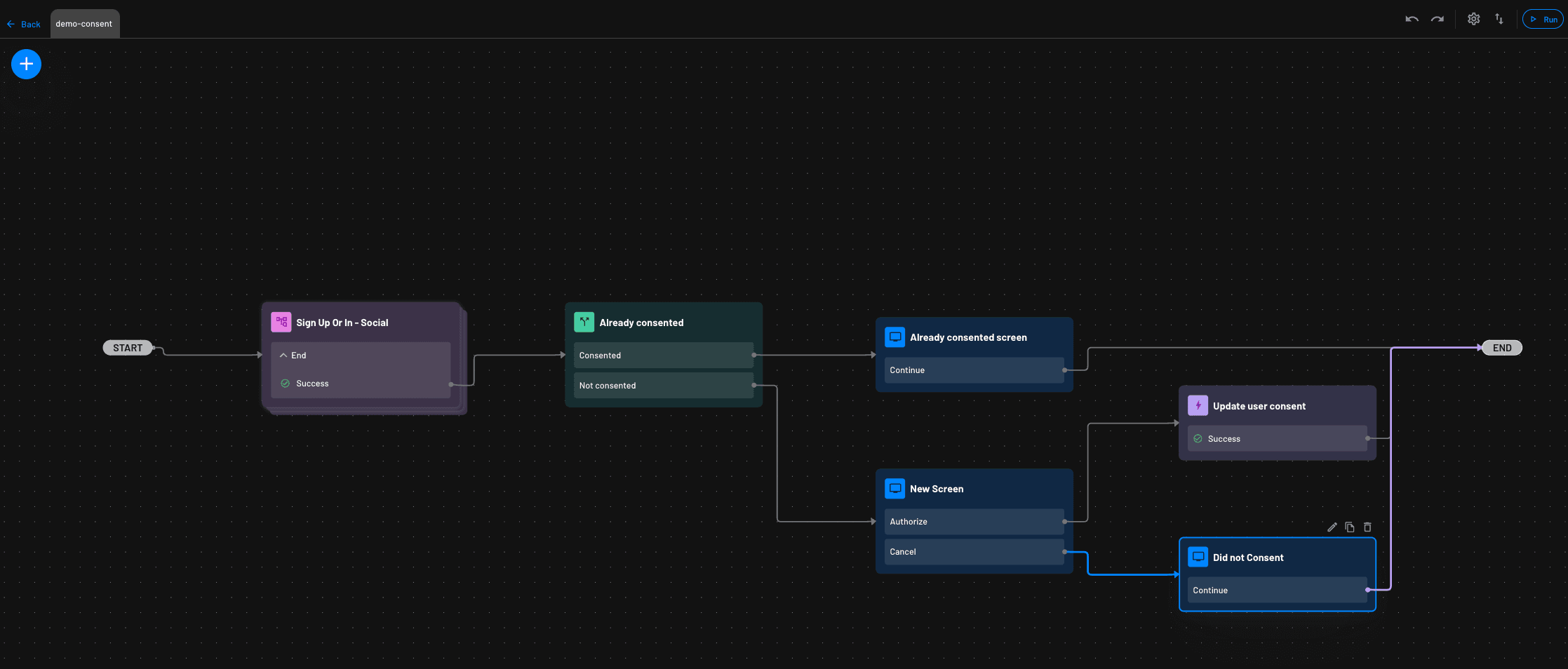
This setup ensures a smooth user experience while enforcing consent-based access control.
Connection Information
This section lists the OAuth endpoints and identifiers your application uses to talk to Descope as the authorization server.
Note
If you have a custom domain configured, the system-generated URLs will use your custom domain instead of api.descope.com.
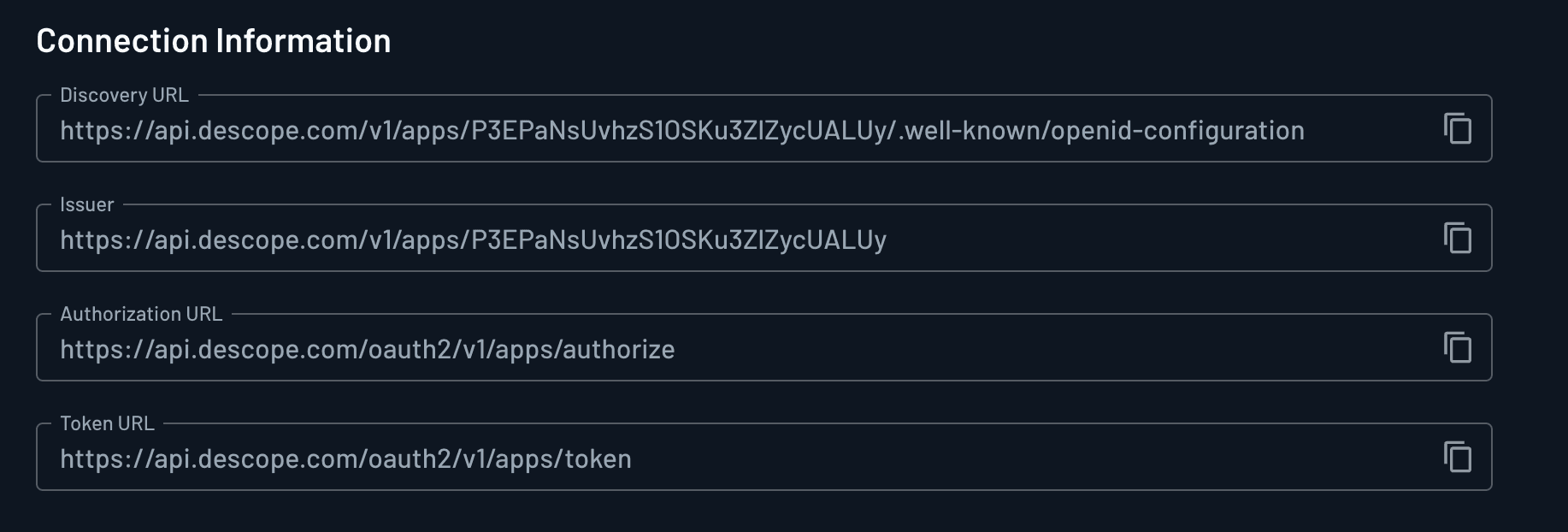
- Discovery URL: OpenID Connect configuration details, including supported scopes, public keys, and endpoints.
- Issuer: The issuer URL used for verifying identity tokens. The issuer should be the same as the Discovery URL, but without the
/.well-known/openid-configurationending path. If you've imported apps with custom client IDs, your project uses the customized issuer instead (__BaseURL__/v1/apps/customized/__ProjectID__), even though this section still shows the original one. See Issuer After Importing Client IDs. - Authorization URL: The endpoint for initiating authentication (
https://api.descope.com/oauth2/v1/apps/authorize). See Get authorization in the API reference. - Token URL: The endpoint for retrieving and exchanging tokens (
https://api.descope.com/oauth2/v1/apps/token). See Token endpoint in the API reference.
For a full list of authorization server routes, grant types, and examples, see Authorization server endpoints.
Audience
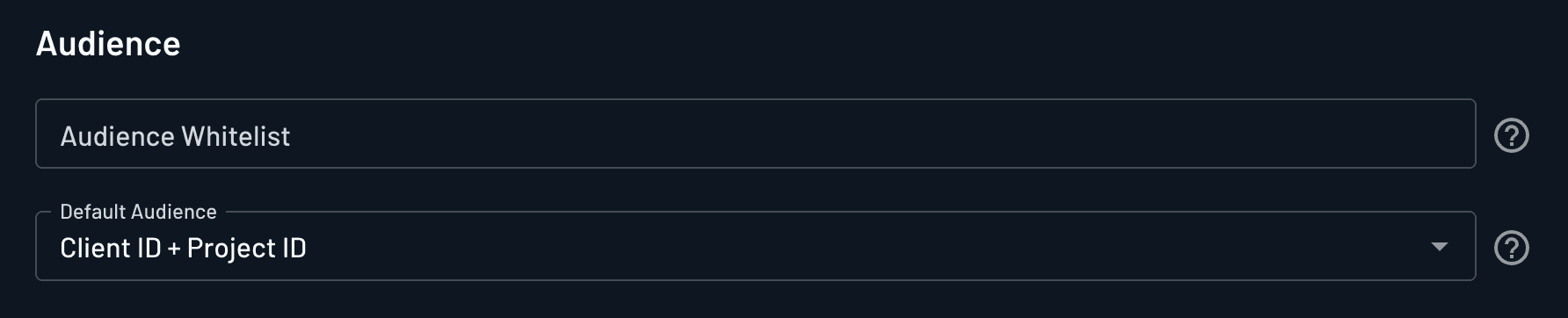
The Audience section controls which audiences this inbound app may request, and which audience value is always present on tokens it receives.
For more information on what audiences are and what their purpose is, see Audience on the authorization server page.
Audience Whitelist
Note
This is available for backward compatibility purposes. The proper way to control audiences is to use Policies.
Audience Whitelist lists the audiences this inbound app is allowed to request access to in its token requests.
Add only the Resource identifiers (or other audience values) your app should be able to target. See Audience.
Default Audience
Default Audience sets the audience format that is included on the token regardless of which audience the client requests:
| Option | Description |
|---|---|
| Client ID + Project ID (default) | Combines the inbound app's client ID and your project ID. |
| Client ID | Uses the inbound app's client ID only. |
| Project ID | Uses your Descope project ID only. |
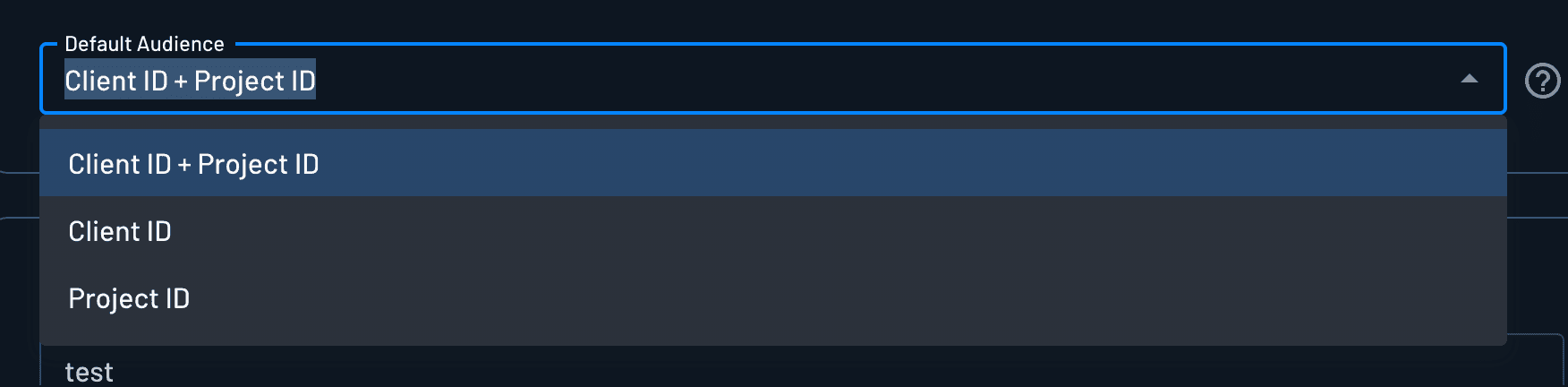
Here is an example of what the default audience like in an inbound app's access token:
{
  "aud": [
    "UDNFUGFUxVeTpUUEEzRnMwQndGZk9UWHY2N3JSWE1CSElpdUtQU28j", // Client ID
    "P2fdsdf434ggfdsaa" // Project ID
  ],
  "iss": "https://api.descope.com/P2fdsdf434ggfdsaa",
  ...
}
Custom Attributes
Inbound Apps support custom attributes associated with the application itself, separate from user or tenant custom attributes.
Define attribute schemas
You can create and manage inbound app custom attributes from the Attributes tab on the Inbound Apps page in the Descope Console.
Supported types match user and tenant custom attributes:
- Text
- Numeric
- Boolean
- Single select
- Multi select
- Date
- Month-Day

Set attribute values per app
After at least one custom attribute is defined, each Inbound App shows a Custom Attributes section above Session Management. Use that section to set values for that specific application.

You can also set these values when creating or updating an Inbound App with the Management API or SDK, using the customAttributes field as key-value pairs.
Session Management
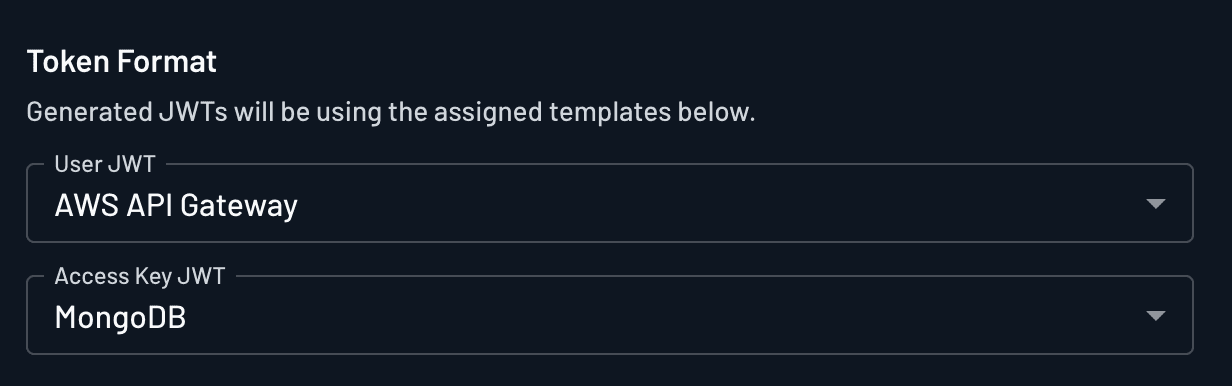
Token Format
You can set a specific JWT template for the user inbound app tokens, as well as the M2M inbound app tokens created with client credentials flow.
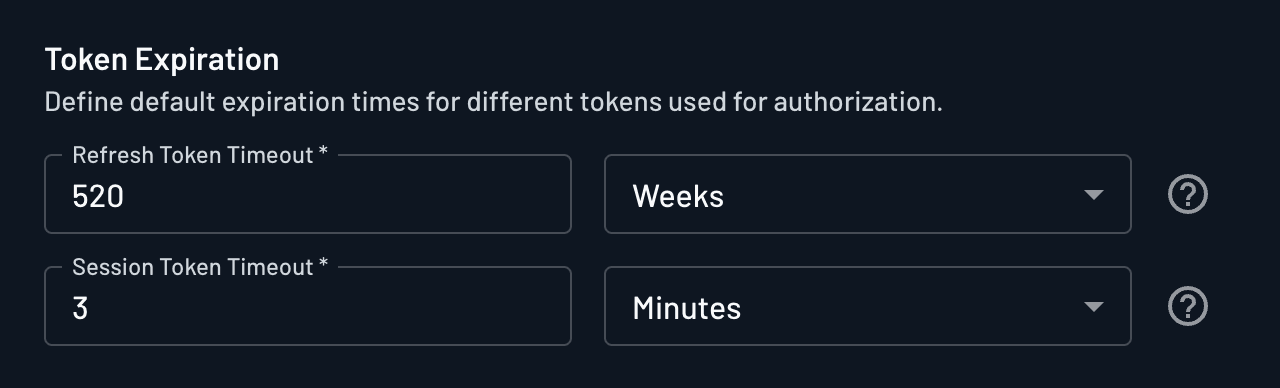
Token Expiration
You can also set a specific expiration time for the access and refresh tokens created for the inbound app.
Creating an Inbound App with the Management SDK or API
Visit our Management API and Management SDK docs to create an inbound app programmatically.
Apps created in the Console or via the Management API/SDK default to confidential clients. You can set or change the client type under Client Authentication. To keep an existing OAuth client's ID and secret, pass clientId and clientSecret on create. See Migrating OAuth Clients.
Managing User Consent
You will not be able to create an inbound app token for a user without consent from the User Consent flow (when Authorization Code is enabled), including a consent screen and action in that flow.
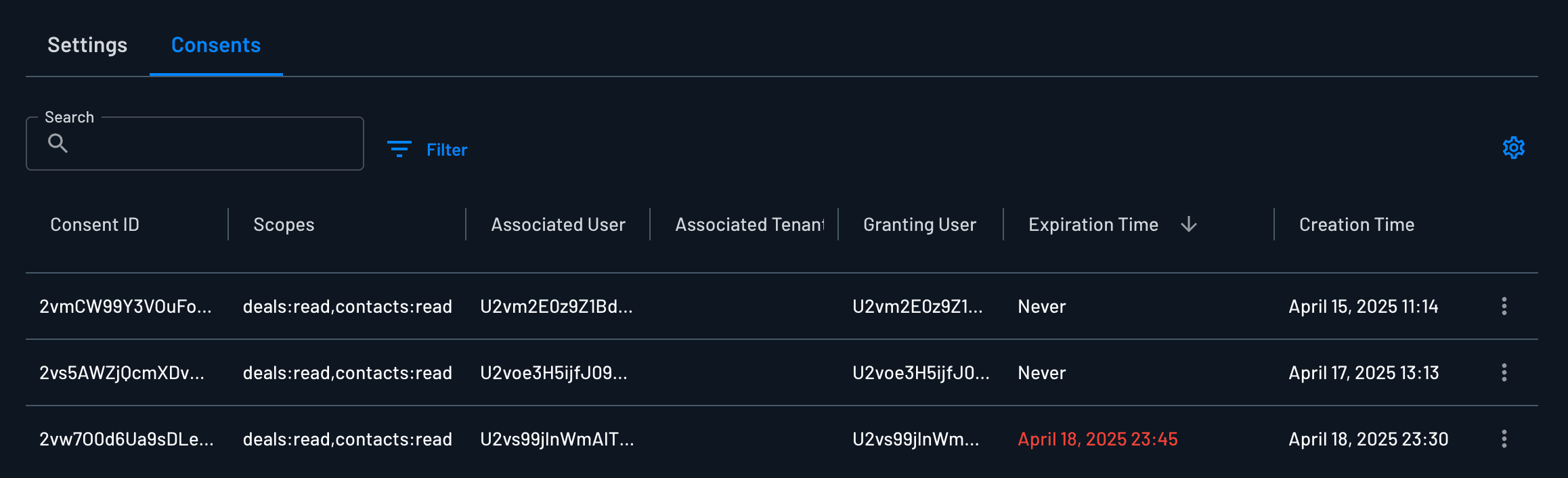
The Consent tab provides visibility into which users have authorized the inbound app and what permissions they granted.
- Consent ID: A unique identifier for the user's consent.
- Scopes: The granted permissions.
- Associated User: The ID of the user who granted consent.
- Associated Tenant: The tenant ID, if applicable.
- Granting User: The user who authorized the app (e.g., an admin granting consent for a team).
- Expiration Time: The time that the user's consent expires.
- Creation Time: Timestamp when consent was given.
Managing Inbound Apps in the Console
Note
Inbound apps that register with CIMD, will automatically have their status be set to verified.
In the Descope Console, you can easily search and filter through all configured inbound apps. Supported filters include:
- Name - the name of the inbound app (if using MCP the name of the MCP client)
- Description - the description of the inbound app
- ID - the ID of the inbound app
- Version - the version of the inbound app
- Status - the status of the inbound app (verified or unverified)
- Created Time - the time the inbound app was created
- Client ID - the client ID of the inbound app
- Created Method - either manually via an API/SDK or via the Descope Console, or automatically via MCP Server client registration (for example DCR or CIMD)
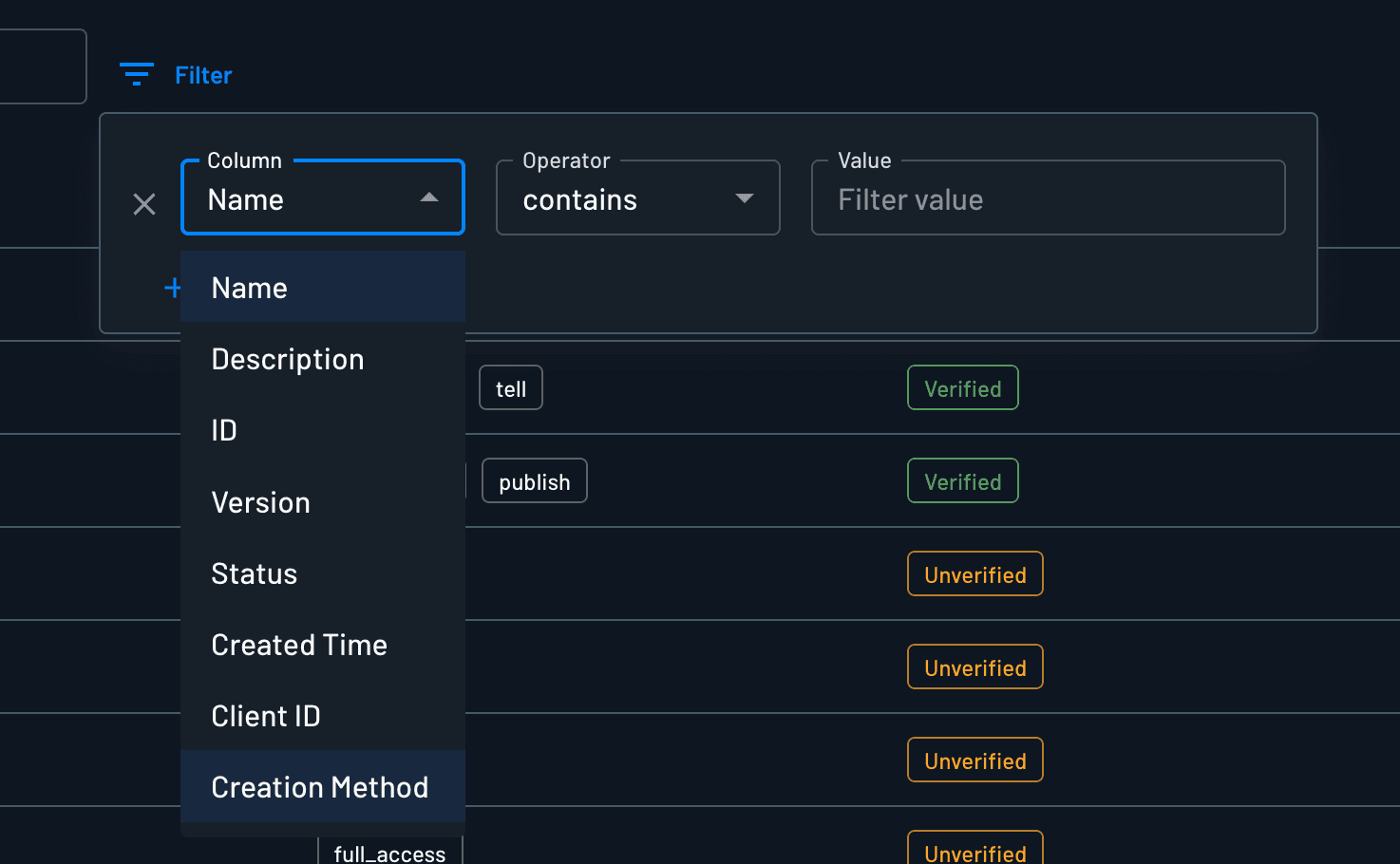
From the Console, you can:
- Define custom attributes for Inbound Apps from the Attributes tab
- View and manage user consents
- Create new versions
- Revoke or disable specific apps
- Link to relevant flows or tenants
Next Steps
Once your Inbound App is configured, integrate it into your external applications by using Descope's OAuth authentication flows.
- Using Inbound Apps - Learn how to authenticate users with Descope as an IdP.
- Developing APIs with OAuth - Resources, clients, and where to validate tokens
- Session validation - Enforce
aud,scope, and claims on your API