Custom Social Login with Microsoft
Warning
Having issues with making Microsoft social authentication work? Please refer to this guide on social providers with unverified emails.
When integrating Descope flows in a website, often you'll want to allow Social Login with Microsoft as one of the authentication methods for your users. You'll need to create a Microsoft enterprise application and integrate it with Descope. This doc will walk you through all the steps to do that.
Note
This guide is specifically for Microsoft Social Login
Current Default Login Page
The default Descope login app looks like this (Click on Microsoft):
However, if you use the Descope login app, the sign in page will default to show Sign in to continue to Descope.
Instead of displaying Descope and our logo, this guide will show you how to personalize your Microsoft Sign-In Page to display your own company logo and domain instead.
Solution
To make this happen, you'll need to configure a few things on the Microsoft side and the Descope side, as well as configure a new CNAME in your domain's DNS records.
Configuring the CNAME
You will need to create a custom domain that points to cname.descope.com (US) / CNAME.euc1.descope.com (EU), so that if the redirect URI is auth.example.com
for instance, the Microsoft page will show Sign in to continue to with example.com instead of descope.com
See the Custom Domain guide for a step by step guide for managing sessions within cookies.
Once that is completed, you will need to create a new enterprise application in Azure.
Creating a new Enterpise Application
-
Navigate to your Azure portal.
-
Search For
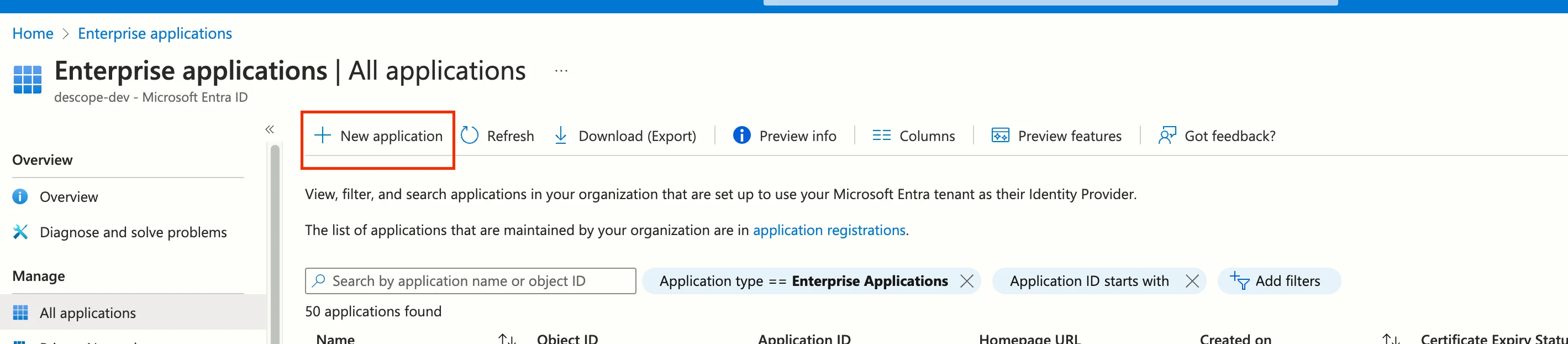
Enterprise Applications, and click on+New Applicationto start the process:
- Create Your Own Application:
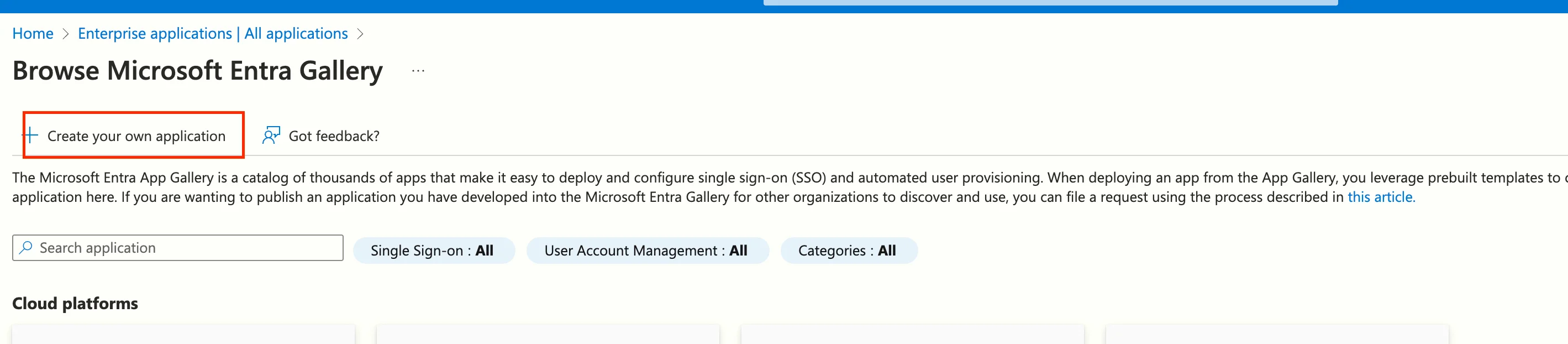
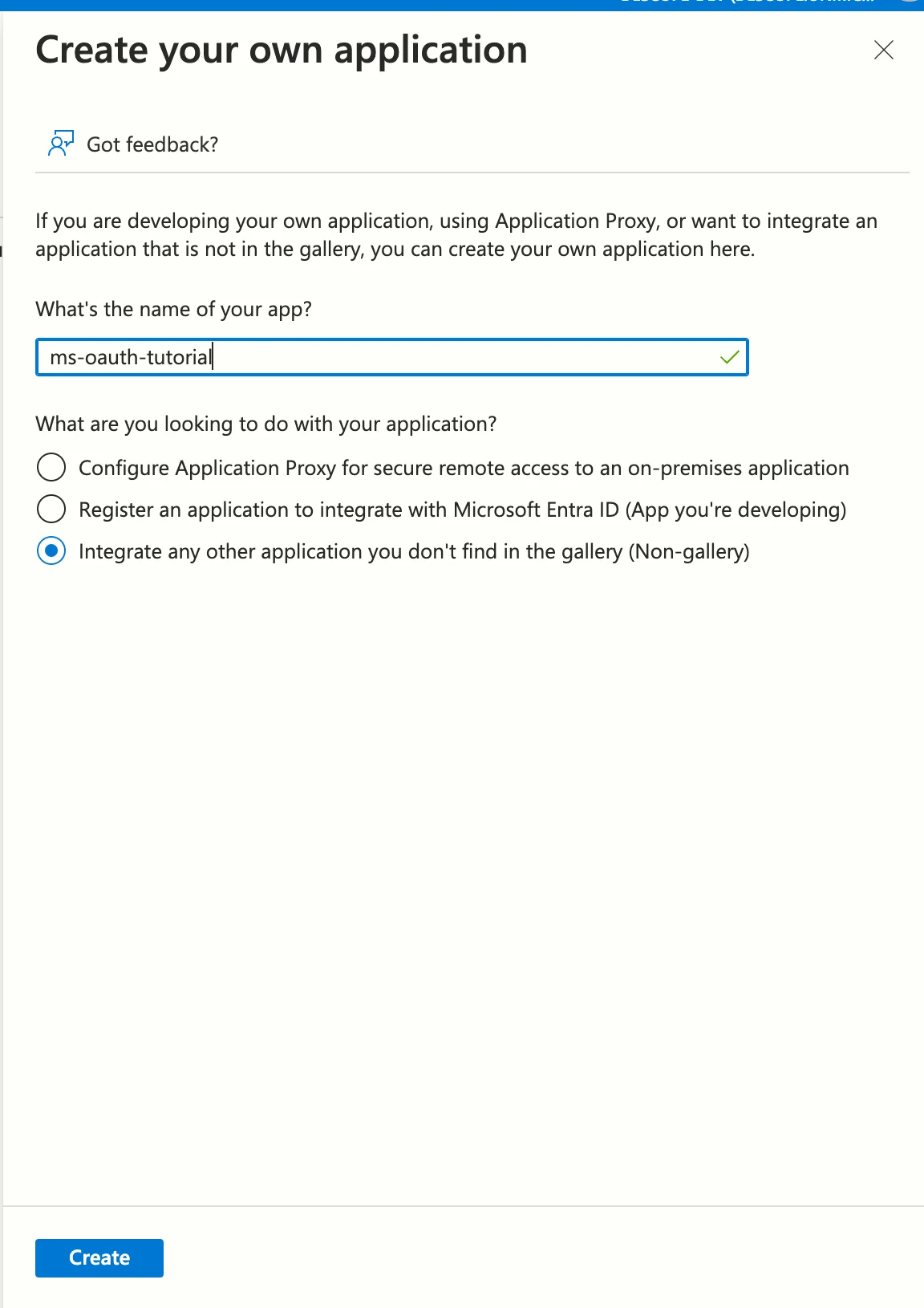
- Choose a name, keep the
Integrate any other application you don't find in the gallery (Non-gallery)option selected and click on Create:
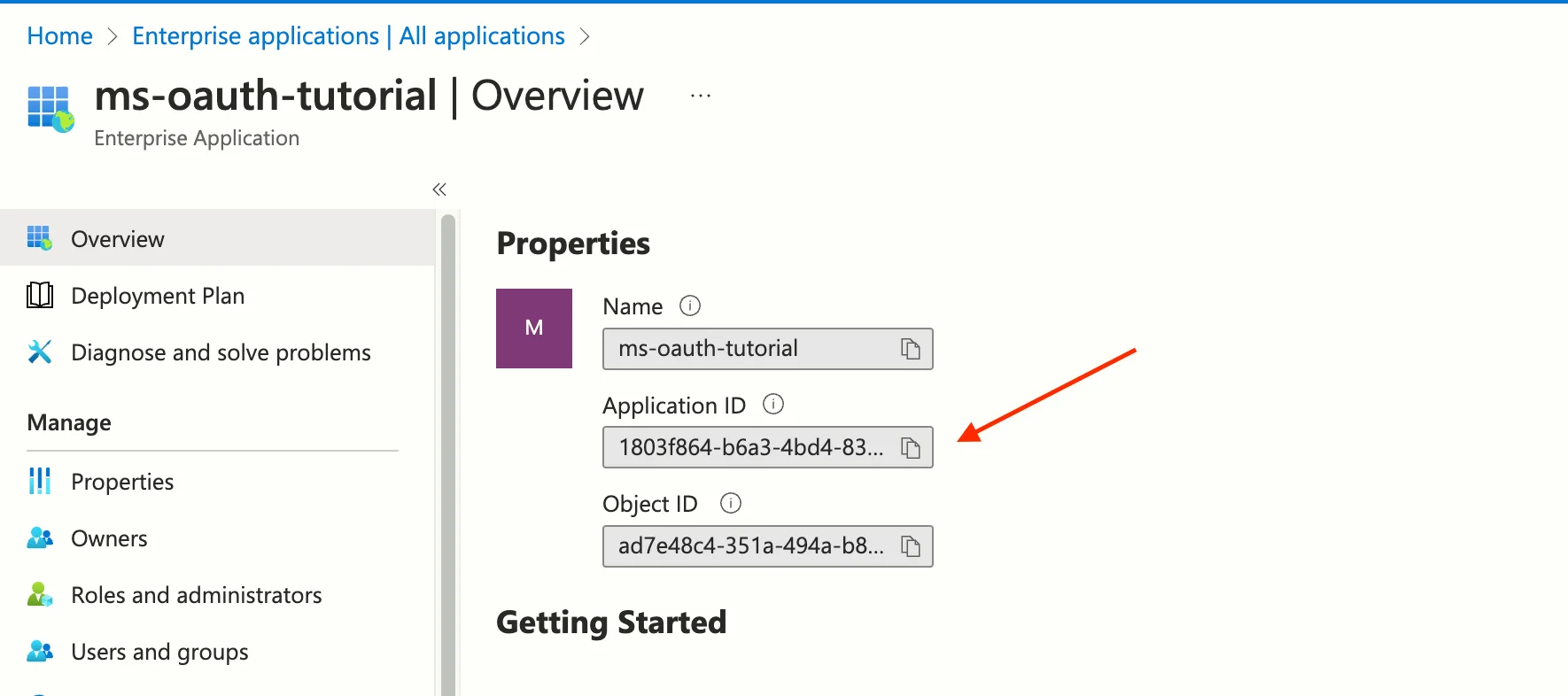
- Once you create the application, make sure to copy the application ID, and set it aside:
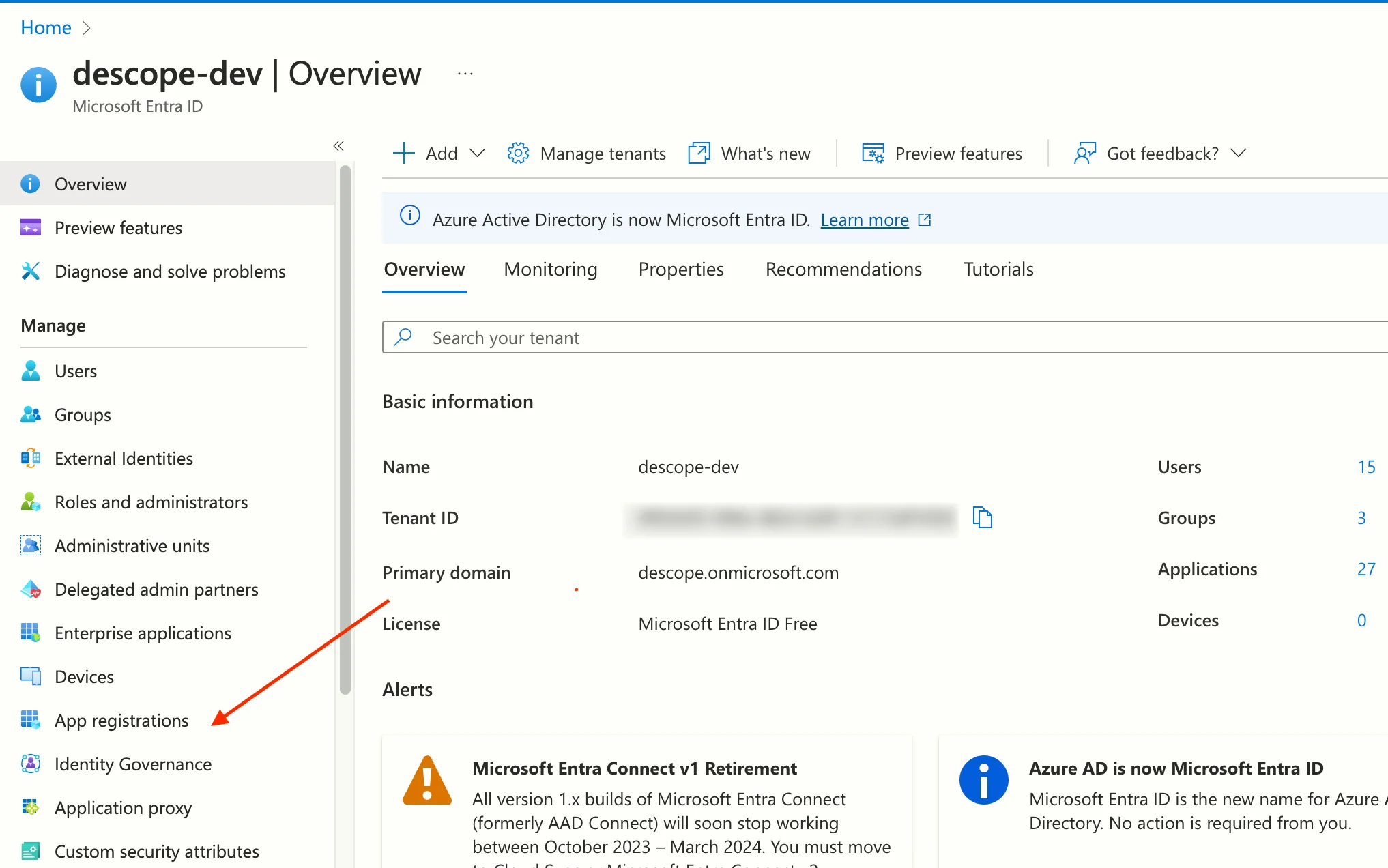
- Search for
Microsoft Entra ID, and navigate toApp Registrationsunder the manage tab:
- Search for your application by name in the
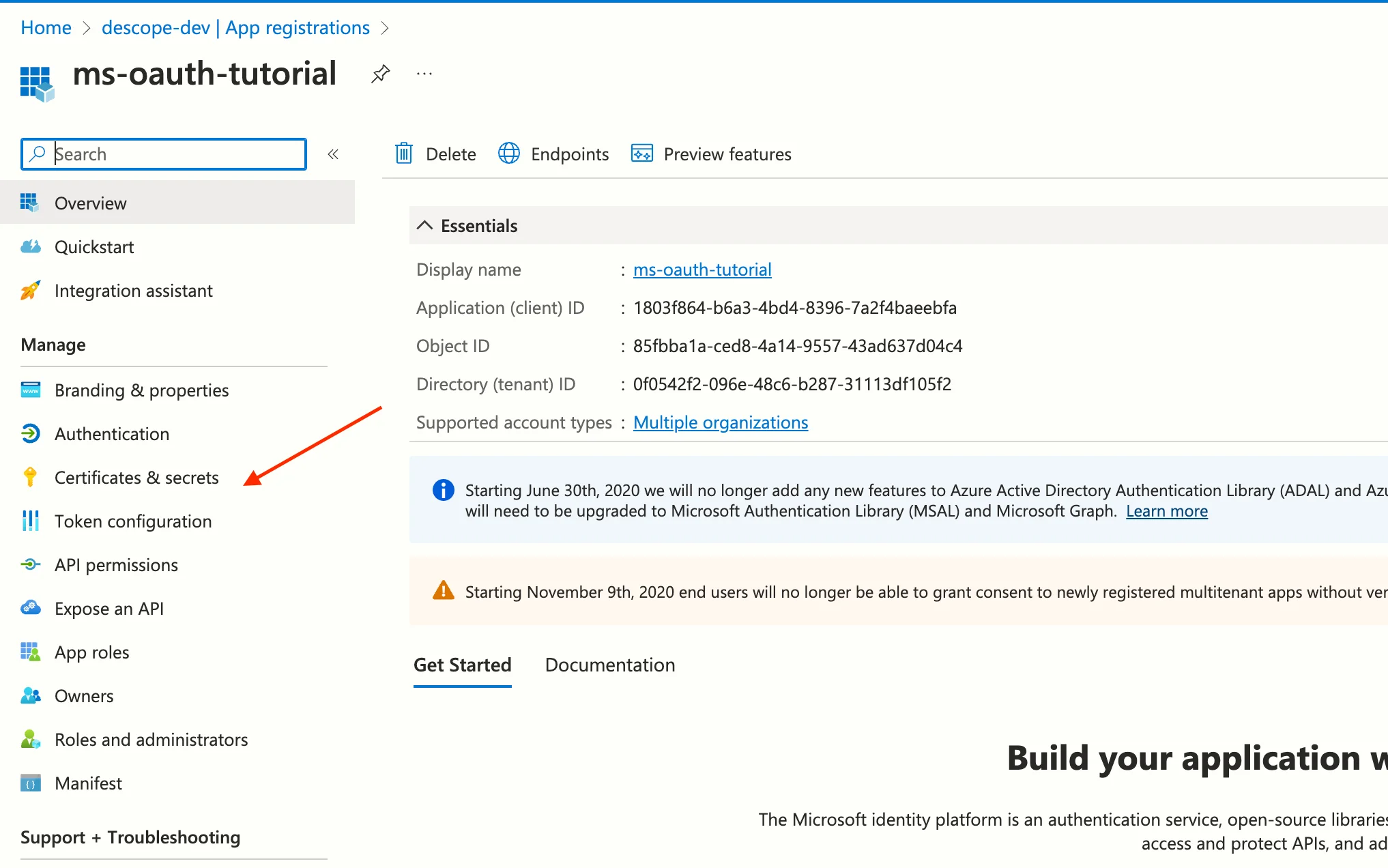
App Registrationstab, after finding it, click it. Then navigate toCertificates & Secrets:
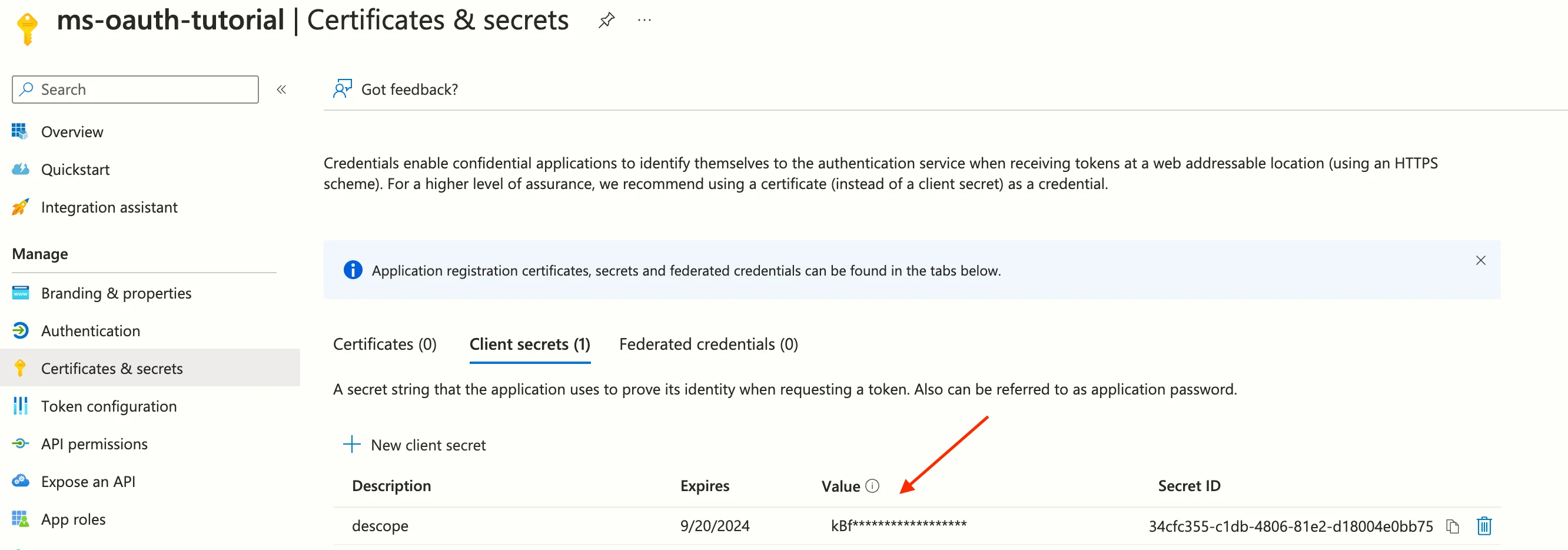
- Create a new secret, copy the value and set it aside:
Note
Exiting the page will hide the secret forever.
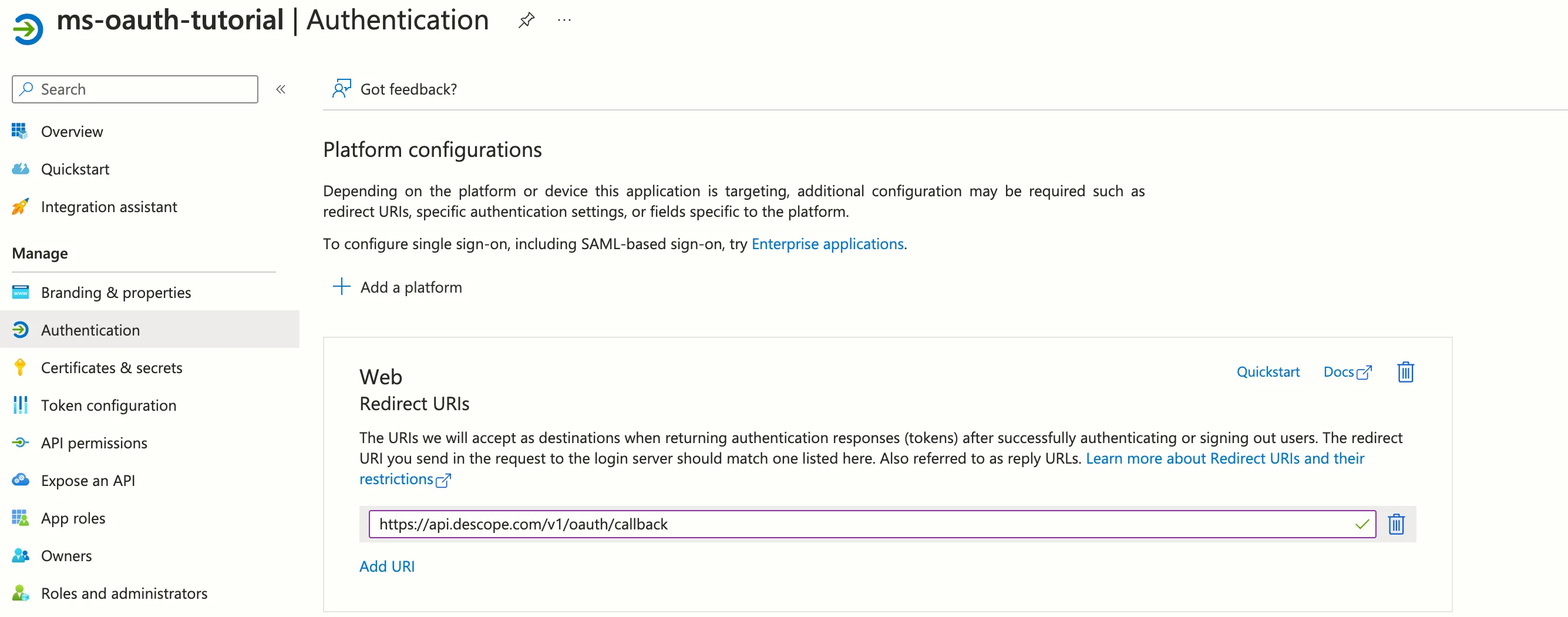
- Navigate to
Authentication, add a new web platform, and set the callback URI tohttps://api.descope.com/v1/oauth/callback:
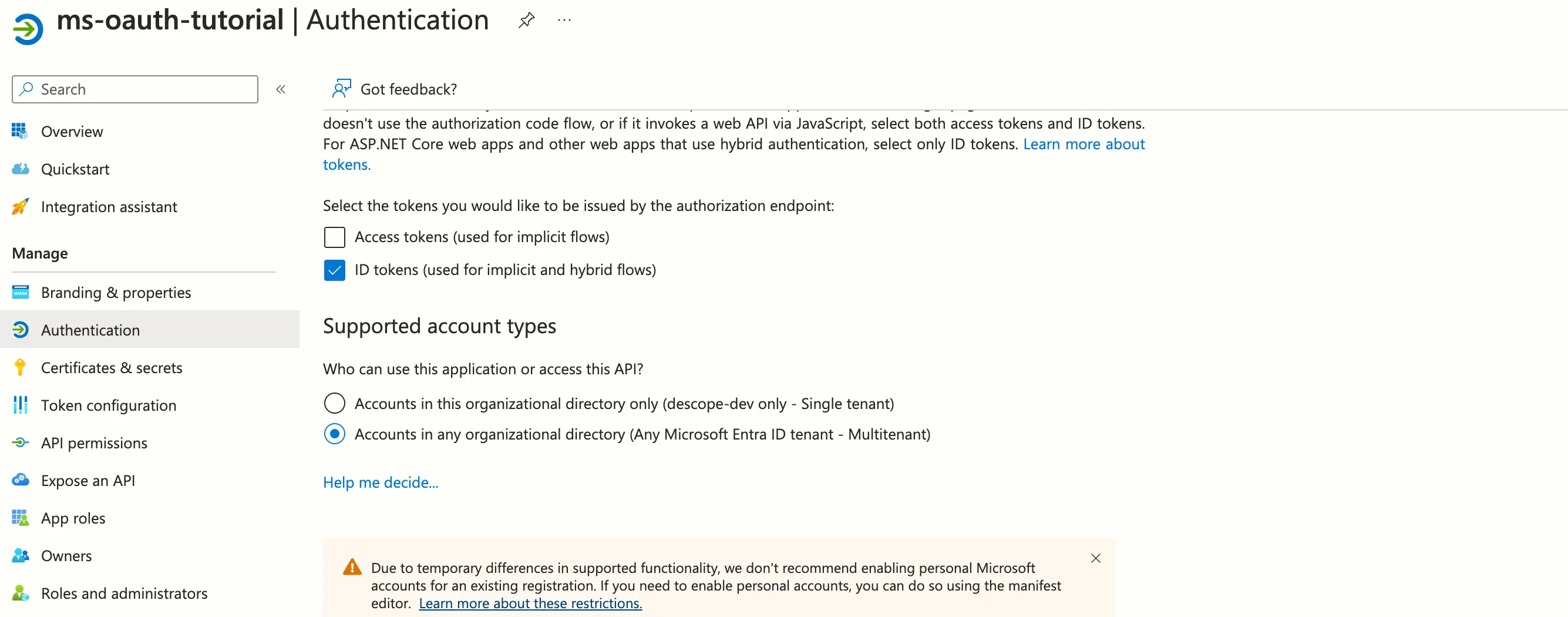
- Scroll down inside the
Authenticationpage, and select the multi-tenant option to allow any user to use your app, click save:
- Navigate to
API Permissions, and create a new permission:
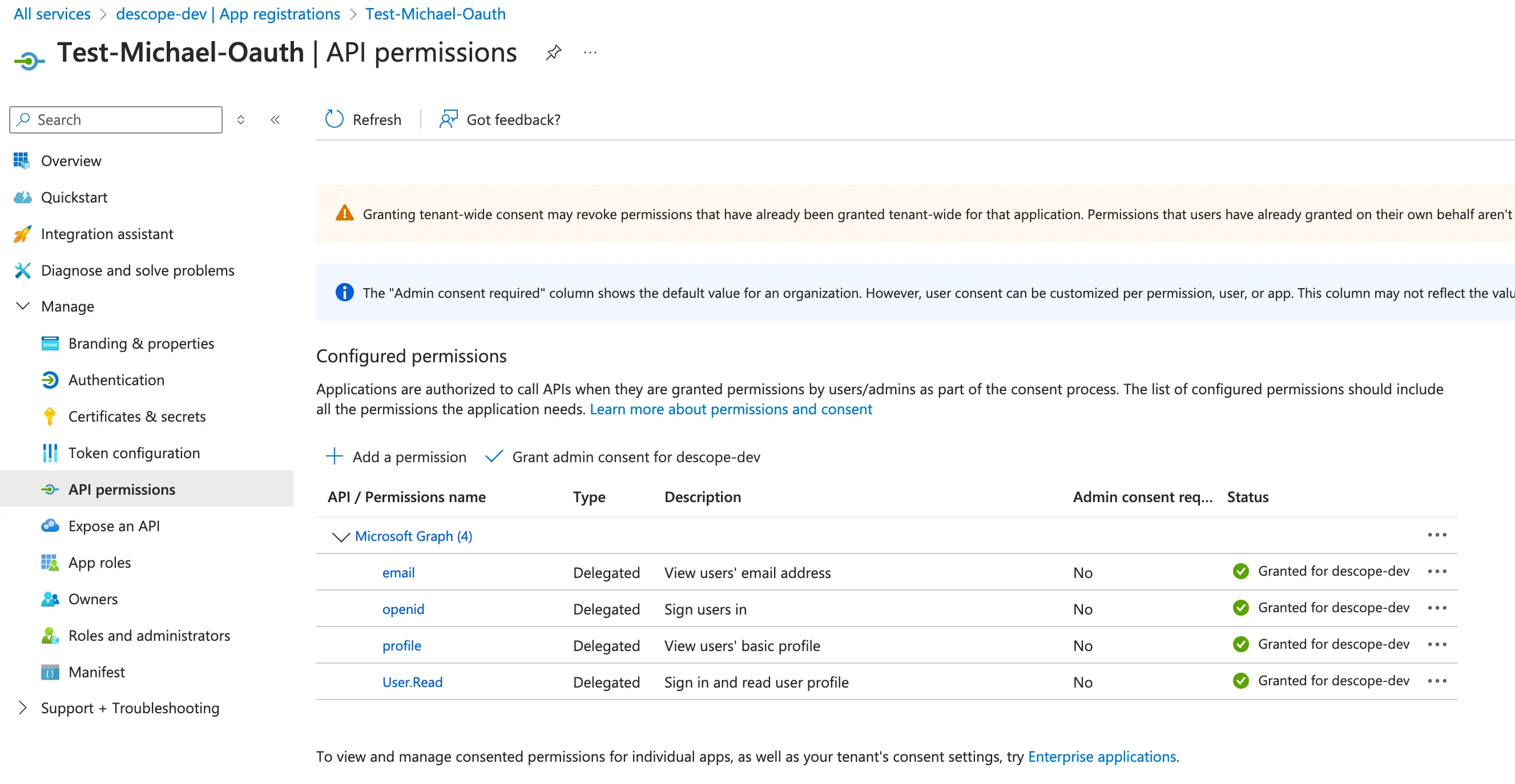
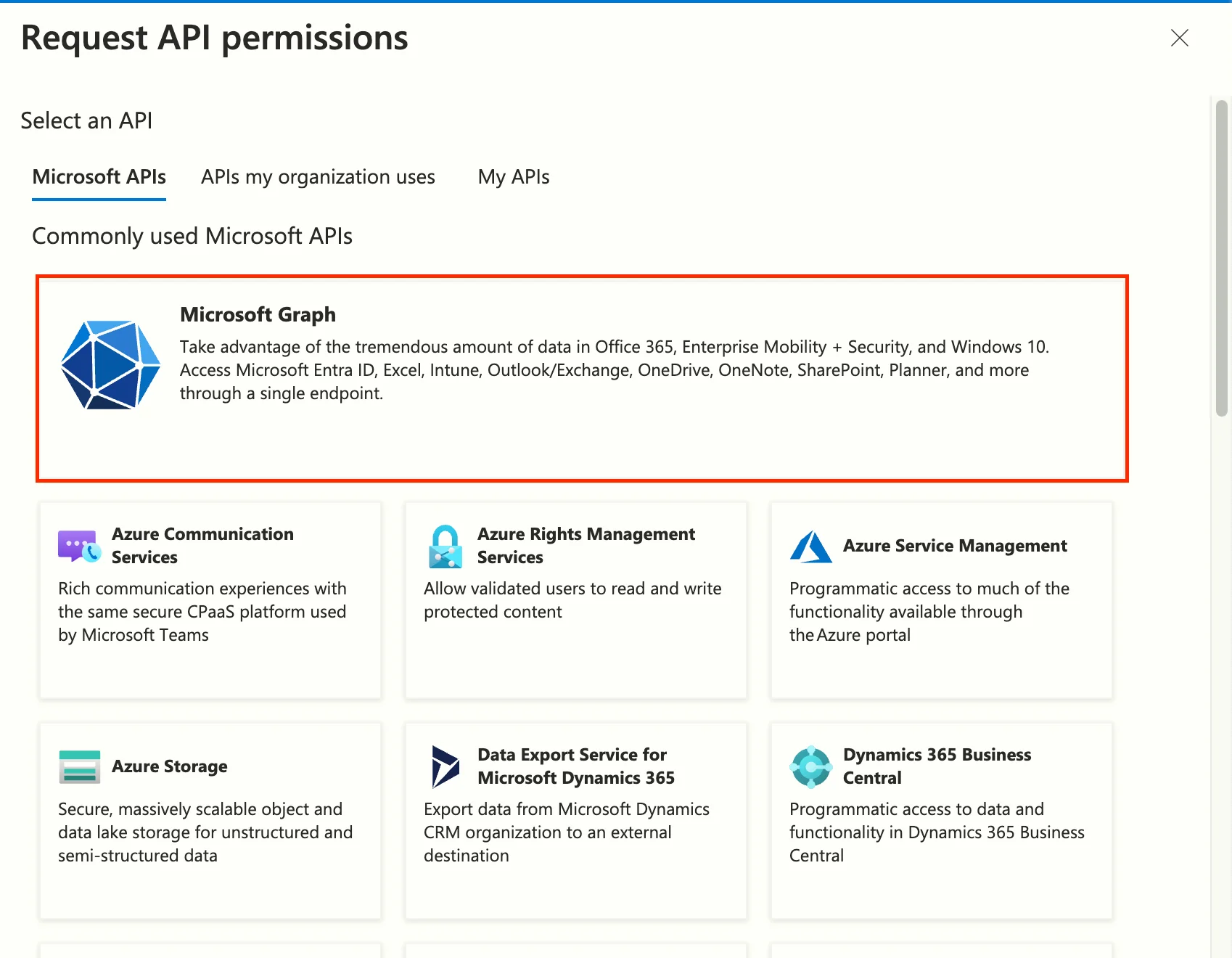
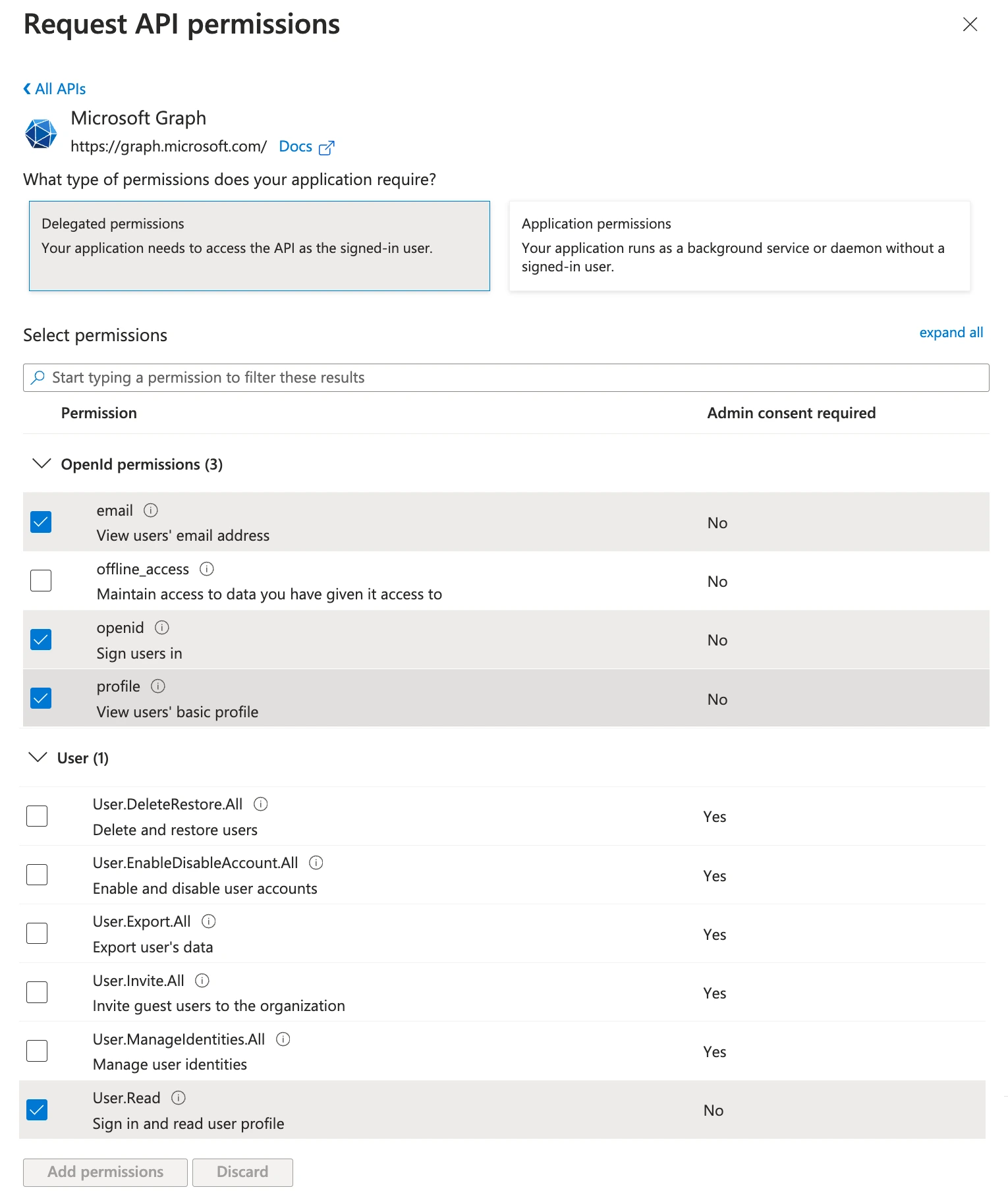
Note
You should ask your administrators to approve the permission granted to the app.
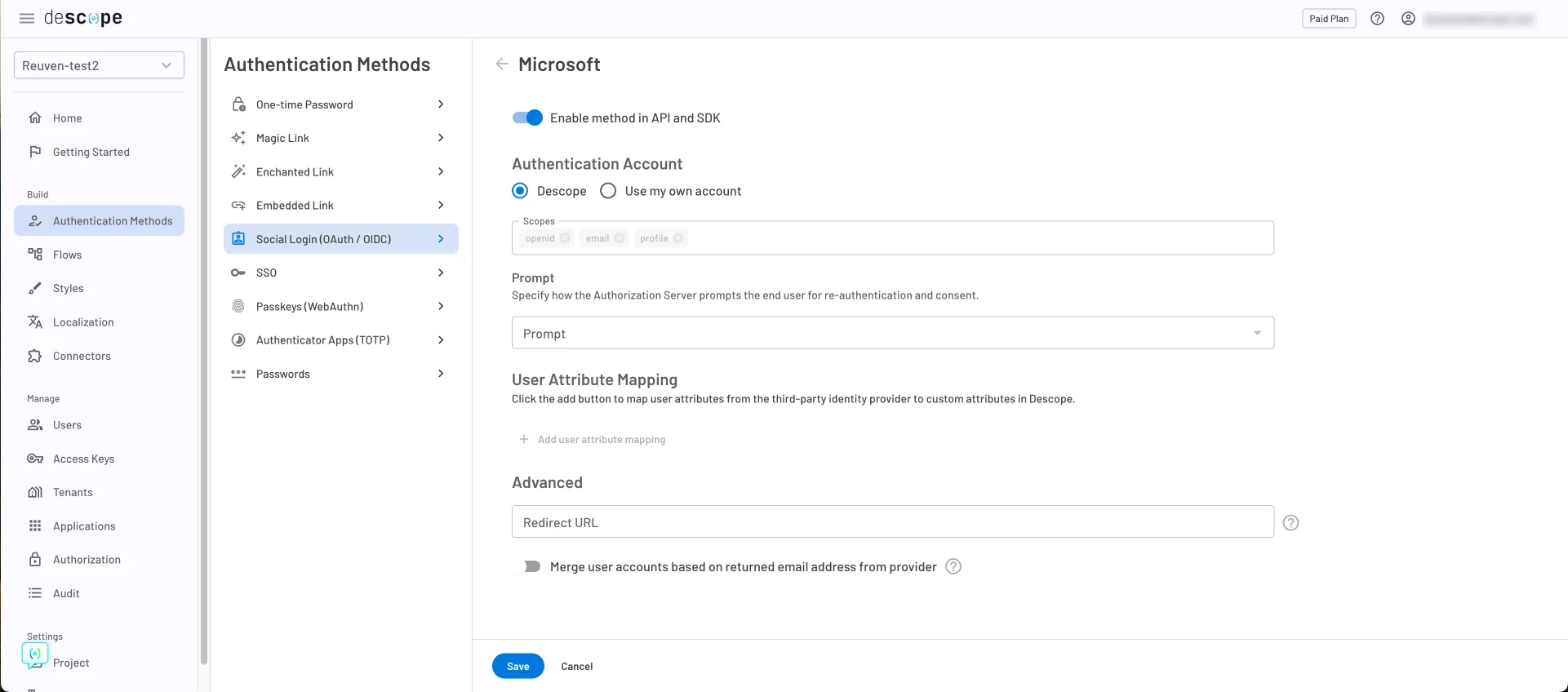
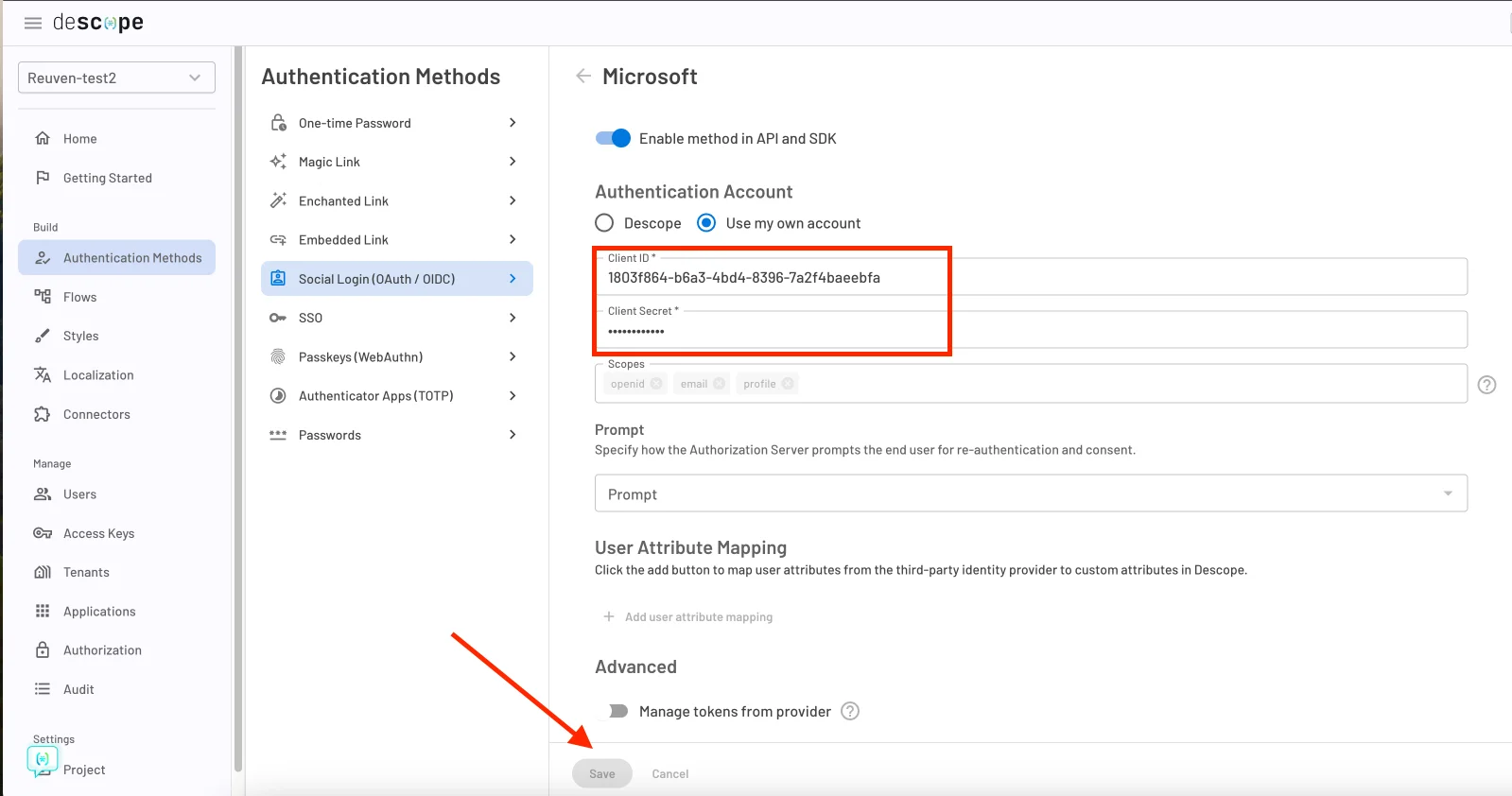
- Now on Descope, navigate to the custom Microsoft OAuth settings
- Click on
Use my own account. - Put the Application ID you put aside in the
Client IDsection. - Put the Client secret you created in the
Client Secretsection. - You can put the
PromptasConsentfor testing. - Click save.
Testing Authentication
Now we are all set to test if our application works, here is an example flow that uses Microsoft OAuth:
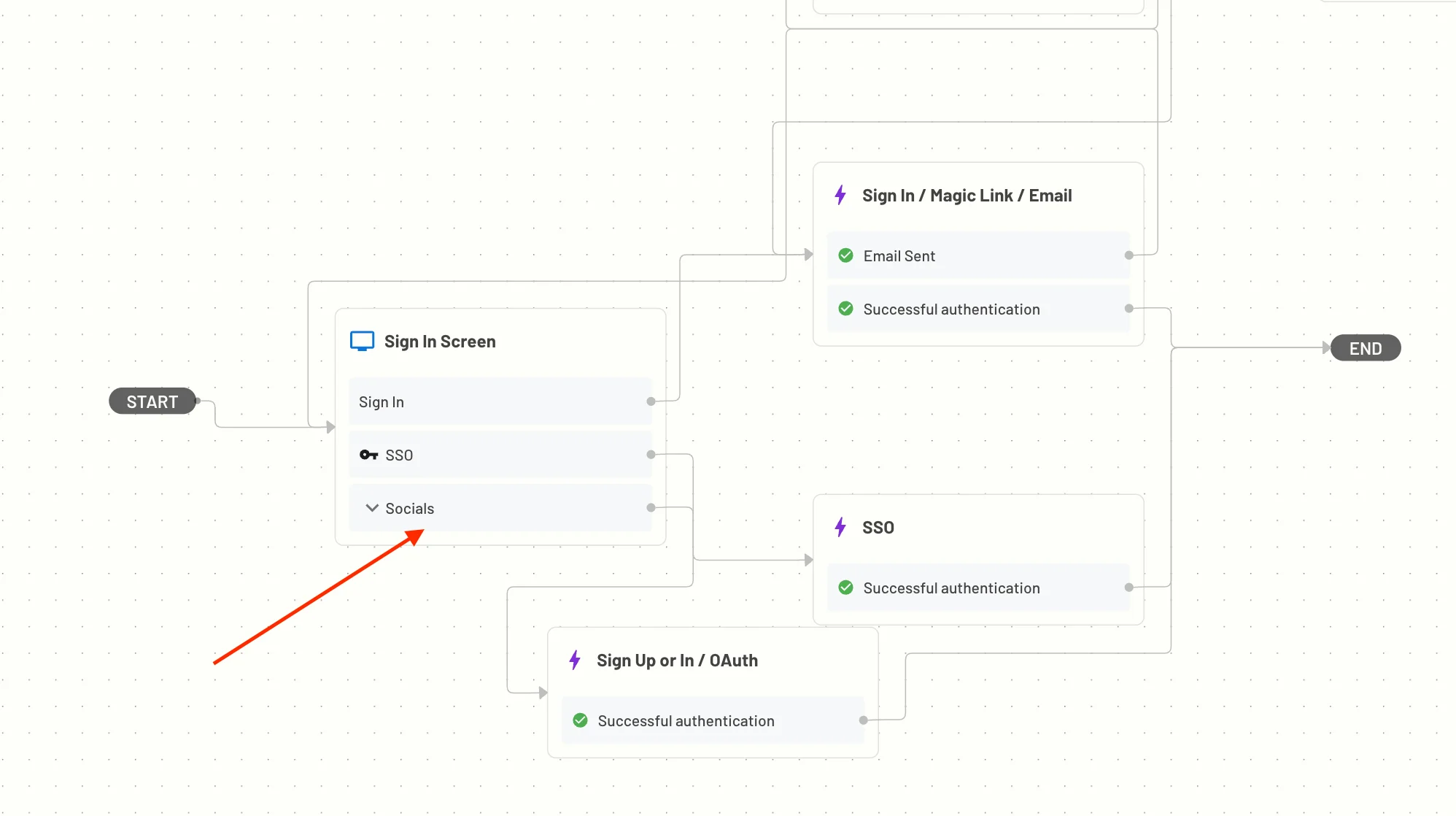
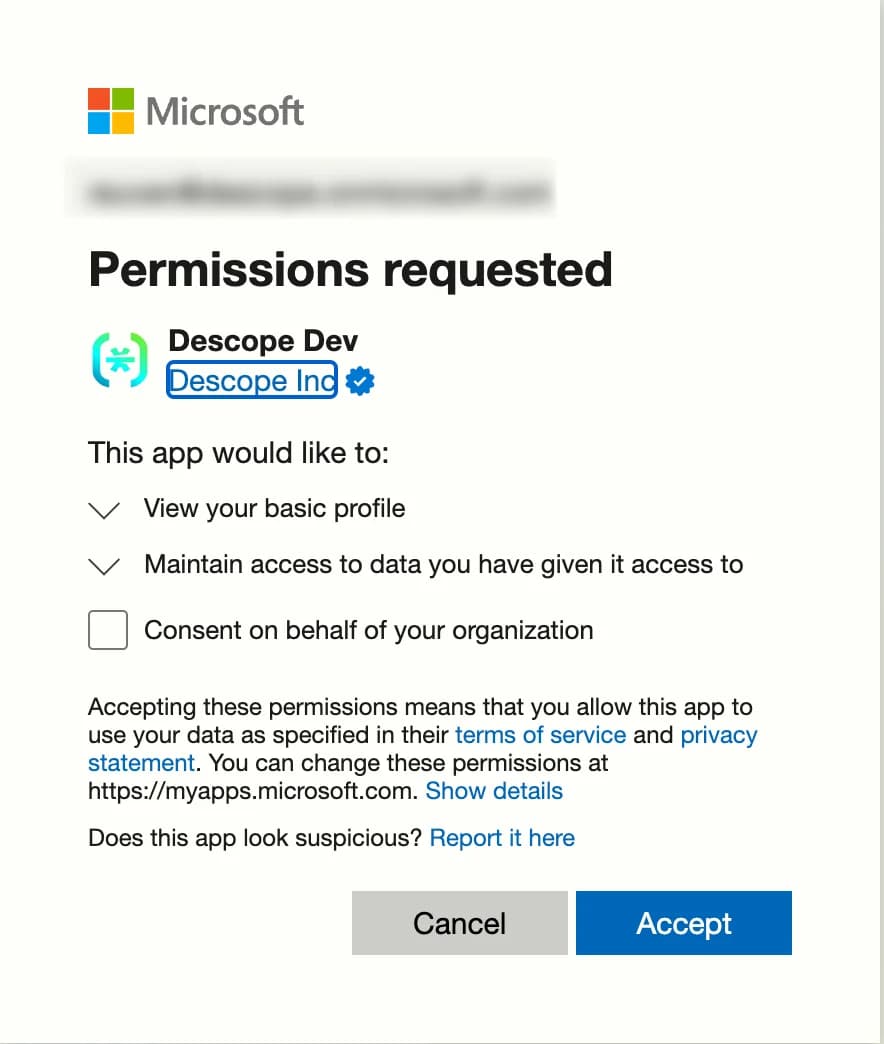
Now testing the flow, we can see that we get the consent screen with our custom app:
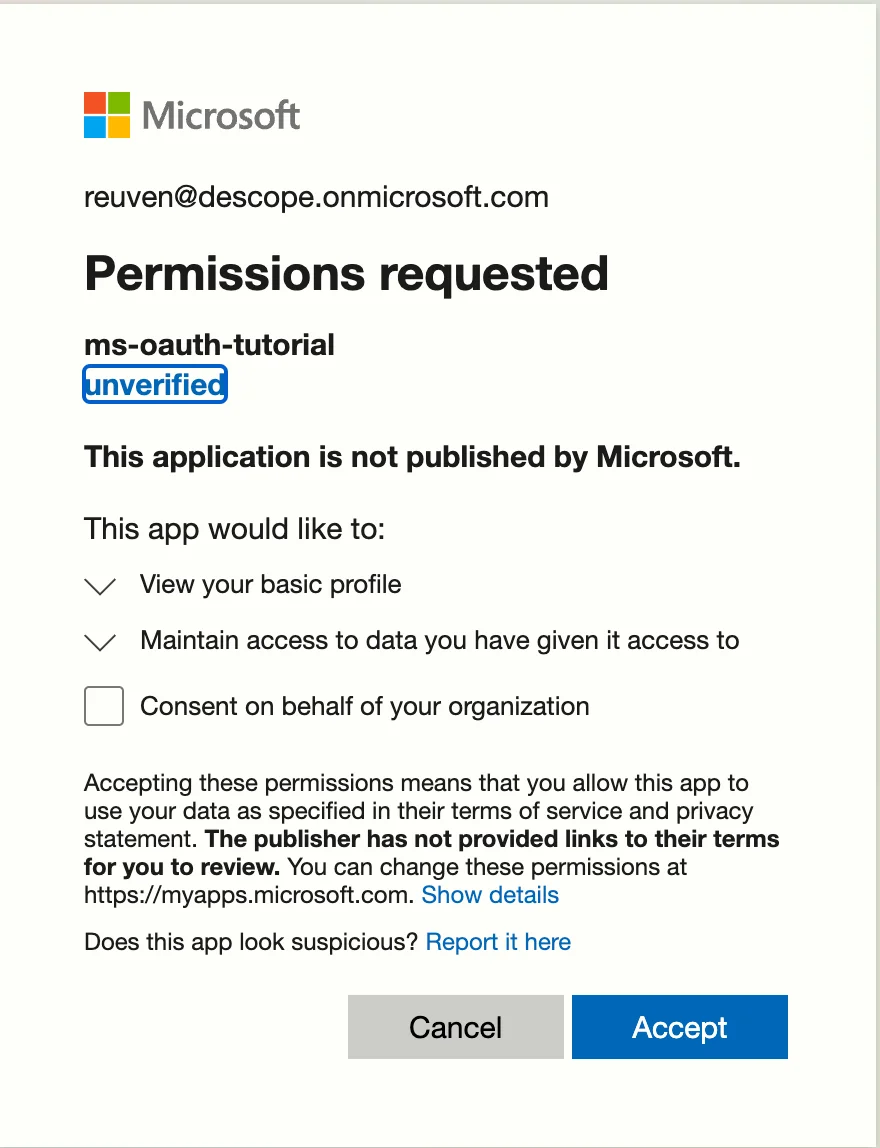
Enterprise Application Authentication
For your app to appear as verified by Microsoft, you need to pass verification.
And you're done! Now when you sign in, you should see your own personalized app page with your custom domain name. If you have any questions, please reach out to us here!
Merging identities from Microsoft
When using Microsoft for social login, Azure does not certainly verify the user's email.
We at Descope understand that this could be a security flaw when a user tries to authenticate and we cover this subject in this blog.
By default, we do not merge email addresses to an existing user login ID to prevent this security flaw from actually happening.
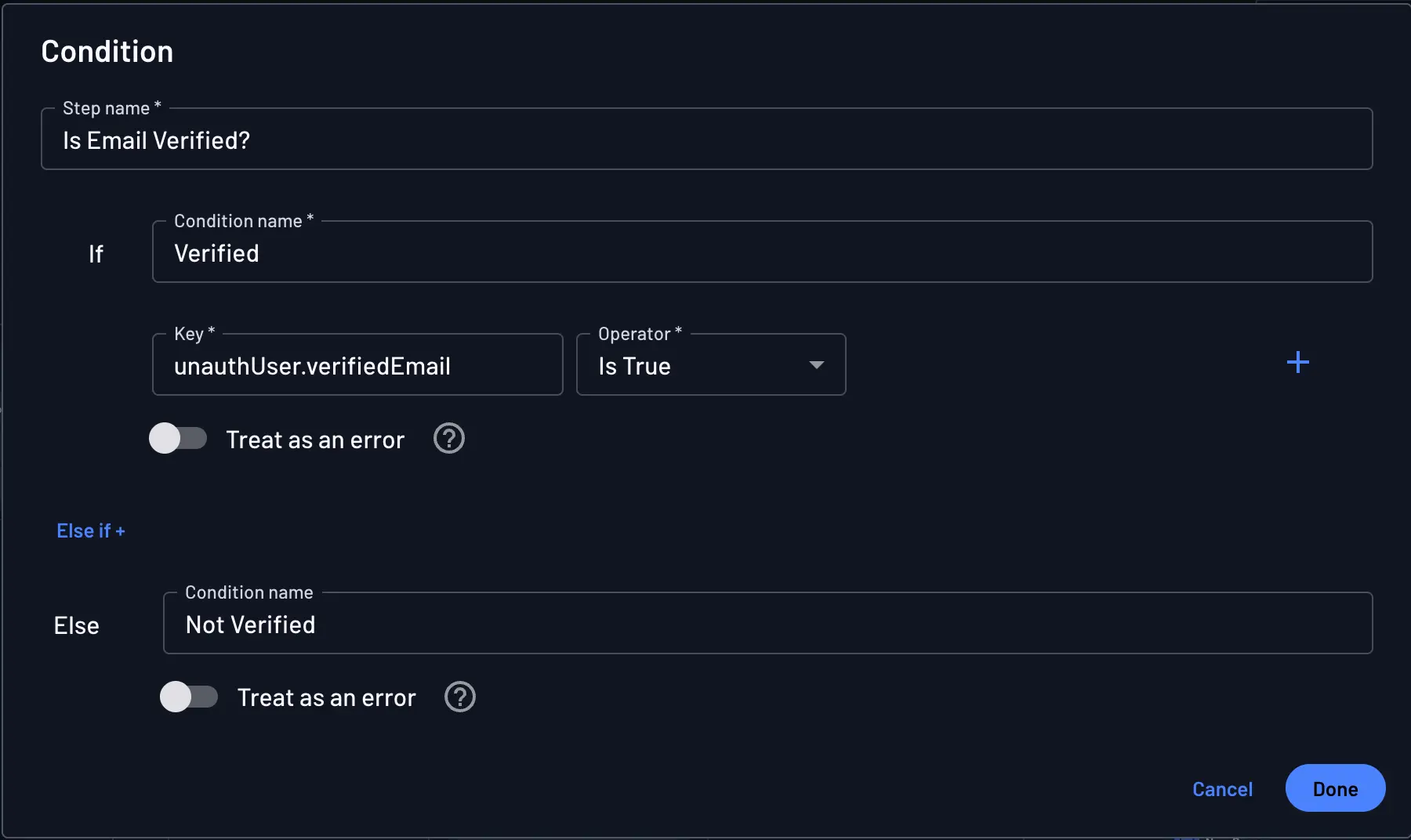
Inside Descope flows, we provide the option to triage based on email verification status using authInfo.user.verifiedEmail.
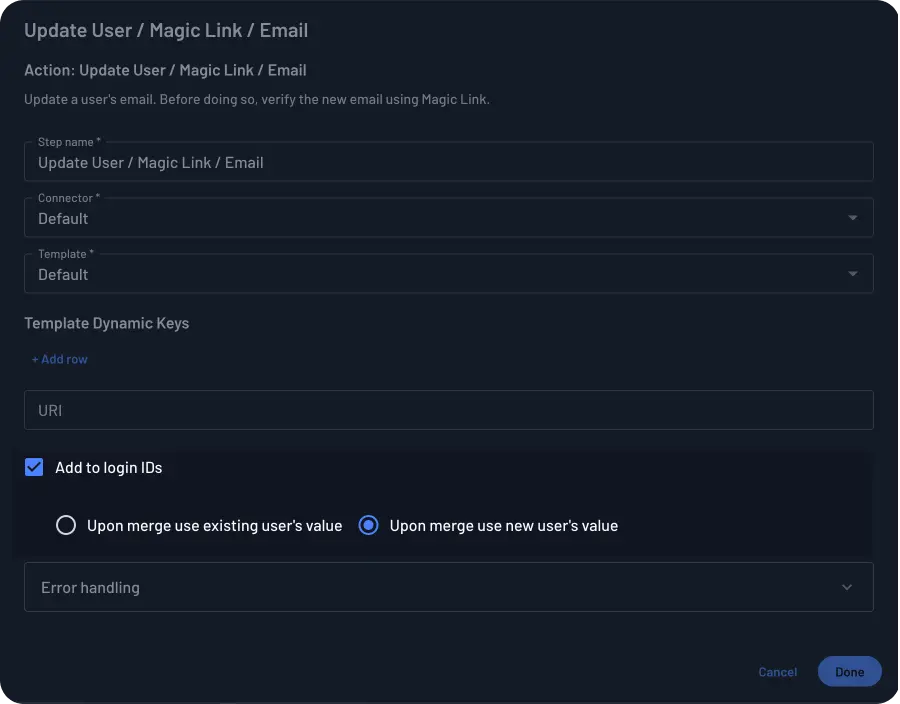
If you want to merge the user based on the user's email address, follow these steps:
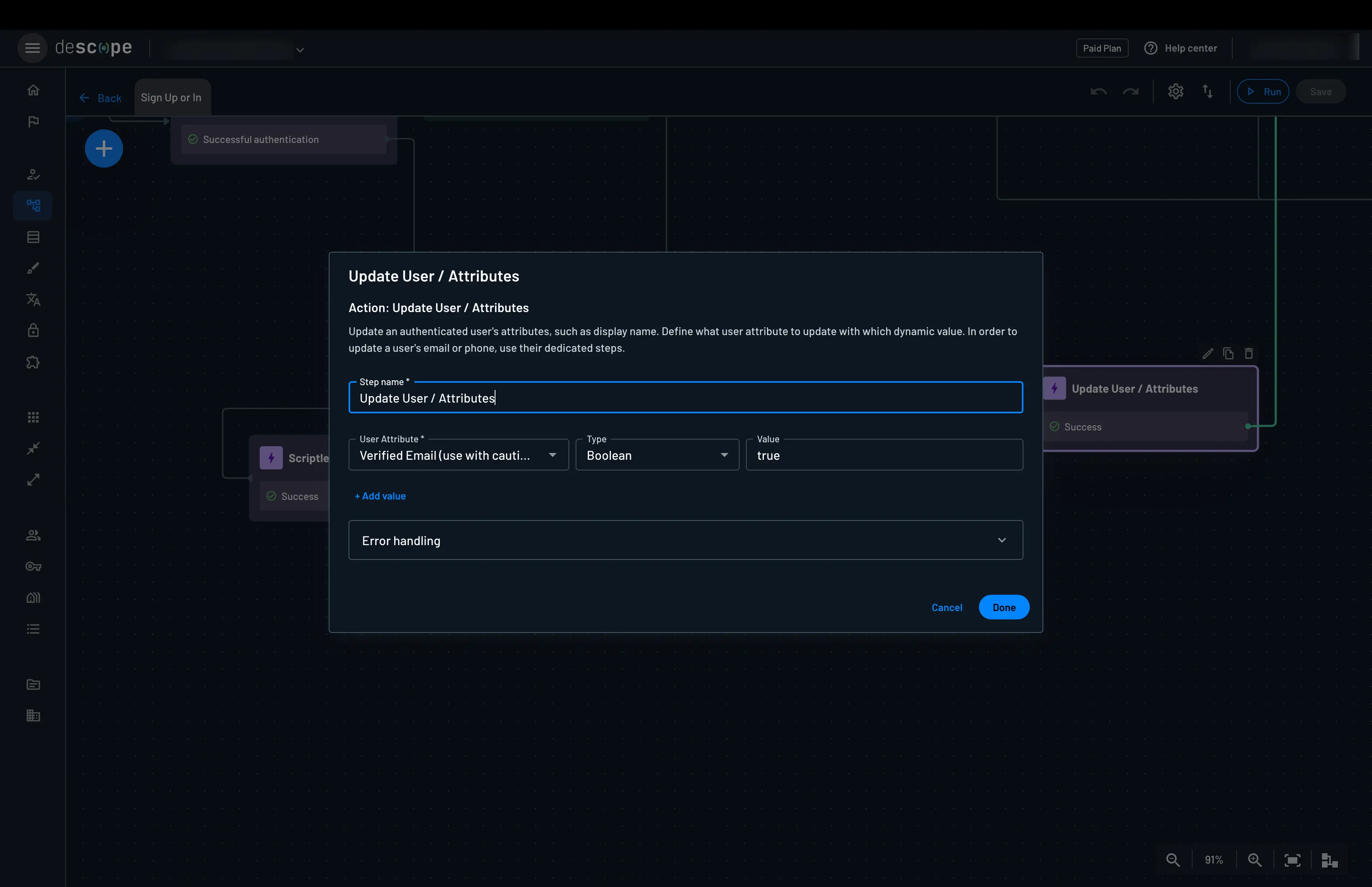
- Triage based on condition:
- Merge the identity after verifing the email:
Implementing Email Verification with Microsoft claims:
Microsoft provides the xms_edov (Email Domain Owner Verified) claim that indicates whether an email is domain-verified. Using this claim can bypass verification issues entirely.
There is an alternative claim primary_verified_email that can also be used for email verification.
To implement this in your flow, follow these steps:
-
Go to the OAuth application registration in Microsoft Azure portal, navigate to
Token configuration, and add either one of the claims as optional claims for ID token: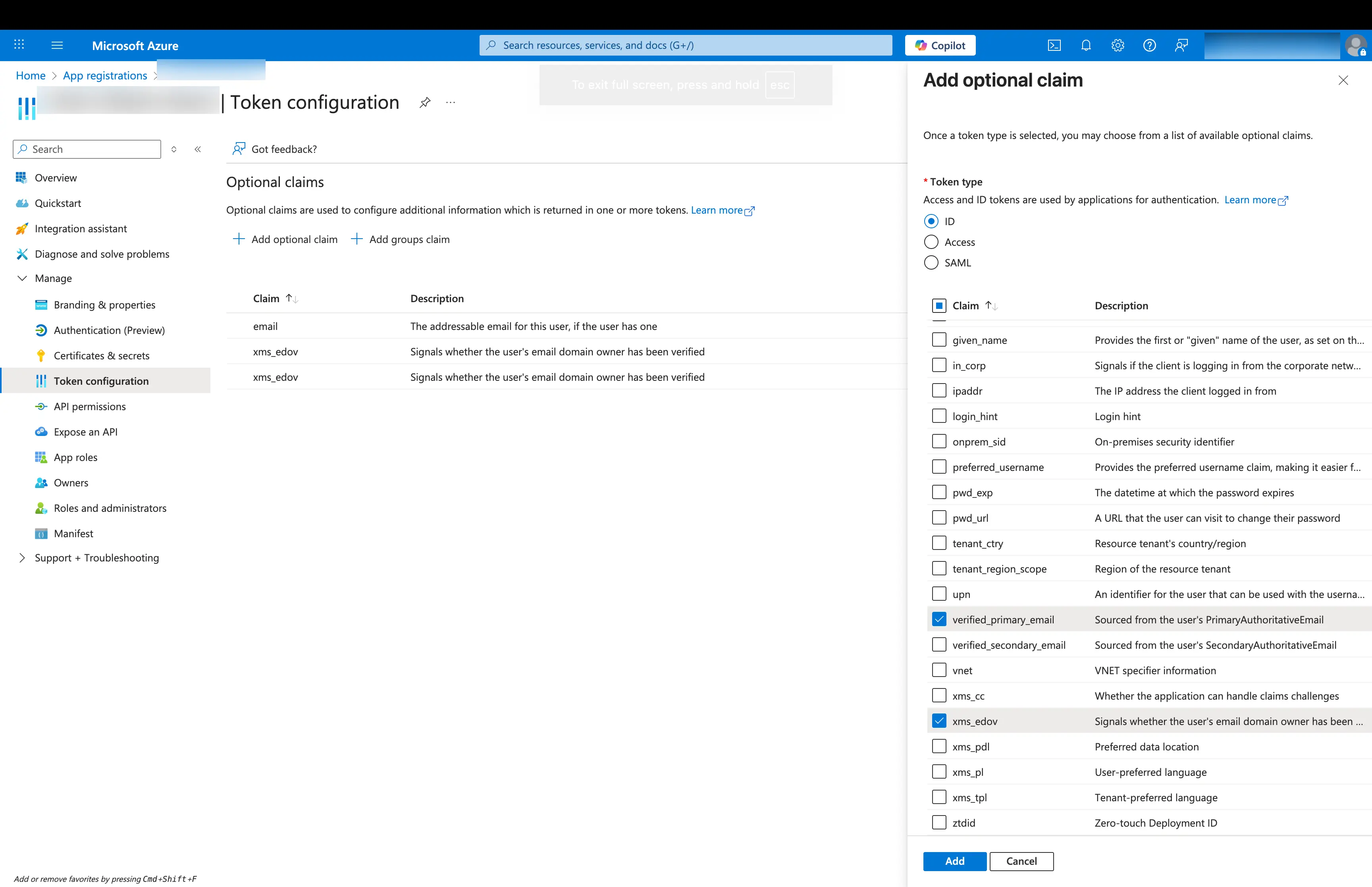
-
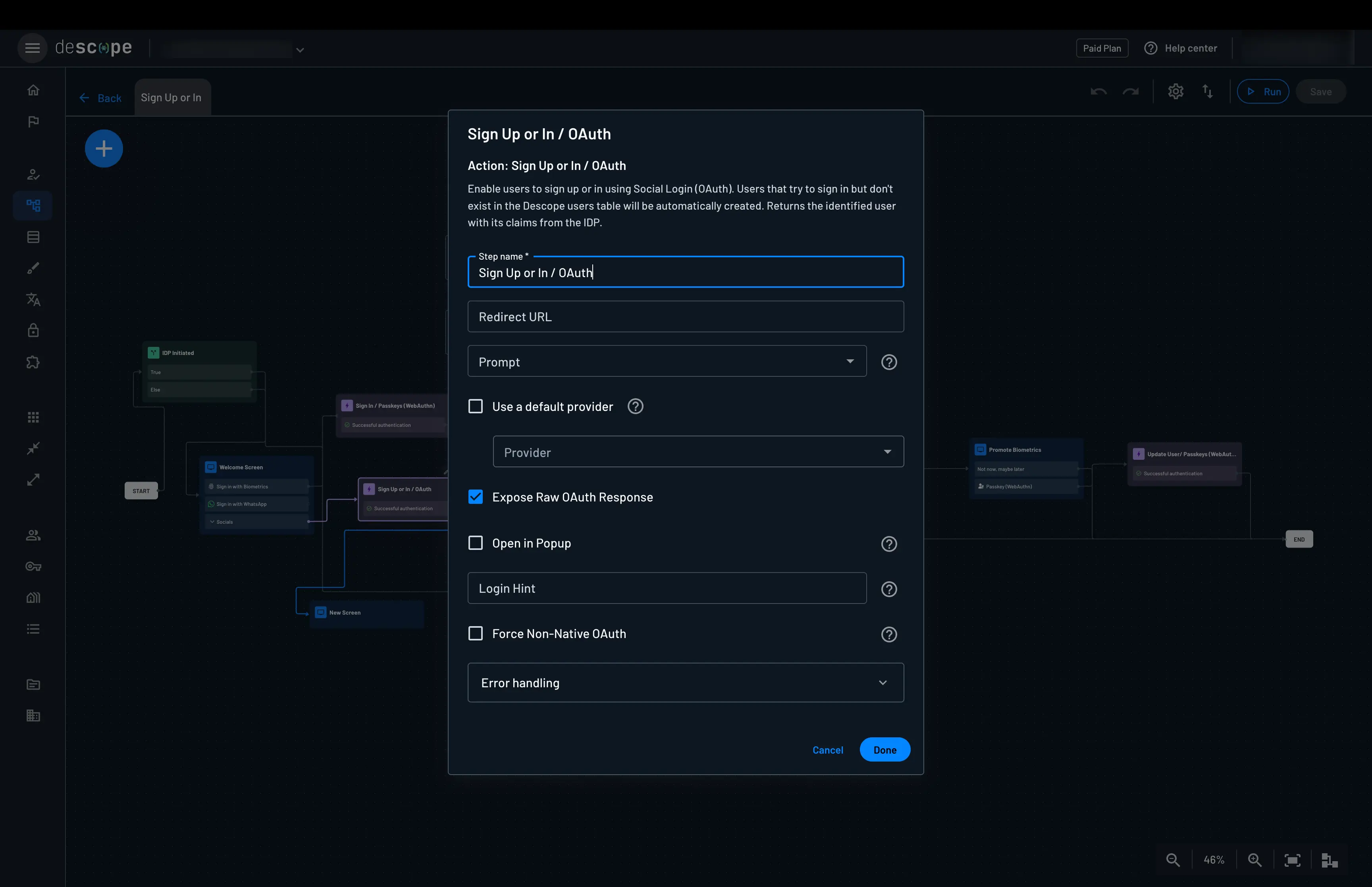
Go to the OAuth step inside your flow, and mark "expose raw OAuth response":
-
After the OAuth step, add a Scriptlet to set the email verification status based on the claims:
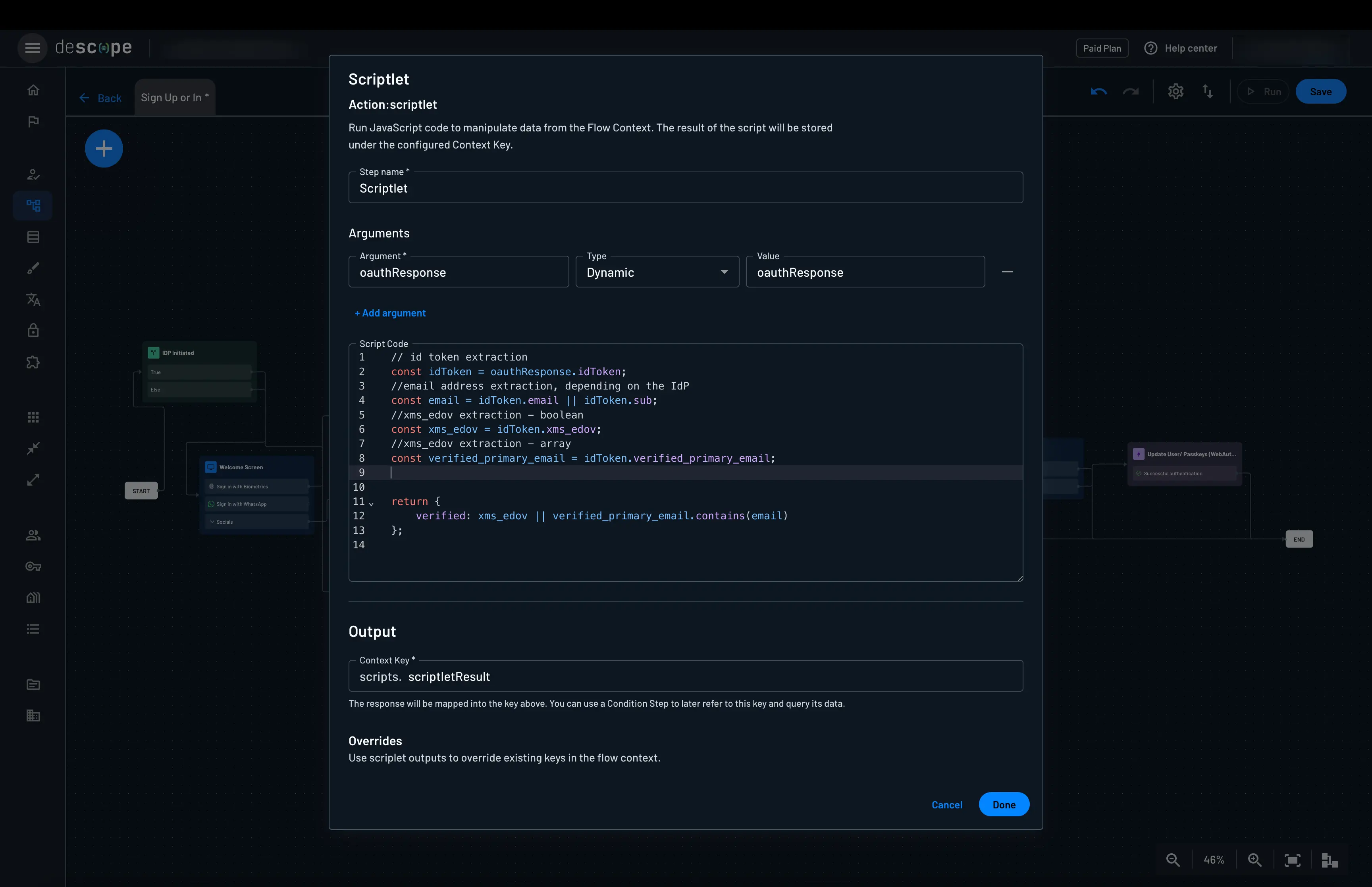
Here is an example scriptlet code to set the email verification status:
// id token extraction
const idToken = oauthResponse.idToken;
//email address extraction, depending on the IdP
const email = idToken.email || idToken.sub;
//xms_edov extraction - boolean
const xms_edov = idToken.xms_edov;
//xms_edov extraction - array
const verified_primary_email = idToken.verified_primary_email;


return {
    verified: xms_edov || verified_primary_email.contains(email)
};
- Mark the email as verified if either of the claims indicate verification: