Password Settings
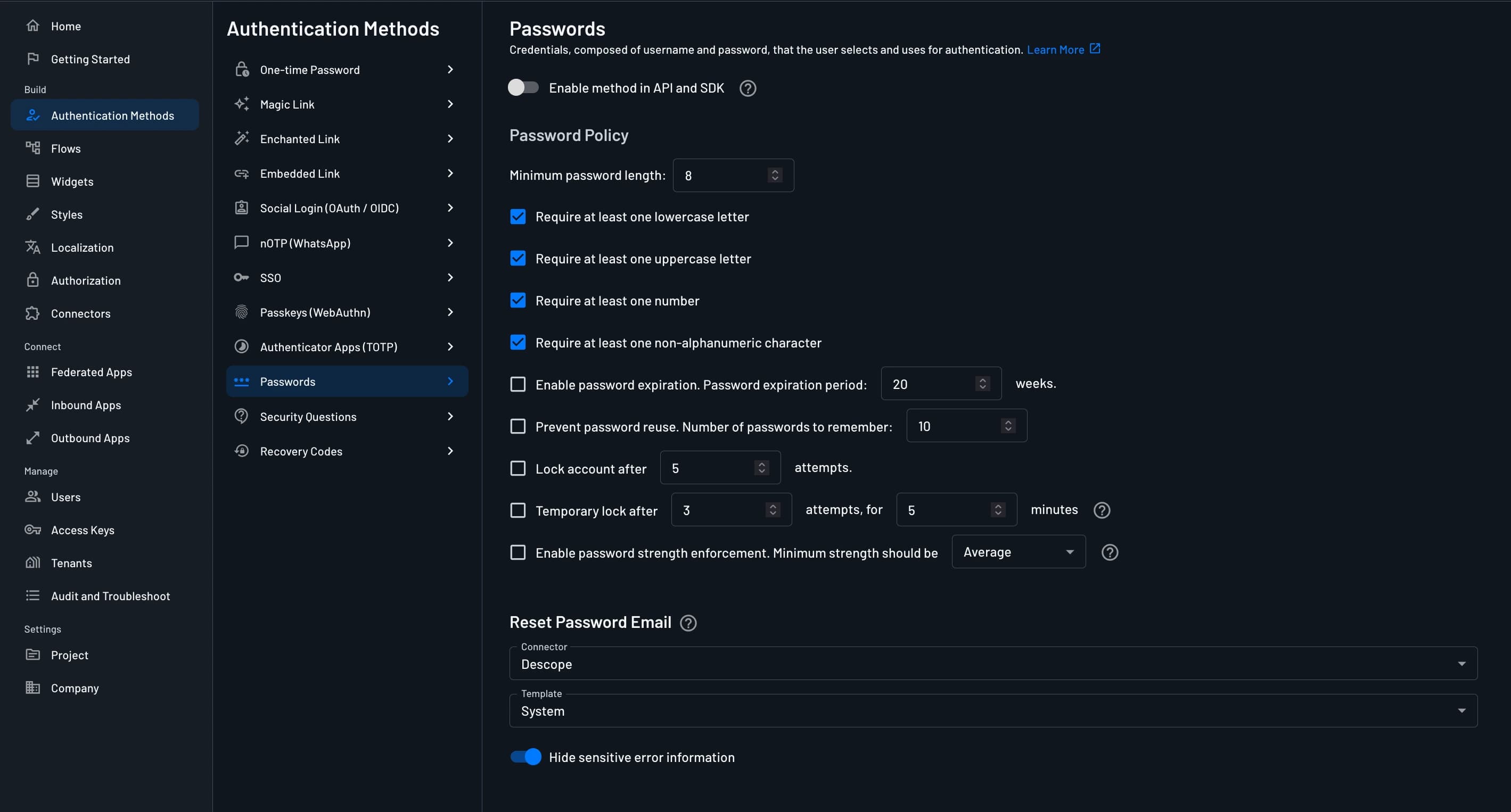
Customize your Password authentication flow from the Descope console (Settings > Authentication Methods > Passwords).
Password Policy
Password policy forces users to select more robust passwords. We have chosen a default policy that corresponds with current best practices. You can change the password policy to make it more or less restrictive. Note that if you desire more restrictions, it may be harder for your users to remember the password they have chosen, and if you choose a less restrictive policy, passwords may be more easily compromised.
Note
Password policy can also be overridden at a tenant level. More information about tenant level password policy can be found here.
Enable Method in API and SDK
The Enable method in API and SDK toggle controls whether Password authentication can be invoked programmatically via APIs and SDKs.
- When enabled: Authentication works via flows, APIs, and SDKs
- When disabled: Authentication only works with flows or calls made with a valid management key
Available Settings
This section describes additional details about the configuration options available.
| Setting | Details |
|---|---|
| Enable method in API and SDK | This toggle switch enables or disables the authentication method from being available for use within API and SDK |
| Minimum Password Length | Require users to choose a password equal to or longer than the number of characters specified. |
| Require at least one letter (any case) | Require users to use at least one alphabetic character (a-z or A-Z) in their password. |
| Require at least one lowercase character | Require users to use at least one lowercase character in their password. |
| Require at least one uppercase character | Require users to use at least one uppercase character in their password. |
| Require at least one number | Require users to use at least one numeric character (0-9) in their password. |
| Require at least one special character | Require users to use at least one non-alphanumeric character in their password. |
| Disallowed characters | Characters that must not appear in the password. Leave empty to allow any character otherwise permitted by the policy. |
| Disallow passwords identical to the user's email | Block passwords that match the user's full email address, or the portion before @ (case-insensitive). |
| Enable Password Expiration | When enabled, the user's password will expire after a specified period (in weeks), and the user will have to change their password. |
| Prevent Password Reuse | Specify how many previously used user passwords Descope will remember. When selecting a new password (e.g., after reset or password expiration), Descope will not allow using any previously used passwords. |
| Lock account after x attempts | When a user enters an incorrect password more than x times, the user will be locked and unable to log in again. |
| Temporary lock after x attempts, for y minutes | When a user enters an incorrect password more than x times, the user will be temporarily locked and unable to log in for y minutes. After y minutes the user will be able to log in again. |
| Password Strength Enforcement | Enforces a minimum password strength that passwords must match or exceed in order to be registered successfully. |
| Password Reset Email Connector | The messaging provider used to send password reset emails (sent via Magic Link). The default is Descope. You can read more about messaging connectors here. |
| Template | If you are using a custom messaging connector, you can change the template of the email which your user will receive. The default is System. |
Password Expiration
With Enable Password Expiration on, Descope sets each password's expiration date from the last time that password changed, plus the configured period. The date you changed the setting has no effect.
A new expiration period therefore applies to existing passwords as soon as you save it:
- Shortening the expiration period can cause passwords to expire all at once. If you lower it from 20 weeks to 4 weeks, every user whose password was last changed more than 4 weeks ago will be required to set a new one the next time they log in.
- Lengthening the period can make expired passwords valid again, as long as the new period hasn't yet elapsed since the user's last password change.
- Turning the setting off stops Descope from enforcing expiration. Turning it back on causes Descope to recalculate expiration from each user's last password change.
Note
If you expire a password yourself, through the Set/Expire Password action in the console, the Expire User Password API, or the Expire Password flow action, it stays expired whatever period you configure. The user must set a new password, which restarts the clock.
To check whether a user's password has expired inside a flow, use the user.passwordExpired dynamic key.
Note
Tenant-level password policies follow the same rule. For a user who belongs to several tenants, Descope applies the shortest expiration period. See tenant password settings.
Reset Password Email
This email will be sent to the user via the Magic Link method when the end user initiates a password reset process (e.g. when the user clicks the “forgot my password” link or when triggered by the admin in the Descope Console or API).
On the authentication methods page, you can find the Reset Password Email settings. Here you can customize the email connector used to send the reset password email, as well as the email template.
Allow Unverified Recipient Email Addresses or Phone Numbers
Note
Enabling this option may increase the risk of spam and fraud.
By default, messages are sent only to verified email addresses or phone numbers. When enabled, this option allows messages to be sent to unverified email addresses or phone numbers.
If a user resets their password using an unverified contact, Descope automatically marks that contact as verified.
Reset Password In flows
You can also use the Send Password Reset action within your flow.

Within this action, you can customize the email connector used to send the reset password email, as well as the email template. Additionally, you can select custom token verification, so that you can include additional conditions before verifying. This is useful in detecting if an email scanner has clicked on the magic link in the email, and prevent token verification in that scenario.
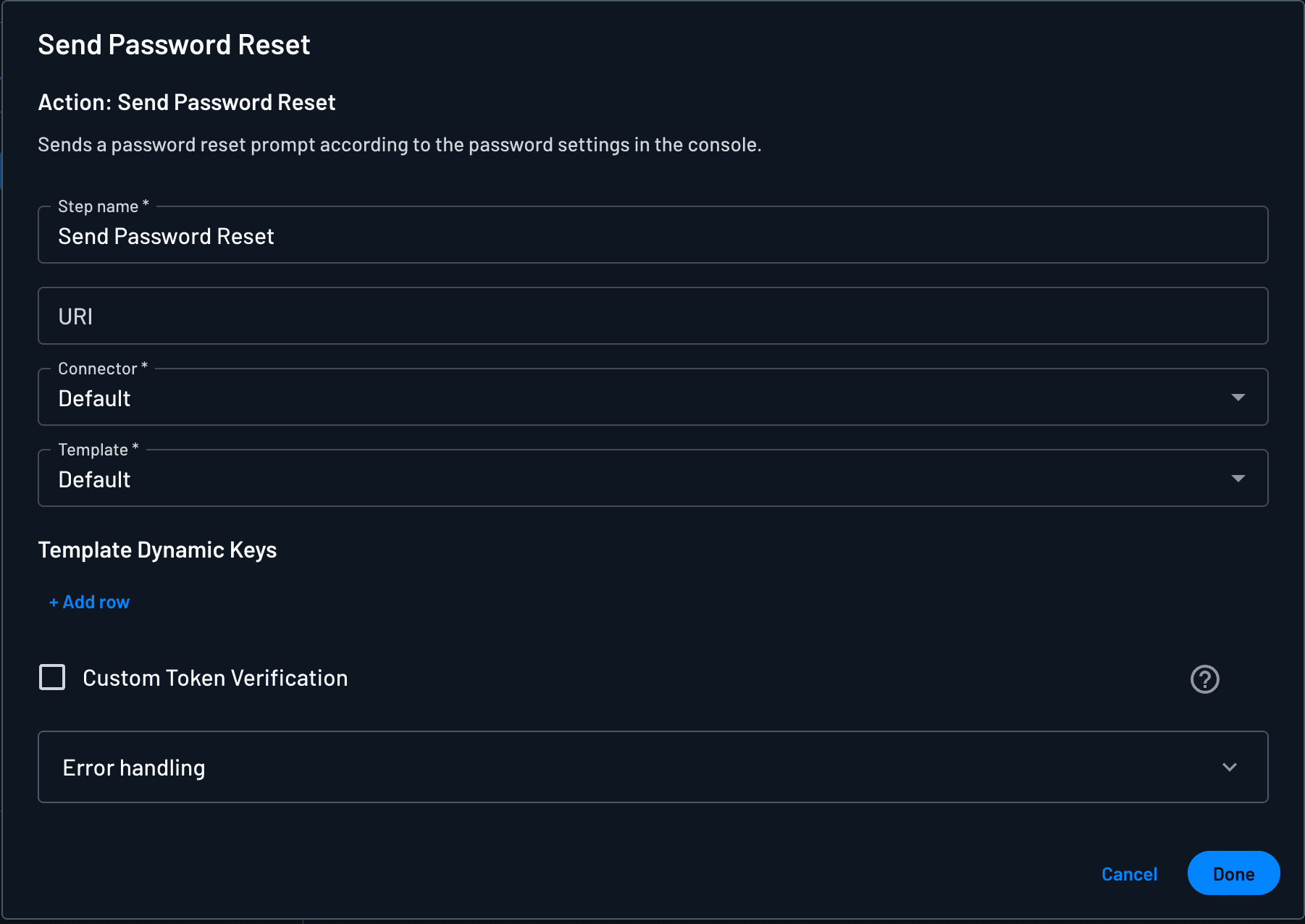
The action's URI field sets where the user lands to complete the reset, and accepts dynamic values, so one flow can serve several sites. For example, {{device.location.scheme}}://{{device.location.hostname}}/new-password builds the URL from the domain hosting the flow.
Left empty, the reset link falls back to the Redirect URL in your magic link settings, since Descope sends password reset emails via Magic Link.
Set/Reset Password Option
Note
You can use the user.passwordExpired dynamic key in your flow to check if the user's password has expired.
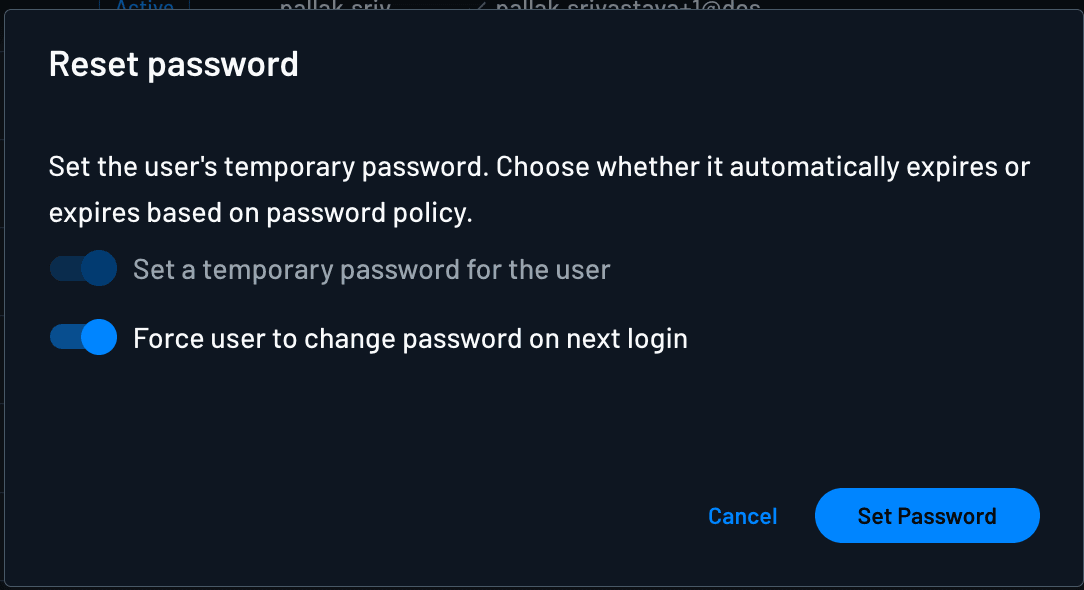
Descopers now have the ability to set or reset user's password from the User's page under manage users. This will help in setting them the password for their first login. In the user's table, against a user, click on the actions menu (3-dots) and select the "Set/Expire Password" option.
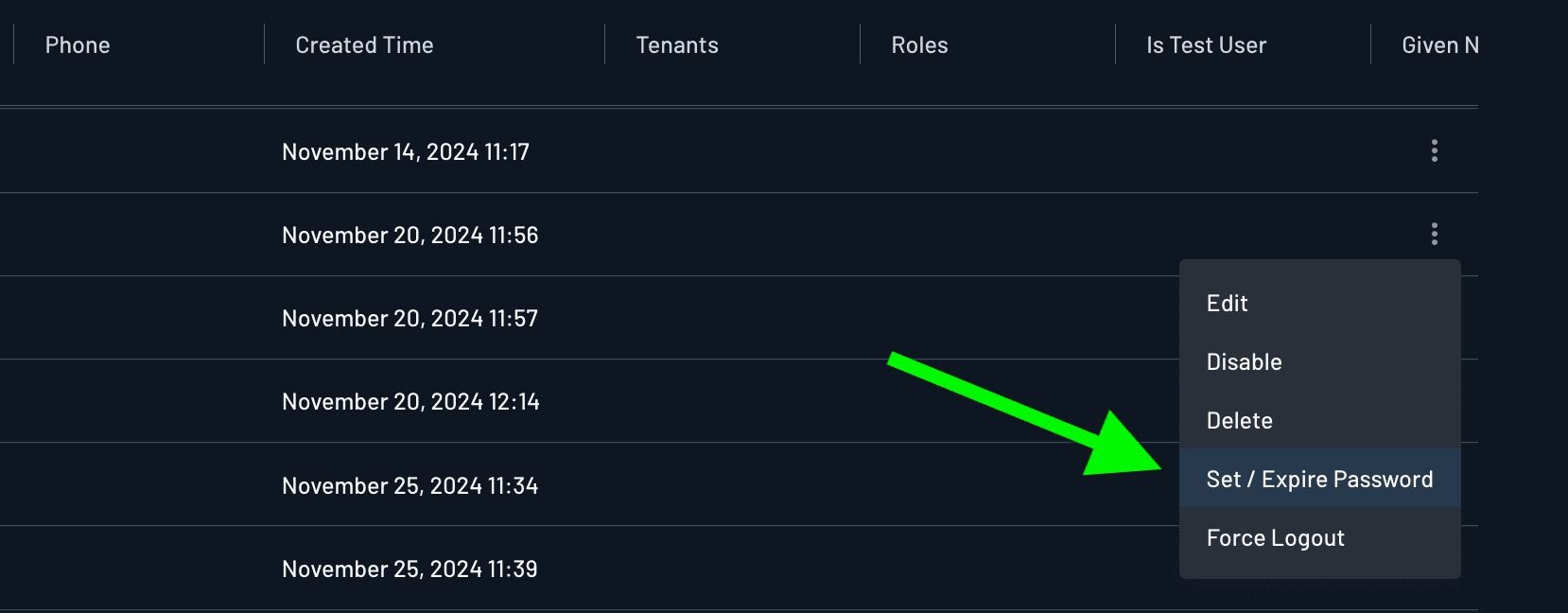
Once you click on this setting, you get the following dialog box with options to set a temporary password for that user. You can toggle to force the user to change their password on their next login.
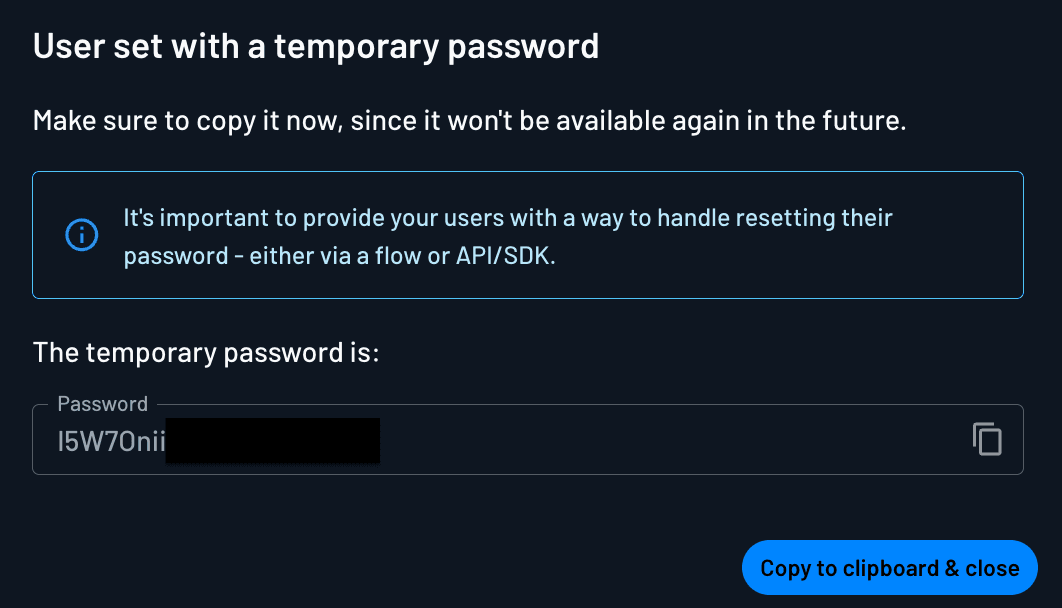
This follows by Descope presenting you a temporary password for that user to login next time with.
Password Error Sensitivity
If "Hide sensitive error information" under Password Policy settings has been enabled, the users will get a generic password failure message, but if there's a need to display specific password error message, make sure to toggle off this option.
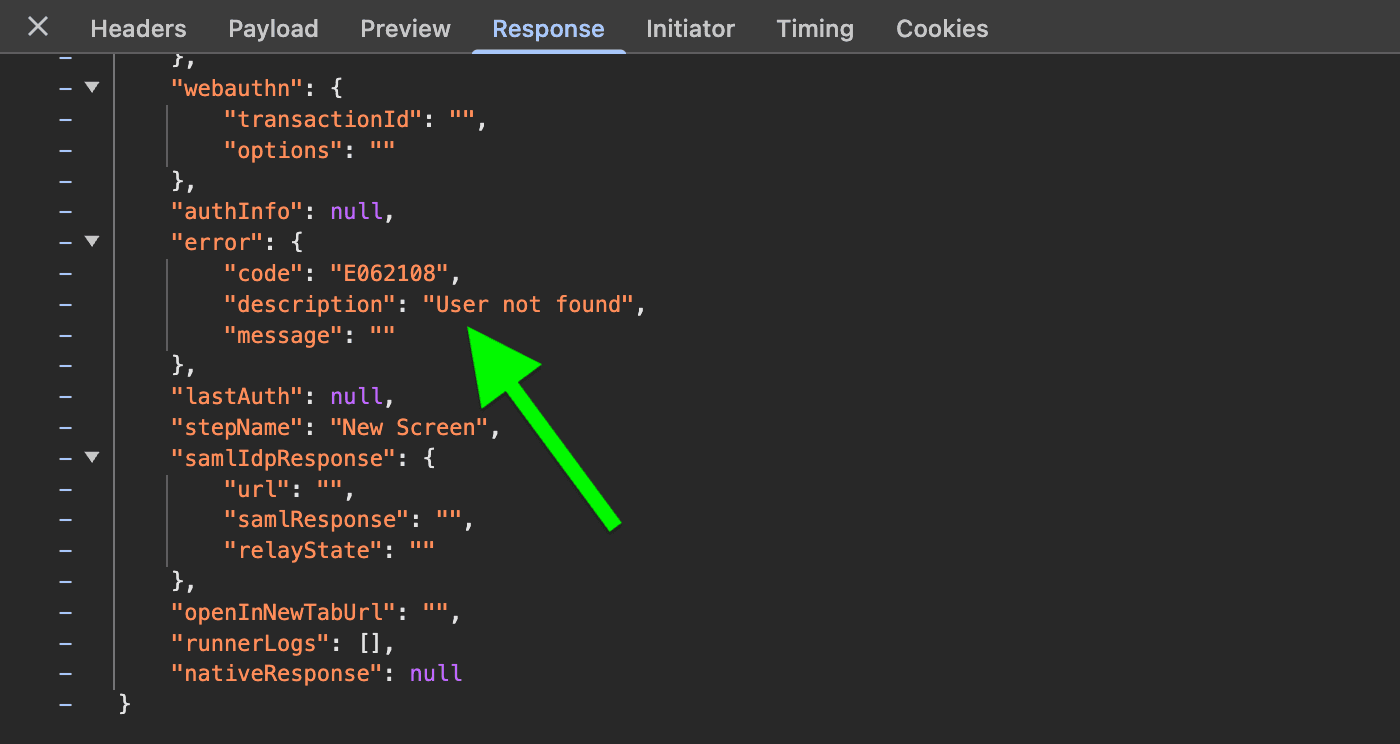
With toggle enabled, the response would have the following error information displayed. This hides any sensitive information on the error.
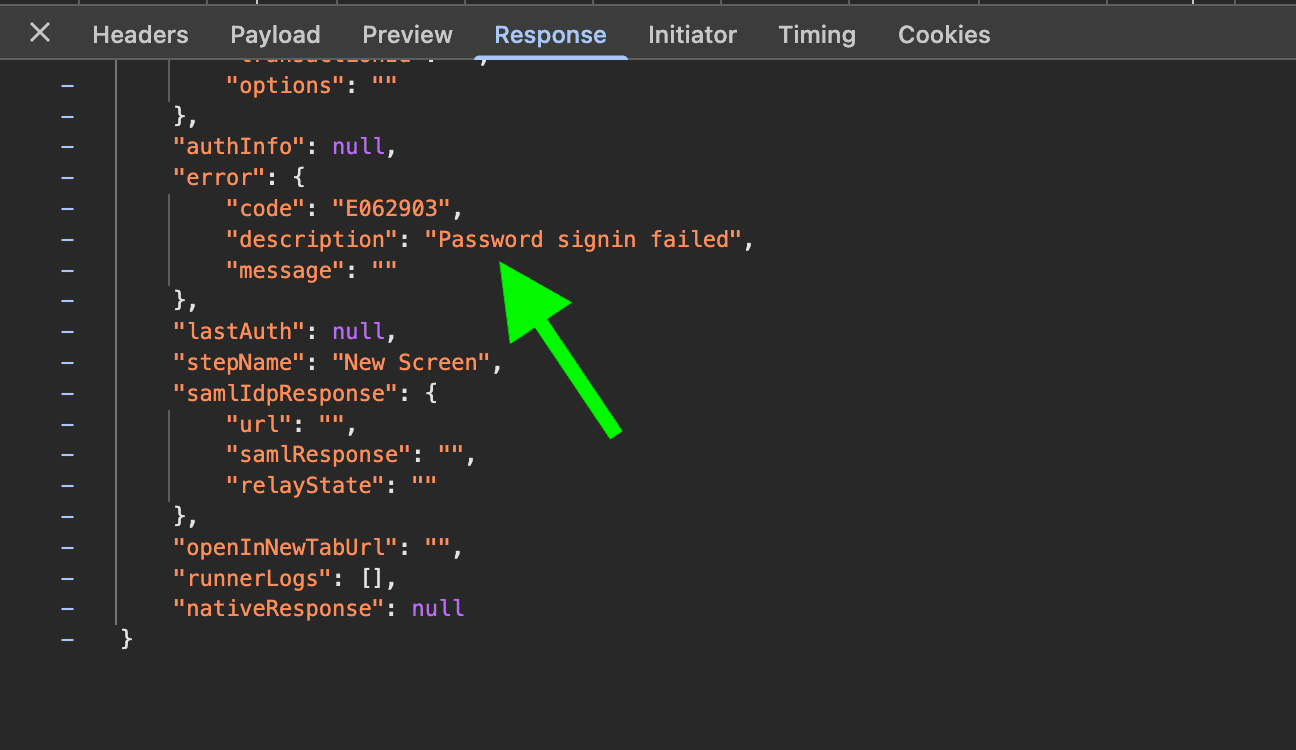
However, once the toggle is off, the error message provides detailed feedback specific to the entered password, offering the user greater clarity about the issue.