Configuring a Tenant
Open a tenant from the Tenants page of the Descope Console.
Each tenant is organized into three areas, and this page follows the same structure so you can find whatever you see in the Console:
- Build: how users authenticate and what they can do (Authentication Methods, Authorization, and Styles).
- Manage: the Users associated with the tenant.
- Settings: tenant details, session policy, SSO Setup Suite, and sub-tenants.
You can configure everything below in the Console, or with the Tenant Management APIs and SDKs.
Build
Authentication Methods
Note
For security reasons, a custom tenant policy for authentication methods can only be more restrictive than the project policy. You cannot loosen requirements at the tenant level.
This section allows you to configure specific tenant-level settings for different authentication methods, as well as set up SSO configurations for the tenant.
SSO
You can configure SSO connections for the tenant, underneath this section.
For more information on SSO in general, see our docs on SSO.
The Cross-App Access tab under SSO is where you accept ID-JAG assertions from a tenant's workforce IdP. For every field, see Cross-App Access. For the product story, see Accept Your Customers' XAA Tokens.
Passwords
You can override the project-level password policy for a tenant. By default the tenant inherits the project policy. Select Custom under Password Policy to set a tenant-specific policy.
Tenant admins can set the same policy themselves, without Console access, from the Tenant Profile Widget.
Note
If a user belongs to multiple tenants, the stricter elements of each tenant's password policy apply.
| Setting | Details | Default |
|---|---|---|
| Minimum password length | Require passwords at least this many characters long. | 8 (range: 5-64) |
| Require at least one letter (any case) | Require at least one alphabetic character (a-z or A-Z). | Unchecked |
| Require at least one lowercase letter | Require at least one lowercase letter (a-z). | Checked |
| Require at least one uppercase letter | Require at least one uppercase letter (A-Z). | Checked |
| Require at least one number | Require at least one digit (0-9). | Checked |
| Require at least one non-alphanumeric character | Require at least one special / non-alphanumeric character. | Checked |
| Disallowed characters | Characters that must not appear in the password. Leave empty to allow any character otherwise permitted by the policy. | Empty |
| Disallow passwords identical to the user's email | Block passwords that match the user's full email address, or the portion before @ (case-insensitive). | Unchecked |
| Enable password expiration | When enabled, passwords expire after the configured number of weeks and the user must choose a new one. | Unchecked; duration 26 weeks (range: 1-999) |
| Prevent password reuse | Remember the last N passwords and reject them when the user sets a new password (for example after reset or expiration). | Unchecked; remember last 10 (range: 10-50) |
| Lock account after x attempts | After x incorrect password attempts, lock the account so the user cannot sign in until an admin unlocks it. | Unchecked; after 5 attempts (range: 2-10) |
| Temporary lock after x attempts, for y minutes | After x incorrect attempts, lock the account temporarily for y minutes. The user can try again when the lock expires. | Unchecked; 3 attempts (range: 1-10) after 5 minutes (range: 1-999) |
| Enable password strength enforcement | Require a minimum password strength score. Passwords must meet or exceed the configured minimum to be accepted. | Average (other options: Strong, Very Strong, Very Weak, Weak) |
When a user belongs to more than one tenant, Descope applies the most restrictive combination of policies. How "more restrictive" is decided:
| Setting | How the stricter value is chosen |
|---|---|
| Minimum password length | Highest number across tenants. |
| Require at least one letter / lowercase / uppercase / number / non-alphanumeric | Enforced if any tenant has it enabled. |
| Disallowed characters | Union of all disallowed characters across tenants. |
| Disallow passwords identical to the user's email | Enforced if any tenant has it enabled. |
| Enable password expiration | Enforced if any tenant has it enabled; uses the shortest expiration period. |
| Prevent password reuse | Enforced if any tenant has it enabled; remembers the largest number of previous passwords. |
| Lock account after x attempts | Enforced if any tenant has it enabled; uses the lowest attempt threshold. |
| Temporary lock after x attempts, for y minutes | Enforced if any tenant has it enabled; uses the lowest attempt threshold and lock duration. |
| Enable password strength enforcement | Enforced if any tenant has it enabled; uses the highest minimum strength. |
For more information on Passwords in general, see our docs on Passwords.
One-time Password (OTP)
By default, the tenant inherits the project-level OTP settings. Select Custom under One-time Password on the tenant to override them for that tenant only.
| Setting | Details |
|---|---|
| Domain | URL domain used in the email or text message sent to the end user. |
| Expiration Time | How long the OTP code remains valid. A shorter window reduces the time available for guessing or replay. |
| Number of Retries and Attempts Timeframe | Cap how many OTP messages a recipient can receive within the configured timeframe. Further sends are blocked until the window resets. |
For more information on OTP in general, see our docs on OTP.
Magic Link
By default, the tenant inherits the project-level Magic Link settings. Select Custom under Magic Link on the tenant to override them for that tenant only.
| Setting | Details |
|---|---|
| Redirect URL | Where the user is sent after a successful Magic Link login. Can still be overridden by the SDK or API call. |
| Expiration Time | How long the Magic Link remains valid. A shorter window reduces the time available for misuse of a leaked link. |
| Number of Retries and Attempts Timeframe | Cap how many Magic Link messages a recipient can receive within the configured timeframe. Further sends are blocked until the window resets. |
For more information on Magic Link in general, see our docs on Magic Links.
Authorization
Each tenant has an Authorization tab where you can create and manage tenant-level roles and permissions for that organization. Project-level roles will still apply across tenants, but tenant-level roles will be scoped to this tenant only.
You can also mark project-level roles as default for the tenant so new users in that tenant receive them automatically.
For the full model (project vs tenant roles, default/hidden roles, JWT claims, and assignment), see our docs on tenant-level roles in Role-Based Access Control.
You can also read more about our authorization model in general with the following docs:
- Authorization overview (RBAC and Fine-Grained Authorization)
- Authorization with SSO providers (mapping IdP groups to roles)
- Tenant Admin role
Styles
Note
This will only apply once the flow knows which tenant is being used.
Therefore, it's only recommended to use this feature, when you are using a tenant slug to hardcode the tenant in your flow.
You can adjust the styling of the tenant's login page with the following settings:
| Setting | Details |
|---|---|
| Logo | You can upload a logo for the tenant's login page. |
| Favicon | You can upload a favicon for the tenant's login page. |
| Colors | You can set the colors for the tenant's login page, similar to how you configure a custom theme for your project. |
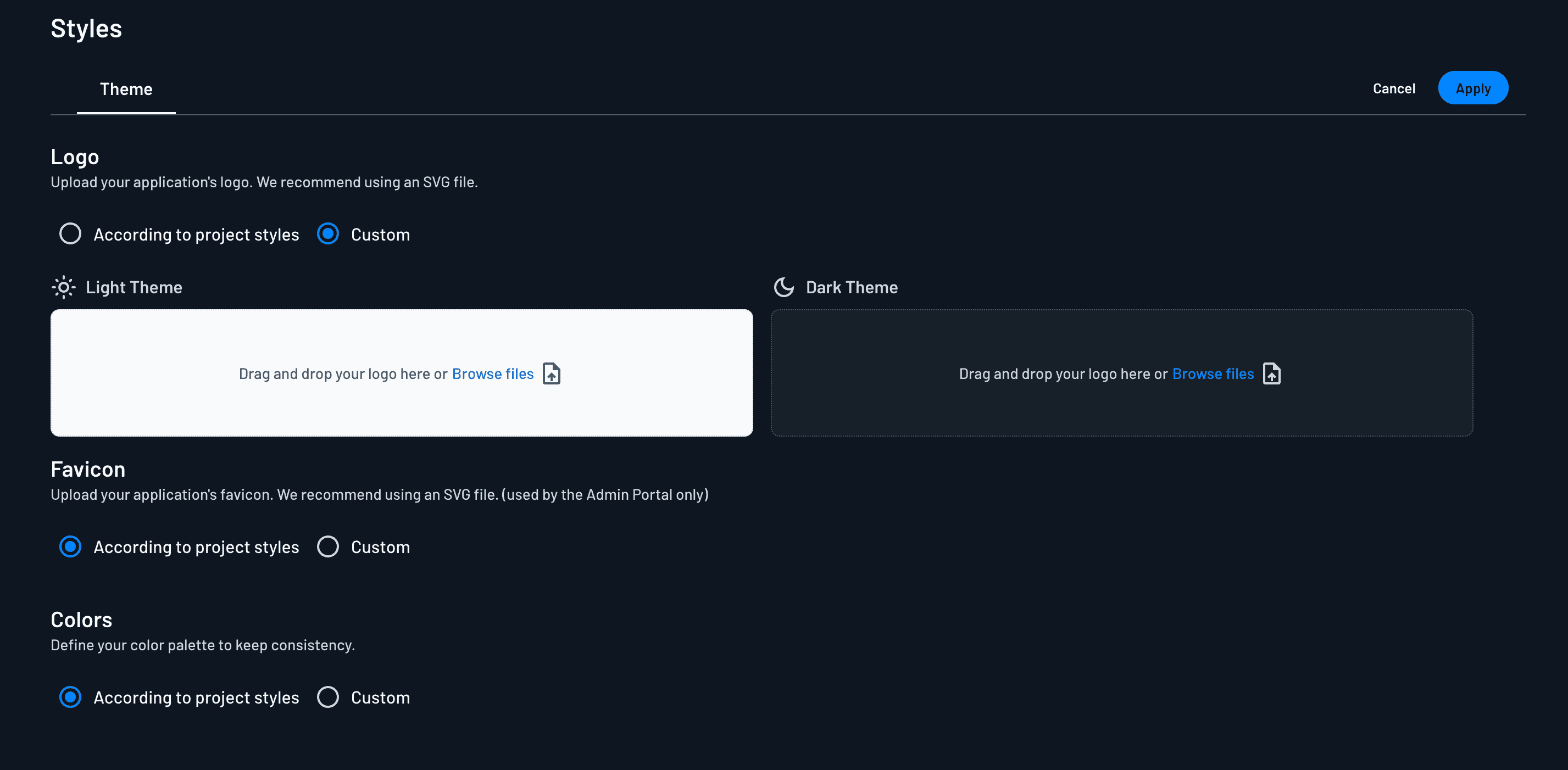
You can also configure a custom theme and just harcode the theme, like you do the tenant.
However, if you do not want to have to create individual styles for each tenant and map them accordingly in the code of your application, you can rely on this feature to do it for you.
Manage
Users
The Users tab shows every user associated with this tenant. It's a filtered view of your project's users, scoped to this tenant, so you can see who belongs to the organization and manage their tenant roles.
Note
By default, user identities exist at a Project level. This means that a user has a single identity across every tenant they belong to, so the same login ID, credentials, and MFA state are shared.
If the same login ID needs to be treated as a completely separate identity in each tenant, with independent credentials and MFA, enable Tenant User Isolation.
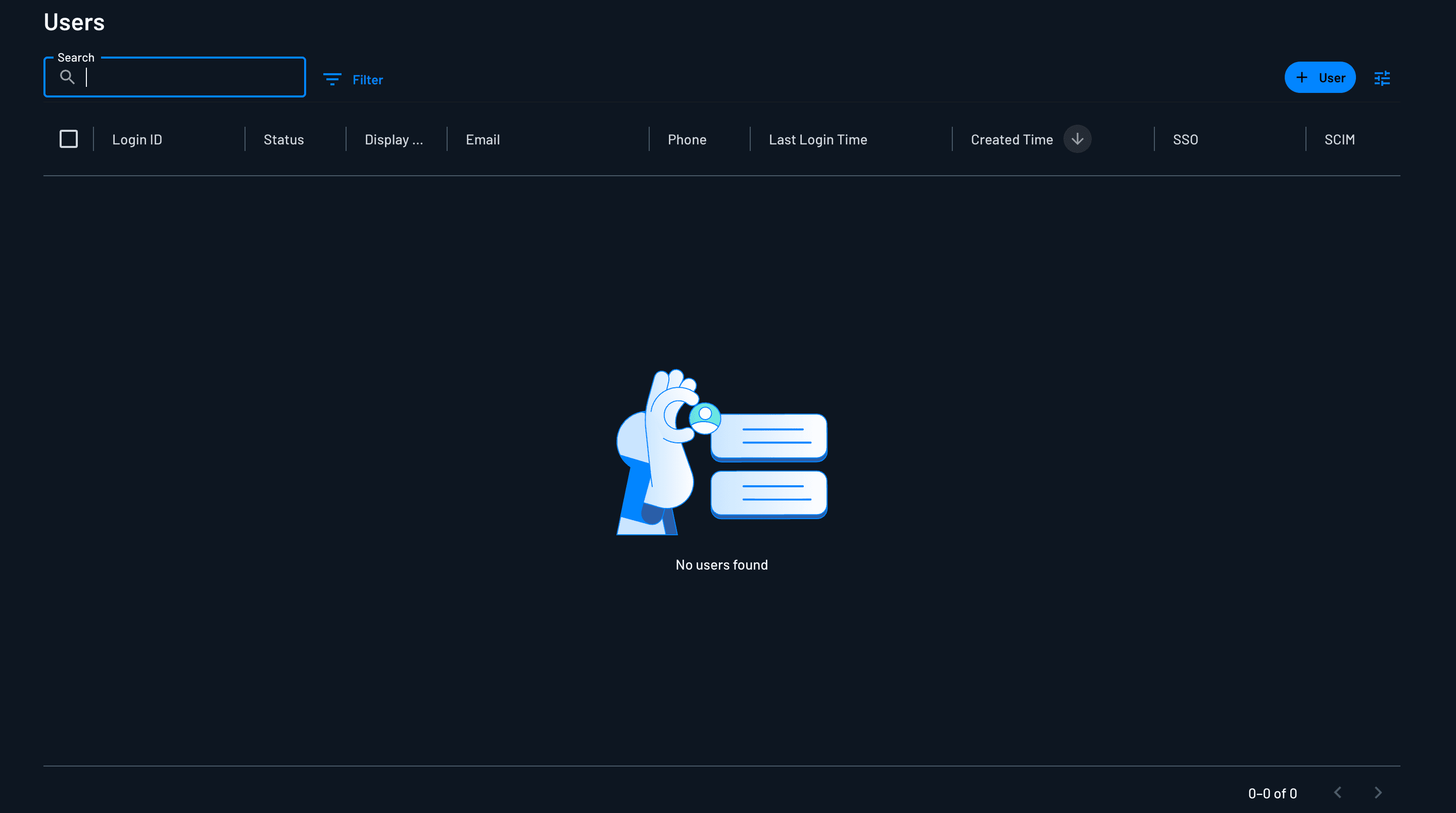
The UI is very similar to the main Users page in the Console, where you can create, edit, and delete users. To learn how to add users to a tenant, read our docs on User Management.
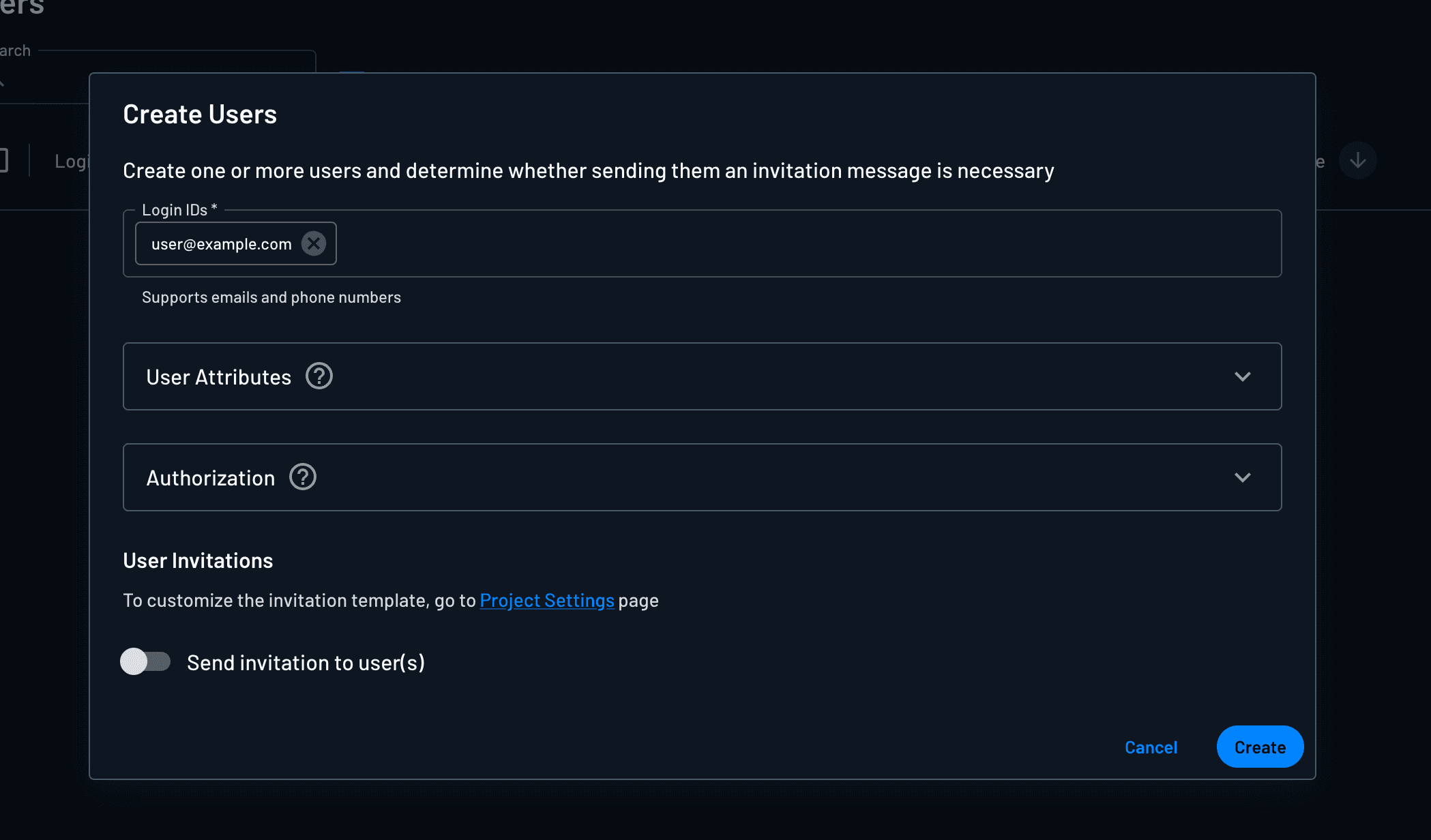
You can also do this with the Users API and SDKs, or add users to a tenant within a flow.
Settings
Settings in the tenant sidebar has two sections:
- Sub-tenants: child tenants under this organization
- Tenant Settings: details such as name and email domain, session policy, and SSO Setup Suite configuration
Sub-tenants
Sub-tenants let you model hierarchy inside a tenant, such as departments or business units within a customer organization. See Sub-tenants for details.
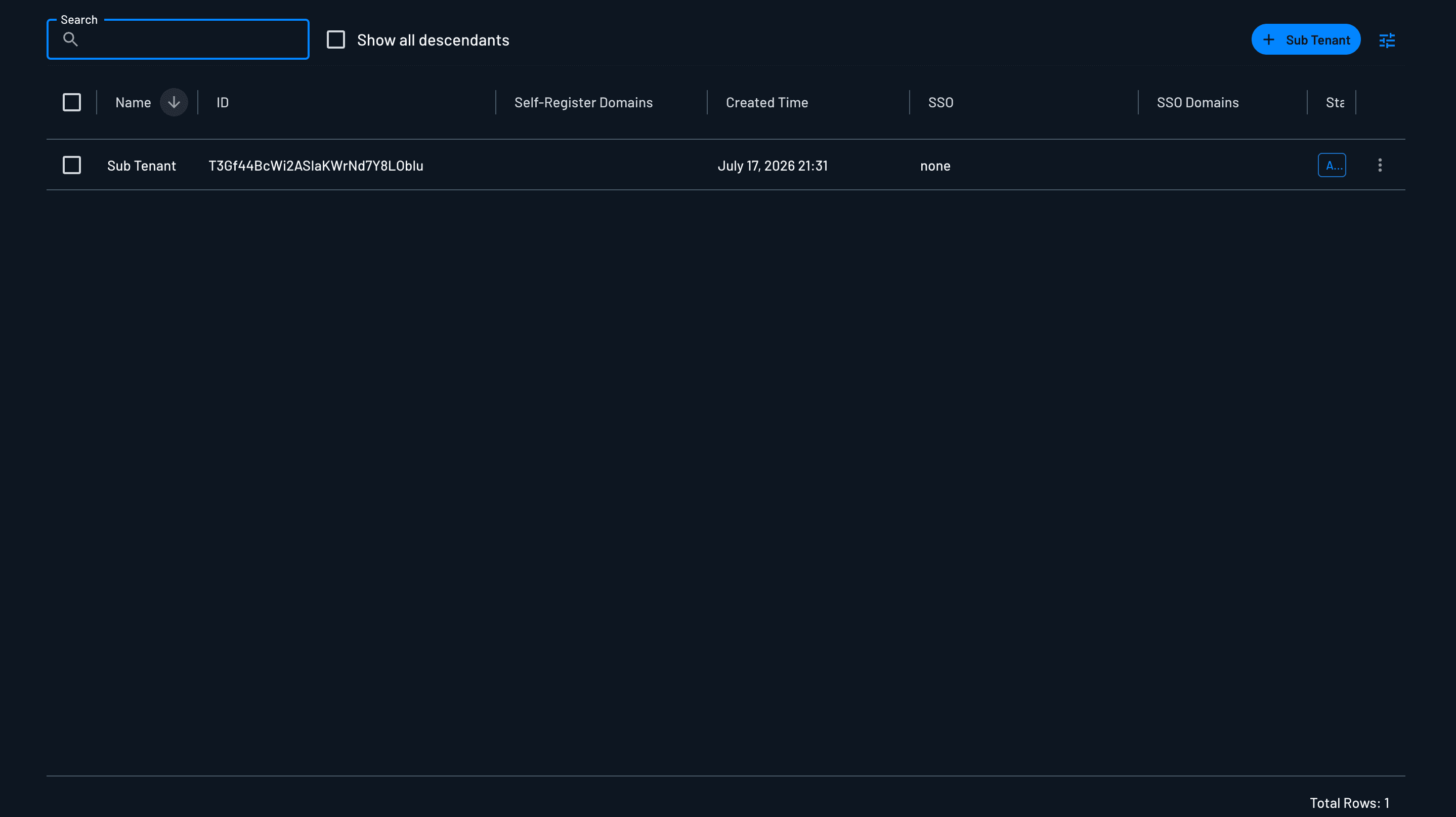
Tenant Settings
Tenant Name
When creating your tenant, you can set the tenant name. This can also be modified later.
To enable the ability to give multiple tenants the same name on your project, reach out to our support (support@descope.com).
Tenant ID
When creating a tenant, you can set the Tenant ID. However, if not provided during tenant creation, it will be autogenerated. The Tenant ID is not modifiable after tenant creation.
Email Domain
Note
This is only necessary for tenants that don't use SSO.
If you are using SSO, you need to make sure you've configured SSO domains for your SSO configuration instead, in order to associate the right users with the right SSO provider.
Users with email domains matching this configuration will automatically be associated with the tenant when they sign up or in.
SSO Enabled
Note
This is different than the ssoEnabled flow condition, which simply checks if SSO is enabled for the user's associated tenant.
When this feature is enabled, under Tenant access, SSO authentication will be enforced for all users within the tenant.
Users will be required to authenticate through the configured SSO provider (SAML or OIDC) and will not be able to use other authentication methods like passwords or magic links. Even if the flow is incorrectly designed, there will be an error when signing in with any other authentication method in the flow.
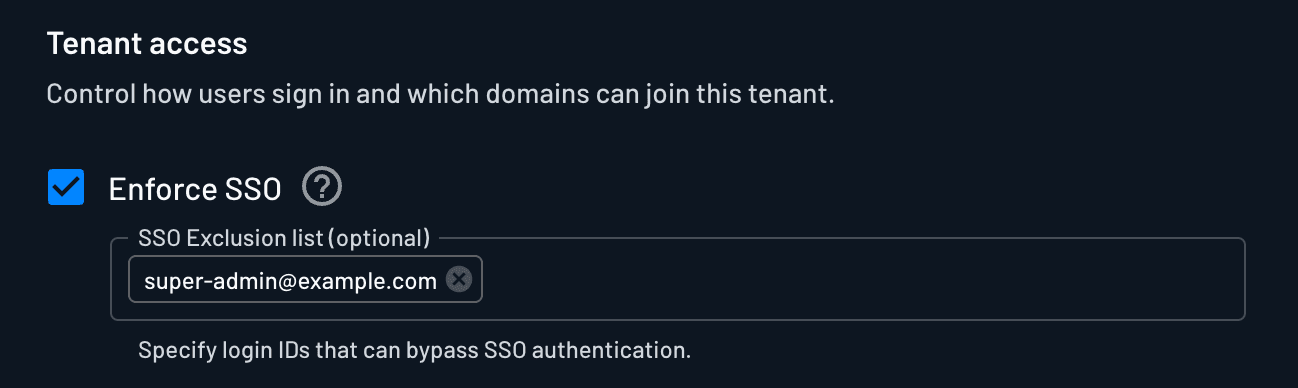
You are also able to specify an set of login ID's in an SSO exclusion list that can bypass this SSO enforcement. This can be useful in cases when you may need a "break glass" account configured for a particular tenant.
You can optionally set an SSO Exclusion List if you would like to specify login IDs that can bypass SSO authentication. This can be useful in cases when you may need a "break glass" account.
Refer to our Enforcing SSO guide to learn how to effectively use this setting in a flow.
Note
Enabling SSO Enforced without an SSO domain configured for the tenant means Descope can't route users to their SSO connection. To require an SSO domain on every tenant SSO connection in your project, add SSO Domains to Mandatory User Attributes in the project-level SSO settings.
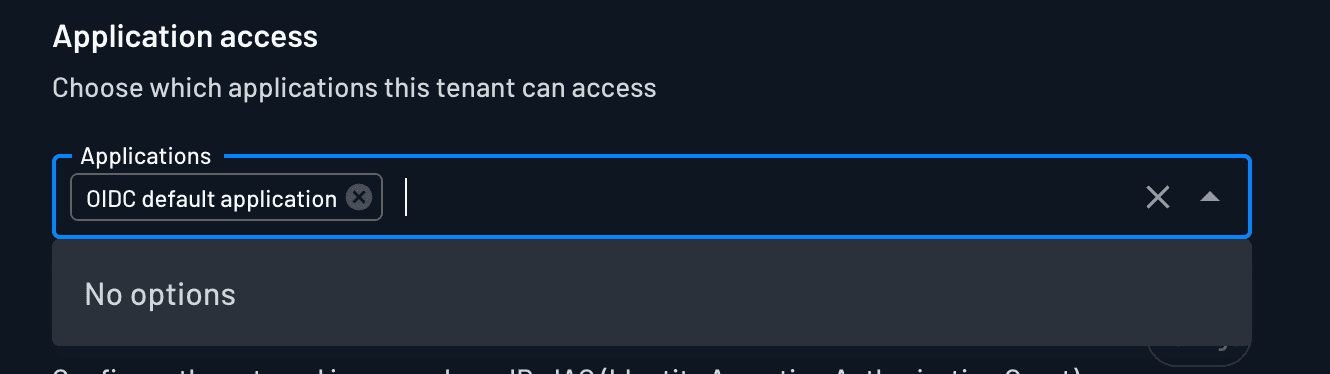
Application Access
You can optionally configure Federated Applications that users of the tenant will automatically be assigned/have access to.
Session Management
Note
If you're using Descope just for SSO, and not relying on Descope session management, this section doesn't apply to you.
You can override the project-level session management policy for a tenant. By default the tenant inherits the project policy. Select Custom under Session Management to set a tenant-specific policy.
Tenant admins can configure the same policy directly from the Tenant Profile Widget, without needing Console access.
Note
If a user exists in multiple tenants, the stricter elements of each tenant's session management policy will be used for the issued tokens.
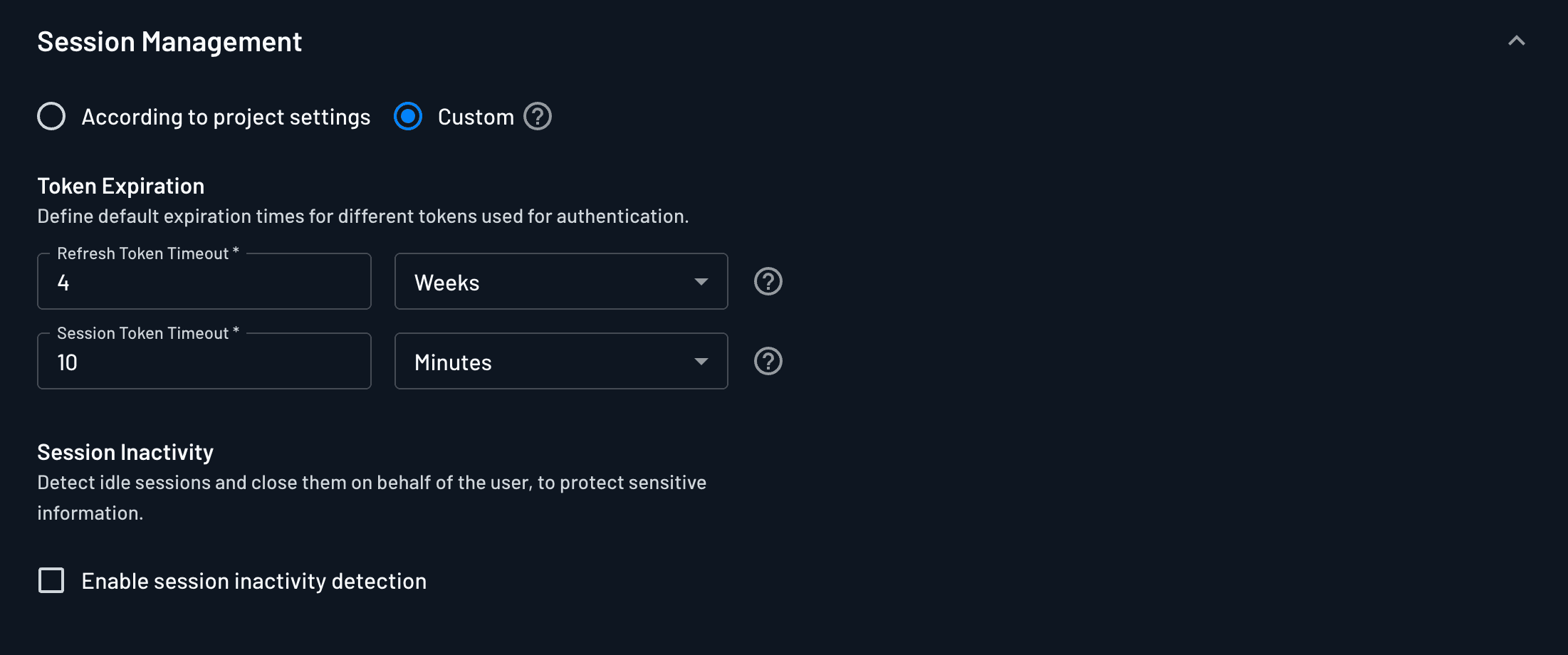
Refresh Token Timeout
This value sets the validity period for the Descope refresh token, after which the user will need to re-authenticate.
Session Token Timeout
This value sets the validity period for the Descope session/access token.
The value needs to be at least 3 minutes, and cannot be longer than the previously configured refresh token timeout.
Session Inactivity
You can enable session inactivity detection by checking the box for Enable session inactivity detection.
Once enabled, you can configure the Inactivity timeout window with your desired configuration.
If a session token is not refreshed within this amount of time, Descope will consider that session "idle", and invalidate it automatically.
SSO Setup Suite Configuration
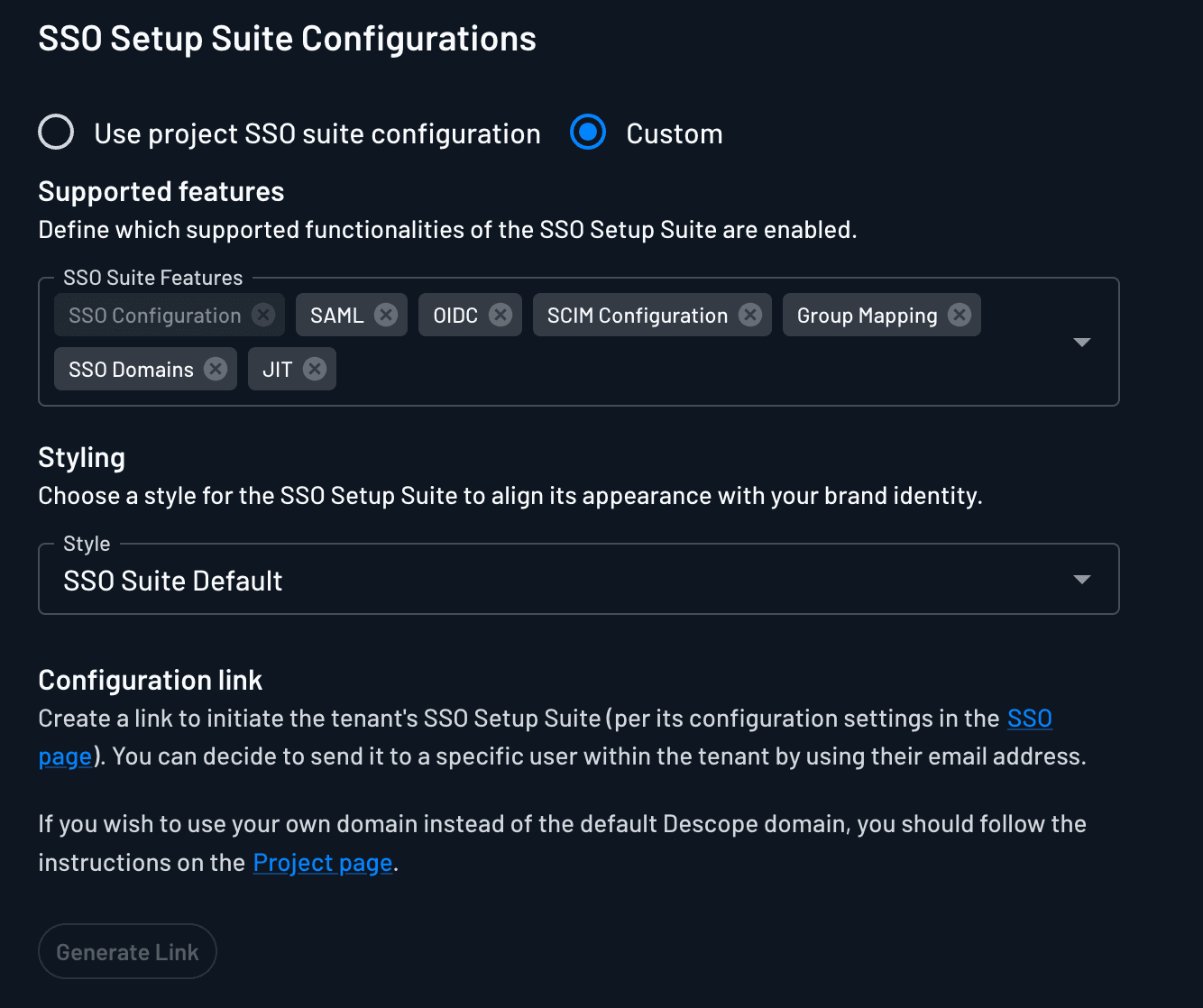
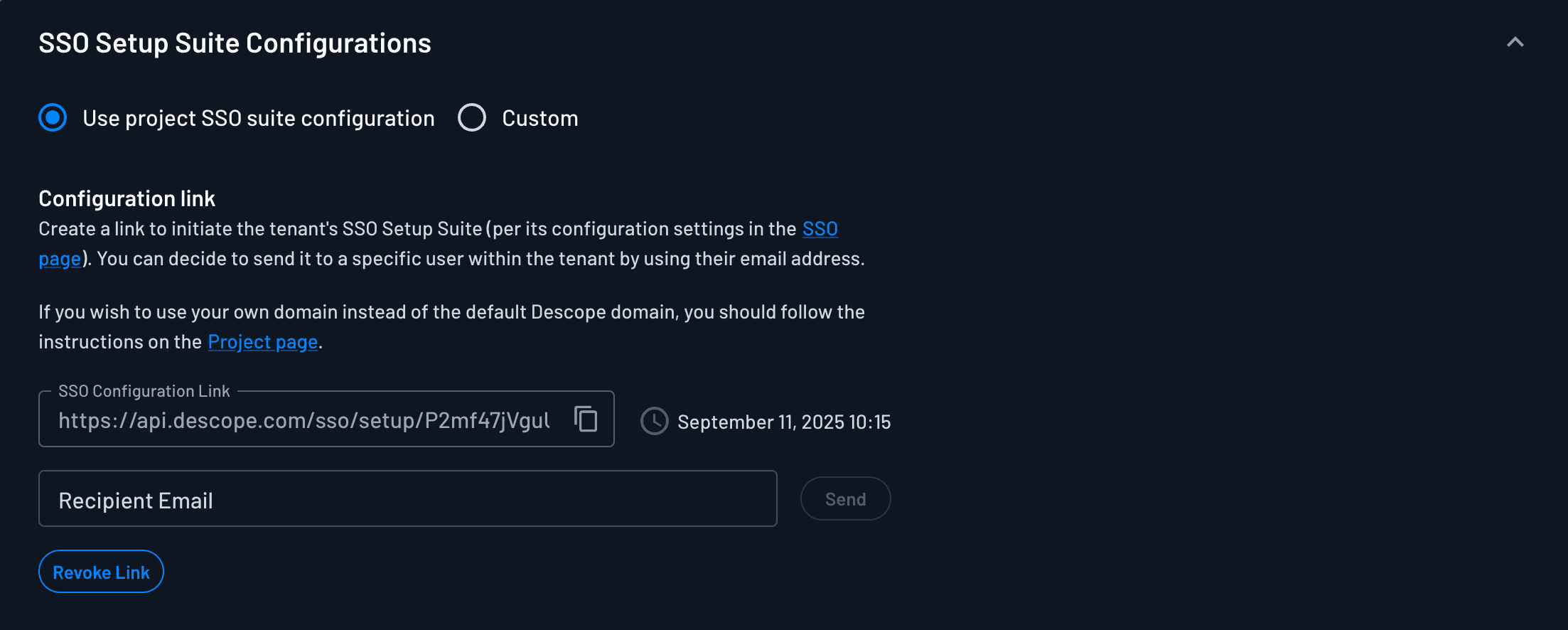
You can choose for the tenant to inherit the project level SSO Setup Suite Configuration, or to configure the SSO Setup Suite for the individual tenant directly. For a full list of configurable SSO Setup Suite settings, refer to the project-level settings doc.
SSO Configuration Link
In this section, you can generate and revoke a link for the tenant's SSO Setup Suite.
You can also send the link, directly to a Tenant Admin from the Descope Console, by entering their email address in the Recipient Email field.
Custom Settings
If you want to customize the SSO Setup Suite experience for a specific tenant, you can select Custom under the SSO Setup Suite Configurations section.
Within this section, you can configure the following settings:
| Setting | Details |
|---|---|
| SSO Setup Suite Features | You can choose which specific features you want to enabled for the SSO Setup Suite. The controllable options are: SSO Configuration, SAML, OIDC, SCIM Configuration, Role Mapping, FGA Mapping, SSO Domains, JIT. Removing SSO Configuration leaves a SCIM-only suite; SSO Configuration and SCIM Configuration cannot both be removed |
| Styling | You can select a different style for the SSO Setup Suite. |