User Management
If you want to view the SDK documentation for User Management, click here.
User Identity
For each user created in your project, Descope assigns a unique identifier (userId) to the user. You cannot set or change the userId within the Descope UI, your application, or any API call.
Descope also stores an array of login IDs, which are used as the login identifier parameter for all user authentication and update actions. Login IDs can be an email, phone, or username, and must be unique across all users in the project.
The user object also includes additional attributes (which do not have to be unique across users) such as email, phone, name, and custom attributes. Users can have defined access to federated apps and tenants, as well as roles on the project and/or tenant level.
Using a User ID in Place of a Login ID
Most user management operations accept a User ID anywhere they accept a Login ID. Descope detects which kind of identifier you passed and resolves the user. See the SDK reference for the exact parameters each function accepts.
Note
If you're using phone numbers as a login ID, make sure that the phone numbers are formatted properly before adding them, if using the Management SDK or User Management APIs.
Email Addresses with Unicode Domains
Descope supports email addresses with Unicode domains, such as user@café.be or 用户@例子.中国. You can pass these addresses to the User Management APIs as-is, without converting them to Punycode (xn--...) first.
Key behaviors to know:
- Exact matching: The User Management APIs validate the domain but do not convert it.
user@café.be(Unicode) anduser@xn--caf-dma.be(Punycode) are different login IDs. Use the Unicode form, which matches what flows save, so users created through the APIs match their flow sign-ins. - Flows: Browsers convert the email domain to Punycode when a user submits a flow's email field. Flows convert the domain back and save the readable Unicode form, such as
user@café.be. - Email delivery: Descope converts the domain to Punycode automatically when sending emails and looking up the domain's MX records. No action is needed on your end.
User Table
The Users page in the Descope Console provides a comprehensive table view of all users in your project. This interface serves as the central hub for managing and viewing user information.
Managing Users from the Table
From the user table, you can perform various actions:
- View user details - Click on a user to view their complete profile and information
- Invite users - Invite users individually or in batches
- Edit users - Update user information, passwords, roles, and tenant associations
- Filter and search - Filter and search for users based on attributes. For example:
- Status - Active, disabled, or invited
- Roles - Project-level or tenant-level roles
- Authentication method - Whether users have a specific method enrolled, such as a password or passkey
- Custom attributes - Any custom attribute values defined for your project
- Text search - Name, email, phone, or login ID
- Modify user status - Activate, disable, force logout, and delete users
- Bulk actions - Perform actions on multiple users at once
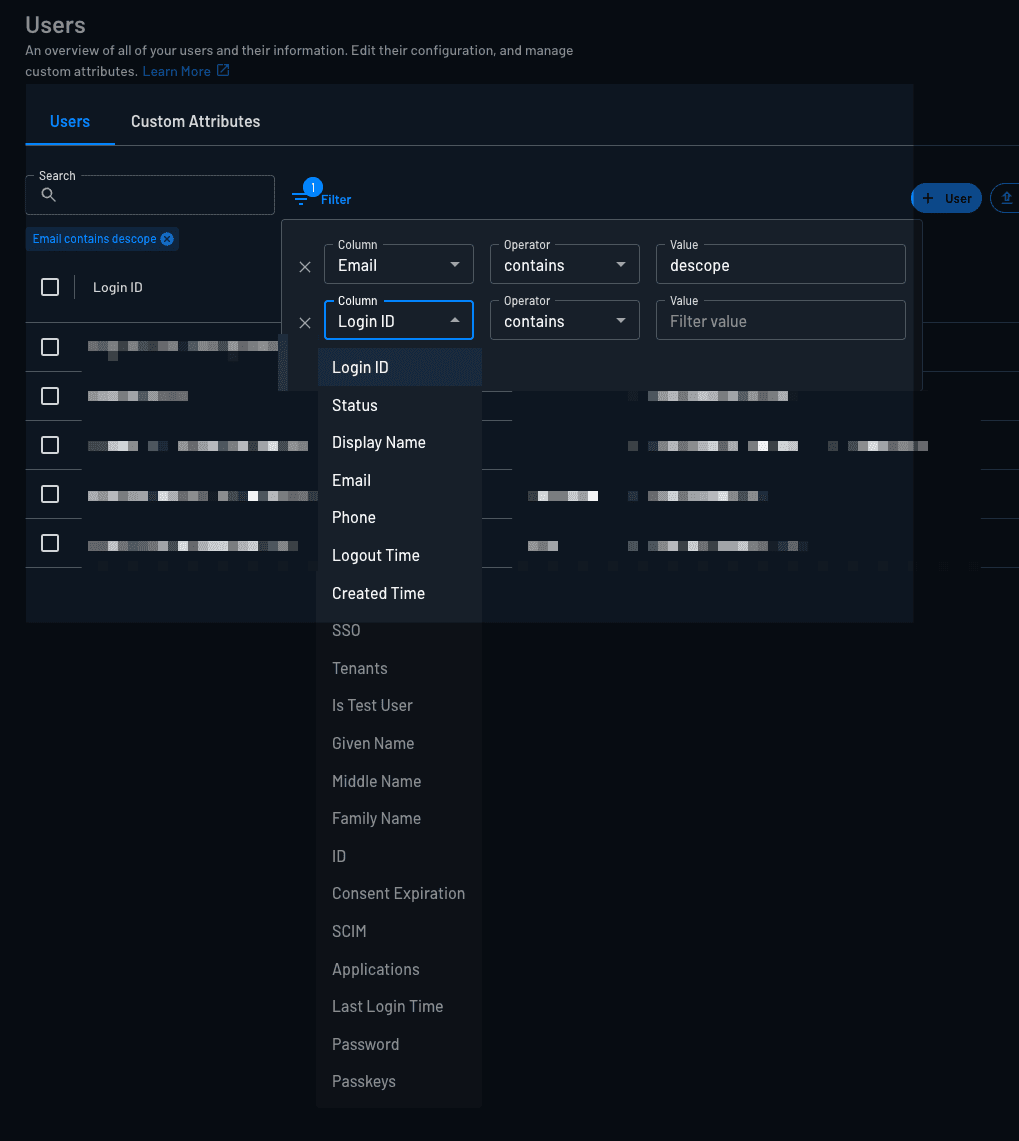
Filtering Examples
You can filter the user table using various criteria, such as custom attributes, verified phone/email, status, roles, and more. Multiple filters can be combined to narrow down results.
In the Descope Console, open the filter controls on the Users page and select the desired filters.
Recovery Email and Phone Columns
The user table also includes two optional columns, Recovery Email and Recovery Phone, hidden by default like other optional columns. Each column shows the value plus a verified/unverified indicator, and you can sort and filter both the same way as the Email and Phone columns.
You can set, update, or clear a user's recovery email or phone from the user edit dialog. Setting or changing a value marks it verified.
Custom User Attributes
Descope allows you to create custom attributes that can store further details about your users. You can create custom attributes within the user's page under the custom attributes tab.
Custom attributes can be of the following types:
- Text - Store text-based information
- Numeric - Store numeric values
- Boolean - Store true/false values
- Single select - Choose one option from a list
- Multi select - Choose multiple options from a list (utilized as an array)
- Date - Store date values
- Month-Day - Store the values in the MM-DD format
Custom attributes can be used to store any data you want for the user. For example, this data could be a user's date of birth, location, etc. You can later utilize these attributes within custom claims or load them for a user and display them within your application.
Inviting Users
Learn more about creating and customizing user invitations to your application in our Inviting Users doc.
User Merging
Descope supports the merging of user accounts. Merging accounts will be based on trusted email addresses.
Within the Authentication Methods page of the Descope UI, Descopers can configure the Social Auth (OAuth) logins to merge with existing users. Within each of the Social Auth (OAuth) methods, Descopers can configure the merging of the users by enabling the toggle for Merge user accounts based on returned email address from provider.
If the email address returned from the Social Auth (OAuth) provider matches an existing user, the Descope service will merge the accounts based on the user's email address.
Associating Multiple Login IDs for a User
Within your application, you may have users signing up or signing in with an email authentication method but also utilizing other methods, such as SMS or Social Login. Descope allows these different auth methods to be nested into the same user by allowing multiple login IDs to be associated with the user.
Storing multiple login IDs enables the user to log in with:
- Email auth method
- SMS auth method
- Social Login
All of the login IDs will be associated with the same user. The user can then log into your application using their email address or phone number as the login ID.
Using API or SDK
When utilizing the API or SDK, if you want to enable this feature, you will use the options AddToLoginIDs and OnMergeUseExisting:
- AddToLoginIDs: Setting this to
truewill enable the additional login IDs to be associated with the user - OnMergeUseExisting:
- When set to
false, it will merge the users based on the new user's details - When set to
true, it will merge the users based on the existing user's details
- When set to
You can also associate multiple login IDs by utilizing the create, batch create, invite, or update functions below, passing the additional login IDs parameter.
If you are utilizing flows, see our doc on linking user identities in flows which covers implementation details.
User Lifecycle
Users within Descope can be in one of four states:
- Active - Users can log in and interact with your application based on their assigned roles
- Disabled - Users cannot log into your application, but remain in the Descope project and may be reactivated
- Invited - Users have been invited but have not yet signed in; they remain in Invited status until they complete the full sign-in Flow, and only then become active
- Invite Expired - User invitations that were not accepted within the configured expiration period. These users can be re-invited to reset the invitation
Force Logout
A Descoper can force a logout on a user, useful in situations like suspicious activity where you would want to force reauthentication.
Force logout will log the user out from all devices and sessions. This can be done directly via the Users page of the Descope console, or using our Management SDK function. To force logout multiple users at once, such as enforcing a re-authentication policy across a large user segment or responding to an incident affecting several accounts, see Batch Logout Users.