Exporting Users
This guide will cover how to export users from Descope.
Overview
There are two main methods for exporting users from Descope:
-
API/SDK Methods: For migrating users between projects or to external systems, use the Search Users API or the SDK methods to export user data programmatically. This is the recommended approach for project migrations and external system integrations.
-
CSV Export: If you need to export users as a CSV file (useful when dealing with large batches of users), you can use the Descope Console's CSV export feature.
Using the Search Users API or SDK
For scenarios where you need to migrate user data between projects or to a different system, you can use the Search Users API or the SDK methods to export user data programmatically.
You can export user data securely by utilizing the Search Users endpoint of the Descope Backend API. This endpoint allows for the programmatic extraction of user information.
Alternatively, the searchAll() function available in the Descope Backend SDKs can be employed to retrieve a comprehensive list of users.
Submitting an empty request payload will return all users. Here's an example curl command to do so:
curl -i -X POST \
  __BaseURL__/v1/mgmt/user/search \
  -H 'Authorization: Bearer __ProjectID__:<ManagementKey>' \
  -H 'Content-Type: application/json' \
  -d '{}'
Example Output
The output of the above curl command will be a JSON object containing user details. Below is an example of what the response might look like:
{
  "users": [
    {
      "loginIds": ["brian"],
      "userId": "U2iOCFIwsdgeGvusdfkKUb9HJKsdi",
      "name": "Brian",
      "email": "",
      "phone": "",
      "verifiedEmail": false,
      "verifiedPhone": false,
      "roleNames": [],
      "userTenants": [],
      "status": "enabled",
      "externalIds": ["brian"],
      "picture": "",
      "test": false,
      "customAttributes": {},
      "createdTime": 1719352134,
      "TOTP": false,
      "SAML": false,
      "OAuth": {},
      "webauthn": false,
      "password": false,
      "recoveryCodes": false,
      "ssoAppIds": [],
      "givenName": "",
      "middleName": "",
      "familyName": ""
    },
    ...
  ],
  "total": 2152023
}
Migrating Users to a New System
While direct access to users' hashed passwords is not provided through our Backend APIs, you can contact our Support team for assistance. We can generate a .csv file containing your users' data and facilitate a secure data transfer.
Tracking Migration Progress
If you're migrating users into Descope gradually rather than all at once (for example, via JIT provisioning from Okta CIS or another identity provider - see Tracking migration progress in the Okta CIS guide), you can use the password filter on the Search Users API to see how many users have completed migration versus how many still need to.
password: true- Returns users who already have a password set in Descope.password: false- Returns users who do not yet have a password set in Descope.
curl -i -X POST \
  __BaseURL__/v2/mgmt/user/search \
  -H 'Authorization: Bearer __ProjectID__:<ManagementKey>' \
  -H 'Content-Type: application/json' \
  -d '{"password": false}'
Compare the total field returned for a password: true search against a password: false search to see how many users remain.
Tip
The same filtering works for totp, webauthn, and scim — for example, use {"webauthn": false} to find users who still need to enroll a passkey.
Exporting Users as CSV
Caution
This method of export is not meant to transfer users between different projects.
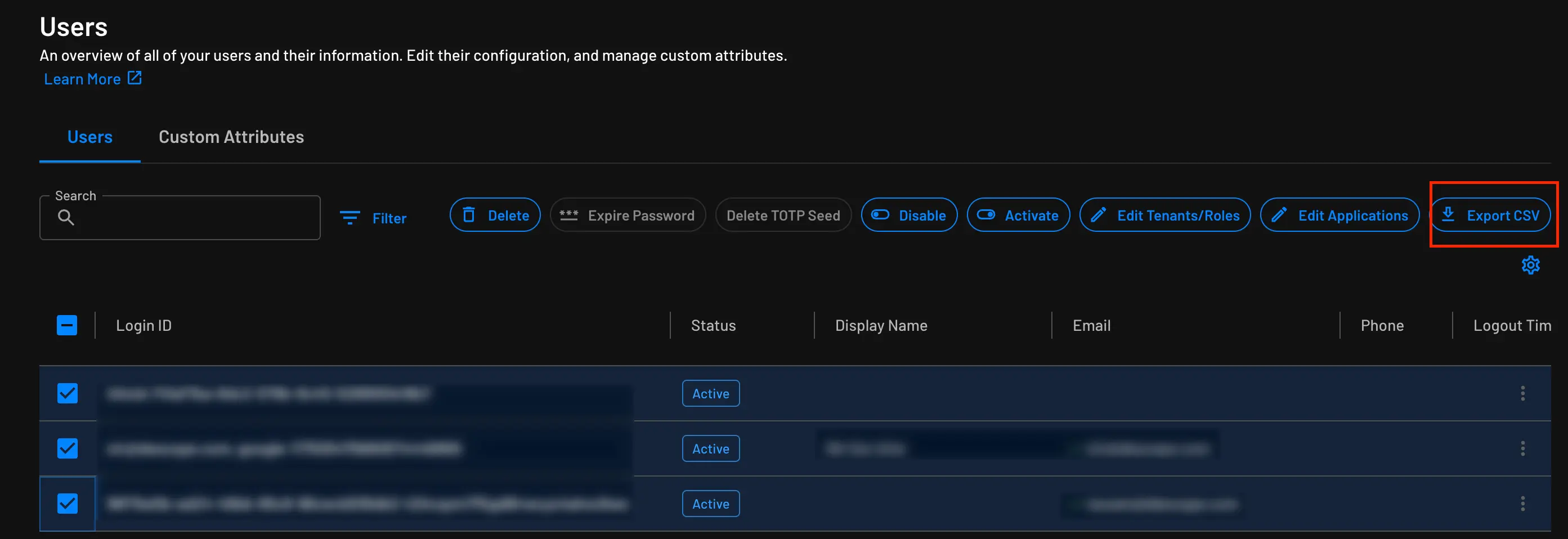
If you need to export users as a CSV file (useful when dealing with large batches of users), you can use the Descope Console. Head over to the users page, select the required users for export, and the "Export CSV" button will appear:
By pressing the button, you should be prompted to download the file.