Exporting Tenants
There are two main methods for exporting tenants from Descope:
-
API/SDK Methods: For migrating tenants between projects or to external systems, use the Load All Tenants API or the SDK methods to export tenant data programmatically. This is the recommended approach for project migrations and external system integrations.
-
CSV Export: If you need to export tenants as a CSV file (useful when dealing with large batches of tenants), you can use the Descope Console's CSV export feature.
Using the Load All Tenants API or SDK
For scenarios where you need to migrate tenant configurations between projects or to a different system, you can use the Load All Tenants API or the SDK methods to export tenant data and then recreate the tenants using the Create Tenant API.
You can export tenant data securely by utilizing the Search Tenants endpoint of the Descope Backend API. This endpoint allows for the programmatic extraction of tenant information.
Alternatively, the loadAll() function available in the Descope Backend SDKs can be employed to retrieve a comprehensive list of tenants.
Submitting an empty request payload to the Search Tenants endpoint will return all tenants. Here's an example curl command to do so:
curl -i -X POST \
  __BaseURL__/v1/mgmt/tenant/search \
  -H 'Authorization: Bearer __ProjectID__:<ManagementKey>' \
  -H 'Content-Type: application/json' \
  -d '{}'
You can also use the Load All Tenants endpoint without a request body:
curl -i -X GET \
  __BaseURL__/v1/mgmt/tenant/all \
  -H 'Authorization: Bearer __ProjectID__:<ManagementKey>'
Example Output
The output of the above curl commands will be a JSON object containing tenant details. Below is an example of what the response might look like:
{
  "tenants": [
    {
      "id": "T2xBhVWosRC2ZeCV0qri3gosE1ZW",
      "name": "Example",
      "selfProvisioningDomains": [
        "example.com"
      ],
      "customAttributes": {},
      "authType": "saml",
      "domains": [
        "example.com"
      ],
      "createdTime": 1747417398,
      "disabled": false,
      "enforceSSO": false,
      "enforceSSOExclusions": [],
      "federatedAppIds": [
        ""
      ],
      "parent": "",
      "successors": [
        "T33kYuODI4fPWvymbOcTUELEGbiW"
      ],
      "defaultRoles": [],
      "roleInheritance": ""
    },
    {
      "id": "T33kYuODI4fPWvymbOcTUELEGbiW",
      "name": "example-subtenant",
      "selfProvisioningDomains": [],
      "customAttributes": {},
      "authType": "saml",
      "domains": [],
      "createdTime": 1759862758,
      "disabled": false,
      "enforceSSO": false,
      "enforceSSOExclusions": [],
      "federatedAppIds": [],
      "parent": "T2xBhVWosRC2ZeCV0qri3gosE1ZW",
      "successors": [],
      "defaultRoles": [],
      "roleInheritance": ""
    }
  ]
}
Note
For complex migration scenarios involving SSO configurations, custom attributes, or tenant hierarchies, please contact our Support team for assistance.
Exporting Tenants as CSV
Caution
This method of export is not meant to transfer tenants between different projects.
If you need to export tenants as a CSV file (useful when dealing with large batches of tenants), you can use the Descope Console. Head over to the Tenants page, select the required tenants for export, and the "Export CSV" button will appear.
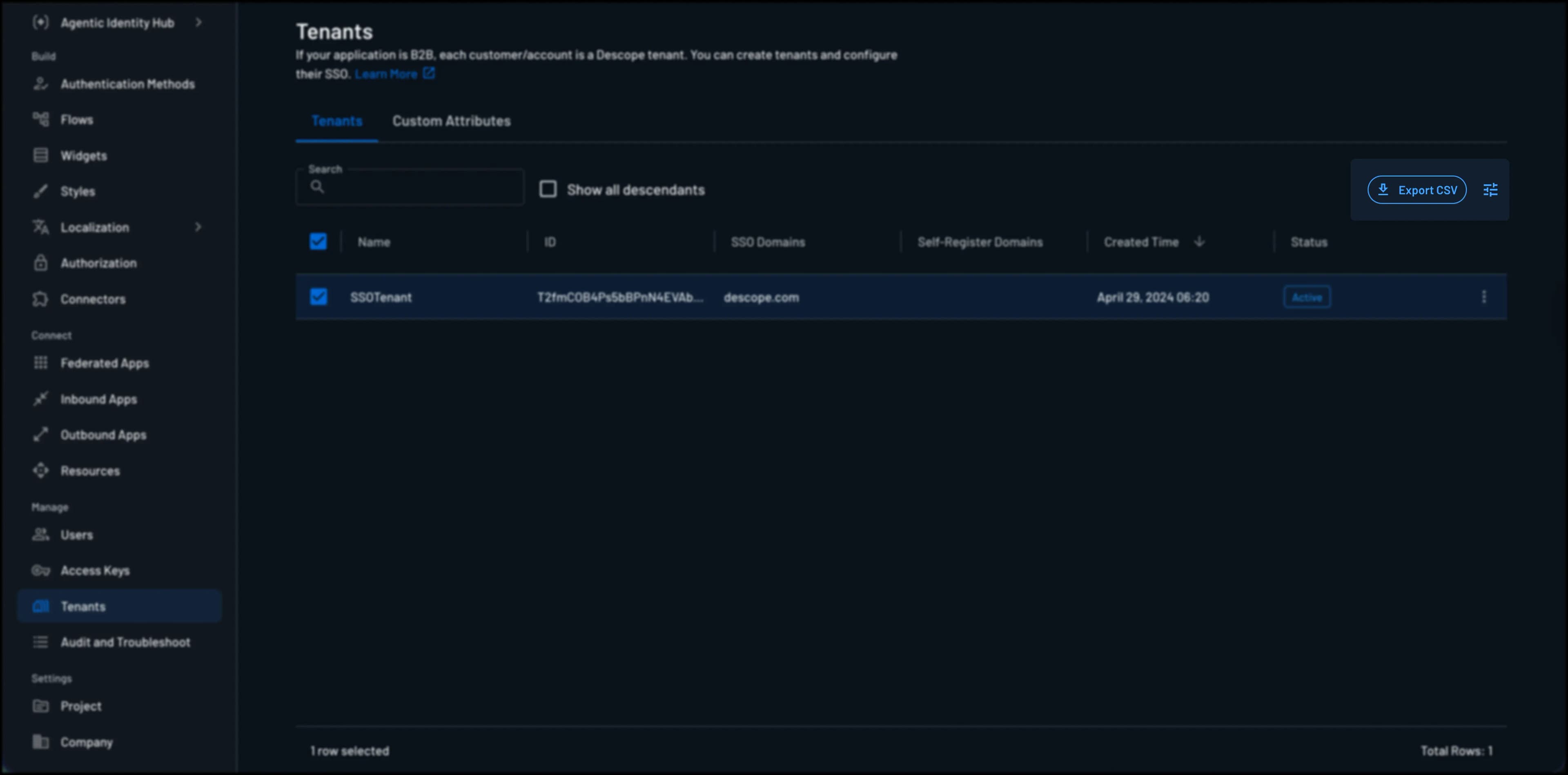
By pressing the button, you should be prompted to download the file.