SSO (Single Sign-on) with OIDC
We highly recommend having your customer/tenant set up SSO for their own organization using our SSO Setup Suite. The SSO Setup Suite walks your customers through the entire SSO Configuration process, with templates for all common IdPs, and allows them to test the connection, minimizing any back and forth or setup errors.
If your customer is unable to use the SSO Setup Suite for any reason, you can utilize the instructions below to configure SSO with your customer's OIDC Provider.
The below configuration can be done under Authentication Methods --> SSO when you select a tenant from the Tenant tab of the Descope Console.
Configuring SSO with OIDC
Before You Start
To configure OIDC SSO, you'll need to gather some information from your IdP. The exact requirements depend on which OAuth 2.0 flow you're using:
Authorization Code Flow (Recommended)
You'll need:
- Client ID and Client Secret
- All OIDC endpoints (Authorization, Token, User Info, JWKs)
- Optional: Issuer URL and Prompt type
Implicit Flow with Form Post
You'll need:
- Client ID
- Authorization and User Info endpoints
- Optional: Issuer URL and Prompt type
Note
Some IdPs may require additional configuration:
- The Issuer URL for validating tokens
- A specific Prompt type for controlling the login experience
- The JWKs endpoint for token verification
All Settings
Here's a comprehensive overview of all the OIDC settings you can configure:
Tenant Details
- SSO Domains: Email domain(s) that will use this SSO configuration
- JIT Provisioning: Controls whether user attributes and groups are updated from your IdP just in time as users log in, instead of being updated through SCIM provisioning.
Account Settings
- Provider Name: The name of your IdP (e.g., "Okta", "Azure AD")
- Client ID: Your application's unique identifier from the IdP
- Client Secret: A confidential key from your IdP (not needed for Implicit Flow). You can select Private Key under Client Authentication instead to use Private Key JWT with the Authorization Code flow.
- Scopes: Permissions your app requests from the IdP (e.g.,
email,profile,groups) - Grant Type: The OAuth 2.0 flow to use:
Authorization CodeImplicit Flow with Form Post
Connection Settings
- Issuer: Your IdP's unique identifier (required by some providers)
- Authorization Endpoint: Where users are sent to log in
- Token Endpoint: Where your app requests access and ID tokens
- User Info Endpoint: Where your app gets user profile information
- JWKs Endpoint: Where your app gets public keys for token verification
Prompt
- Prompt: Controls the login experience at your IdP:
login: Force users to log inconsent: Force users to grant permissionsnone: Use existing session if available
SSO Mapping
- User Attribute Mapping: Map IdP attributes to Descope user attributes:
email→ Emailname→ Display Namepicture→ Profile Picture- etc.
SCIM Provisioning
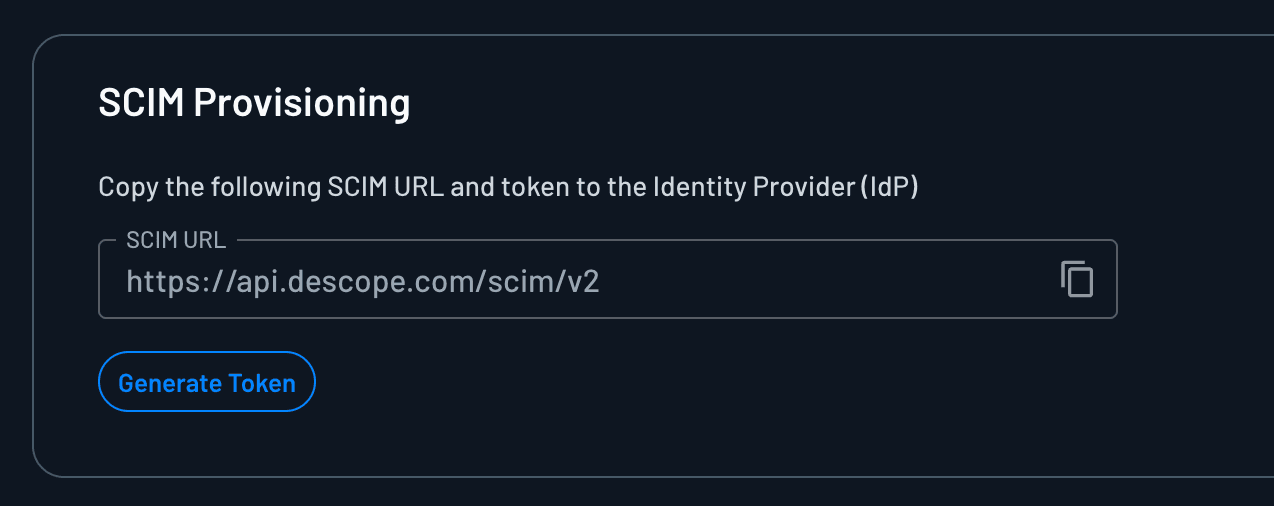
You're able to automatically generate a SCIM Bearer token to configure SCIM with your OIDC SSO IdP in this section.
The SCIM URL will automatically be populated in the SCIM URL field.
Advanced Settings
- Manage tokens from provider: If enabled, Descope will manage the OAuth tokens from your IdP.
- Callback Domain: The domain for SSO callback responses
- Callback URL: The URL your IdP will call after authentication
- Redirect URL: Where users go after successful login
Note
The Callback URL will automatically update if you change your custom domain in the Descope Console.
Note
User claims and attributes are retrieved from the User Info Endpoint (/userinfo) that you configure in the Connection Settings. This endpoint provides detailed user profile information including email, name, picture, and other attributes that can be mapped to Descope user attributes.
Account Settings
This section is where you will configure your Client ID, Client Secret (if applicable), and all of the necessary scopes needed for your OIDC request to your IdP.
Private Key JWT
Note
Descope will automatically generate a private key for your project. You cannot use your own private key with this method.
With the Authorization Code grant type, select Private Key under Client Authentication in the Account Settings section to use a signed JWT instead of a client secret, per RFC 7523.
With this method, Descope creates a signed JWT using your project's private key during token exchange. Your IdP validates this JWT instead of a client secret.
Provide your project's JWK endpoint to your IdP: BaseURL/ProjectID/.well-known/jwks.json
Replace api.descope.com with your custom domain if applicable.
Example Token Request
When exchanging the authorization code for tokens, Descope sends a request like this to your IdP's token endpoint with a signed JWT as the client_assertion:
POST /token HTTP/1.1
Host: idp.example.com
Content-Type: application/x-www-form-urlencoded

grant_type=authorization_code
&code=AUTHORIZATION_CODE
&redirect_uri=__BaseURL__/v1/oauth/callback
&client_id=YOUR_CLIENT_ID
&client_assertion_type=urn:ietf:params:oauth:client-assertion-type:jwt-bearer
&client_assertion=eyJhbGciOiJSUzI1NiIsInR5cCI6IkpXVCJ9...
Connection Settings
Here is where you will need to provide all of your IdP related endpoint locations. For more information on Descope's endpoints, as an OIDC provider, you can visit this docs page.
Prompt
The Prompt option allows you to specify the type of user interaction required at the IdP. For instance, Login will force the user to enter their credentials regardless of current session status.
For more information on how Prompt works, and what you can do with this option, you can read about it under our Custom Provider page.
Attribute Mapping Best Practices
User Attribute Mapping maps the attributes supported by Descope to the attribute label you defined when setting up your
application with your IdP. Configure as many of the supported attributes as you require. The Descope
attribute Email is required.
OIDC has no standard groups claim, but group → role and group → FGA maps still apply if your IdP sends groups (or a custom claim). Configure those in the tenant's Roles & Groups tab, the same place SAML tenants use. See SSO user and group mapping for details.
Group Claims (OIDC)
OIDC itself doesn't define a groups claim. Whether Descope receives groups depends entirely on the IdP:
- In the IdP, enable group claims (or a custom claim) on the OIDC app / authorization server for your Descope connection. Common patterns: a
groupsclaim, or a namespaced claim that lists group names or IDs. - In Descope, under the tenant's OIDC SSO Mapping, set the Groups attribute name to whatever claim name the IdP actually sends (for example
groups). - In the tenant's Roles & Groups tab, map those group values to Descope roles and/or FGA relations, the same way as SAML. See SSO mapping.
If your project marks Groups as a mandatory attribute, tenant admins configuring OIDC through the SSO Setup Suite must fill in Groups attribute name before they can save. SAML works the same way.
That only confirms the field is filled in. To confirm the IdP is actually sending group values, run the SSO Setup Suite connection test with JIT provisioning enabled. If the token comes back with no groups, the test fails with E062028 (see SSO troubleshooting), even when Groups attribute name looks correctly mapped.
If roles never appear after OIDC SSO:
- Decode the ID token (or check Audits) and confirm a groups-like claim is present.
- Confirm the claim name matches Groups attribute name exactly (case-sensitive).
- Confirm the group values match your map keys (display name vs object ID is a common Entra mismatch).
For most customers, the SSO Setup Suite walks through attribute and group mapping with a connection test, so prefer that over hand-editing claim names.
Note
Descope also allows you to map attributes from your IdP to custom user attributes when configuring your attribute mapping.
| Provider user identifier | Descope user attribute |
|---|---|
| Login ID (Required) | |
| name | Display Name |
| picture | Picture |