Descope with AWS AppSync
AWS AppSync is a managed serverless GraphQL service that simplifies application development by enabling you to create a flexible API to securely access, manipulate, and combine data from multiple sources.
This guide will walk you through the steps to configure AWS AppSync to validate Descope JWTs, ensuring that only authenticated users can access your GraphQL endpoints.
Note
If you want to use the Descope JWTs to protect your AWS API Gateway endpoints, you can configure a JWT Authorizer to handle this.
Step 1: Configuring Your Descope Project
Issuer (iss) claim: The standard issuer in Descope JWTs is:
__BaseURL__/v1/apps/__ProjectID__
Note
Pre-existing projects might not have the default OIDC-compliant User JWT template enabled, so the iss claim may be the shorter form (__BaseURL__/__ProjectID__) until you switch to or create a template that uses the new issuer URL.
The OpenID Connect Provider URL you configure in AppSync (Step 3) must match the iss claim in your tokens exactly. Check your JWT's iss claim (e.g. in jwt.guru) and use that value.
First, adjust your Descope project settings to generate JWTs compatible with AWS services:
- Log in to your Descope dashboard.
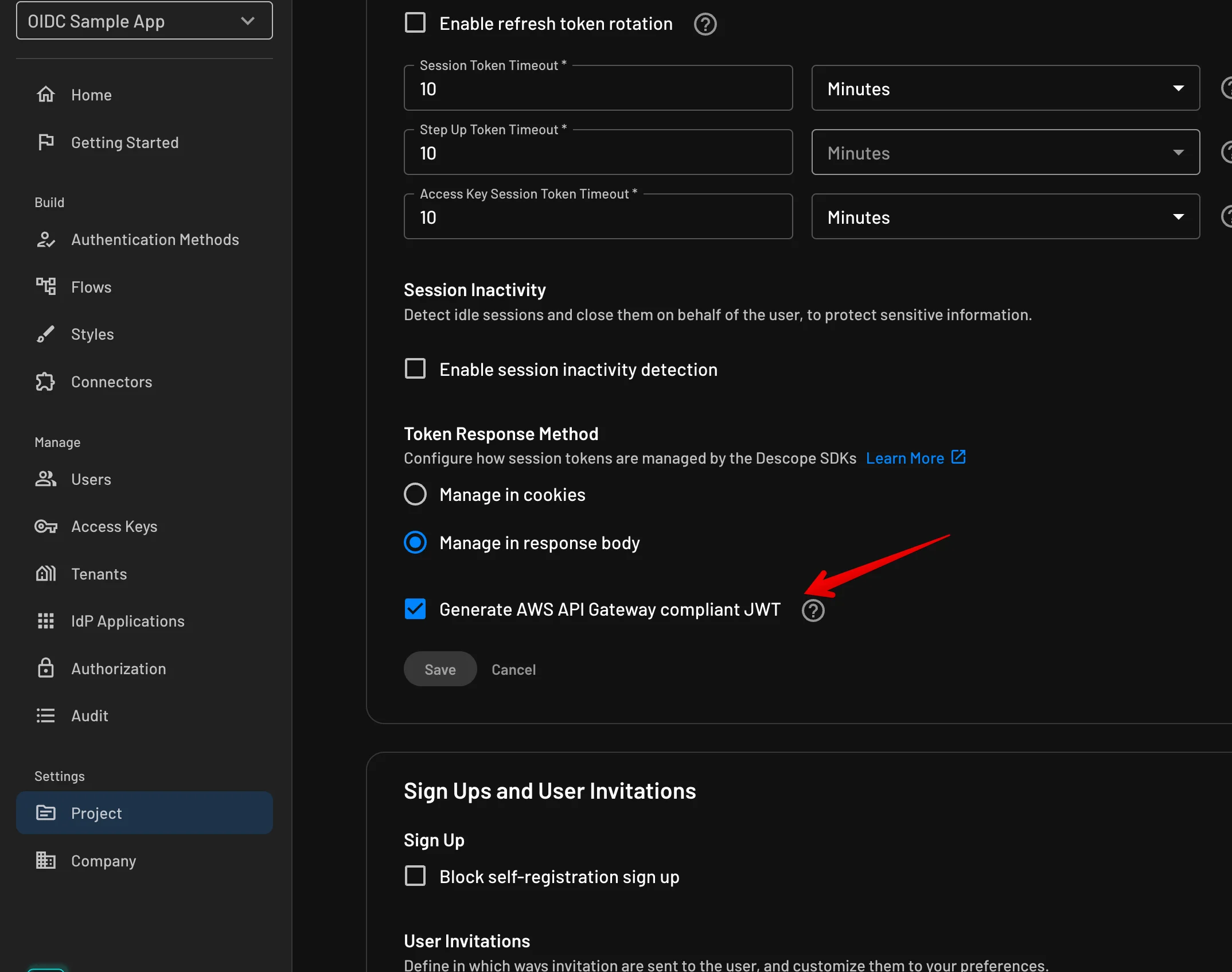
- Navigate to the JWT Templates page on Project Settings.
- Create a new JWT template using the AWS API Gateway default. This sets the
Issuer(iss) claim to the full URL:__BaseURL__/v1/apps/__ProjectID__(replacing__ProjectID__with your project ID). If you use a federated app or an older template, your issuer may remain__BaseURL__/__ProjectID__—use whichever issuer your tokens actually contain.
Step 2: Setting Up AWS AppSync
Next, configure AWS AppSync to use Descope JWTs:
- Go to the AWS Management Console and open up AppSync.
- Select or create a new GraphQL API.
- Navigate to the
Settingssection of your API, on the left-hand menu.
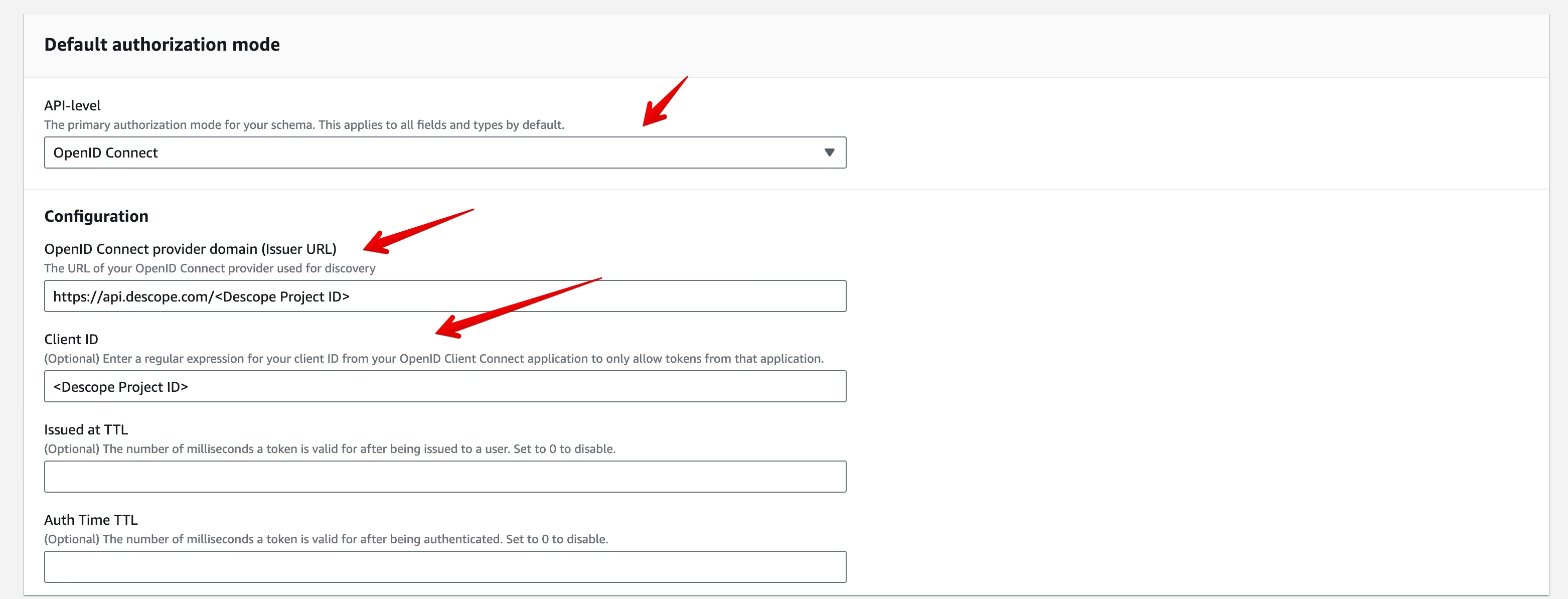
Step 3: Configuring the Authorization Type
In the settings:
- Under
Authorization type, selectOpenID Connect. - For
OpenID Connect Provider URL, enter the issuer URL that matches theissclaim in your Descope JWTs:- Standard:
__BaseURL__/v1/apps/__ProjectID__ - Federated app or older JWT template:
__BaseURL__/__ProjectID__
Replace__ProjectID__with your Descope Project ID. The value must match your token'sissexactly.
- Standard:
- Set the
Client IDfield to your Descope Project ID.
Step 4: Modifying your GraphQL Schema
If you're using Descope as an OIDC provider for your authorization controls, you'll need to modify your GraphQL schema to be able to accept Descope JWTs as authorization tokens. If you're using AWS Amplify, you can do this by following the guide in the AWS Amplify docs page.
This table outlines different authorization strategies and their corresponding providers for accessing data in an AWS AppSync environment. Each row represents a specific use case and the strategy/provider to use for that scenario.
| Recommended use case | Strategy |
|---|---|
| Per user data access. Access is restricted to the "owner" of a record. Leverages amplify add auth Cognito user pool by default. | owner |
| Any signed-in data access. Unlike owner-based access, any signed-in user has access. | private |
| Per user group data access. A specific or dynamically configured group of users have access | groups |
In your app, using the Amplify SDK, you can edit the graphql.schema file with your desired authorization strategy, and then do a amplify push.
As an example, this schema will allow all users (as long as their signed in with Descope) to query from your backend:
type Todo
  @model
  @auth(
    rules: [
      { allow: private, provider: oidc }
    ]
  ) {
  content: String
}
Step 5: Make Sure that Descope JWTs are AWS Compliant
AWS validates the JWT's iss (issuer) claim against the OpenID Connect Provider URL you set in Step 3. They must match exactly.
- Standard issuer:
__BaseURL__/v1/apps/__ProjectID__ - Alternate (federated app or older JWT template):
__BaseURL__/__ProjectID__
Confirm which issuer your tokens use (e.g. decode a token at jwt.guru or check your JWT template in Descope), then ensure the same URL is configured in AppSync. You can manage JWT templates in Project Settings in the Descope Console.
Step 6: Utilizing the Descope Tokens with your Queries and Mutations
You'll need to pass your Descope sessionToken into your queries using the authToken parameter. You can get access to this on client-side pages with the React SDK and getServerSession. An example of this is below:
import { generateClient } from 'aws-amplify/api';
import { getSessionToken } from '@descope/react-sdk';

const client = generateClient();

const fetchData = async () => {
  const sessionToken = getSessionToken();
  console.log(sessionToken);

  const todos = await client.graphql({ query: listTodos, authToken: sessionToken });
  console.log(todos);

  return todos;
};
Step 7: Deploying and Testing
After configuring the authorization settings:
- Deploy your GraphQL API.
- Test the API using a valid JWT token obtained from your Descope project. Ensure that authenticated requests are successful and unauthorized requests are denied.
Sample App
If you want to look at the source code of a sample Next.js application using the Amplify SDK with an AppSync schema and the Descope React SDK, you can look at our sample application on GitHub.
There are also instructions in the README for how to spin up your own version of the sample app, with your own AWS instance and AppSync backend.
Conclusion
By integrating Descope JWTs with AWS AppSync, you benefit from the streamlined and secure authentication flow provided by Descope, while leveraging the powerful features of AWS AppSync. This setup ensures that your GraphQL APIs are protected and only accessible by authenticated users.
For more detailed information on AWS AppSync and JWT authorization, refer to the AWS AppSync Developer Guide.
If you have any questions or need further assistance with Descope, don't hesitate to contact Descope Support.