Enchanted Link
If you don't need cross-device login capabilities, but would like the one-click login experience this authentication method provides, check out Magic Link instead.
Enchanted Link is a cross-device authentication method allowing users to log in on one device (e.g., a desktop app) by verifying a unique link sent to their email and matching a number displayed during the login process. These links are exclusively sent via email.
How Enchanted Links Work
Try out Enchanted Link for yourself, at Enchanted Link Guru!
Enchanted Links enable users to initiate login on one device (the originating device) and complete it by clicking a link on another device. The login is validated only when the correct number from the email is matched with the number displayed during the request. The session starts exclusively on the originating device.
Limitations and Security Considerations
Phishing Risks
Since the session does not follow the link, an attacker with access to the user’s email could potentially log in by selecting the correct number. This makes Enchanted Links more susceptible to phishing than traditional magic links.
Purpose of Numbers
The number-matching process is not designed to counter email compromise but to prompt users to pause and critically evaluate unexpected login requests, reducing susceptibility to phishing.
Persistent Link Validity
Enchanted Links remain valid even if an incorrect number is selected, minimizing user frustration. This does not introduce additional risk, as the method assumes that email compromise cannot be entirely mitigated by link expiration alone.
Comparing Enchanted Link to Magic Link
-
Enchanted Link:
- Use Case: Optimized for cross-device logins.
- Security: More vulnerable to phishing since the session stays on the originating device.
- User Experience: Promotes awareness through number-matching, reducing accidental misuse.
-
Magic Link:
- Use Case: Ideal for single-device logins.
- Security: Less prone to phishing since the session starts on the device where the link is clicked.
- User Experience: Simpler but less suited for cross-device scenarios.
Enchanted Links strike a balance between user convenience and security, especially in scenarios requiring cross-device authentication, while integrating mechanisms to reduce phishing risks.
Enchanted Link with Flows
This guide will walk you through integrating Enchanted Link based authentication into your Descope Flows.
Flow Actions
When using Enchanted Link, you have the standard actions for most authentication methods available.
- Sign Up / Enchanted Link - Signs the user up, but will not work if user already exists
- Sign Up or In / Enchanted Link - Signs the user in, and if user doesn't exist it will automatically sign them up
- Sign In / Enchanted Link - Signs the user in, but if the user doesn't exist it will fail.
- Update User / Enchanted Link - Will merge OAuth identity to an existing user
- Verify Code / Enchanted Link - Will verify the enchanted link token is the one that was generated as part of the Enchanted Link authentication and is used when you want to include additional conditions before verification.
How to Use Enchanted Link Actions
To learn more about Actions in general, you can refer to our guide on them.
Most of these Actions are pretty simple, and you can drop them in your application like any other Action.
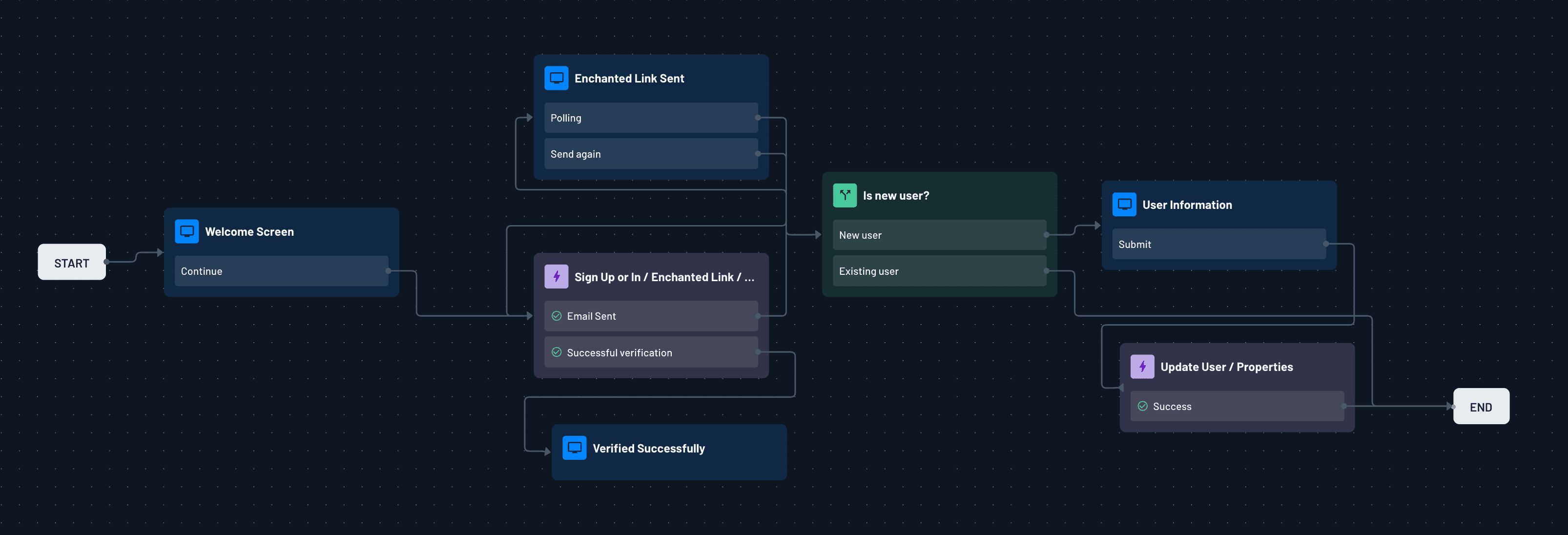
This is an example of using the Sign Up or In action in a flow:
URI
The URI field sets the address in the enchanted link, where the user lands to have their token verified. Leave it empty to use the Redirect URL from your project settings.
This field accepts dynamic values, so one flow can point users at whichever site they started from. For example, {{device.location.scheme}}://{{device.location.hostname}}/verify builds the link from the domain hosting the flow. A redirect URL your application passes when it starts the flow takes priority over this field; see redirect URL precedence.
Verify Code / Enchanted Link Action
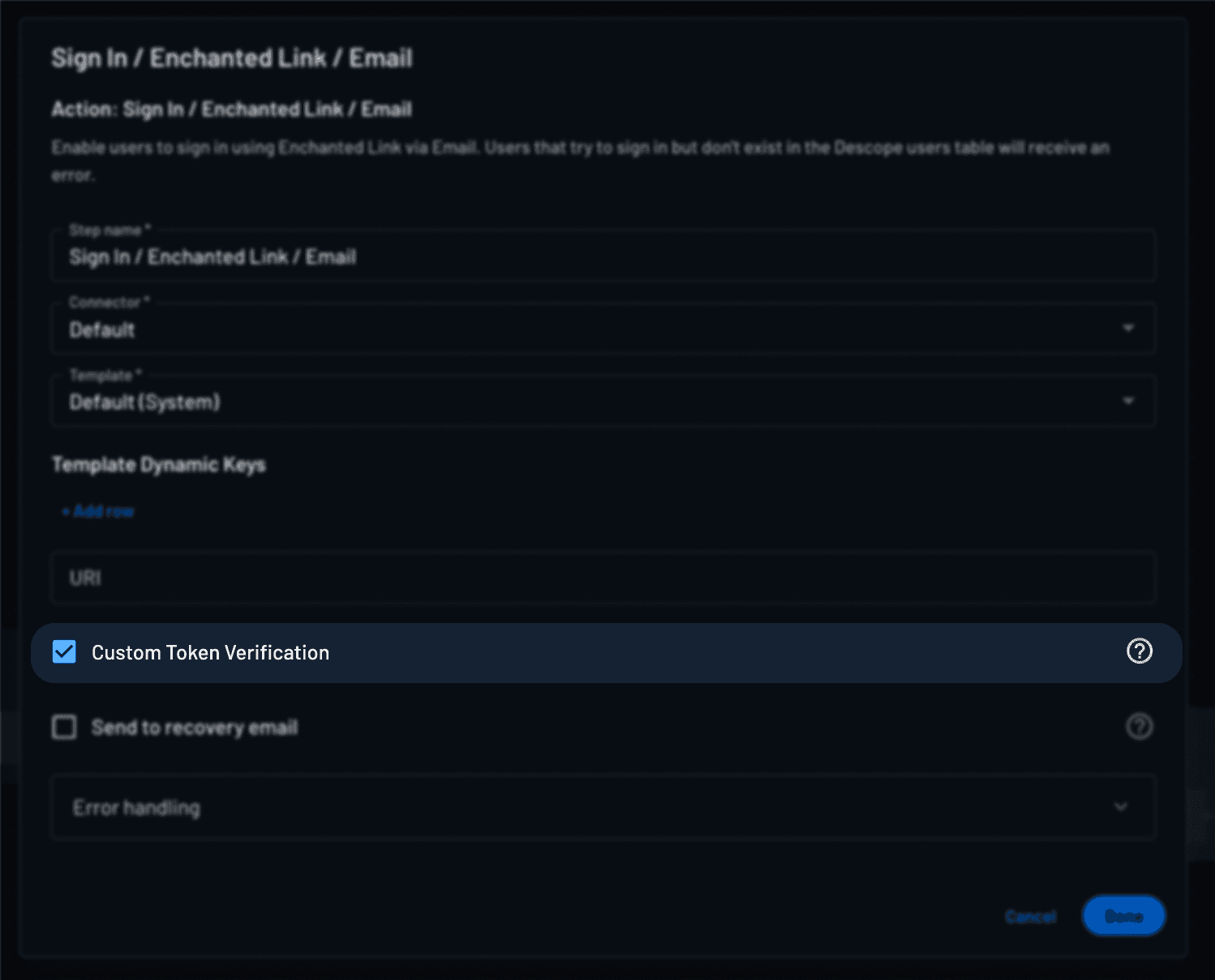
The Verify Code / Enchanted Link Action can be used when you want to include custom conditions or logic before verifying the link token, such as adding custom claims to the session JWT. By default, enchanted link actions verify the token automatically, so to insert intermediate flow steps before verification you need to select the Custom Token Verification checkbox in the corresponding Sign In / Enchanted Link or Sign Up / Enchanted Link Action in your flow that sends the link.
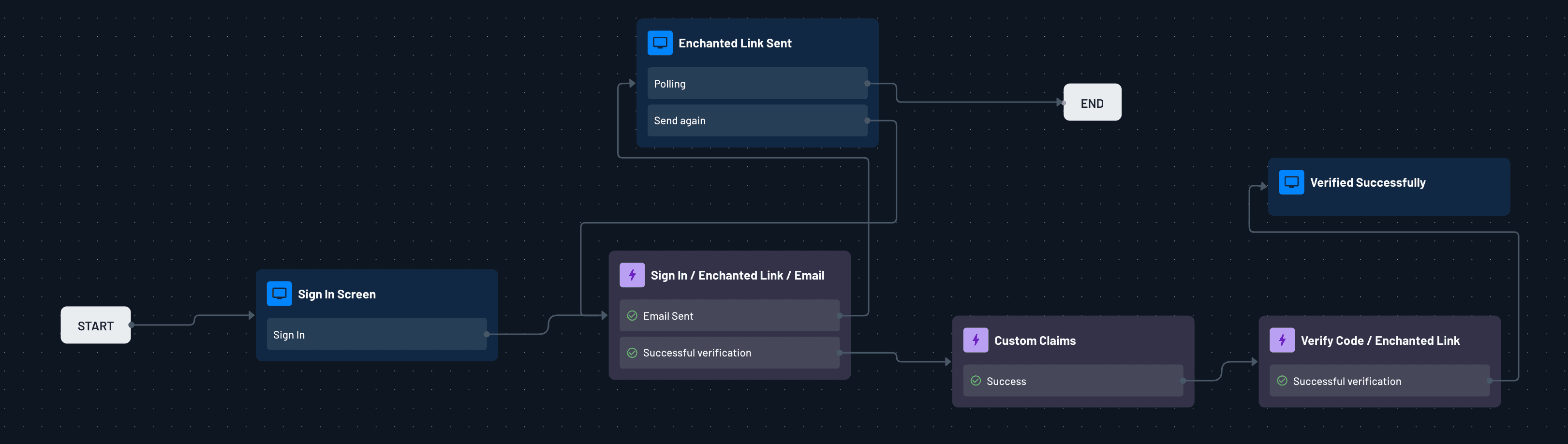
This is an example of adding custom claims to your user JWT token and then verifying that token in an Enchanted Link flow:
Flow Screens
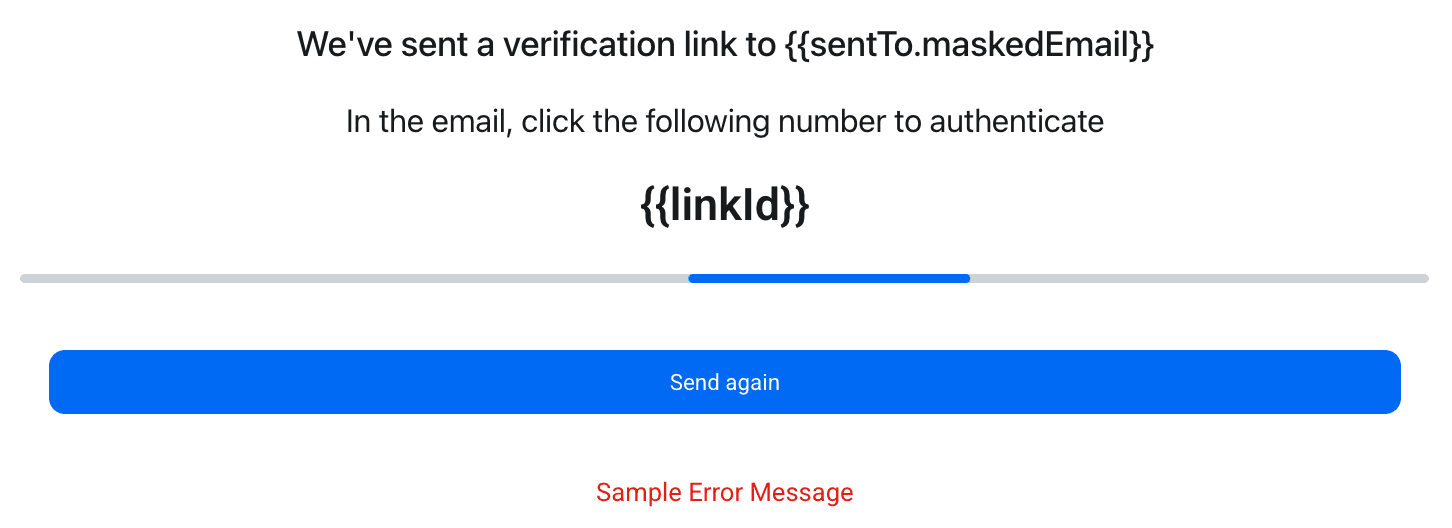
When implementing Enchanted Link authentication, a polling screen with a horizontal scrolling sidebar will be displayed to the user. To enable Enchanted Link functionality, simply connect the authentication actions to a screen containing an email input field.
You can determine where the user started the flow using the context key userAgent, which can be utilized in other conditions or screens.
Error Handling
Error handling is handled like any other action. You can refer to our Flow Error Handling guide for more details.