Descope With Shopify Plus
Shopify Plus empowers fast-growing brands with the digital infrastructure to scale quickly. This guide will help you implement Descope's advanced authentication features into your Shopify project.
Creating a Shopify page to host the auth flow
- Create a new page in Shopify, and add the custom liquid code to render the auth flow in its content area.
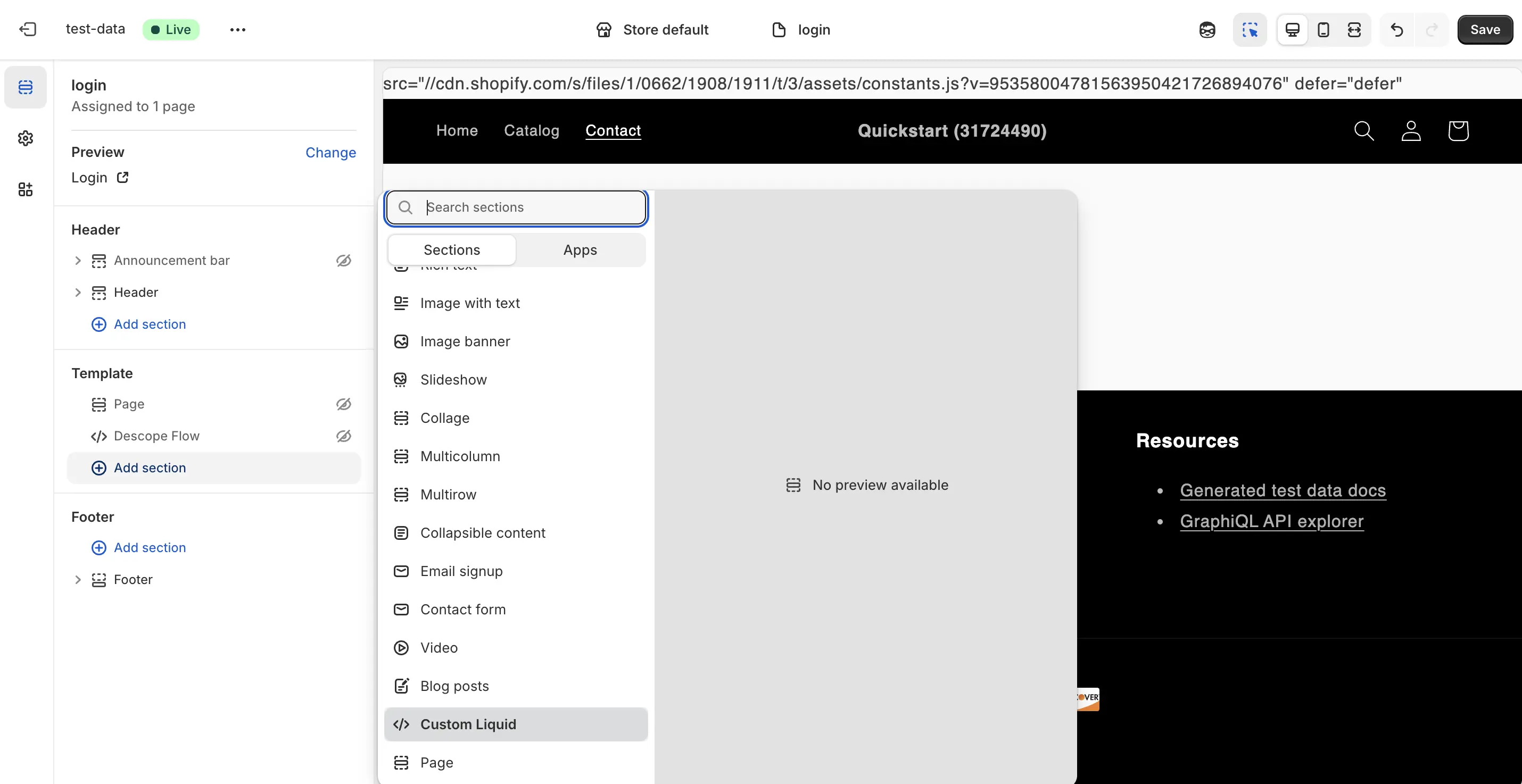
- In the custom liquid code field, add the following code and make sure to replace the
__ProjectID__and<YOUR-FLOW-ID>with the actual values.
<!DOCTYPE html>
<html>
  <head>
	<script src="https://descopecdn.com/npm/@descope/web-component@3.21.0/dist/index.js"></script>
	<script src="https://descopecdn.com/npm/@descope/web-js-sdk@1.16.0/dist/index.umd.js"></script>
  </head>

  <body>
    <descope-wc project-id="__ProjectID__" base-url="__BaseURL__" flow-id="<YOUR-FLOW-ID>"></descope-wc>

	<script>
		const sdk = Descope({ projectId: '__ProjectID__', baseUrl: '__BaseURL__', persistTokens: true, autoRefresh: true });
		const wcElement = document.getElementsByTagName("descope-wc")[0];

		wcElement.addEventListener('success', () => sdk.refresh())
		wcElement.addEventListener('error', (err) => console.log(err))
	</script>
  </body>
</html>
Setting up Descope as an OIDC provider
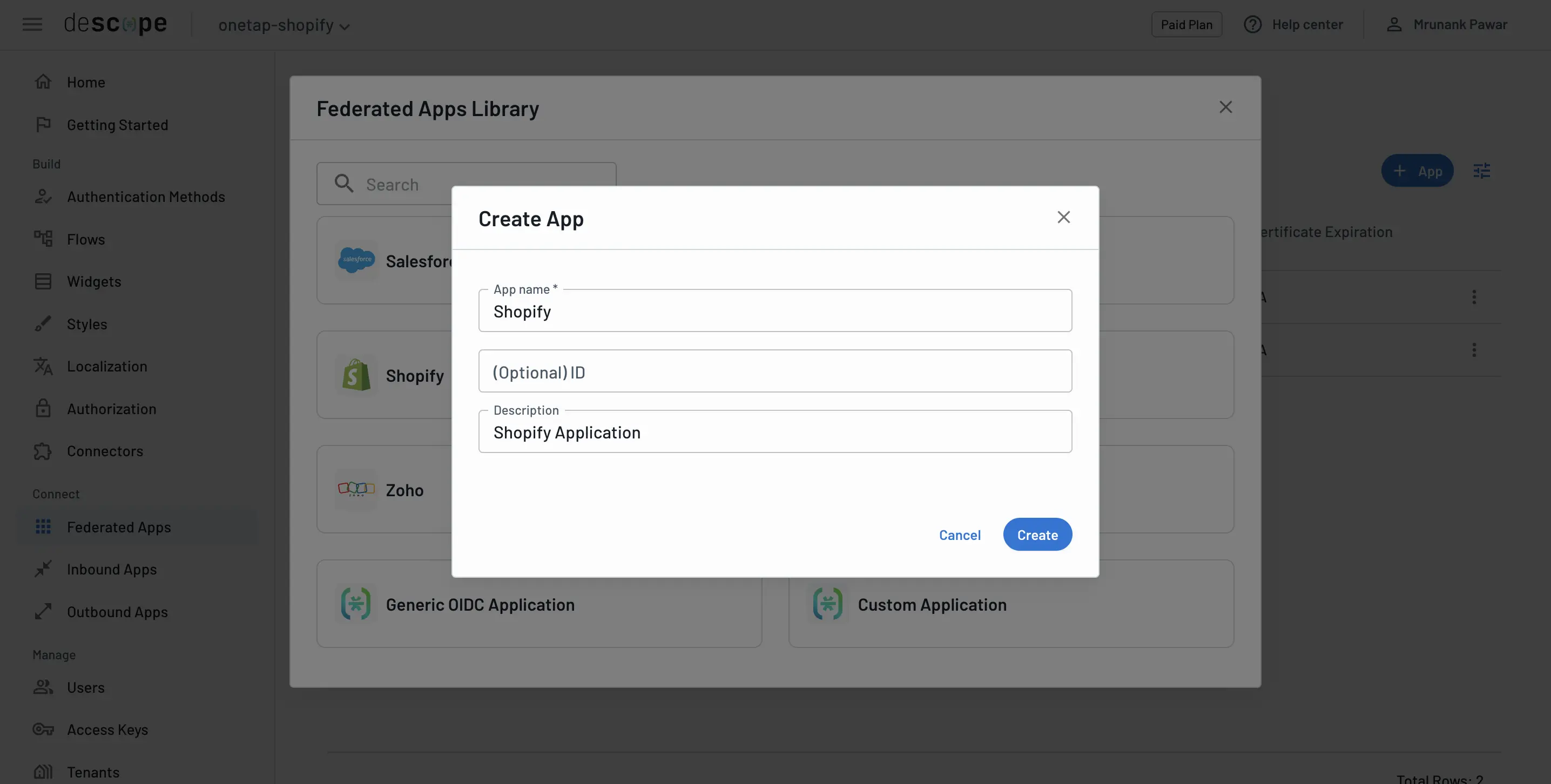
- Now, we'll create an OIDC application in Descope. Navigate to the Federated Apps page in the Descope Console and click on the
+ Appbutton.
-
Under the IdP Configuration tab, set the Flow Hosting URL to be the URL for the Shopify page where you added the Descope flow component.
-
We'll use these configuration details when setting up Descope as an Identity Provider in Shopify console.
-
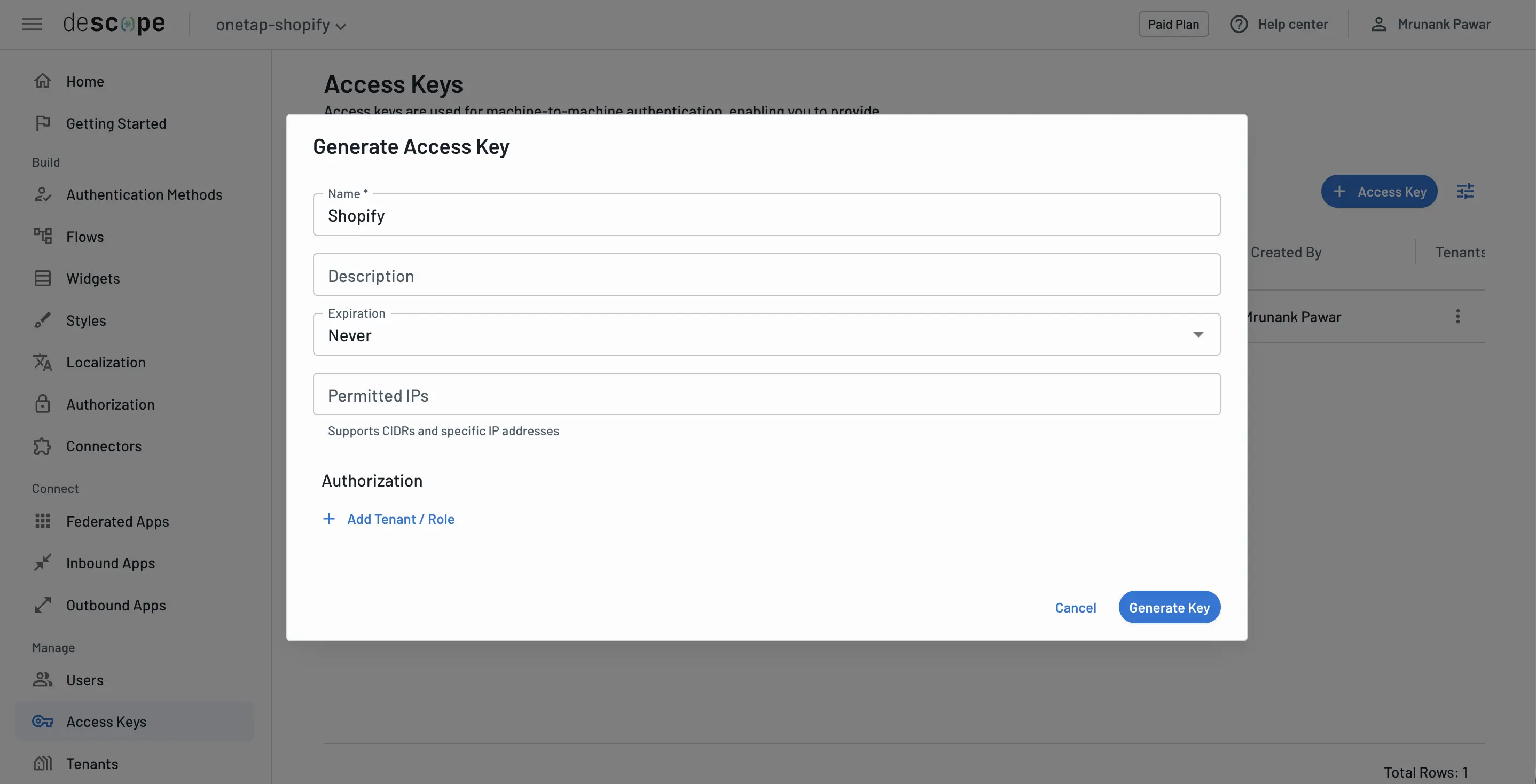
Also create the Access Key from the Access Keys page in the Descope Console. Make sure to save the access key as we will use it in next step.
Setting up Descope as an Identity Provider in Shopify store
- Within your Shopify store, navigate to the Customer Accounts > Authentication > Manage.
If you don't see this option, make sure the you have a Shopify Plus account.
- Select Connect to provider, and name the provider as "Descope".
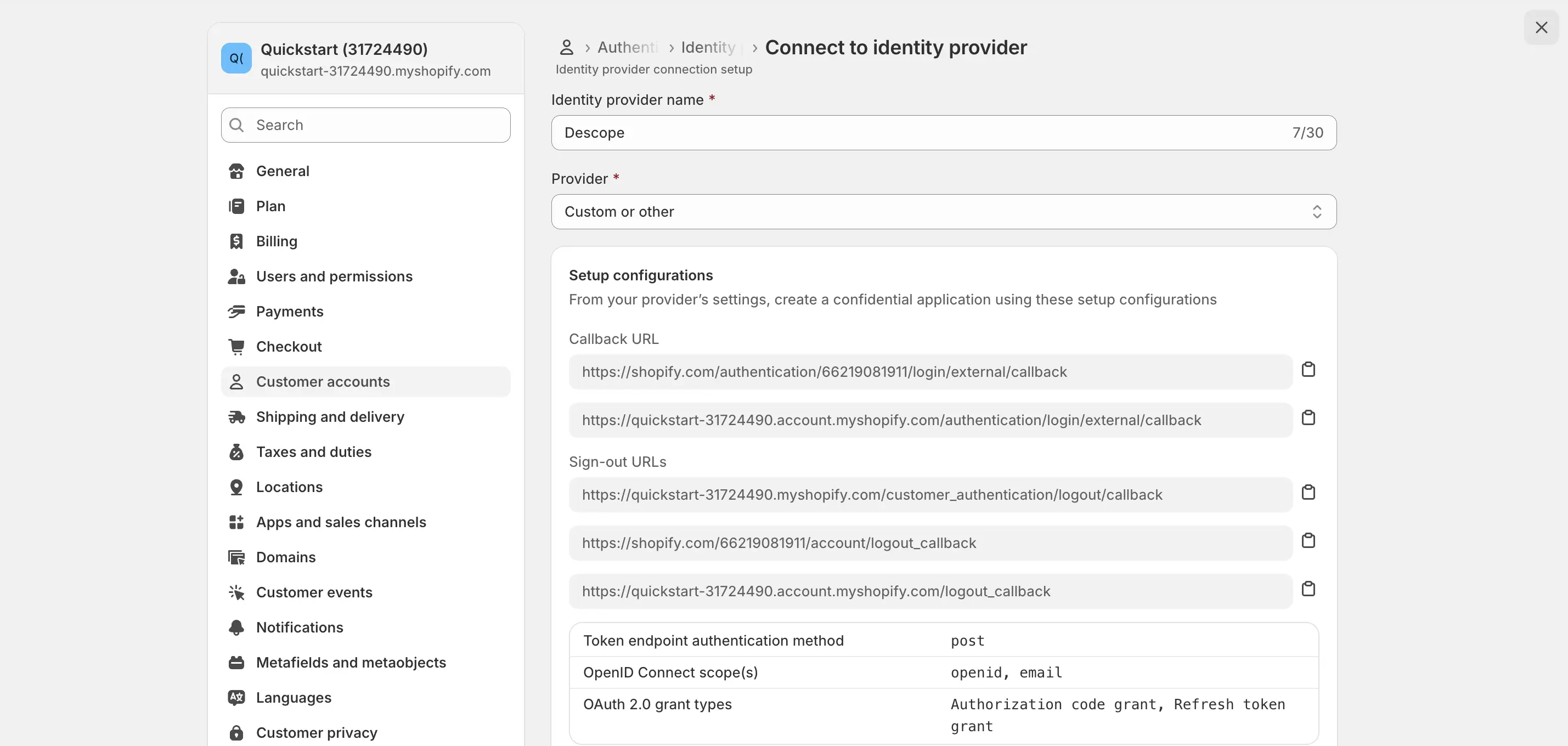
-
Enter the following details into the application for configuration:
- Well-known or discovery endpoint URL: This is the Discovery URL of the Descope OIDC application you created in Descope.
- Client ID: Descope Project ID.
- Client secret: The Access Key you created in Descope.
- Additional scopes: Add
profile. - Post logout redirect URLs:
post_logout_redirect_uri
-
After entering the details, test the configuration before activating Descope as an Identity Provider.
-
After successfully testing the configuration, activate Descope as an Identity Provider.
Using Google One Tap for Shopify Plus
You can enable Google One Tap for authentication in your Shopify store. Refer to our Google One Tap docs to learn how to configure Google One Tap.
If you already have Federated OIDC application configured for Shopify Plus, you can reuse the same setup for Google One Tap. Make sure to update the authentication flow you're using to include the Load User action, which checks whether the user is already logged in and exits the flow accordingly.
To ensure the Google One Tap prompt is available across your store, you must add the Google One Tap script to a global layout file just before the closing </head> tag. In most Shopify themes, this file is theme.liquid.
<script src="https://descopecdn.com/npm/@descope/web-component@3.21.0/dist/index.js" defer></script>
<script src="https://descopecdn.com/npm/@descope/web-js-sdk@1.39.0/dist/index.umd.js" defer></script>

<script>
  document.addEventListener("DOMContentLoaded", function () {
    const sdk = Descope({
      projectId: "__ProjectID__",
      persistTokens: true,
    });

    const oneTapConfig = {
      use_fedcm_for_prompt: true,
    };

    async function displayOneTap() {
      try {
        const resp = await sdk.fedcm.onetap.requestExchangeCode({
          provider: "google",
          oneTapConfig,
          onSkipped: (r) => console.log("One Tap skipped:", r),
          onDismissed: (r) => console.log("One Tap dismissed:", r),
          onDismissed: (r) => (window.location.href = "/account"),
          onFailed: (e) => console.error("One Tap failed", e),
        });

        console.log("One Tap result:", resp);
      } catch (err) {
        console.error("Error in One Tap:", err);
      }
    }

    displayOneTap();
  });
</script>