Backend EHR Integrations
This guide explains how to integrate Descope with Epic, Meditech, OpenEMR, and other EHR systems.
This integration allows your backend service to securely authenticate with an EHR system using a signed JWT (client assertion) instead of a client secret. This is the standard backend-only / system-level SMART on FHIR flow, designed for cases where no end-user is present.
By handling JWT construction, signing, and EHR-specific token endpoint requirements, Descope removes the complexity typically involved in connecting to EHR platforms such as Epic, Meditech, OpenEMR, and other SMART on FHIR-compliant systems.
Overview
SMART Backend Services enable backend applications to authenticate to EHR systems without user interaction. Instead of using traditional client secrets, your service generates a signed JWT assertion using a private key.
The EHR validates this assertion using your public key and issues an access token. This approach allows you to request system-level scopes like system/*.read and access FHIR resources from automated server processes, scheduled jobs, or background services.
Descope supports both directions of this flow:
Outbound Flow
Descope generates signed JWT assertions and obtains EHR-issued access tokens that your backend can use to call FHIR APIs.
Inbound Flow
Descope can accept EHR-issued JWTs or access tokens and exchange them for Descope tokens. This enables you to:
- Treat an EHR-issued token as an authenticated identity,
- Map EHR users or service accounts into Descope identities,
- Normalize and unify identity handling across multiple EHR systems.
Outbound Flow (Descope → EHR)
This flow lets your backend obtain an EHR access token to call FHIR APIs.
- Register your backend app in the EHR.
- Upload your Descope public key (JWKs) to the EHR.
- Use Descope to generate a client assertion JWT.
- Send the JWT to the EHR token endpoint with
grant_type=jwt-bearer. - The EHR validates the assertion and returns an access token.
- Use the access token to call FHIR endpoints.
1. Register Your Backend App in the EHR
Epic
- Log into Epic App Orchard / Connection Hub.
- Register a Backend Service / System App.
- Select required scopes (for example,
system/*.read). - Note the Client ID and Token URL.
- Upload your Descope Public Key (JWKs).
Other Supported EHR Systems
Descope supports integration with these EHR systems out of the box:
| EHR | Token Endpoint | Algorithm | Notes |
|---|---|---|---|
| Meditech | https://<host>/token | RS256 | Standard SMART backend services |
| Medplum | https://<host>/oauth2/token | RS256 | Ideal for testing & development |
| eClinicalWorks (eCW) | https://<host>/oauth2/token | RS256 | Standard OAuth2 implementation |
| OpenEMR | https://<host>/oauth2/default/token | RS384 | Requires RS384; set flattenAudience: true for a string aud claim |
Descope automatically handles the correct signing algorithm, JWT claim structure, and token exchange format for each EHR system. For any SMART on FHIR-compliant EHR not listed here, Descope can be configured with custom token endpoints and signing algorithms.
2. Get Your Descope Public Key
Get your Descope public key from the project-level JWKs URL:
Note
Replace api.descope.com in the URL with your custom domain if applicable.
__BaseURL__/__ProjectID__/.well-known/JWKs.jsonDescope automatically manages the private key used for signing. The JWKs endpoint contains the public key that EHR systems need to validate your client assertions. Upload this public key (or provide the JWKs URL) to your EHR system during app registration.
Additional Signing Algorithms
Note
Descope only supports RS384 and ES384, as additional signing algorithms for client assertions.
By default, client assertions are signed with RS256. Some EHRs (for example, OpenEMR) require RS384 or ES384.
To use those algorithms, you must enable them in your Descope project via the Management API:
curl -X POST "__BaseURL__/v1/mgmt/project/signkey/additional/create" \
  -H "Content-Type: application/json" \
  -H "Authorization: Bearer __ProjectID__:<DESCOPE_MANAGEMENT_KEY>" \
  -d '{"algorithm": "RS384"}'
This is a one-time initialization per algorithm, you do not call this endpoint repeatedly for the same Descope project.
The new key will then be added to your project, and the JWKs URL will include it so the EHR can validate assertions signed with this key.
Afterwards, when generating the client assertion, you can simply pass the same algorithm in the request body (see below).
3. Generate a Client Assertion JWT
Note
JWT templates configured in your Descope Project do not apply to this client assertion JWT.
You can generate the client assertion JWT using the Descope Management API or the Descope Node SDK.
Note
It is recommended to use a short lifetime in the expiresIn parameter for client assertions (for example, 300 seconds) to ensure the client assertion is not reused.
import { DescopeClient } from '@descope/node-sdk';

const descopeClient = DescopeClient({
  projectId: process.env.DESCOPE_PROJECT_ID!,
  managementKey: process.env.DESCOPE_MANAGEMENT_KEY!,
});

async function generateEpicClientAssertion() {
  const clientId = process.env.EPIC_CLIENT_ID!;
  const tokenUrl = process.env.EPIC_TOKEN_URL!;

  const response = await descopeClient.management.jwt.generateClientAssertionJwt(
    clientId,           // issuer
    clientId,           // subject
    [tokenUrl],         // audience
    300,                // expiresIn (seconds)
    true,               // flattenAudience — string aud when one audience value
    'RS256',            // algorithm — use 'RS384' for OpenEMR
  );

  const clientAssertionJwt = response.data.jwt;
  return clientAssertionJwt;
}
Using the Node SDK
Use @descope/node-sdk with a management key:
descopeClient.management.jwt.generateClientAssertionJwt(
  issuer,           // string — typically your EHR client ID
  subject,          // string — typically the same as issuer
  audience,         // string[] — token endpoint URL(s)
  expiresIn,        // number — lifetime in seconds (e.g. 300)
  flattenAudience?, // boolean — optional; see below
  algorithm?,       // 'RS256' | 'RS384' | 'ES384' — optional; default RS256
)| Parameter | Type | Required | Description |
|---|---|---|---|
issuer | string | Yes | JWT iss claim; must match the client ID registered with the EHR. |
subject | string | Yes | JWT sub claim; usually the same value as issuer. |
audience | string[] | Yes | JWT aud claim value(s); use the EHR token endpoint URL. |
expiresIn | number | Yes | Assertion lifetime in seconds. Use a short value (for example, 300). |
flattenAudience | boolean | No | When true and a single audience is provided, emits aud as a string instead of a one-element array. Required by some EHRs (for example, OpenEMR). |
algorithm | string | No | Signing algorithm: RS256 (default), RS384, or ES384. Create additional sign keys first if not using RS256. |
Audience claim format (flattenAudience)
By default, Descope sets aud as a JSON array even when you pass one audience value:
{
  "aud": ["https://localhost:8090/oauth2/default/token"],
  "iss": "YOUR_CLIENT_ID",
  "sub": "YOUR_CLIENT_ID"
}
Some EHR validators (including OpenEMR when testing EPIC / SMART on FHIR) expect aud to be a string, as described in the SMART App Launch client confidential asymmetric profile:
{
  "aud": "https://localhost:8090/oauth2/default/token",
  "iss": "YOUR_CLIENT_ID",
  "sub": "YOUR_CLIENT_ID"
}
Pass flattenAudience: true (Node SDK fifth argument, or "flattenAudience": true in the HTTP API body) when the EHR rejects an array aud claim.
4. Exchange the Assertion for an EHR Access Token
Once you have the client assertion JWT from Descope, exchange it with the EHR:
POST <EHR_TOKEN_URL>
Content-Type: application/x-www-form-urlencoded

grant_type=urn:ietf:params:oauth:grant-type:jwt-bearer
client_assertion_type=urn:ietf:params:oauth:client-assertion-type:jwt-bearer
client_assertion=<CLIENT_ASSERTION_JWT>
Example Epic response:
{
  "access_token": "eyJhbGciOiJSUzI1NiIsInR5cCI6IkpXVCJ9...",
  "token_type": "Bearer",
  "expires_in": 300
}
5. Use the Access Token to Call FHIR
Use the returned EHR access token in the Authorization header:
GET https://<epic-host>/api/FHIR/R4/Patient/123
Authorization: Bearer <EHR_ACCESS_TOKEN>
Accept: application/fhir+json
You can now perform FHIR operations allowed by the granted scopes (for example, system/*.read).
Example: End-to-End Outbound Flow
import axios from 'axios';
import { DescopeClient } from '@descope/node-sdk';

const descopeClient = DescopeClient({ projectId: process.env.DESCOPE_PROJECT_ID! });

async function getEhrAccessToken() {
  const clientId = process.env.EHR_CLIENT_ID!;
  const tokenUrl = process.env.EHR_TOKEN_URL!;
  const fhirBase = process.env.EHR_FHIR_BASE!;

  // 1. Generate client assertion with Descope
  const assertionResp = await descopeClient.management.jwt.generateClientAssertionJwt(
    clientId,
    clientId,
    [tokenUrl],
    300,
    true, // flattenAudience
  );

  const clientAssertionJwt = assertionResp.data.jwt;

  // 2. Exchange assertion for EHR access token
  const params = new URLSearchParams({
    grant_type: 'urn:ietf:params:oauth:grant-type:jwt-bearer',
    client_assertion_type: 'urn:ietf:params:oauth:client-assertion-type:jwt-bearer',
    client_assertion: clientAssertionJwt,
  });

  const tokenResponse = await axios.post(tokenUrl, params.toString(), {
    headers: { 'Content-Type': 'application/x-www-form-urlencoded' },
  });

  const ehrAccessToken = tokenResponse.data.access_token as string;

  // 3. Use EHR access token to call FHIR
  const patientResp = await axios.get(`${fhirBase}/Patient/123`, {
    headers: {
      Authorization: `Bearer ${ehrAccessToken}`,
      Accept: 'application/fhir+json',
    },
  });

  return patientResp.data;
}

getEhrAccessToken().then(console.log).catch(console.error);
Multi-EHR / Multi-Tenant Patterns
For Descope projects that involve multiple tenants integrating with different EHR vendors:
- Maintain a configuration map per tenant or per EHR. You can use tenant custom attributes to store the configuration, including:
- EHR type (Epic, Meditech, OpenEMR, etc.)
- Client ID
- Token URL
- FHIR base URL
Example config shape:
{
  "tenantA": {
    "ehrType": "epic",
    "clientId": "EPIC_CLIENT_ID",
    "tokenUrl": "https://epic.example.com/oauth2/token",
    "fhirBase": "https://epic.example.com/api/FHIR/R4"
  },
  "tenantB": {
    "ehrType": "openemr",
    "clientId": "OPENEMR_CLIENT_ID",
    "tokenUrl": "https://openemr.example.com/oauth2/default/token",
    "fhirBase": "https://openemr.example.com/apis/default/fhir/R4"
  }
}
Your backend can then look up the tenant attribute based on the user who is logged in, and then use the respective values to generate a client assertion JWT, as described above.
Inbound Flow (External JWT → Descope Token)
Note
This Inbound Flow requires a specific license. Please contact Descope Support to enable this feature for your project.
In the inbound flow, you receive a token from the EHR (or another SMART-compliant identity provider) and want to:
- Accept it as user identity.
- Map the subject to a Descope user.
- Issue Descope tokens (session, access, refresh).
- Normalize identity across multiple EHRs.
1. Configure External Token Validation
You can configure external token validation under the External Token Validation section of your Inbound App settings. If you do not already have an inbound application, you must create one first.
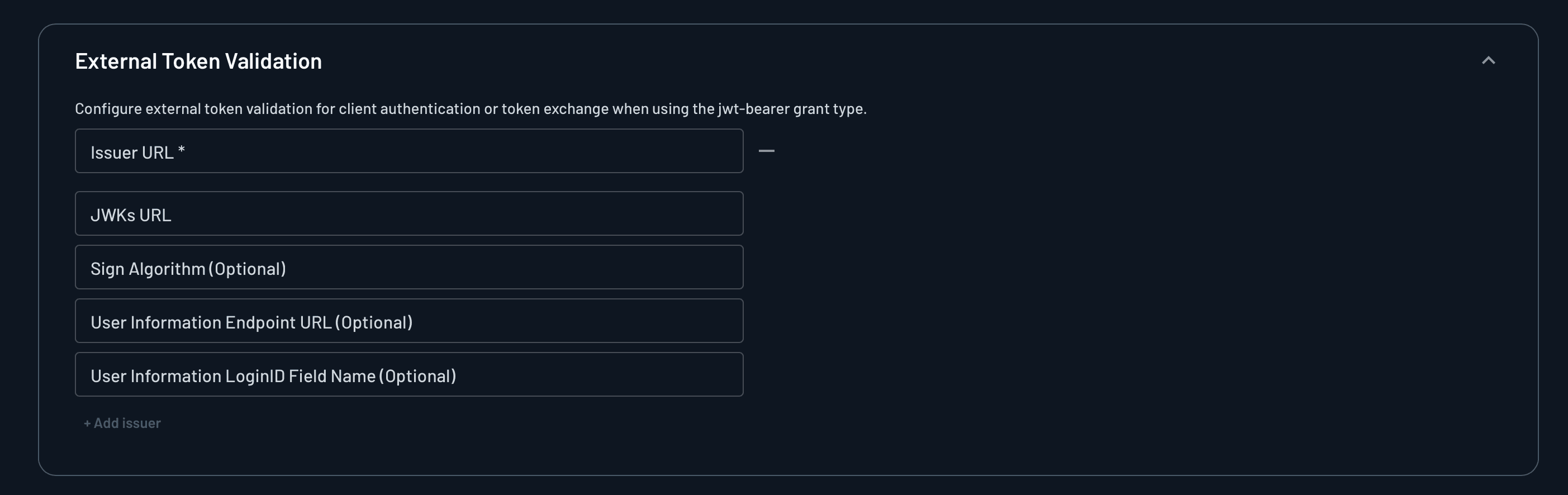
Issuer URL
Enter the issuer URL for your EHR system. Some examples are:
- Epic:
https://fhir.epic.com/interconnect-fhir-oauth/oauth2 - Meditech:
https://<your-meditech-host>/oauth2 - OpenEMR:
https://<your-openemr-host>/oauth2/default
JWKs URL
You can manually override the JWKs URL if your EHR uses custom endpoints or if automatic discovery is not available.
Signing Algorithm
Select the signing algorithm used by your EHR system. The currently supported algorithms are:
- RS256
- ES384
- ES256
- ES512
User Information Endpoint URL
Optionally configure a /me or userinfo endpoint to pull additional user metadata after validating the JWT.
User Information LoginID Field Name
Choose which JWT claim identifies the user in Descope. Some examples are:
subfhirUser- Any nested claim (for example,
claims.user.id) - A field from the
/meresponse
Note
Currently, only the user identifier is supported. Other user attributes/information from the token cannot be mapped to user attributes in Descope.
2. Exchange the External Token with Descope
Note
EHR access tokens are typically short-lived tokens (5 - 15 minutes), and therefore must be exchanged quickly after generation.
To exchange the EHR-issued token for a Descope token:
POST __BaseURL__/oauth2/v1/apps/token
Content-Type: application/x-www-form-urlencoded

grant_type=urn:ietf:params:oauth:grant-type:jwt-bearer
assertion=<EHR_ACCESS_TOKEN>
client_id=<DESCOPE_INBOUND_APP_CLIENT_ID>
Descope validates the external token and returns:
{
  "access_token": "<DESCOPE_ACCESS_TOKEN>",
  "expires_in": 3600,
  "token_type": "Bearer"
}
You can now use access_token as a standard Descope token in your APIs and frontends.
Troubleshooting
These are some common errors you might encounter when integrating with EHR systems:
| Symptom / Error | Likely Cause | How to Fix |
|---|---|---|
invalid_client | issuer / subject don't match the registered client ID | Ensure both issuer and subject match the EHR client ID exactly. |
invalid_grant or invalid_request | audience does not match token URL; or assertion expired | Use the exact token endpoint URL as audience; ensure expiresIn is valid. |
JWT validation failed; aud is an array | EHR expects a string aud claim (common with OpenEMR) | Pass flattenAudience: true to generateClientAssertionJwt. |
| Signature verification failed | Using the wrong algorithm or stale public key | Confirm RS256 vs RS384; re-upload JWKs; ensure you're using the right key. |
| 401/403 when calling FHIR endpoints | Missing or insufficient scopes | Confirm the registered app has system/*.read or required resource scopes. |
| Works in one environment but not another (sandbox vs prod) | Different token URLs, issuers, or keys per environment | Update config for each environment and ensure correct issuer/audience. |
Testing & Sandbox Guidance
For development and testing:
- Use EHR sandbox environments (Epic Sandbox, Medplum, etc.).
- Start with read-only scopes such as
system/*.read. - Create a simple health check in your backend that:
- Calls Descope to generate a client assertion.
- Exchanges it with the EHR for an access token.
- Calls a lightweight endpoint (for example,
/metadataor/Patient). - Returns success/failure and any relevant error messages.
This gives you a single endpoint to verify that Descope configuration and EHR configuration are all working end-to-end.
Fingerprinting
This guide explains the fingerprinting capabilities available in Descope, including device fingerprinting, risk-based authentication, and bot detection.
SMART on FHIR
How to integrate Descope as an OAuth provider for SMART on FHIR applications, supporting both EHR Launch and Standalone Launch flows.