JWT Encryption (JWE)
JWT encryption wraps your project's session and refresh tokens in a JWE (JSON Web Encryption, RFC 7516), so only Descope and your backend can read the claims inside them. Encryption is a project setting, and it applies to the session and refresh tokens that Descope issues when users sign in to your own application.
Turning on JWT encryption
Descope Support turns on JWT encryption for a project. Contact Descope Support with your project ID. Once it's on, a JWT Encryption section appears in Project Settings, under Signing Keys.
Why Encrypt Tokens
A regular Descope session token is a signed JWT. The signature stops anyone from changing it, but it doesn't hide anything: the claims are base64url-encoded, so anyone who holds the token can decode and read them. That includes the user in their own browser, a browser extension, and any proxy or load balancer the token passes through.
That's usually fine for a user ID or an email address. It's a problem when you put data in the token that the user shouldn't see, such as custom claims used as feature flags, internal account tiers, or contract details. With encryption on, the token that reaches the browser is opaque. The signed JWT is still inside it, and your backend decrypts it and then validates the signature as usual.
Encryption doesn't replace signature validation, and it doesn't stop a user from sending their token to your API. It only controls who can read the claims.
What Gets Encrypted
When encryption is on, Descope encrypts every session token and refresh token it issues for your project. Each token is a nested JWT: Descope signs the token first, then encrypts the signed JWT.
The encrypted token is a compact JWE with five dot-separated parts instead of three. Its header carries these values:
alg: AlwaysA256KW, AES key wrap with a 256-bit key.enc: AlwaysA256GCM, AES-GCM content encryption.kid: The ID of the project key that encrypted the token. Your backend uses it to pick the right key after a rotation.iss: Your project's issuer, copied from the signed token so you can route the token before you decrypt it.
Tokens that Descope issues to Inbound Apps, Agentic Clients, and Federated Apps aren't encrypted. They stay signed JWTs, because the apps that receive them need to read them.
Managing the Encryption Key
Encryption uses one symmetric AES-256 key per project. Descope stores the key wrapped with its key management service and uses it to read the claims of the tokens it issues, for example when a user refreshes a session. Your backend needs a copy of the same key to decrypt tokens.
In the Console
Once Descope Support turns on JWT encryption, the JWT Encryption section appears in Project Settings, under Signing Keys. To add a key, you click Add encryption key:

The Add encryption key dialog has two tabs. Generate creates a key for you, and Upload takes a key you already have:
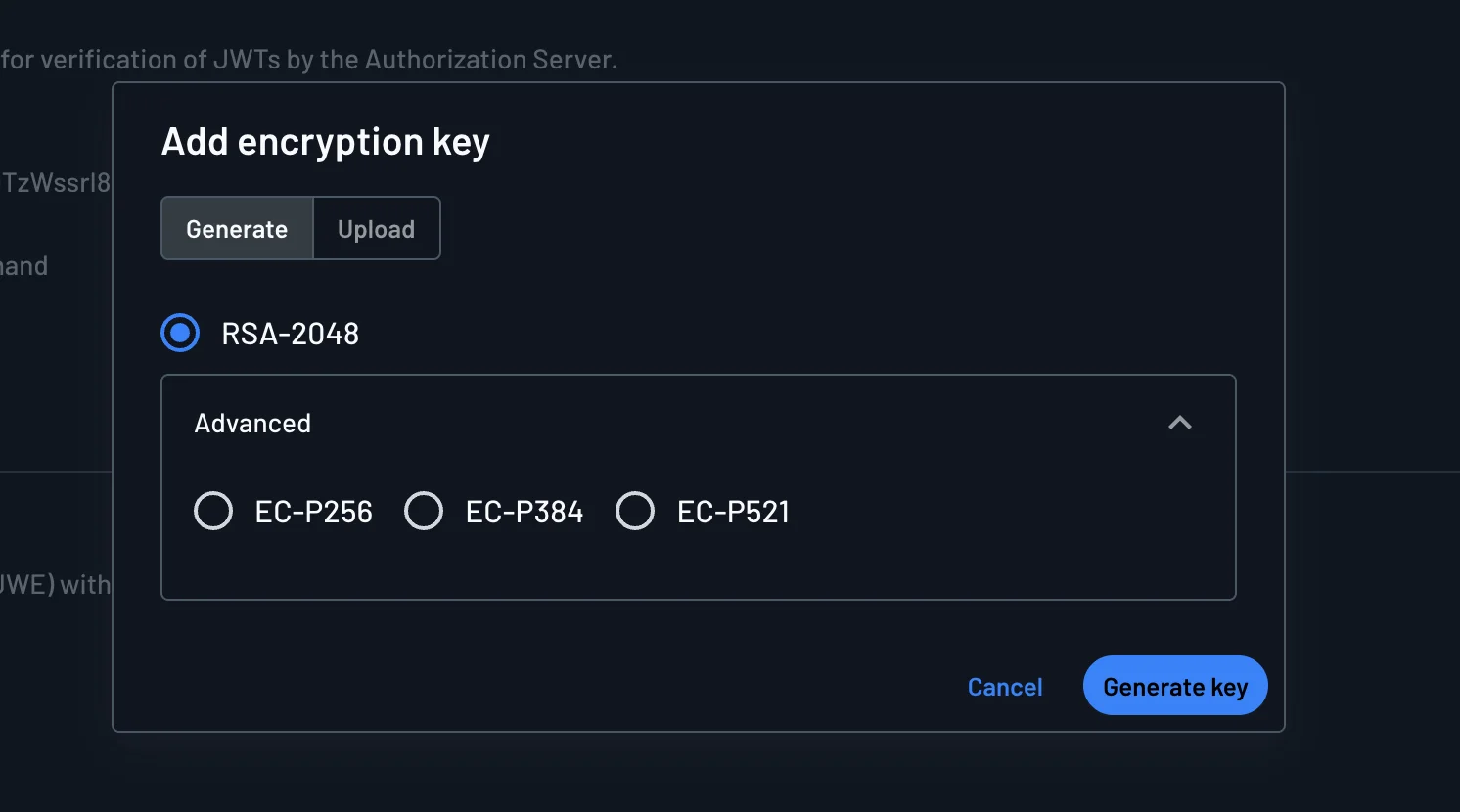
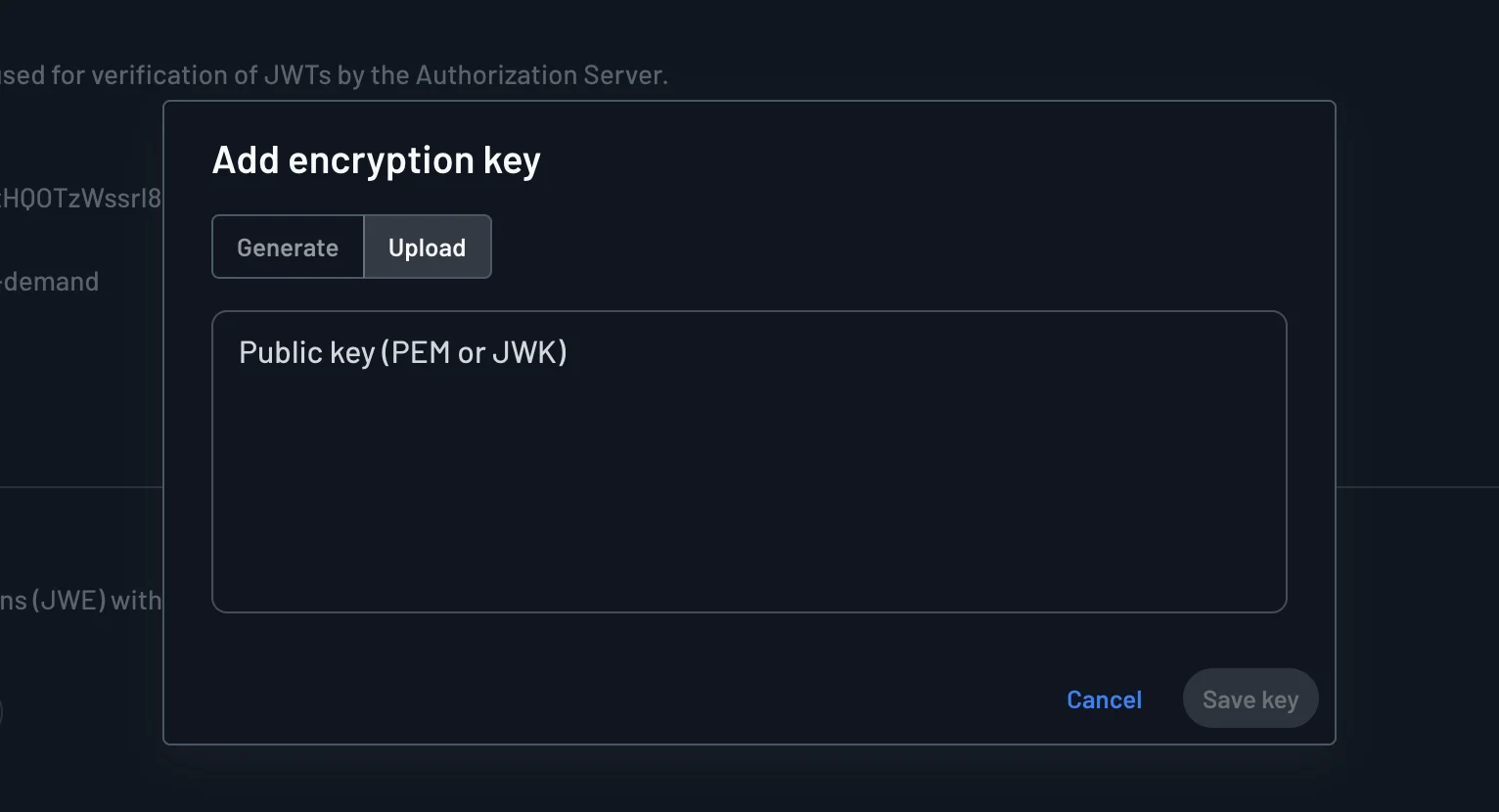
The Console section is being updated to manage the AES key described above. Until that update ships, manage the key with the Management API calls below.
Generating a Key
The simplest way to start is to let Descope generate the key. Setting a key turns encryption on right away, so every token issued after this call is encrypted:
curl -X POST "__BaseURL__/v1/mgmt/project/jwt/encryption/generate" \
  -H "Authorization: Bearer __ProjectID__:<MANAGEMENT_KEY>" \
  -H "Content-Type: application/json" \
  -d '{}'
The response returns the key's kid and the key itself, as a JWK with kty set to oct. Descope returns the key only once and can't show it again, so store it in your secret manager before you close the response.
Deploy the key before you turn encryption on
Users who sign in after you set a key get encrypted tokens. Any backend that can't decrypt them yet rejects those users. Plan the rollout so your backend can handle both encrypted and plain tokens before you call this endpoint in production.
Uploading Your Own Key
If you'd rather generate the key yourself, you can upload a 256-bit JWK with kty set to oct instead. Uploading a key also turns encryption on:
curl -X POST "__BaseURL__/v1/mgmt/project/jwt/encryption/update" \
  -H "Authorization: Bearer __ProjectID__:<MANAGEMENT_KEY>" \
  -H "Content-Type: application/json" \
  -d '{"key": "{\"kty\":\"oct\",\"k\":\"<BASE64URL_256_BIT_KEY>\"}"}'
To check the current setup, send a GET to /v1/mgmt/project/jwt/encryption. The response has the current key's kid and when it was created, and the previous keys with when each one was retired. It never returns key material.
Rotating the Key
You rotate the key by generating or uploading a new one. The new key becomes the current key, and Descope keeps the replaced key as a previous key, so tokens it encrypted still decrypt. Descope keeps up to five previous keys, newest first.
A rotation that would push out the oldest previous key could log out users whose tokens it encrypted. Descope refuses that rotation until your project's refresh token lifetime has passed since the oldest key was retired. To rotate anyway, send "forceRotation": true with the generate or update request. The check uses the project's refresh token lifetime only, not tenant or app overrides.
During a rotation, your backend needs every key that might still be in use. Keep the previous keys available, and pick the decryption key by the kid in each token's header.
Removing Keys
You can stop encryption by removing every key, with an empty key in an update request or a call to /v1/mgmt/project/jwt/encryption/delete. Tokens encrypted under the removed keys can no longer be read, so every signed-in user is logged out.
To remove one previous key and keep encrypting with the current key, send its kid to the delete endpoint. Only the users whose tokens that key encrypted are logged out:
curl -X POST "__BaseURL__/v1/mgmt/project/jwt/encryption/delete" \
  -H "Authorization: Bearer __ProjectID__:<MANAGEMENT_KEY>" \
  -H "Content-Type: application/json" \
  -d '{"kid": "<PREVIOUS_KEY_ID>"}'
Validating Encrypted Tokens
The Descope backend SDKs validate signed JWTs only, and they can't decrypt a JWE yet. Until they can, your backend decrypts the token with a standard JOSE library, then validates the signed JWT inside it against your project's public keys, as session validation describes.
This Node.js example uses the jose library. It decrypts with the key that matches the token's kid, then verifies the inner JWT:
import { compactDecrypt, createRemoteJWKSet, decodeProtectedHeader, importJWK, jwtVerify } from 'jose';

// Current and previous encryption keys from your secret manager, by kid.
const encryptionKeys: Record<string, { kty: 'oct'; k: string }> = JSON.parse(process.env.DESCOPE_JWE_KEYS!);
const jwks = createRemoteJWKSet(new URL('__BaseURL__/__ProjectID__/.well-known/jwks.json'));

export async function validateSessionToken(token: string) {
  let signedJwt = token;

  // A JWE has five parts. A plain signed JWT has three.
  if (token.split('.').length === 5) {
    const { kid } = decodeProtectedHeader(token);
    const jwk = kid ? encryptionKeys[kid] : undefined;
    if (!jwk) throw new Error('No decryption key for this token');

    const key = await importJWK(jwk, 'A256KW');
    const { plaintext } = await compactDecrypt(token, key);
    signedJwt = new TextDecoder().decode(plaintext);
  }

  const { payload } = await jwtVerify(signedJwt, jwks);
  return payload;
}
The example accepts plain signed JWTs too, so it keeps working for tokens issued before you turned encryption on.
What Changes in Your App
Descope reads its own encrypted tokens, so refresh, sign-out, tenant selection, and the other Descope session endpoints keep working. Two things change on your side:
- Browser code can't read claims: Code that decodes the session token in the browser to read roles, tenants, or custom claims gets only the encrypted payload. Have your backend return the data the browser needs instead.
- Every backend that reads tokens needs the key: That includes API gateways and JWT authorizers that validate Descope tokens directly. An authorizer that can only validate signed JWTs can't accept encrypted tokens.
Related
Token Introspection
Validate access tokens and read live roles and permissions with Descope's RFC 7662 introspection and UserInfo endpoints for Federated and Inbound Apps.
Overview
Learn about Descope Flows, a visual no-code interface to build screens and authentication flows for common user interactions with your application