Creating Relations
After you've defined your schema and implemented it in Descope, you can start creating relations between resources and targets. Relations are the actual data that represents who has access to what resources in your authorization model.
Prerequisites
Before creating relations, make sure you have:
- Defined your FGA schema with relation definitions
- Implemented your schema
- Installed and initialized the Descope Management SDK (see setup below)
Data Types
When working with relations, you'll use the following data types:
FGARelation
The FGARelation type defines a relation between a resource and a target:
type FGARelation = {
  resource: string;        // The resource identifier (e.g., "engineering-team", "project-plan.pdf")
  resourceType?: string;   // The resource type/namespace (e.g., "Group", "File", "Folder")
  relation: string;        // The relation name from your schema (e.g., "member", "owner", "viewer")
  target: string;          // The target identifier, usually a user ID (e.g., "U2abc123def456")
  targetType?: string;    // The target type/namespace (e.g., "user")
};
CheckResponseRelation
When checking relations (covered in Checking Relations), the response includes:
type CheckResponseRelation = {
  allowed: boolean;        // Whether the relation is allowed
  tuple: FGARelation;     // The relation that was checked
};
Creating Relations
You can create relations either through the Descope Console or programmatically using the SDKs.
Using the Console
A saved schema defines the types relations can reference, so Create Relation stays disabled until one exists. If no relations exist yet, the Relations tab shows an empty state instead of the list.
You can create relations directly in the Descope Console:
- Navigate to Authorization > FGA > Relations
- Click Create Relation
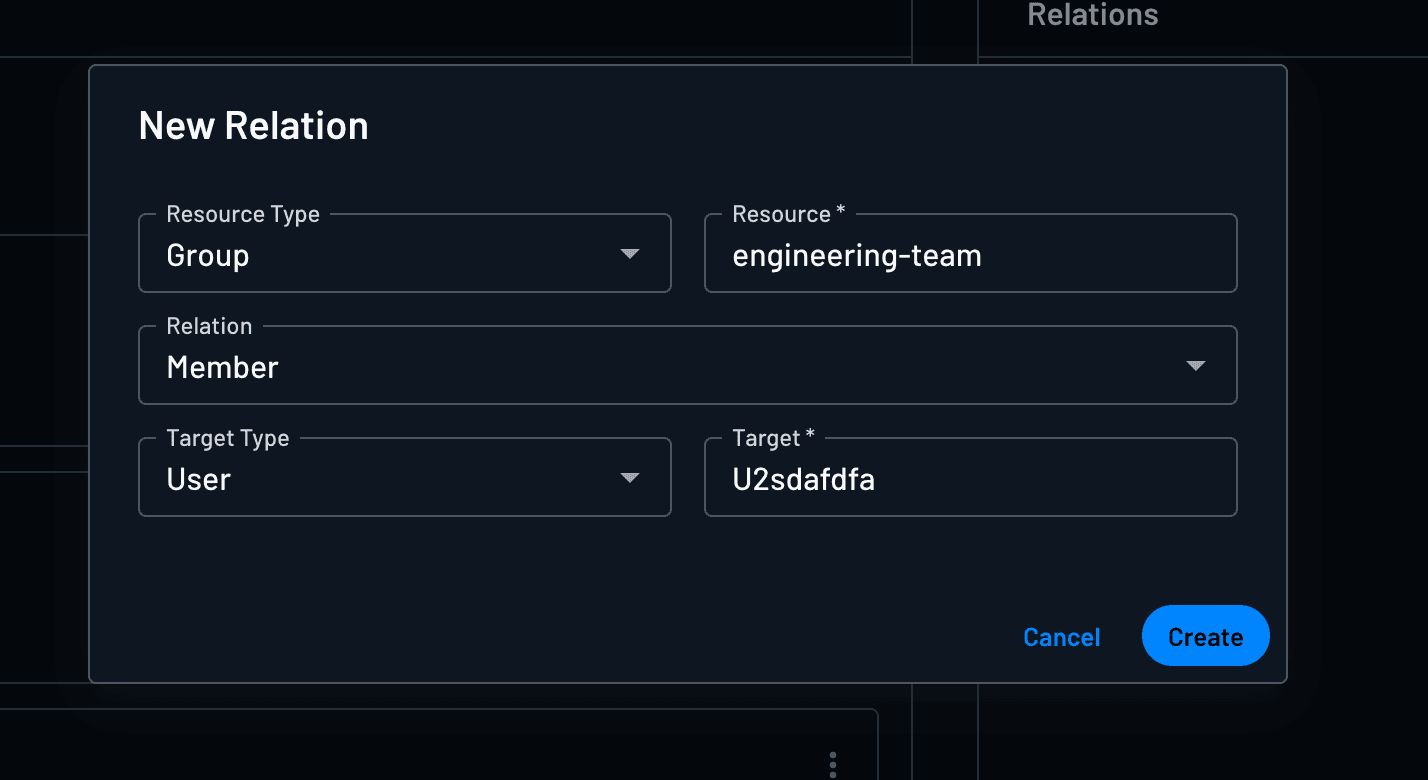
- Fill in the relation details:
- Resource Type: The type of resource (e.g.,
Group,File,Folder) - Resource Name: The identifier for the specific resource (e.g.,
engineering-team,project-plan.pdf) - Relation: The relation name from your schema (e.g.,
member,owner,viewer) - Target Type: The type of target (e.g.,
user) - Target: The target identifier, usually a user ID (e.g.,
U2abc123def456)
- Resource Type: The type of resource (e.g.,
Here's an example of creating a relation for a user as a member of a group:
Filtering Relations
Note
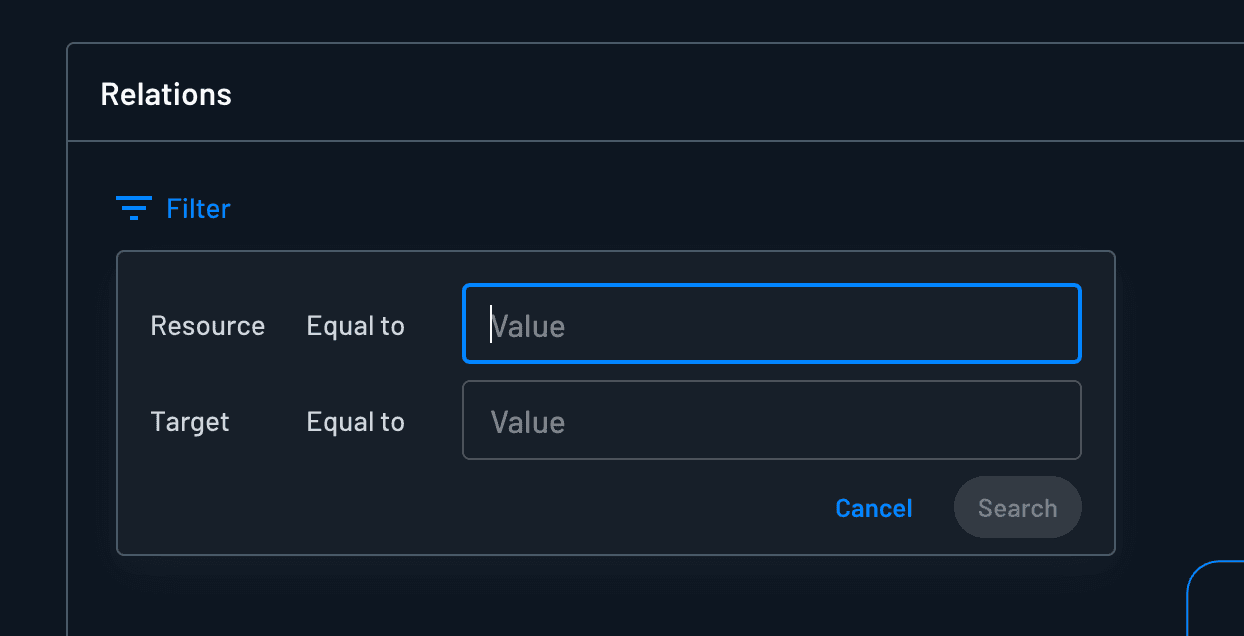
The Smart Filter matches direct relations only. For example, if you filter by a document, the results won't include users who can access that document only through a parent folder.
You can filter relations in the Descope Console by resource or target instead of scrolling through the full list:
Here's an example of creating a filter:
Using the SDK
Use createRelations to create one or more relations programmatically. This function accepts an array of FGARelation objects and creates them all in a single operation.
Install SDK
npm i --save @descope/node-sdkInitialize Management SDK
Initialize the Descope Management SDK with your project ID and management key. The management key must have FGA read/write permissions.
import DescopeClient from '@descope/node-sdk';

const managementKey = "xxxx"

try {
    // Optional: configure baseUrl for custom domain
    // baseUrl="https://auth.company.com"
    const descopeClient = DescopeClient({
        projectId: '__ProjectID__',
        managementKey: managementKey
    });
} catch (error) {
    // handle the error
    console.log("failed to initialize: " + error)
}
Create Relations Programmatically
// Example: Add a user as a member of a group
const relations = [
  {
    resource: 'engineering-team',
    resourceType: 'Group',
    relation: 'member',
    target: 'U2abc123def456',
    targetType: 'user',
  },
];

await descopeClient.management.fga.createRelations(relations);
Deleting Relations
Delete Specific Relations
Use deleteRelations to remove specific relations. This function accepts an array of FGARelation objects and deletes all matching relations.
// Example: Remove a user from a group
const relations = [
  {
    resource: 'engineering-team',
    resourceType: 'Group',
    relation: 'member',
    target: 'U2abc123def456',
    targetType: 'user',
  },
];

await descopeClient.management.fga.deleteRelations(relations);
Delete All Relations
Currently, this function is only available in the Node.js SDK.
Use deleteAllRelations to delete all relations in your project. Warning: This is a destructive operation that cannot be undone.
// Delete all relations in the project
await descopeClient.management.fga.deleteAllRelations();
Resource Details
Resource details allow you to store additional metadata about resources that can be used for filtering, display, or other purposes. This is optional metadata that doesn't affect authorization decisions but can be useful for building user interfaces or generating reports.
Load Resource Details
Use loadResourcesDetails to retrieve metadata for one or more resources.
const resourceIdentifiers = [
  { resource: 'doc-1', resourceType: 'doc' },
  { resource: 'doc-2', resourceType: 'doc' }
];

const resourceDetails = await descopeClient.management.fga.loadResourcesDetails(resourceIdentifiers);
Save Resource Details
Use saveResourcesDetails to store or update metadata for resources. This metadata can include display names, descriptions, and custom metadata fields.
const resourcesDetails = [
  {
    resource: 'doc-1',
    resourceType: 'doc',
    displayName: 'Document 1',
    description: 'First document',
    metadata: { category: 'important' }
  },
  {
    resource: 'doc-2',
    resourceType: 'doc',
    displayName: 'Document 2',
    description: 'Second document',
    metadata: { category: 'normal' }
  }
];

await descopeClient.management.fga.saveResourcesDetails(resourcesDetails);
Next Steps
After creating relations, you can:
- Check relations to verify access permissions
- Use the relations in your application logic to enforce authorization