Flow Activity
Flow Activity gives you a single place to trace every flow execution from start to finish. Instead of cross-referencing execution IDs between the Audit log and Troubleshooting page, you can see per-task status, timing, and error details in one view — and jump directly to the relevant logs when you need to dig deeper.
You can access Flow Activity from the Audits & Troubleshooting page in the Descope console.
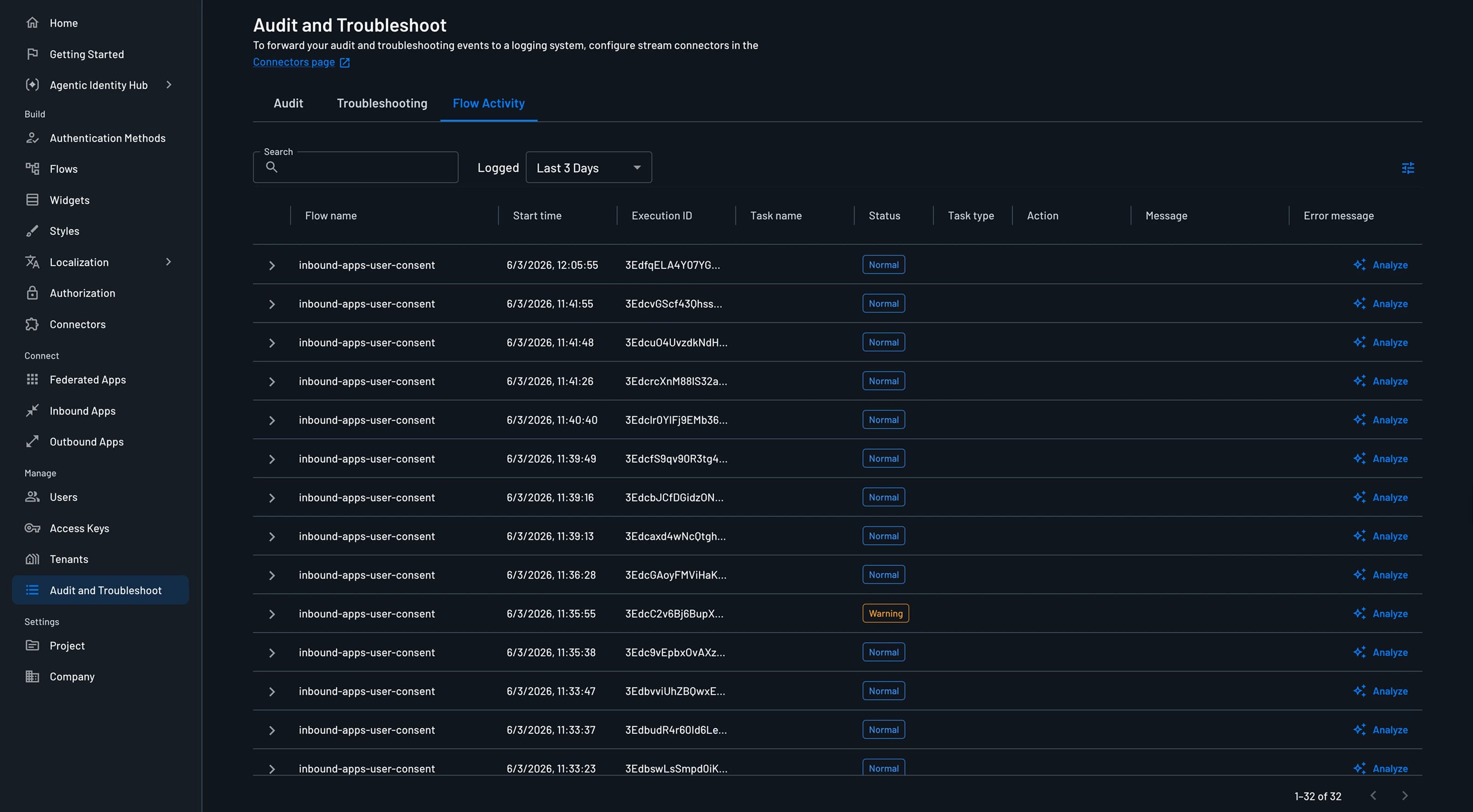
Filters and Search
Note
Flow Activity data is available for the past 120 days. Custom date ranges are limited to 1-7 consecutive days at a time.
By default, the view shows executions from the last 15 minutes with no filters applied.
Use the free-text search to filter by any value — execution ID, user ID, flow name, error message, or Login ID — across all columns.
Flow Execution Table
Each row in the table represents one flow execution.
| Column | Description |
|---|---|
| Flow Name | The name of the flow that executed |
| Start Time | When the flow execution began |
| Execution ID | Unique identifier that groups all tasks belonging to the same execution |
| Status | Normal, Warning, or Error — applies at the task level |
| Task Name | The name of the individual task within the flow |
| Task Type | Screen, Action, Condition, Connector, or Sub Flow |
| Action | The action that was performed at the task |
| Message | Informational message from the task |
| Error Message | Error detail, if the task failed |
| User ID | ID of the user associated with this execution |
| Tenant ID | Tenant associated with this execution, if applicable |
| Origin IP | IP address from which the flow execution was triggered |
| Login ID | The Login ID of the user associated with this execution |
| Federated App ID | The Federated App ID of the user associated with this execution |
| Connector ID | The Connector ID of the connector used in the flow execution |
| Flow Version | The version of the flow that executed |
Expanding Flow Execution
Each flow row has a chevron toggle on the left. Clicking it expands the row to show all tasks that belong to that execution, each displayed as its own sub-row with the same columns as above.
When a filter or search matches a task rather than the flow-level row, the parent flow group is still displayed so you can see the full execution context.
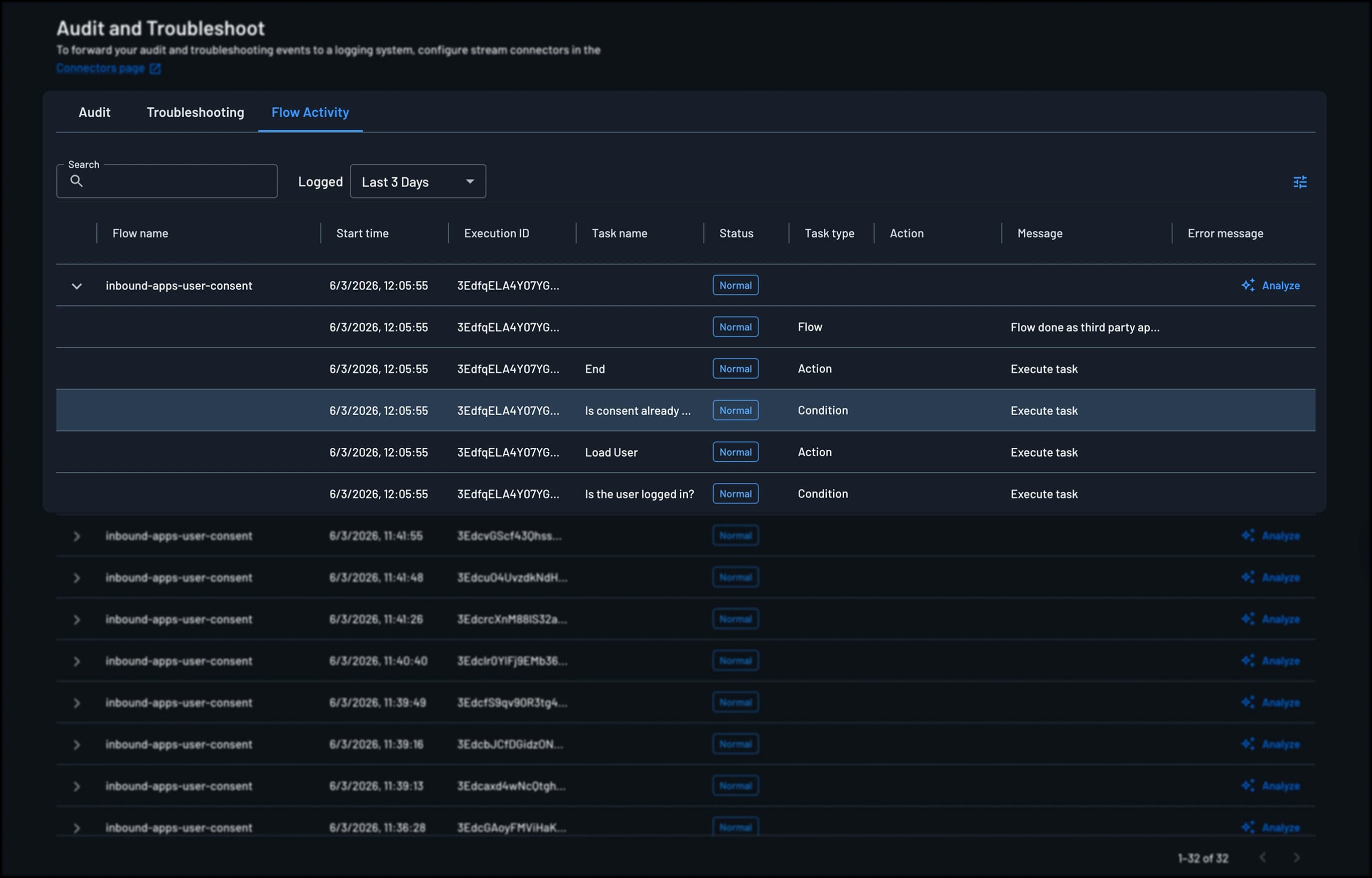
Task-level rows have the same Audit and Troubleshooting actions, which pass the execution ID and date range so the destination page opens pre-filtered to that specific task's context.
Clicking on any row opens a side panel with additional execution details, including the cf_ray value, which is not currently displayed in the table columns.
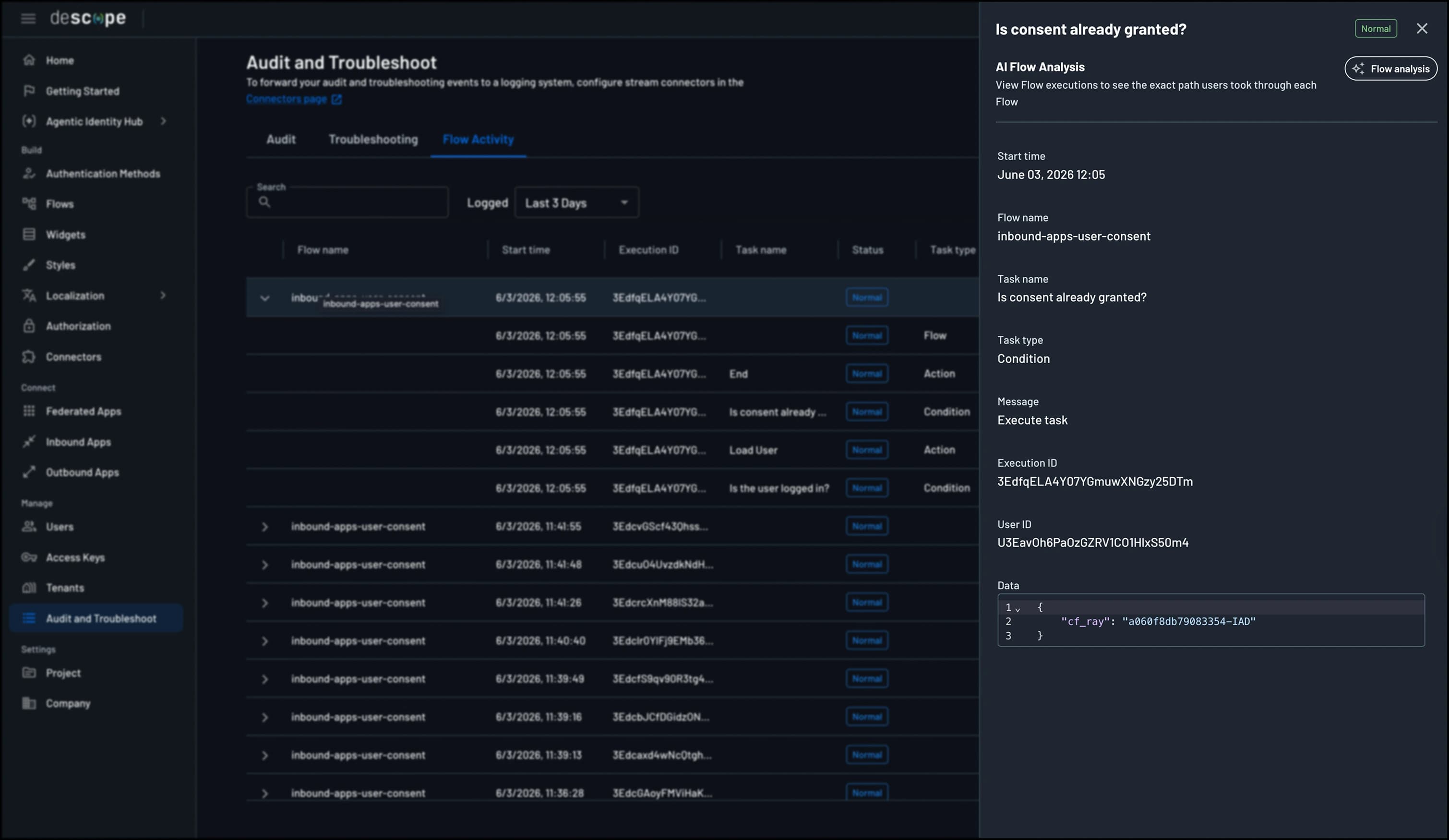
AI Flow Analysis
AI Flow Analysis lets you view Flow executions to see the exact path users took through each Flow.
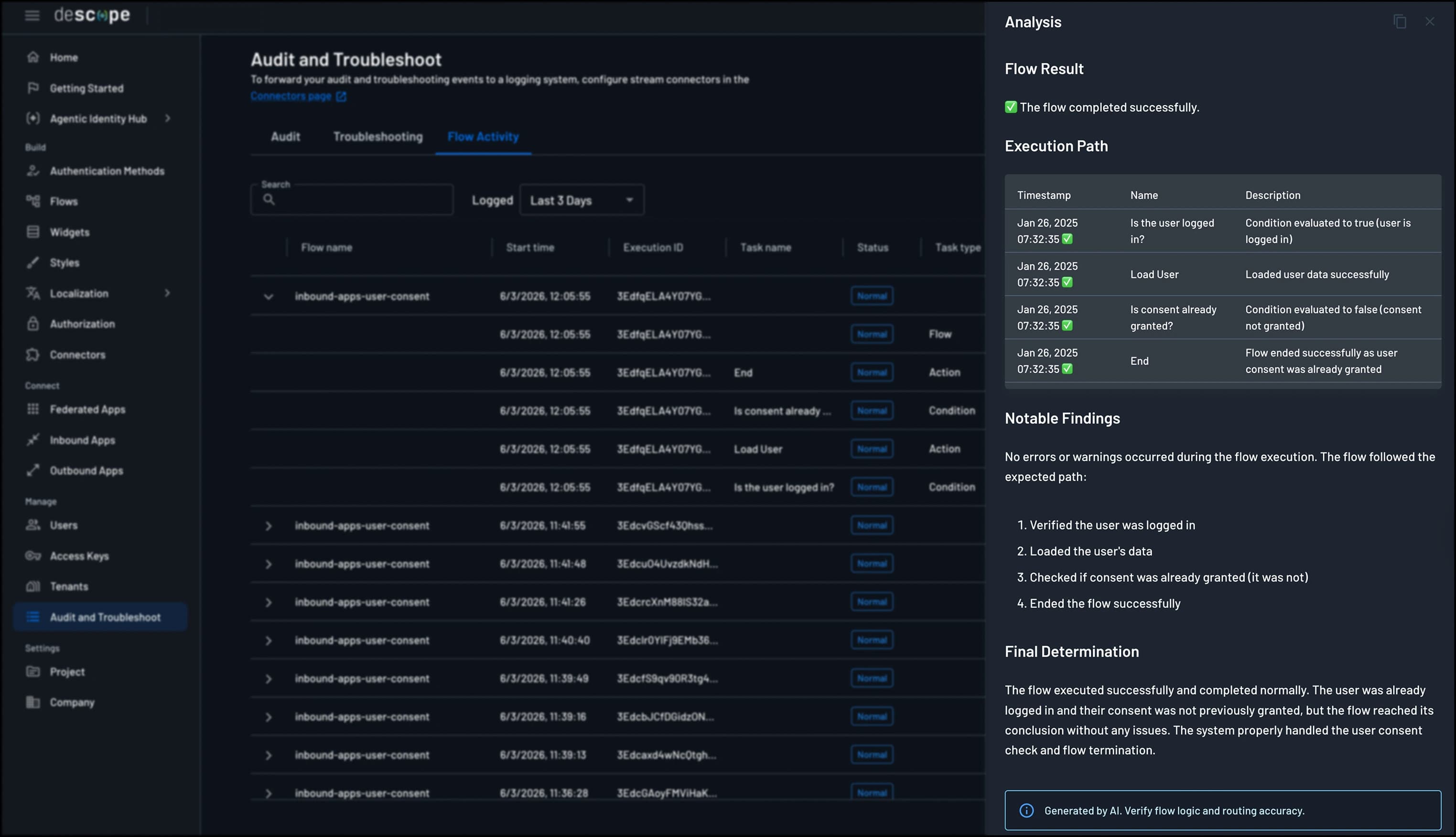
Disabling AI Flow Analysis
This feature requires Enable AI-powered features and insights in Company Settings. Turn it off there if your organization's governance or legal requirements don't allow AI processing of flow data.