FlowsIntroduction To Flows
Flow Notes
When flows get complex, it can be difficult for maintainers and reviewers to understand the purpose of chained components at a glance. Flow notes address this by allowing you to attach brief, contextual explanations directly to any step.
Working with Notes
You can easily manage notes directly within the flow editor. To get started, hover over a step, click the note icon in the pop-up toolbar, and type your message in the card below.
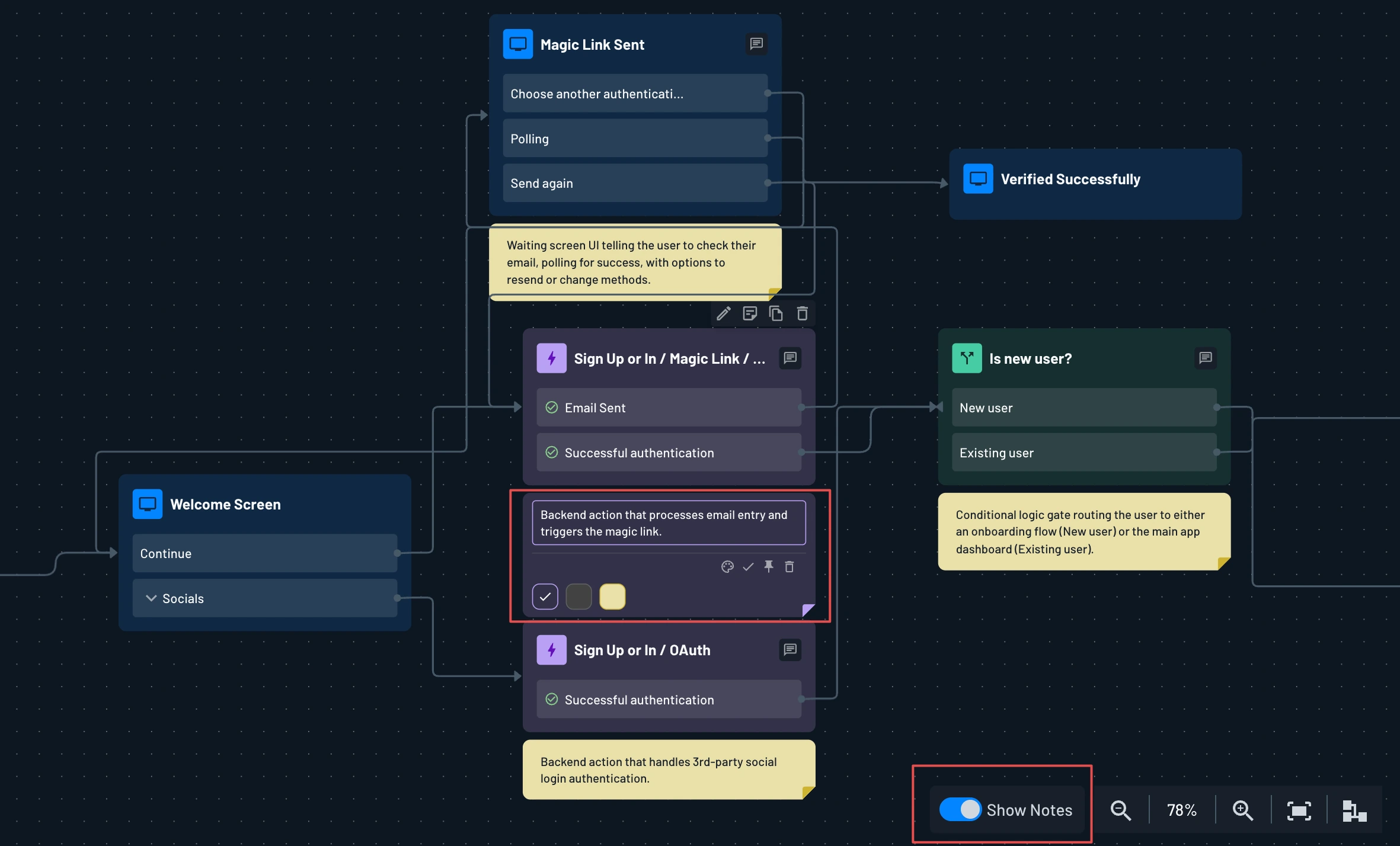
- Edit & Save: Press
Enterto add a new line (notes are plain text and limited to 500 characters). Save your note using the check button or by clicking anywhere outside of it. As with any other change in the editor, remember to save the flow itself to persist your notes. - Visibility: By default, notes stay hidden to keep your canvas clean. Hover over an annotated step to reveal its note, which closes again when you move away. Select the pin button to keep a note permanently visible on the canvas.
- Show notes: To read all notes at once, use the Show Notes toggle at the bottom right of the canvas.
- Color: Select the palette button to change a note's color.
- Delete: Select the trash button on an open note to remove it. Alternatively, clearing all of the text and saving will automatically delete the note.
Note
Notes are saved as part of the flow itself, so exporting a flow includes all of its notes, and importing that flow restores them.
Was this helpful?