Management Flows
Management Flows are autonomous, backend operations that run without user interaction. Unlike Interactive Flows that handle user-facing authentication journeys, Management Flows provide automated responses to authentication events and user management tasks.
These flows can be triggered in two ways:
- API calls: Manual execution via API calls from your backend systems in response to your own system events, audit logs, or scheduled tasks
- Audit Events: Automatic execution when configured to start based on specific Descope audit events
Creating Management Flows
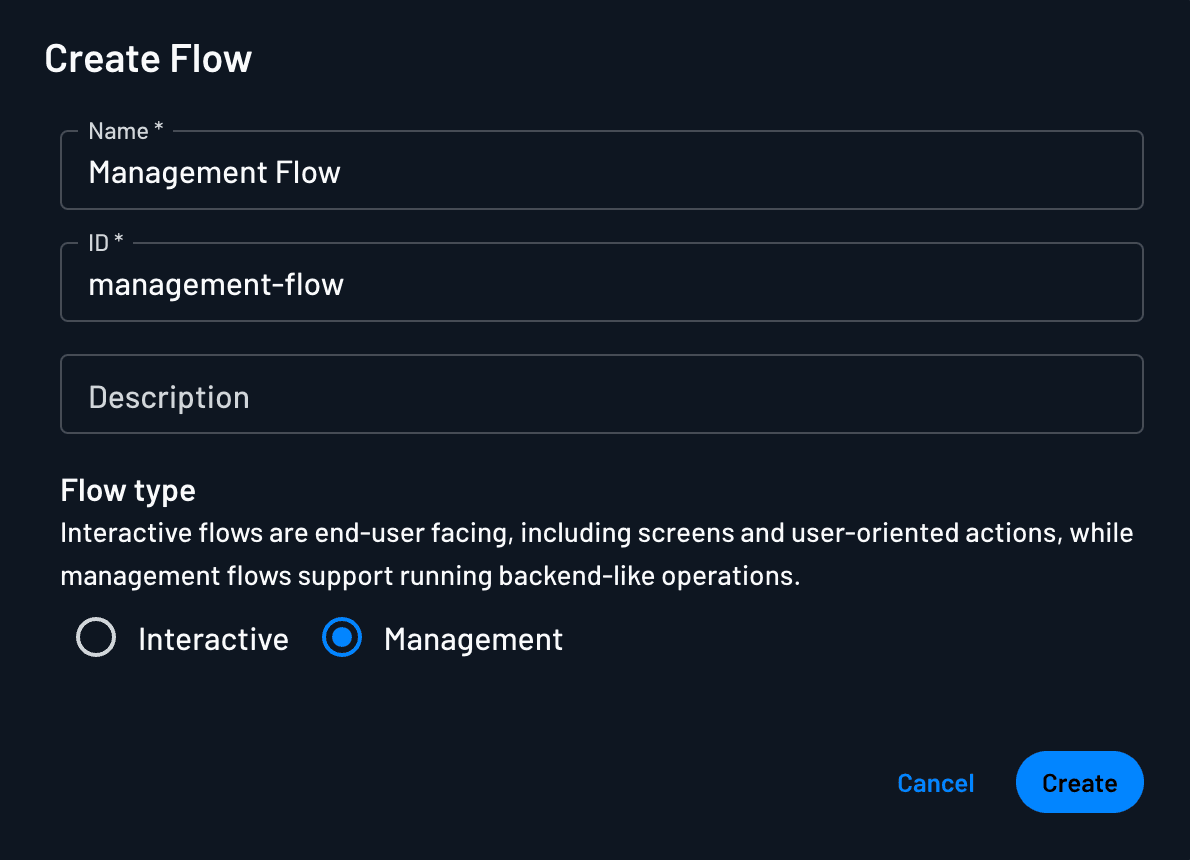
You can create a new Management Flow from the Flows page of the Descope Console. Select Create from Scratch, set the flow Name and ID, and mark the Flow type as Management.
Designing Management Flows
Management Flows use a specialized set of backend-focused components designed for autonomous operations:
Available Components
- Actions: Handle backend operations like user and tenant updates, updating consent, and generating audit events
- Connectors: Provide integration with external systems and databases
- Conditions: Enable logic branching based on data, events, or flow context
Interactive components like screens are not available in Management Flows, maintaining their focus on autonomous backend operations.
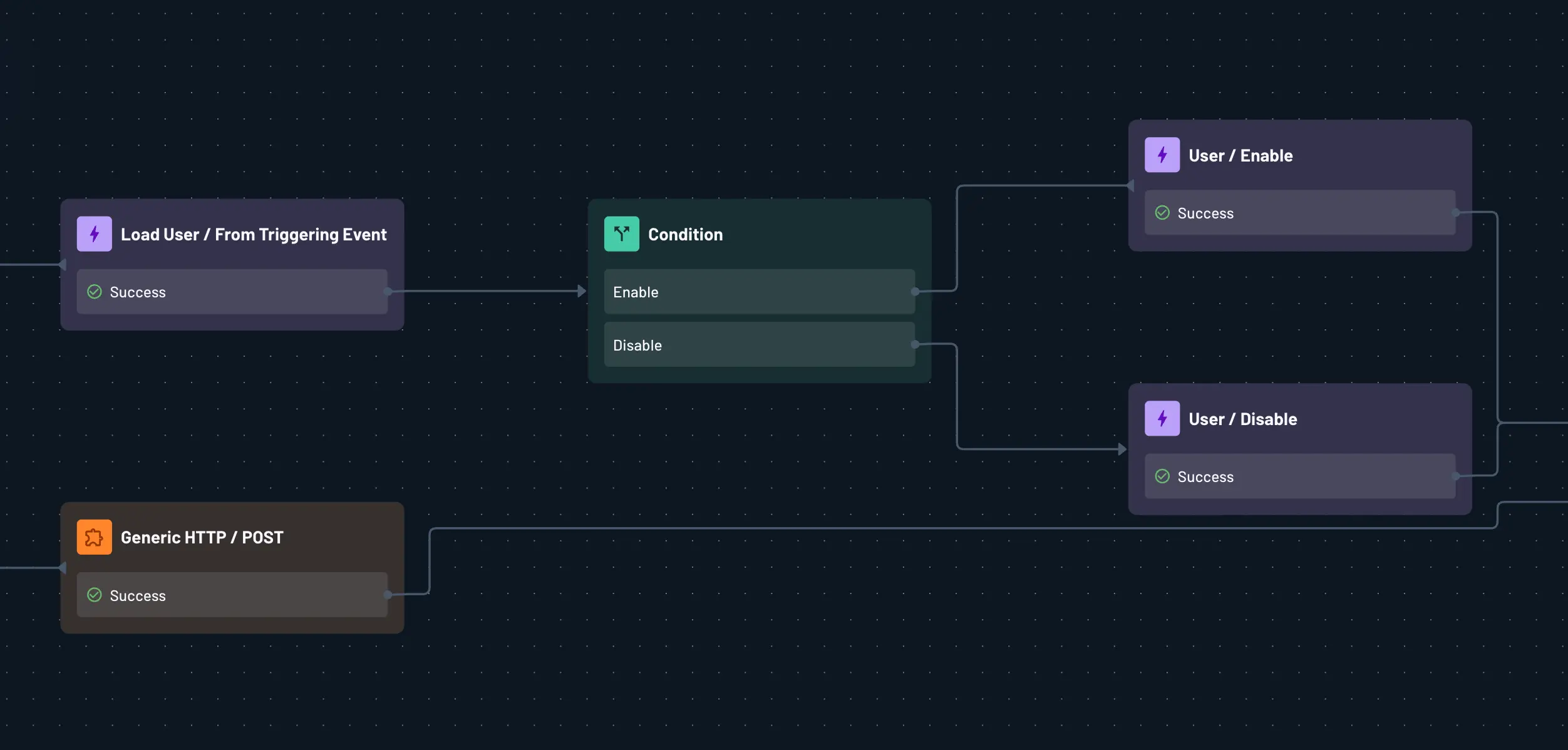
User Management Actions
Management Flows include dedicated actions for controlling user account state:
User / Disable —
Disable a user. The user ID is extracted from the triggering event if present. For API-triggered flows, pass the user ID via options.input.userId in the HTTP call, or directly set client.userId.
User / Enable —
Enable a user. The user ID is extracted from the triggering event if present. For API-triggered flows, pass the user ID via options.input.userId in the HTTP call, or directly set client.userId.
Flow Outputs with End Action
Every Management Flow should conclude with an End action that defines what data gets returned in the JSON response. In the End action, you can configure flow outputs by specifying the Key, Type, and Value.
These outputs will be included in the API response when the Management Flow completes, allowing you to retrieve processed data or confirmation of completed operations.
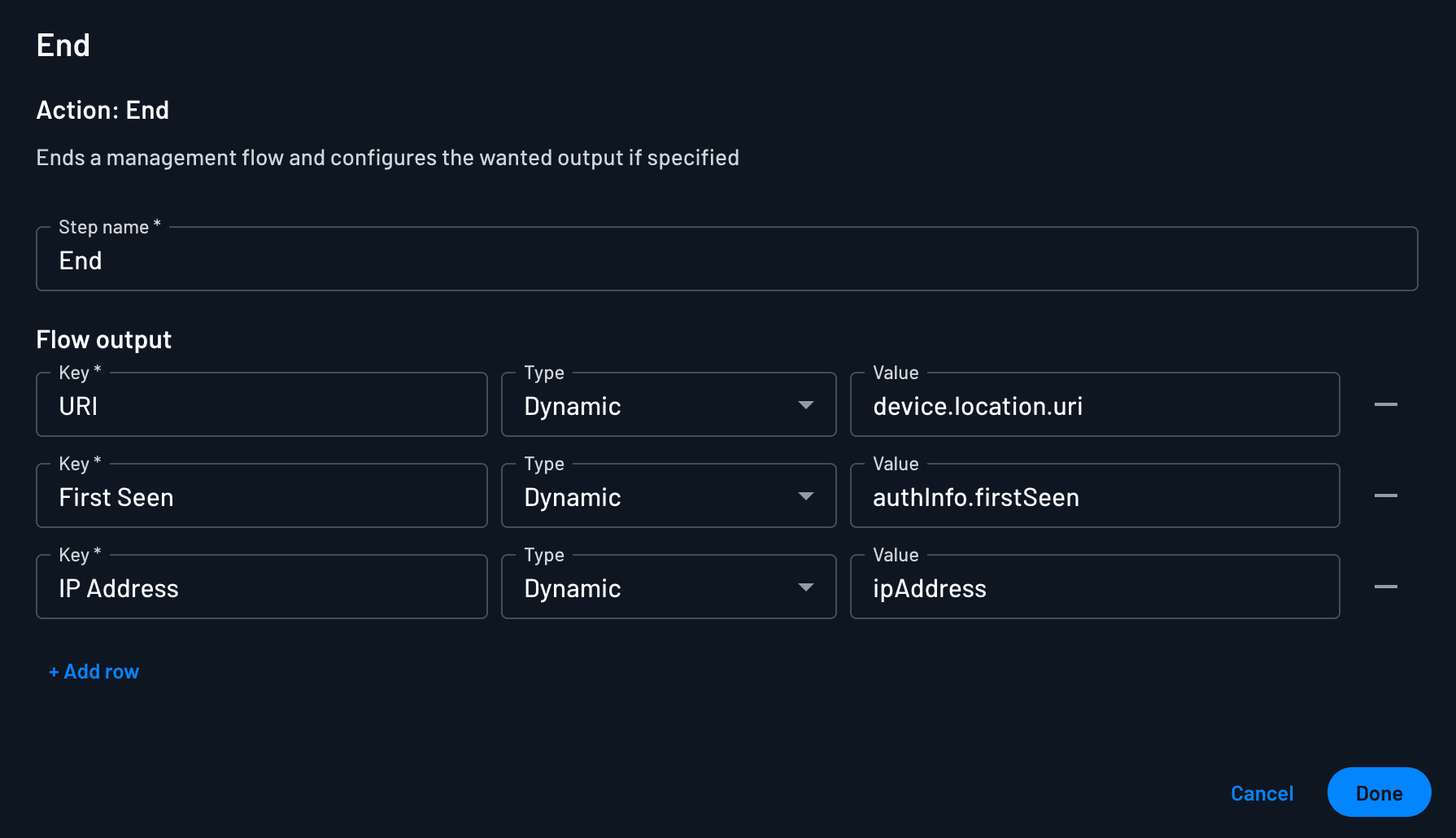
Interactive flows configure output on the End action the same way, but deliver it to your frontend on the success event instead of in an API response.
Triggering Management Flows
Management Flows can be triggered in two ways: via API calls or automatically through audit events.
Using SDKs / APIs
Note
You can also run Management Flows with the Run Management Flow API if you prefer, or if you're using a backend that doesn't have a dedicated Descope SDK.
Management Flows are typically executed with a Management Key for secure access to management operations. The recommended way to run them from your backend is with the Descope SDKs. You can see our Management Flows with SDKs guide for proper examples.
For Management Flows that require input parameters, pass them using the options field. In the management flow itself, the input is available in the flow context as client.<input-key>.
All of the outputs defined in the End action are returned as JSON in the API response.
Audit Events
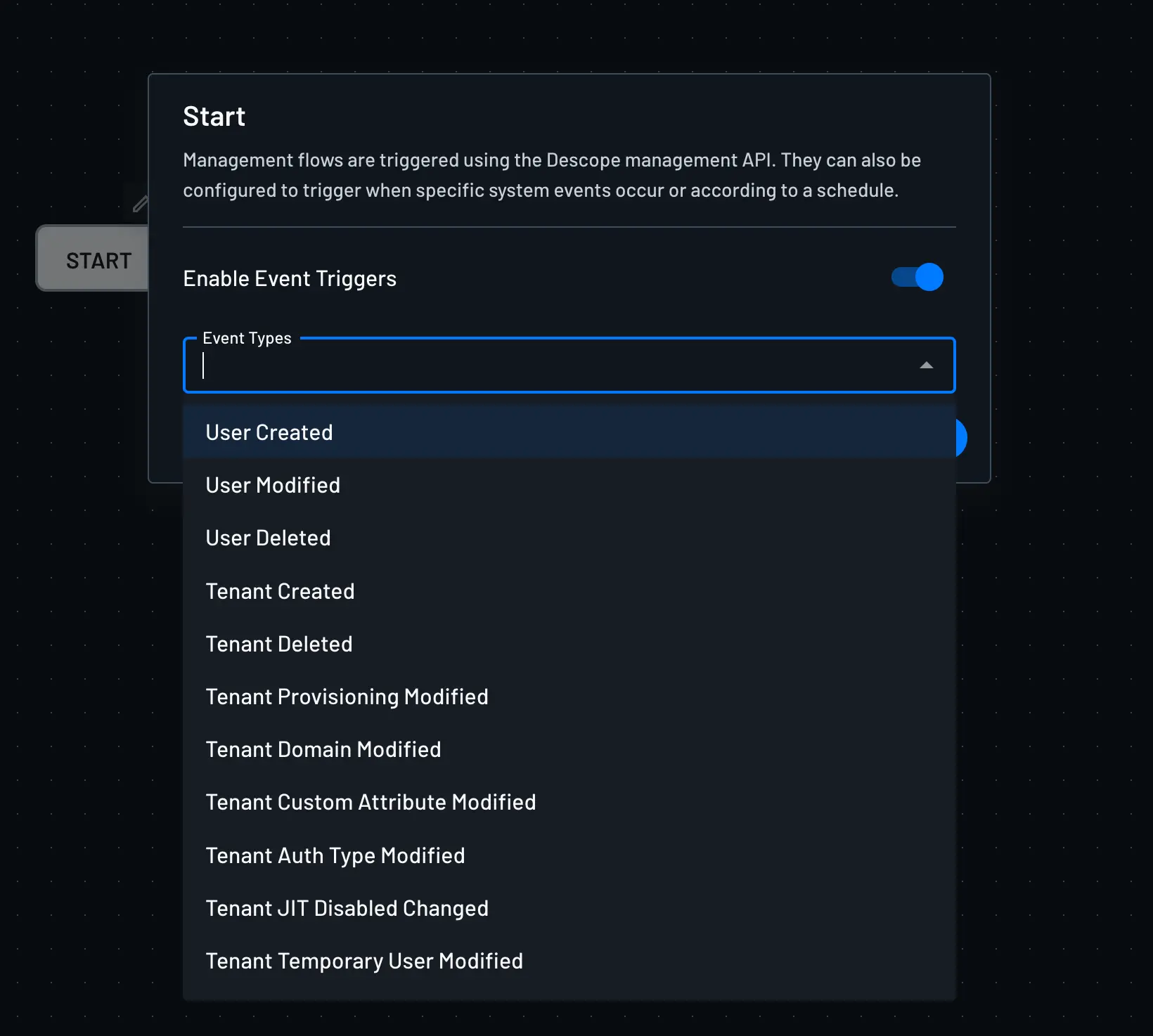
You can configure a Management Flow to automatically start when specific Descope audit events occur, rather than requiring them to be manually triggered via API calls.
You can do this by modifying the Start action in your Management Flow to be triggered by a Descope audit event.
When configuring the Start action, you can select Descope audit event types that will automatically trigger the flow execution. This enables real-time, event-driven automation without needing to make explicit API calls from your backend.
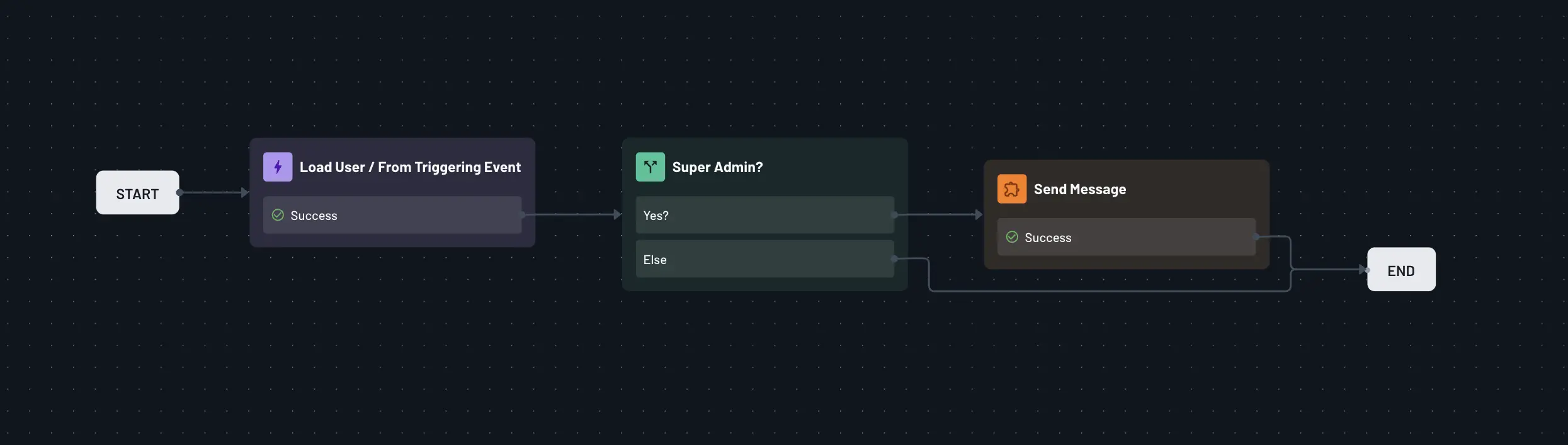
Loading Users from Triggering Events
When a Management Flow is triggered by an audit event, you can use the Load User / From Triggering Event action to load the user associated with that event. This action automatically retrieves the user based on the triggering event's user ID, making the user data available in your flow context for subsequent operations.
This is particularly useful when you need to perform user-specific operations based on the audit event that triggered the flow, such as updating user attributes, sending notifications, or performing user management tasks.
Filtering Events with Conditions
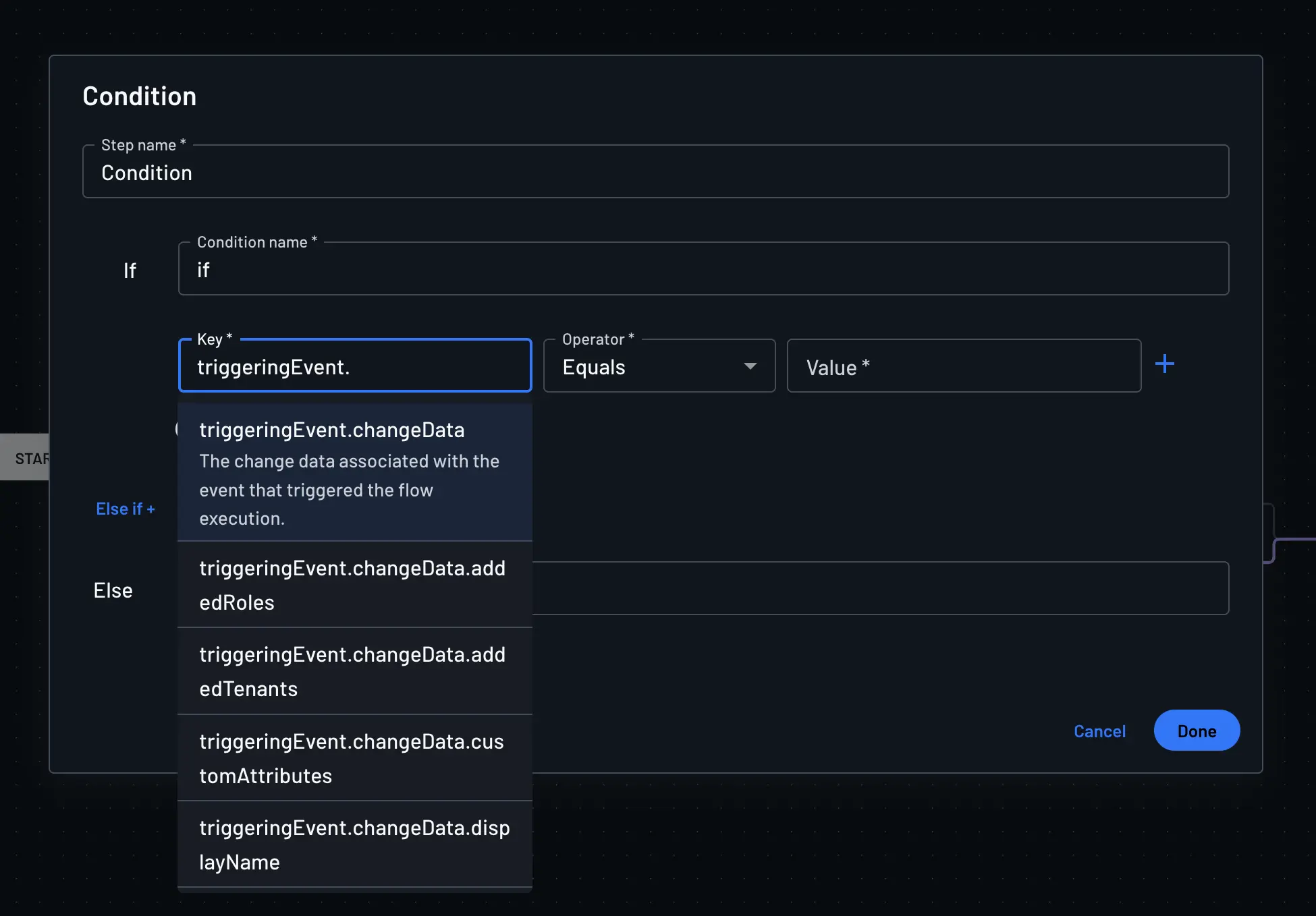
You can use Conditions within your Management Flow to further filter which audit events should trigger the flow. By adding conditions with triggeringEvent, you can create more granular control over when your Management Flow executes based on specific event properties or attributes.
For example, you might want to trigger a Management Flow only for certain types of audit events or when specific conditions are met within the event data. Conditions allow you to evaluate event properties and create branching logic that determines whether the flow should proceed.
Use Cases
Audit Event Automation
Use your own audit events to trigger Management Flows via API calls for real-time responses. For example, when your system detects a SCIM event, your backend can call a Management Flow that uses a Messaging Connector to send an alert to admins.
SSO Configuration Change Notifications
Trigger a Management Flow on the SAMLSettingsModified or OAuthSettingsModified audit event to react in real time when a tenant changes its SAML or OAuth SSO settings. Use it to alert your team or update a provisioning system the moment a customer finishes SSO setup.
Automated User Lifecycle Management
Use Management Flows to enforce inactivity policies and automate account lifecycle decisions without manual intervention. Configure your backend to track user activity thresholds and call a Management Flow when a threshold is crossed.
Within the flow, use the User / Disable action to immediately deactivate the account — preventing login until re-enabled. When the user returns and passes additional verification, a separate flow can call User / Enable to restore access.
This pattern supports:
- Inactivity detection: Disable accounts after a configurable period of no activity, requiring step-up verification on the user's next login attempt
- Automatic deactivation: Suspend users who exceed inactivity thresholds based on your own audit events or scheduled backend jobs
- Reactivation flows: Enable accounts after the user completes a verification challenge, keeping the lifecycle fully automated
User / Disable and User / Enable are only available inside Management Flows. For API-triggered flows, pass the target user ID via options.input.userId in the request body.
User Engagement Automation
Automate user lifecycle management through intelligent workflows, like sending follow-up emails to users who haven't accepted invites, or deleting users after a period of inactivity.
Client Registration Flow in the Agentic Identity Hub
Note
Clients registered with CIMD do not use the Client Registration Flow.
You can define a Management Flow that will be triggered when an MCP client registers using DCR.
You can use a management flow and conditional logic to verify the OAuth client's attributes and request and set its verified status appropriately.