Checking for Email Scanners
When using magic links, email services like Outlook's "Safe Links" may click links to check for malicious content, potentially invalidating the one-time authentication. The isEmailScanner condition allows detecting such scanners and adding a screen to prevent token invalidation.
Templates with Email Scanner Detection
The following flow templates include built-in email scanner detection:
Using Built-in Flow Actions
The simplest way to add email scanner protection is to use Descope's built-in flow actions that include automatic email scanner detection. These actions handle the detection and protection logic for you, so you don't need to manually configure conditions or screens.
Available Actions
The following actions include built-in email scanner protection:
-
Sign In / Magic Link / Email with Email Scanner Protection - A magic link flow that handles cases where email scanners might click the link before the real user.
-
Sign Up / Magic Link / Email with Email Scanner Protection - A magic link flow that handles cases where email scanners might click the link before the real user.
-
Sign Up or In / Magic Link / Email with Email Scanner Protection - A magic link flow that handles cases where email scanners might click the link before the real user.
-
Update user / Magic Link / Email with Email Scanner Protection - A magic link flow that handles cases where email scanners might click the link before the real user.
Example: Using a Built-in Action
To use a built-in action with email scanner protection:
- Add one of the email scanner protection actions to your flow (e.g., Sign In / Magic Link / Email with Email Scanner Protection)
- Configure the action with your desired settings (email field, redirect URL, etc.)
- The action automatically handles email scanner detection and protection - no additional configuration needed
The built-in actions automatically:
- Detect when a request comes from an email scanner
- Show an intermediate screen with a button for scanners (which they typically won't interact with)
- Allow genuine users to proceed directly to token verification
- Handle token verification only after confirming the request is from a real user
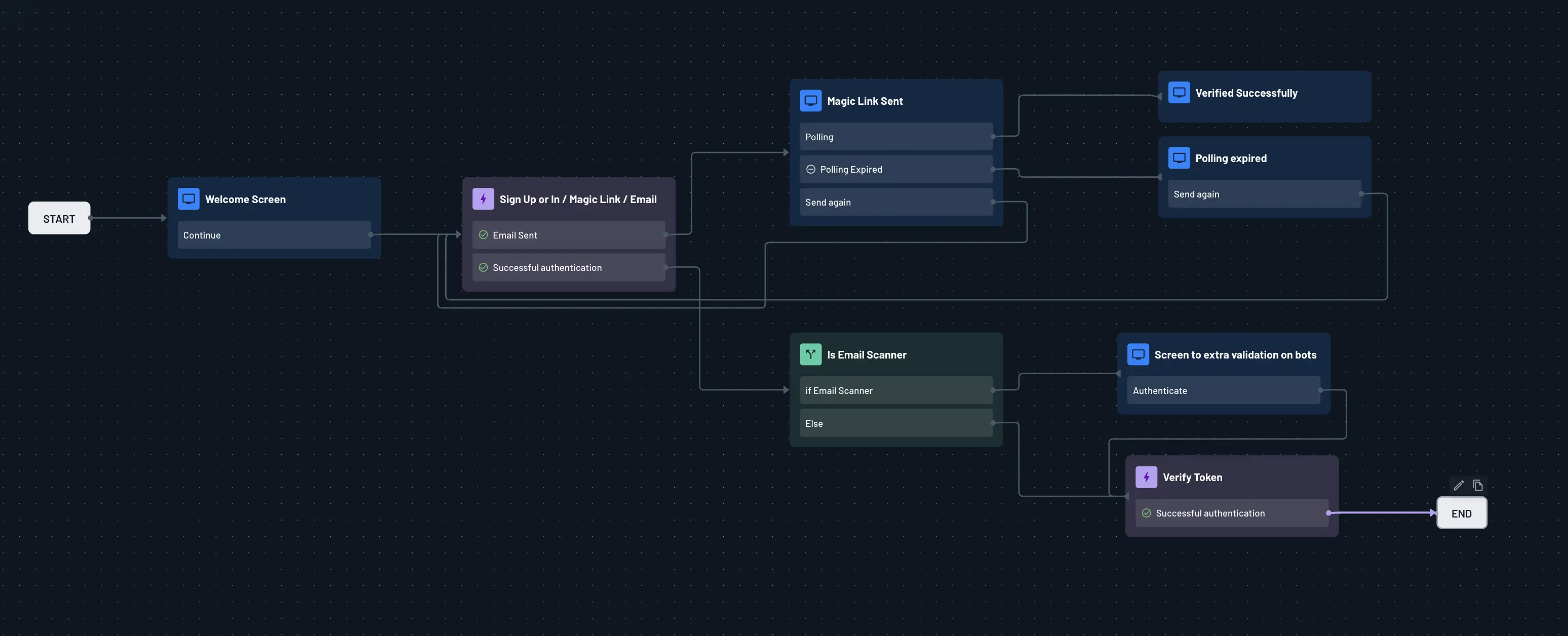
Using the isEmailScanner Condition
If you’ve already built a flow using a magic link, you don’t need to start from scratch. You can simply add an isEmailScanner condition and include a Verify Token action in your existing flow.
This lets you keep your current setup while adding the necessary logic to properly handle email scanner detection.