Descope MCP Server
The Descope MCP Server lets you manage your Descope project from any MCP-compatible AI agent. Ask your agent to search users, configure flows, inspect audit logs, manage tenants, and more, without leaving your IDE or chat interface. Documentation search and Q&A are built in.
Server URLs
Use the MCP server URL that matches where your Descope company and projects are hosted:
| Deployment | MCP server URL |
|---|---|
| US (default) | https://mcp.descope.com |
| EU | https://mcp.euc1.descope.com |
| UK | https://mcp.euw2.descope.com |
| AP | https://mcp.aps2.descope.com |
| SG | https://mcp.aps1.descope.com |
| CA | https://mcp.cac1.descope.com |
| SA | https://mcp.sae1.descope.com |
Note
If you run a private cloud deployment of Descope, the MCP server is not available at a public regional URL by default.
Contact Descope Support to enable the Descope MCP Server for your environment.
The connection examples below use the US endpoint. If your projects are in another region, substitute that region's URL from the table above wherever a URL is shown. See Multi-Region Support if you're unsure which region your projects use.
Connecting to the MCP Server
Browser sign-in required
The Descope MCP Server signs users in with the OAuth authorization code flow, or with Cross-App Access if your company has set it up. When your client first connects, it opens a browser so you can sign in with your Descope account. The server doesn't support the client credentials flow, so a client with no browser, such as a CI job or a background service, can't connect with a client ID and secret.
Once connected, the server discovers your available Descope projects and prompts you to select one. You can switch projects at any time; just ask your agent to select a different project.
Security Model
Sessions start in read-only mode. Searching users, listing tenants, inspecting flows, and querying audit logs are all available immediately.
Write operations require explicit elevation. Ask your agent to elevate the session when you want to make changes. The write window is time-bounded and closes automatically, returning the session to read-only mode.
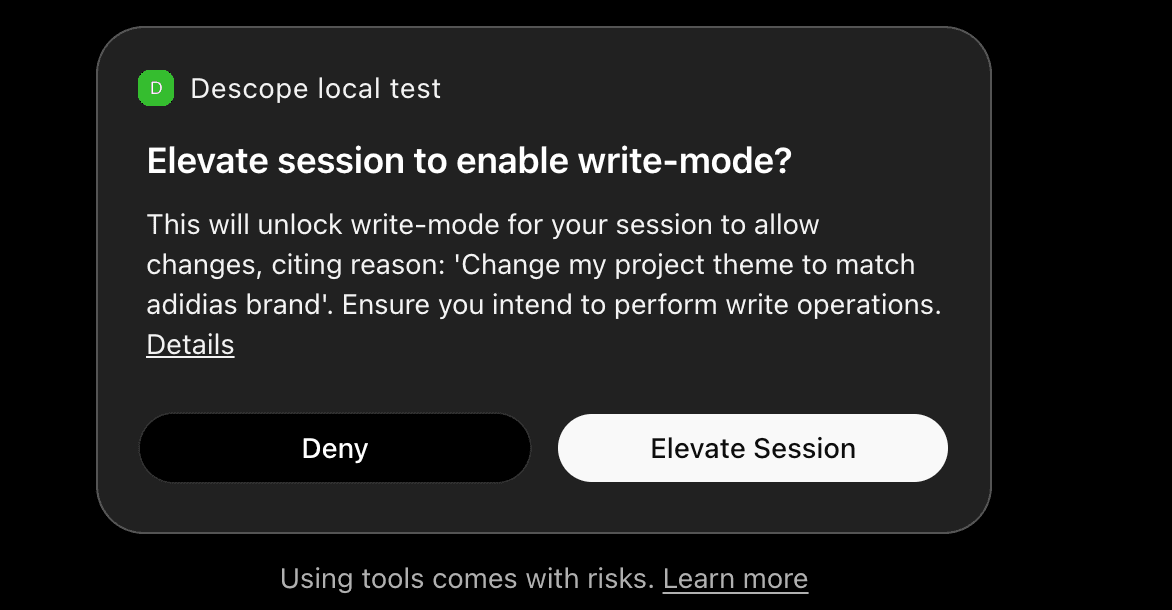
This means an AI agent browsing your project cannot make changes unless you explicitly grant it the ability to do so for that session.
Cross-App Access (XAA)
The Descope MCP Server can also accept Cross-App Access assertions, so your agents reach it through the identity provider your organization already runs instead of signing in to Descope separately.
This is the same arrangement a B2B customer sets up for their own MCP server, with the roles reversed. Descope operates the MCP server and acts as the validator, and your IdP is the issuer whose ID-JAGs Descope accepts for your company. Your IdP can be Okta, Entra, another workforce IdP that supports ID-JAG, or your own Descope project.
Enable Cross-App Access
Our Descope MCP Server supports Cross App Access (XAA), so you can enable this as an MCP server for specific users within your organization, in accordance with your centralized XAA policies.
To enable XAA for the Descope MCP Server:
-
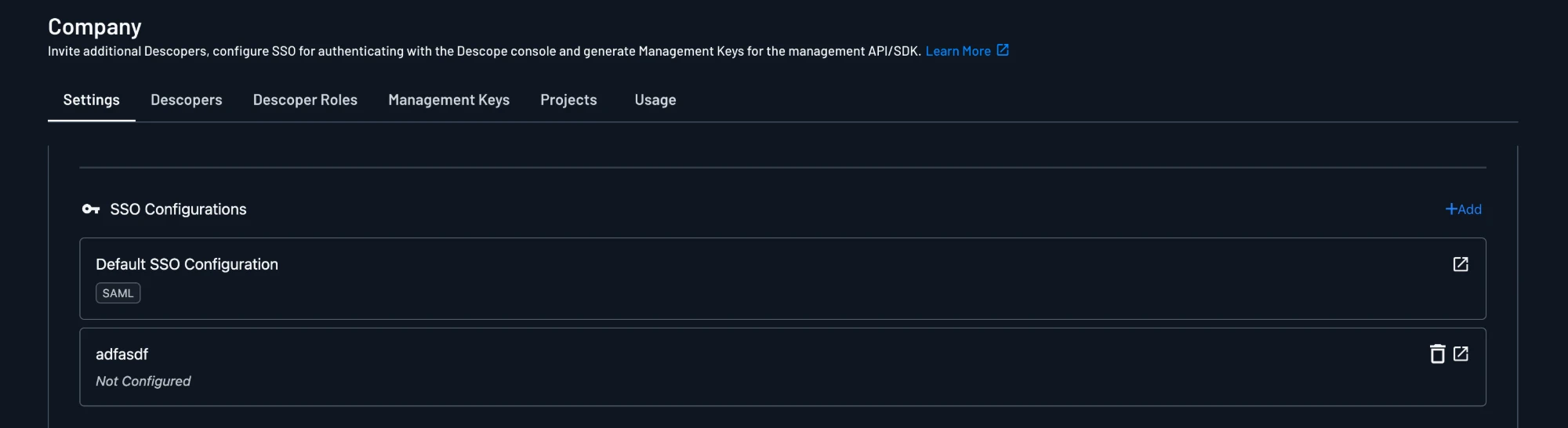
Open Company Settings and go to Console Access.
-
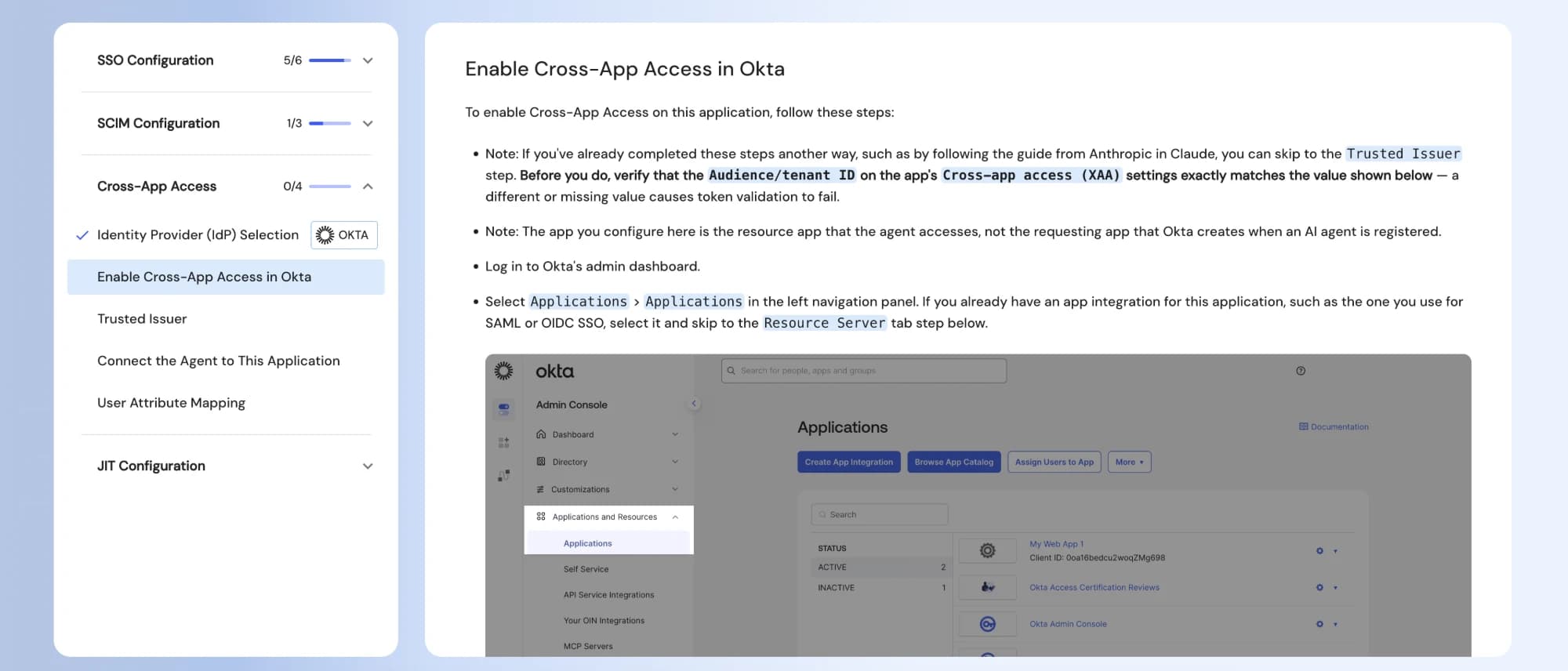
Click SSO Configuration for Console Access to open the SSO Setup Suite.
-
Follow the steps under Cross App Access (XAA) Configuration.
Tools
The MCP server groups the Descope Management API into a short list of tools instead of exposing one tool per API operation. Each tool covers one area, such as users or flows, and dispatches to a specific operation inside that area. Your agent can call list_operations at any time to discover the full operation catalog.
Expand a tool to see its input schema, as the server returns it to your MCP client.
Session and Discovery
Two tools handle the session itself rather than project data. Your agent calls them to pick a project, check who it is acting as, and look up the operations each management tool accepts.
Management Tools
Each management tool covers one area of the Management API and comes in a read and write pair. Every management tool shares the same input schema: an operation ID and an args object. The fields inside args depend on the operation, so your agent calls list_operations with an operationId to get them before it calls the tool.
Documentation Lookup
The documentation tools answer questions about Descope itself and don't touch your project. Documentation Tools below covers what each one is good for.
What You Can Do
The server covers the full Descope Management API: users, tenants, flows, access control, connections, audit logs, auth keys, and more. Use natural language: you don't need to know specific operation names.
Example Prompts
Users and tenants
- "List all users in the engineering tenant"
- "What SSO connections are configured for tenant acme-corp?"
Flows and configuration
- "What flows do I have configured and which one is the default sign-in flow?"
- "Show me the current FGA schema"
- "What access keys exist in this project and when do they expire?"
Audit
- "Show me the audit log for the last 24 hours filtered by login events"
- "Were there any failed authentication attempts in the last hour?"
Write operations (require elevation)
- "Create a test user with email test@example.com"
- "Add the 'admin' role to user alice@example.com in the acme-corp tenant"
- "Update the default session duration for this project"
Migrating to Descope
Migrations are one of the most useful jobs for the MCP server. Moving off a homegrown auth system or another CIAM provider involves two kinds of work. You move data out of the old system, and you rebuild its configuration in Descope. Your agent can help with both, and Migration to Descope covers the overall process and the provider-specific guides.
Moving Data
Your agent can help you write a script that exports data from your current provider. That data includes users with their attributes, roles, and password hashes where the provider allows it, plus tenants, roles, and other records. Your agent can then map the export to Descope and import it with one of two strategies:
- Your agent writes scripts that you run: Your agent uses the MCP server to understand the Management API, through
list_operationsschemas and the documentation tools. It then writes import scripts that you run with a Management Key, such as a script that calls Batch Create Users or creates your tenants. Scripts are easier to rerun and review for large imports, and they should respect the rate limits for user management. - Your agent imports through the MCP server: Your agent calls the write tools directly, for example
CreateUsersonusers_writeor tenant operations ontenants_write. This strategy requires write elevation, and it suits smaller imports, such as a test batch into a development project.
Rebuilding Configuration
Users are only part of a migration. Your project also needs the settings, authentication methods, flows, tenants, and roles that your old system enforced. Your agent can read your existing configuration, such as your Okta sign-on policies, and explain how each piece maps to Descope.
With that mapping, your agent can inspect your Descope project with the read tools and then apply changes with the write tools. For example, it can update project settings, import flows, create tenants, and define roles and permissions. The Okta CIS migration guide shows how Okta concepts map to Descope, and the migration skills give your agent a structured plan for Auth0, Okta, WorkOS, Stytch, and PingOne.
Example prompts
- "Write a script that exports all users from our Auth0 tenant, including app_metadata and roles"
- "Convert this CSV export from our homegrown user table into the Descope batch user format"
- "Import these 20 test users into my development project"
- "Here are our Okta sign-on policies. How would I set up the same rules in Descope?"
Documentation Tools
The server includes two tools for Descope product knowledge:
docs_search: semantic search over Descope documentation and SDK references. Good for finding reference content, configuration details, and code examples.
docs_ask_question: ask a natural language question about Descope and receive a grounded answer. Good for troubleshooting, conceptual questions, and understanding what Descope supports.
Your agent picks the right tool based on what you ask. You can mix project management and documentation questions in the same conversation.
What You Can Ask
Troubleshooting
- "Why am I getting 'Invalid session token' when validating a JWT in my API?"
- "Magic link sign-in works in dev but fails in production, what should I check?"
Setup and configuration
- "How do I add Google OAuth to my Descope flow?"
- "How do I map SSO groups to Descope roles?"
SDK and API
- "How do I get the session token in the React SDK?"
- "How do I restrict a route to admins with the Node SDK?"
Architecture
- "I'm building a multi-tenant app. How should I enforce tenant-scoped role checks in my API?"
Tips for Better Results
- Be specific: "How do I add passkeys to my Next.js sign-in flow?" is better than "How do I add passkeys?"
- Include context: Mention your framework (Next.js, React, Python), auth method (magic link, OAuth, SSO), or environment (serverless, edge) when it matters.
- Paste exact errors: For troubleshooting, include the error message or code snippet.
- One topic per question: Ask one clear question at a time. Follow-up questions work well.
Agent Skills
Tools give your agent single actions, but many Descope tasks take several steps in a set order. Integrating auth, migrating from Auth0 or Okta, building BYOS screens, managing FGA schemas, and running security reviews all fall into that group. Descope Skills are structured agent instructions and guardrails for those multi-step workflows.
The Descope MCP Server supports the Skills over MCP standard, the official MCP extension io.modelcontextprotocol/skills. The server publishes Descope Agent Skills directly over the MCP connection. An MCP client that supports the standard can discover them with skills/list and load the skill that matches the task. Your agent gets the skills from the same server it already uses, with nothing extra to install.
If your MCP client doesn't support Skills over MCP yet, you can install Descope Agent Skills locally instead.