Skyflow Integration with Descope
Skyflow is a data privacy vault that enables secure storage and governed access to sensitive data such as PII (Personally Identifiable Information) and payment data.
This guide demonstrates how to integrate a Descope-protected MCP server with Skyflow Security Token Service (STS) to securely exchange Descope access tokens for Skyflow access tokens. The resulting Skyflow token enforces role-based data access and redaction policies defined directly in Skyflow.
The key concept is mapping Descope roles to Skyflow roles using conditions, allowing identity-driven data governance without application-side access logic.
How It Works
The Skyflow integration with Descope uses OAuth 2.0 Token Exchange (RFC 8693):
-
User Authentication: Users authenticate to your MCP server using Descope and receive a Descope access token.
-
Token Exchange: The MCP server exchanges the Descope token for a Skyflow token using Skyflow STS.
-
Role Mapping via Conditions: Skyflow evaluates conditions against claims in the Descope token (for example, roles) and assigns Skyflow roles dynamically.
-
Policy-Enforced Data Access: The Skyflow token is used to query the vault. Field-level access, masking, redaction, and RLS are enforced automatically by Skyflow.
Note
The token exchange occurs server-side during authentication. Skyflow tokens are never exposed to the client or the LLM.
Prerequisites
Before starting, ensure you have:
- A Descope-protected MCP server configured in Descope
- A Skyflow account with:
- A vault created
- A service account created
- API access to Skyflow Management APIs
Getting Started with an Example
To quickly get started with a working example, clone the Descope AI examples repository which includes a complete MCP server implementation that demonstrates:
- Token exchange between Descope and Skyflow STS
- Using the Skyflow Get Records API to retrieve PII data
- Role-based data access and redaction
The example includes a basic tool that allows you to request PII data from Skyflow vaults using the exchanged STS token, demonstrating the complete integration pattern.
Environment Variables
DESCOPE_PROJECT_ID
SKYFLOW_VAULT_URL_IDENTIFIER
SKYFLOW_VAULT_ID
SKYFLOW_SERVICE_ACCOUNT_ID
SKYFLOW_STS_URL=https://api.skyflowapis.com/v1/auth/sts/token
Setup Overview (Order Matters)
- Set up your MCP server in Descope
- Create a Skyflow role with data policies
- Associate the role with a Skyflow service account
- Create an STS configuration in Skyflow
- Assign the Skyflow role using a conditional role mapping
- Implement token exchange in your MCP server
Step 1: Set Up Your MCP Server in Descope
Your MCP server must be protected by Descope's MCP server authentication.
This will ensure that only authenticated users can access your MCP server and that every client will possess an OAuth compliant access token that can be exchanged for a Skyflow token.
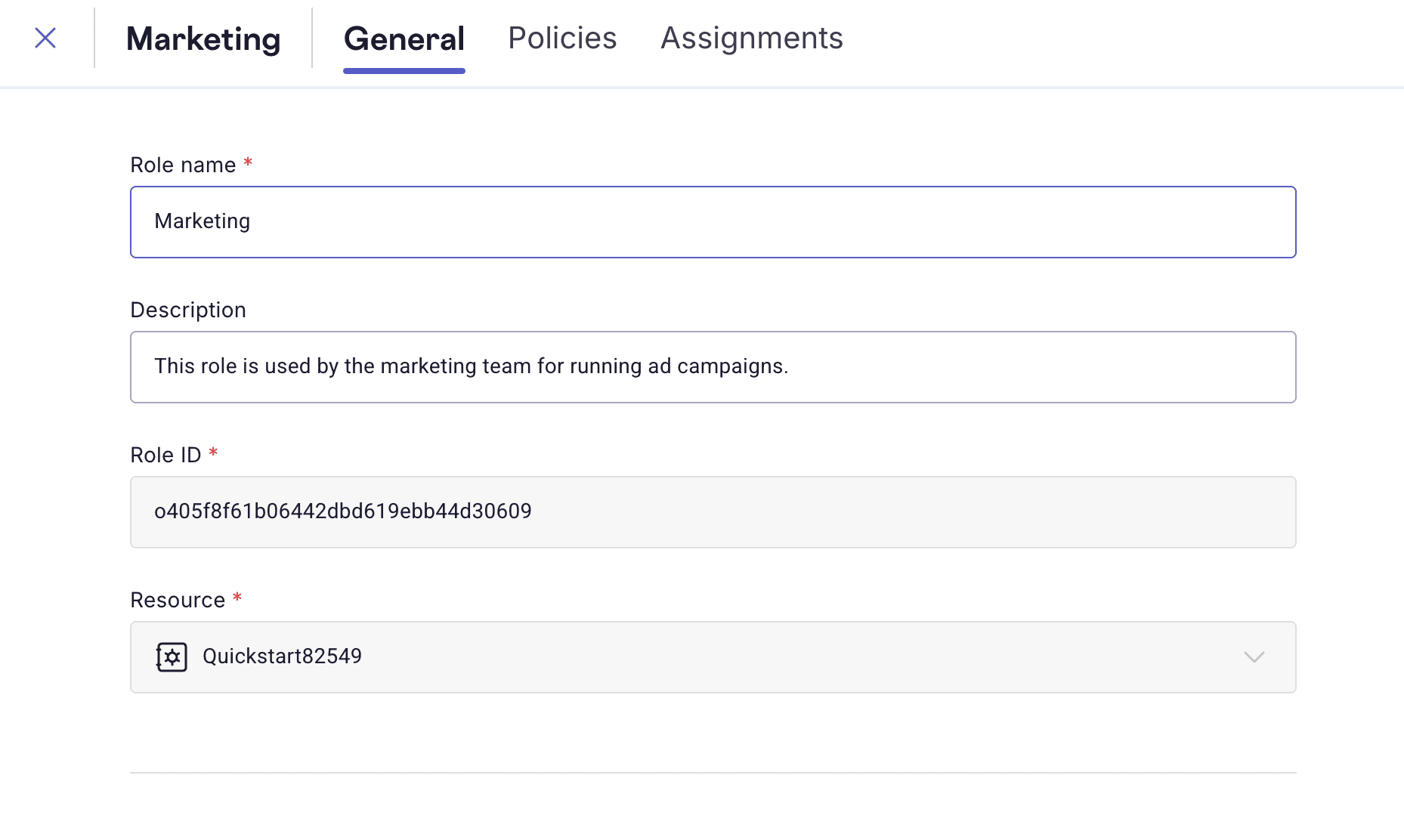
Step 2: Create a Skyflow Role with Policies
In the Skyflow dashboard:
- Navigate to Vault → Access
- Click + Add Role
- Name the role (example:
marketing) - Add a description
Example Policies
Note
These policies can also include Row-Level Security (RLS) conditions if needed.
The following policies demonstrate field-level access and redaction:
ALLOW READ ON persons.date_of_birth WITH REDACTION = MASKED
ALLOW READ ON persons.ssn WITH REDACTION = REDACTED
ALLOW READ ON persons.name,
              persons.email_address,
              persons.state,
              persons.skyflow_id
WITH REDACTION = PLAIN_TEXT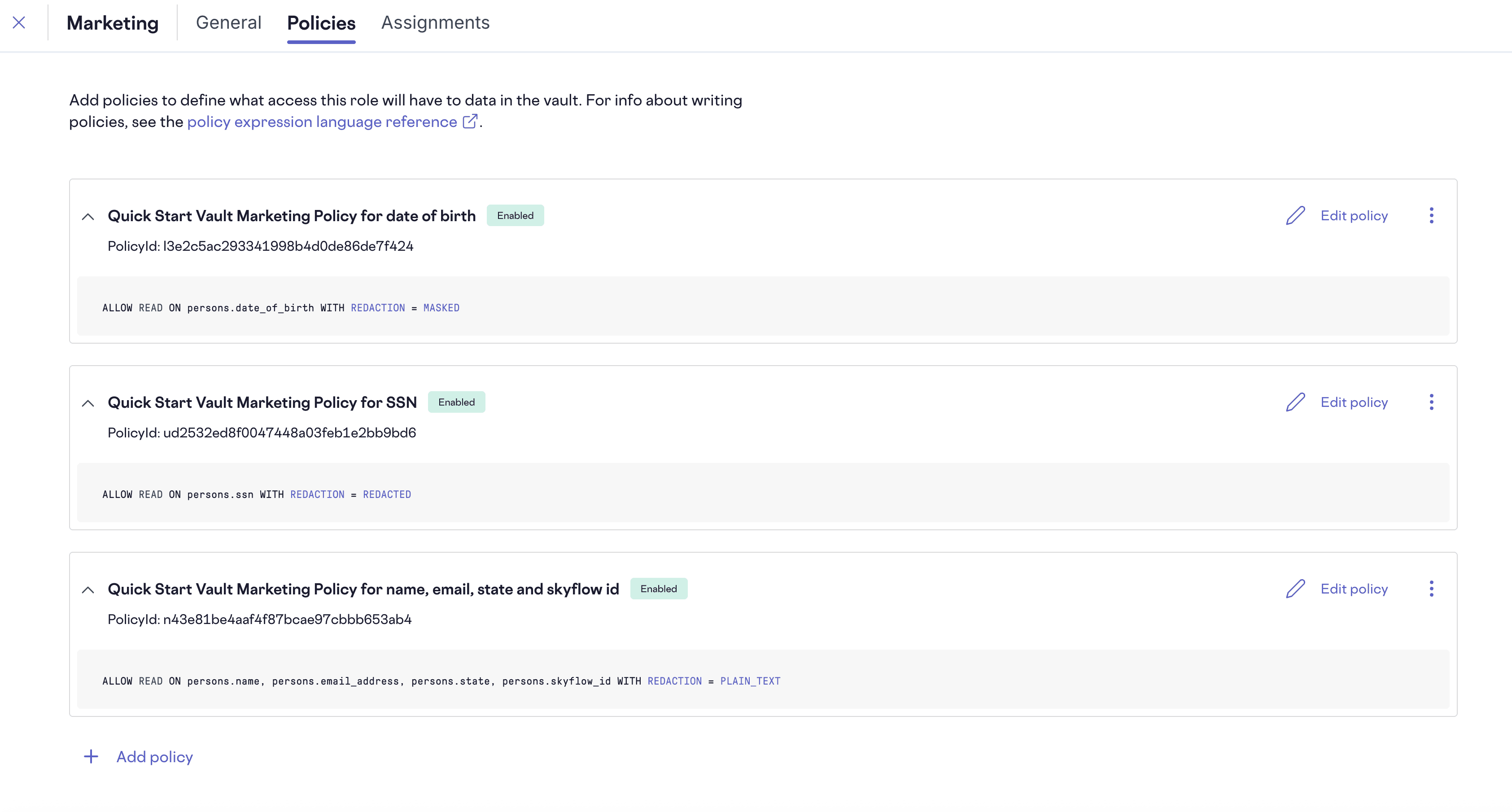
Step 3: Associate the Role with a Service Account
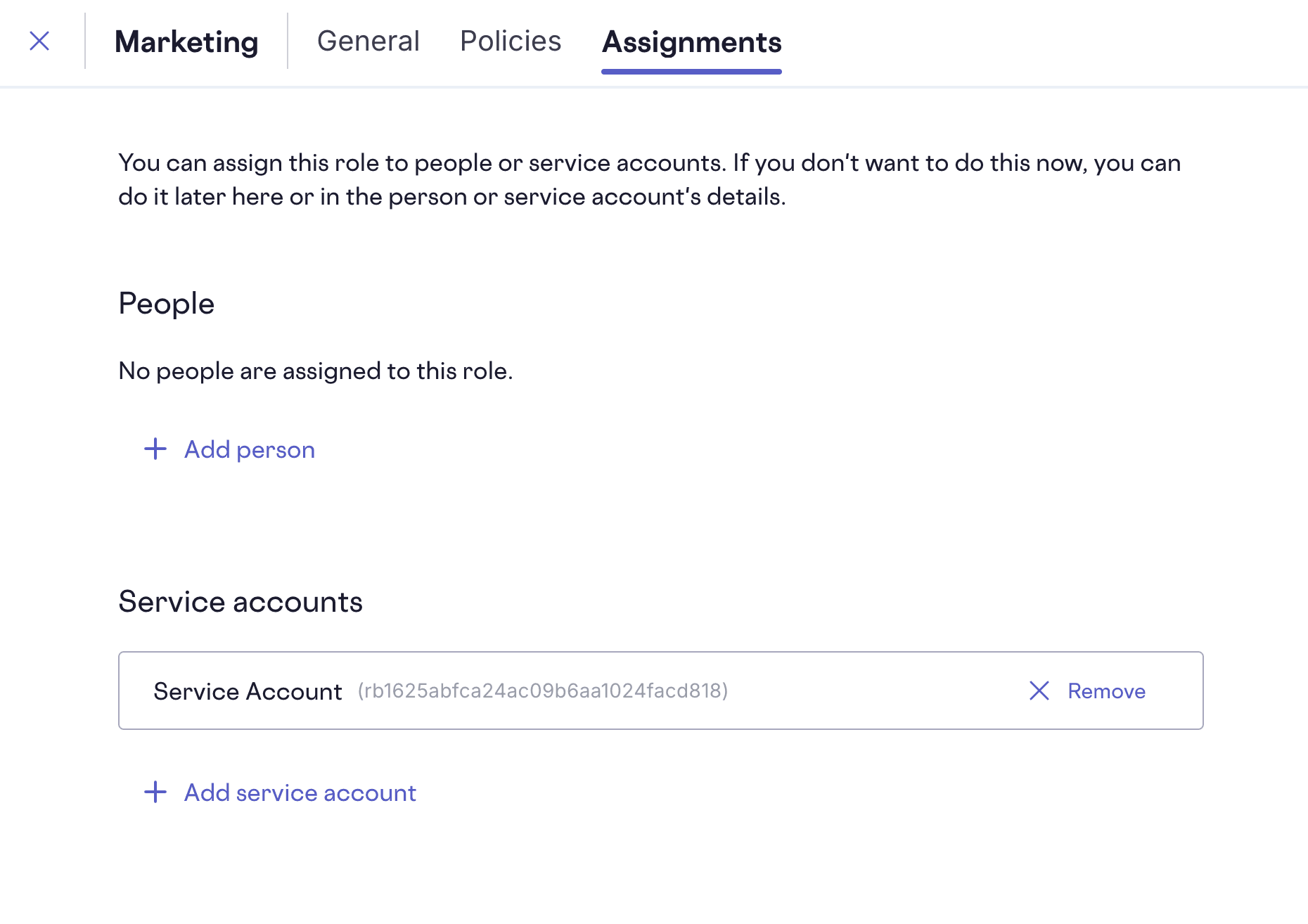
Under Service Accounts, you'll need to associate the newly created role with a pre-defined service account in Skyflow.
If you don't already have a service account, create one from the main Access page by opening the Service Accounts tab and clicking Add Service Account button.
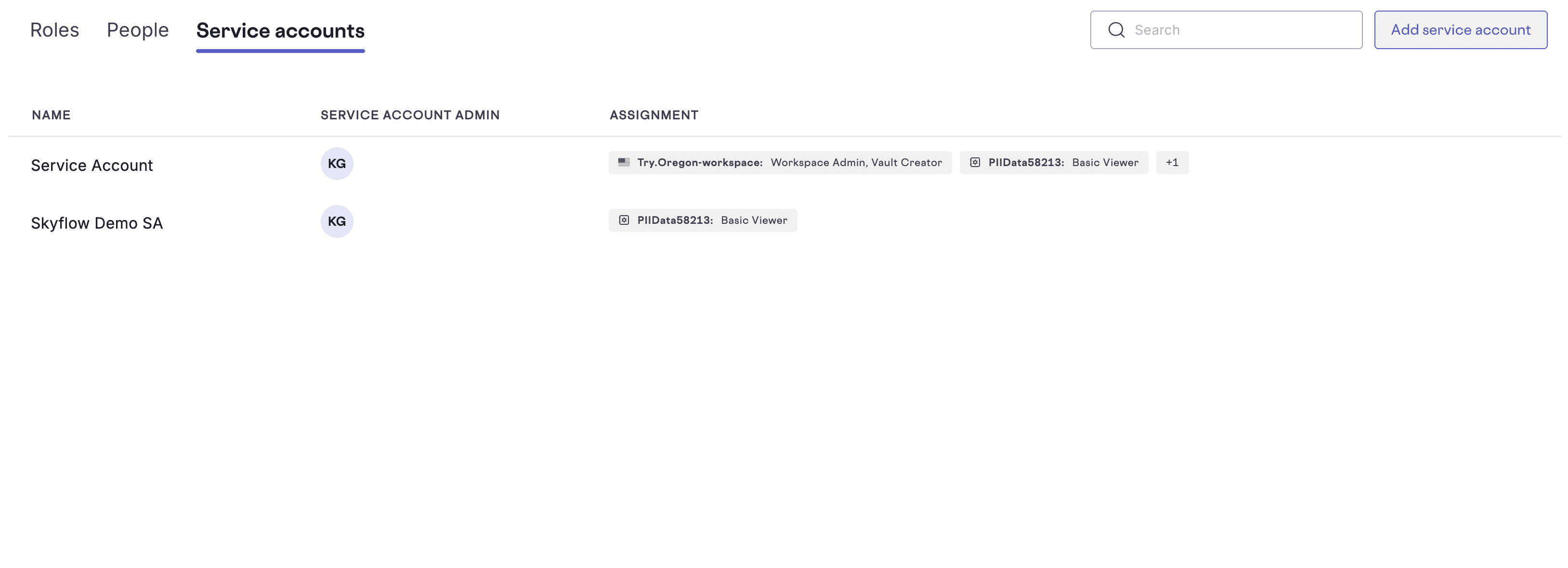
This service account represents your MCP server when accessing Skyflow.
Step 4: Create an STS Configuration in Skyflow
Create an STS configuration so Skyflow can validate Descope tokens and extract claims.
curl -X POST https://manage.skyflowapis.com/v1/sts/config \
  -H "Authorization: Bearer <Skyflow API Bearer Token>" \
  -H "Content-Type: application/json" \
  -d '{
    "issuer": "__BaseURL__/v1/apps/customized/__ProjectID__",
    "name": "sts_config_descope",
    "description": "STS config for Descope",
    "publicKeyJWKURI": "__BaseURL__/__ProjectID__/.well-known/jwks.json",
    "contextClaims": [
      "roles"
    ],
    "serviceAccountIDs": [
      "<SERVICE_ACCOUNT_ID>"
    ],
    "accountID": "<SKYFLOW_ACCOUNT_ID>"
  }'
Notes on contextClaims
"roles"must match how roles appear in your Descope JWT- Roles may be nested under tenants depending on your Descope authorization model
- Adjust
contextClaimsaccordingly if using tenant-scoped roles
Step 5: Assign the Role Using a Condition
Now assign the Skyflow role to the service account with a condition.
curl -X POST https://manage.skyflowapis.com/v1/roles/assign \
  -H "Authorization: Bearer <Skyflow API Bearer Token>" \
  -H "Content-Type: application/json" \
  -d '{
    "ID": "<ROLE_ID>",
    "members": [
      {
        "ID": "<SERVICE_ACCOUNT_ID>",
        "type": "SERVICE_ACCOUNT",
        "status": "ACTIVE"
      }
    ],
    "condition": "\'Viewer\' in request.context.roles"
  }'
How This Works
Vieweris a Descope role included in the Descope token- During STS token exchange, Descope roles are placed into
request.context.roles - Skyflow evaluates the condition
- If true, the
marketingrole is applied dynamically
This is how Descope roles map to Skyflow roles.
Step 6: Implement Token Exchange in the MCP Server
During token validation, exchange the Descope token for a Skyflow token.
curl --location 'https://manage.skyflowapis.com/v1/auth/sts/token' \
  --header 'Content-Type: application/json' \
  --data '{
    "grant_type": "urn:ietf:params:oauth:grant-type:token-exchange",
    "subject_token": "<DESCOPE_ACCESS_TOKEN>",
    "subject_token_type": "urn:ietf:params:oauth:token-type:jwt",
    "service_account_id": "<SERVICE_ACCOUNT_ID>"
  }'
The returned Skyflow token:
- Includes role-based permissions
- Automatically enforces masking, redaction, and RLS
- Is scoped to the service account and mapped roles
Using the Skyflow Token in MCP Tools
Once the token is exchanged and stored in the MCP authentication context, you can use it to make authenticated requests to Skyflow APIs. The Skyflow token is available in your tool's context and can be retrieved from context.authInfo.extra.skyflowToken.
Example: Retrieving Records from Skyflow
Here's a complete example of an MCP tool that uses the Skyflow token to retrieve records using the Skyflow Get Records API:
server.tool(
  "get_skyflow_records",
  "Get records from a Skyflow vault table",
  {
    tableName: z.string().describe("Name of the table"),
    skyflow_ids: z.array(z.string()).optional().describe("Specific record IDs to retrieve"),
    redaction: z.enum(["DEFAULT", "MASKED", "PLAIN_TEXT", "REDACTED"]).optional(),
    limit: z.string().optional().describe("Number of records to return (max 25)"),
  },
  async (args, context) => {
    // Retrieve the Skyflow token from authentication context
    const skyflowToken = context?.authInfo?.extra?.skyflowToken;

    if (!skyflowToken) {
      throw new Error("Skyflow token not available");
    }

    // Build the Skyflow API URL
    const vaultUrl = `https://${SKYFLOW_VAULT_URL_IDENTIFIER}.vault.skyflowapis.com`;
    const url = new URL(`${vaultUrl}/v1/vaults/${SKYFLOW_VAULT_ID}/${args.tableName}`);

    // Add query parameters
    if (args.skyflow_ids?.length) {
      args.skyflow_ids.forEach(id => url.searchParams.append("skyflow_ids", id));
    }
    if (args.redaction) {
      url.searchParams.append("redaction", args.redaction);
    }
    if (args.limit) {
      url.searchParams.append("limit", args.limit);
    }

    // Make authenticated request to Skyflow
    const response = await fetch(url.toString(), {
      method: "GET",
      headers: {
        Authorization: `Bearer ${skyflowToken}`,
        "Content-Type": "application/json",
      },
    });

    if (!response.ok) {
      throw new Error(`Skyflow API error: ${response.status} ${response.statusText}`);
    }

    const data = await response.json();
    return {
      content: [{ type: "text", text: JSON.stringify(data, null, 2) }],
    };
  }
);
Automatic Security Enforcement
When you use the Skyflow token in API requests, Skyflow automatically enforces security policies based on the user's role:
- Field-level visibility: Only fields permitted by the role are returned
- Redaction rules: Sensitive data is automatically masked or redacted based on role permissions
- Table access restrictions: Users can access only the tables that their assigned role permits.
- Row-level security (RLS): If RLS policies are configured, only matching rows are returned
The redaction level you request in the API call (DEFAULT, MASKED, PLAIN_TEXT, REDACTED) will be honored up to the maximum level allowed by the user's role. For example, if a role only allows MASKED data, requesting PLAIN_TEXT will still return masked values.
For complete API reference and additional query parameters, see the Skyflow Get Records API documentation.