Azure AD B2C Migration Guide
Note
If you want to keep Azure AD B2C as the main identity layer and use Descope for authentication (e.g. passkeys or modern methods), you can configure Descope as an OpenID Connect (OIDC) identity provider in B2C.
You can migrate from Azure AD B2C to Descope in two main ways:
- Full Migration (export users and import into Descope)
- JIT Migration (provision users on sign-in).
You can also use SSO migration for seamless migration of your SSO connections.
Azure AD B2C and Descope Terminology
The table below shows how authentication and authorization concepts in Azure AD B2C map to Descope.
| Azure AD B2C | Descope |
|---|---|
| B2C Tenant | Project - your Descope project and configuration boundary. |
| User (consumer/customer identity) | User - identity record with login IDs, profile, and custom attributes. |
| User flow or Custom policy | Flow - the sign-up/sign-in or authentication journey you design in Descope. |
| Identity provider (local account, social, or external IdP in B2C) | Custom OAuth Providers or Tenant-based SSO. |
| Application (enterprise app registration in B2C) | Your Descope Inbound Application. |
| User attributes | User custom attributes and built-in user fields (email, name, phone, etc.). |
| Application attributes | Inbound application custom attributes. |
| Conditional Access / MFA in B2C | Flow steps - conditions, MFA (e.g. TOTP, passkeys), and branching in a Descope flow. |
Azure AD B2C has no built-in concept of tenants or roles. You have one B2C directory; enterprise IdPs (SAML/OIDC) are just external identity providers in that directory, and any role-like behavior must be implemented manually using custom attributes and claims.
Advanced flows (home realm discovery, custom branding, REST API calls, multi-IdP orchestration) use custom policies.
If you use Descope Tenants or Descope Roles, you are introducing those models yourself — there is nothing in B2C to map 1:1.
You will have to decide how to translate your setup (e.g. one Descope tenant per enterprise IdP, B2C custom attributes mapped to Descope roles, etc).
Full Migration
Passwords cannot be exported from Azure AD B2C
Azure AD B2C does not allow the export of user password hashes. This means a full migration is always a without-passwords migration.
In a full migration you move your users and identity data to Descope and eventually run only on Descope.
After importing users into Descope, you have two options. You can either transition users to passwordless authentication methods (magic link, OTP, passkeys), or require users to reset their password on first sign-in (e.g. using a freshlyMigrated flag to trigger a password-reset step in your flow).
If preserving the existing password experience is critical, consider JIT migration with a Generic HTTP Connector instead.
Note
After a full migration, you can use session migration so users with an active B2C session don't have to sign in again.
Getting the Existing User Data
To get the existing user data, you can either:
- Export Users from the Microsoft Graph API - List users via the Microsoft Graph API, map attributes, then import into Descope.
- Connect your existing data store - If B2C uses custom policies and an external user store (e.g. REST API or database), connect that same store to Descope and then remove B2C from the path.
Exporting Users from the Microsoft Graph API
Use the Microsoft Graph API to list and export users.
Prerequisites
- Access to your Azure AD B2C tenant with permissions to manage applications and read users.
- An app registration in the B2C tenant (or the tenant that manages B2C) with Microsoft Graph application permissions:
User.Read.AllorDirectory.Read.All, and admin consent granted. Create a client secret or certificate for server-side authentication. - Your Descope project ID and a Descope Management Key.
Step 1: Authenticate with Microsoft Graph
Obtain an access token using the OAuth 2.0 client credentials flow. Make a POST request to:
POST https://login.microsoftonline.com/{your-b2c-tenant-id}/oauth2/v2.0/token
Content-Type: application/x-www-form-urlencoded

client_id={app-client-id}
&scope=https://graph.microsoft.com/.default
&client_secret={app-client-secret}
&grant_type=client_credentials
The response includes an access_token you will use in the Authorization: Bearer header for all Graph API calls.
Step 2: Export users from Azure AD B2C
Call the List users endpoint with $select to retrieve only the fields you need.
For B2C users, the identities collection is critical because it contains the sign-in identifiers (email, username, or federated identity).
GET https://graph.microsoft.com/v1.0/users
  ?$select=id,identities,displayName,givenName,surname,mail,otherMails,mobilePhone,createdDateTime
  &$top=999
Authorization: Bearer {access_token}
Key details about this API:
- Pagination: The response includes an
@odata.nextLinkURL when more results are available. Follow this URL to retrieve the next page. Continue until no@odata.nextLinkis returned. - Rate limiting: Microsoft Graph enforces throttling limits. If you receive a
429 Too Many Requestsresponse, respect theRetry-Afterheader and implement exponential backoff. - The
identitiescollection: Each B2C user has anidentitiesarray containing objects withsignInType(e.g.emailAddress,userName,federated),issuer, andissuerAssignedId. Use this to determine the user's sign-in identifier. - Extension attributes: If you defined custom user attributes via B2C extension attributes, they appear as properties like
extension_{app-id-no-hyphens}_{attribute-name}. You must include these in$selectexplicitly.
Example response (abbreviated):
{
  "@odata.nextLink": "https://graph.microsoft.com/v1.0/users?$skiptoken=...",
  "value": [
    {
      "id": "a1b2c3d4-...",
      "displayName": "Jane Doe",
      "givenName": "Jane",
      "surname": "Doe",
      "mail": "jane@example.com",
      "identities": [
        {
          "signInType": "emailAddress",
          "issuer": "yourb2ctenant.onmicrosoft.com",
          "issuerAssignedId": "jane@example.com"
        }
      ]
    }
  ]
}
If you need to export users in bulk for very large directories (hundreds of thousands of users), you can also use the Export Personal Data API or the Microsoft Graph Data Connect service for higher throughput, though the paginated List users approach works well for most B2C migrations.
Step 3: Map B2C Attributes to Descope
For each user, map the exported fields:
- B2C
identities[].issuerAssignedId(wheresignInTypeisemailAddressoruserName) → DescopeloginIds(required; unique per user). - B2C
displayName→ Descopename. - B2C
givenName→ DescopegivenName. - B2C
surname→ DescopefamilyName. - B2C
mailorotherMails[0]→ Descopeemail. - B2C
mobilePhone→ Descopephone. - Extension attributes or custom claims → Descope custom attributes (create the corresponding custom attribute definitions in Descope first).
Build a JSON array in the format expected by Descope (see user format guide).
Step 4: Import Users into Descope
Use the Descope Management API to import users:
- Single user: Create User —
POST /v1/mgmt/user/create - Batch: Batch Create Users —
POST /v1/mgmt/user/create/batch(see rate limits here)
When importing, you'll need to make sure all loginId values you import are unique per user.
Optionally set a custom attribute freshlyMigrated to true for post-migration flows (see Post-Migration Verification). You can also set verifiedEmail and verifiedPhone to true if these were already verified in B2C, so users are not asked to re-verify.
Once the users are imported, you can verify them in the Descope Users list and test sign-in with a few migrated users (remember: passwords were not migrated, so test with passwordless methods or password reset).
Connecting an Existing Data Store to Descope
If you use Azure AD B2C custom policies with an external user store (REST API, SQL, or other database), your users and data may already live in that store. You do not need to export from Microsoft Graph.
- Connect the same store to Descope - Use an HTTP Generic Connector in your Descope flow to call your store's API or endpoints for authentication and user lookup. Map the response to Descope users and sessions.
- Sever the connection to B2C - Once Descope is successfully authenticating against your store, remove or disable B2C from the path. Your identity data stays in your store; only the connection moves from B2C to Descope.
Session Migration
Session Migration is used after you have completed a full migration: all users are already in Descope (exported from B2C, with attributes mapped and imported). Session migration then lets you move their active session to Descope so they don't have to sign in again.
- Requires full migration first - Users must already exist in Descope. Attributes are mapped during that import.
- Then migrate the session - Deploy a new version of your web or mobile app that sends the user's existing Azure AD B2C session token to Descope. Descope validates the token, finds the matching user (already in Descope), and issues a Descope token.
See the Session Migration guide for setup, prerequisites, and SDK usage. Your backend should support both token types during the transition so users with B2C sessions can be migrated gradually.
JIT Migration
Note
In order to use JIT migration, you must keep B2C running until all active users have signed in at least once.
With Just-In-Time (JIT) migration, you do not bulk-export users. Users are provisioned in Descope when they sign in. This approach lets you migrate users gradually without downtime and without needing to coordinate a bulk import.
Azure AD B2C does not expose user password hashes, so your JIT architecture depends on whether you want to preserve the password sign-in experience or transition to passwordless. The two main approaches are described below.
Using the Generic HTTP Connector
Note
Using the Generic HTTP Connector (ROPC flow method) does not support MFA or federated IdP sign-in in B2C.
Use this approach if you want to keep passwords working during migration. On first sign-in, Descope collects the user's email and password, sends them to Azure AD B2C for verification, and—if successful—creates the user in Descope and sets their password in Descope so future sign-ins go directly through Descope.
How it works:
- The user enters their email and password in your Descope flow.
- A Generic HTTP Connector in the flow sends a request to Azure AD B2C to verify the credentials. This can be done through one of two B2C mechanisms:
- Resource Owner Password Credentials (ROPC) flow: If you have an ROPC user flow or policy configured in B2C, the connector calls the B2C token endpoint (
POST https://{tenant}.b2clogin.com/{tenant}.onmicrosoft.com/{policy}/oauth2/v2.0/token) withgrant_type=password,username,password,client_id, andscope. - Custom policy with a REST API validation step: If you have a B2C custom policy that accepts credentials via a REST API technical profile, the connector calls that endpoint.
- Resource Owner Password Credentials (ROPC) flow: If you have an ROPC user flow or policy configured in B2C, the connector calls the B2C token endpoint (
- If B2C returns a success (valid credentials), the Descope flow proceeds to create or update the user in Descope (via the Create User Management API action or an inline flow action), sets the user's password in Descope, and issues a Descope session token.
- On subsequent sign-ins, the user authenticates directly against Descope — no further calls to B2C are needed.
To set the password in step 3, use Sign Up / Password for users new to Descope, or Update Password for users who already exist there. The second case applies if your flow signs them in with a magic link or OTP before storing the password. Both actions accept the password from either the Login Password or the New Password screen component. Prefer Login Password, since the user is entering a password they already have and does not need the confirmation field or policy previewer.
Note
Whichever component collects it, the password must satisfy your project's password policy.
Using Azure AD B2C as a Custom OIDC Provider
Use this approach if you are transitioning to passwordless authentication or are okay with requiring users to reset their password on first sign-in.
You configure your Azure AD B2C tenant as a custom OAuth provider in Descope, so users authenticate through the standard B2C sign-in experience and are provisioned in Descope automatically on first sign-in.
Note
You'll need to make sure there is an application in B2C that Descope can use to sign in users with.
If using an existing B2C application, make sure you add the Descope authorized callback URL in the application's settings.
How it works:
- Configure B2C in Descope - In Descope, add Azure AD B2C as a custom OIDC provider.
- Use your Azure AD B2C app client ID and secret, and set the endpoints (replace
{tenant}with your B2C tenant name and{policy}with your user flow or custom policy name).
- Use your Azure AD B2C app client ID and secret, and set the endpoints (replace
- Add OIDC sign-in to your flow - In your Descope flow, add a Sign Up or In / OAuth or
SSOstep in your flow that redirects users to Azure AD B2C. They will then sign in through B2C as usual (including MFA, social, or custom policy logic). - User is provisioned in Descope - After B2C authenticates the user, it returns an ID token with claims (email, name, custom attributes). Descope provisions the user and maps those claims to Descope user attributes, then issues a Descope session token.
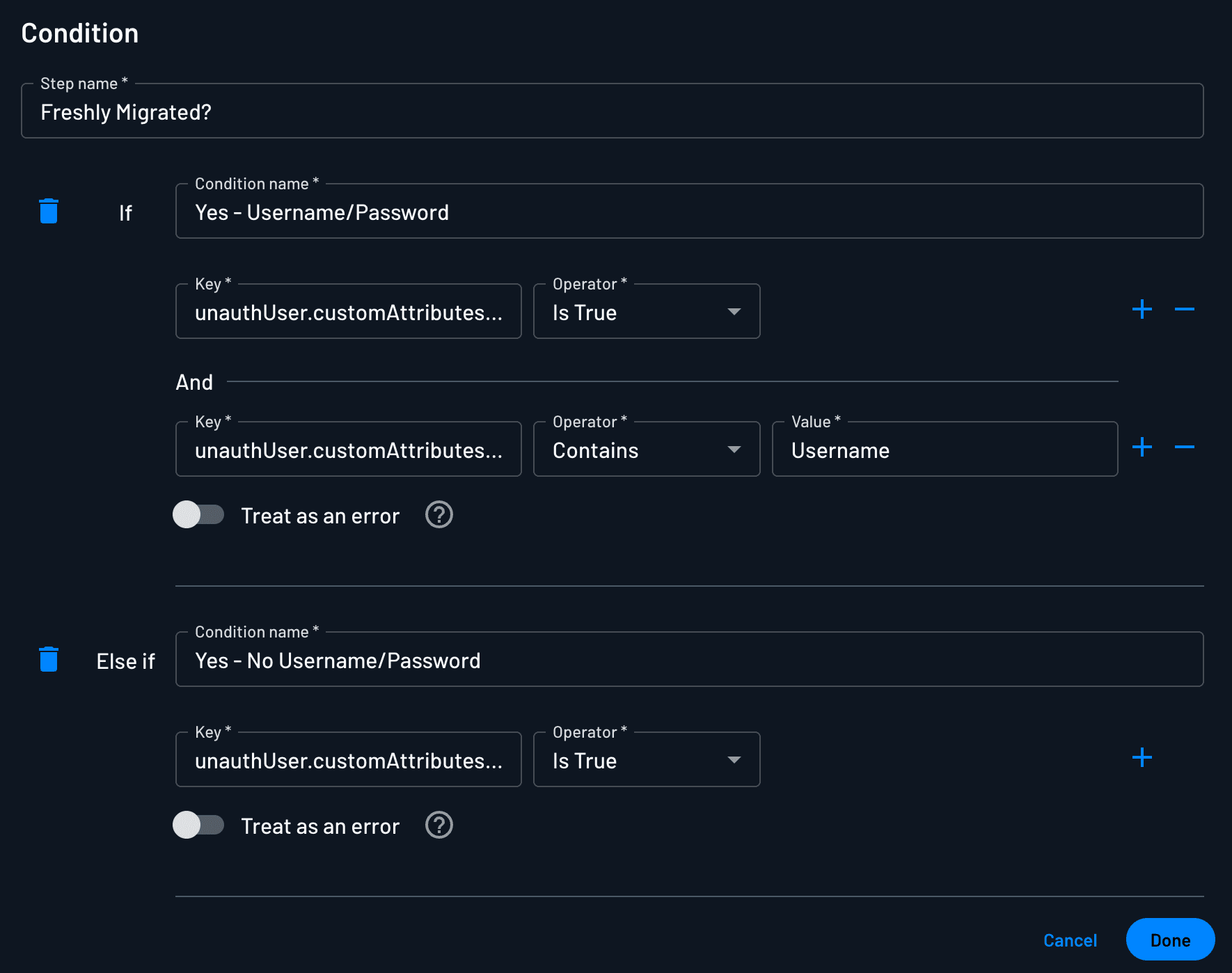
Once a user has been provisioned in Descope, subsequent sign-ins can go directly through Descope, controlled via a condition in your flow.
B2C Flows Migration
For detailed examples of how Azure AD B2C custom policies (user journeys, orchestration steps, technical profiles) map to Descope Flows, see B2C flows migration.
SSO migration
If your Azure AD B2C setup includes SSO (SAML/OIDC) for organizations or partners, you can migrate those configurations to Descope without forcing admins to re-configure their IdPs.
Descope can consume the existing IdP response and complete authentication so end users keep a seamless experience. For the full process—implementing SSO with Descope, setting up tenants, DNS redirect, and testing—see SSO Migration.
Session Validation Strategy
Whether you do a full migration or a JIT migration, plan for a period when some users have Descope sessions and others still have B2C sessions.
Your backend should support both token types during the transition:
- Validate Descope session tokens (JWTs) for users who have already migrated or signed in via Descope.
- Validate Azure AD B2C tokens for users who still have active B2C sessions.
Inspect the token (e.g. issuer or kid) to determine the provider, then validate accordingly. This lets you roll out the migration gradually.
For the implementation pattern, see the docs on backend session validation here.