Dynamic Registration Templates
A dynamic registration template is a reusable set of defaults for clients that register themselves with an MCP Server Resource through Dynamic Client Registration (DCR) or Client ID Metadata Documents (CIMD).
It decides which flow those clients' users go through, whether they see a consent screen, what their tokens contain, and how long those tokens last.
Why Templates Exist
Clients like Claude, Cursor, and ChatGPT register on the fly, so there's no client for you to configure ahead of time. Each MCP Server Resource instead carries the defaults that every dynamically registered client inherits.
You can set those defaults on each Resource. Once you run several MCP servers that should behave the same way, for example the same consent flow and token lifetimes, keeping them in sync by hand gets error-prone. A template holds those defaults once, and every Resource that references it picks up a change immediately.
Viewing and Creating Templates
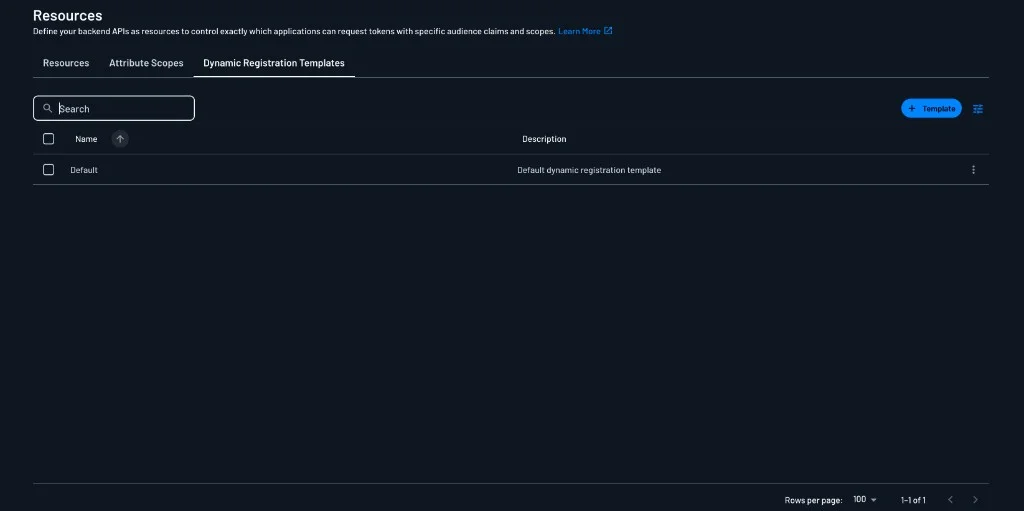
Templates live in the Descope Console on the Dynamic Registration Templates tab, which you'll find on both the Resources page and the MCP Servers page in the Agentic Identity Hub. Every project starts with a Default template. Click + Template to create another, or click a template to edit it.
Template Settings
The template editor is split into four sections. Click Save at the bottom of the page to apply your changes.
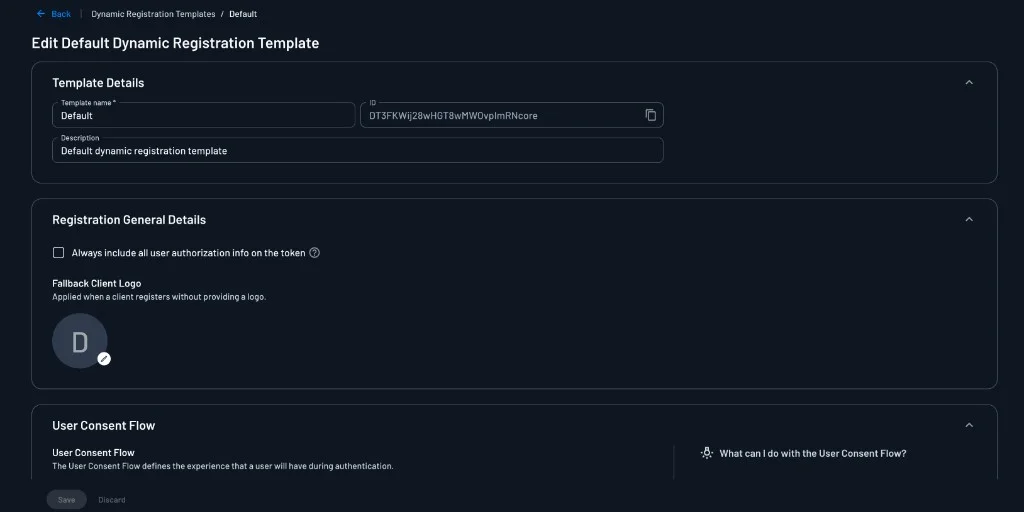
Template Details
The Template Details section identifies the template:
- Template name: A required name that you pick the template by when you attach it to a Resource.
- ID: The template's read-only identifier. Use it as
dynamicRegistrationTemplateIdwhen you reference the template through the Management API. - Description: Optional text that explains what the template is for. It appears next to the name in the template list.
Registration General Details
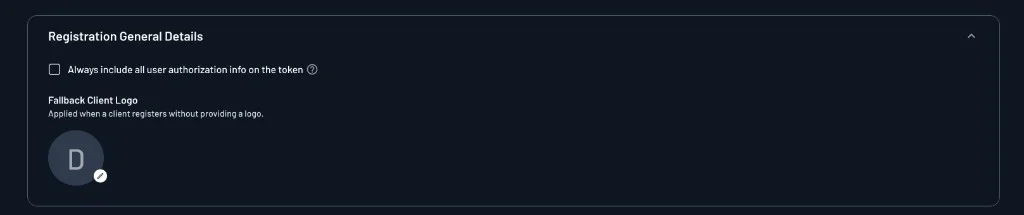
The Registration General Details section covers what dynamically registered clients receive regardless of which user signs in:
- Always include all user authorization info on the token: When checked, access tokens carry all of the user's tenants, roles, and permissions, rather than only those derived from the scopes the user approved. See Include All Authorization Info in Access Tokens for when you'd want this.
- Fallback Client Logo: The logo shown for a client that registers without providing its own, for example on the consent screen and in the list of clients.
User Consent Flow
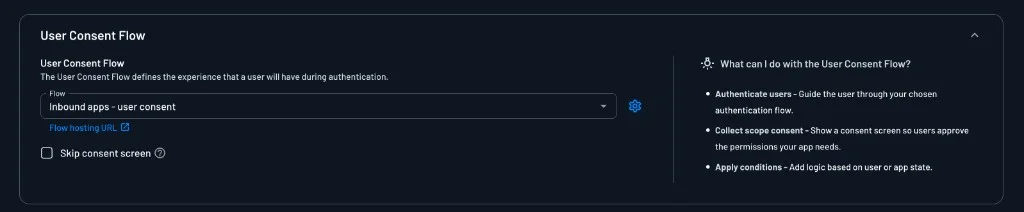
The User Consent Flow section sets the flow that users go through when they authorize a dynamically registered client. It runs during /authorize requests and can authenticate the user, show a consent screen for the requested scopes, and branch on conditions about the user or the client. See What You Typically Configure in the User Consent Flow for examples.
- Flow: The flow to run, such as the built-in Inbound apps - user consent flow. Click the gear icon next to the dropdown to open the selected flow in the flow editor.
- Flow hosting URL: The link below the dropdown shows where the flow is hosted, which is the page users are sent to when they sign in.
- Skip consent screen: When checked, users aren't shown the consent screen and the client receives the requested scopes as soon as the user signs in.
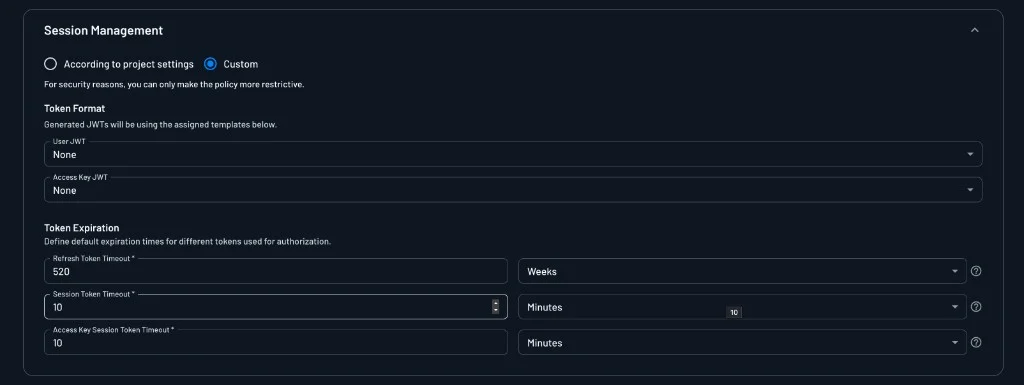
Session Management
The Session Management section controls the tokens issued to dynamically registered clients. Choose According to project settings to use your project's session settings, or Custom to override them for every client that uses this template.
For security reasons, custom settings can only be more restrictive than the project's settings. With Custom selected, you pick the User JWT and Access Key JWT JWT templates and set the refresh token, session token, and access key session token timeouts. The JWT templates and timeouts work the same as in a client's own Session Management, where each one is described, except that the template applies them to every client that registers through a Resource using this template.
What Stays on the Resource
Everything that describes the MCP server itself stays on the Resource and isn't part of the template: its URL, its scopes and Connection scope mappings, and whether DCR and CIMD are enabled, including CIMD approved domains.
Using a Template or Inline Settings
Each MCP Server Resource either uses a template or sets these defaults inline:
- With a template, the Resource references one template, and the template's values apply to every client that registers with that Resource. The Resource's own values for those settings are ignored.
- Without a template, the Resource's inline values apply directly.
Several Resources can reference the same template, which is the point of having one. A Resource that needs different behavior can use its own inline settings or a different template.
Managing Templates with the API
You can create, update, and delete templates with the Management API. The API fields map to the Console sections above, and the API also accepts a tags array that's assigned to every client that registers through a Resource using the template. You can match those tags in policies with the client.tags condition.
In the Resource definition, useTemplate turns template use on and dynamicRegistrationTemplateId names the template.
Templates also move between environments with your project configuration. A project snapshot exports them in resources.json under dynamicRegistrationTemplates, alongside the MCP Server Resources that reference them.