Static OTP for Mobile App Store Review
Apple and Google both require a working demo account when they review a mobile app that sits behind a login screen. Their reviewers can't receive a text message or open a real inbox, so a normal OTP flow will fail their review. With static OTP for test users, you configure one fixed code for a specific test account, while every other user still receives a real, one-time code.
This guide sets up a dedicated reviewer account with a static OTP, so you can hand Apple and Google a login ID and code that works.
Step 1: Create a Reviewer Test User
Create a dedicated test user for the reviewer, rather than reusing a real account or a shared team login ID. Test users don't count as active users and aren't audited or included in analytics, so they're a safe fit for this.
Use a login ID scoped to this purpose, for example appstore-reviewer@yourcompany.com or a phone number set aside only for reviews. Create it one of two ways:
- Management API: Call Create User with the
test=trueattribute. - Management SDK: Use the Create Test User function.
Note
Test users count against your project's test user limits (5 on the free tier, 100 on Pro-tier plans).
Step 2: Enable Static OTP for the Reviewer Account
In the Descope Console, go to Project Settings → General → Test Users.
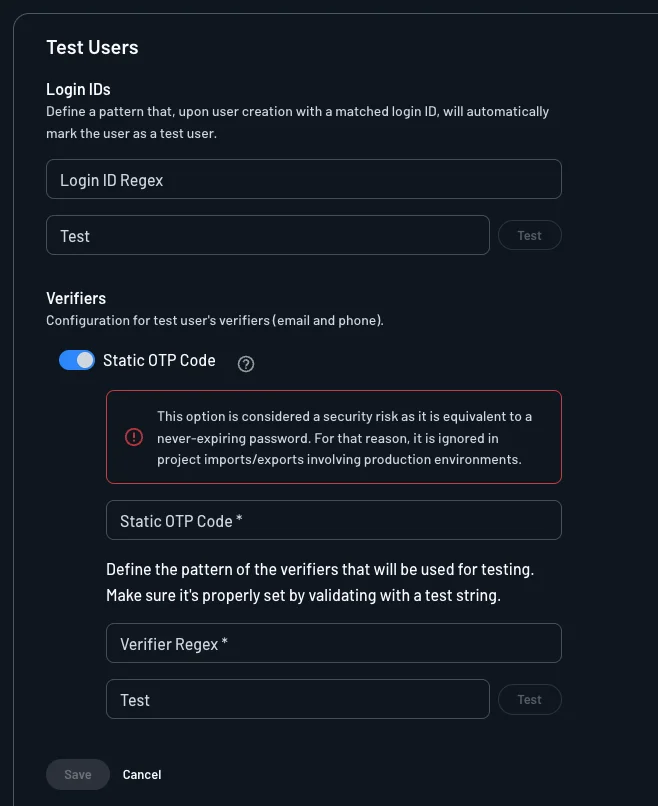
Turn on Static OTP code and configure:
- Static OTP code: The fixed code Descope returns instead of a randomly generated one when the verifier regex matches.
- Verifier regex: A pattern matched against the verifier (the email address or phone number the OTP would normally be sent to), not the login ID. Scope it as narrowly as possible, for example an exact match on
appstore-reviewer@yourcompany.comrather than a broad domain pattern.
This is an insecure method by design: anyone who knows the login ID and static code can sign in as that test user. Keep the verifier regex narrow, and apply it only to accounts you created for this purpose.
This setting is also ignored during project imports and exports, so it won't carry over if you clone or promote environments.
Step 3: Verify the Sign-In Flow Yourself
Before submitting your app for review, walk through the flow as a reviewer would. Open your app's normal sign-in screen, enter the reviewer login ID, and confirm the static code works without Descope sending a real message.
No code changes are needed - this works with your existing OTP setup, whether that's Flows or the mobile SDKs.
Step 4: Submit the Credentials to Apple/Google
Provide the reviewer login ID and static OTP code in the review notes with your app submission, and note that the OTP field expects that fixed code.
Best Practices
Keep the verifier regex scoped to the exact reviewer verifier, not a pattern that could also match other test or real accounts. The static code applies to anything that matches it.
Revisit this setup whenever Apple or Google re-reviews your app, for example after a major update, since the reviewer account and static code need to keep working.