AWS Translate Connector
Descope's AWS Translate connector powers automatic localization within your authentication flow, allowing for the adaptation of language in your product to users' specific country or region.
Note
When localization is performed, Descope will take the primary attribute and drop the region-specific part. For example, a user in the es-MX locale will only load es, and Descope will translate for the user based on this locale.
Setup
Navigate to Connector
- Go to your Descope Console
- Navigate: Dashboard → Connectors
- Choose "AWS Translate"
Configure the Connector
Get your AWS Access Key ID, Secret Access Key, and Region by setting up AWS Translate here.
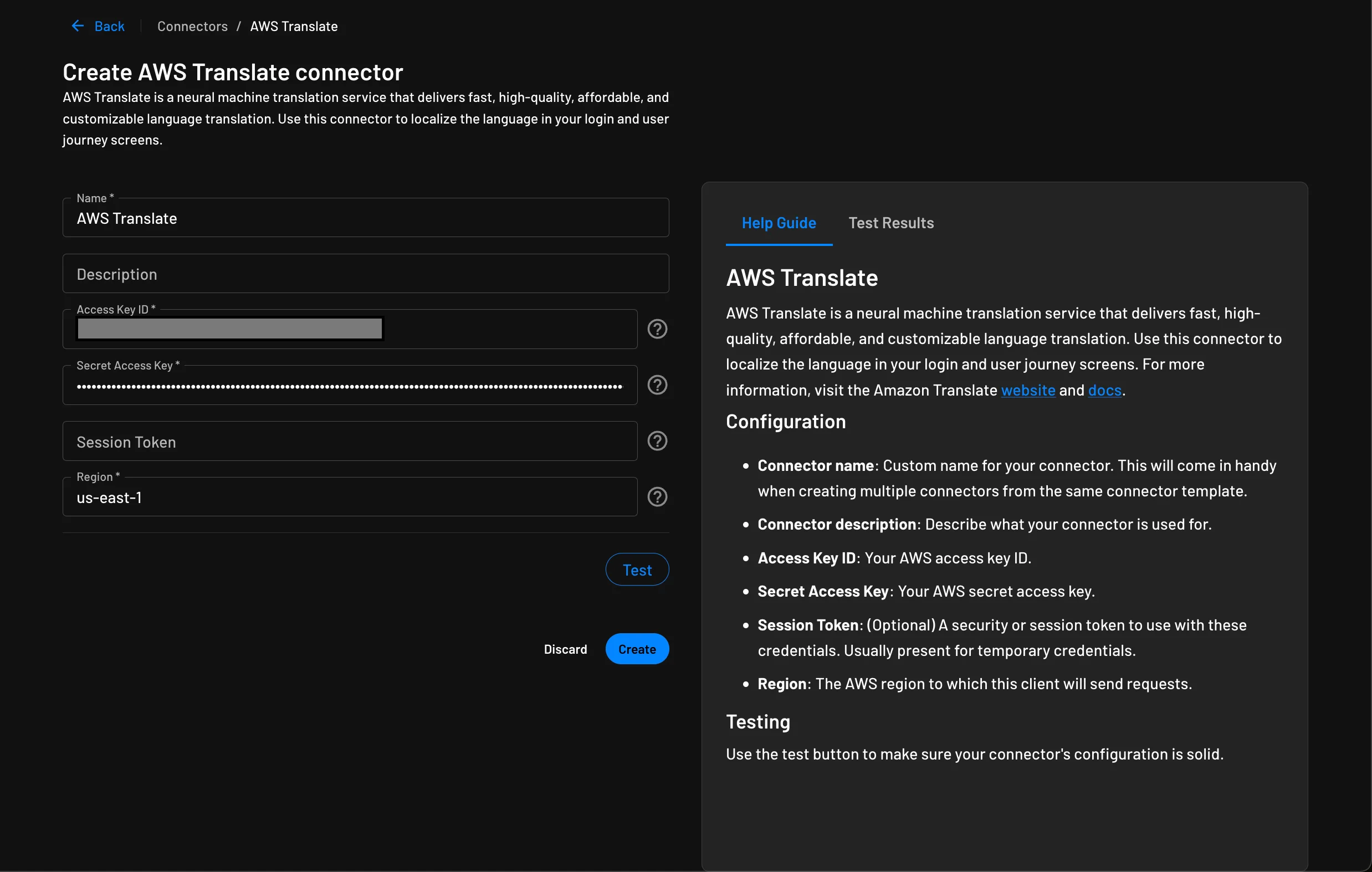
Complete the required fields:
- Connector name: Custom name for your connector. This will come in handy when creating multiple connectors from the same connector template.
- (Optional) Connector description: Describe what your connector is used for.
- Access Key ID: Your AWS access key ID.
Test & Save
- You can test if your connector's configuration is working properly by hitting the
Testbutton and viewing theTest Resultspanel. - Finalize and save by clicking
Create.
Activating the Connector
Navigate to Localization
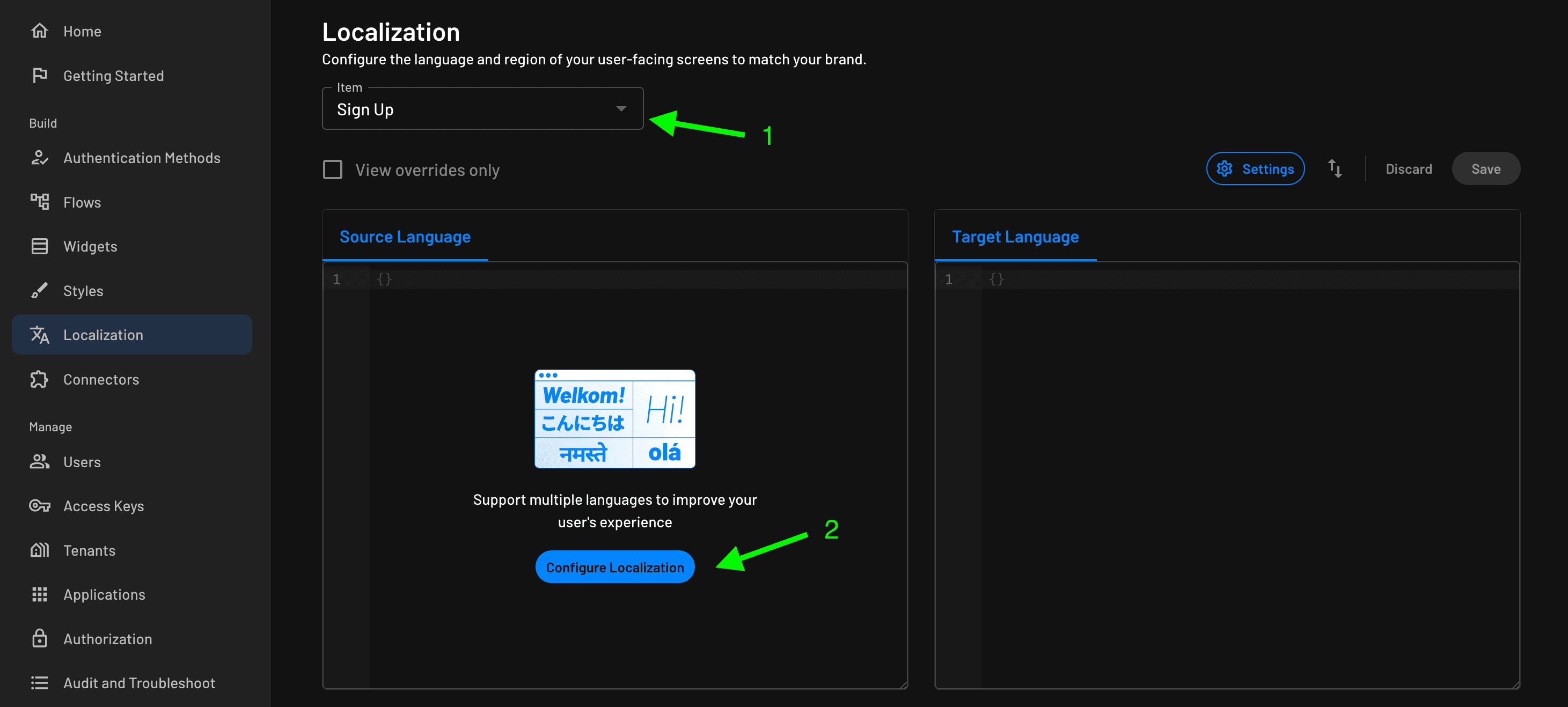
- Navigate to the Localization section within the Descope console.
- Select the applicable flow you want to localize from the dropdown, then click
Configure Localization.
Configuration
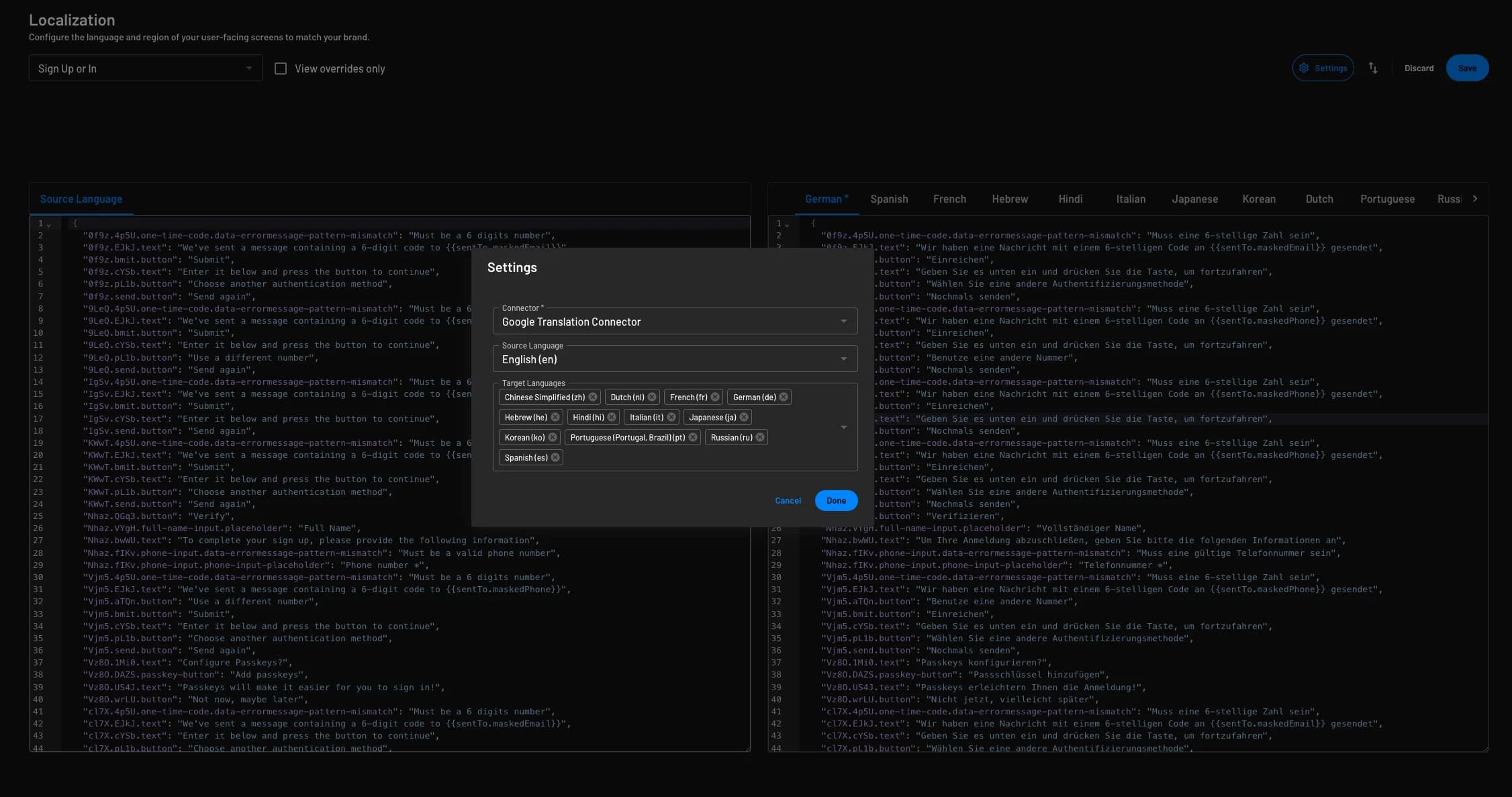
Once you have clicked Configure Localization, you will be prompted to select the connector, source language, and target languages.
When you select the dropdown for Connector, choose the AWS Translate connector that you previously set up. Additionally, you have the option to specify which Target languages you want to support for your user base, determining the languages your content will be translated into.
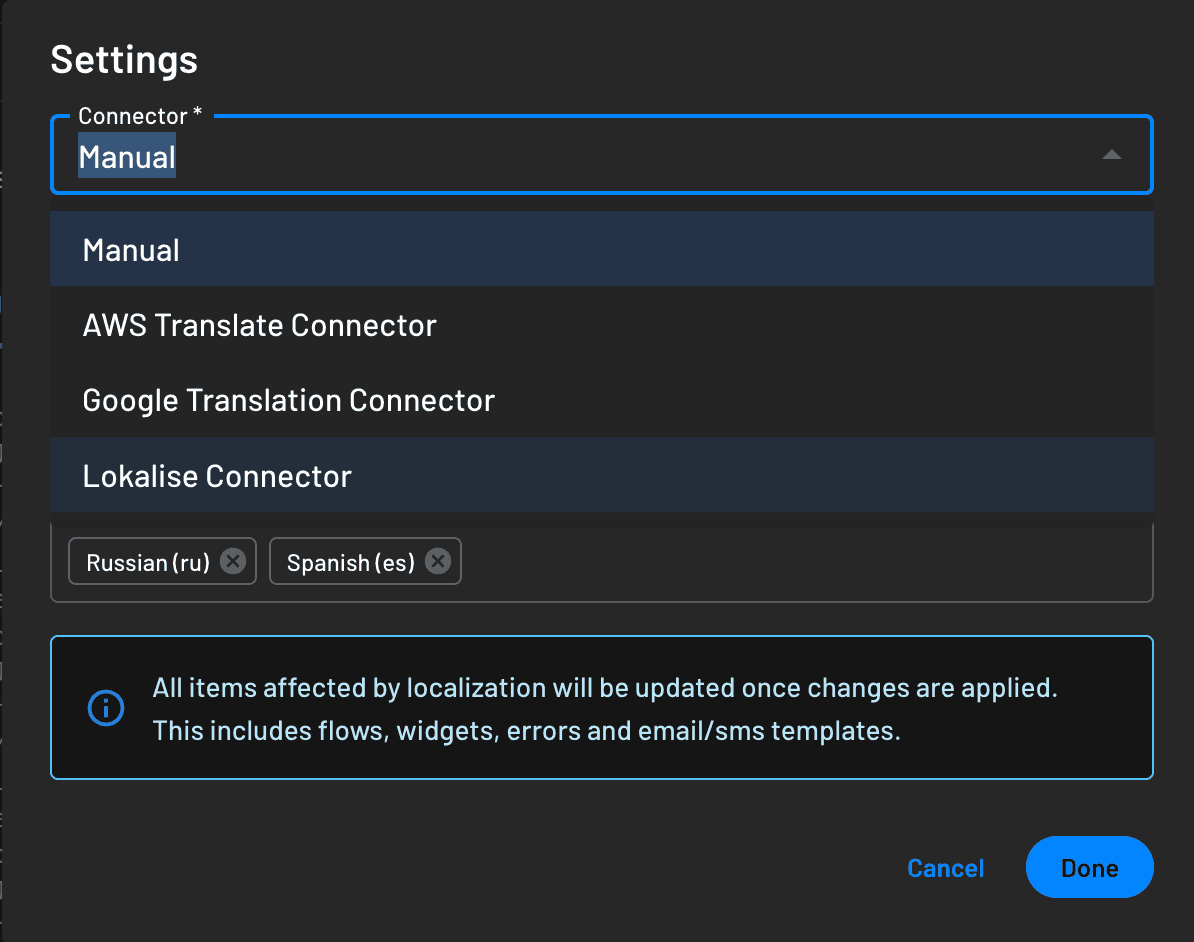
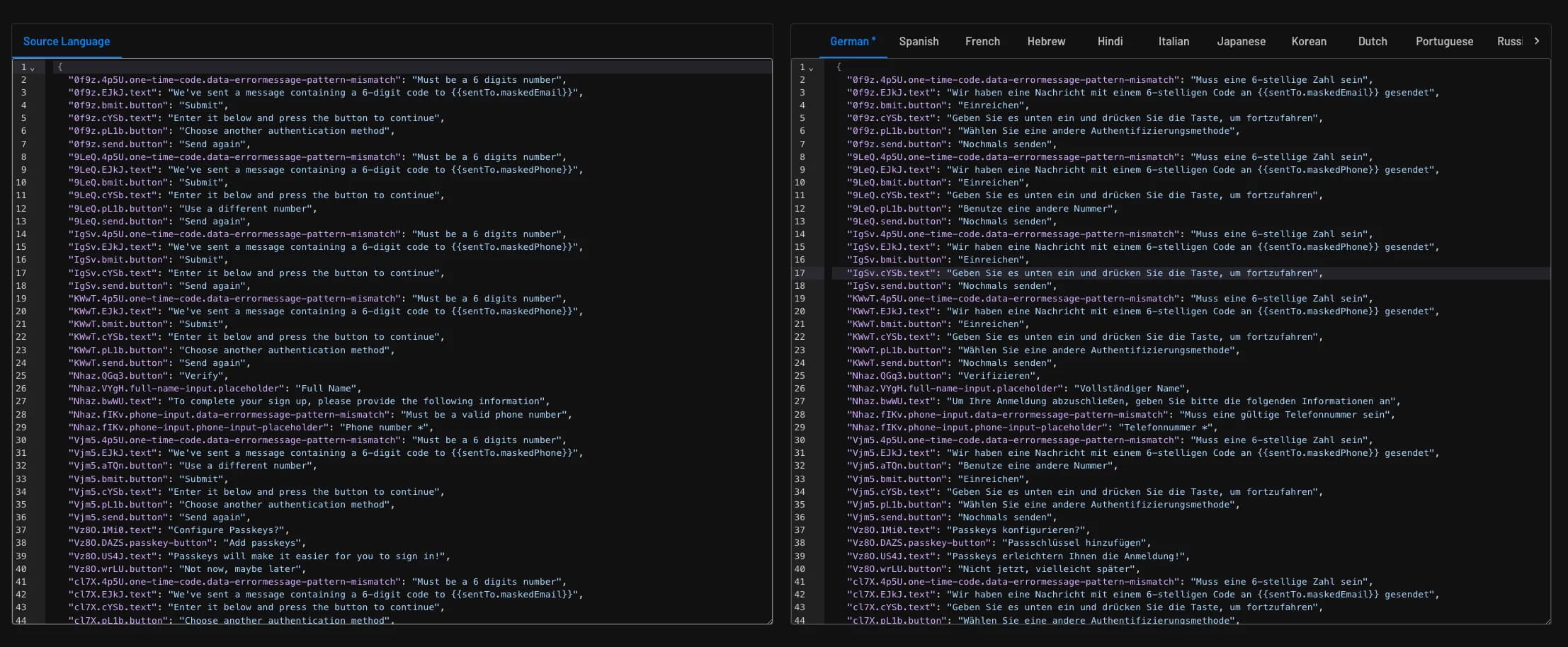
Once you have clicked Done, the localization will automatically be generated for the flow based on the returned translation.
Manually Overriding Translations
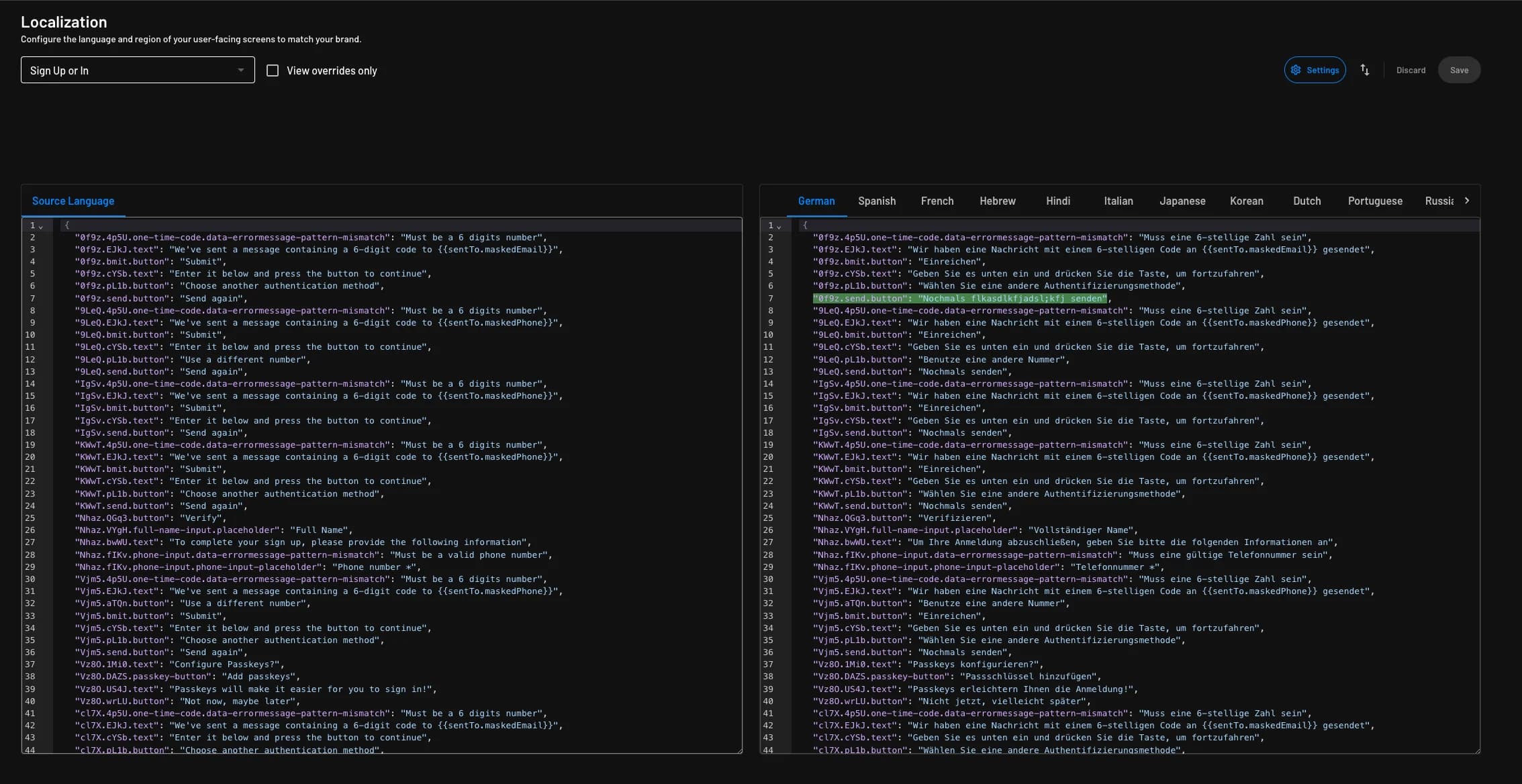
When you configure localization with a connector, you can manually override the translation. When you override the translation, you will see the override highlighted like the below example.
Testing & Customization
If you'd like to test your translation, you can either simply change the language in your browser settings or configure the locale within the Descope component.
This is an example of an updated Descope flow component to include locale:
<descope-wc
  project-id="__ProjectID__"
  flow-id="<flow-id>"
  base-url="<base-url>"
  locale="<locale>"
  debug="true"
></descope-wc>
You can learn more in the Web Component SDK README.
All supported locales are accessible in your dashboard, specifically within each flow's settings where localization was enabled earlier.