Consent Flows for Inbound Apps
When an Inbound App uses the Authorization Code grant or CIBA grant type, end users (and sometimes tenant admins) must approve the scopes the app requests. That experience is a Descope Flow you select under the inbound app's Flows setting.
This page covers the screen components, flow actions (including CIBA-specific actions), and recommended patterns for building consent and CIBA approval experiences.
Note
Every Descope project includes a default Inbound Apps user consent flow template you can use or customize.
How Consent Works
Before building the flow, it helps to know what Descope requires, what the user actually sees, and what happens on a second authorization.
A Consent Action Is Always Required
The consent screen is optional. The consent action is not.
Any flow attached to an inbound app or client has to run Update User Consent or Update Tenant Consent on its success path. The token Descope issues represents the user permitting that app or agent to act on their behalf, so there is always a consent being recorded, whether the user granted it explicitly or implicitly.
To skip the screen, enable Scopes auto approval on the consent action. The requested scopes are granted without the user reviewing them one by one, and the consent record is still written. What breaks the flow is omitting the action, not omitting the screen.
Which Scopes the User Sees
The Inbound App Scopes component does not necessarily list every scope the app requested. Policies are the admin-level boundary, and they filter the screen before it renders.
If no policy allows a scope to be consented to by this particular user, or for this particular client, that scope is dropped from the screen entirely. The user never sees it and cannot grant it. Users can only consent within what an admin has already permitted.
Within what policy allows, whether a user can decline an individual scope depends on how that scope is defined on the Resource:
| Scope setting | What the user can do |
|---|---|
| Allow user to decline scope off (the default) | The scope cannot be declined. Consenting means consenting to it. |
| Allow user to decline scope on | The user can uncheck the scope and consent to the rest, provided policy allows it to be shown at all. |
The token carries only the scopes that were granted, even if the client requested more. See What Ends Up in the Token.
How Consent Accumulates
There is one consent record per user per app or client, and scopes are added to it rather than replacing what was there.
If a user consents to scope_a and later consents to scope_b, the record then holds both. The earlier grant is preserved rather than overwritten.
This is why a later token request for scope_a alone succeeds without prompting again. That scope is already on the record. A user is only asked to consent a second time when the app requests a scope they have not already granted, or when the existing consent has expired through Valid for.
Screen Components
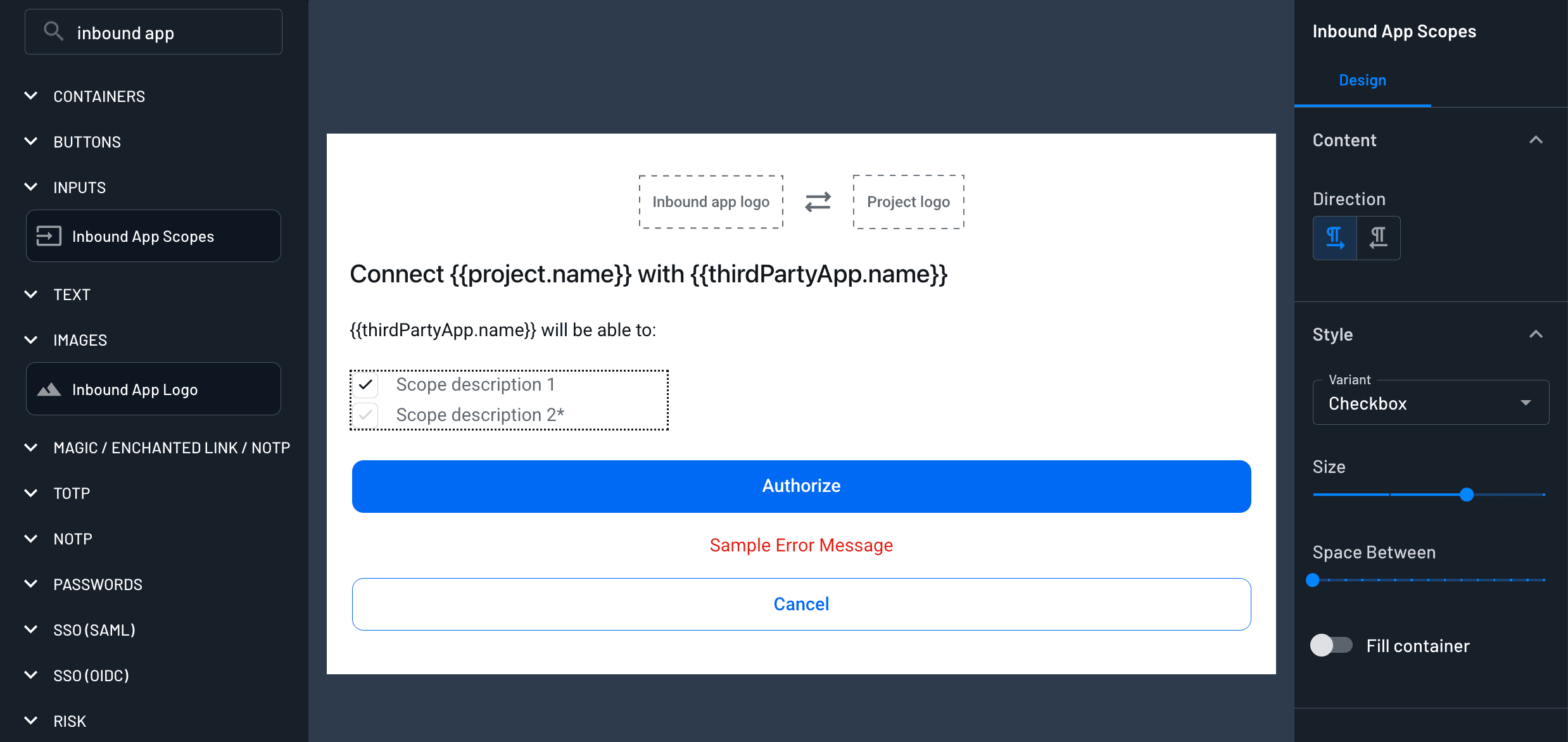
Use these screen components on your consent screen:
| Component | Purpose |
|---|---|
| Inbound App Logo | Shows the app's configured logo and connection arrows. |
| Inbound App Scopes | Lists the scopes configured for the app so the user can review permissions before approving. |
Flow Actions
These actions are specific to Inbound Apps (and CIBA). Add them from the flow builder's Action menu.
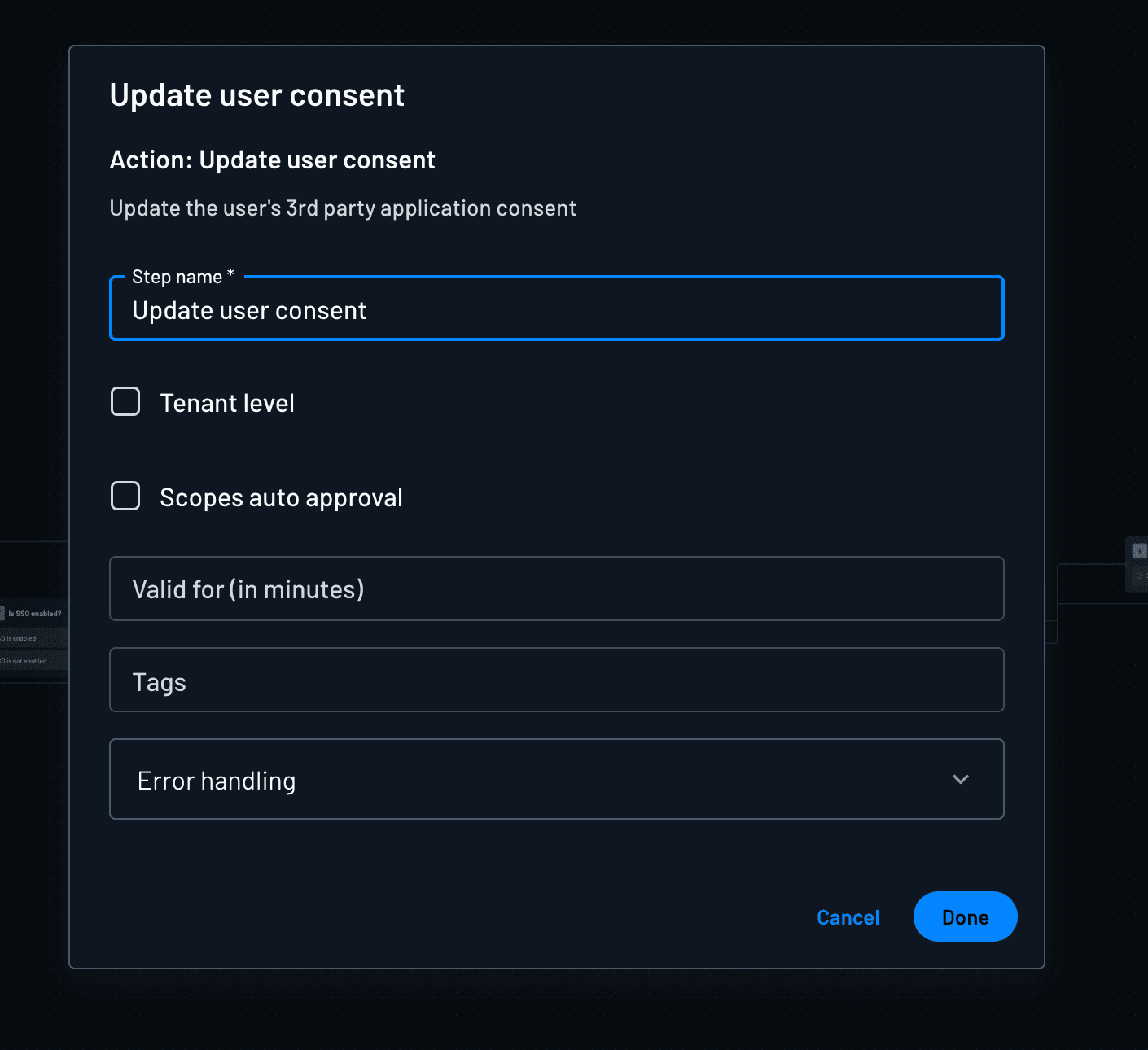
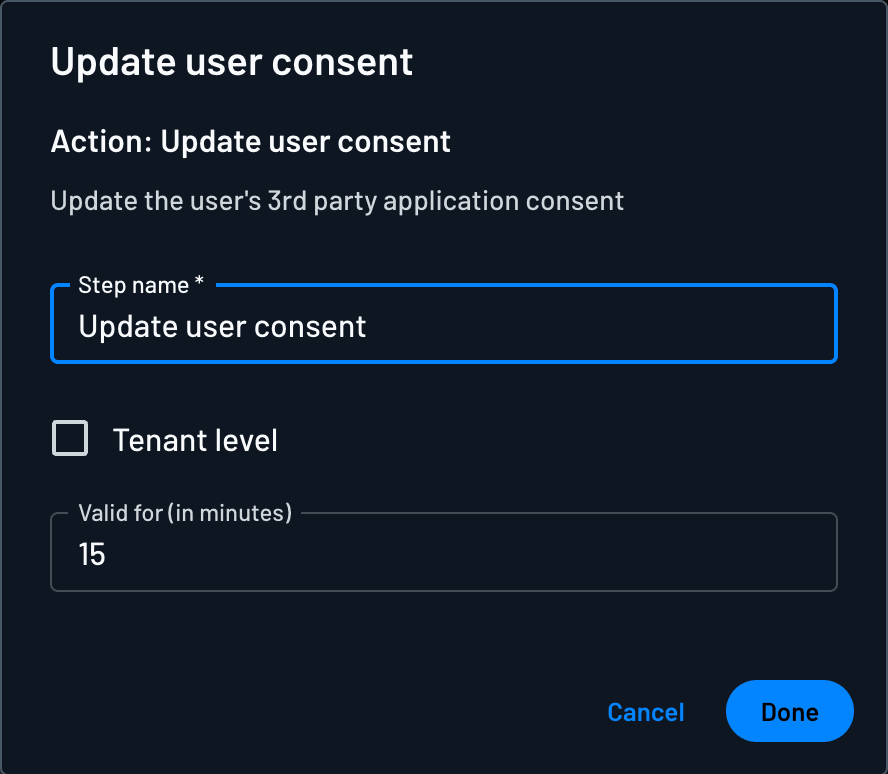
Update User Consent
Records the signed-in user's consent (approve or the outcome of your consent screen) for the inbound app running the flow.
| Option | Description |
|---|---|
| Tenant level | When enabled, consent is recorded in a tenant context (for example tenant-admin approval), not only as a personal user consent. |
| Scopes auto approval | When enabled, the action grants the requested scopes without the user approving each one on the screen, which lets you record consent without showing a consent screen at all. The consent record is still written. |
| Valid for (in minutes) | How long the consent remains valid. Leave empty for no time-based expiry from this action, or set a number or a dynamic value collected on the consent screen (for example a duration the user selected). |
| Tags | Optional tags to attach to this consent record. |
| Error handling | What the flow should do if the action fails. See Handling action errors. |
Use this action after the user chooses Authorize (or equivalent) on the consent screen. On deny/cancel paths, skip this action or branch to an end step without granting consent.
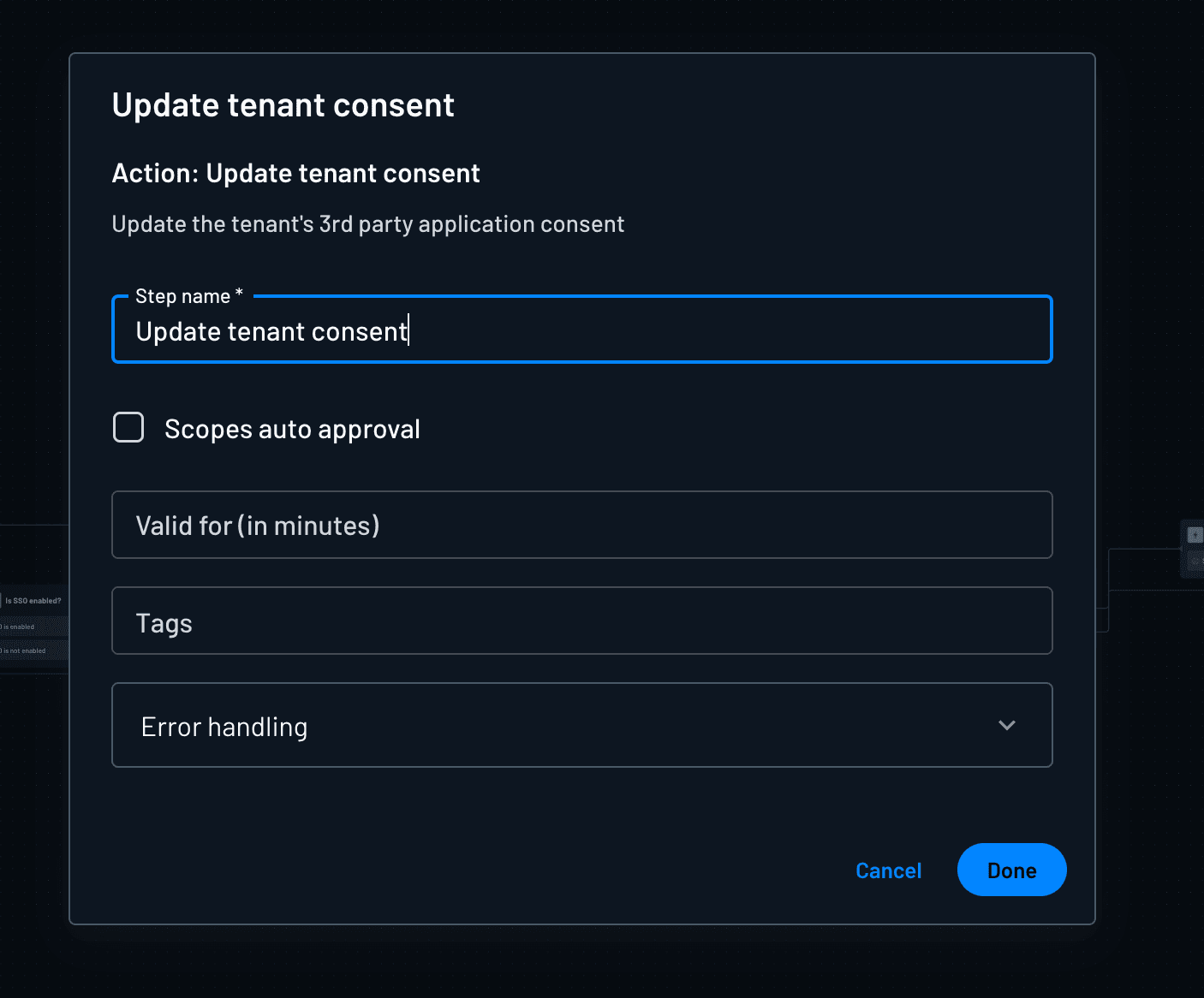
Update Tenant Consent
Records tenant-level consent for the inbound app—typically when a tenant admin approves access on behalf of the organization.
| Option | Description |
|---|---|
| Scopes auto approval | When enabled, grants the requested scopes without interactive per-scope approval on the screen. The tenant consent record is still written. |
| Valid for (in minutes) | Consent lifetime in minutes; supports a fixed value or a dynamic key from the flow. |
| Tags | Optional tags on the tenant consent record. |
| Error handling | Behavior when the action fails. |
Prefer this action when the consent decision is explicitly for the tenant. For mixed user/tenant behavior from a single action, see Tenant level on Update User Consent.
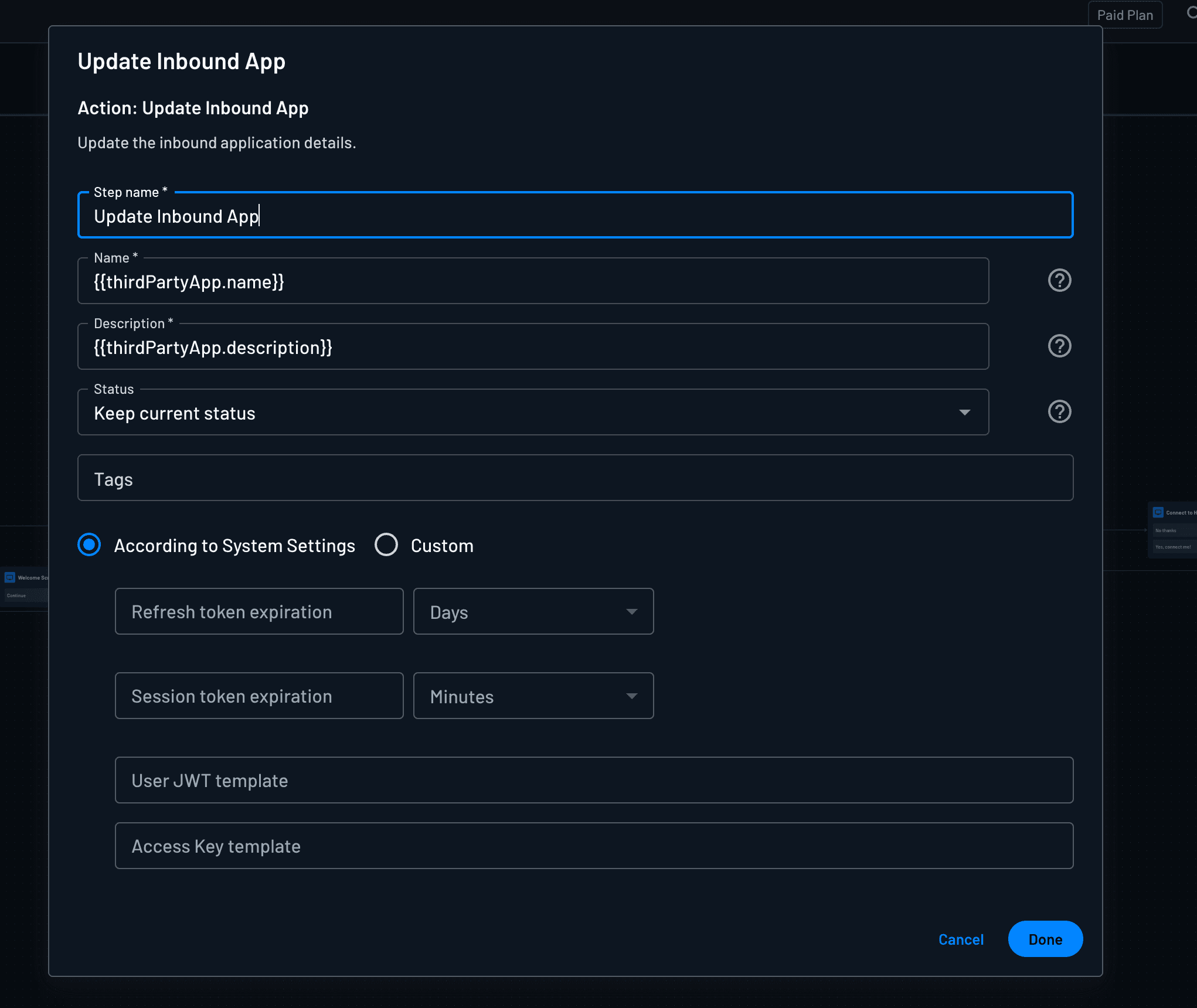
Update Inbound App
Updates the inbound app's profile and optional session settings during a flow (for example after dynamic registration or an admin review step).
| Option | Description |
|---|---|
| Name | App display name. Often {{thirdPartyApp.name}} to keep the current value or apply a value from context. |
| Description | App description; often {{thirdPartyApp.description}}. |
| Status | Leave as Keep current status, or set Verified / Unverified. Verified vs unverified affects the default consent UI; see Status. |
| Tags | Tags to set on the inbound app. |
| According to System Settings / Custom | System keeps project defaults for token lifetimes and JWT templates. Custom lets you set the fields below for this app. |
| Refresh token expiration | (Custom) Refresh token lifetime and unit. |
| Session token expiration | (Custom) Session token lifetime and unit. |
| User JWT template | (Custom) JWT template for user tokens. |
| Access Key template | (Custom) JWT template for access-key / M2M-style tokens. |
Update Inbound App Status
Marks the inbound app as verified. Use this in registration or review flows when an admin (or automated check) has approved the client.
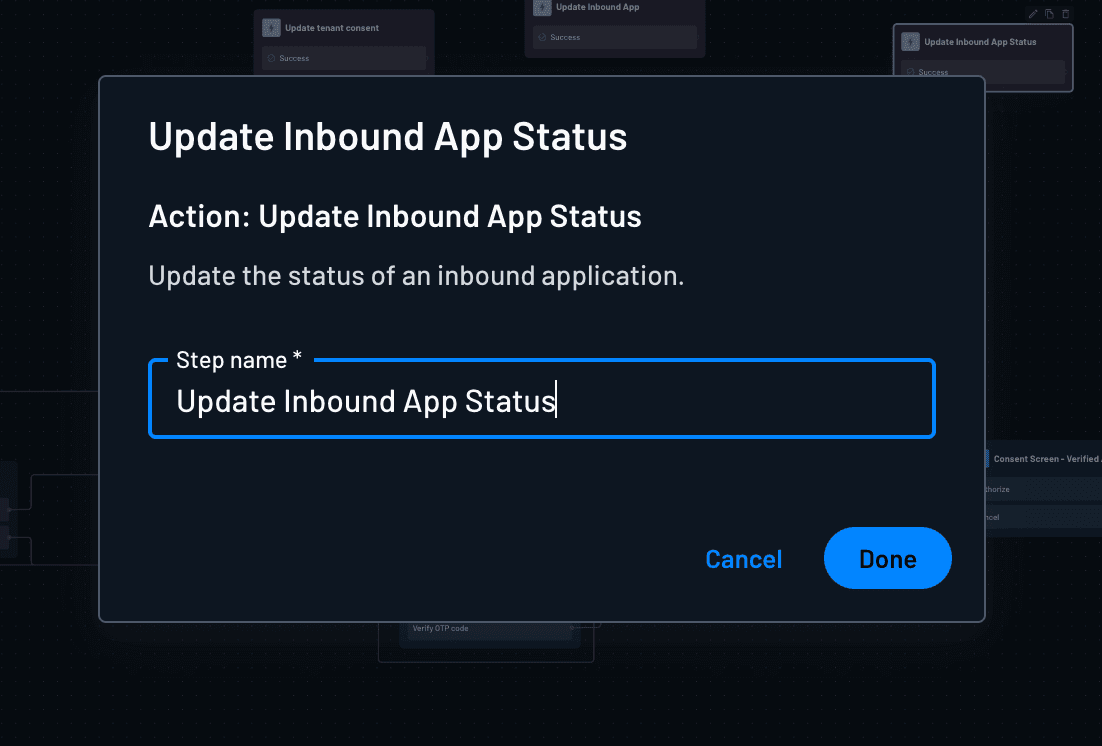
This action has no additional fields beyond the step name. To change name, description, tags, or session settings in the same flow, use Update Inbound App instead (or as well).
CIBA-Specific Actions
These actions are specific to CIBA flows. Both CIBA User Code Verification and CIBA Approval are required for CIBA-based authentication to work.
See Configuring the CIBA Flow for more details.
CIBA User Code Verification
Used only in CIBA flows. When the user opens the out-of-band approval link, this action verifies the CIBA user code embedded in that link and ties the browser session to the pending backchannel authentication request (auth_req_id).
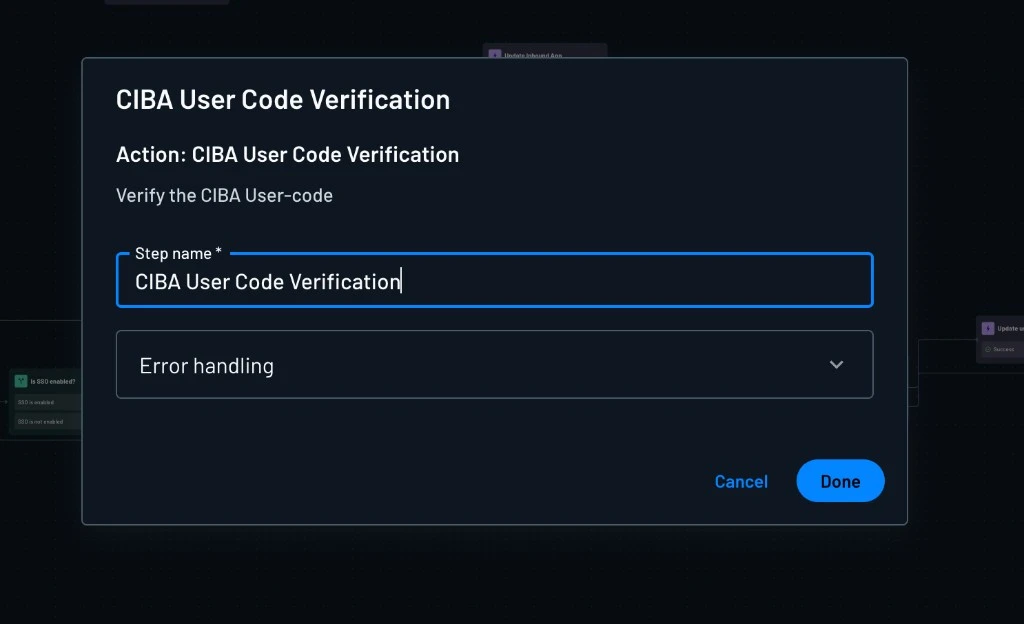
Usually you'll want to place this action first in the CIBA flow (immediately after Start). It ensures:
- The user code / link is valid and not expired
- The flow is bound to the correct pending CIBA request
- Downstream steps (login, consent, approval) run in the right request context
Without a successful verification, the CIBA Approval action will not work, as the request to approve will not be known to the flow.
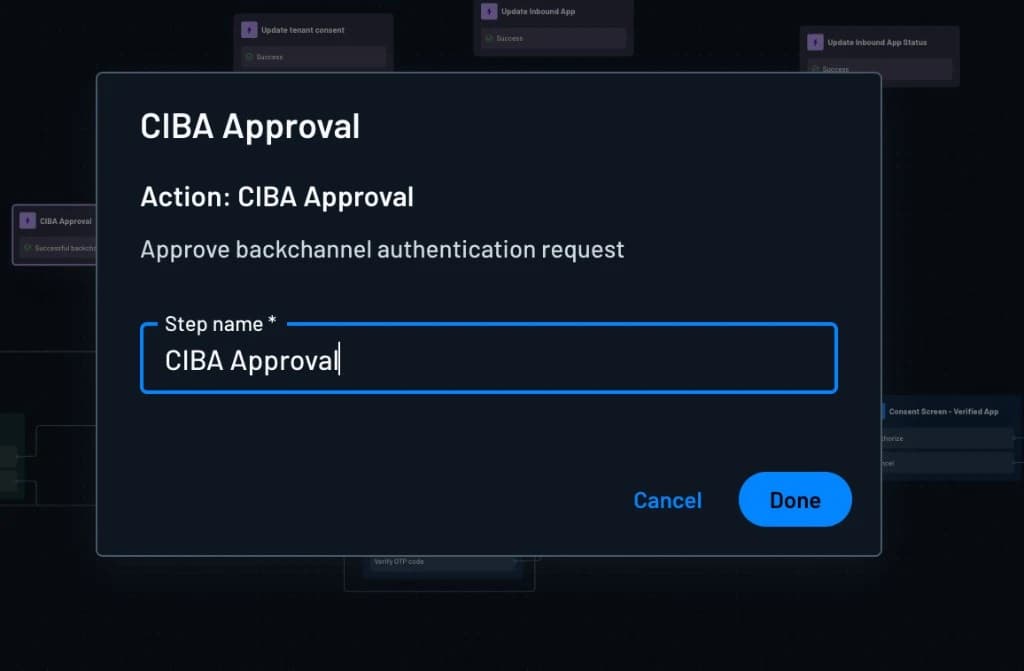
CIBA Approval
Used only in CIBA flows. Records whether the user approved or denied the pending backchannel authentication request and completes (or rejects) the CIBA transaction server-side.
| Outcome | Effect |
|---|---|
| Approve | Completes the CIBA transaction so the client polling /token with auth_req_id can receive tokens. |
| Deny | Rejects the CIBA transaction so polling clients receive a denial / failed result. |
This action has no additional fields beyond the step name.
On a successful path, run CIBA Approval after Update User Consent or Update Tenant Consent (or after confirming consent already exists), and before any Done screen.
If you end the flow without CIBA Approval, the OAuth client polling for an access token will never succeed.
Implementing a User/Tenant Consent Flow
Note
An interactive consent screen is required for SMART on FHIR and recommended whenever third parties request user-delegated scopes. A consent action is required in every case. See A Consent Action Is Always Required.
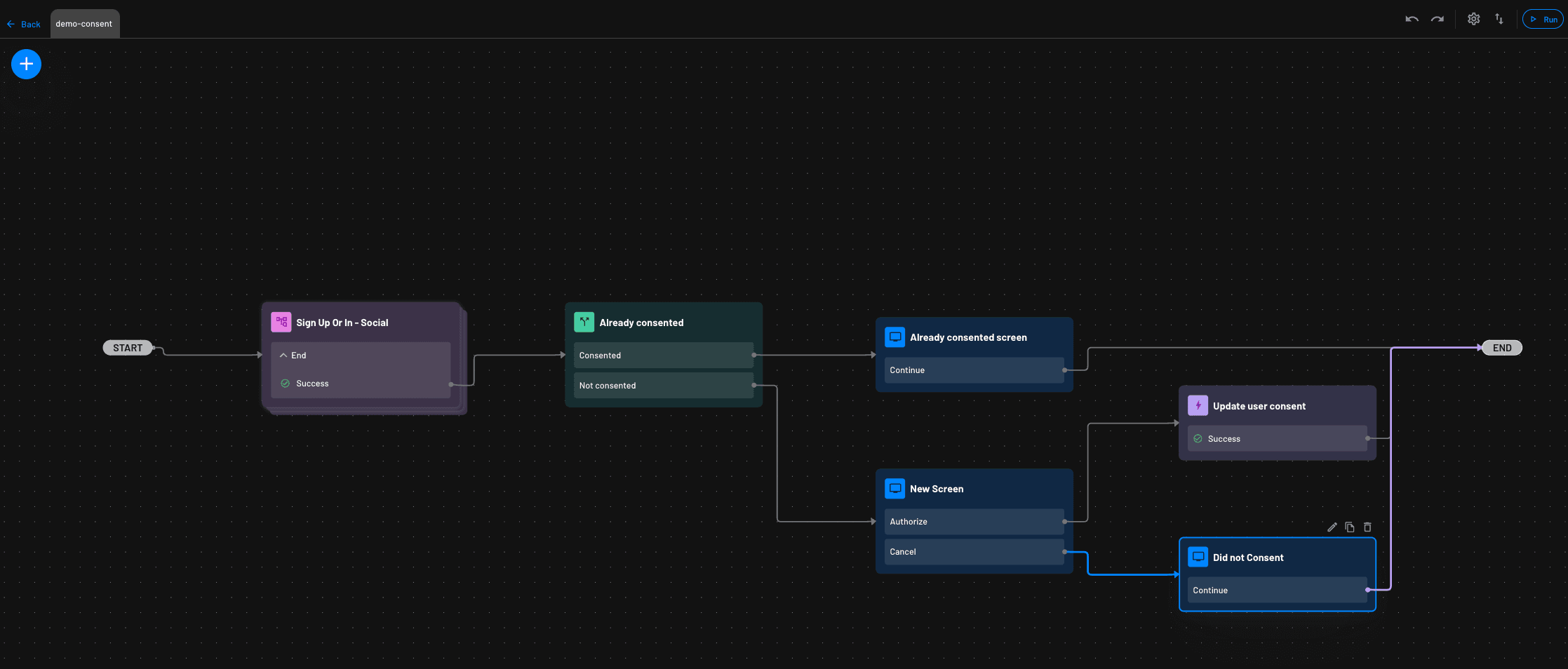
- Prefer a subflow for consent so your main sign-in flow stays reusable.
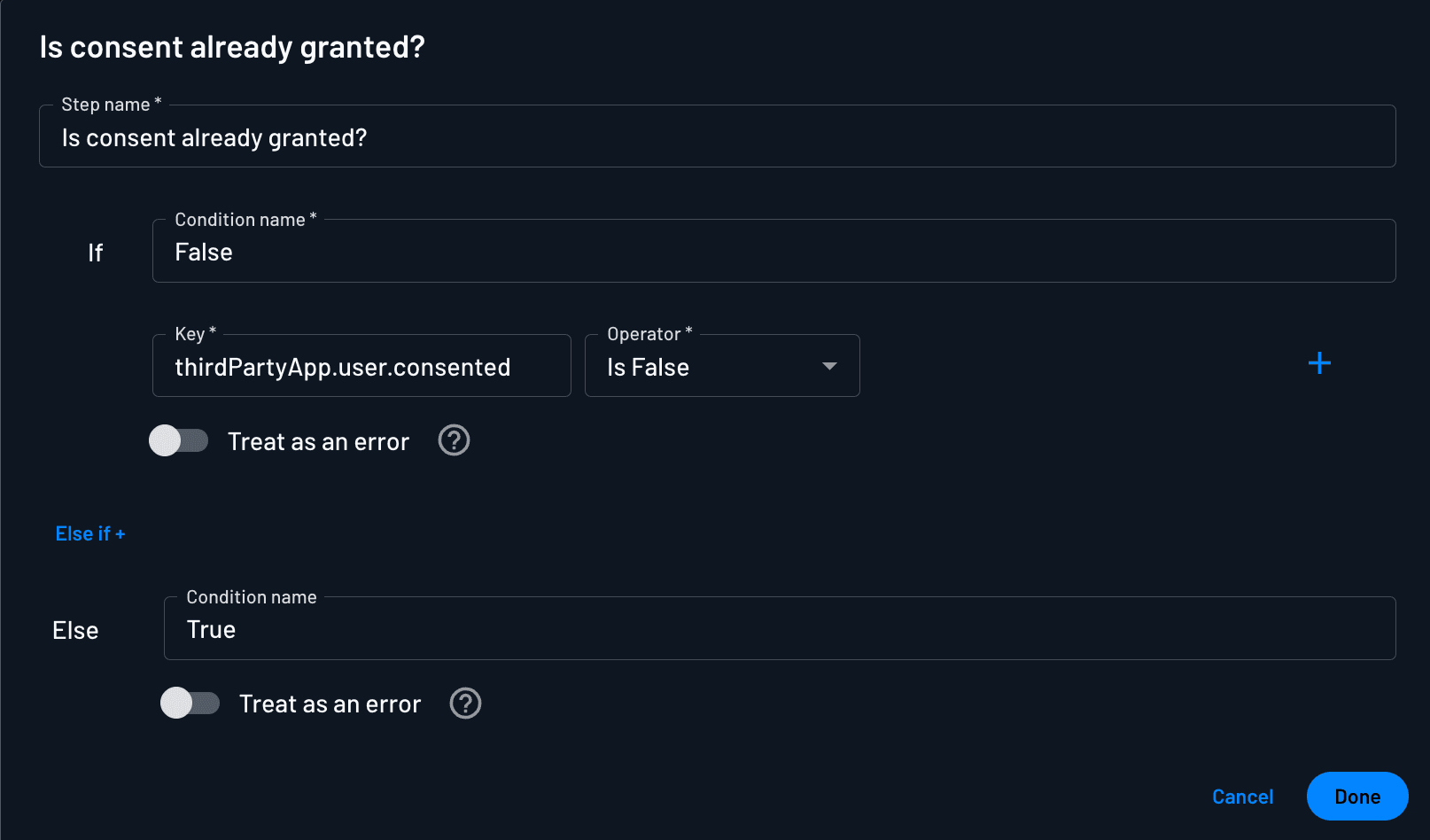
- After authentication, condition on
thirdPartyApp.user.consented:- If consent already exists for the scopes being requested, continue.
- If not, show the consent screen (logo + scopes components). Scopes the user already granted stay on the record, so only newly requested scopes need approval.
- On approve, run Update User Consent (and/or Update Tenant Consent when appropriate). Set Valid for to a fixed duration or a value from the screen.
- On deny or cancel, end the flow without recording consent (or show a retry screen).
- Optionally run Update Inbound App / Update Inbound App Status in admin or client-registration flows when you need to verify or retag the app.
Example Consent Flow
For ready-made examples, open the Flow Template library in the Descope Console (including the default Inbound Apps user consent template).
Implementing a CIBA Consent Flow
Note
You can generate a template CIBA flow from the inbound app's CIBA settings with the Generate Flow button in the inbound app's CIBA settings.
You can also view the CIBA Authentication flow in the Flow Template library.
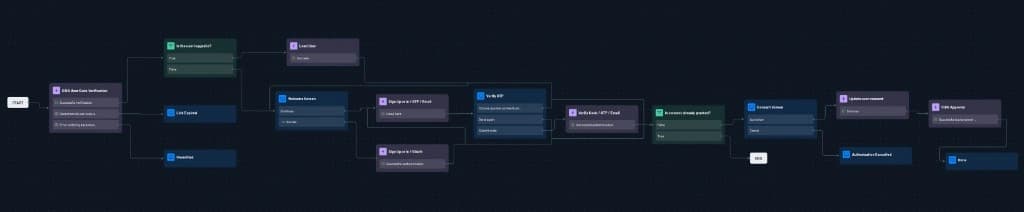
- Start with CIBA User Code Verification — always the first action after Start, so the session is bound to the pending
auth_req_id. - Authenticate the user if they are not already signed in.
- If consent is not already granted, show the consent screen (Inbound App Logo / Inbound App Scopes), then run Update User Consent or Update Tenant Consent.
- Before any Done screen on a successful path, run CIBA Approval. Pair it with Update User/Tenant Consent when the user is granting consent (if consent already exists, the template goes straight to CIBA Approval).
Without CIBA Approval—and without recording consent when the user must grant scopes—the OAuth client polling /token will never receive a Descope access token.
CIBA connector, email template, and link expiration are configured on the inbound app under CIBA Configuration, not in these flow actions.
Example CIBA Flow
Related
- Creating Inbound Apps → Flows — attach consent or CIBA flows to an inbound app
- Configuring the CIBA Flow — enable CIBA and select the flow
- Managing User Consent — view consents in the Console
- Using Inbound Apps — authorization code and CIBA at runtime