Auth Hosting
The Auth Hosting App is a hosted React application that runs your Descope Flows. Every Descope project includes it by default. Rather than embedding the Descope SDK in your own frontend, you point your authentication redirects at this hosted page and Descope handles the rest.
It covers any situation where Descope acts as an OAuth or SAML provider: Federated Applications, Inbound Apps, and MCP server authorization.
The hosted page at https://<Your Descope API Host>/__ProjectID__ is available to every project out of the box.
Rather than embedding authentication UI in your own app, you redirect users to a fully managed, brandable page that Descope hosts for you.
Building your own frontend?
If you're developing your own frontend application, you can embed Descope flows directly using our SDK components for a more seamless, native experience. Auth Hosting is the right choice when you don't have a frontend, or prefer not to embed.
When Auth Hosting Applies
Auth Hosting is relevant any time Descope is the identity provider in a redirect-based flow:
- Federated Applications — when users authenticate via OIDC or SAML and your app redirects to Descope as the IdP
- Inbound Apps — when an OAuth client initiates an authorization code flow and needs a hosted consent screen
- Agentic Client — when an Agent or MCP client like Claude or Cursor triggers the authorization flow for a Descope Resource
In all three cases, the redirect lands on whichever URL you've configured as the Flow Hosting URL for that app or server.
Configuring Flow Hosting
Each Federated App, Inbound App, and Agentic Client in the Descope Console has a gear icon next to its flow selection.

Clicking it opens the flow hosting configuration modal for that specific app. The modal gives you two options:
Hosted by Descope
Descope serves the flow at https://<Your Descope API Host>/__ProjectID__.
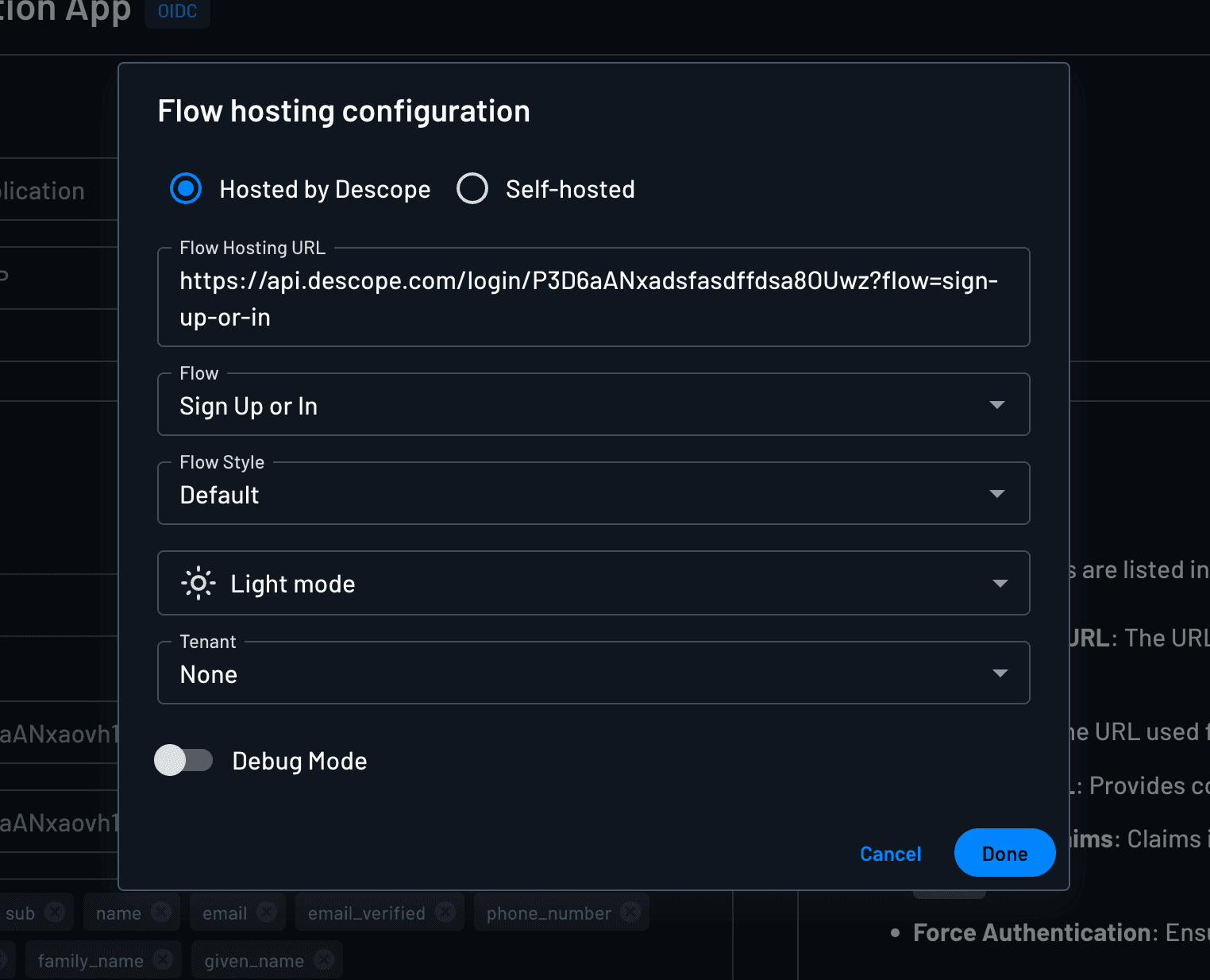
Select this option and configure the following:
| Setting | Description |
|---|---|
| Flow | The Descope Flow to run when a user arrives at the hosted page. |
| Style | The flow style to apply. Each app can use a different style, so you can match branding per application. |
| Theme | Light, dark, or system — controls the color scheme of the hosted page. |
| Tenant | A hardcoded tenant slug. Set this when every user arriving through this app should authenticate against a specific tenant — for example, to automatically redirect to that tenant's SSO provider or apply tenant-specific flow logic, without requiring users to type an email first. |
| Debug mode | Shows the debug overlay during the flow. Useful for testing; turn it off before going to production. |
The Flow Hosting URL at the top of the modal reflects your current settings as query parameters and updates as you make changes. You can also edit the URL directly — it serves as the source of truth. If you manually modify the URL, the panel settings update to match.
Self-hosted
Select this option if you've embedded a Descope flow component inside your own web application. Provide the URL where the flow lives.
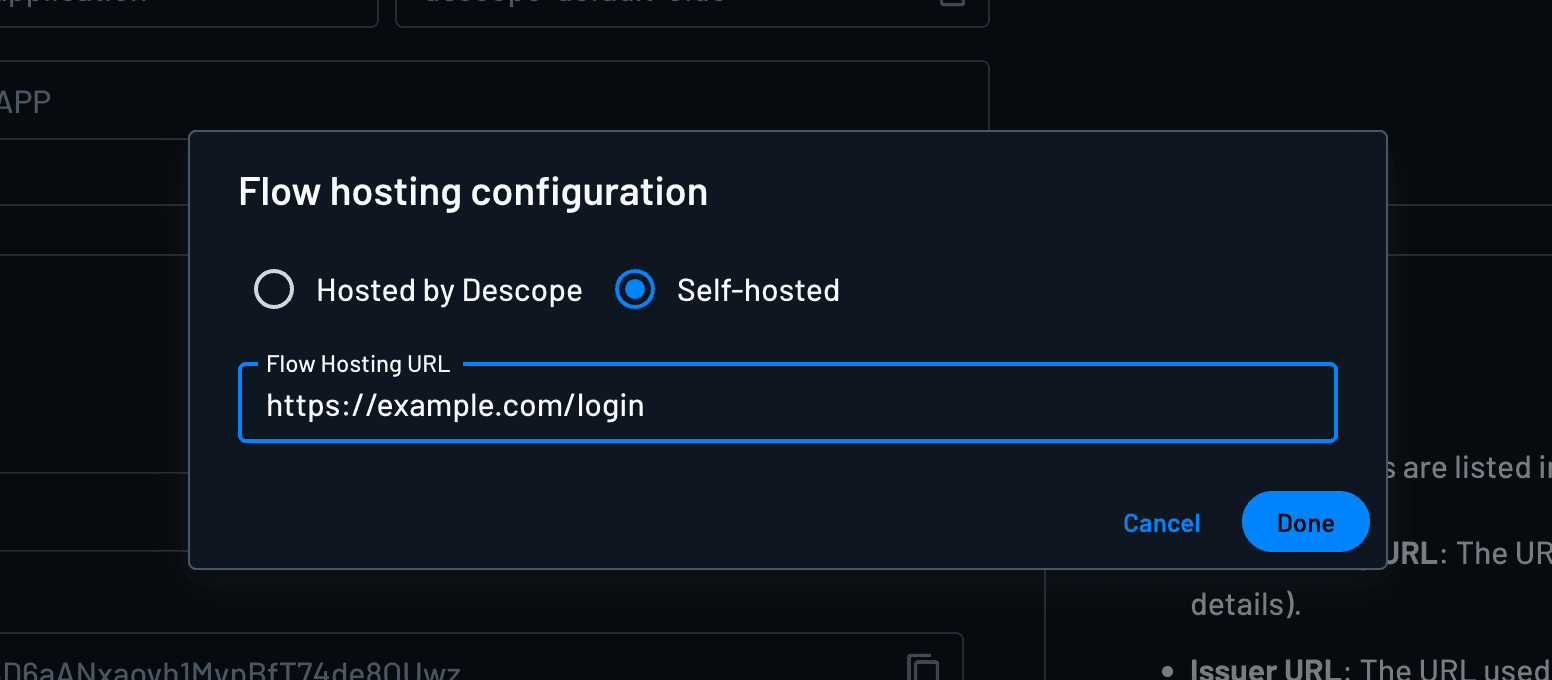
When using OIDC flows, the redirect_uri from the initial /authorize request is used automatically — you don't need to hard-code it.
Use this option when you need to pass custom values into the flow from your application, or when you want full control over the surrounding page (layout, branding, background images).
More Customization Options
The base URL requires your project ID as a path segment: https://<Your Descope API Host>/__ProjectID__.
All query parameters are optional. The console modal manages flow, style, theme, tenant, and debug for you. Use the URL directly for the parameters it doesn't expose.
| Parameter | Default | Description |
|---|---|---|
flow | sign-up-or-in | Which flow to run. Example: ?flow=login |
tenant | — | Tenant ID or domain. When set, Descope skips the email input screen and routes directly to that tenant's SSO provider. Accepts a tenant ID (?tenant=T2UjlUN1tJsRnrV3jnAkJ3WziaEq) or a domain (?tenant=descope.com). |
style | Project default | Which flow style to apply. Example: ?style=my-brand |
theme | light | Color scheme. Options: light, dark, or os to follow the system setting. Example: ?theme=dark |
bg | — | Background color or image. Accepts a CSS color name (bg=red), a URL-encoded hex value (bg=%23ff0000), or an image URL sized to cover the screen (bg=https://example.com/bg.jpg). |
wide | — | Set ?wide=true to widen the flow container. Useful for large forms built with Flow screens. |
width | — | Flow container width in pixels or viewport percentage. Values larger than the screen are clamped. Example: ?width=480px or ?width=50% |
height | — | Flow container height in pixels or viewport percentage. Values larger than the screen are clamped. Example: ?height=600px or ?height=80% |
shadow | — | Show or hide the drop shadow on the flow container. Set ?shadow=false when using Native Flows. |
debug | — | Set ?debug=true to show the debug overlay. Not recommended for production. |
store_last_auth_user | true | Set ?store_last_auth_user=false to prevent saving the last authenticated user after the flow completes. |
client.* | — | Any parameter prefixed with client. is forwarded to the Descope component as its client prop. Example: ?client.k1=v1&client.k2=v2 passes { k1: 'v1', k2: 'v2' } to the component. |
Favicon
Note
Favicon configuration applies to the Default OIDC Federated Application only. Custom Federated Apps and Inbound Apps do not currently support favicon overrides via Auth Hosting.
For the default federated application, you can replace the Descope favicon with your own branding.
Open the default OIDC Federated Application settings in the Descope Console, click the pencil icon on the favicon, and upload your image. The file must be under 1 MB.
Background and Styling
Background Color or Image
Add the bg parameter to your Flow Hosting URL to set a background behind the flow container:
- Color name:
?bg=navy - Hex color (URL-encoded):
?bg=%23ff6600 - Image URL:
?bg=https://example.com/background.jpg
Image backgrounds are sized to cover the full screen. You can append bg directly to the Flow Hosting URL in the console modal, since the modal doesn't expose it as a dedicated field.
For a fully custom background — CSS gradients, video, or precise positioning — self-host the app and modify the layout directly.
Flow Style and Theme
The console modal exposes Style and Theme settings per app. Use Style to apply a specific set of visual tokens (colors, fonts, border radius) from your Styles configuration. Each app can carry a different style, which lets you match branding per application or per tenant.
Use Theme to control whether those tokens render in light, dark, or system mode (which follows the user's OS preference).
Both settings update the Flow Hosting URL automatically. You can also set them via the style and theme query parameters if you're constructing the URL manually.
For deeper customization beyond what styles support, self-host the app.
Custom domain
If you've configured a custom domain (available on Pro plans and above), the Auth Hosting App is automatically served from that domain. Your Flow Hosting URL updates to reflect it — no separate setup required.
Disabling Auth Hosting
Every project serves the Auth Hosting App by default. If you render flows only with the SDK components inside your own web application, you can turn the hosted pages off so nobody can reach your flows through them. Check the list below first: mobile Native Flows and iframe-embedded flows also load the hosted page, even though they run inside your own app.
In the Descope Console, go to Project Settings -> Security -> Descope-Hosted Login Pages and select Disable Descope-hosted login pages. In Terraform, set disable_auth_hosting = true on the descope_project_settings resource.
Once disabled, Descope refuses to run your flows from the Auth Hosting App wherever it is served: https://<Your Descope API Host>/__ProjectID__, https://<Your Descope API Host>/login/__ProjectID__, and the same paths on your custom domain when you have one.
The app tells Descope it is the one asking, so this never depends on the address a page is served from. Your own pages are untouched even if one of them happens to live at the same path.
What stops working
Anything that runs its flow inside the Auth Hosting App stops working:
- Federated Applications, Inbound Apps, and Agentic Clients with Flow Hosting URL set to Hosted by Descope. Switch them to Self-hosted and point them at your own page first.
- Embedded links and temporary user links that open the hosted page.
- Mobile Native Flows whose flow URL points at the hosted page, such as
https://api.descope.com/login/<PROJECT_ID>. Point them at your own page first. - Descope-hosted flows loaded in an iframe through iframe Embedding.
Your own page means one you built with the SDK components. Hosting your own copy of the Auth Hosting App is not a way around this: the copy identifies itself the same way, so it is refused too. If you want the hosted pages off but your own copy serving, remove the x-descope-auth-hosting header the app sends.
Not affected: flows rendered in your app with the SDK components, the Admin Portal, and the SSO Configuration Suite.
This setting only removes Descope's hosted pages. The flow APIs stay public, because the SDK calls them from the browser. To limit which sites can run your flows, add your domains to Approved Domains and enable Apply Trusted Domains on Flow Execution.
Self-hosting the Auth Hosting App
For changes that go beyond what query parameters support — custom JavaScript, custom layout, or passing flow inputs from your frontend — you can self-host the app entirely.
The auth-hosting repository includes a one-click Vercel deploy button. You can also clone it and deploy to AWS, Netlify, or DigitalOcean.
Once deployed, replace the Flow Hosting URL in your app configuration with your own deployment's URL.