Fetching Connection Tokens
Fetching a connection token is how your code pulls the actual OAuth token or API key out of the vault so it can call a third-party API. Most of the time this happens inside an MCP server, though your agent can also fetch tokens directly if that suits your architecture better.
You fetch tokens with an SDK or the REST API. Before you pick a method, decide how you will authenticate the request. That choice controls whether your policies apply and which vaulted tokens you are allowed to read, so it is worth settling first. The next section covers the two options.
Authentication for Token Fetching
Every fetch request is authenticated as Bearer <PROJECT_ID>:<CREDENTIAL>, where the credential is either an access token or a Management Key:
- Access token:
Bearer <PROJECT_ID>:<ACCESS_TOKEN> - Management Key:
Bearer <PROJECT_ID>:<MANAGEMENT_KEY>
The one you use determines both which tokens you can read and whether policies are evaluated.
Access Token
Reach for an access token whenever an agent or MCP server is acting as a real identity, whether that is a user who granted consent or an autonomous agent that belongs to a tenant. Descope runs your policies on every fetch, so you can control which clients, agents, roles, and tenants are allowed to read which connection credentials. This is the right choice in most cases.
Which access token you use depends on the agent pattern:
| Agent pattern | Credential to use | What it can fetch |
|---|---|---|
| Delegated user agent (user granted consent) | The user access token the agent or MCP client already holds | That user's connection tokens, whether user-level or user-level associated with a tenant |
| MCP server tool | The MCP server access token from the incoming request | Whatever connection tokens policy allows for that subject. Usually you exchange the MCP access token for the specific token the tool needs |
Autonomous agent (client_credentials) | The agent's own access token | Tenant-level connection tokens only, and only for tenants the agent belongs to |
For a delegated or user-backed agent, you almost always exchange the user access token, or the MCP server access token derived from that session, for a vaulted connection token rather than using a Management Key. Inside an MCP server, validate the incoming MCP access token first, then use it to fetch the connection token the tool needs. Your policies decide whether that fetch is allowed.
An autonomous agent signed in with client credentials has to be associated with specific tenants, and it can only fetch tenant-level tokens for those tenants. It cannot read user-level tokens, including user-level tokens associated with a tenant. To act on a specific user's vaulted OAuth token, you need that user's access token, or a Management Key.
Both variants follow the same shape. The caller presents its own access token, Descope checks the policies for that identity, and returns only the connection tokens that identity is allowed to read.
This is the on-behalf-of model: the agent acts as itself or as a consenting user, and it can never reach a credential your rules do not permit for that identity. How those identities are defined is covered in Agents and Clients and workloads, the rules themselves live in Policies, and the token exchange an MCP server performs to turn an inbound token into a connection token is detailed in Downstream Credential Access.
Management Key
A Management Key is for cases where a privileged backend needs to read connection tokens outside of any user or agent consent path. A common example is a support agent that has to fetch a user's or tenant admin's vaulted token so it can operate as that user or tenant, similar to impersonation.
A Management Key bypasses policies and grants full administrative access, so use it deliberately:
| Access token | Management Key | |
|---|---|---|
| Policies enforced | Yes | No, policies are bypassed |
| Typical use | Delegated agents, MCP tools, and autonomous agents fetching tenant-level keys | Support or admin tooling that needs to fetch arbitrary user or tenant tokens |
| Scope of access | Limited by the token subject and your policies | Full access to connection tokens across all users and tenants |
Use an access token wherever you can, and turn to a Management Key only when you specifically need privileged access that skips policy checks.
The difference from the access-token model is who chooses the user. There is no user session and no consent in the request. Your backend decides which user to act as, passes that user's ID to the fetch, and Descope returns that user's vaulted token without checking policies. The agent then operates as that user rather than on behalf of them.
Because this bypasses the policy checks that normally protect vaulted credentials, keep it on trusted backends only. If the agent should instead act with a user present and consenting, use the access-token model above, fetching the token directly from the agent, and see Auth patterns for how these fit together across the Agentic Identity Hub.
Fetching with the SDKs
Which SDK you use depends on whether an MCP server sits in front of the connection. Inside an MCP server, use the MCP Auth SDK for your language; it validates the incoming request and hands your tool a connection token. When an agent talks to services directly with no MCP server in between, use the Agent Auth SDK. Both enforce your policies on the fetch. The management SDK and REST methods below still work and remain the right tool for privileged or backend fetches.
Inside an MCP Server
Protect the MCP server with the MCP Auth SDKs, which validate the incoming access token and expose a helper to fetch a connection token from inside a tool handler. Policies are enforced when you pass the request's access token. The example below fetches a user's Google contacts:
import requests
from descope_mcp import get_connection_token

def get_contacts(user_id, mcp_access_token):
    # Fetch the Google connection token; passing the MCP access token enforces policies
    token = get_connection_token(
        user_id=user_id,
        app_id="google-contacts",
        access_token=mcp_access_token,
    )

    # Call the Google People API with the fresh, scoped token
    response = requests.get(
        "https://people.googleapis.com/v1/people/me/connections",
        headers={"Authorization": f"Bearer {token}"},
        params={"personFields": "names,emailAddresses", "pageSize": 100},
    )
    response.raise_for_status()
    connections = response.json().get("connections", [])
    return {
        "contacts": [
            {
                "name": c.get("names", [{}])[0].get("displayName", ""),
                "email": c.get("emailAddresses", [{}])[0].get("value", ""),
            }
            for c in connections
        ]
    }
import { defineTool } from '@descope/mcp-express';
import { z } from 'zod';
// The SDK validates the incoming token; extra.getOutboundToken fetches from Connections
const getContacts = defineTool({
name: 'get_contacts',
description: "Fetch the user's Google contacts",
input: {},
handler: async (_args, extra) => {
const token = await extra.getOutboundToken('google-contacts');
const res = await fetch(
'https://people.googleapis.com/v1/people/me/connections?personFields=names,emailAddresses&pageSize=100',
{ headers: { Authorization: `Bearer ${token}` } },
);
if (!res.ok) throw new Error(`Google API error: ${res.status}`);
const { connections = [] } = await res.json();
const contacts = connections.map((c) => ({
name: c.names?.[0]?.displayName ?? '',
email: c.emailAddresses?.[0]?.value ?? '',
}));
return { content: [{ type: 'text', text: JSON.stringify({ contacts }) }] };
},
});Directly from an Agent
When an agent connects to services directly, with no MCP server in between, use the Agent Auth SDK (Python and TypeScript). It signs the agent in to Descope and fetches the tokens its tools need. You bind it to the user's JWT from your app's login, call connections.get_token, and it returns a fresh, policy-checked token. If the user has not linked the account yet, it raises ConnectionAuthorizationRequired, which carries a connect URL to send them through.
from descope_agent_auth import AgentAuthClient, AccessTokenProvider
from descope_agent_auth.errors import ConnectionAuthorizationRequired

client = AgentAuthClient(
    project_id="YOUR_PROJECT_ID",
    credential=AccessTokenProvider(access_token=user_jwt),  # the JWT from your app's login
)

try:
    google = client.connections.get_token(connection="google-contacts", identifier=user_id)
    use(google.access_token)              # a fresh, scoped Google token
except ConnectionAuthorizationRequired as e:
    redirect_user_to(e.connect_url)       # the user hasn't linked Google yet
import { AgentAuthClient, AccessTokenProvider, ConnectionAuthorizationRequired } from '@descope/agent-auth';
const client = new AgentAuthClient({
projectId: 'YOUR_PROJECT_ID',
credential: new AccessTokenProvider({ accessToken: userJwt }), // the JWT from your app's login
});
try {
const google = await client.connections.getToken({ connection: 'google-contacts', identifier: userId });
use(google.accessToken); // a fresh, scoped Google token
} catch (e) {
if (e instanceof ConnectionAuthorizationRequired) {
redirectUserTo(e.connectUrl); // the user hasn't linked Google yet
} else {
throw e;
}
}Direct access fits when your app already authenticates users and can hand the agent a user JWT, the agent runs in a backend you control, and you want the shortest path from a request to a provider call. Be aware that it hands the agent the provider credential itself, and those tokens and API keys are often long-lived. For most cases it is better to put a Resource, commonly an MCP server, between the agent and the vault: the agent holds only a short-lived Descope token, and the exchange for the Connection token happens inside the Resource, so the provider credential never reaches the agent. See Keep credentials off the agent.
Key Points
- Prefer an access token: Passing the validated MCP or user access token enforces policies on every fetch. A Management Key bypasses policies and should be reserved for privileged support-style access.
- Subject drives what you can fetch: A delegated user token can fetch that user's Connection tokens. An autonomous (
client_credentials) agent can only fetch tenant-level tokens for tenants it is associated with, not user-level tokens. - Handle the unconnected case: When the user has not linked the account, the Agent Auth SDK raises
ConnectionAuthorizationRequiredwith a connect URL. Send the user through it, then retry. - Do not cache tokens: Fetch whenever a tool runs. Descope refreshes vaulted tokens, so a fresh fetch always returns a valid credential.
For more detailed examples and AI agent implementations, see our Examples Guide.
Token Fetching Methods
Note
For Python-based MCP servers, use the Python MCP SDK which provides a simplified interface for fetching connection tokens with automatic token validation and policy enforcement.
These are all of the methods you can use to fetch connection tokens.
Do not pass a tenant ID for a plain user-level token
The tenantId parameter on the user token endpoints is only for user-level tokens associated with a tenant. If you pass a tenantId but the user's token has no tenant association, the fetch returns 404 Token not found. To fetch a plain user-level token, omit tenantId entirely.
True tenant-level tokens, such as the ones you add directly in the Console, are shared by a whole tenant and are fetched from a separate endpoint, not these user token endpoints.
Fetch Latest User Token
This method is recommended when you don't know the exact scopes or want the most recent valid token for the user, regardless of scopes.
// Fetch latest user token
const latestUserToken = await descopeClient.management.outboundApplication.fetchToken(
  'my-app-id',
  'user-id',
  'tenant-id', // optional
  { forceRefresh: false, withRefreshToken: false } // optional
);
# Fetch latest user token
latest_user_token = descope_client.mgmt.outbound_application.fetch_token(
app_id='my-app-id',
user_id='user-id',
tenant_id='tenant-id', # optional
options={
'forceRefresh': False, # optional
'withRefreshToken': False # optional
}
)import com.descope.DescopeClient;
import com.descope.sdk.mgmt.OutboundAppsService;
// Initialize the Descope client
DescopeClient descopeClient = new DescopeClient("YOUR_PROJECT_ID", "YOUR_MANAGEMENT_KEY");
OutboundAppsService outboundAppsService = descopeClient.getManagementServices().getOutboundAppsService();
// Fetch latest token
FetchOutboundAppUserTokenRequest request = new FetchOutboundAppUserTokenRequest();
request.setAppId("google-contacts");
request.setUserId("user-123");
request.setTenantId("tenant-id"); // optional
FetchOutboundAppUserTokenResponse response = outboundAppsService.fetchOutboundAppUserTokenLatest(request);
String accessToken = response.getToken().getAccessToken();// Note: Go SDK only supports fetching tokens by specific scopes, not latest tokens
// See "Fetch Token with Specific Scopes" section belowcurl -X POST "https://api.descope.com/v1/mgmt/outbound/app/user/token/latest" \
-H "Content-Type: application/json" \
-H "Authorization: Bearer <PROJECT_ID:MANAGEMENT_KEY> or <PROJECT_ID:ACCESS_TOKEN>" \
-d '{
"appId": "google-contacts",
"userId": "xxxxx",
"tenantId": "optional-tenant-id",
"options": {
"withRefreshToken": false,
"forceRefresh": false
}
}'Request Parameters
appId(required): The ID of the connection.userId(required): The user ID for whom to fetch the token.tenantId(optional): Only for a user-level token that was stored with a tenant association, when a user has separate tokens across different tenants. Passing it for a token that has no tenant association returns404 Token not found, so omit it for a plain user-level token.options(optional): Additional options for token fetching.withRefreshToken: Defaults to false. Set this to true to include the refresh token in the response.forceRefresh: Defaults to false. The API will return a refreshed token regardless of this value, but this will force our service to refresh the token on the client's behalf.
Fetch Token with Specific Scopes
Use this method when you need a token with specific scopes. Important: You must provide the exact scopes that were used when the token was created. Otherwise, you'll receive a 404 Token not found error.
// Fetch user token with specific scopes
const userToken = await descopeClient.management.outboundApplication.fetchTokenByScopes(
  'my-app-id',
  'user-id',
  ['read', 'write'],
  { withRefreshToken: false }, // optional
  'tenant-id' // optional
);
# Fetch user token with specific scopes
user_token = descope_client.mgmt.outbound_application.fetch_token_by_scopes(
app_id='my-app-id',
user_id='user-id',
scopes=['read', 'write'],
options={
'withRefreshToken': False # optional
},
tenant_id='tenant-id' # optional
)import com.descope.DescopeClient;
import com.descope.sdk.mgmt.OutboundAppsService;
// Initialize the Descope client
DescopeClient descopeClient = new DescopeClient("YOUR_PROJECT_ID", "YOUR_MANAGEMENT_KEY");
OutboundAppsService outboundAppsService = descopeClient.getManagementServices().getOutboundAppsService();
// Fetch token with specific scopes
FetchOutboundAppUserTokenRequest request = new FetchOutboundAppUserTokenRequest();
request.setAppId("google-contacts");
request.setUserId("user-123");
request.setScopes(Arrays.asList("https://www.googleapis.com/auth/contacts.readonly"));
request.setTenantId("tenant-id"); // optional
FetchOutboundAppUserTokenResponse response = outboundAppsService.fetchOutboundAppUserToken(request);
String accessToken = response.getToken().getAccessToken();// Fetch user token with specific scopes
request := &descope.FetchOutboundAppUserTokenRequest{
AppID: "my-app-id",
UserID: "user-id",
Scopes: []string{"read", "write"},
TenantID: "tenant-id", // optional
Options: &descope.OutboundAppUserTokenOptions{
WithRefreshToken: false, // optional
},
}
token, err := descopeClient.Management.OutboundApplication().FetchUserToken(ctx, request)
if err != nil {
// Handle error
}
accessToken := token.AccessTokencurl -X POST "https://api.descope.com/v1/mgmt/outbound/app/user/token" \
-H "Content-Type: application/json" \
-H "Authorization: Bearer <PROJECT_ID:MANAGEMENT_KEY> or <PROJECT_ID:ACCESS_TOKEN>" \
-d '{
"appId": "google-contacts",
"userId": "xxxxx",
"tenantId": "optional-tenant-id",
"scopes": [
"https://www.googleapis.com/auth/contacts.readonly"
],
"options": {
"withRefreshToken": false,
"forceRefresh": false
}
}'Request Parameters
appId(required): The ID of the connection.userId(required): The user ID for whom to fetch the token.tenantId(optional): Only for a user-level token that was stored with a tenant association, when a user has separate tokens across different tenants. Passing it for a token that has no tenant association returns404 Token not found, so omit it for a plain user-level token.scopes(required): An array of exact scopes that match the original token.options(optional): Additional options for token fetching.withRefreshToken: Defaults to false. Set this to true to include the refresh token in the response.forceRefresh: Defaults to false. The API will return a refreshed token regardless of this value, but this will force our service to refresh the token on the client's behalf.
Fetching Tenant-Level Tokens
In addition to user-specific tokens, you can also fetch tenant-level tokens for connections. These are useful when you need to access APIs on behalf of a tenant rather than a specific user.
These are true tenant-level tokens, shared across the tenant's users, for example the ones you add directly in the Console. They are fetched from the dedicated endpoints below. Do not confuse them with user-level tokens associated with a tenant, which are still fetched from the user token endpoints above.
Autonomous agents
An autonomous agent authenticated with client_credentials can fetch tenant-level tokens only, and only for tenants it is associated with. It cannot fetch user-level Connection tokens. See Authentication for Token Fetching.
Descope provides the same two methods for tenant-level connection tokens as user-level tokens. Depending on whether you know the exact scopes of the token you need, you can use the following methods:
Fetch Latest Tenant Token
This method is recommended when you don't know the exact scopes or want the most recent valid token for the tenant, regardless of scopes.
// Fetch latest tenant token
const latestTenantToken = await descopeClient.management.outboundApplication.fetchTenantToken(
  'my-app-id',
  'tenant-id',
  { forceRefresh: false } // optional
);
# Fetch latest tenant token
latest_tenant_token = descope_client.mgmt.outbound_application.fetch_tenant_token(
app_id='my-app-id',
tenant_id='tenant-id',
options={
'forceRefresh': False, # optional
'withRefreshToken': False # optional
}
)import com.descope.DescopeClient;
import com.descope.sdk.mgmt.OutboundAppsService;
// Initialize the Descope client
DescopeClient descopeClient = new DescopeClient("YOUR_PROJECT_ID", "YOUR_MANAGEMENT_KEY");
OutboundAppsService outboundAppsService = descopeClient.getManagementServices().getOutboundAppsService();
// Fetch latest tenant token
FetchOutboundAppTenantTokenRequest request = new FetchOutboundAppTenantTokenRequest();
request.setAppId("google-contacts");
request.setTenantId("tenant-123");
FetchOutboundAppTenantTokenResponse response = outboundAppsService.fetchOutboundAppTenantTokenLatest(request);
String accessToken = response.getToken().getAccessToken();// Note: Go SDK does not currently support tenant-level token fetching
// Use the REST API directly for tenant-level operationscurl -X POST "https://api.descope.com/v1/mgmt/outbound/app/tenant/token/latest" \
-H "Content-Type: application/json" \
-H "Authorization: Bearer <PROJECT_ID:MANAGEMENT_KEY> or <PROJECT_ID:ACCESS_TOKEN>" \
-d '{
"appId": "google-contacts",
"tenantId": "tenant-123",
"options": {
"withRefreshToken": false,
"forceRefresh": false
}
}'Request Parameters
appId(required): The ID of the connection.tenantId(required): The tenant ID if you're fetching a tenant-level token.options(optional): Additional options for token fetching.withRefreshToken: Defaults to false. Set this to true to include the refresh token in the response.forceRefresh: Defaults to false. The API will return a refreshed token regardless of this value, but this will force our service to refresh the token on the client's behalf.
Fetch Tenant Token with Specific Scopes
Use this method when you need a tenant token with specific scopes. Important: You must provide the exact scopes that were used when the token was created. Otherwise, you'll receive a 404 Token not found error.
// Fetch tenant token with specific scopes
const tenantToken = await descopeClient.management.outboundApplication.fetchTenantTokenByScopes(
  'my-app-id',
  'tenant-id',
  ['read', 'write'],
  { withRefreshToken: false } // optional
);
# Fetch tenant token with specific scopes
tenant_token = descope_client.mgmt.outbound_application.fetch_tenant_token_by_scopes(
app_id='my-app-id',
tenant_id='tenant-id',
scopes=['read', 'write'],
options={
'withRefreshToken': False # optional
}
)import com.descope.DescopeClient;
import com.descope.sdk.mgmt.OutboundAppsService;
// Initialize the Descope client
DescopeClient descopeClient = new DescopeClient("YOUR_PROJECT_ID", "YOUR_MANAGEMENT_KEY");
OutboundAppsService outboundAppsService = descopeClient.getManagementServices().getOutboundAppsService();
// Fetch tenant token with specific scopes
FetchOutboundAppTenantTokenRequest request = new FetchOutboundAppTenantTokenRequest();
request.setAppId("google-contacts");
request.setTenantId("tenant-123");
request.setScopes(Arrays.asList("https://www.googleapis.com/auth/contacts.readonly"));
FetchOutboundAppTenantTokenResponse response = outboundAppsService.fetchOutboundAppTenantToken(request);
String accessToken = response.getToken().getAccessToken();// Note: Go SDK does not currently support tenant-level token fetching
// Use the REST API directly for tenant-level operationscurl -X POST "https://api.descope.com/v1/mgmt/outbound/app/tenant/token" \
-H "Content-Type: application/json" \
-H "Authorization: Bearer <PROJECT_ID:MANAGEMENT_KEY> or <PROJECT_ID:ACCESS_TOKEN>" \
-d '{
"appId": "google-contacts",
"tenantId": "tenant-123",
"scopes": [
"https://www.googleapis.com/auth/contacts.readonly"
],
"options": {
"withRefreshToken": false,
"forceRefresh": false
}
}'Request Parameters
appId(required): The ID of the connection.tenantId(required): The tenant ID if you're fetching a tenant-level token.scopes(required): An array of exact scopes that match the original token.options(optional): Additional options for token fetching.withRefreshToken: Defaults to false. Set this to true to include the refresh token in the response.forceRefresh: Defaults to false. The API will return a refreshed token regardless of this value, but this will force our service to refresh the token on the client's behalf.
Connection Token Response
The refresh_token will not be returned unless withRefreshToken is set to true in the request.
The response will include the user/tenant token details, similar to the example below:
{
  "token": {
    "id": "xxxx",
    "appId": "google-contacts",
    "userId": "xxxx",
    "tokenSub": "",
    "accessToken": "ya29.xxxx",
    "accessTokenType": "Bearer",
    "accessTokenExpiry": "1741107113",
    "hasRefreshToken": true,
    "refreshToken": "xxxx",
    "lastRefreshTime": "1741103514",
    "lastRefreshError": "",
    "scopes": [
      "https://www.googleapis.com/auth/contacts.readonly"
    ]
  }
}
Error Handling
When working with connection tokens, you may encounter different types of errors. Here's what each error code means and how to handle them:
Common Error Codes
| Status Code | Meaning | Common Causes |
|---|---|---|
| 401 | Unauthorized | Invalid Management Key, access token, or project ID |
| 403 | Forbidden | Policy denied the fetch, insufficient permissions, or invalid tenant access for an autonomous agent |
| 404 | Token not found | User never connected to the connection, token was cleared, or wrong scopes provided |
| 500 | Server error | Invalid HTTP method (not POST) or malformed JSON payload |
Error Handling Example
// Fetch a connection token with proper error handling.
async function fetchConnectionToken(appId, userId, scopes = null) {
  const url = scopes
    ? "https://api.descope.com/v1/mgmt/outbound/app/user/token"          // specific scopes
    : "https://api.descope.com/v1/mgmt/outbound/app/user/token/latest";  // latest token
  const body = scopes ? { appId, userId, scopes } : { appId, userId };

  try {
    const response = await fetch(url, {
      method: "POST",
      headers: {
        Authorization: `Bearer ${PROJECT_ID}:${MANAGEMENT_KEY}`,
        "Content-Type": "application/json",
      },
      body: JSON.stringify(body),
    });

    if (!response.ok) {
      if (response.status === 404) {
        // Token not found: either never existed or was cleared recently
        console.log("Token not found. The user may not have connected to this connection, or the token may have been cleared.");
      } else if (response.status === 500) {
        // Server error: issue with HTTP request method or JSON payload
        console.log("Server error. Check your request method (should be POST) and ensure your JSON payload is properly formatted.");
      } else {
        console.log(`HTTP error occurred: ${response.status}`);
      }
      return null;
    }
    return await response.json();
  } catch (e) {
    console.log(`Request failed: ${e.message}`);
    return null;
  }
}

// Make a request to a third-party API with proper error handling.
async function makeApiRequest(accessToken, url, params = {}) {
  const query = new URLSearchParams(params).toString();

  try {
    const response = await fetch(query ? `${url}?${query}` : url, {
      headers: { Authorization: `Bearer ${accessToken}` },
    });

    if (!response.ok) {
      if (response.status === 401) console.log("Access token may be invalid or expired");
      else if (response.status === 403) console.log("Insufficient permissions for this request");
      else console.log(`HTTP error occurred: ${response.status}`);
      return null;
    }
    return await response.json();
  } catch (e) {
    console.log(`Request failed: ${e.message}`);
    return null;
  }
}
import requests
from requests.exceptions import RequestException
def fetch_connection_token(app_id, user_id, scopes=None):
"""Fetch a connection token with proper error handling."""
headers = {"Authorization": f"Bearer {PROJECT_ID}:{MANAGEMENT_KEY}"}
try:
if scopes:
# Use specific scopes endpoint
url = "https://api.descope.com/v1/mgmt/outbound/app/user/token"
data = {"appId": app_id, "userId": user_id, "scopes": scopes}
else:
# Use latest token endpoint
url = "https://api.descope.com/v1/mgmt/outbound/app/user/token/latest"
data = {"appId": app_id, "userId": user_id}
response = requests.post(url, headers=headers, json=data, timeout=30)
response.raise_for_status()
return response.json()
except requests.exceptions.HTTPError as e:
if response.status_code == 404:
# Token not found - either never existed or was cleared recently
print("Token not found. The user may not have connected to this connection, "
"or the token may have been cleared.")
return None
elif response.status_code == 500:
# Server error - issue with HTTP request method or JSON payload
print("Server error. Check your request method (should be POST) "
"and ensure your JSON payload is properly formatted.")
return None
else:
print(f"HTTP error occurred: {e}")
return None
except requests.exceptions.Timeout:
print("Request timed out")
return None
except RequestException as e:
print(f"Request failed: {e}")
return None
def make_api_request(access_token, url, params=None):
"""Make a request to a third-party API with proper error handling."""
headers = {"Authorization": f"Bearer {access_token}"}
try:
response = requests.get(url, headers=headers, params=params, timeout=30)
response.raise_for_status()
return response.json()
except requests.exceptions.HTTPError as e:
if response.status_code == 401:
print("Access token may be invalid or expired")
elif response.status_code == 403:
print("Insufficient permissions for this request")
else:
print(f"HTTP error occurred: {e}")
return None
except requests.exceptions.Timeout:
print("Request timed out")
return None
except RequestException as e:
print(f"Request failed: {e}")
return Nonepackage main
import (
"bytes"
"encoding/json"
"fmt"
"net/http"
"net/url"
"time"
)
var httpClient = &http.Client{Timeout: 30 * time.Second}
// fetchConnectionToken fetches a connection token with proper error handling.
func fetchConnectionToken(appID, userID string, scopes []string) (map[string]interface{}, error) {
endpoint := "https://api.descope.com/v1/mgmt/outbound/app/user/token/latest" // latest token
payload := map[string]interface{}{"appId": appID, "userId": userID}
if len(scopes) > 0 {
endpoint = "https://api.descope.com/v1/mgmt/outbound/app/user/token" // specific scopes
payload["scopes"] = scopes
}
body, _ := json.Marshal(payload)
req, _ := http.NewRequest("POST", endpoint, bytes.NewBuffer(body))
req.Header.Set("Authorization", fmt.Sprintf("Bearer %s:%s", projectID, managementKey))
req.Header.Set("Content-Type", "application/json")
resp, err := httpClient.Do(req)
if err != nil {
fmt.Println("Request failed:", err)
return nil, err
}
defer resp.Body.Close()
switch resp.StatusCode {
case http.StatusOK:
var result map[string]interface{}
json.NewDecoder(resp.Body).Decode(&result)
return result, nil
case http.StatusNotFound:
// Token not found: either never existed or was cleared recently
fmt.Println("Token not found. The user may not have connected to this connection, or the token may have been cleared.")
case http.StatusInternalServerError:
// Server error: issue with HTTP request method or JSON payload
fmt.Println("Server error. Check your request method (should be POST) and ensure your JSON payload is properly formatted.")
default:
fmt.Printf("HTTP error occurred: %d\n", resp.StatusCode)
}
return nil, nil
}
// makeAPIRequest calls a third-party API with proper error handling.
func makeAPIRequest(accessToken, endpoint string, params map[string]string) (map[string]interface{}, error) {
q := url.Values{}
for k, v := range params {
q.Set(k, v)
}
full := endpoint
if len(q) > 0 {
full = endpoint + "?" + q.Encode()
}
req, _ := http.NewRequest("GET", full, nil)
req.Header.Set("Authorization", "Bearer "+accessToken)
resp, err := httpClient.Do(req)
if err != nil {
fmt.Println("Request failed:", err)
return nil, err
}
defer resp.Body.Close()
switch resp.StatusCode {
case http.StatusOK:
var result map[string]interface{}
json.NewDecoder(resp.Body).Decode(&result)
return result, nil
case http.StatusUnauthorized:
fmt.Println("Access token may be invalid or expired")
case http.StatusForbidden:
fmt.Println("Insufficient permissions for this request")
default:
fmt.Printf("HTTP error occurred: %d\n", resp.StatusCode)
}
return nil, nil
}Viewing and Managing Tokens in the Console
After connecting users to a connection, you can view and manage their tokens directly in the Descope Console under the Token Management tab for your connection.
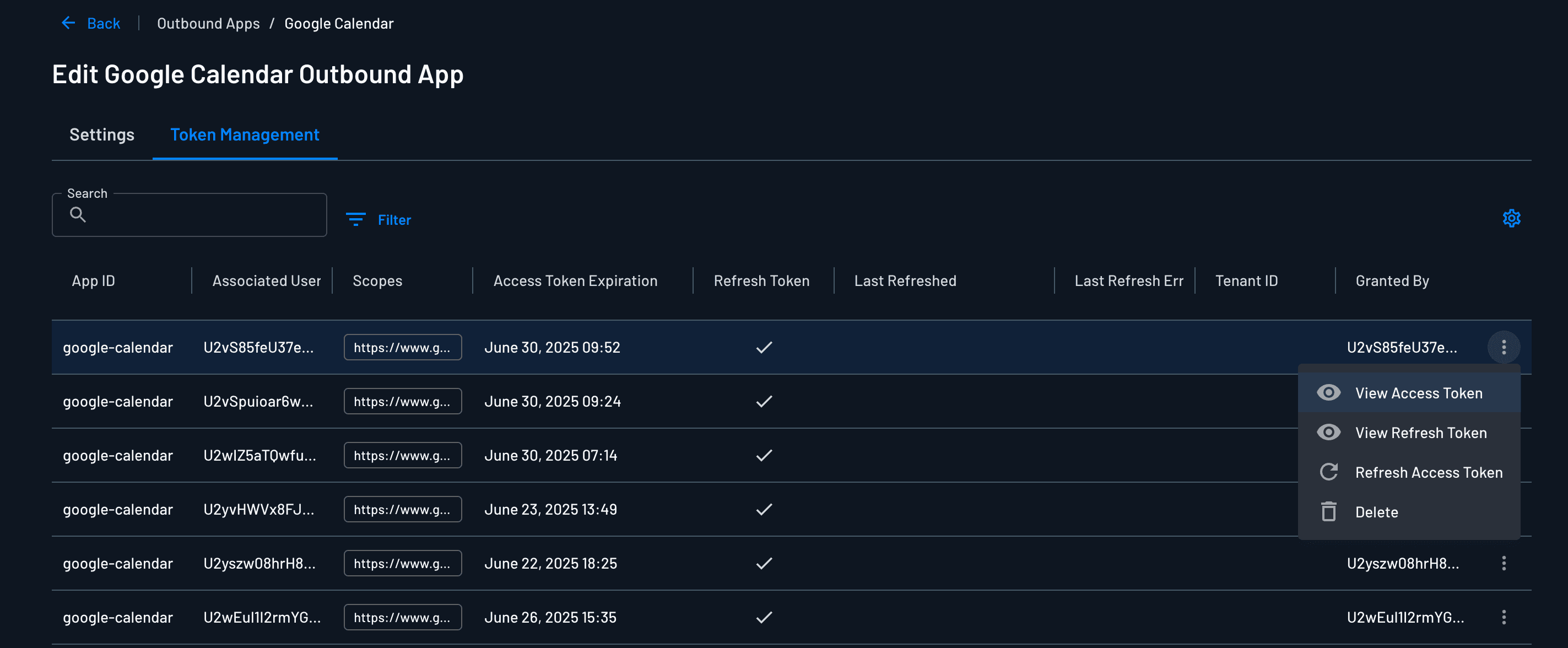
For each user or tenant-level token, you can:
- View the access token (and refresh token, if applicable)
- Manually refresh the access token
- Delete the token
Note
You can delete your pre-existing tokens programatically as well with these functions.
This provides a convenient way to audit, troubleshoot, or revoke access for specific users or tenants without writing any code.