Storing Connection Tokens
Creating a Connection only defines the provider and its settings. The token vault starts empty. Storing a token means running a user or tenant through the provider's OAuth consent once (or collecting an API key), so that Descope can hold the credential and refresh it for you. After that, your MCP server or backend can fetch a fresh token whenever it needs to call the third-party API.
This page covers the four ways to store tokens and when to reach for each. For retrieving tokens after they are stored, see Fetching Connection Tokens.
A Connection can store multiple tokens for the same user or tenant, each with different scopes.
Before storing anything, make sure you have created a Connection.
Four Ways to Store Tokens
There are four ways to vault a credential against a user or tenant. The first three differ mainly in where the connection is initiated and whether you need backend code. The fourth is Console-only and is limited to tenant-level API keys.
| Method | Where it runs | Backend route needed | Scopes | Best for |
|---|---|---|---|---|
| Backend Connect API | Your server | Yes | Custom or default | MCP servers using Adaptive Connect with URL elicitation, or web apps where you want to build your own connect UI |
| Descope Flow | Descope Flow (customer-hosted / Descope-hosted) | No | Custom or default | Connecting at original auth / consent time (token vaulted before the agent needs it) |
| Outbound App Widget | Your frontend | No | Default only | Out-of-band connect when users sign into your platform; agent fetches later |
| Console (Add Tenant Token) | Descope Console | No | N/A (API keys) | Descopers storing tenant-level API keys for their own organization |
Methods 1–3 end the same way: the user completes the provider's consent screen (or submits an API key in a flow/widget), and Descope vaults the credential against that user or tenant. Method 4 skips consent entirely — you paste a tenant-level API key in the Console.
Method 1: Backend Connect API
Use this method when your own server drives the connection. It fits two common cases:
- An MCP server that discovers mid-request that it does not yet have a token for a tool, and returns a connection URL to the client so the user can grant access. This is Adaptive Connect with URL elicitation.
- A web app where you want your own Connect button and connection screens, rather than Descope's widget or a hosted flow.
How It Works
The connect endpoint takes the user's access token and the target connection's appId, and returns a Descope-hosted authorization URL. Your frontend never calls Descope's connect endpoint directly. Instead, it hands the access token to a backend route that you expose, and that route makes the call:
- Your frontend sends the user's access token to a backend route you expose.
- Your backend calls the Descope connect endpoint with that token and the connection's
appId. - Descope returns a
url, which is the provider's authorization URL. - Your backend returns a redirect to that
url. - The user completes consent at the provider and is sent to your
redirectUrl. - Descope vaults the access and refresh tokens for that user.
The Connect Endpoint
Your backend route calls the connect endpoint to obtain the authorization URL.
POST /v1/mgmt/outbound/app/connect
Authorization: Bearer <PROJECT_ID>:<MCP_ACCESS_TOKEN>
Content-Type: application/json

{
  "appId": "google-contacts",
  "options": {
    "redirectUrl": "https://your-app.com/connection-complete"
  }
}
Response:
{
  "url": "https://api.descope.com/v1/outbound/oauth/connect?appId=google-contacts&..."
}
// Request a connection URL
const response = await fetch('https://api.descope.com/v1/mgmt/outbound/app/connect', {
method: 'POST',
headers: {
'Authorization': `Bearer ${PROJECT_ID}:${MCP_ACCESS_TOKEN}`,
'Content-Type': 'application/json'
},
body: JSON.stringify({
appId: 'google-contacts',
options: {
redirectUrl: 'https://your-app.com/connection-complete'
}
})
});
const { url } = await response.json();
// Return this URL to the MCP clientimport requests
# Request a connection URL
response = requests.post(
'https://api.descope.com/v1/mgmt/outbound/app/connect',
headers={
'Authorization': f'Bearer {PROJECT_ID}:{MCP_ACCESS_TOKEN}',
'Content-Type': 'application/json'
},
json={
'appId': 'google-contacts',
'options': {
'redirectUrl': 'https://your-app.com/connection-complete'
}
}
)
connection_url = response.json().get('url')
# Return this URL to the MCP clientimport (
"bytes"
"encoding/json"
"net/http"
)
// Request a connection URL
requestBody := map[string]interface{}{
"appId": "google-contacts",
"options": map[string]interface{}{
"redirectUrl": "https://your-app.com/connection-complete",
},
}
jsonData, _ := json.Marshal(requestBody)
req, _ := http.NewRequest("POST", "https://api.descope.com/v1/mgmt/outbound/app/connect", bytes.NewBuffer(jsonData))
req.Header.Set("Authorization", fmt.Sprintf("Bearer %s:%s", projectID, mcpAccessToken))
req.Header.Set("Content-Type", "application/json")
client := &http.Client{}
resp, err := client.Do(req)
// Handle response and extract connection URLRequest Parameters
appId(required): The ID of the connection you want to connect to.tenantId(optional): Associates the stored token with a tenant. See User-level tokens with tenant association.options(optional): Additional options for the connection request.redirectUrl(required): The URL where the user is redirected after completing the OAuth flow. This must be a valid URL that your application can handle.
Response
The endpoint returns a JSON object with a url field containing the OAuth authorization URL that the user should be redirected to:
{
  "url": "https://api.descope.com/v1/outbound/oauth/connect?appId=google-contacts&..."
}
Adaptive Connect for MCP Servers
Adaptive Connect is the MCP-specific application of this method. When a tool needs an external OAuth token that the user has not yet granted, your server returns a connection URL to the MCP client instead of failing. The client presents that URL to the user (URL elicitation), the user grants access, and the tool runs on retry.
Adaptive Connect is designed for MCP servers where tools request connections on demand. For a web app connecting users at login instead, use Descope Flows.
When a tool requires a token that does not exist or lacks the required scopes, your server:
- Detects the missing token when attempting to fetch a connection token.
- Requests a connection URL from Descope.
- Returns the connection URL to the MCP client in a structured response.
- Lets the user grant permissions through the OAuth flow.
- Retries the tool after the connection is established.
This is the same connect call as Method 1, with two differences: your MCP server plays the role of the backend route, and the MCP client (Claude, ChatGPT, and similar) plays the role of the frontend. Instead of redirecting the browser, the server hands the URL back to the client, which surfaces it to the user for consent.
The simplest pattern is to catch the token fetch failure and return a connection URL in the error response:
from descope import DescopeClient
import requests

descope_client = DescopeClient(project_id="YOUR_PROJECT_ID")

def handle_mcp_tool(user_id, tool_name, tool_params):
    """
    Handle an MCP tool request with Adaptive Connect fallback.
    """
    # Step 1: Attempt to fetch the connection token
    try:
        token_response = descope_client.mgmt.outbound_application.fetch_token(
            app_id="google-contacts",
            user_id=user_id,
            options={"withRefreshToken": False}
        )
        access_token = token_response["token"]["token"]

    except Exception:
        # Step 2: Token fetch failed, request connection URL
        try:
            connect_response = requests.post(
                "https://api.descope.com/v1/mgmt/outbound/app/connect",
                headers={
                    "Authorization": f"Bearer {PROJECT_ID}:{MCP_ACCESS_TOKEN}",
                    "Content-Type": "application/json"
                },
                json={
                    "appId": "google-contacts",
                    "options": {
                        "redirectUrl": "https://your-app.com/connection-complete"
                    }
                },
                timeout=10
            )

            if connect_response.status_code == 200:
                connection_url = connect_response.json().get("url")
                # Return structured response for tool elicitation
                return {
                    "error": "connection_required",
                    "requiresConnection": True,
                    "connectionUrl": connection_url,
                    "message": (
                        f"Failed to run {tool_name}, additional permissions required. "
                        f"Please grant additional permissions using the following URL and try again: {connection_url}"
                    ),
                    "appId": "google-contacts"
                }
            return {
                "error": "connection_initiation_failed",
                "message": f"Failed to initiate connection: {connect_response.text}"
            }

        except Exception as connect_error:
            return {
                "error": "connection_request_failed",
                "message": f"Failed to request connection URL: {str(connect_error)}"
            }

    # Step 3: Token exists, execute the tool
    try:
        # Use access_token to call the third-party API
        # ... your tool logic here ...
        return {
            "success": True,
            "result": "Tool executed successfully"
        }
    except Exception as tool_error:
        return {
            "error": "tool_execution_failed",
            "message": str(tool_error)
        }
import DescopeClient from '@descope/node-sdk';
const descopeClient = DescopeClient({ projectId: 'YOUR_PROJECT_ID' });
async function handleMcpTool(
userId: string,
toolName: string,
_toolParams: unknown
) {
let accessToken: string;
// Step 1: Attempt to fetch the connection token
try {
const tokenResponse =
await descopeClient.management.outboundApplication.fetchToken(
'google-contacts',
userId,
undefined,
{ withRefreshToken: false }
);
accessToken = tokenResponse.token.accessToken;
} catch {
// Step 2: Token fetch failed, request connection URL
try {
const connectResponse = await fetch(
'https://api.descope.com/v1/mgmt/outbound/app/connect',
{
method: 'POST',
headers: {
Authorization: `Bearer ${PROJECT_ID}:${MCP_ACCESS_TOKEN}`,
'Content-Type': 'application/json',
},
body: JSON.stringify({
appId: 'google-contacts',
options: {
redirectUrl: 'https://your-app.com/connection-complete',
},
}),
}
);
if (connectResponse.ok) {
const { url: connectionUrl } = (await connectResponse.json()) as {
url: string;
};
// Return structured response for tool elicitation
return {
error: 'connection_required',
requiresConnection: true,
connectionUrl,
message: `Failed to run ${toolName}, additional permissions required. Please grant additional permissions using the following URL and try again: ${connectionUrl}`,
appId: 'google-contacts',
};
}
return {
error: 'connection_initiation_failed',
message: `Failed to initiate connection: ${await connectResponse.text()}`,
};
} catch (connectError) {
return {
error: 'connection_request_failed',
message: `Failed to request connection URL: ${String(connectError)}`,
};
}
}
// Step 3: Token exists, execute the tool
try {
// Use accessToken to call the third-party API
// ... your tool logic here ...
return {
success: true,
result: 'Tool executed successfully',
};
} catch (toolError) {
return {
error: 'tool_execution_failed',
message: String(toolError),
};
}
}package main
import (
"bytes"
"context"
"encoding/json"
"fmt"
"io"
"net/http"
"github.com/descope/go-sdk/descope"
"github.com/descope/go-sdk/descope/client"
)
func handleMCPTool(ctx context.Context, descopeClient *client.DescopeClient, userID, toolName string) map[string]any {
// Step 1: Attempt to fetch the connection token
token, err := descopeClient.Management.OutboundApplication().FetchLatestUserToken(ctx, &descope.FetchOutboundAppUserTokenRequest{
AppID: "google-contacts",
UserID: userID,
Options: &descope.OutboundAppUserTokenOptions{
WithRefreshToken: false,
},
})
if err != nil {
// Step 2: Token fetch failed, request connection URL
requestBody := map[string]any{
"appId": "google-contacts",
"options": map[string]any{
"redirectUrl": "https://your-app.com/connection-complete",
},
}
jsonData, _ := json.Marshal(requestBody)
req, err := http.NewRequestWithContext(ctx, http.MethodPost, "https://api.descope.com/v1/mgmt/outbound/app/connect", bytes.NewBuffer(jsonData))
if err != nil {
return map[string]any{
"error": "connection_request_failed",
"message": fmt.Sprintf("Failed to request connection URL: %v", err),
}
}
req.Header.Set("Authorization", fmt.Sprintf("Bearer %s:%s", projectID, mcpAccessToken))
req.Header.Set("Content-Type", "application/json")
resp, err := http.DefaultClient.Do(req)
if err != nil {
return map[string]any{
"error": "connection_request_failed",
"message": fmt.Sprintf("Failed to request connection URL: %v", err),
}
}
defer resp.Body.Close()
body, _ := io.ReadAll(resp.Body)
if resp.StatusCode == http.StatusOK {
var connectResp struct {
URL string `json:"url"`
}
_ = json.Unmarshal(body, &connectResp)
// Return structured response for tool elicitation
return map[string]any{
"error": "connection_required",
"requiresConnection": true,
"connectionUrl": connectResp.URL,
"message": fmt.Sprintf(
"Failed to run %s, additional permissions required. Please grant additional permissions using the following URL and try again: %s",
toolName, connectResp.URL,
),
"appId": "google-contacts",
}
}
return map[string]any{
"error": "connection_initiation_failed",
"message": fmt.Sprintf("Failed to initiate connection: %s", string(body)),
}
}
accessToken := token.AccessToken
// Step 3: Token exists, execute the tool
_ = accessToken // Use accessToken to call the third-party API
// ... your tool logic here ...
return map[string]any{
"success": true,
"result": "Tool executed successfully",
}
}Method 2: Descope Flows
Use a flow when you want Descope to host the connection experience as part of login or consent. With this method, storing the Connection token happens when the agent or client originally authenticates — for example in your MCP server's user consent flow — so third-party access is granted in the same session instead of out of band later through URL elicitation.
With flows, the user must sign in through the flow first. The authenticated session is what Descope uses to associate the stored tokens with the right user or tenant.
How It Works
- The user authenticates (and optionally consents to your MCP server / app) through a Descope Flow.
- Within that same flow, an Outbound App connect action (or API key action) runs.
- The user completes provider consent (or enters an API key), and Descope vaults the credential against that user or tenant.
- Later, when an agent or MCP tool needs the third-party API, your Resource fetches the token from the vault — no second connect step at tool time.
A flow connects users through two building blocks: Outbound App actions, which do the work of connecting and storing tokens, and optional screen components, which give users something to interact with. You can also see how to trigger the same connections outside of flows with the SDKs or API in Connecting Outbound Apps.
Screen Components
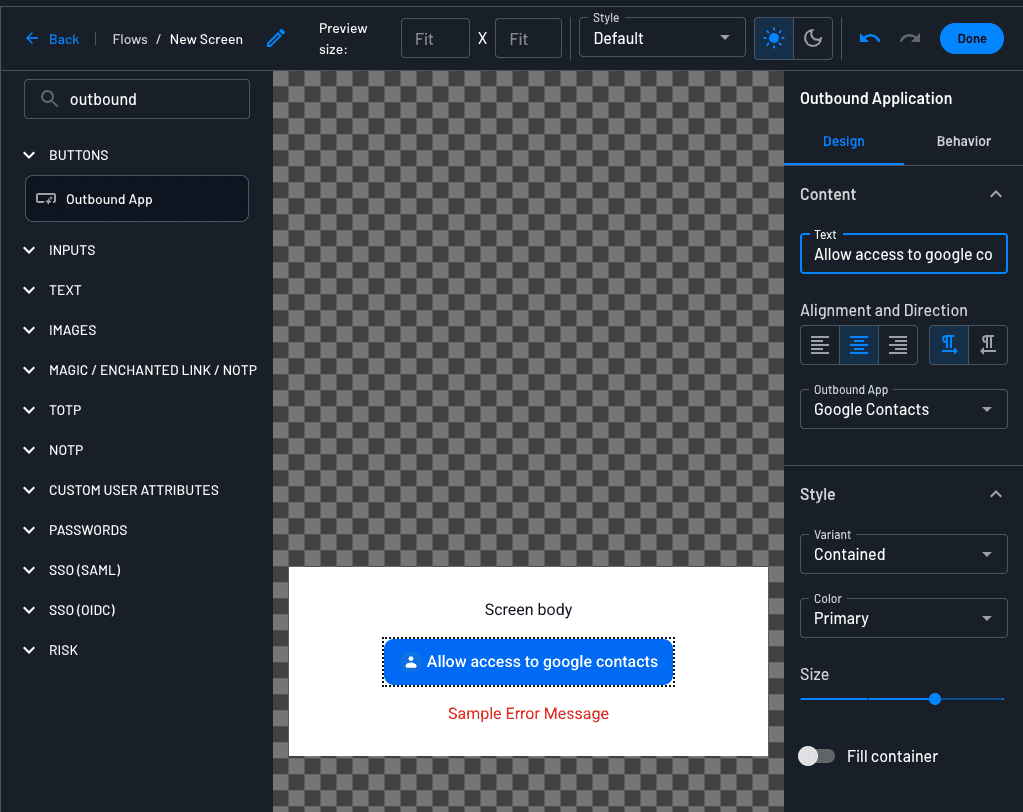
Two screen components support Outbound App connections. A screen component only renders the UI. You still add the matching action after it for the connection to happen, the same as any button in a flow.
- Outbound App button: a button that starts a connection when the user clicks it. You set which outbound app it targets in one of two ways. A Dynamic Application takes the app to connect from a value passed in earlier as a flow input, so one button can serve many apps. Alternatively, you can hardcode a specific outbound app on the button.
- API key input: an input field that collects an API key from the user. It works with the Outbound App / Connect API Key and Outbound App / Connect Tenant API Key actions.
Flow Actions
The action is what actually connects the user or tenant and vaults the token. There are actions for OAuth connections, API key connections, and token cleanup, at both the user and tenant level.
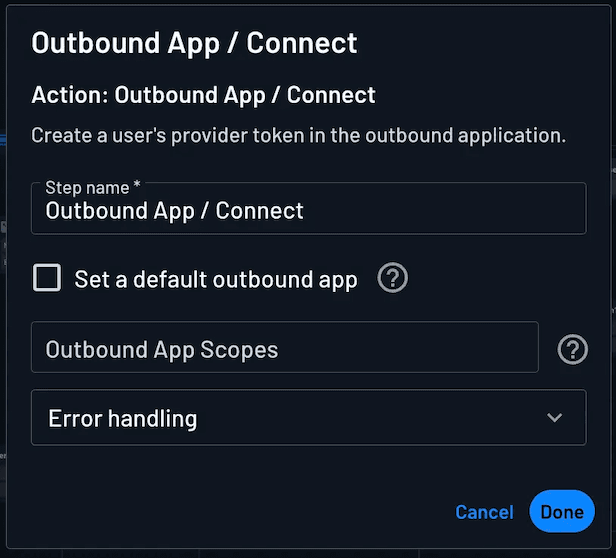
Across the connect actions, the target connection is set the same way: enable the default connection checkbox to choose a specific outbound app from a dropdown, or leave it off so the app is passed in dynamically from a screen button or a flow input.
OAuth Connect Actions
- Outbound App / Connect (user level)
- Outbound App / Tenant Connect (tenant level)
Both connect a user or tenant to an OAuth provider, and support the same configuration:
- Open in Popup: open the provider's consent screen in a popup instead of a full-page redirect.
- Outbound App Scopes: the scopes to request when none were set earlier in the flow. If left empty, the default scopes defined on the Outbound App are used. Accepts dynamic flow values.
- Login Hint: an optional login hint forwarded to the provider. Accepts dynamic flow values.
- Outbound App Resources: the resources to request with the outbound app. These can also be appended to the
/authorizerequest in the Connection settings, but you can hardcode them here or use a dynamic value. - External Identifier: an optional external identifier stored with the token in Descope once the connection succeeds.
API Key Connect Actions
- Outbound App / Connect API Key (user level)
- Outbound App / Connect Tenant API Key (tenant level)
Both collect a static API key and vault it against the user or tenant. Pair the action with an API key input on the screen to collect the key from the user.
For machine-to-machine agents or backend automation, keys can also be inserted programmatically depending on your integration design.
Token Management Actions
- Outbound App / Delete User Tokens: removes a user's stored connection tokens from within a flow, for example as part of a disconnect or account-cleanup screen.
Method 3: Outbound App Widget
Use the Outbound App widget when connection happens out of band from the agent: end users connect when they sign into your platform (or an account settings page), Descope vaults the credential, and later the agent fetches that token when a tool needs to call the third-party API.
The widget runs entirely on your frontend. It lists the outbound apps a user can connect, shows which ones they have already connected, and lets them connect to each one directly — with no backend connect route to maintain.
Default scopes only
The widget requests the default scopes defined in your Connection settings. It does not support requesting custom scopes per user. If you need custom scopes, use the backend connect API or a flow.
How It Works
- The user signs into your web app or platform.
- Your UI embeds the Outbound App widget; the user connects the third-party account there.
- Descope vaults the access and refresh tokens (or API key) against that user.
- Later, when an agent or MCP tool needs the credential, your Resource fetches it from the vault and calls the provider.
The widget is embedded with the Descope frontend SDKs. For setup and framework-specific snippets, see the Outbound Applications Widget documentation.
Method 4: Add Tenant Token via the Descope Console
You can also store tenant-level API keys directly in the Descope Console. This path is for you as a Descoper when you need to vault an organization-owned API key that agents or backends will fetch later.
Note
Add Tenant Token works only for tenant-level API keys. It does not create user-level tokens or run an OAuth consent flow.
For user-level keys or OAuth, use Methods 1 - 3.
Typical Setup
- Create a tenant in Descope for your own organization.
- Connect that tenant to your workforce IdP with SSO (for example Entra ID or Okta), so employees can sign in with your company identity.
- Create an API key Connection for the third-party service.
- Open the Connection's Token tab and select the blue Add Tenant Token button.
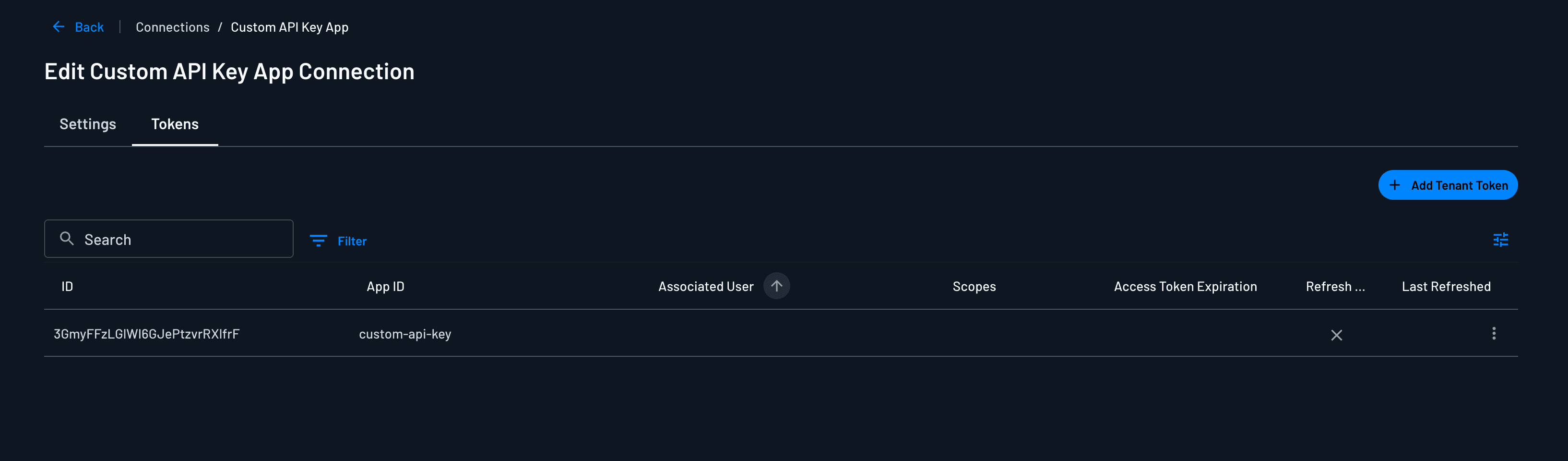
- In the dialog:
- Choose the tenant (your organization tenant from the setup above).
- Paste the API key value.
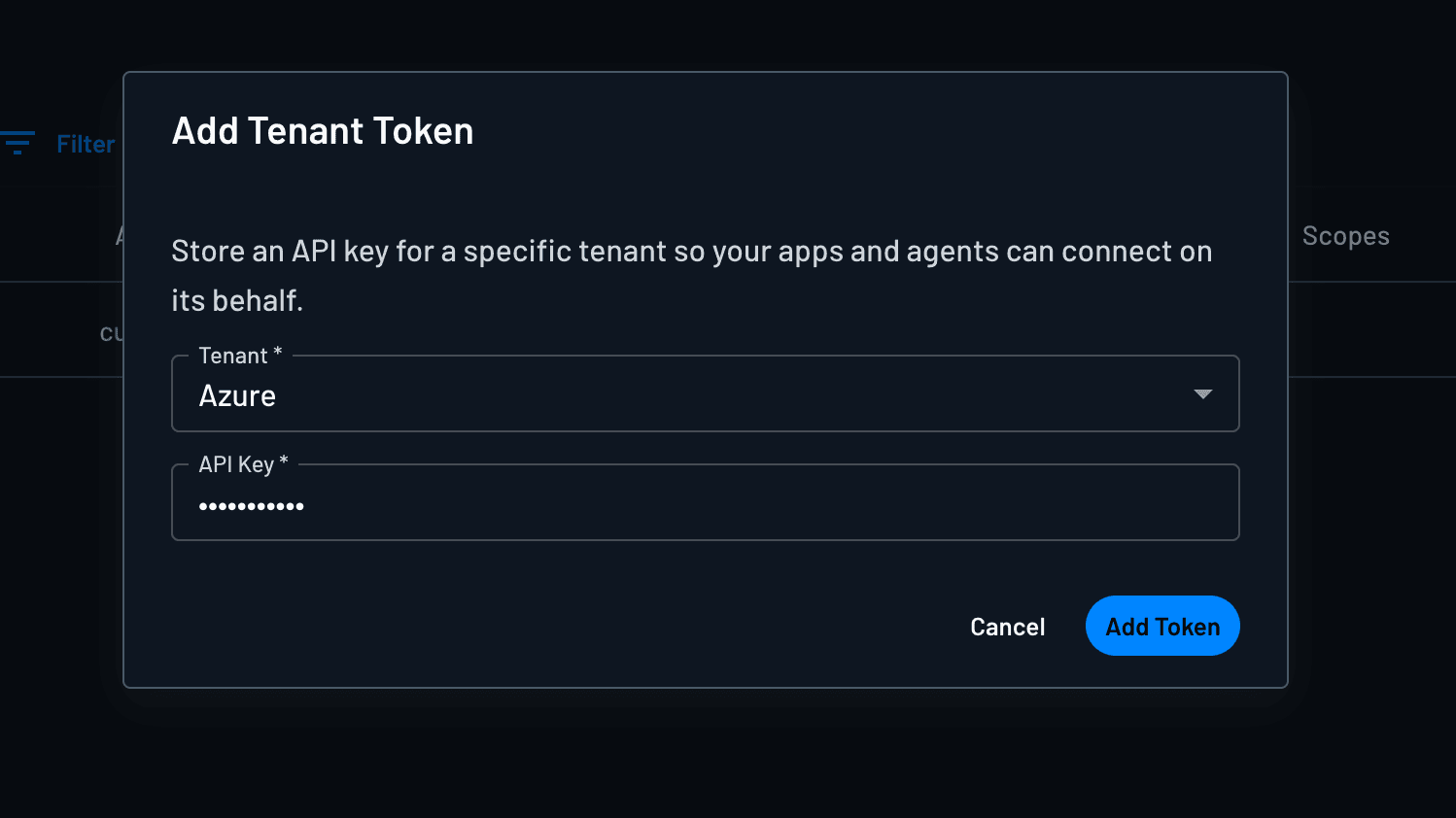
- Save. Descope vaults the key against that tenant. You can then fetch the tenant-level token from your MCP server or backend like any other tenant credential.
User-Level Tokens with Tenant Association
Note
This section applies to user-level tokens associated with a tenant. You can also store tenant-level tokens shared by multiple users in the same tenant. See Storing Tenant Tokens.
A user-level token with tenant association is stored at the user level with a tenant reference, which lets you store separate tokens for the same user across multiple tenants.
In flows, tenant association is determined automatically from session context:
- If the user belongs to exactly one tenant, that tenant is applied automatically.
- If the user belongs to multiple tenants, association follows the active tenant context set earlier in the flow, for example through the Tenant Select component.
The active tenant context relies on the dct (Descope Current Tenant) claim, so enable dct in your JWT template authorization claim configuration (see JWT templates). If no tenant context is available, the token is stored at the user level with no tenant association.
Through the connect API, pass tenantId alongside appId in the connect request:
POST /v1/mgmt/outbound/app/connect
Authorization: Bearer <PROJECT_ID>:<MCP_ACCESS_TOKEN>
Content-Type: application/json

{
  "appId": "google-contacts",
  "tenantId": "tenant-123",
  "options": {
    "redirectUrl": "https://your-app.com/connection-complete"
  }
}
Storing Tenant Tokens
Tenant-scoped tokens are shared by all users in a tenant rather than tied to one user.
- OAuth: store tenant tokens through Descope Flows using the Outbound App / Tenant Connect action.
- API keys in a flow: use the Outbound App / Connect Tenant API Key action.
- API keys in the Console: use Method 4: Console Add Tenant Token when you (as a Descoper) are vaulting an organization-owned key for your own tenant.
In the flow cases the experience behaves like the user-level version described above, but the credential is vaulted against the tenant.
Deleting Connection Tokens
You can remove stored tokens from the Console or programmatically.
Using the Descope Console
Open the Token Management tab for your connection in the Console, find the user or tenant, and delete the token from the dashboard.
Using the SDKs or APIs
Delete a Specific Token by ID
// Delete a specific token by its ID
// Token deletion cannot be undone. Use carefully.
await descopeClient.management.outboundApplication.deleteTokenById('token-id-123');
# Delete a specific token by its ID
descope_client.mgmt.outbound_application.delete_token(
token_id='token-id-123'
)import com.descope.sdk.mgmt.OutboundAppsService;
outboundAppsService.deleteOutboundAppTokenById("token-id-123");// Delete a specific token by its ID
err := descopeClient.Management.OutboundApplication().DeleteTokenByID(ctx, "token-id-123")
if err != nil {
// Handle error
}curl -X DELETE "https://api.descope.com/v1/mgmt/outbound/token?id=token-id-123" \
-H "Authorization: Bearer <PROJECT_ID:MANAGEMENT_KEY>"Delete Tokens by App ID and/or User ID
You can delete tokens by providing an app ID, user ID, or both. At least one of appId or userId must be provided.
// Delete all tokens for a specific app and user
// Token deletion cannot be undone. Use carefully.
await descopeClient.management.outboundApplication.deleteUserTokens('my-app-id', 'user-id');

// Delete all tokens for a specific app
await descopeClient.management.outboundApplication.deleteUserTokens('my-app-id');

// Delete all tokens for a specific user
await descopeClient.management.outboundApplication.deleteUserTokens(undefined, 'user-id');
# Delete all tokens for a specific app and user
descope_client.mgmt.outbound_application.delete_user_tokens(
app_id='my-app-id',
user_id='user-id'
)
# Delete all tokens for a specific app
descope_client.mgmt.outbound_application.delete_user_tokens(
app_id='my-app-id'
)
# Delete all tokens for a specific user
descope_client.mgmt.outbound_application.delete_user_tokens(
user_id='user-id'
)import com.descope.sdk.mgmt.OutboundAppsService;
// Delete all tokens for a specific app and user
DeleteOutboundAppUserTokensRequest deleteRequest = new DeleteOutboundAppUserTokensRequest();
deleteRequest.setAppId("google-contacts");
deleteRequest.setUserId("user-123");
outboundAppsService.deleteOutboundAppUserTokens(deleteRequest);// Delete all tokens for a specific app and user
err := descopeClient.Management.OutboundApplication().DeleteUserTokens(ctx, "my-app-id", "user-id")
if err != nil {
// Handle error
}
// Delete all tokens for a specific app
err = descopeClient.Management.OutboundApplication().DeleteUserTokens(ctx, "my-app-id", "")
if err != nil {
// Handle error
}
// Delete all tokens for a specific user
err = descopeClient.Management.OutboundApplication().DeleteUserTokens(ctx, "", "user-id")
if err != nil {
// Handle error
}# Delete all tokens for a specific app and user
curl -X DELETE "https://api.descope.com/v1/mgmt/outbound/app/user/tokens?appId=google-contacts&userId=user-123" \
-H "Authorization: Bearer <PROJECT_ID:MANAGEMENT_KEY>"
# Delete all tokens for a specific app
curl -X DELETE "https://api.descope.com/v1/mgmt/outbound/app/user/tokens?appId=google-contacts" \
-H "Authorization: Bearer <PROJECT_ID:MANAGEMENT_KEY>"
# Delete all tokens for a specific user
curl -X DELETE "https://api.descope.com/v1/mgmt/outbound/app/user/tokens?userId=user-123" \
-H "Authorization: Bearer <PROJECT_ID:MANAGEMENT_KEY>"