MCP Server Settings
This section provides an overview of all configurable aspects of an MCP server, under the Settings tab.
MCP Server Details
Note
If you would like to add additional claims to any access tokens created for this MCP Server, you can use the custom claims flow action in your user consent flow.
These are the basic configurable details of an MCP server:
- Name (required)
- Description (optional)
- MCP Server URL (required): The base URL of your MCP endpoint, which should end with
/mcp. An MCP server is a type of Resource, and creating one creates an MCP Server Resource whose audience is this URL. Descope puts the URL in theaudclaim of every access token it issues for the MCP server, and your server should reject tokens whoseauddoesn't include it.

MCP Server Scopes
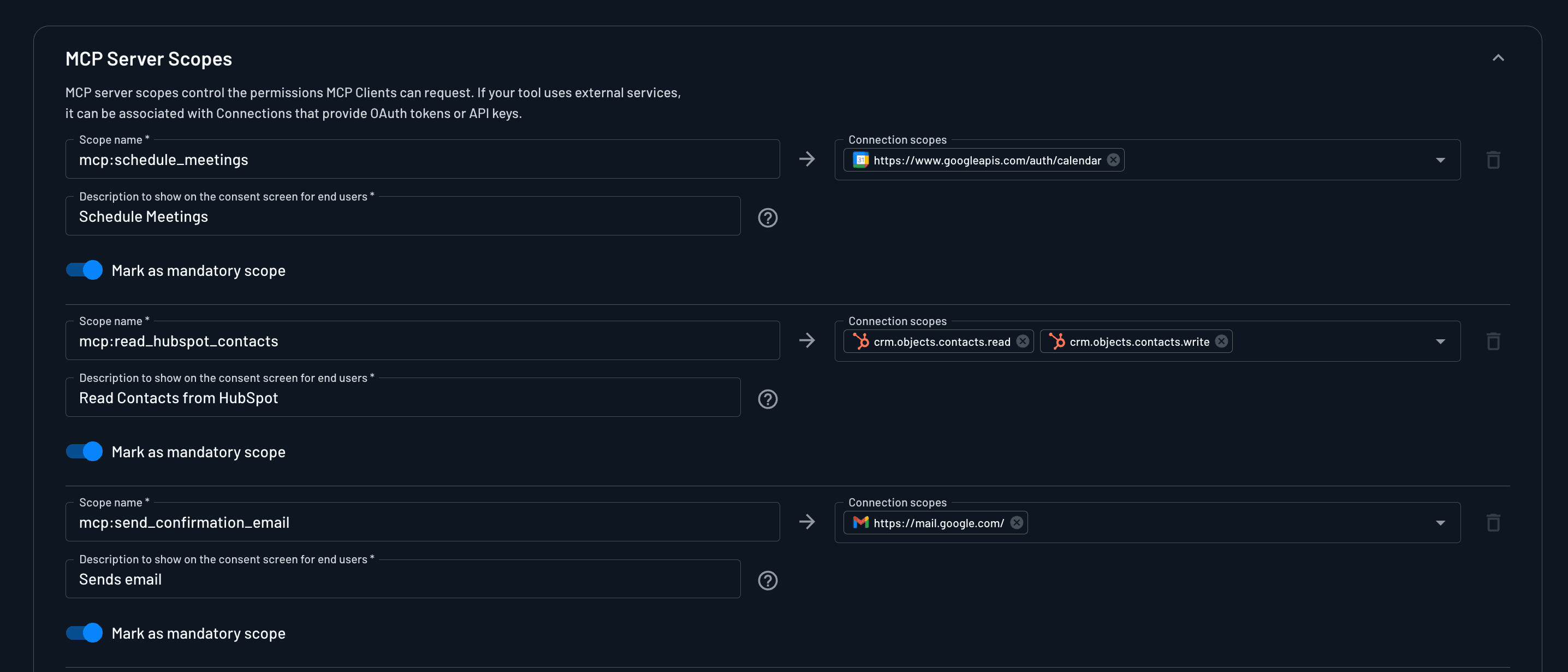
MCP server scopes are defined on the MCP Server Resource in the console, and this Settings view edits the same Resource. Each scope maps to tool access and can link to Connection scopes for third-party credentials. See MCP Server Resource scopes for how scopes map to tools.
For each scope, configure:
| Field | Purpose |
|---|---|
| Scope name | The machine-friendly scope string enforced by your MCP server (e.g., menu:read, calendar:write) |
| Connection scopes | The Connections this scope grants access to. For an OAuth Connection, pick the provider scopes to request. An API key Connection has no scopes, so the MCP scope maps to the whole Connection. Which stored key a token can get depends on whether the key belongs to a user, a user within a tenant, or a tenant. See API key mapping for how each case resolves. |
| Description to show on the consent screen for end users | Human-readable explanation shown on the user consent screen |
| Allow user to decline scope | Lets the user uncheck the scope on the consent screen. Off by default, so the scope must be accepted. |
Here is an example scope configuration:
MCP Client Registration
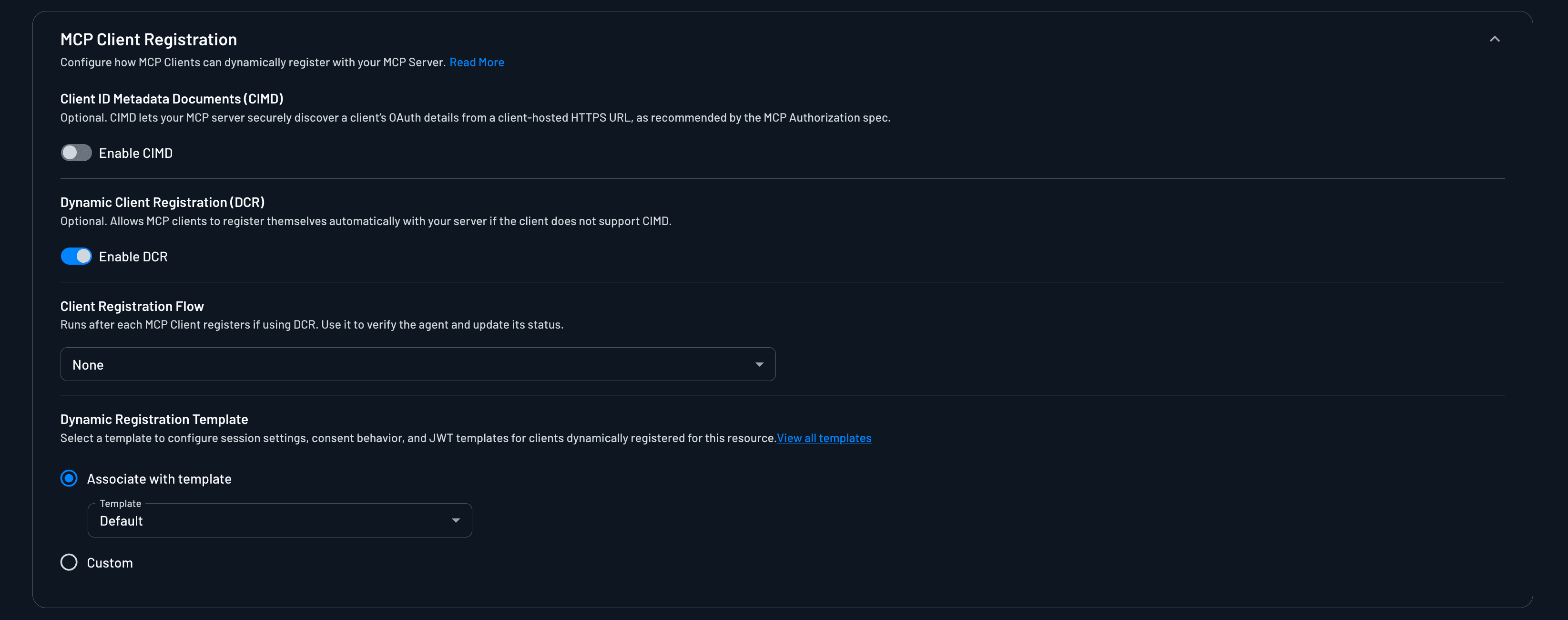
The MCP Client Registration section controls how MCP clients register with your MCP server, and how the clients that register on their own are configured once they do.
Descope supports three client registration mechanisms: Client ID Metadata Documents (CIMD), Dynamic Client Registration (DCR), and Pre-registration. Learn more about each method and when to use them in our Client Registration Methods documentation.
When you create an MCP server, DCR is enabled and CIMD is disabled, so the section starts out looking like this:
Note
Clients must be pre-registered on the Clients page after the MCP server configuration is saved, not in this client registration configuration section.
The two registration methods you can enable in this section are the following:
| Setting | Purpose |
|---|---|
| CIMD | Securely discover client OAuth metadata from a client-hosted HTTPS URL. You can also specify approved domains when enabling. |
| DCR | Allow clients to self-register and receive a client_id if CIMD is unsupported. |
The rest of the section depends on which of these are on. Client Registration Flow appears only while DCR is enabled, and Dynamic Registration Template appears whenever CIMD or DCR is enabled.
Approved Domains
You can specify approved domains for CIMD client registration. This is a list of domains that are allowed to register with your MCP server. If a client is not from an approved domain, the client registration will fail.
Approved domains can either be a specific domain, or a wildcard domain. For example, example.com or *.example.com.
Client Registration Flow
The Client Registration Flow is a management flow that runs after each MCP client registers through DCR. You can use it to verify and classify clients before they're allowed to interact with your MCP server and users can start signing in. The option only appears while DCR is enabled, and it's set to None by default.
Clients that register through CIMD don't run this flow.
By default, newly registered clients are unverified. In the flow, you can:
- Tag and classify clients: Assign tags to clients for identification and future access control, for example tagging Claude as
sales-agent, ChatGPT asviewer-agent, or internal tools asinternal-agent. These tags can later be used in policies across the Agentic Identity Hub. - Verify client status: Review newly registered clients and update their status by marking trusted clients as verified, blocking or rejecting untrusted clients, or using connectors (such as AbuseIPDB) to detect malicious originating IPs and block registration from those IPs.
This allows you to enforce reputation checks or platform detection before granting access to your MCP server and users can start signing in.
Dynamic Registration Template
The Dynamic Registration Template setting decides how clients that register through DCR or CIMD are configured when they connect to your MCP server: which User Consent Flow their users go through, what their tokens contain, and their session settings. The setting appears whenever CIMD or DCR is enabled. For why templates exist, see Dynamic Registration Templates.
You can pick one of two options:
- Associate with template uses a shared dynamic registration template. The Default template is selected automatically when you create an MCP server. You can edit it, or create more templates, under Resources > Dynamic Registration Templates in the Console. Use View all templates to jump there.
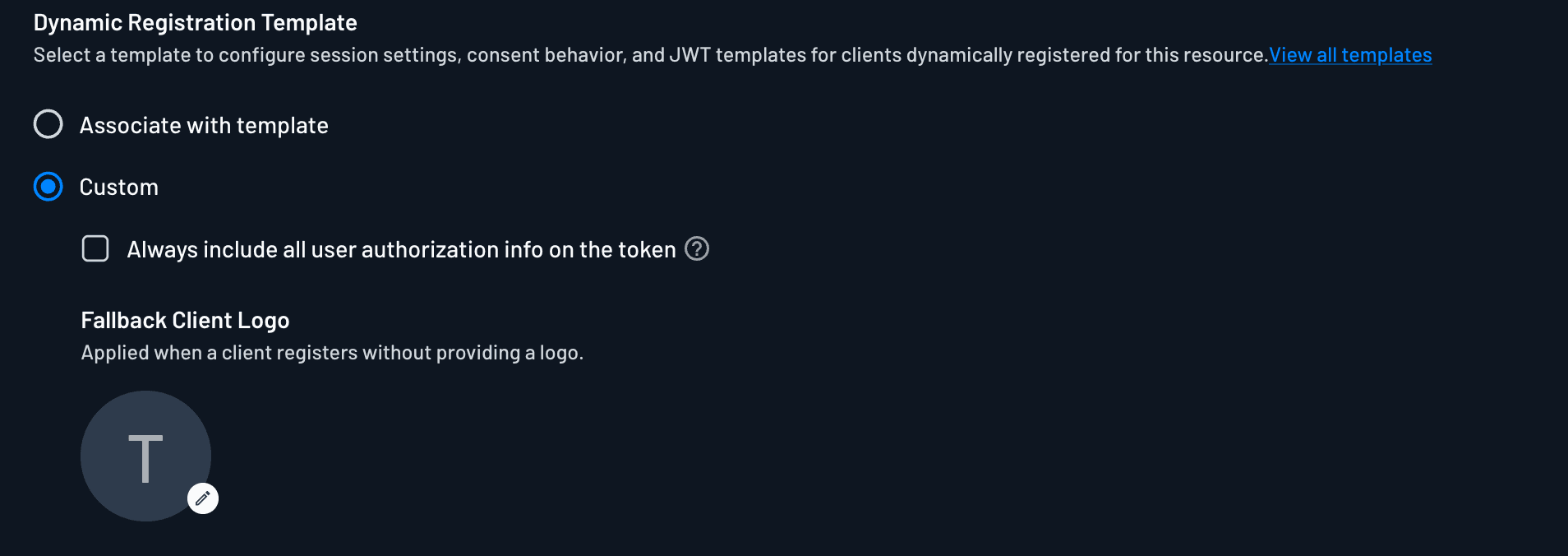
- Custom sets these options for this MCP server only, without a template.
A template is the better fit when several MCP servers should behave the same way, since a change to the template applies to every server that uses it. Choose Custom when one server needs its own behavior.
When you select Custom, the settings below appear in this section, and a separate User Consent Flow section appears on the page.
Include All Authorization Info in Access Tokens
The Always include all user authorization info on the token checkbox controls which authorization data is embedded in the JWTs issued to clients that register through DCR or CIMD.
When checked, access tokens include all tenants, roles, and permissions associated with the user, regardless of which MCP scopes the client requested or the user approved on the consent screen. Scope consent still controls what the client may request. The JWT just isn't limited to the scope-to-role mapping for those scopes.
When unchecked (default), access tokens only include tenants, roles, and permissions derived from the approved scopes and your MCP server scope configuration.
With Associate with template selected, the template's setting applies instead.
Fallback Client Logo
The Fallback Client Logo is shown for a client that registers without providing a logo of its own, for example on the consent screen and in the list of clients.
Connection Information, Usage Samples, and Session Management
Three more sections sit under MCP Client Registration:
- Connection Information lists the OAuth endpoints and identifiers that MCP clients use to reach Descope as your MCP server's authorization server.
- Usage Samples shows code examples for adding Descope authentication to your MCP server, along with your Discovery URL and Issuer URL. See Usage Samples for more details.
- Session Management controls the tokens issued to dynamically registered clients, such as their JWT templates and token timeouts. Session Management has the same options as a template's Session Management. When the MCP server is associated with a template, the template's session settings apply.
User Consent Flow
Note
This flow does not apply when M2M clients authenticate with your MCP server, with client credentials or jwt bearer grant types.
The User Consent Flow is what your end users will authenticate through when connecting to your MCP server. This flow runs during /authorize requests and controls user authentication, scope consent, and conditional logic.
This section only appears on the page when the Dynamic Registration Template is set to Custom. With Associate with template selected, dynamically registered clients run the template's User Consent Flow instead.

The section has the same Flow, Flow hosting URL, and Skip consent screen settings as a template's User Consent Flow. For MCP servers, the built-in flow is the MCP Auth Consent Flow.
What You Typically Configure in the User Consent Flow
The following things are typically configured in the User Consent Flow:
-
User Authentication - Guide users through your chosen authentication methods, such as SSO (Okta, Azure AD, etc.), passwordless/password-based login, social login, or MFA and step-up authentication.
-
Scope Consent - Display a consent screen where users explicitly approve the MCP server scopes being requested. Scope descriptions configured on the MCP server are shown here to clearly communicate what access is being granted.
-
Conditional Logic - Add conditional logic based on user, tenant, or request context, such as tenant-specific authentication requirements, additional verification for sensitive scopes, or conditional MFA and step-up flows. Branch on the connecting client's custom attributes using
mcpClient.customAttributes.<attribute-name>. -
Connection Actions - You can use Connection actions in your User Consent Flow to collect external OAuth tokens or API keys during authentication.
Check out our Flows documentation for more information on how to configure and use the User Consent Flow.
MCP Servers
Learn how to configure MCP servers and onboard clients using Descope OAuth 2.1, SSO, audience-scoped tokens, and tool-level scopes.
Managing MCP Servers
Create, update, and delete MCP Servers and their pre-registered clients with the Descope Management API, and how approved scopes are shaped.