Sidebar Preferences
Sidebar Preferences let you control which pages appear in your Descope console sidebar, so you can hide the pages you don't use and focus on the ones you do.
Note
Sidebar Preferences only change what you see. To control what Descopers are allowed to access, use Custom Descoper Roles in Company Settings.
Using Sidebar Preferences
You can open the sidebar preferences dialog from two different places in the Descope Console.
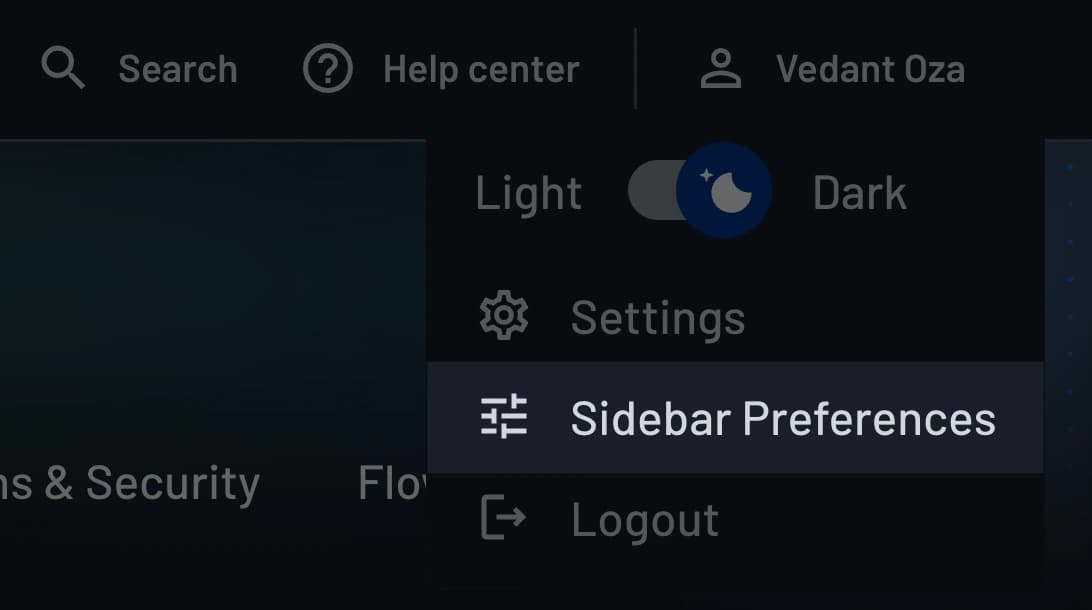
- Click your name in the top right of the Console, then select Sidebar Preferences:
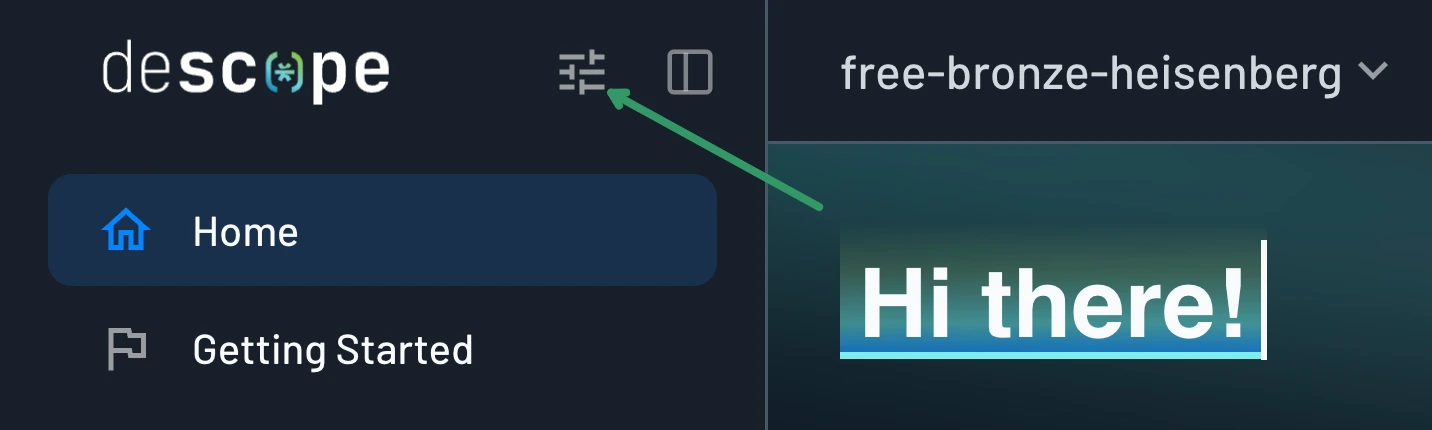
- Click the tune icon at the top of the sidebar, next to the Descope logo:
Choosing Which Pages to Show
You can check a page to show it in the sidebar, or uncheck it to hide it.
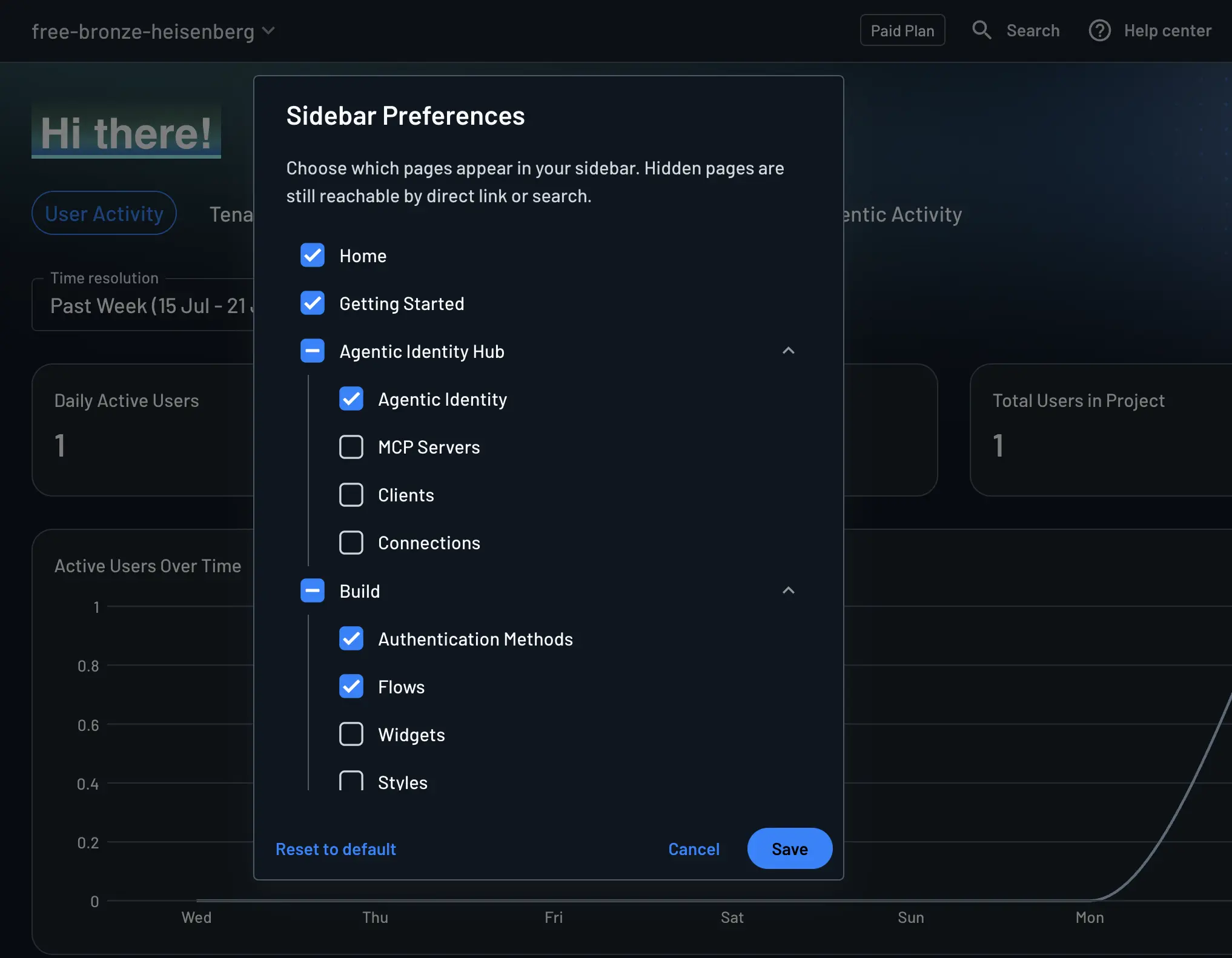
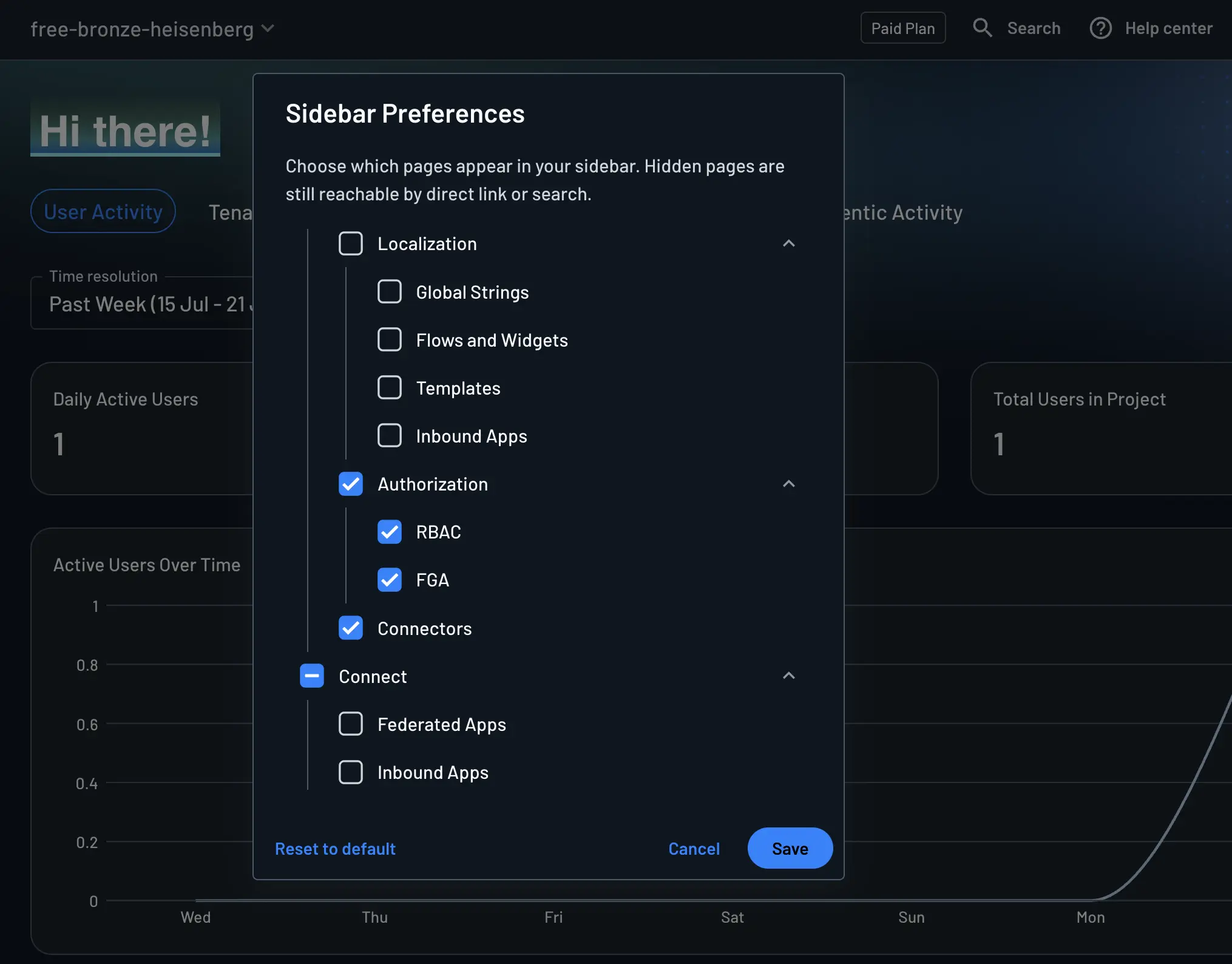
The dialog mirrors the full sidebar hierarchy (not just top-level items):
- Hiding a parent (for example Localization) also hides all of its sub-pages (Global Strings, Flows and Widgets, Templates, Inbound Apps).
- You can hide individual sub-pages and leave the rest of the group visible.
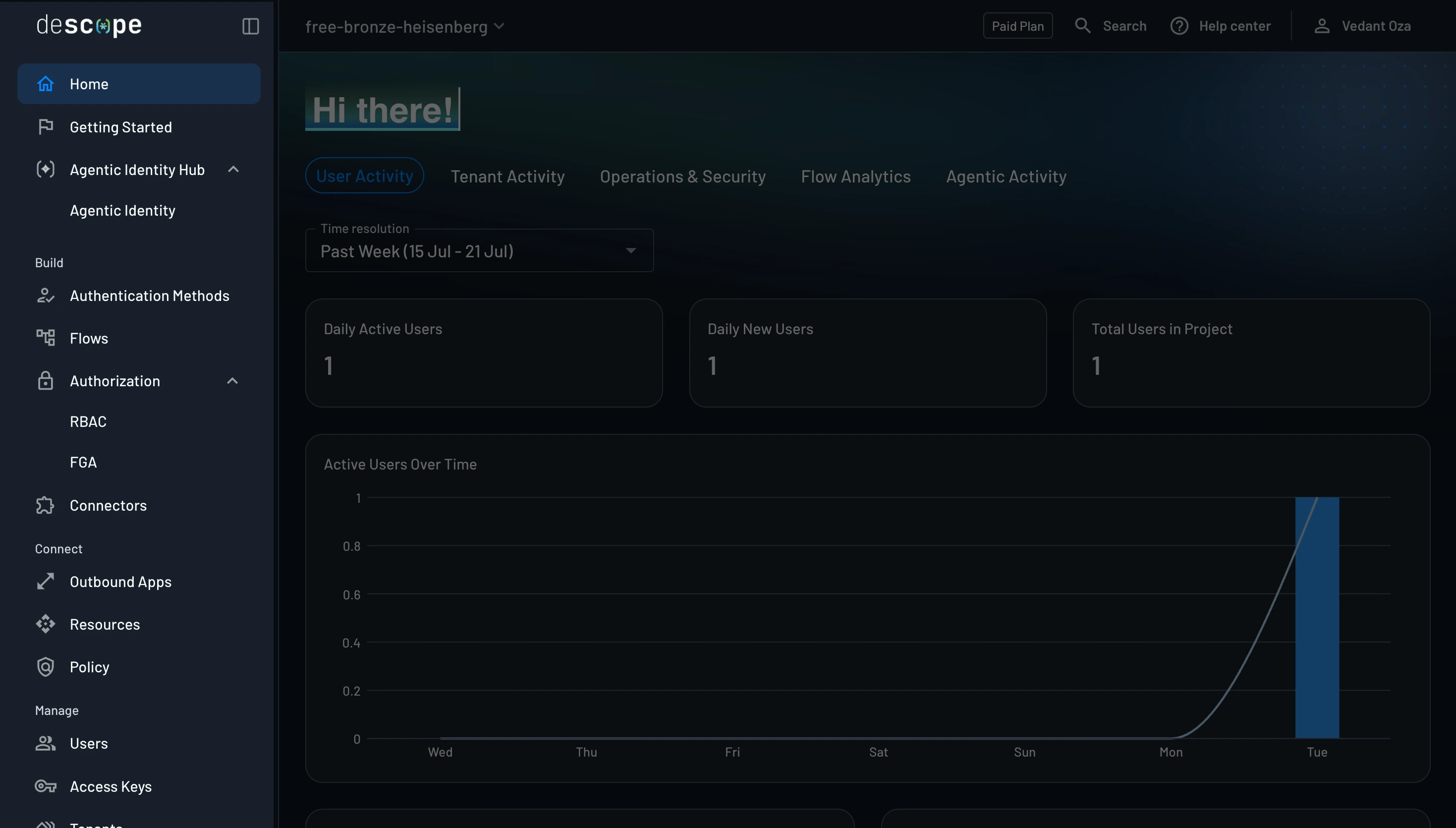
Example sidebar after hiding several pages (MCP Servers, Clients, Connections, Widgets, Styles, all of Localization, and Federated Apps / Inbound Apps):
How Preferences Apply
Preferences are tied to your Descoper account, not to a project or company. The same visibility settings apply across every project and company you can access.
Hidden Pages Stay Accessible
Hiding a page removes it from the sidebar only. It does not change access:
- Direct and deep links still work (for example
https://app.descope.com/accessKeyseven if Access Keys is hidden). - Hidden pages still appear in Console search.
Reset to Default
Click Reset to default at the bottom of the Sidebar Preferences dialog to show every page again and clear your customizations.