Agent Login
Early access
Agent Login is in early access and needs an Enterprise license. To use it, ask your Descope CSE or Descope Support to enable it for your project.
Agent Login sets up an OAuth server for the AI agents that visit your customer-facing websites. It follows the Personal Agent Protocol (Poppy), an open protocol that tells an agent where to authenticate and how to get approval from the person it works for.
Descope builds the sign-in and approval flow, turns on the project settings the protocol needs, and gives you a poppy.json file to publish on each site. One click sets all of it up, and you can change any piece afterward.
Use this guide if your users log in to your website or app and now send AI agents to act on their behalf. If you're protecting an MCP server instead, see MCP Servers.
Why Agents Need a Front Door
You built your login page for a person at a keyboard. An agent working for that person has no browser of its own and no password to type, so today it usually ends up in one of two places.
Either you block the agent with the rest of your bot traffic, and your user can't use the assistant they chose, or it signs in as the user with their password or a copied session, and your backend sees an ordinary login. Once that happens, your system can't separate the user's actions from the agent's.
Agent Login offers a third option. The agent reads a single file at a known address on your domain, learns where to authenticate, and identifies itself by its own domain. Your user sees a screen that names the agent and what it wants to do for them, then approves or declines the request.
That screen is the piece most products don't have yet. An ordinary login asks someone to prove who they are, not to agree to what another piece of software can do in their name. When an agent acts on behalf of your user instead of as your user, the consent screen makes the difference visible. Showing it is the default. You can skip it if it doesn't suit your product, and Descope records the consent either way.
Your product then has two identities on every call: the user it already knows, and the agentic identity of the agent acting for them. Keeping the two apart is a core principle of the Agentic Identity Hub. An agent you can name is one you can scope with policies, audit, and cut off on its own without touching your user's account.
What Descope Sets Up for You
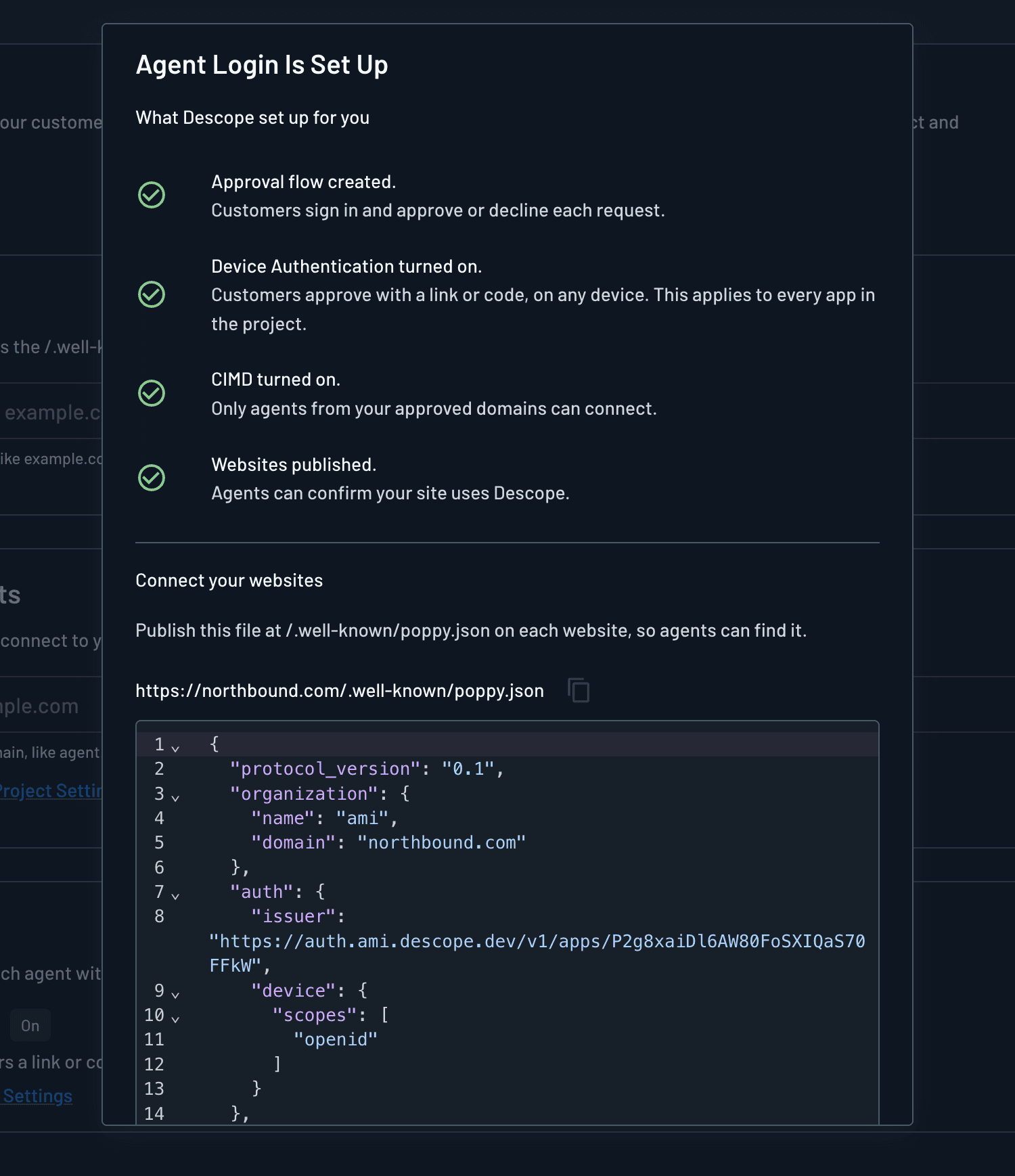
Set Up Agent Login configures four things in your project at once, so you don't assemble the protocol's requirements by hand.
- An approval flow: Descope builds the flow your users use to sign in and then approve or decline an agent, including the consent screen. It's a standard Descope flow, so you can edit the screens later or skip the consent screen entirely.
- Device Authentication: Agents show a link or a code, and the user approves on any device they already use. Descope turns on Device Authentication for the whole project, not only for this app.
- CIMD: Client ID Metadata Documents (CIMD) let an agent use its own HTTPS URL as its client ID, so an agent you have never met can still identify itself. Descope accepts only agents from the domains you approve.
- Published websites: Descope lists the domains you entered in your issuer's metadata, so an agent can confirm that the issuer answers for your site.
How an Agent Signs In
Nothing in this flow is specific to your site. The agent follows Poppy discovery and then standard OAuth, so any Poppy-capable agent gets through without instructions from you.
- The agent finds your file: It requests
https://yourdomain.com/.well-known/poppy.jsonand reads theauth.issuervalue, which points at your Descope authorization server. - The agent confirms the issuer answers for your site: It reads the issuer's OAuth metadata, which lists your domain in
poppy_domains. A copy of your file on someone else's domain doesn't match, and the agent stops. - The agent identifies itself: It presents its own metadata URL as its client ID through CIMD. Descope matches that URL against your approved agent domains and rejects anything else.
- The agent starts a session: Descope returns a signed-out session token, which covers anything that doesn't touch your customer's account.
- The agent asks for device authorization: Descope returns a link and a user code. The agent shows them to your user and polls for the result, as Device Authentication describes.
- Your user decides: They open the link on any device and sign in with any method your product already supports. The consent screen names the agent and what it wants to do for them, and they approve or decline it there.
- Descope issues the tokens: On approval, the agent gets a signed-in session token for the scopes your user granted. It also gets an account token, which starts later sessions without asking again. On a decline, the agent gets no signed-in session token or account token, and nothing changes in your user's account.
Select any step to see what happens.
Signed-out session tokens
Before your customer approves the agent, Descope returns a signed-out session token. The token covers anything that doesn't touch the customer's account.
A signed-in session token comes only after approval, and only for the scopes your customer granted. If they decline, the agent gets no signed-in session token or account token, and nothing changes in their account.
Where Agents Show Up Afterward
Every approval leaves a record you can return to. The first time a user approves an agent, Descope creates an agentic identity for that pairing. A second user approving the same agent gets a row of their own. The page reads as a list of agents acting for named people, not a list of software.
Each row carries the consent: the scopes your user granted, when they granted them, and when that consent expires. The row also has an Agent ID, which ties every token issuance, policy decision, and credential access in your audit log back to one agent working for one customer.
The same page is where you end an agent's access. Revoking an identity invalidates the agent's tokens and ends its sessions. Your customer's own account and session continue untouched.
Setting Up Agent Login
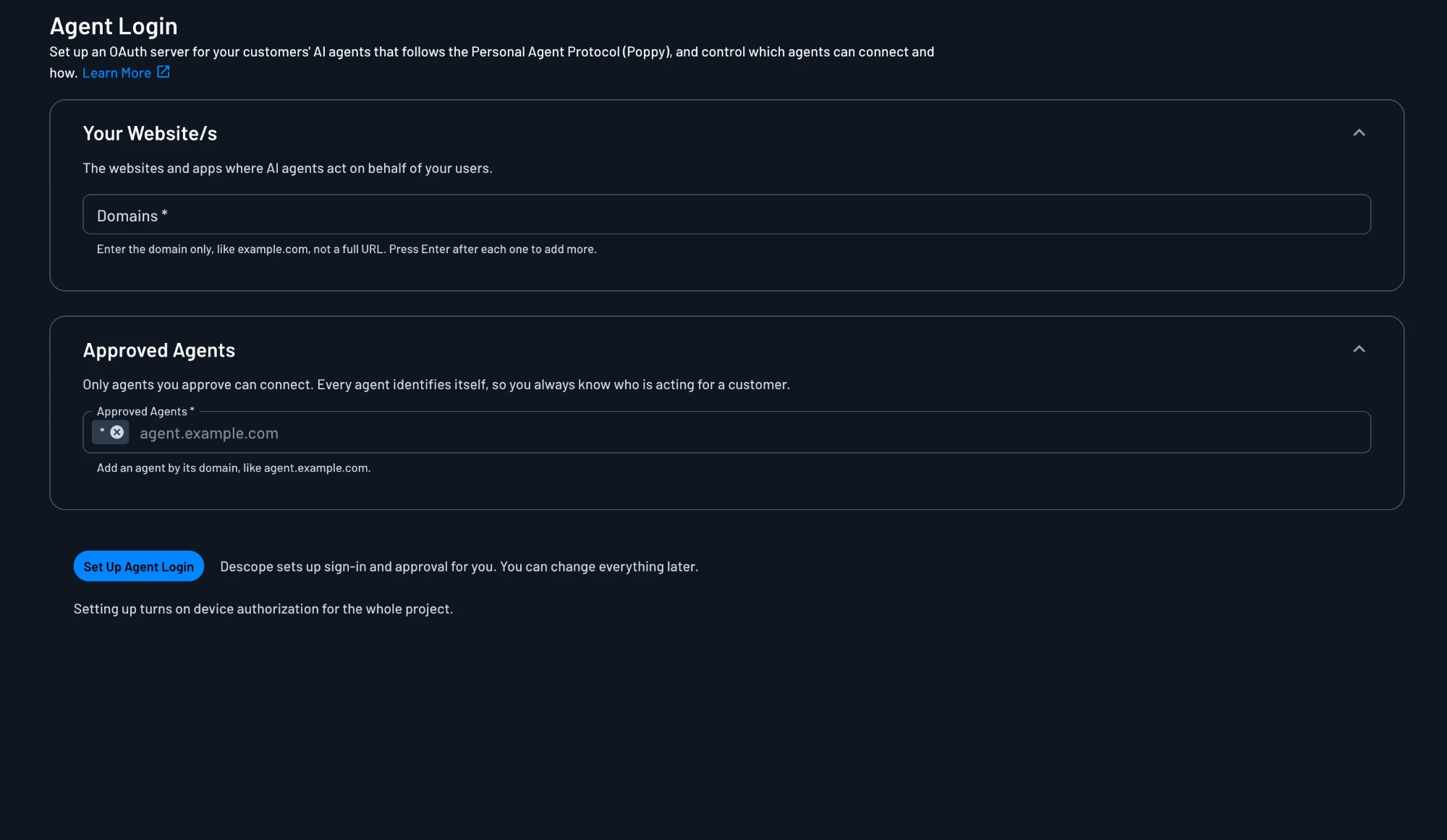
You run the setup from the Agent Login page, under the Agentic Identity Hub section of the Descope Console. Before you enable Agent Login, that page already shows Your websites and Approved agents, in that order.
Add your websites
Enter each domain where agents act for your customers. Use the domain only, such as example.com, not a full URL. Press Enter after each one.
Every domain you list publishes the same poppy.json file, so add the sites you want agents to reach and leave out the rest. Descope also adds each one to poppy_domains in your issuer's metadata, which is how an agent confirms the issuer answers for that domain.
Choose which agents can connect
The Approved Agents field starts with a * entry, which lets any agent connect. Replace it with specific agent domains, such as agent.example.com, to narrow the list.
Every agent identifies itself by domain, so you always know which one is acting for a customer. If you already know which agents your customers use, start with those.
Keeping the wildcard
A * entry accepts any agent that finds your site. That suits an early stage when you don't yet know which agents your customers run. It also means you review each new agent after the fact rather than before, so revisit the list once you see real traffic.
Run the setup
Click Set Up Agent Login. Descope creates the approval flow, turns on Device Authentication and CIMD, and publishes your websites.
Device Authentication applies to the whole project
Setup turns on Device Authentication for every app in the project, not only for agents. Confirm that your other applications can accept that before you run it.
Publish the file on each website
The confirmation dialog shows the generated file and where it belongs. Copy it and serve it at /.well-known/poppy.json on every domain you listed.
Descope can't host the file for you, because an agent trusts it only when it comes from your domain. Until you publish it, agents can't discover your authorization server.
The poppy.json File
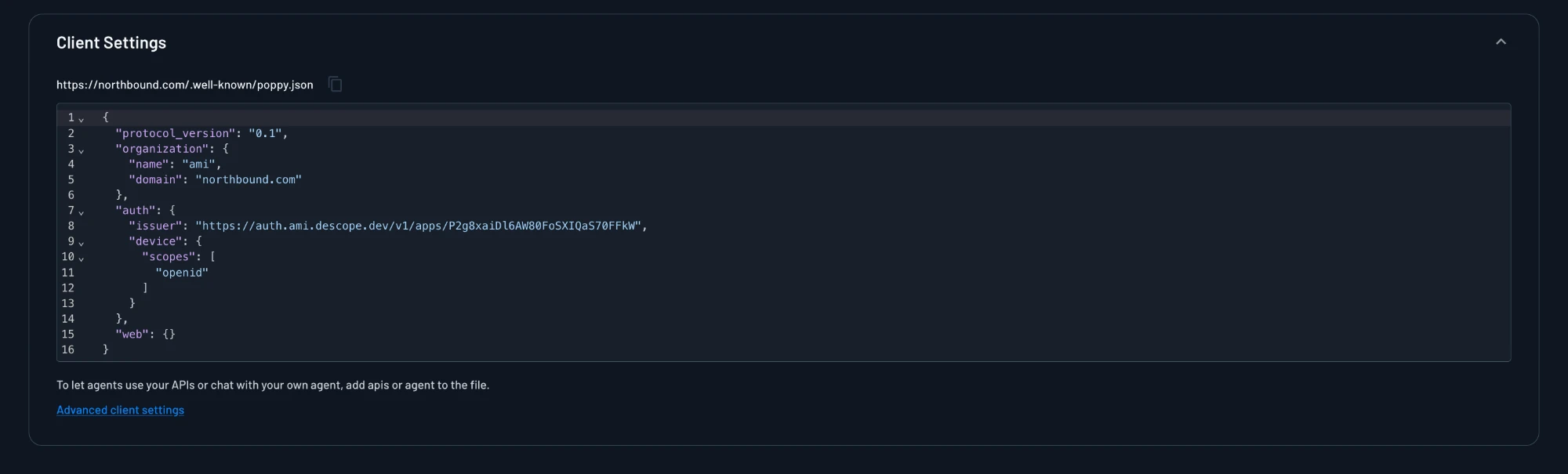
The file is how an agent learns that your site accepts agents at all, and where to go next. Descope generates it from your project and shows it under Client Settings, so you can copy the current version at any time.
Protocol version 0.1
The generated file declares protocol_version 0.1. Poppy is a new specification, so expect the fields to change while the protocol settles. An agent uses only a document whose version it supports.
{
  "protocol_version": "0.1",
  "organization": {
    "name": "Northbound",
    "domain": "northbound.com"
  },
  "auth": {
    "issuer": "https://api.descope.com/v1/apps/P2g8xaiDl6AW80FoSXIQaS70FFkW",
    "device": {
      "scopes": [
        "openid"
      ]
    }
  },
  "web": {}
}| Field | What it carries |
|---|---|
protocol_version | The version of the Personal Agent Protocol the file follows. |
organization | Your organization's name and the domain that serves this file. |
auth.issuer | The Descope authorization server the agent authenticates against. |
auth.device.scopes | The scopes an agent can request through the device authorization flow. |
web | Your website. An empty object means agents browse it as ordinary signed-out visitors. |
Two optional sections extend the file. An apis section lists the APIs an agent can call, each with a type of openapi or mcp, a URL, and a short description that helps the agent pick the right one. An agent section points at an agent of your own, along with the conversation protocols it speaks, so a visiting agent can talk to it. Add either one from Advanced client settings.
Changing the Setup Afterward
After setup, you manage everything from the same page. A Poppy compliant badge at the top confirms that your configuration still satisfies the protocol.
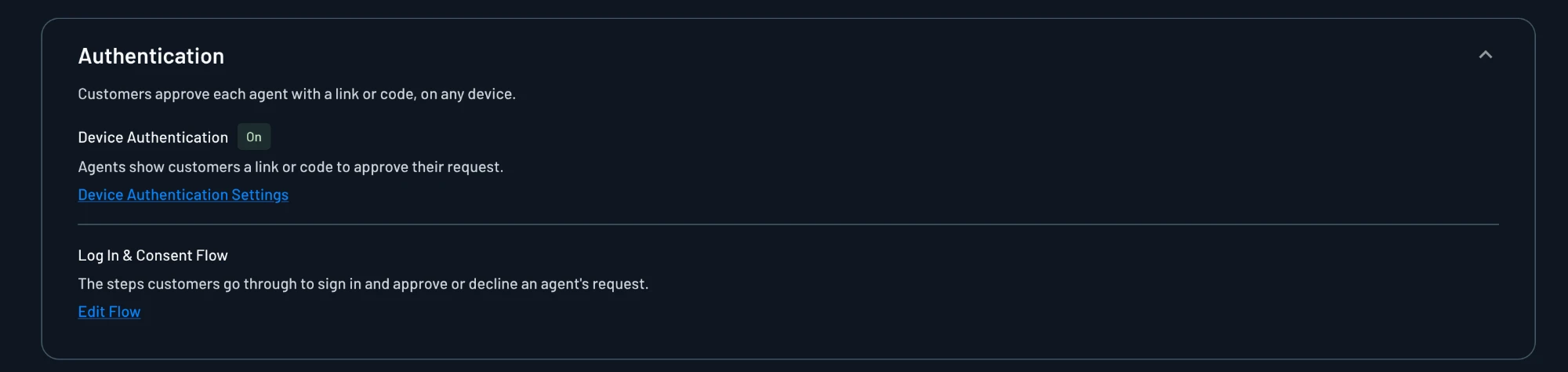
Authentication
The Authentication section shows whether Device Authentication is on and links to its settings. Log In & Consent Flow opens the flow Descope created, where you can change what your customers see when they approve an agent.
If you'd rather not show the consent screen, enable Scopes auto approval on the flow's Update User Consent action. The agent gets the scopes it asked for without your user reviewing them. Descope still writes the consent record, so the authorization still appears under the agent's identity.
The action has to stay in the flow even when the screen doesn't. See A Consent Action Is Always Required.
If you keep the screen, leave its Inbound App Scopes component in place. That component collects your customer's approval, and the consent action has nothing to record without it.
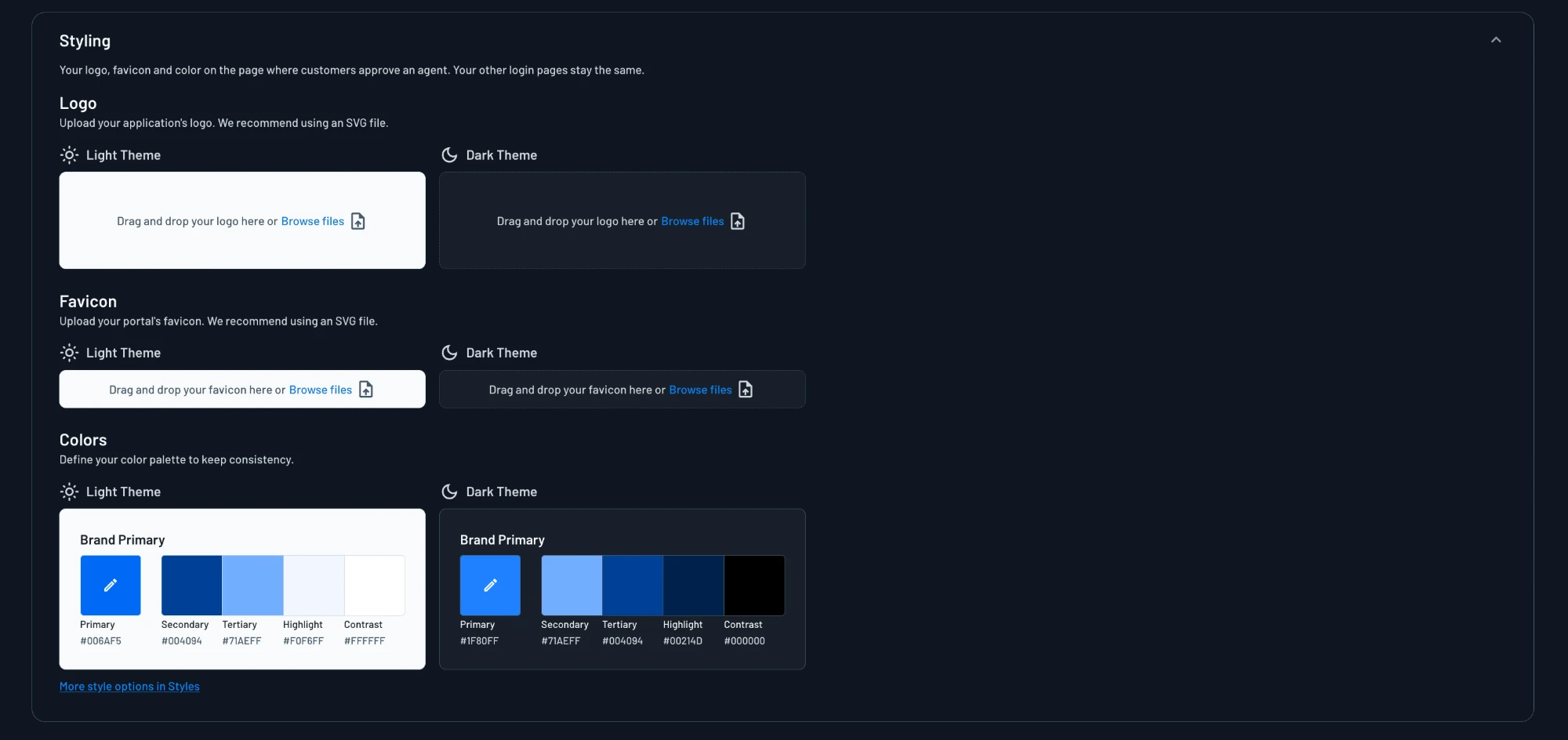
Styling
The Styling section covers the logo, favicon, and colors on the page where customers approve an agent. Your other login pages keep their existing look. For the rest of your project's appearance, see Styles.
Your websites
Add or remove domains here. Every website serves the same file shown in Client Settings, so publish it on a new domain before agents can reach it.
The domains here also populate poppy_domains in your issuer's metadata. An agent trusts a poppy.json only when it comes from a domain on that list.

Approved agents
The list controls which agents can connect to your customers' accounts. Removing an agent stops new connections from it. To revoke access an agent already has, open Agentic Identity and revoke its identities.

Next Steps
Agent Login gets an agent through the door. What it can do once inside comes from the rest of the Hub. Write policies to control which scopes each agent can get, define Resources for the APIs behind your site, and watch connected agents on the Agentic Identity page.
If your product also ships an MCP server, the same project covers it. See Use Cases for how external agents reach everything you build.