Google Analytics Connector
Descope's Google Analytics connector allows you to send events from your authentication flows directly to a Google Analytics 4 (GA4) property, using GA4's Measurement Protocol.
This lets you track sign-ups, sign-ins, and other authentication events alongside the rest of your product analytics, without adding any client-side tracking code to your login pages.
Configure Google Analytics connector
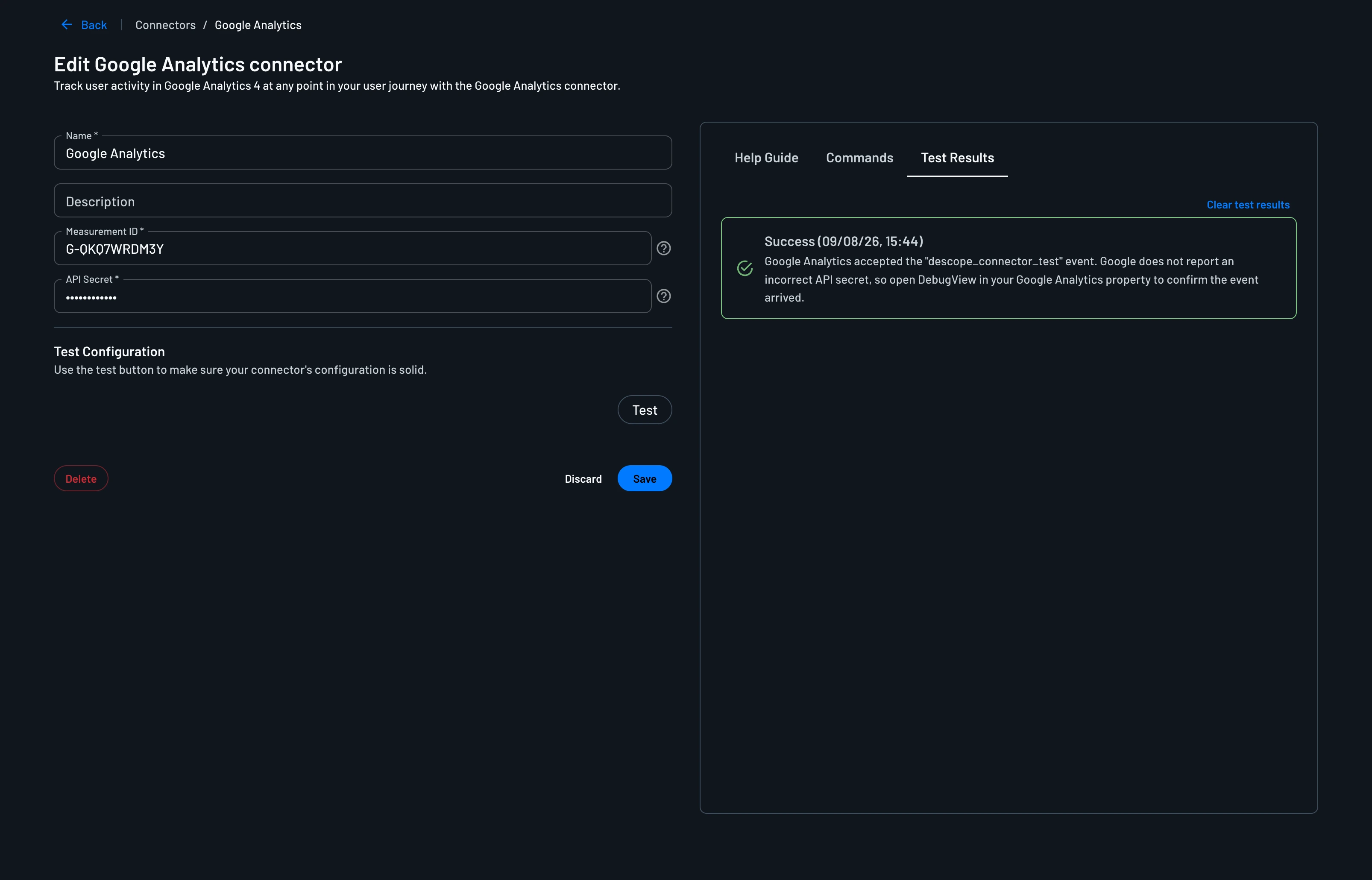
Navigate to the Connectors page in the Descope Console and select Google Analytics to create a new connector. Fill in the following parameters:
- Connector Name: Custom name for your connector. This is useful when creating multiple connectors from the same template.
- Connector Description: (Optional) Describe what this connector is used for.
- Measurement ID: Your GA4 data stream's Measurement ID (for example
G-XXXXXXXXXX). Found in Google Analytics under Admin → Data Streams → your stream. - API Secret: A Measurement Protocol API secret created for that data stream. Found under Admin → Data Streams → your stream → Measurement Protocol API secrets.
Testing
Before creating your connector, verify it's working by clicking Test. The Test Results tab shows whether Descope was able to reach Google's endpoint with a test event.
Add Google Analytics connector to a flow
Navigate to Flows, choose your flow. Then, click the create button (designated via the + icon), select Connector, and choose the Google Analytics / Track option.
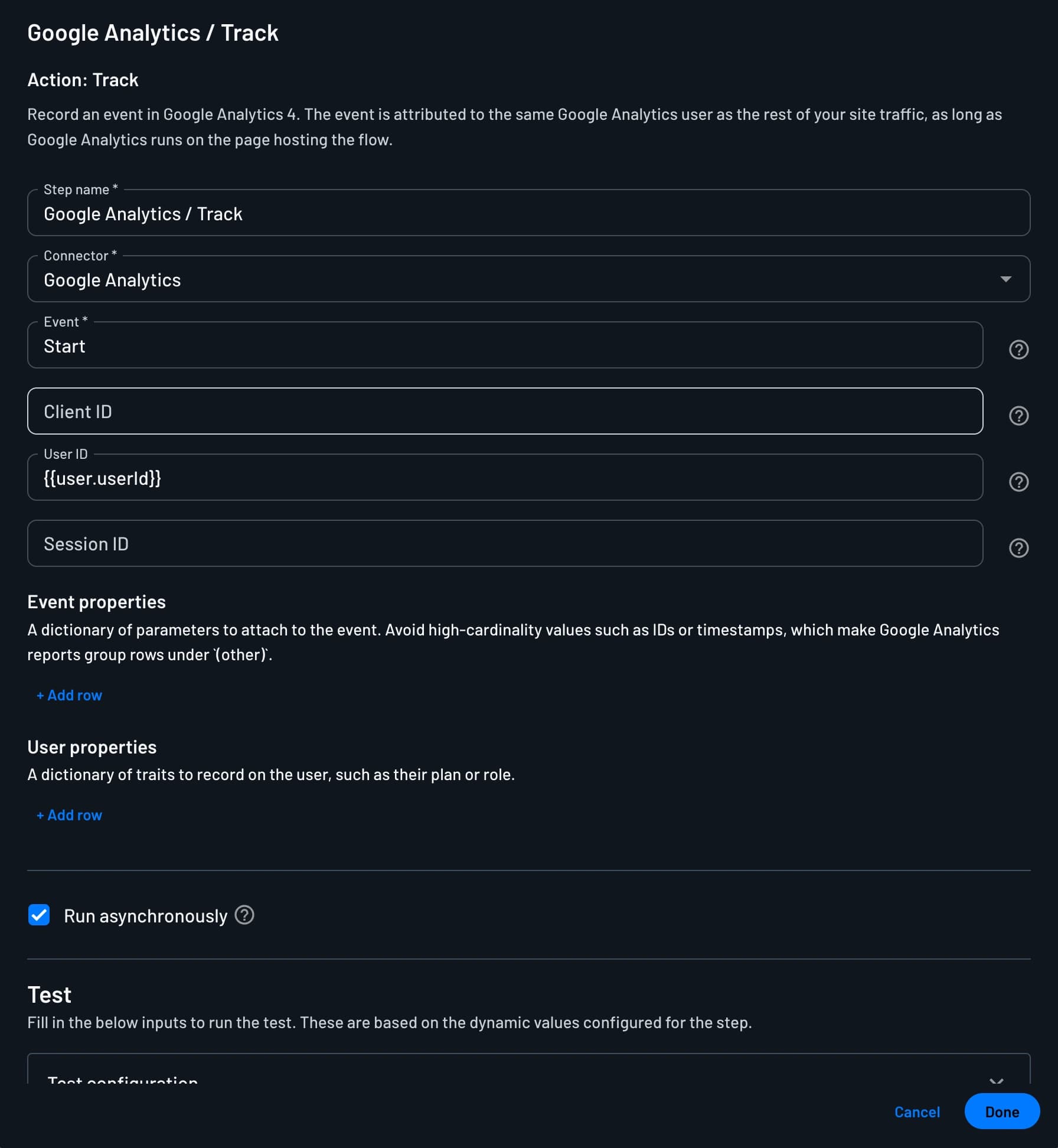
Click to set down the connector in your flow editor and fill out the fields:
- Event Name: The name of the event to record. Google Analytics only accepts letters, digits, and underscores, so the name is lowercased, any other character becomes an underscore, and the result is truncated to 40 characters.
- Client ID: The Google Analytics client ID to attribute the event to. Leave empty on web, where Descope resolves it from the browser. Set it when the flow runs outside a browser, such as a native or TV app, using the client ID that app persists.
- User ID: Your own ID for the user. Requires the User-ID feature to be enabled on the Google Analytics property to appear in reports.
- Session ID: The Google Analytics session ID to attach the event to. Without it the event is still recorded, but it may not appear in session-scoped reports such as Realtime.
- Event Properties: A dictionary of parameters to attach to the event. Avoid high-cardinality values such as IDs or timestamps, which make Google Analytics reports group rows under
(other). - User Properties: A dictionary of traits to record on the user, such as their plan or role.
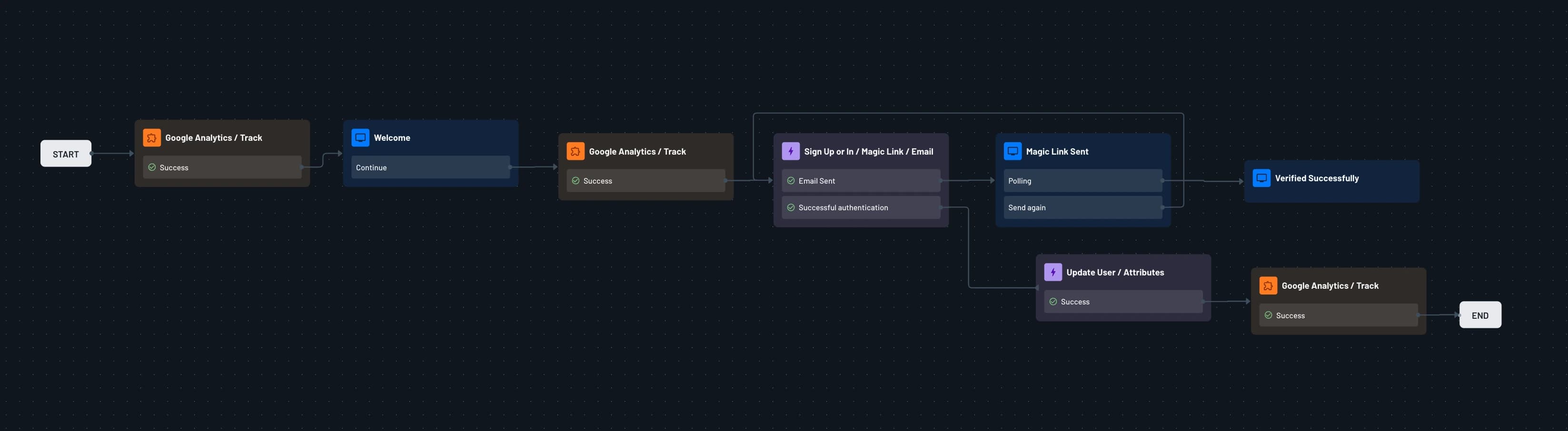
Now, link your connector in your authentication flow, making sure it's placed after any attributes you reference (like form.email or user.userId) are already defined. By adjusting the event name and where in the flow the connector sits, you can track anything from a completed sign-up to a specific authentication method being selected.
Viewing Events
Events sent through the connector appear in your GA4 property the same way client-side events do. Use Realtime reports to confirm events are arriving as you test, and standard GA4 reports or Explorations for ongoing analysis.
The events and logs can still be viewed in Descope on the Audit and Troubleshoot page of the Descope Console.