PostHog Connector
Descope's PostHog connector sends events, person properties, and group properties from your authentication flows to PostHog. Use the connector to record sign-ups, sign-ins, and other authentication steps in PostHog without adding tracking code to your login pages.
This page is for developers who want authentication events in PostHog. If you use another analytics platform, see Amplitude or Segment. To stream Descope audit events to an external tool, see the audit and troubleshooting connectors instead. The PostHog connector works only inside flows.
Why use the PostHog connector
PostHog accepts events through an HTTP capture API, so you can already send events from a flow with the Generic HTTP connector. That approach works, but it has two costs. Your PostHog project API key sits in the flow definition, so the key appears in every flow export. You also write the JSON body for each event by hand.
The PostHog connector removes both costs. The project API key lives in the connector configuration, and each flow step fills in a few named fields instead of a request body. Descope then builds the PostHog request for you.
How it works
PostHog organizes analytics around three ideas. An event is something that happened, such as user signed up. A person is the user the event belongs to, identified by a distinct ID. A group is a collection of people, such as a company, which PostHog calls a group type plus a group key.
The connector gives you one action for each idea:
- Capture: Records an event for a distinct ID. You can also set person properties and attach the event to groups in the same step.
- Identify: Sets person properties on a distinct ID.
- Group Identify: Sets properties on a group, for example the name of a tenant.
Each action runs asynchronously by default, so a slow or unavailable PostHog host never delays authentication. A success result means PostHog accepted the request. An accepted event may not show in PostHog's activity view right away.
Configure the PostHog connector
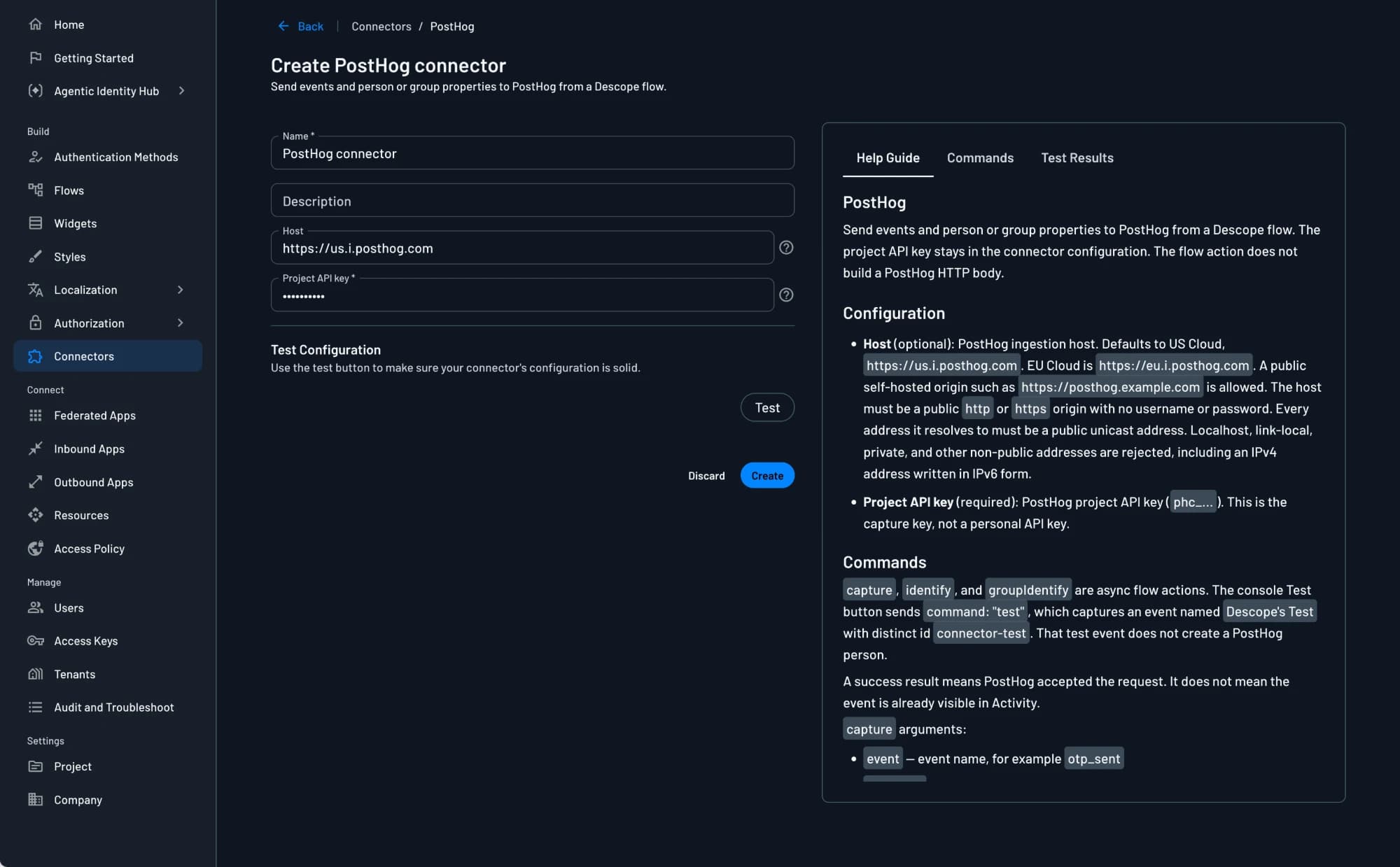
Navigate to the Connectors page in the Descope Console and select PostHog to create a new connector. Fill in the following parameters:
- Connector Name: A custom name for your connector. The name helps when you create several connectors from the same template.
- Connector Description: (Optional) A description of the connector's purpose.
- Host: (Optional) The PostHog ingestion host. When you leave it empty, Descope uses US Cloud (
https://us.i.posthog.com). For EU Cloud, enterhttps://eu.i.posthog.com. For a self-hosted PostHog, enter its public origin, such ashttps://posthog.example.com. - Project API key: The capture key of your PostHog project. It starts with
phc_. Use the project API key, not a personal API key. Descope stores the key as a secret.
Host requirements
Descope checks the host before it sends anything, so nobody can point the connector at your internal network. The host must be a public http or https origin without a username or password. Descope resolves the hostname and rejects it when any resolved address is not public. Localhost, link-local, private, and other non-public addresses fail this check, including an IPv4 address written in IPv6 form. The connector also refuses to follow redirects, so a public host cannot forward your project API key to another address.
A failed check returns the error Invalid PostHog host.
Testing
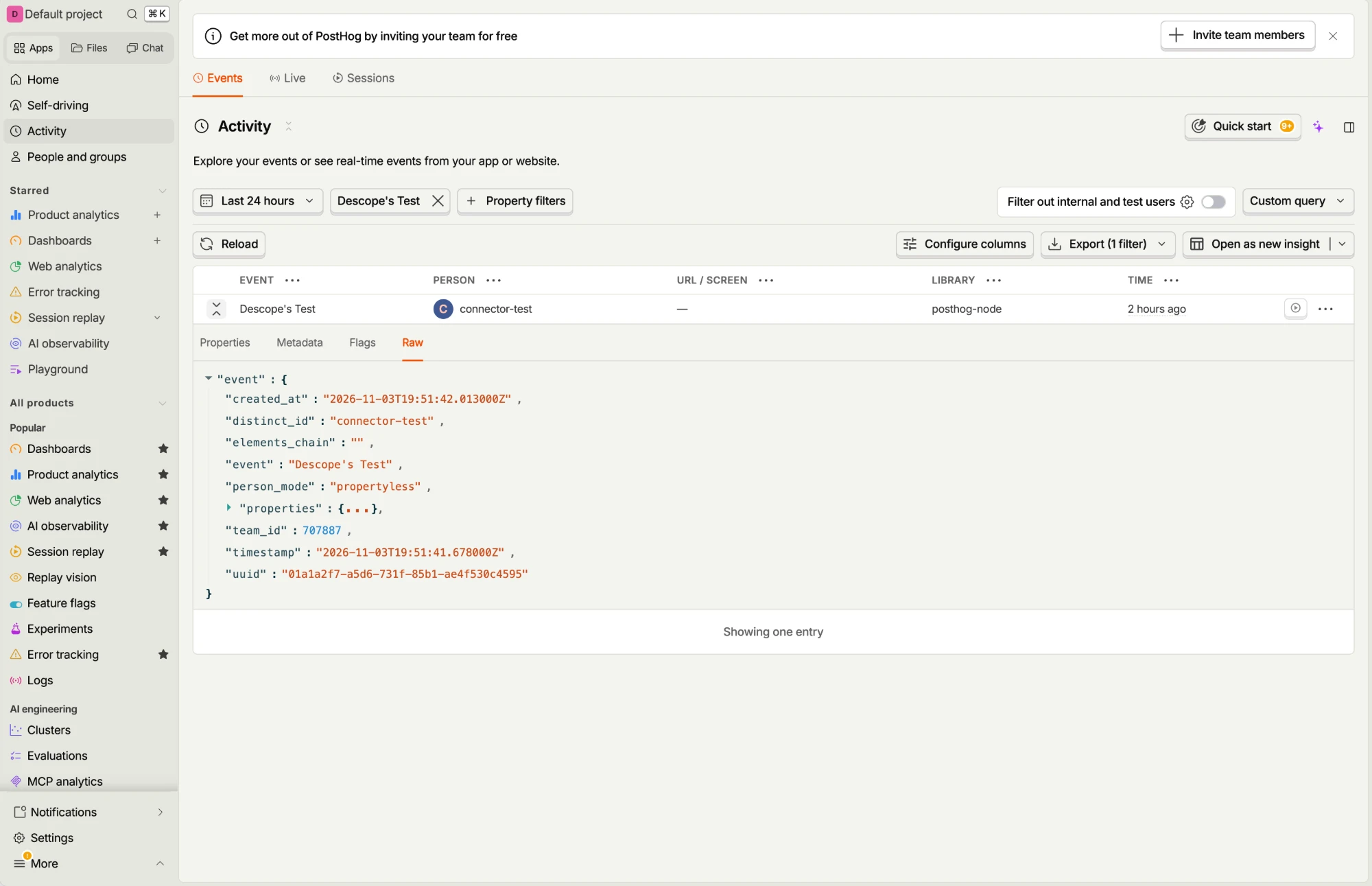
Before you create the connector, click Test. The Test Results tab shows whether PostHog accepted the request. The test sends an event named Descope's Test with the distinct ID connector-test. The event does not create a person in PostHog, so it does not add a profile to your user list. Look for the event in PostHog's activity view.
Add the PostHog connector to a flow
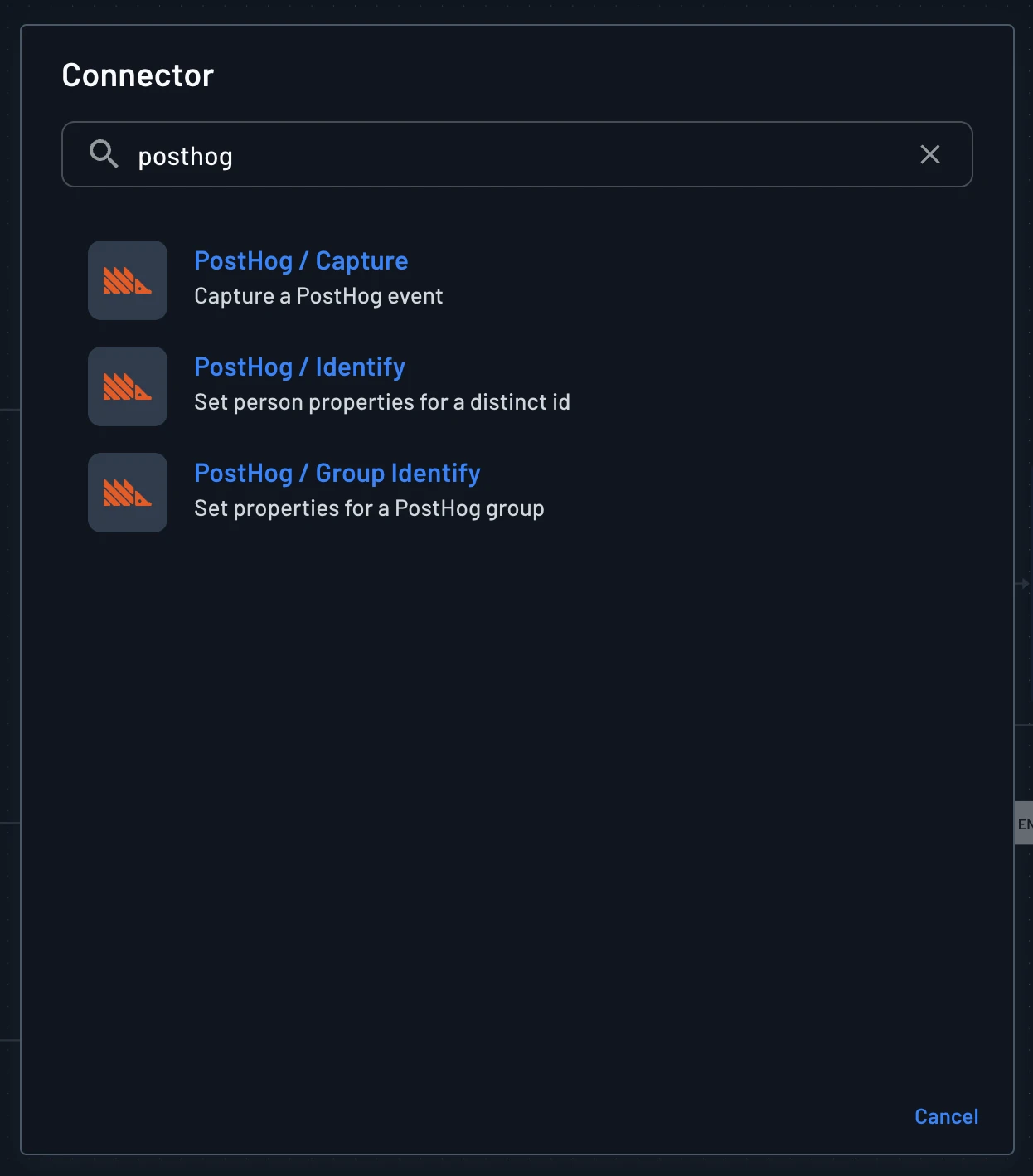
Navigate to Flows and choose your flow. Click the create button (the + icon), select Connector, and search for posthog. The connector offers three actions: PostHog / Capture, PostHog / Identify, and PostHog / Group Identify. Choose the action you want, then fill out its fields.
Place the step after the flow defines every value it references, such as {{user.userId}}. Each field accepts text or dynamic keys from the flow context. For general settings that every connector step shares, see Connectors in Flows.
Capture
Use Capture to record an event. This action covers most analytics needs.
- Event: The name of the event, for example
otp_sentoruser signed up. (Required.) - Distinct ID: The ID of the person the event belongs to. (Required, and not empty.) See Choosing a distinct ID.
- Event properties: Key and value pairs stored on this event, for example
flowandchannel. - Person properties: Key and value pairs that PostHog sets on the person. The connector sends them as
$set, so a new value replaces the old one. - Person properties once: Key and value pairs that PostHog sets only when the person does not have them yet. The connector sends them as
$set_once. - Groups: Key and value pairs that attach the event to groups, for example
companywith the value{{tenant.id}}.
Identify
Use Identify to update the properties of a person without recording an event.
- Distinct ID: The ID of the person to update. (Required, and not empty.)
- Person properties: Key and value pairs that PostHog sets on the person (
$set). - Person properties once: Key and value pairs that PostHog sets only when the person does not have them yet (
$set_once).
Identify updates the person that has the distinct ID you give it. The action does not merge that person with a different ID, for example an ID you used before the user signed in. The connector does not support PostHog's alias in this version.
Group Identify
Use Group Identify to set properties on a group, so that you can analyze usage per customer in a B2B app.
- Group type: The kind of group, for example
company. (Required.) - Group key: The unique ID of the group, for example
{{tenant.id}}. (Required.) - Group properties: Key and value pairs that PostHog sets on the group.
- Distinct ID: (Optional) The person this group update belongs to. When you leave the field empty, PostHog creates a placeholder person for the group.
Pass a distinct ID if you do not want that placeholder person in your PostHog data. The group type is free text, so use the same value in Group Identify and in the Groups field of Capture.
Group analytics is a paid PostHog feature
Group Analytics, including the Groups page in PostHog, is a paid add-on in PostHog. The connector still sends Group Identify requests when the add-on is off. The Groups page does not show those groups until you enable the add-on.
Choosing a distinct ID
PostHog joins events into one person by distinct ID. If your flow and your frontend use different IDs for the same user, PostHog shows two people. Choosing the ID once, and using it on both sides, keeps your analytics accurate.
Use {{user.userId}} as the distinct ID after the Descope user exists. It is stable and it does not expose personal data to a third party. If your frontend also sends events to PostHog, call posthog.identify() there with the same Descope user ID. Frontend events and flow events then land on one person.
Some events happen before a user exists, such as the first step of a sign-up flow. Those steps have no user.userId yet. Pass the ID the flow already has, for example {{form.externalId}}. The connector does not invent an ID for you.
Keep personal data out of events
The connector does not copy a user's email address or phone number into events on its own. Do not add a raw email address or phone number to event properties unless you want PostHog to store it.
Viewing events in PostHog
Events from the connector appear on the Activity page of your PostHog project, next to events from your own application. Filter by event name to find them. The connector's test event, for example, appears as Descope's Test. Person properties show on the person, and group properties show on the group once you enable Group Analytics.
Next steps
To learn how connector steps behave in a flow, including timeouts and error handling, read Connectors in Flows. For the values you can reference in your steps, see Dynamic Keys. If you also send product analytics to another platform, compare the Amplitude connector.