Mixpanel Connector
This guide covers implementing Descope's Mixpanel connector. The Mixpanel Connector lets you automatically stream Descope audit events and troubleshooting logs into your Mixpanel project.
Mixpanel is an advanced analytics platform that helps businesses understand how users interact with their digital products, like websites and mobile apps.
Configure Mixpanel Connector
Navigate to the Connectors page in the Descope Console and configure the Mixpanel connector.
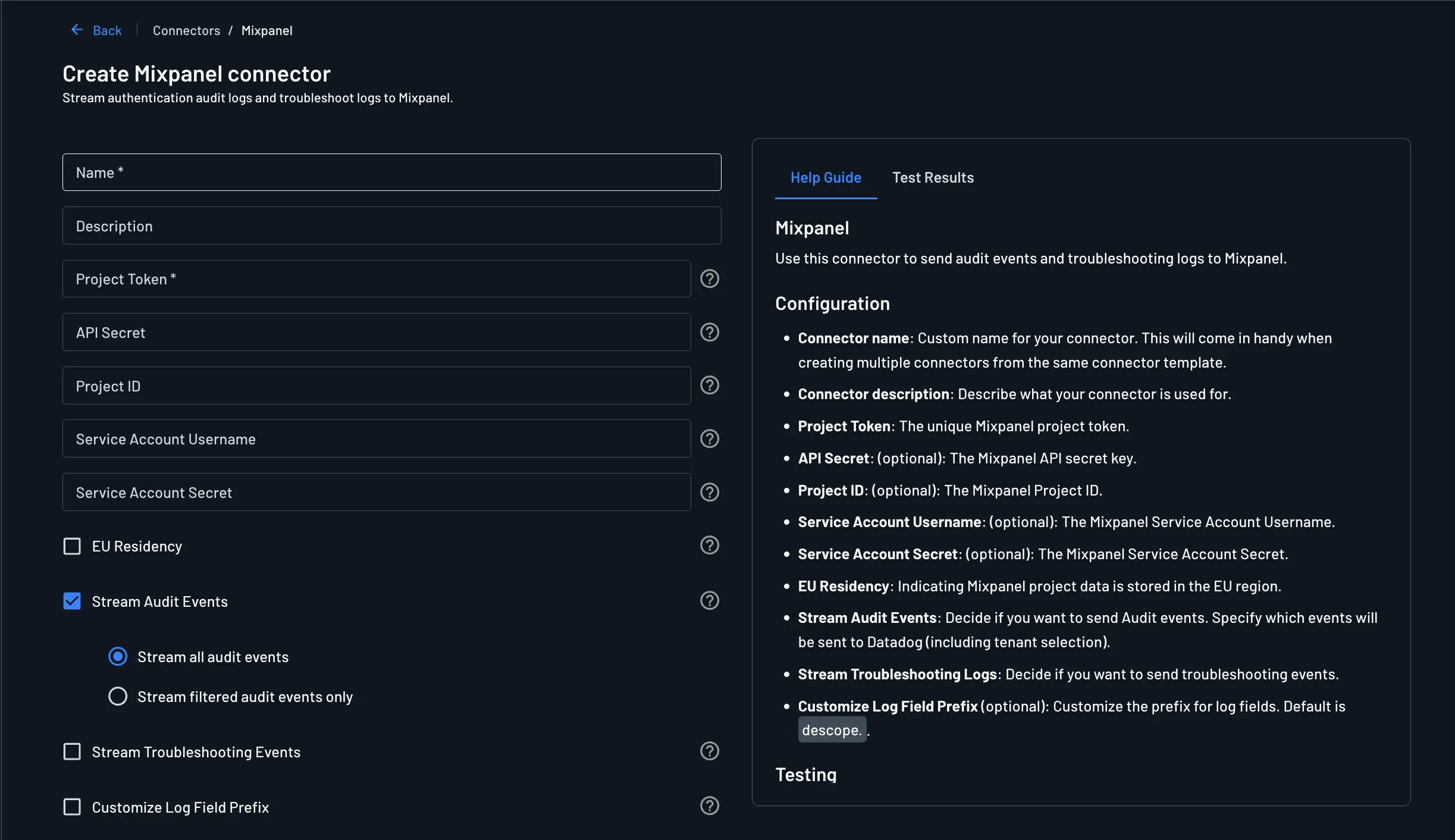
The following parameters are required to use it:
- Connector Name: Provide a unique name for your connector. This will come in handy when creating multiple connectors from the same connector template.
- Connector Description: Briefly explain the purpose of this connector.
- Project Token: The unique project token for your Mixpanel project.
- API Secret: (Optional) The API secret for your Mixpanel project.
- Project ID: (Optional) The project ID for your Mixpanel project.
- Service Account Username: (Optional) The username of the service account to use for the connector.
- Service Account Secret: (Optional) The secret of the service account to use for the connector.
- EU Residency: (Optional) Indicating Mixpanel project data is stored in the EU region.
- Stream Audit Events: Select which events are sent to Mixpanel. Descopers can allow all audit events or filter them based on certain actions that occur or tenants in the project.
- Stream Troubleshooting Events: Decide whether troubleshooting events are also sent to Mixpanel.
- Customize Log Field Prefix: (Optional) Customize the prefix for log fields. Default is
descope..
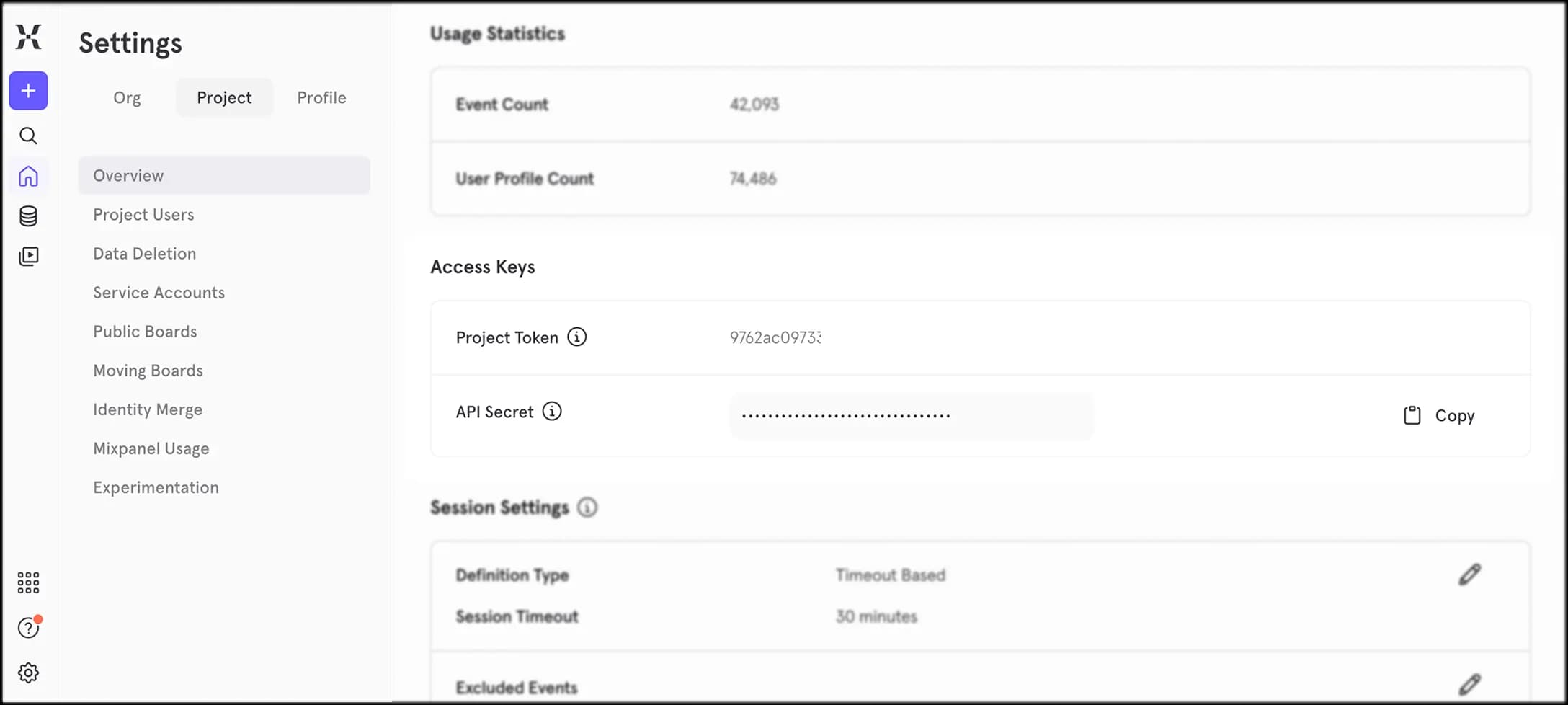
Getting the Project Token
You can find the Project Token and API secret under Access Keys in the Mixpanel project settings.
Viewing Audit Events and Troubleshooting Logs
Once you've completed all of the steps above, your Descope Audit Events and Troubleshooting Logs should now be available in Mixpanel. You can test the connector during configuration to verify that events are being sent and collected correctly.
The events and logs can still be viewed in Descope on the Audit and Troubleshoot page of the Descope Console.