Cribl Connector
Descope enables you to automatically collect authentication logs and audit events and forward them to your Cribl Stream instance for centralized analysis, routing, and processing.
Configure the Cribl Connector in Descope
Configuring the Connector
Navigate to the Connectors page in the Descope Console and select Cribl to create a new Cribl connector.
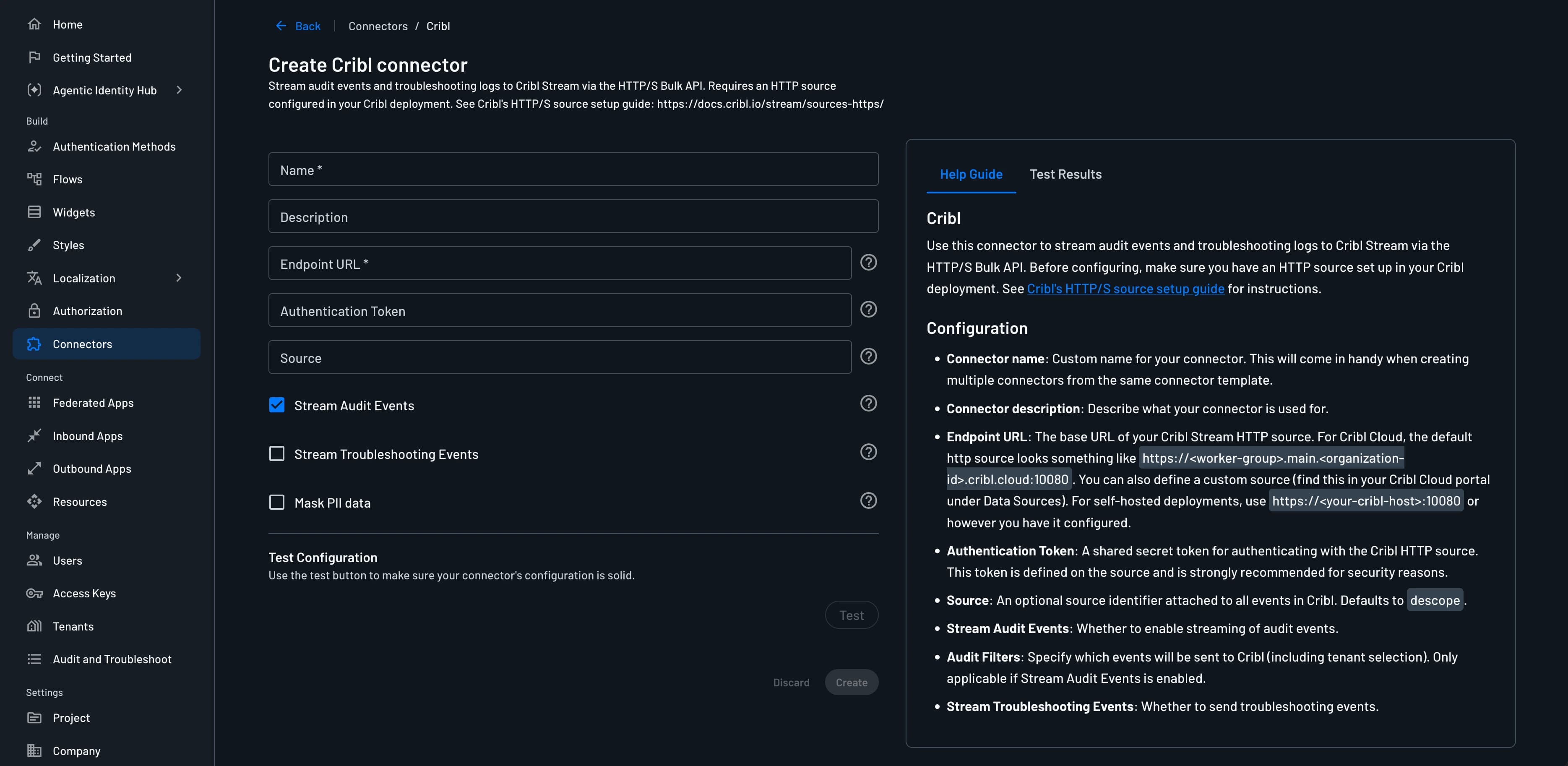
The following parameters are required to use it:
- Connector Name: Provide a unique name for your connector. This assists in distinguishing it, especially when multiple connectors are derived from the same template.
- Connector Description: Briefly explain the purpose of this connector (optional).
- Endpoint URL: The base URL of your Cribl Stream instance.
- Authentication Token: A shared secret token for authenticating with your Cribl HTTP Source.
- Source (Optional): A source identifier attached to all the events in Cribl (default is
descope). - Stream Audit Events: Select this if you want to stream audit events to your Cribl Stream instance.
- Stream Troubleshooting Events: Decide whether troubleshooting events are also sent to Cribl.
- Mask PII data: Select whether to mask PII data in the logs.
Testing the Connector
Before creating your connector, its important to verify if the connector configurations works. For this simply click on Test and view the Test Results panel. Confirm it works and click Create.
Viewing Audit Logs
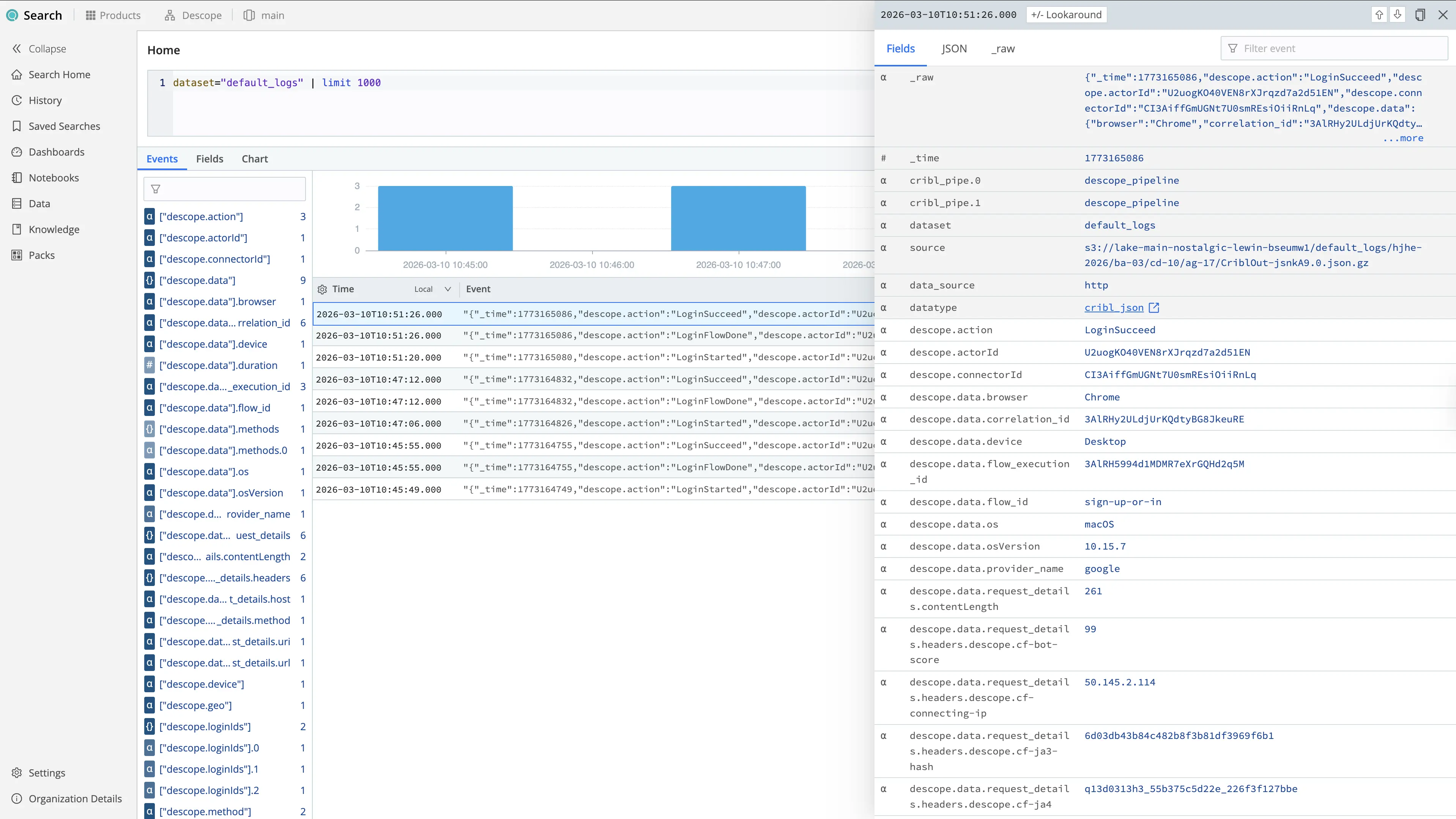
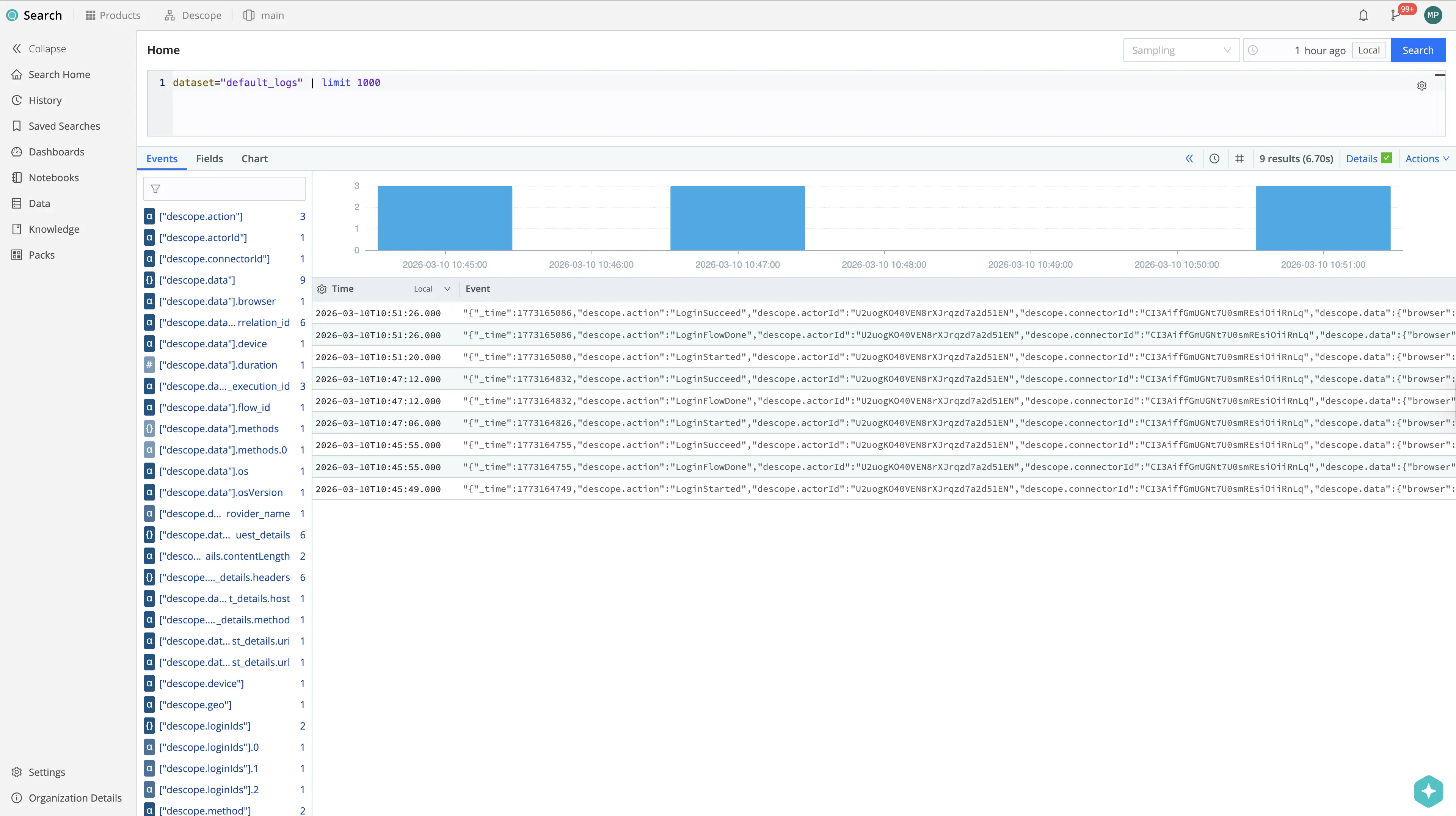
Once configured, audit logs from Descope will flow into your Cribl Stream instance.
The logs can still be viewed in Descope under the Audit and Troubleshoot section of the Descope Console. This should match the events in Cribl Stream under the Search section.
Clicking on one of the events, you see details of all fields being prefixed with descope.. You can remove or change the prefix via the connector configuration.