Groundcover Connector
This guide covers implementing Descope's Groundcover connector. Groundcover is an observability product that allows you to collect log analytics. Descope enables you to automatically collect logs and audit events and stream them to Groundcover.
Configure Groundcover connector
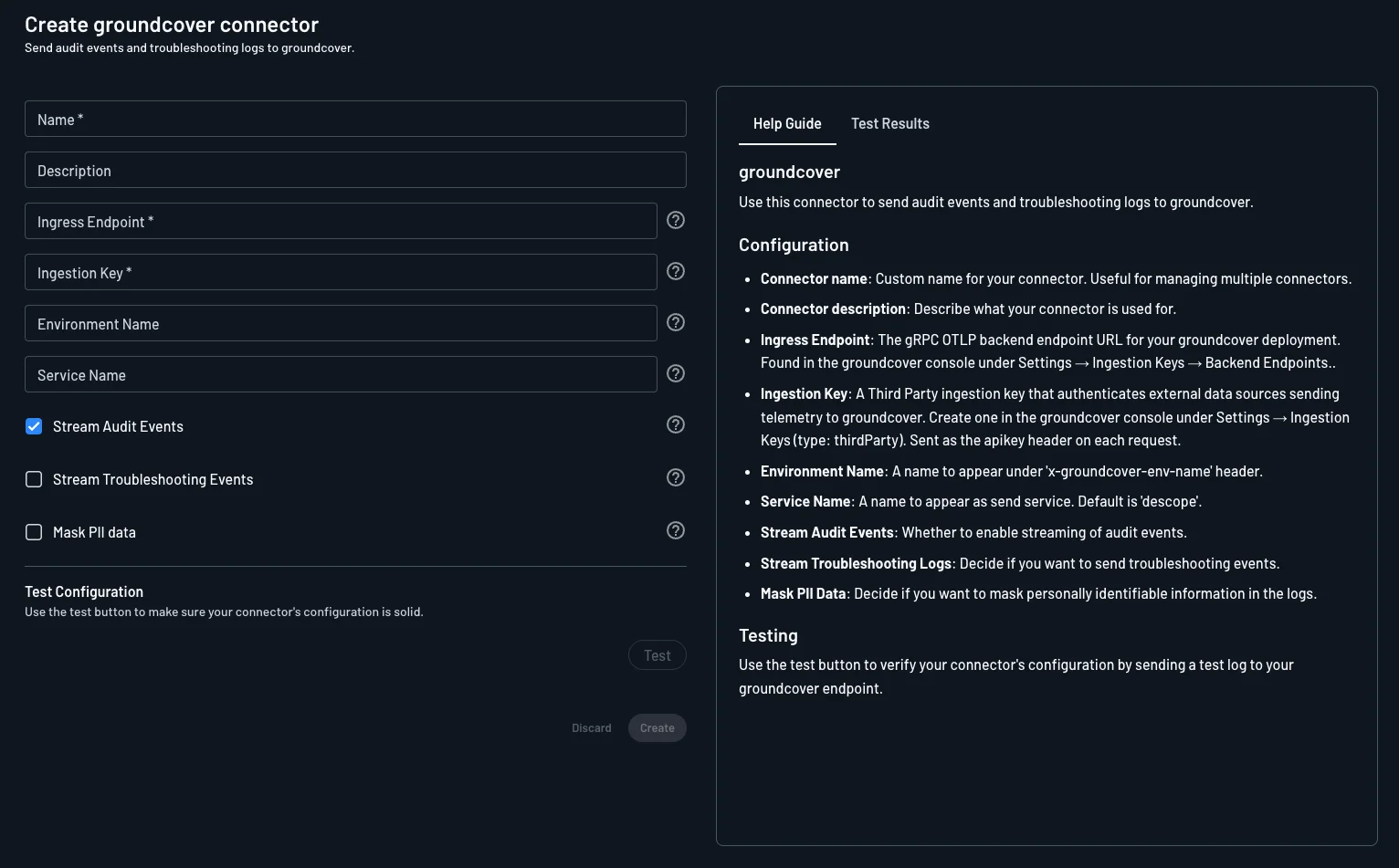
Navigate to the Connectors page in the Descope Console and select Groundcover to create a new Groundcover connector.
The following parameters are required to use it:
- Connector Name: Provide a unique name for your connector. This assists in distinguishing it, especially when multiple connectors are derived from the same template.
- Connector Description: Briefly explain the purpose of this connector.
- Ingress Endpoint: The gRPC OTLP backend endpoint URL for your groundcover deployment. Found in the groundcover console under Settings → Access → Ingestion Keys → Backend Endpoints.
- Ingestion Key: A third party ingestion key that authenticates external data sources sending telemetry to groundcover. Create one in the groundcover console under Settings → Access → Ingestion Keys. Sent as the
apikeyheader on each request. - Environment Name (optional): A name to appear under
x-groundcover-env-nameheader. - Service Name (optional): A name to appear as send service. Default is
descope. - Stream Audit Events: Select this if you want to stream audit events to your Groundcover account. You can choose to stream all audit events or apply a specific filter.
- Stream Troubleshooting Events: Decide whether troubleshooting events are also sent to Groundcover.
- Mask PII: Decide whether to mask PII (personally identifiable information) in the logs.
Getting the Ingress Endpoint and Ingestion Key
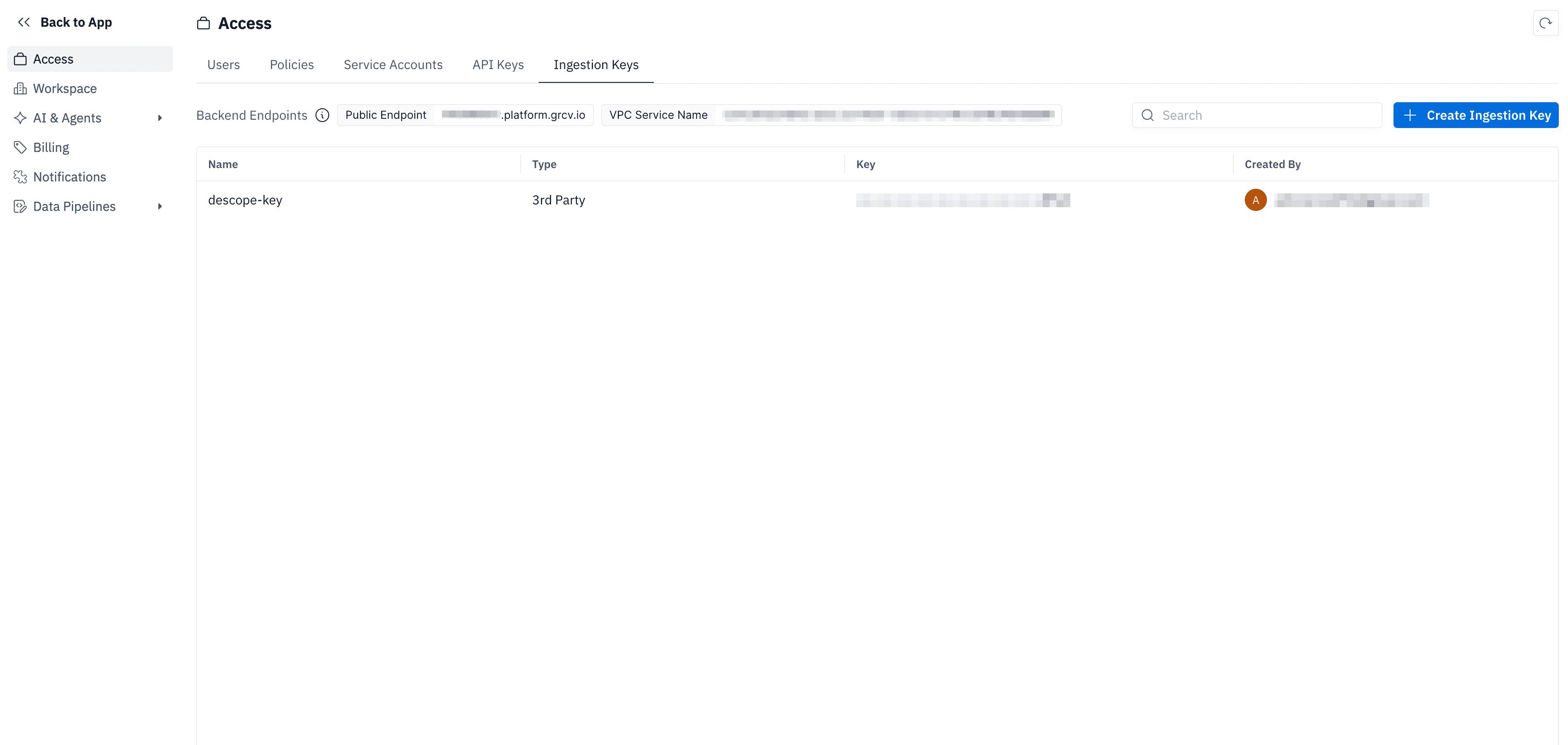
In Groundcover, navigate to Settings and select Access in the sidebar. From this page, navigate to Ingestion Keys. You can find the Ingress Endpoint listed as
Public Endpoint at the top of the page. For the Ingestion Key, create a new Ingestion Key or use an existing one. The key must be of type 3rd Party,
so if you create a new key, select 3rd Party as the key type.
Viewing Audit Logs
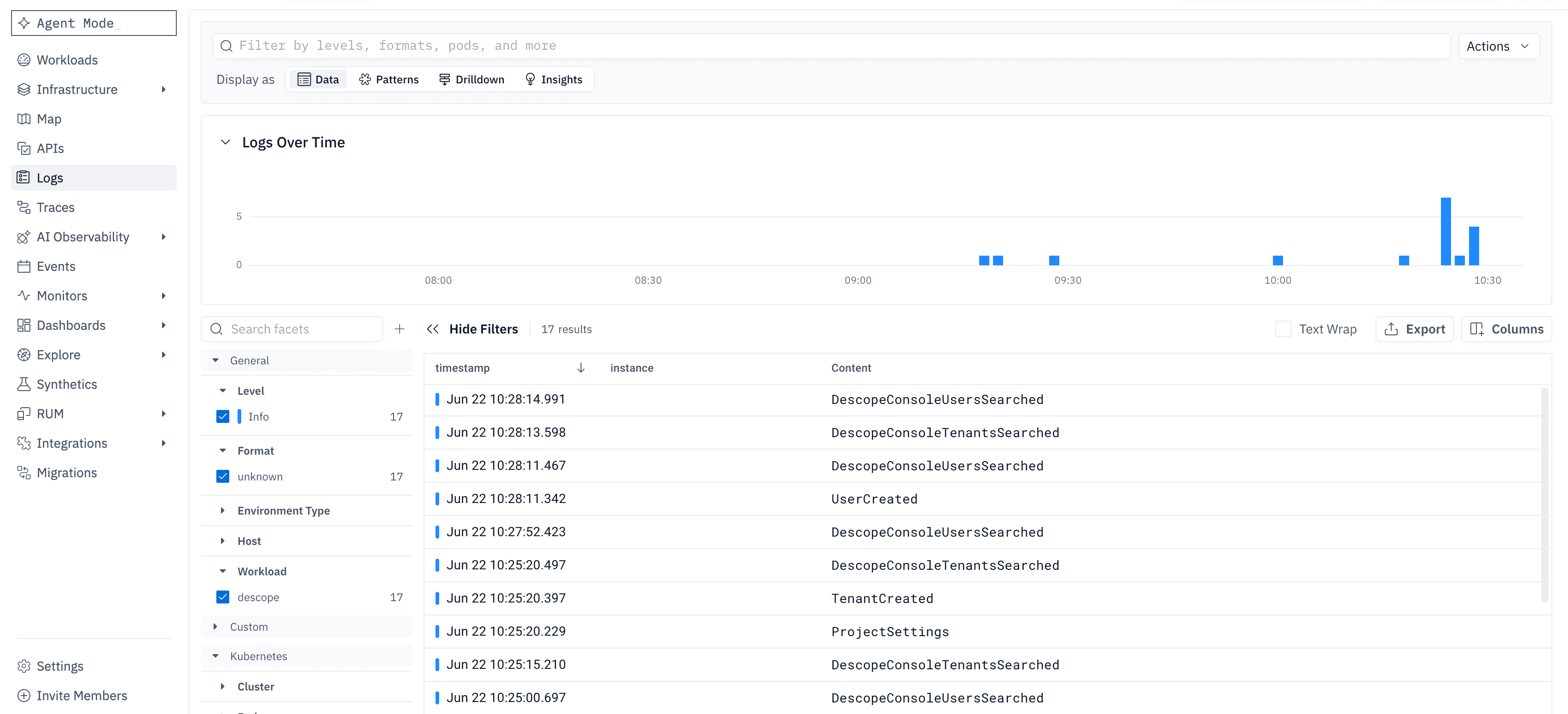
Now the audit logs are viewable in Groundcover in the Logs section of your console. The connector can be tested while configuring it so you can ensure the logs are being sent and collected properly.
The logs can still be viewed in Descope under the Audit and Troubleshoot section of the Descope Console.