Darwinium Connector
Descope's Darwinium connector integrates directly with Darwinium's Event API to perform device profiling and risk assessment during your authentication flows. The connector automatically collects profiling data and sends it to Darwinium for analysis, and returns a decision result that you can use to control flow logic—allowing you to pass, challenge, reject, or review users based on their risk profile.
Setting Up The Darwinium Connector
To integrate the Darwinium connector, follow the steps below:
Navigate to Connector
- Visit the Connectors page in the Descope Console.
- Choose Darwinium from the list of connectors.
Connector Setup
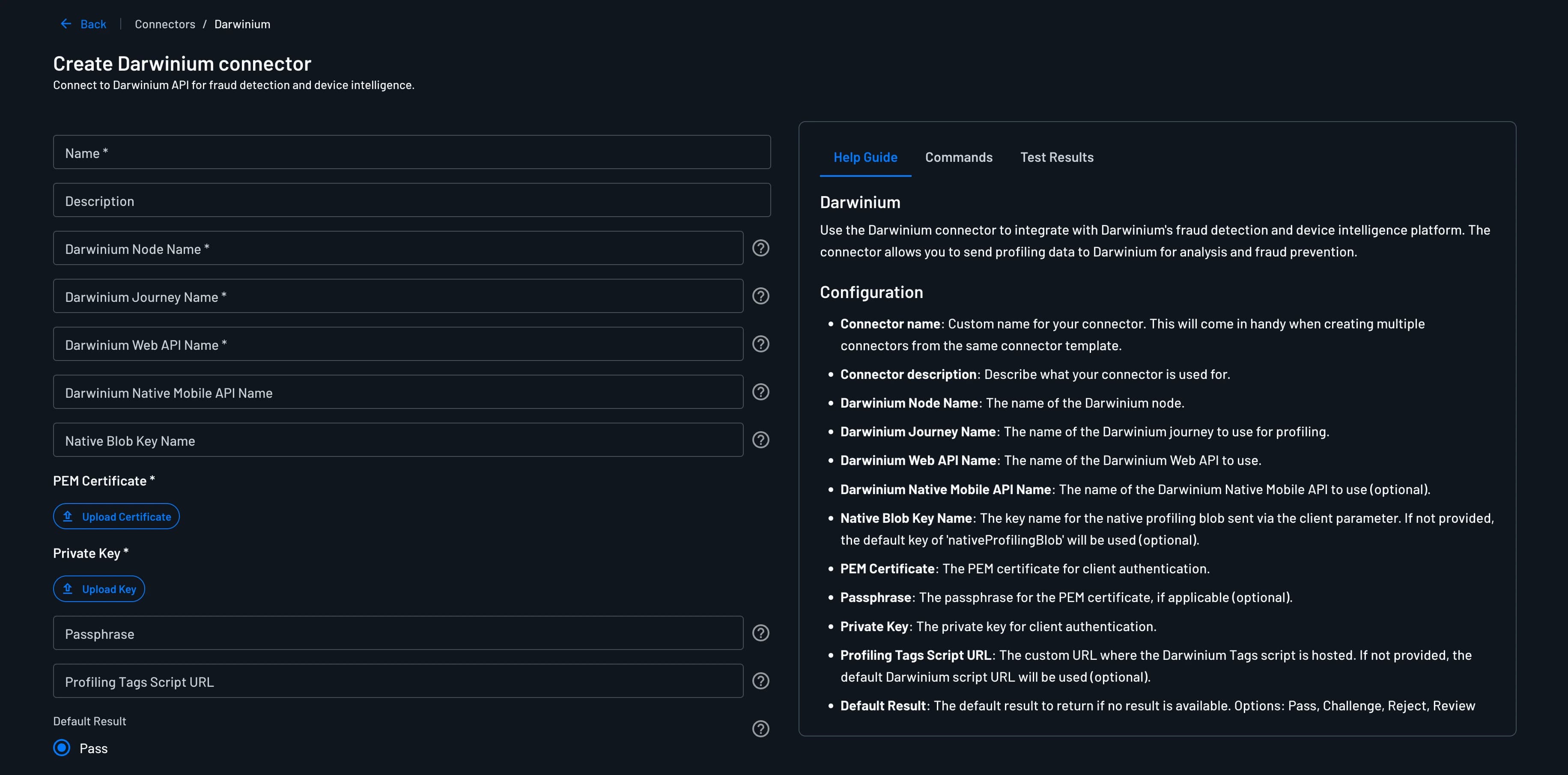
Set up the required credentials and configuration provided by Darwinium:
- Connector Name: Assign a custom name for your connector.
- Connector Description: (Optional) A brief description of your connector's purpose.
- Darwinium Node Name: The name of your Darwinium node (provided by Darwinium during onboarding).
- Darwinium Journey Name: The name of the Darwinium journey to use for profiling. A journey represents a sequence of user interactions that Darwinium tracks for risk assessment.
- Darwinium Web API Name: The name of the Darwinium Web API to use for browser-based profiling.
- Darwinium Native Mobile API Name: (Optional) The name of the Darwinium Native Mobile API to use.
- Native Blob Key Name: (Optional) The key name for the native profiling blob sent via the client parameter. If not provided, the default key of
nativeProfilingBlobwill be used. - PEM Certificate: The PEM certificate for client authentication, provided by Darwinium.
- Passphrase: (Optional) The passphrase for the PEM certificate, if applicable.
- Private Key: The private key for client authentication, provided by Darwinium.
- Profiling Tags Script URL: (Optional) The custom URL where the Darwinium Tags script is hosted.
- Default Result: The default result to return if no result is available from Darwinium. Options: Pass, Challenge, Reject, Review (default: Pass).
Test & Save
- Validate your configuration using the
Testbutton and observing theTest Resultssection. - Conclude the setup process by selecting
Create.
Warning
The Darwinium connector performs client-side profiling and must be placed after at least one screen component in your flow to ensure the profiling script has loaded and can collect behavioral data.
Implementing the Darwinium Connector in Your Flow
1. Select or Create a Flow
- Access your Dashboard -> Flows.
- Opt for an existing flow or generate a new one.
2. Integration
Click the + plus icon in the flow builder and select Connector. You should be able to see the Darwinium / Profile User connector action.
This action automatically collects profiling data from the user's device (web browser or mobile app) and sends it to Darwinium's Event API. Darwinium analyzes the profiling data along with any associated user information and returns a decision result based on your configured decision strategies.
You need to select the Darwinium connector on the first screen in the flow builder to ensure the profiling data is collected. This is required for the connector to work correctly. The connector should be placed after the screen component in the flow builder.
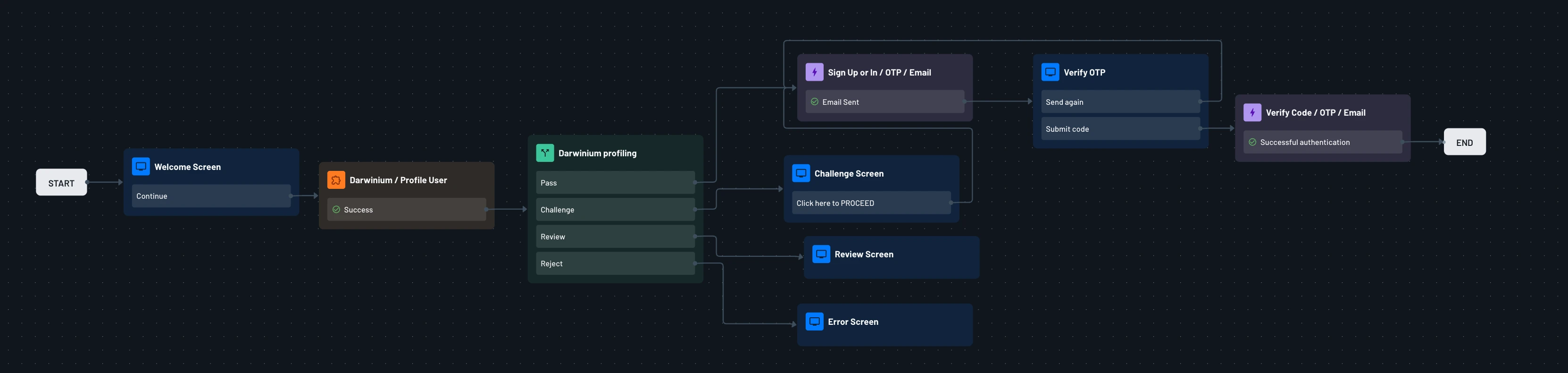
The following flow shows an example where the user enters their email and details on the first screen and then we send the profiling data to Darwinium / Profile User connector that is then passed to a condition that checks the Darwinium decision result.
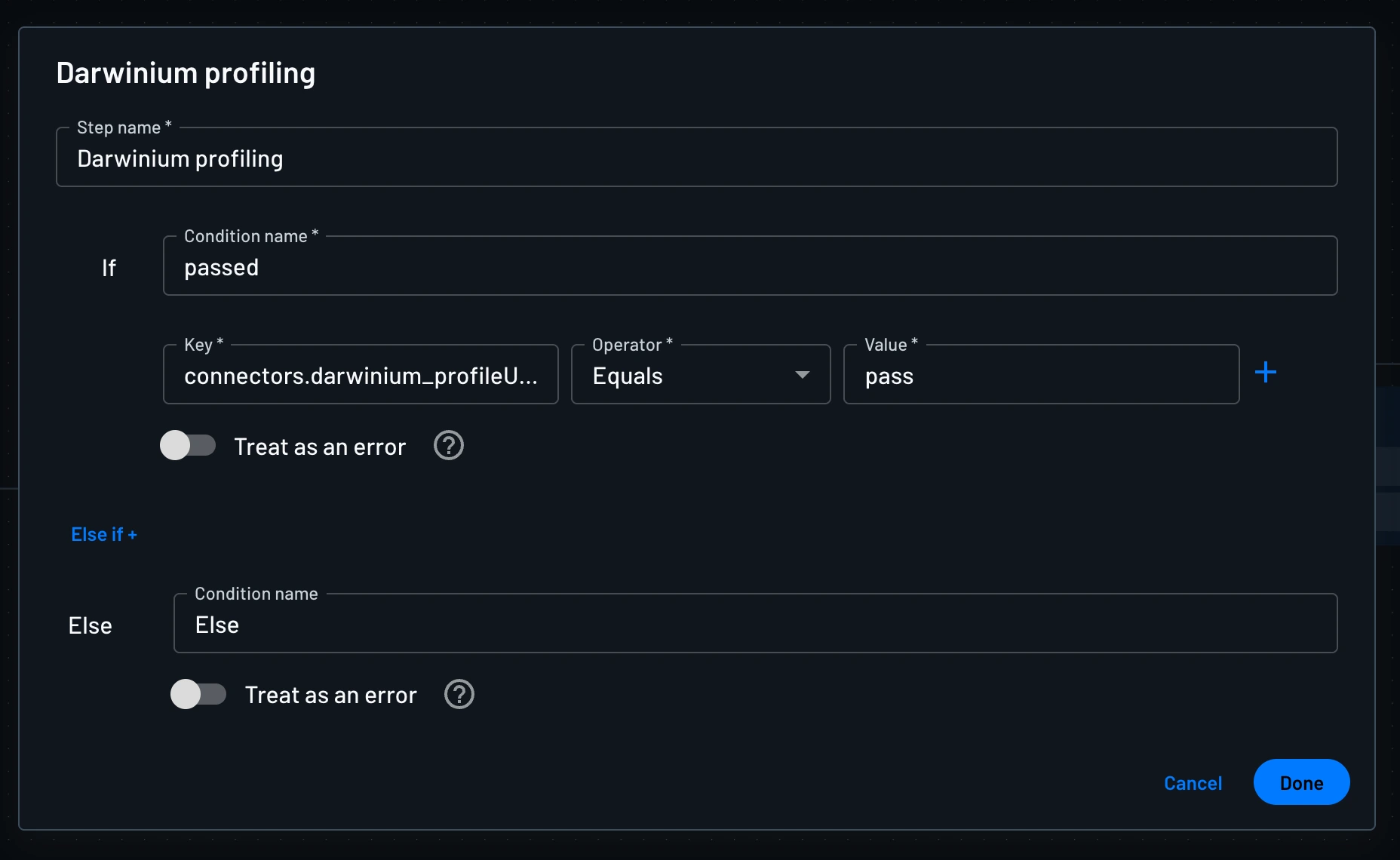
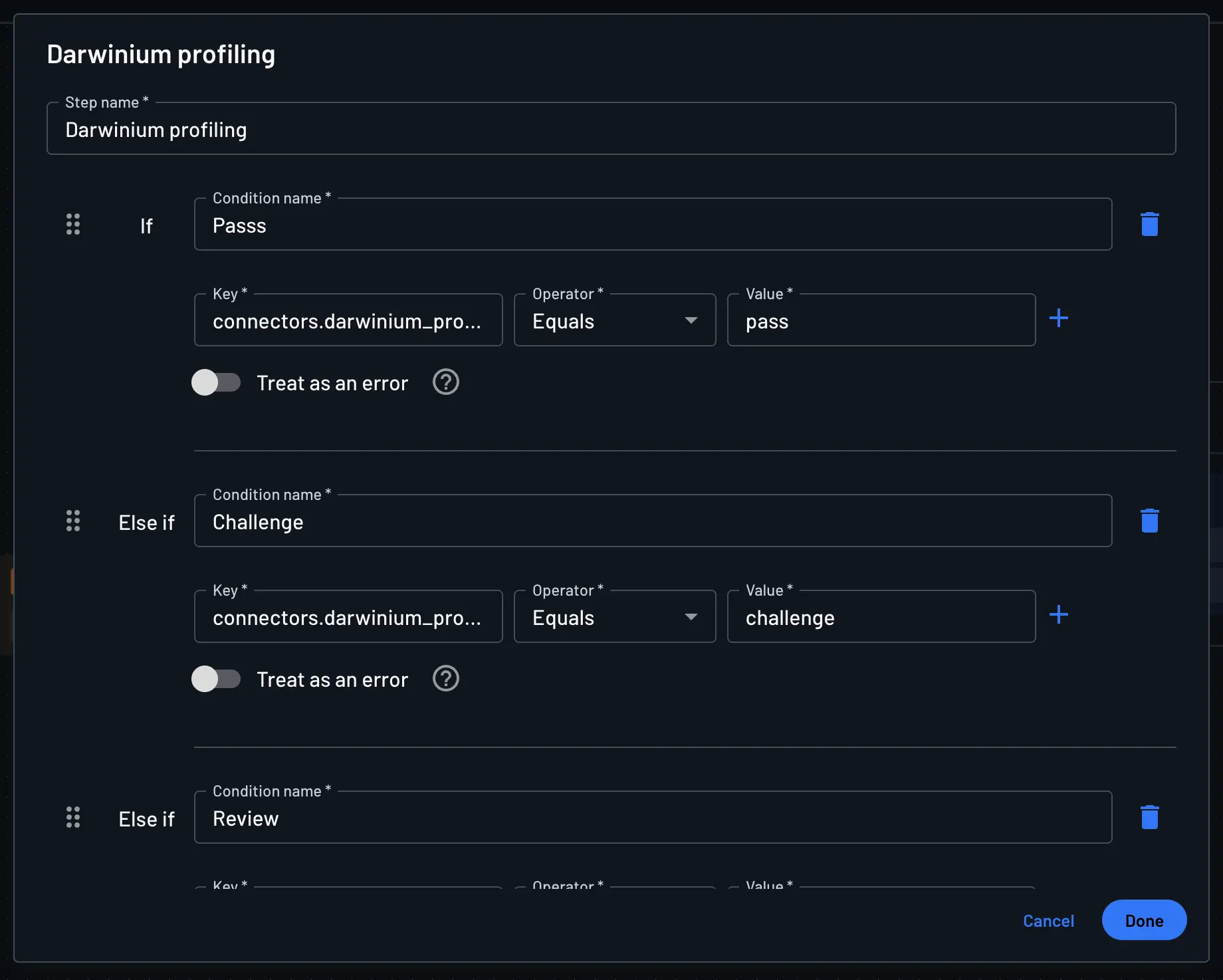
The Darwinium response is mapped into the darwinium_profileUser context key in the flow. You can add a Condition step that reads from this context key and uses the result field to decide how to route the user.
You can use the result value in Conditions to determine if the user should proceed, undergo additional verification (step-up authentication), be blocked, or be flagged for manual review.
In the example below:
- If
resultispass, the user continues in the flow. - If
resultischallenge, the user is prompted to complete the Challenge and then continue in the flow. - If
resultisreview, the user is flagged for manual review. - If
resultisreject, the user is blocked from continuing in the flow.
Note
You can customize the flow conditions and actions based on your specific risk assessment needs.