Turnstile Connector
Turnstile is Cloudflare's smart CAPTCHA alternative that protects your site from spam and abuse. Unlike traditional CAPTCHAs, Turnstile can be embedded into any website without sending traffic through Cloudflare and works without showing visitors a CAPTCHA in most cases.
How Turnstile Works
Turnstile uses advanced risk analysis techniques to distinguish humans from bots. The service adapts the challenge outcome to each individual visitor or browser by running a series of small, non-interactive JavaScript challenges. These challenges include:
- Proof-of-work and proof-of-space: Computational challenges that verify legitimate browser behavior
- Web API probing: Detection of browser environment and capabilities
- Browser-quirk detection: Analysis of human-like browser interactions and behavior patterns
Based on these signals, Turnstile fine-tunes the difficulty of the challenge to the specific request, allowing most legitimate users to pass without any interaction. Only suspected bots are presented with an interactive challenge.
Note
Turnstile is WCAG 2.1 AA compliant and accessible to all users. For detailed information on Turnstile's data privacy practices, refer to the Turnstile Privacy Addendum.
Setting Up the Turnstile Connector
CSP Requirement
If your site enforces a Content Security Policy, you must add challenges.cloudflare.com to your script-src and frame-src directives for Turnstile to load. Without this, the Turnstile widget will be silently blocked by the browser.
To integrate the Turnstile connector, follow the steps below:
1. Navigate to Connector
- Visit the Connectors page in the Descope Console.
- Choose Turnstile from the list of connectors.
2. Connector Setup
Set up the necessary inputs:
- Connector name: Custom name for your connector. This will come in handy when creating multiple connectors from the same connector template.
- Connector description: Describe what your connector is used for.
- Site Key: The site key you get from Cloudflare. For more information on obtaining your keys, see the Cloudflare Turnstile documentation.
- Secret Key: The secret key you get from Cloudflare. Keep this key secure and never expose it in client-side code.
3. Test & Save
- Validate your configuration by clicking the
Testbutton and observing theTest Resultssection. - Once successful, click
Createto save the connector.
Implementing the Turnstile Connector in Your Flow
Minimum SDK Version
The Turnstile connector requires at least the following SDK versions:
| SDK | Minimum version |
|---|---|
@descope/web-component | 3.69.1 |
@descope/react-sdk | 2.29.2 |
@descope/angular-sdk | 0.26.2 |
@descope/vue-sdk | 2.17.2 |
@descope/nextjs-sdk | 0.15.45 |
@descope/web-js-sdk | 1.50.4 |
1. Select or Create a Flow
- Access your Dashboard -> Flows.
- Select an existing flow or create a new one.
2. Integration
Add the Turnstile component to the relevant screen in your flow.
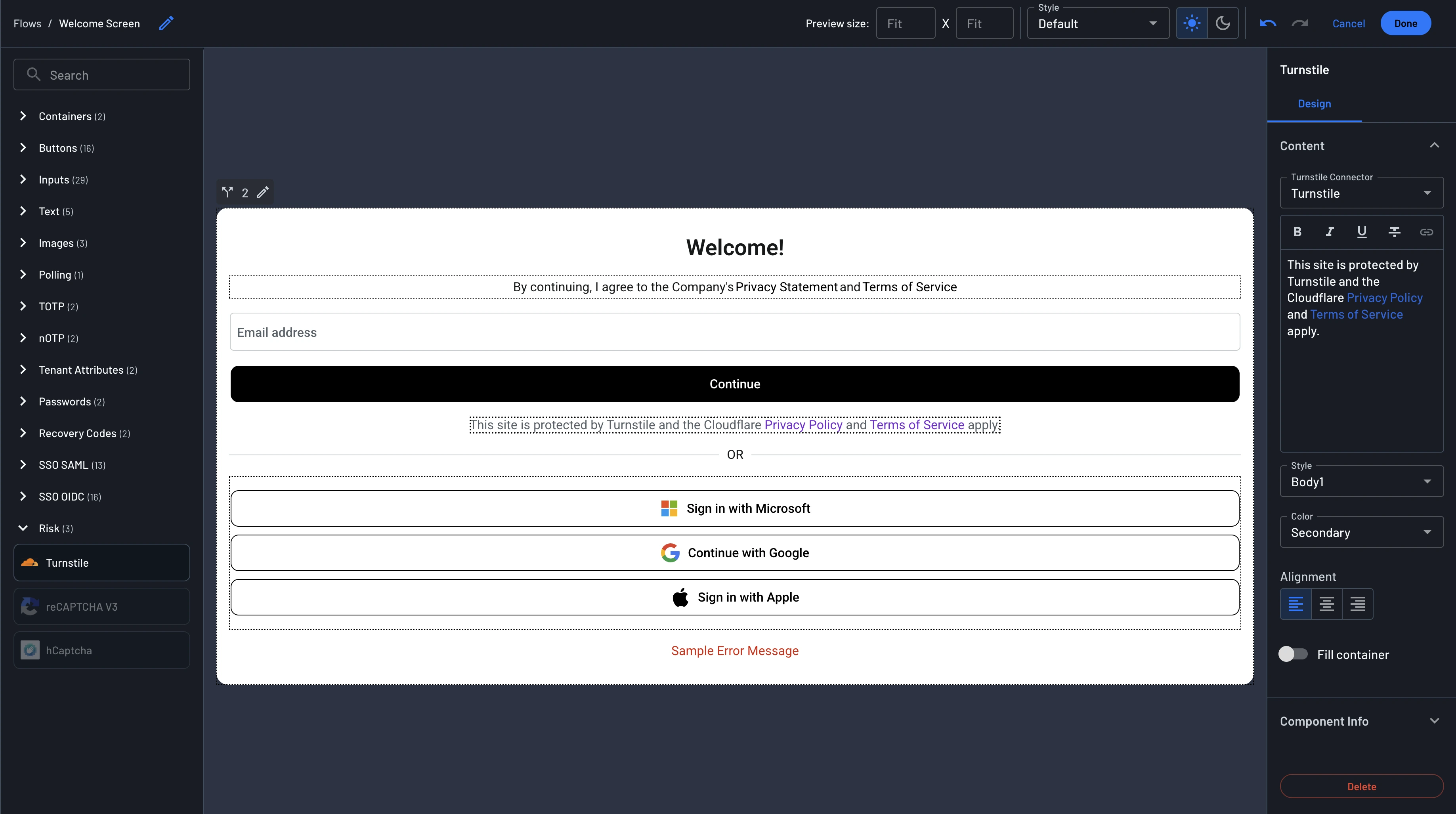
Click on the blue plus sign inside the flow builder and choose "Connector". You should be able to see the new connector action as shown below.
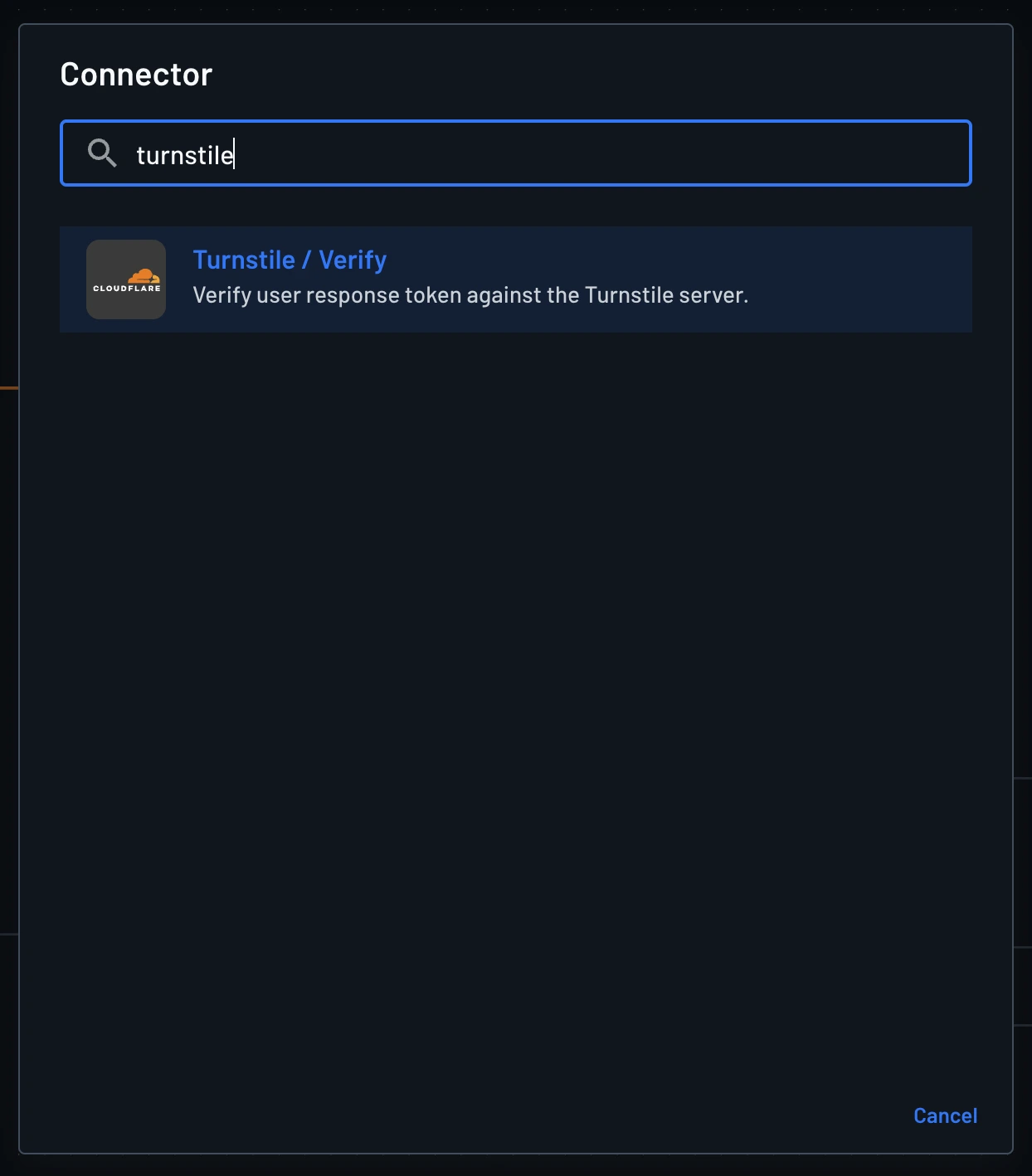
Place the Turnstile / Verify command in the flow, typically immediately after the screen step. The Verify command should be used whenever you need to calculate risk with Turnstile or any CAPTCHA solution.
Once you have a Turnstile connector configured after a screen step (as required), its result will be incorporated into the flow's riskInfo.riskScore context key.
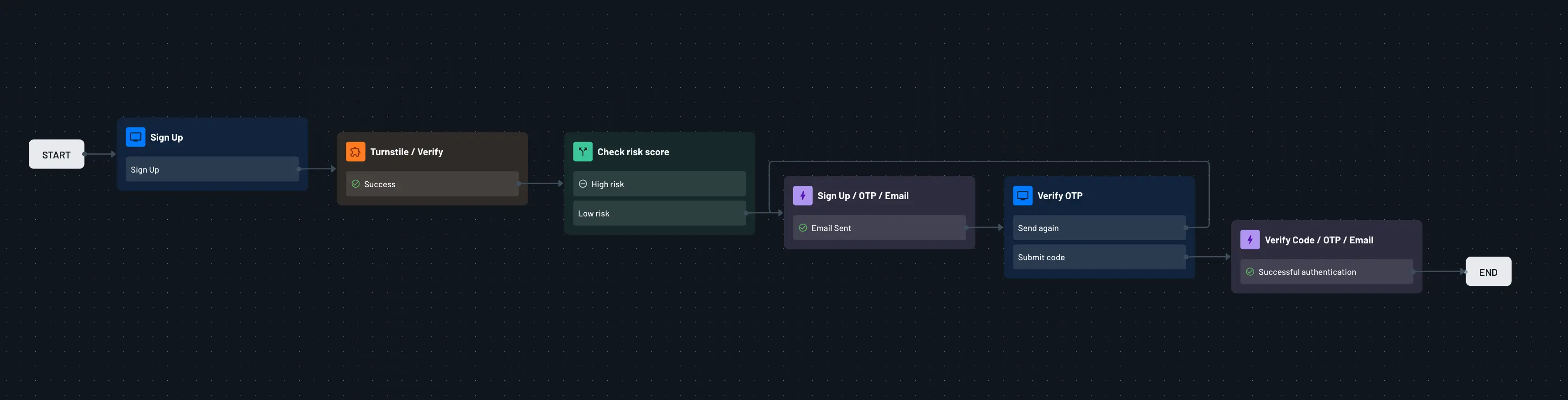
The Verify command validates the Turnstile challenge token that was generated on the client side, ensuring that the user has successfully completed the Turnstile challenge.