Calendar MCP Server with SSO and Tool-Level Scopes
For a high level overview of how MCP servers work with Descope, please refer to the MCP Server docs.
This example demonstrates how to build a secure calendar MCP server that:
- Restricts access to only registered MCP clients (Claude Desktop and ChatGPT)
- Requires SSO authentication via Okta or Azure AD for "Tenant A"
- Grants write access only to users with the
schedulerpermission in "Tenant A" - Allows read-only access to all other authenticated users
Step 1: Configure the MCP Server
-
Create an MCP Server in Descope:
- Navigate to MCP Servers and create a new MCP Server
- Enable Dynamic Client Registration (DCR) to allow Claude and ChatGPT clients to register automatically
- Create a Client Registration Flow, configure Approved Redirect URLs to restrict registration:
claude://oauth-callback/*
https://chat.openai.com/oauth/callback/*
This ensures only Claude Desktop and ChatGPT can register as OAuth clients.
-
Define MCP Tool Scopes:
mcp:calendar.write- Permission to create, update, or delete calendar eventsmcp:calendar.readonly- Permission to read calendar events and query availability
-
Configure the Consent Flow:
- Create a Descope Flow that handles user consent
- Set this as the Flow Hosting URL in your Inbound App settings
- The flow will display which scopes the MCP client is requesting
Step 2: Set Up SSO for Tenant A
-
Configure SSO Providers:
- For Tenant A: Set up Okta or Azure AD as the SSO provider
-
Map SSO Groups to Descope Permissions:
- In your SSO provider (Okta or Azure AD), create a group called "Schedulers"
- Configure Descope to map this group to a
schedulerpermission - Users in the "Schedulers" group will automatically receive the
schedulerpermission in their JWT claims
Step 3: Create Access Control Policies
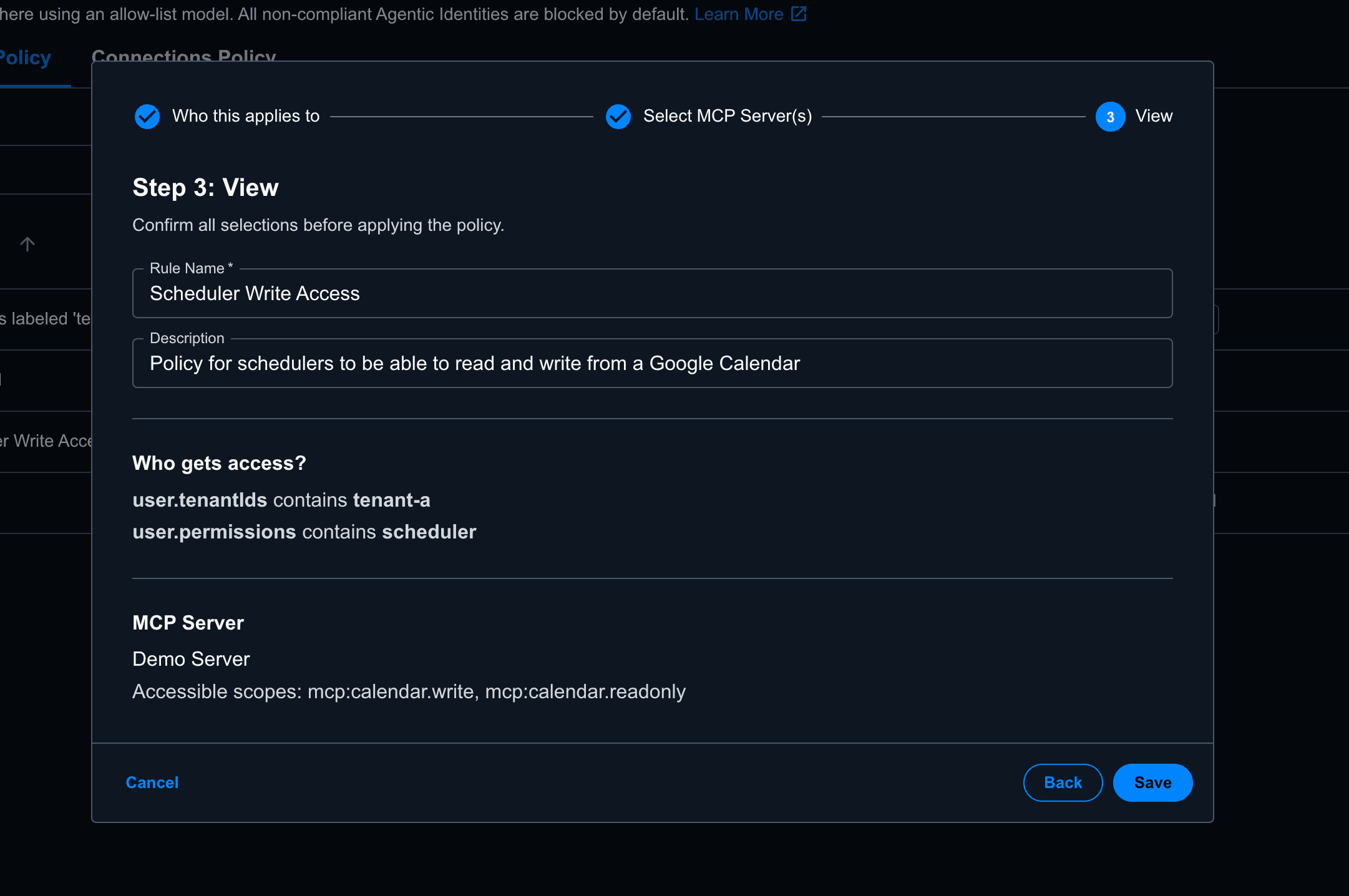
Create a policy that enforces the following rules:
Policy: Scheduler Write Access
- Conditions:
user.tenantIdscontainstenant-auser.permissionscontainsscheduler
- Allowed Scopes:
mcp:calendar.write,mcp:calendar.readonly
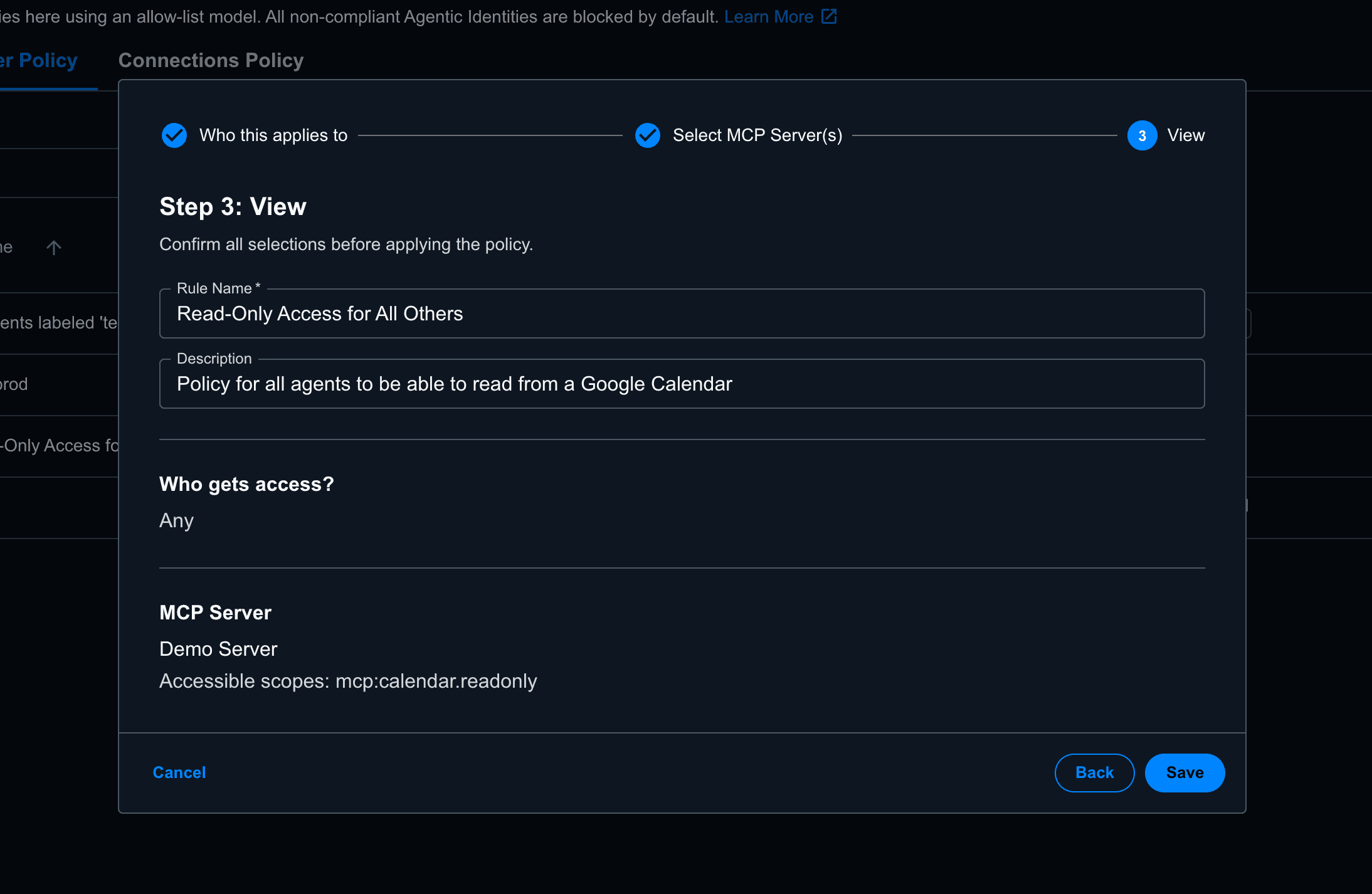
Policy: Read-Only Access for All Others
- Conditions:
- N/A
- Allowed Scopes:
mcp:calendar.readonlyonly
User Flow
Once you've configured everything, here's what will happen when a user connects their MCP client to your MCP server:
-
Client Registration:
-
User Authentication:
- The MCP client redirects the user to Descope's authorization endpoint
- Descope detects the user's tenant (A or B), based on the user's email domain, and redirects to the appropriate SSO provider
- User authenticates via their SSO provider
- SSO provider returns user and group attributes, that are mapped accordingly based on your tenant configuration to Descope roles
- In the consent flow, the user should also connect to Google using Connections so that Descope can store the necessary Google OAuth token for future MCP tool usage
-
Consent and Token Issuance:
- User is presented with a consent screen showing requested scopes
- User grants consent to use the MCP server
- Descope evaluates access control policies:
- If user has
schedulerpermission in Tenant A or B → token includesmcp:calendar.writeandmcp:calendar.readonly - Otherwise → token includes only
mcp:calendar.readonly
- If user has
- Access token is issued with appropriate scopes
-
Tool Execution:
- MCP client makes a request to execute
create_calendar_eventtool, sending the Descope access token - MCP server validates the access token, checks the
audclaim, and verifies themcp:calendar.writescope - If scope is missing → MCP server returns
403 Forbidden - Insufficient Scope - If scope is present → MCP server exchanges the Descope access token with the Google Calendar Connection to retrieve the Google access token with calendar write permissions
- MCP server uses the Google access token to make an API request to Google Calendar API to schedule the meeting
- Google Calendar API returns the created event details
- MCP server returns the result to the MCP client
- MCP client makes a request to execute
Complete Flow Diagram
Here is a mermaid diagram of how this is supposed to work, from start to finish: