SSO Troubleshooting
This guide helps you troubleshoot SSO configuration issues that your customers might encounter when configuring SSO for their tenant. Follow these steps to identify and resolve common SSO problems.
SSO Error Codes
These errors can occur during an SSO login, when Descope federates to the tenant's identity provider (IdP). Codes marked Internal indicate a server-side issue; if you hit one repeatedly, contact support with the code and a timestamp.
SSO Login and Federation
| Code | Meaning | HTTP status |
|---|---|---|
E061011 | Tenant requires SSO: the user tried a non-SSO method on a tenant that mandates SSO | 401 |
E061013 | Internal variant of "tenant requires SSO" | Internal |
E061016 | The redirect URL doesn't match the SSO application's approved redirect URLs | 403 |
E061301 | SAML token exchange failed (generic exchange failure) | 401 |
E062605 | Token exchange with the SSO provider (IdP) failed | 401 |
E062601 | SAML AuthnRequest creation failed | 401 (or 500) |
E062602 | SAML provider object creation failed | Internal |
E062603 | SAML assertion handling failed | Internal |
E062604 | Failed to parse the SAML private key in the configuration | 400 |
E062606 | Failed to parse the SAML x509 certificate; verify the certificate | 400 |
E062014 | JIT sign-up was attempted but JIT provisioning is disabled for SSO | 401 |
E062028 | Groups is a mandatory attribute, but the IdP sent no group values during an SSO Setup Suite connection test (JIT provisioning must be enabled for this check to run) | 400 |
E062016 | Failed to update ReBAC/FGA mappings from SSO groups | Internal |
E113201 | Invalid mappable FGA SAML settings (Setup Suite / mappable schema helpers) | 400 |
E062020 | The email from the IdP doesn't match the email that initiated login | 401 |
E062021 | The email domain from the IdP doesn't match the configured SSO domain | 401 |
E062023 | The user is not associated with the requested SSO application | 401 |
E061502 | SSO invite: failed to load the tenant | 401 |
E061503 | SSO invite: failed to send the SSO invite | 401 |
E061206 | IdP-initiated login missing Post Authentication Redirect URL | 401 |
Common fixes:
E061016: add the redirect URL to the SSO application's approved list in your SSO settings.E061206: set a Post Authentication Redirect URL (project or tenant). See IdP-initiated.E062604/E062606: bad or stale SAML key/cert — refresh IdP metadata/cert or fix SP keys. See Certificate and metadata rotation and SAML Signing and Encryption Keys.E062014: enable JIT provisioning, or pre-provision the user (SCIM or invite).E062020: expected behavior whenenforceInitiatedEmail(SDKs) or the flow action's Verify initiated email matches IdP response toggle is enabled and the IdP authenticated a different account than the one the user started with. Confirm the user picked the right account at the IdP, or turn off the check if it's not needed. See Backend SDK → Verify the IdP email matches.E062021: check the email and domain the IdP returns against the tenant's SSO domain. See SAML Security → Assertion validation.E062023: the user has at least one assigned federated app, and the requested app isn't one of them. Once a user has any app assignment, every unassigned federated app refuses them. Assign the app to the user or to their tenant. See How Descope Checks App Access.E062016/SchemaDoesNotExist: define an FGA schema before using SSO → FGA group maps. See SSO mapping → FGA.E062028: only appears when you run the SSO Setup Suite connection test with Groups marked mandatory and JIT provisioning enabled. Confirm the test user belongs to at least one group at the IdP, and that Groups Attribute Name matches the IdP's actual claim or attribute name exactly.E113201: FGA mappable helpers need valid FGA-mappable SAML settings and the AllowFGAMappings flag.- Internal codes: retry once; if it persists, contact support with the code and a timestamp.
SCIM (Directory Sync)
These errors happen during SCIM operations at the user layer, when Descope provisions users to or from a tenant's SCIM-enabled application. They're returned as HTTP 400.
| Code | Meaning | HTTP status |
|---|---|---|
E025104 | SCIM sync failed | 400 |
E025105 | Failed to send an outbound SCIM request (delivery to the downstream app failed) | 400 |
E025106 | SCIM user conversion failed (mapping a user to or from the SCIM schema failed) | 400 |
Step 1: Check Audit Logs
The Audit and Troubleshoot page in the Descope Console provides detailed information about SSO-related events. To effectively use audit logs for SSO troubleshooting:
- Review our SSO Audit Events documentation to understand available events
- Filter events using the keyword "SSO" in the search bar
- Focus on login events that contain SSO-specific fields:
- SAML/OIDC response data
- Group and role assignments
- User provisioning details
Step 2: Common Issues and Solutions
Network Connectivity: Ensure Descope can access your IdP endpoints. If using a custom IdP, you may need to whitelist Descope's static public IPs. See our Public Static IPs Doc for the complete list of IP addresses.
SAML Configuration Issues
-
Metadata Mismatch
- Verify the Descope ACS (Assertion Consumer Service) URL and Entity ID are copied correctly to the IdP
- Verify the IdP metadata matches exactly
-
Certificate Issues
- Ensure certificates are valid and not expired
- Verify certificate format (Base64-encoded X.509)
- Check if IdP requires signing
-
Callback URL Configuration
- Verify the callback URL is correctly configured in your application settings
- Ensure the URL matches the one registered in your SSO configuration
- Check for any URL encoding issues or trailing slashes
-
Attribute Mapping Problems
- Review attribute mapping configuration in SSO Setup Suite
- Verify IdP is sending expected attributes
- Check attribute names and formats match exactly
OIDC Configuration Issues
-
Endpoint Configuration
- Verify all endpoint URLs are correct
- Check authorization and token endpoint URLs
- Confirm userinfo endpoint is accessible
-
Client Credentials
- Verify Client ID and Secret are correct
- Check if credentials have expired
- Confirm redirect URIs are properly configured
-
Scope Configuration
- Ensure required scopes are configured
- Verify IdP is authorized for requested scopes
- Check if custom scopes are properly formatted
User Attribute / Group Mapping Issues
User/Group mapping is one of the most common sources of SSO configuration problems.
To check group mapping (outside of audit logs), you need to either use the Management SDK/API or manually check the user's roles to verify they were correctly mapped.
Here's how to troubleshoot based on your Identity Provider:
-
General Group Mapping Issues
- Verify the Group's Attribute Name matches exactly what your IdP sends
- Check if groups are being sent in the SAML assertion or OIDC token
- Ensure group names in the mapping match exactly (case-sensitive)
- Review the Audit Logs to see what group data is being received
-
Microsoft Entra ID (Azure AD) Specific Issues
- User attributes often come in URI format (e.g.,
http://schemas.xmlsoap.org/ws/2005/05/identity/claims/emailaddress) - Common issues with email/login ID mapping:
- Make sure you map the SAML Subject ID to either
user.mailoruser.userprincipalname. If the User Principal Name (UPN) is not the user's email address, useuser.mail. - Check if the email format matches your application's requirements
- Ensure the user has an email address in their contact details in Entra
- Make sure you map the SAML Subject ID to either
- For groups:
- Enable "Security Groups" in token configuration
- Use Object ID instead of Display Name for more reliable mapping
- SCIM Provisioning timing:
- By default, Entra only syncs users and groups every ~40 minutes (this interval is not configurable)
- Disabled or deprovisioned users are often not pushed to Descope until Entra runs a cycle that includes them — or until you trigger Provision on Demand / a provisioning job manually
- To force immediate provisioning (create, update, or disable), use Provision on Demand in the Entra admin portal
- See SCIM with Azure and SCIM Best Practices
- User attributes often come in URI format (e.g.,
-
Okta Specific Issues
Understanding Okta's Group System
- Two separate group mechanisms exist in Okta:
- Push Groups - Control SAML/OIDC group assertions
- Configure in the "Group Attribute Statements" section
- Used for sending group membership in auth tokens
- Can use regex matching (e.g.,
.*to match all groups)
- Assignments - Control SCIM provisioning
- Found in the "Assignments" tab
- Determine which users/groups get provisioned
- Requires explicit assignment for provisioning
- Use separate groups for SCIM vs SAML/OIDC push
- Push Groups - Control SAML/OIDC group assertions
Troubleshooting Steps
- Missing users in Descope:
- Check if users are assigned to the application
- Users in Push Groups but not assigned won't be provisioned
- Group membership problems:
- Verify "Group Attribute Statements" is enabled
- Ensure groups are included in SAML assertion
- Check group name matching is exact (case-sensitive)
- Two separate group mechanisms exist in Okta:
SSO User Merging
When troubleshooting SSO user merging issues, see Merging SSO Identities.
SCIM Configuration Issues
SCIM troubleshooting depends on your specific setup. If you're using only SSO with JIT Provisioning, without SCIM, this section doesn't apply to you.
Scenario 1: SSO + SCIM with JIT Provisioning
When using both SAML/OIDC SSO and SCIM together with JIT enabled:
- Mapping Configuration: SCIM and SSO logins read the same group mapping, configured in the tenant's Roles & Groups tab
- Login ID Consistency: Ensure login IDs are consistent across both protocols:
- SAML: Login ID is the SAML NameID
- OIDC: Login ID is the issuer by default (can be changed)
- SCIM: Login ID is the username
- User Merging: SCIM follows the same merging rules as SSO authentication and is affected by the Convert Existing Users to SSO-only setting
Scenario 2: SCIM Only (No SSO)
SCIM does not require SSO to be enabled for the tenant. Access key creation, the IdP's connection test, and user and group sync all work even when SSO was never set up. Group mapping is configured in the Roles & Groups tab of the tenant's authentication settings, and attribute mapping in the SSO tab. You can configure both without enabling SSO, either in the console or through the SCIM setup guides in the SSO Setup Suite:
- Group Mapping: Configure group-to-role mapping in the Roles & Groups tab, and it applies to SCIM even when SSO is disabled. The mapping is kept in step across the tenant's SAML and OIDC settings, so switching the tenant's SSO method later does not lose or change it.
- Attribute Mapping: Only custom attributes need explicit mapping (standard attributes are covered by SCIM protocol)
- User Merging: Merging is controlled by the project-level Convert Existing Users to SSO-only setting and applies to SCIM regardless of the tenant's SSO state
- User Marking: Users created via SCIM while SSO is disabled are not marked as SSO users; they are marked as SCIM-provisioned only
- Email Domain Validation: This validation only applies when the project-level Block Login on Email Domain Mismatch setting is enabled. When that setting is on, SCIM email writes are validated against the tenant's SSO Domains list (not the tenant's Email Domain setting) if SSO is enabled or SSO domains are configured for the tenant. If the tenant has neither SSO enabled nor any SSO domains configured, the check is skipped.
Scenario 3: User Cannot Log In, Was Never Provisioned
This is the most common SCIM-related issue: SCIM is configured, JIT is disabled (as recommended), and a specific user (often a new hire) cannot log in. The failure can surface in one of two ways:
- Authentication is rejected by the IdP before Descope is reached. This is the typical case: the IdP rejects login for any user who is not assigned to the app.
- Authentication succeeds, but Descope returns a "user not found" style error: This happens when the customer uses different IdP applications for SSO and SCIM, and the user is assigned to the SSO app but not the SCIM app, so SSO works but no SCIM record exists in Descope.
Cause: In both cases, the IdP never provisioned this user to Descope. Provisioning is controlled by the IdP, not by Descope. A user is only pushed to Descope if they are assigned to the application on the IdP side representing Descope (an Enterprise Application in Azure, an app integration in Okta), either directly or as a member of a group that is assigned to the app. If the user was not in scope when SCIM was first set up and was never assigned afterward, the IdP will not push them, and Descope will have no record of them.
Diagnosis:
- Open the Audit and Troubleshoot page and filter for
SCIMEventevents scoped to the tenant. - Search for an event corresponding to the user (by email or login ID).
- If no
SCIMEventexists for the user, the IdP has never pushed them. The fix is on the IdP side.
Resolution:
- In Azure: confirm the user is assigned to the Enterprise Application (directly or via an assigned group), then use Provision on Demand to push them immediately rather than waiting for the next 40-minute cycle.
- In Okta: confirm the user is in the Assignments tab of the application. Note that Assignments (which control SCIM provisioning) are separate from Okta's Push Groups (which push group objects via SCIM) and from Group Attribute Statements / OIDC claims (which control the groups sent in the SAML/OIDC authentication assertion). A user appearing in any of those does not mean they are assigned to the app.
- Ask the customer about their ongoing onboarding process: if they assign users one at a time, every new hire will hit this issue. Point them at SCIM Best Practices for the group-based assignment pattern.
Group-to-role mapping in Descope does not cause provisioning. A user being in a group that is mapped to a Descope role does not mean the IdP will push that user. Provisioning and role mapping are entirely separate. See Group Mapping vs. Provisioning for the full distinction.
General SCIM Troubleshooting
For all SCIM scenarios:
- Check SCIM logs for provisioning errors
- Ensure attribute mappings are consistent across all configurations
- Test with a sample user to verify proper provisioning and merging
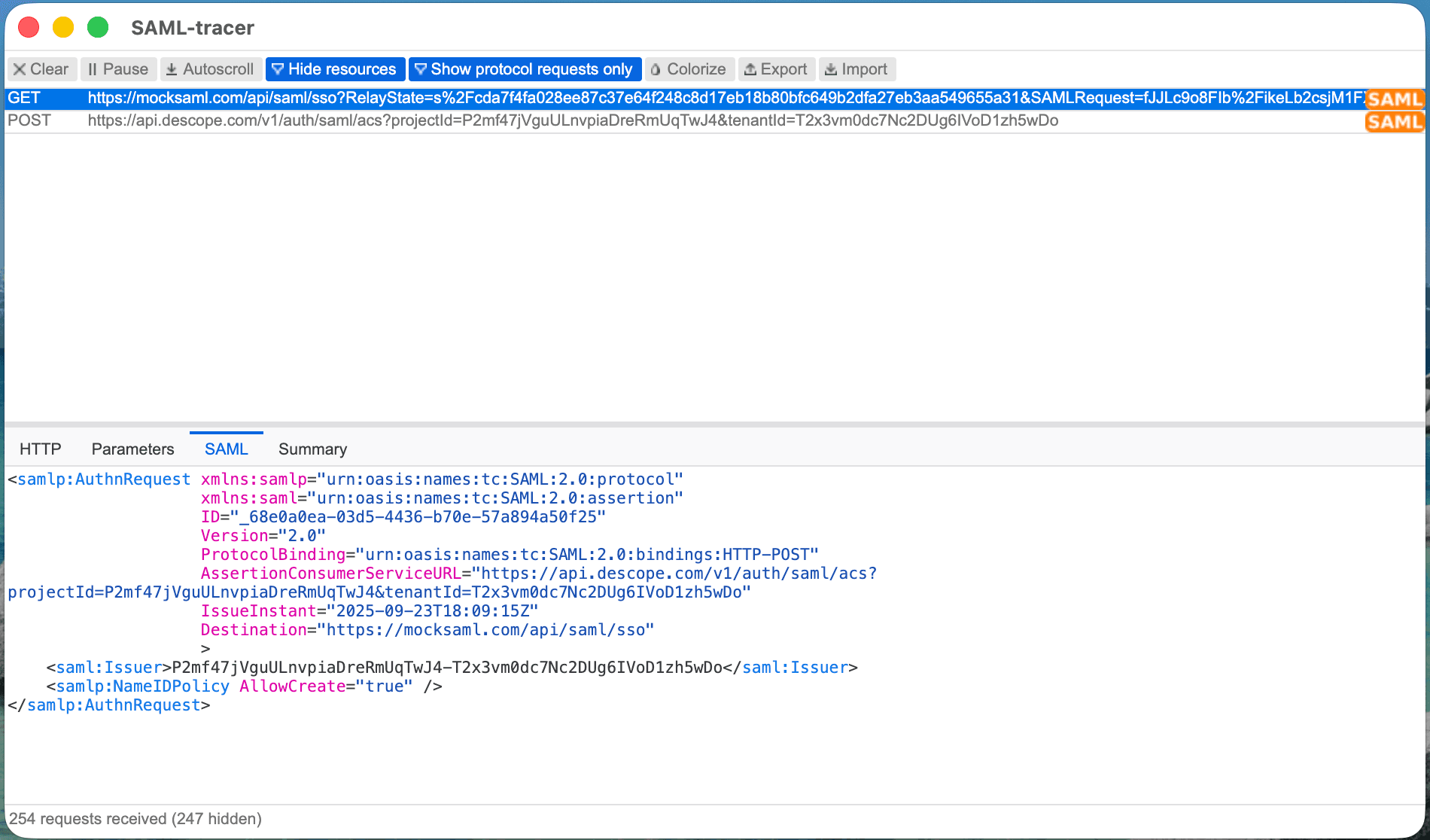
Step 3: Using SAML Tracer
SAML Tracer is a browser extension that helps debug SAML authentication issues:
-
Installation and Setup
- Install SAML Tracer in your browser
- Enable the extension before testing SSO
-
Capturing SAML Traffic
- Start SAML Tracer before initiating SSO login
- Look for SAML Request and Response messages
- Examine the raw SAML assertions
-
Common Patterns to Look For
- Missing or malformed SAML assertions
- Incorrect signature validation
- Timestamp validation failures
- Missing required attributes