Spotify OAuth Provider
This guide covers how to set up Spotify social login in Descope.
Creating the Spotify Application
Before adding the provider in the Descope Console, you must create and configure an application within your Spotify developer account. You can follow the Spotify App Guide for details on creating your application.
When you create your app within Spotify, you must configure the redirect URI. Set the redirect URI to be https://<your-base-url>/v1/oauth/callback. You can find your project's base url in our Multi-Region Support Guide.
Adding Spotify in Descope
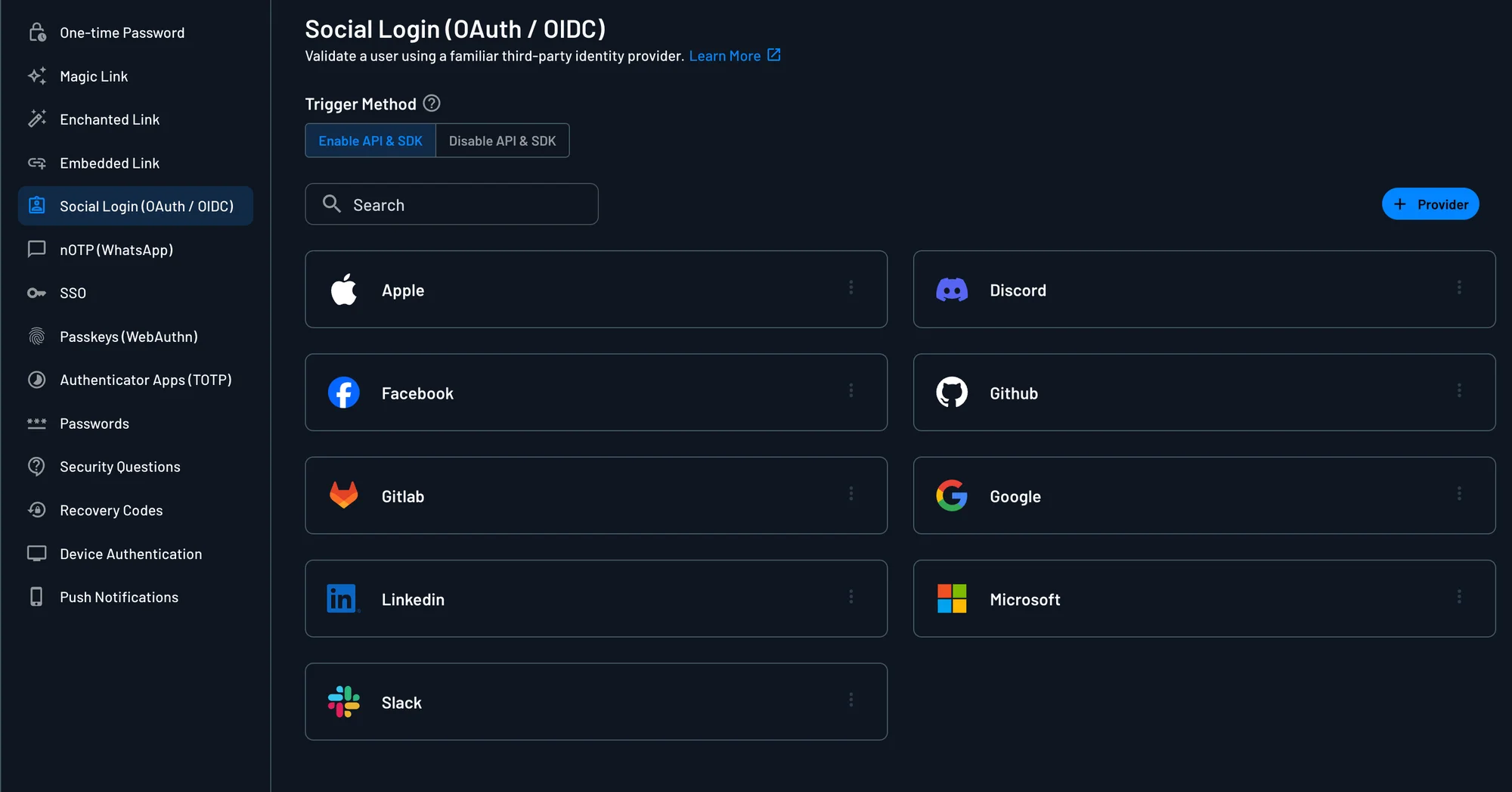
In the Descope Console, go to Authentication Methods → Social Login, select + Provider, then select the Spotify card.
The Spotify template fills in the endpoints, scopes, and user attribute mapping. Enter the following from your Spotify app:
- Client ID: The Client ID of your Spotify app.
- Client Secret: The Client Secret of your Spotify app.
For more OAuth provider settings information, check out the OAuth Settings Guide. To add Spotify Social Login to your flow, check out our Social Login In Flows Guide.