Custom OAuth Provider
You can connect any OAuth or OIDC provider to Descope, including providers that don't have a template in the Descope Console. For providers that have their own guide, see OAuth Providers.
Creating a Custom Provider
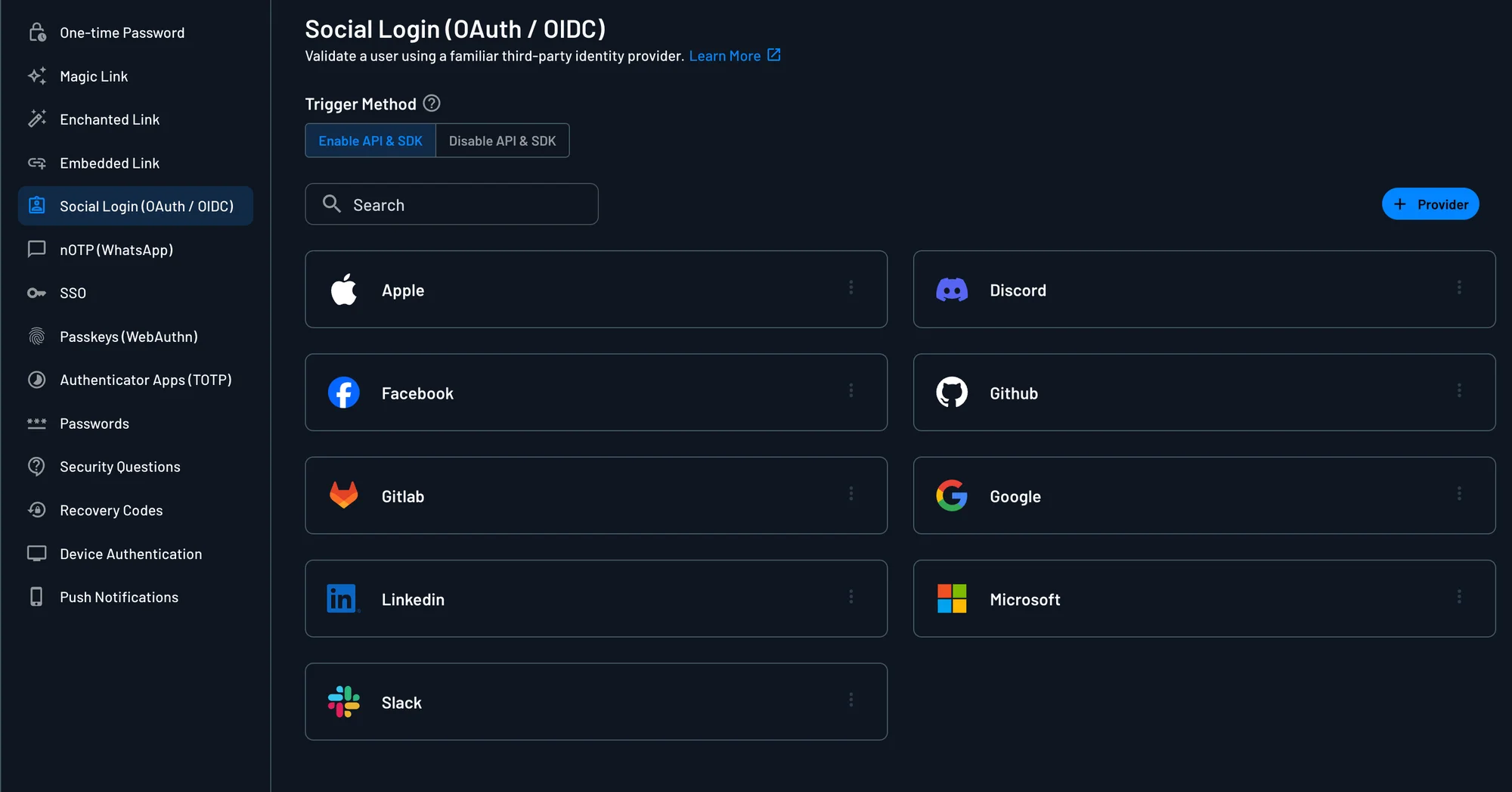
In the Descope Console, go to Authentication Methods → Social Login and select + Provider. Select the Custom card, then select Use provider. You can then set the name, logo, and description for your provider.
Trigger Method
Control how this provider can be invoked using the Trigger method setting:
- Enable All: Allows authentication via flows, APIs, and SDKs
- Block API/SDK: Restricts to flows and management calls only, blocking direct API/SDK access
This setting allows you to override the global OAuth trigger method for this specific provider.
Configure Account Settings
Configure the following account settings:
-
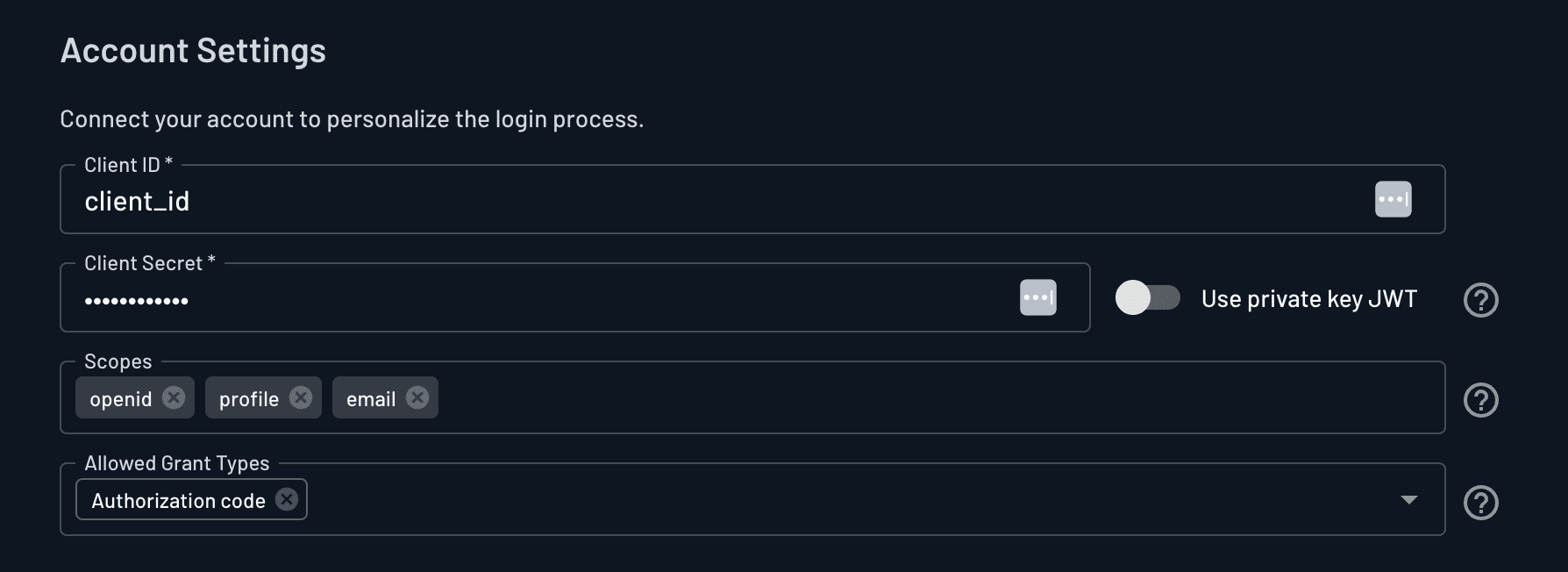
Client ID: The public identifier for your OAuth application, obtained directly from your OAuth provider (e.g., Google, Microsoft, GitHub). This value is required to authenticate your application during the OAuth flow.
-
Client Authentication: Choose how Descope authenticates to your OAuth provider. Select Client Secret to use a confidential key provided by your provider, or Private Key to use a signed JWT instead. See Private Key JWT below.
-
Scopes: Defines which user permissions your application requests. These scopes are configured within your OAuth provider and determine what user data can be accessed. Examples include:
openid,email,profile(for OpenID Connect flows)- Provider-specific scopes like
user:email,read:user,identify,public_profile, etc.
If additional scopes are added, ensure Manage tokens from provider is enabled to allow Descope to store and manage access and refresh tokens.
-
Grant Type: Choose between:
- Authorization Code (recommended): Uses the standard authorization code exchange for better security.
- Implicit: Uses
form_postwith anid_tokenresponse type (required for certain flows like Google One Tap).
Private Key JWT
Note
Descope will automatically generate a private key for your project. You cannot use your own private key with this method.
Select Private Key under Client Authentication to use a signed JWT instead of a client secret, per RFC 7523.
With this method, Descope creates a signed JWT using your project's private key during token exchange. The OAuth provider validates this JWT instead of a client secret.
Provide your project's JWK endpoint to the OAuth provider: BaseURL/ProjectID/.well-known/jwks.json
Replace api.descope.com with your custom domain if applicable.
Example Token Request
When exchanging the authorization code for tokens, Descope sends a request like this to the OAuth provider's token endpoint with a signed JWT as the client_assertion:
POST /token HTTP/1.1
Host: provider.example.com
Content-Type: application/x-www-form-urlencoded

grant_type=authorization_code
&code=AUTHORIZATION_CODE
&redirect_uri=__BaseURL__/v1/oauth/callback
&client_id=YOUR_CLIENT_ID
&client_assertion_type=urn:ietf:params:oauth:client-assertion-type:jwt-bearer
&client_assertion=eyJhbGciOiJSUzI1NiIsInR5cCI6IkpXVCJ9...
Configure Connection Settings
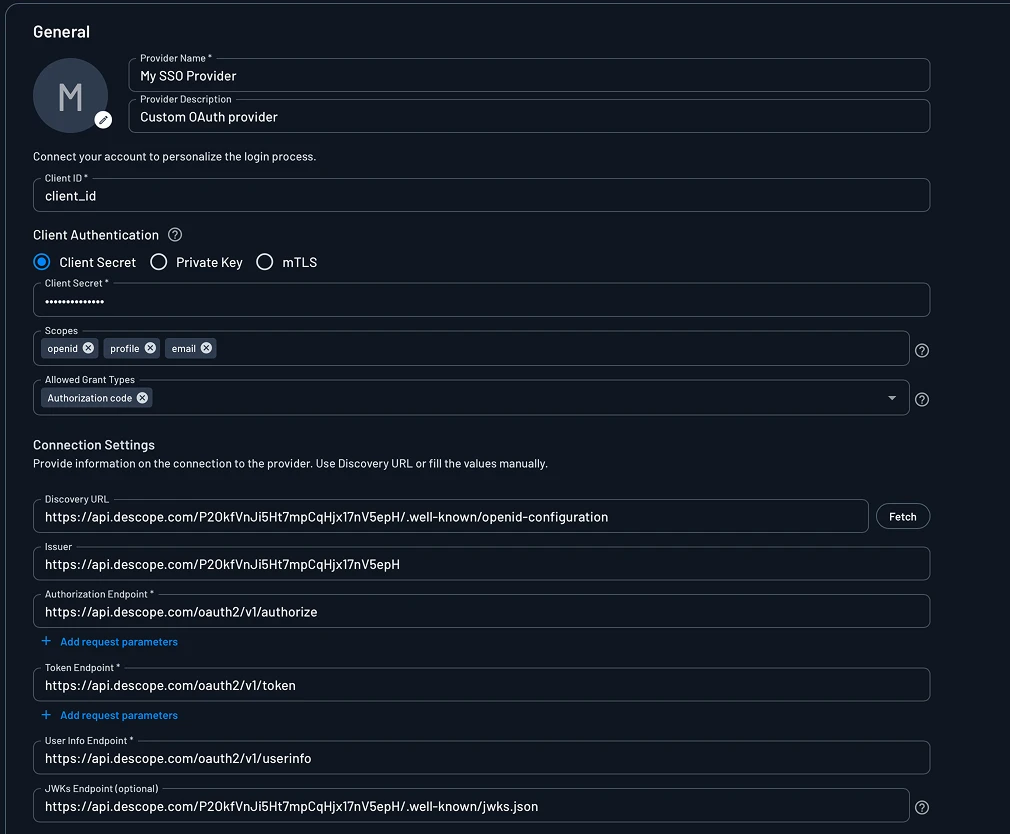
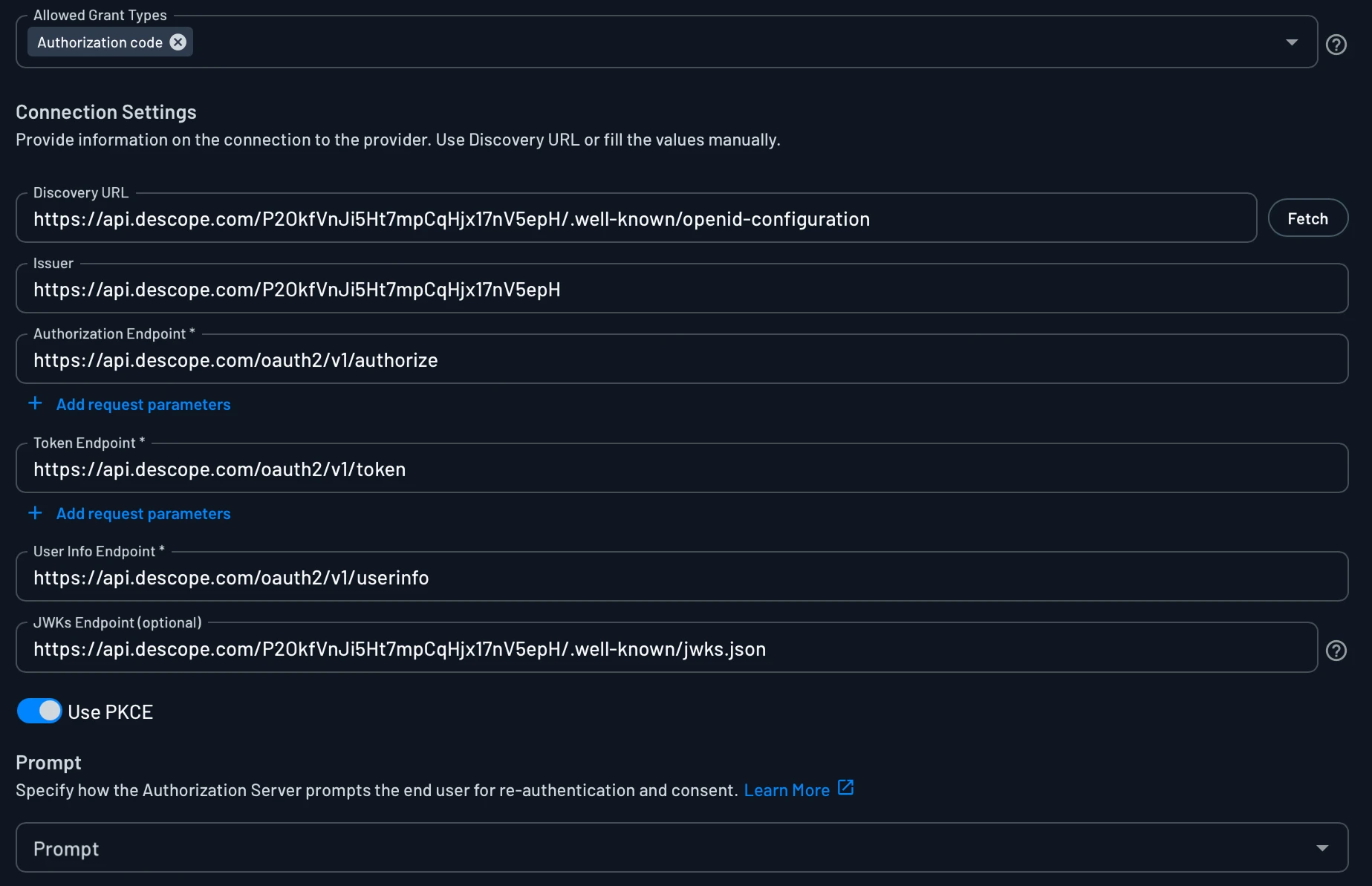
Within the connection settings section of your provider, you will configure the following items:
-
Discovery URL: If your provider supports OpenID Connect Discovery, you can enter the
.well-known/openid-configurationURL here. Descope will automatically populate the following fields below. -
Issuer (optional): Typically matches the
issclaim returned from your provider's OpenID configuration. -
Authorization Endpoint: The provider's URL where users are redirected to authenticate. Usually auto-filled if a Discovery URL is provided.
-
Token Endpoint: The endpoint used to exchange authorization codes for access and ID tokens. Usually auto-filled from the Discovery URL.
-
User Info Endpoint: The endpoint that returns user claims (like email, name, or subject ID). Usually auto-filled from the Discovery URL.
-
JWKs Endpoint (optional): Used to fetch public keys for validating JWTs. If not provided, Descope will rely on the User Info endpoint for user data, rather than validating the
id_tokenwith a public key from a JWKs endpoint.
Note
You can add custom request parameters to the Authorization Endpoint and Token Endpoint. These parameters will be sent with every request to the respective endpoint. This is useful for providers that require specific parameters like access_type=offline or prompt=consent.
PKCE Support
Note
Enable PKCE when your external OAuth provider requires or supports it (e.g., Login.gov), when their documentation specifies it, or if you receive errors about missing code_challenge parameters.
In OAuth 2.1, PKCE is now mandatory in some cases, and recommended for use by all clients.
Generally speaking, when Descope acts as the service provider (SP) for default or custom OAuth providers, we are treated as a confidential client.
However, in cases where the OAuth provider expects all clients (confidential or public) to use PKCE during the authorization code exchange, Descope supports PKCE (Proof Key for Code Exchange).
To enable PKCE Support, toggle the Use PKCE toggle button under the Connection Settings section of your OAuth provider configuration.
Configure the Prompt
Note
Prompts can also be overridden at the Flow level, allowing different user experiences for the same provider configuration.
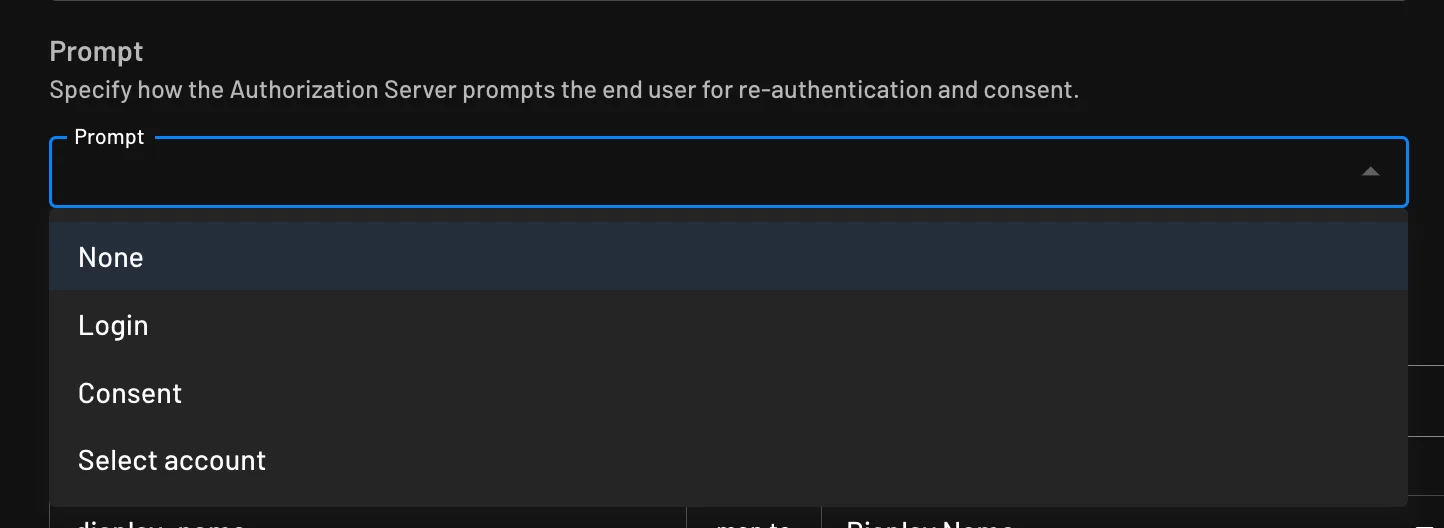
The prompt parameter defines how and when users are prompted during authentication. It can improve user experience or enhance security by controlling reauthentication and consent behavior.
You can find this under Prompt in the Descope console:
1. The login prompt
The login prompt forces the user to re-enter their credentials, guaranteeing the current user is explicitly authenticated.
This is ideal for sensitive operations or re-verification scenarios where you need to ensure the user is actively present.
2. The consent prompt
The consent prompt always asks the user to reapprove requested permissions, ensuring transparency and renewed consent from users.
This is particularly useful when handling sensitive data or when the scopes/permissions your application requests have changed.
3. The select_account prompt
The select_account prompt lets the user choose from multiple available accounts, enhancing usability for users managing multiple identities.
This is ideal for multi-account environments where users might have both personal and work accounts.
Configure User Attribute Mapping
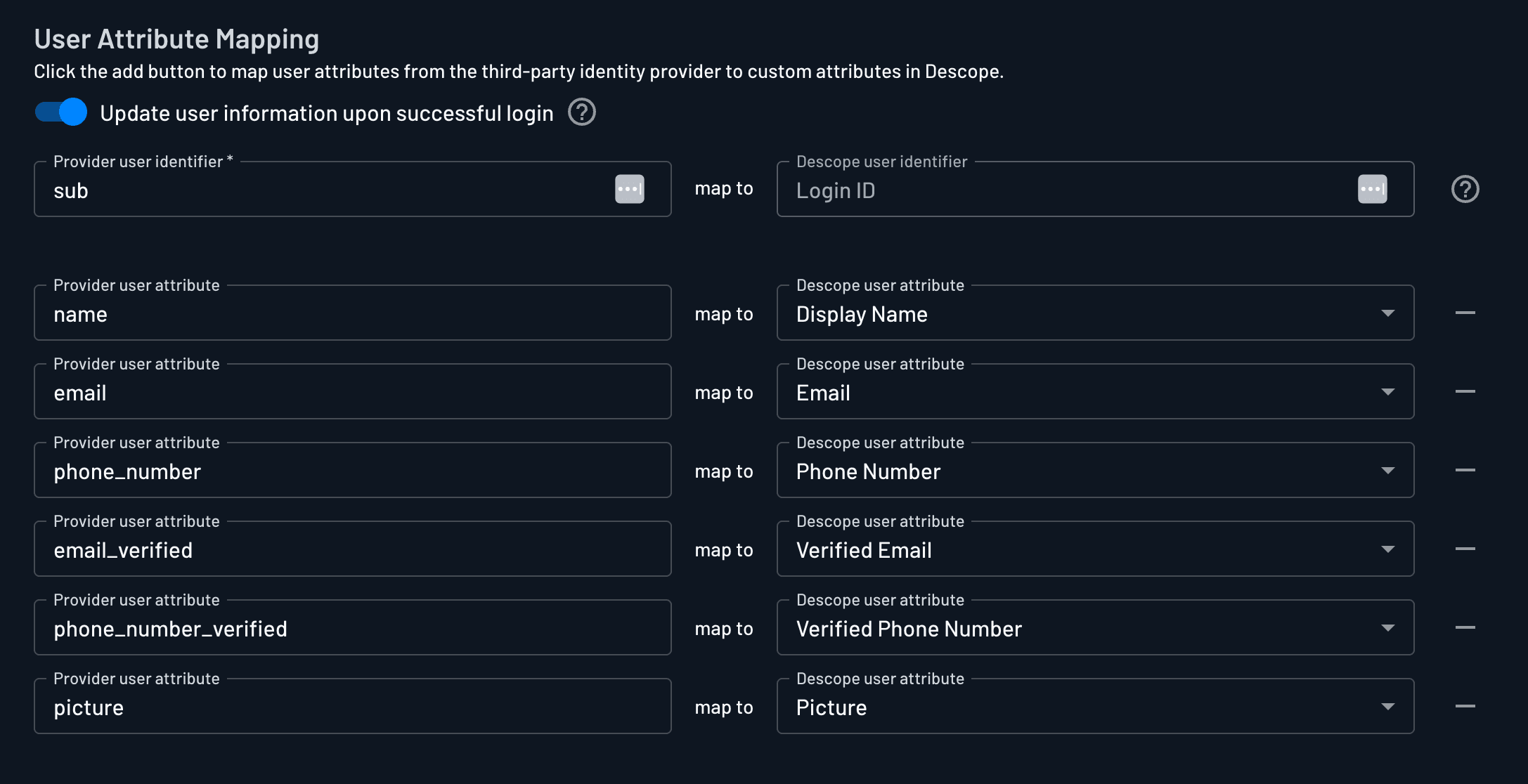
Map attributes returned from your OAuth provider to Descope's user profile. At minimum, you must map at least one attribute to the Descope Login ID (typically sub by default).
You can map to built-in Descope fields such as email, name, or phone, as well as custom attributes you've defined for your project.
Use the Update user information upon successful login toggle to control whether user attributes are refreshed on every login. When disabled, attribute mapping only applies during initial user creation, preserving any subsequent changes made to the user's profile.
Configure Advanced Settings
Additional optional settings enhance customization and security:
-
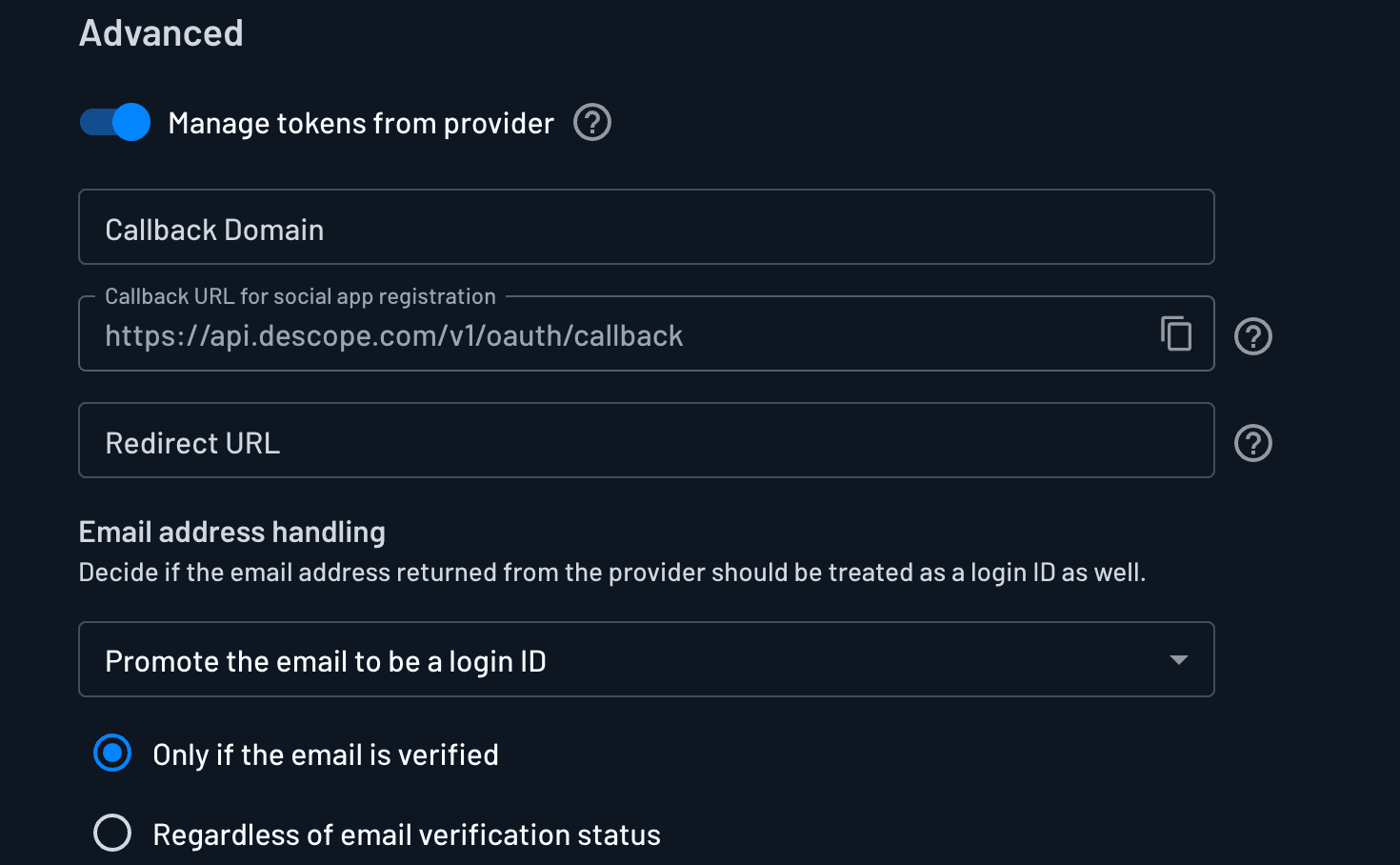
Manage Tokens from Provider: Enable this and select an Outbound App to have Descope store the provider-issued access and refresh tokens in that Outbound App, so they're served and refreshed through the Outbound App's token lifecycle. These tokens can be used later via Descope APIs or SDKs to perform actions on behalf of the user. Before you can select an Outbound App here, you must first create one under Outbound Apps in the Descope Console. Without an associated Outbound App, Descope cannot store user-level or tenant-level OAuth tokens from the provider.
-
Callback Domain: The domain that handles the OAuth callback. Defaults to your Descope project domain, but can be overridden. The callback URL will be:
https://api.descope.com/v1/oauth/callbackOr, if using a custom domain:https://auth.mycompany.com/v1/oauth/callback -
Redirect URL: The URL users are redirected to after successful authentication when using SDKs or APIs. Typically, setting this isn't needed when using Flows. This can be overridden dynamically within SDK/API calls.
-
Email Address Handling: Decide if the email address returned from the provider should be treated as a login ID. You can promote the email to a login ID only if verified, promote regardless of verification status, or keep the email as a user attribute without allowing it to be a login ID. When emails are promoted to login IDs, users will be able to sign in with just their email address without using OAuth, and a sign-in can match or merge with an existing user who shares that email address. See User Merging and Handling OAuth Providers with Unverified Emails for more.
Warning
Selecting Regardless of email verification status can allow account takeover, similar to the "NoAuth" attack vector described in Social Login Merging Settings.