Custom Social Login with Facebook
When integrating Descope flows in a website, you can allow Social Login with Facebook as one of the authentication methods for your users. This tutorial will explain all the steps on how to do that.
Solution
To make this happen, you'll need to configure a few things on the Facebook side and the Descope side, as well as configure a new CNAME in your domain's DNS records.
Configuring the CNAME
You will need to create a custom domain that points to cname.descope.com (US) / CNAME.euc1.descope.com (EU), so that if the redirect URI is auth.example.com for instance, the Facebook page will show Sign in to continue to with example.com instead of descope.com.
See the Custom Domain guide for a step-by-step guide for managing sessions within cookies.
Once that is completed, you will need to create a new public Facebook app.
Creating a new Facebook App and Configuring Descope
- You will need to follow the steps on the Developer Facebook Docs, to create an OAuth Facebook login app with your personalized settings and logo.
- When going through all of the steps, you'll need to add scopes. This tells Facebook what information the app can access about the user that is signing in. If you want to learn more about the specific scopes, you can do so on the Developer Facebook Docs
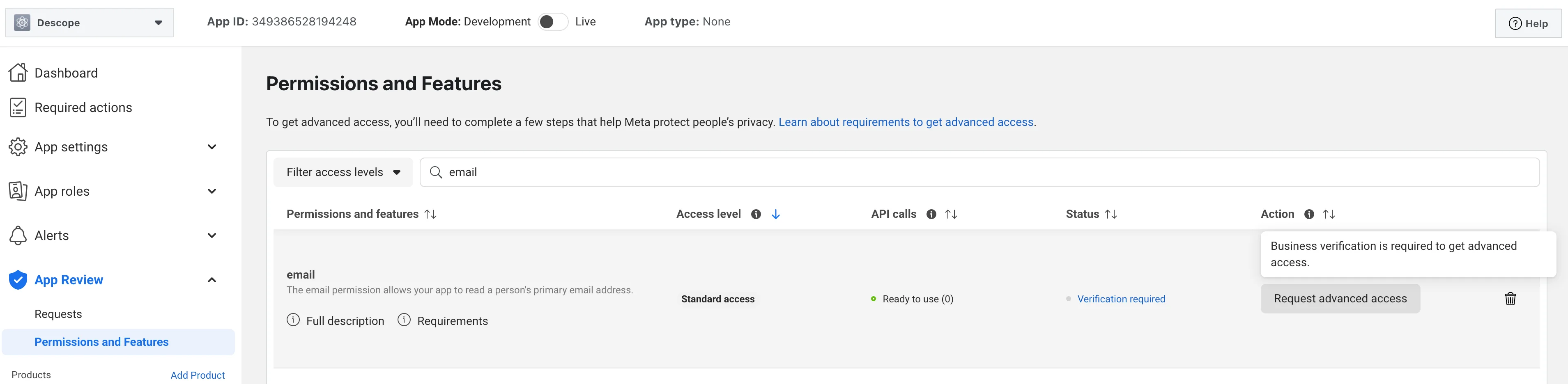
You MUST check public_profile, and we highly recommend using the email permission as well (otherwise Descope will not have access to the user's email and will not be able to create a login ID from it).
Note
Only apps that are verified by Facebook (after going through the verification process) can display a custom logo and use a custom app name. Otherwise, the login page will display the redirect URL domain. More information can be found on the Developer Facebook Docs.
Once everything has been approved, you should be able to switch the app to Live Mode, and your app should be published in production for anyone to see. If you got confused with any of the steps, there is an FAQ that should be able to help answer any questions you may have had while creating the app.
- To get the App ID and App Secret for your new app, click on App Settings in the left-hand sidebar and select Basic. Then, copy the App ID and App Secret from the screen.

- Go to the Descope Console, click on Facebook. From Facebook, copy over the App ID and App Secret (from the Facebook Developer Console)
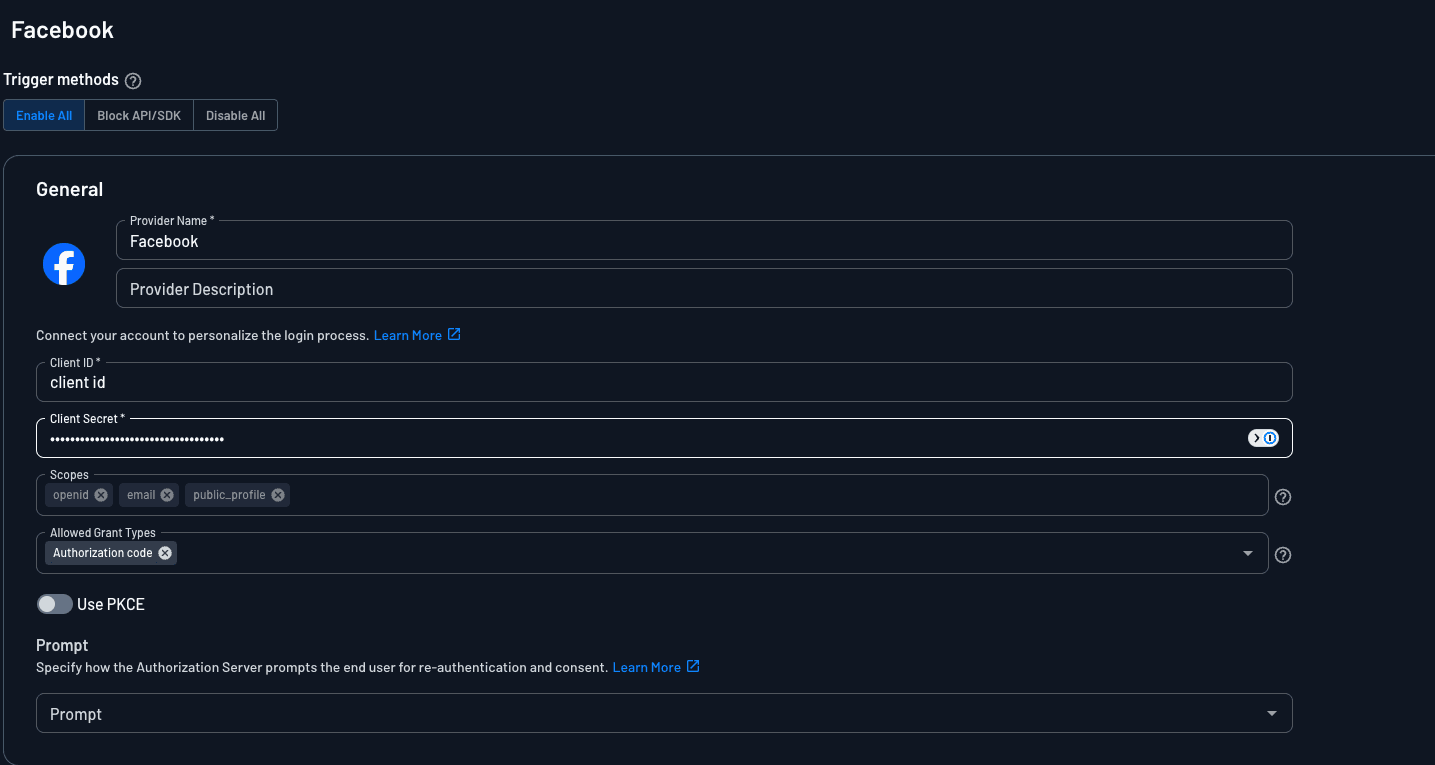
Make sure to leave that Descope Console window open, as you'll need it again in the final steps.
- Next, you'll need to set up the OAuth Redirect URI in Facebook.
While in the Descope Console, scroll to the bottom of the Facebook social app configuration page and copy the OAuth Callback URL to the clipboard.
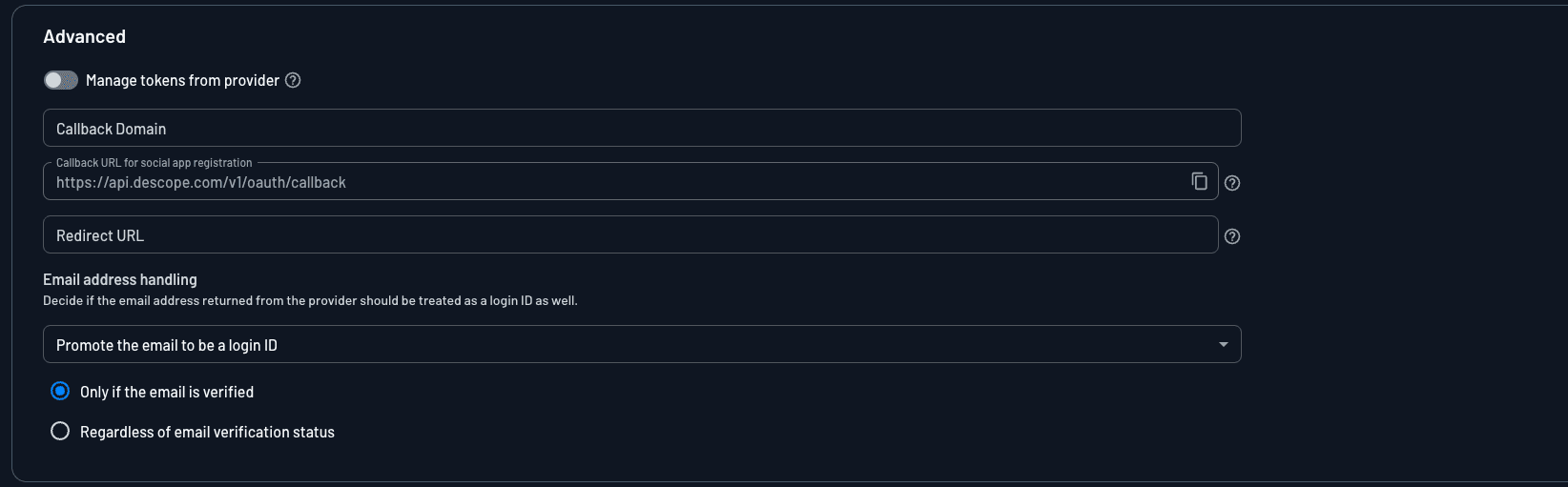
Then in the Facebook Developer Console, click on Add Product, under Products, in the left-hand side bar. Add the Facebook Login option and select Settings. Under Valid OAuth Redirect URIs, enter the redirect URI you obtained from the Descope Console.
Your Facebook settings page should look something like this:

Now that you've created a Facebook App and have it published and approved by Facebook, you should see your own personalized app page with your custom application name.
Prompt
The Prompt setting controls how users are prompted when they sign in with Facebook, such as forcing them to re-authenticate (login), re-approve permissions (consent), or choose an account (select_account). Prompts can also be overridden at the Flow level. See Configure the Prompt for what each option does.
User Attribute Mapping
User Attribute Mapping maps the attributes Facebook returns to fields on the Descope user, including custom attributes. See Configure User Attribute Mapping for how to set up mappings and when user information is refreshed on login.
Advanced
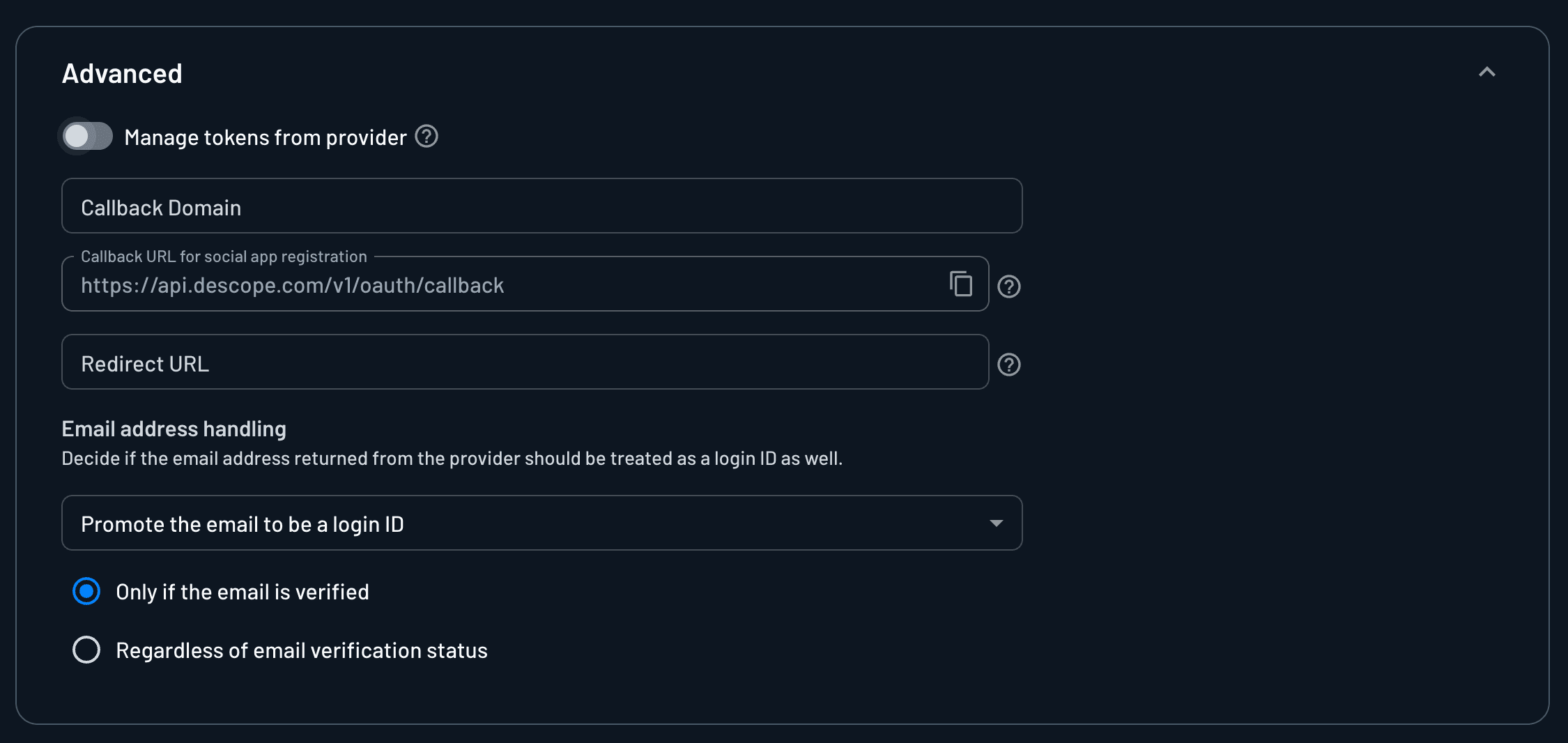
The Advanced section contains optional settings such as Manage tokens from provider, Callback Domain, Redirect URL, and Email address handling. See Configure Advanced Settings for the full list.
Managing Tokens from Provider
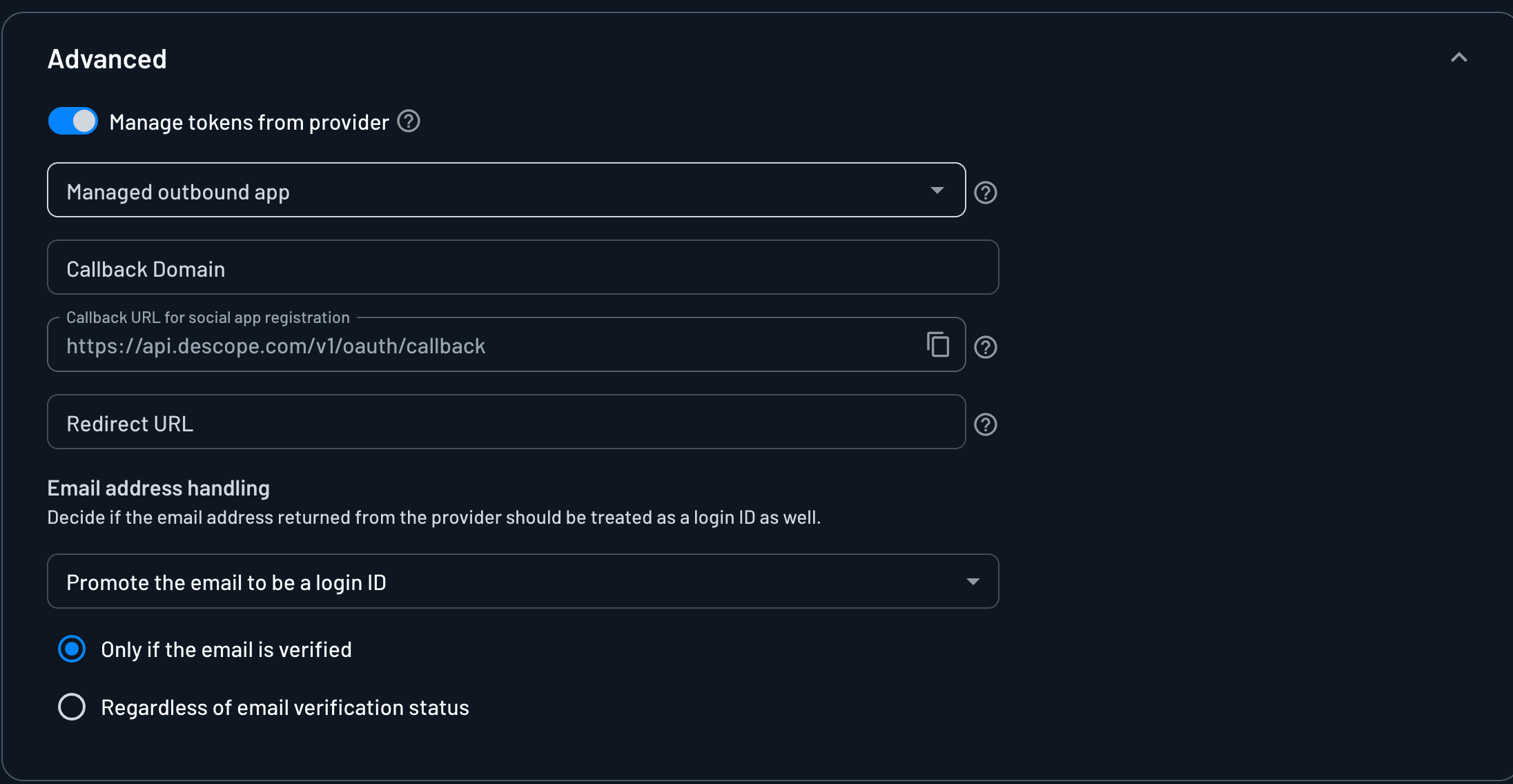
Enable Manage tokens from provider and select an Outbound App to have Descope store the user's Facebook OAuth tokens. You must first create the Outbound App in the Descope Console before you can select it here. See Configure Advanced Settings for details.
Email Address Handling
Email address handling controls whether the email address Facebook returns is used as a login ID, which allows sign-ins to merge with existing users who have the same email, or is only stored as a user attribute. See Configure Advanced Settings for the available options, and Handling OAuth Providers with Unverified Emails for how verified and unverified emails are handled.
Warning
Selecting Regardless of email verification status can allow account takeover, similar to the "NoAuth" attack vector described in Social Login Merging Settings.
If you have any questions, please reach out to us here!