Custom Social Login with Apple
When integrating Descope flows in a website, you can allow Social Login with Apple as one of the authentication methods for your users.
This tutorial will cover creating your custom Apple OAuth-based login so that the login process is personalized to your domain.
Customizing the Apple Login
Configuring the CNAME
You will need to create to enable a custom domain within your environment.
If you still need to configure the custom domain, review the Custom Domain guide for a step-by-step guide for configuring the custom domain and managing sessions within cookies.
Apple Configuration
Once you have a project with a configured custom domain, you can create the necessary items within Apple's developer portal.
Create Application ID
Once logged into your Apple developer account, go to Certificates, Identifiers & Profiles.
Here, you will start by creating our Application ID. Click the + next to Identifiers and select App IDs.
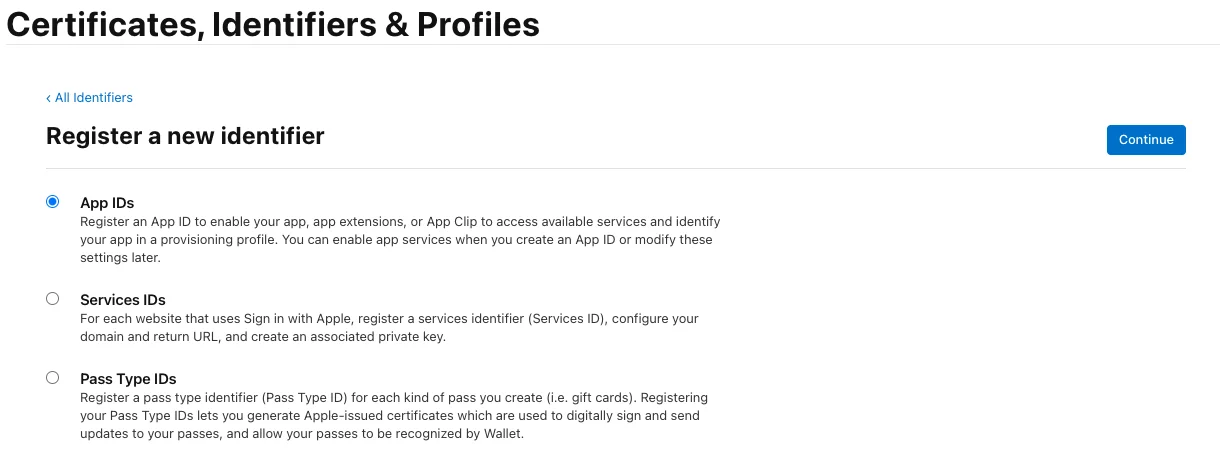
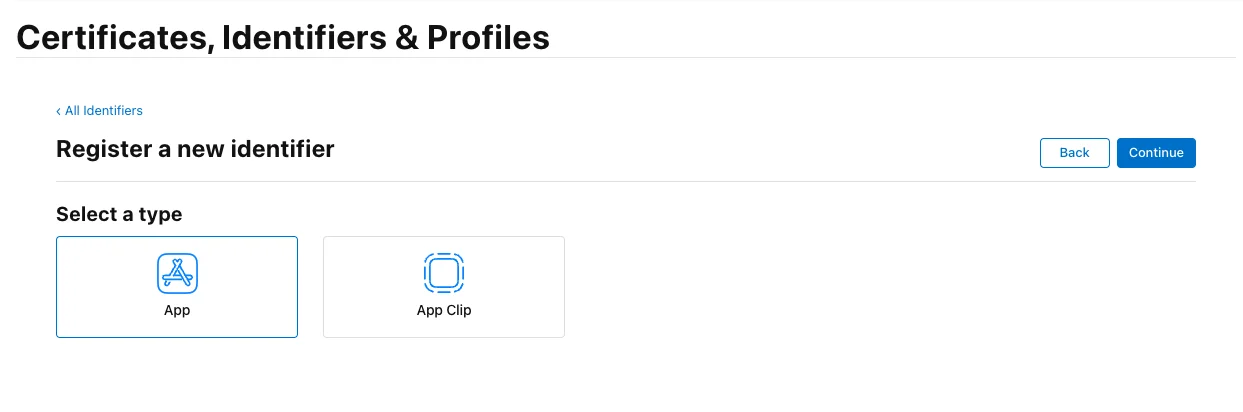
After clicking continue to the next page, select the type as App and click continue.
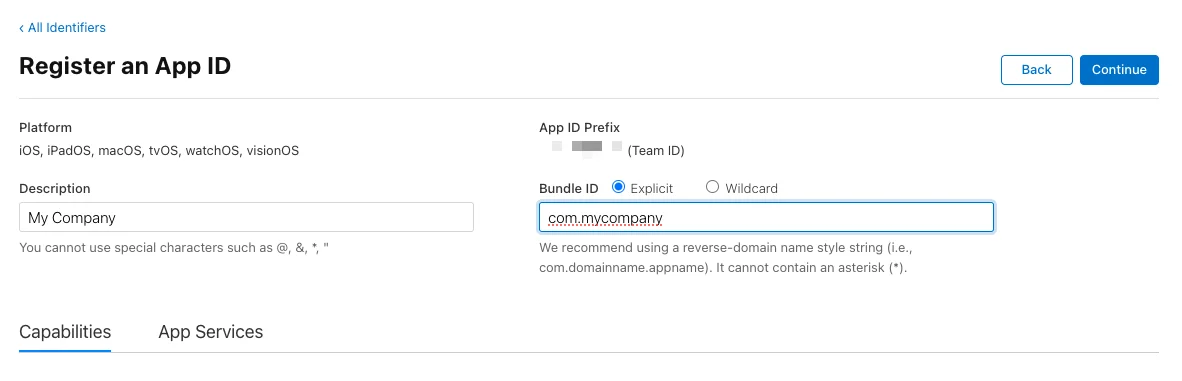
Now configure the Description and the Bundle Id. If your domain is mycompany.com, the Bundle ID should
be configured as com.mycompany.
While still on the same page, scroll down and check the Sign In with Apple box. You can click the Edit button
depending on your configuration to select whether it is grouped to an existing primary App ID. Within this example,
it is configured to Enable as a primary App ID.
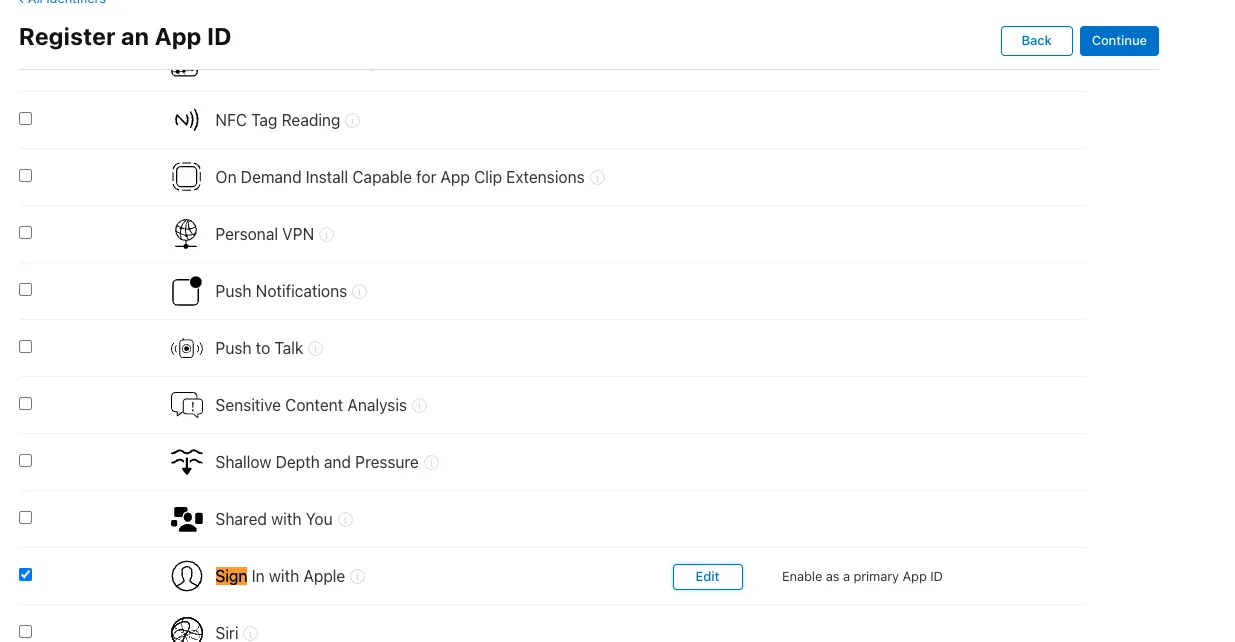
Now click continue and then register to complete the application ID registration.
Create Service ID
Now go to Service Identifiers
and ensure from the top right drop-down you are under Services IDs. We will then click + next to
Identifiers and select Services IDs.
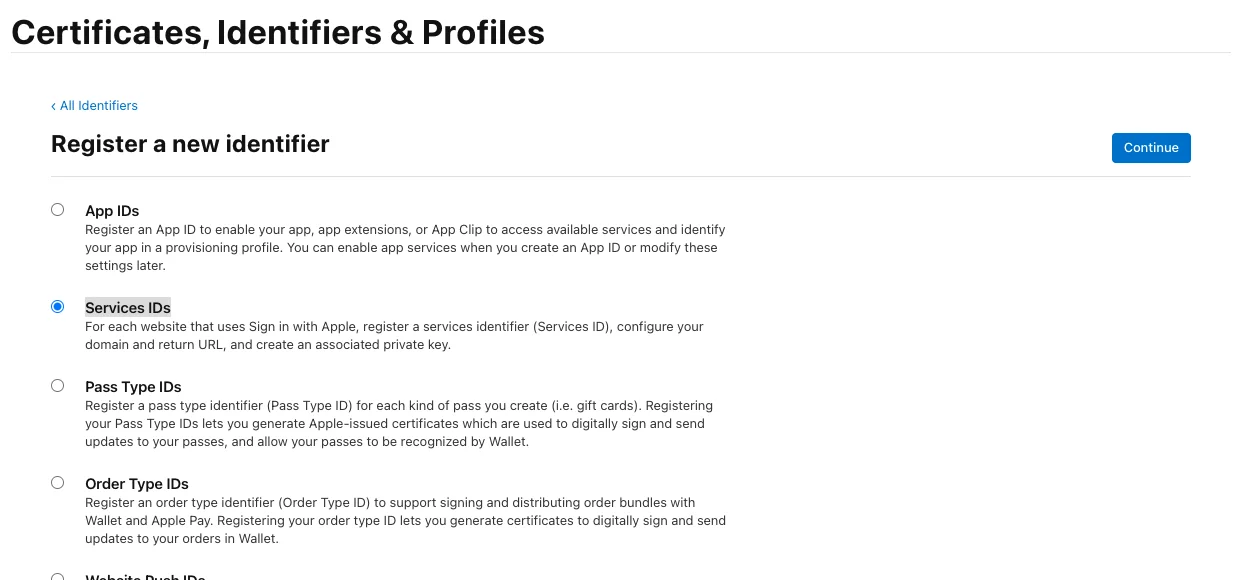
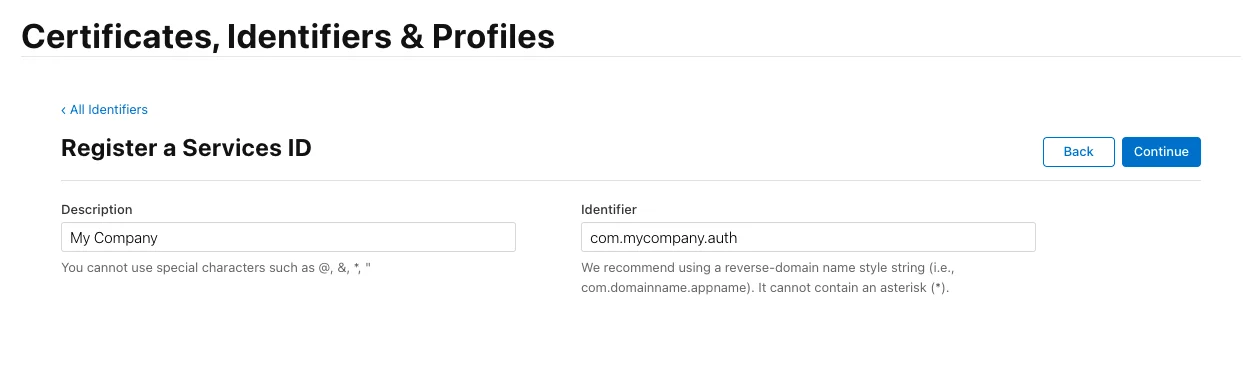
After clicking continue, you must configure your Description (which will be what the user sees during the Apple
login process) and the Identifier. The identifier should be the CNAME configured for your application when
stepping through the Custom Domain guide. Since our
domain for this example is mycompany.com, our CNAME would likely be auth.mycompany.com, so our Identifier
will be com.mycompany.auth. After configuring, click continue and register to complete the service ID registration.
Create Key
Go to Keys and click the + next to Keys. Here
you will give the key a name and check the box for Sign in with Apple.
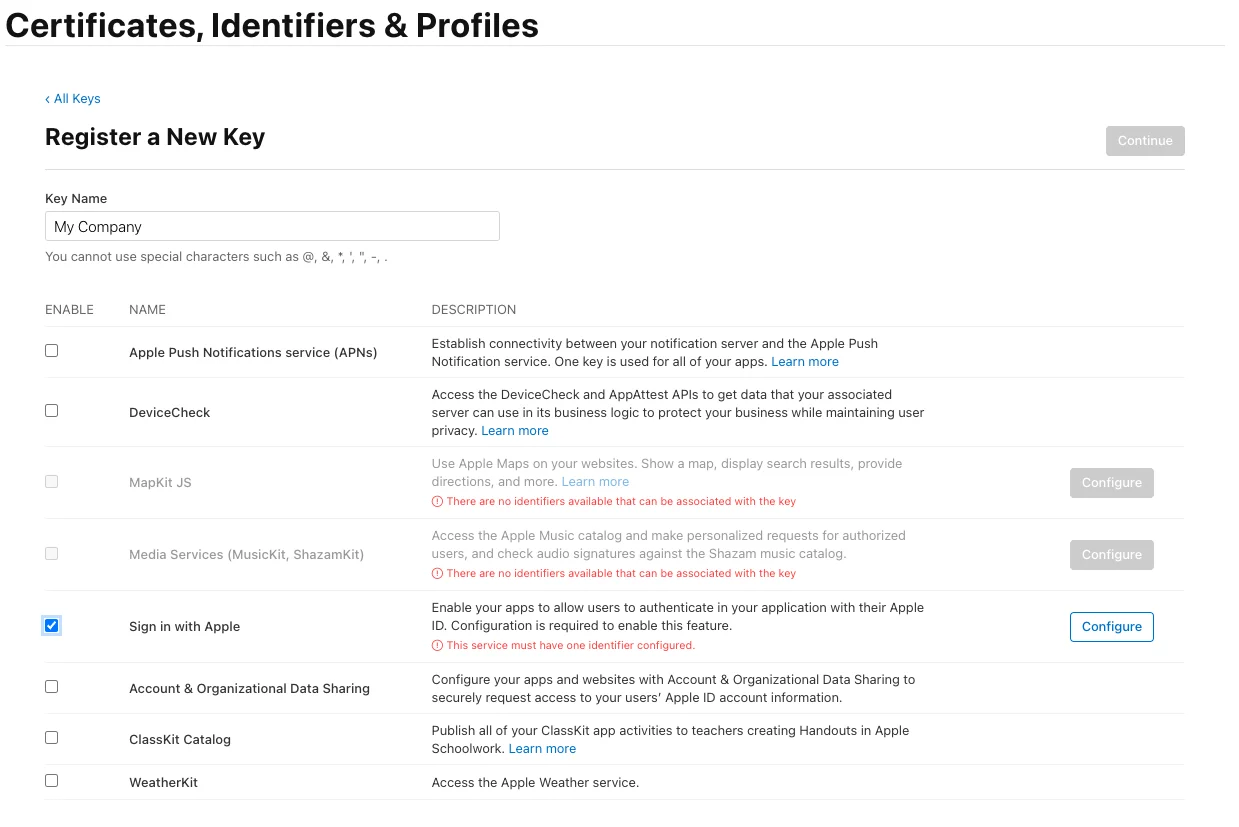
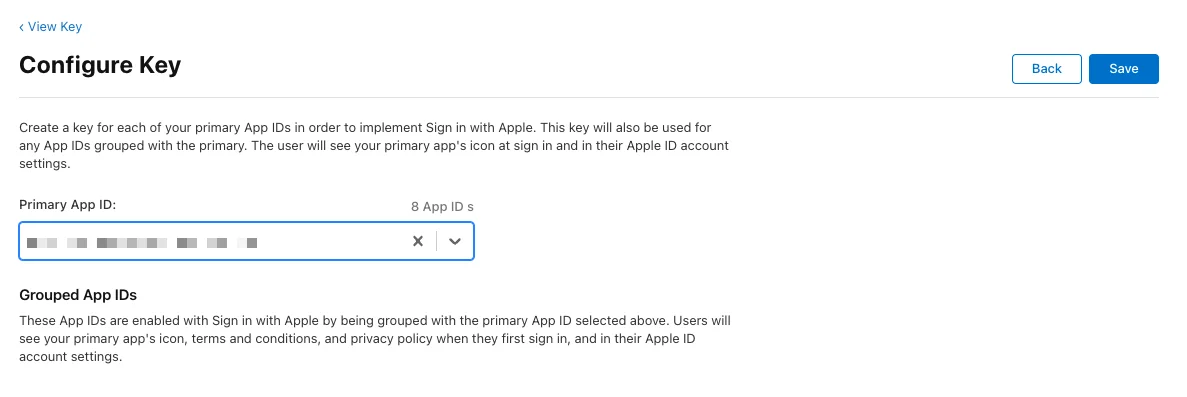
Then click the edit icon to the right of Sign in with Apple. Then select your primary application ID, which you
created here. Then click save, continue, and
then register.
On the next screen, take note of Key ID and download the key.
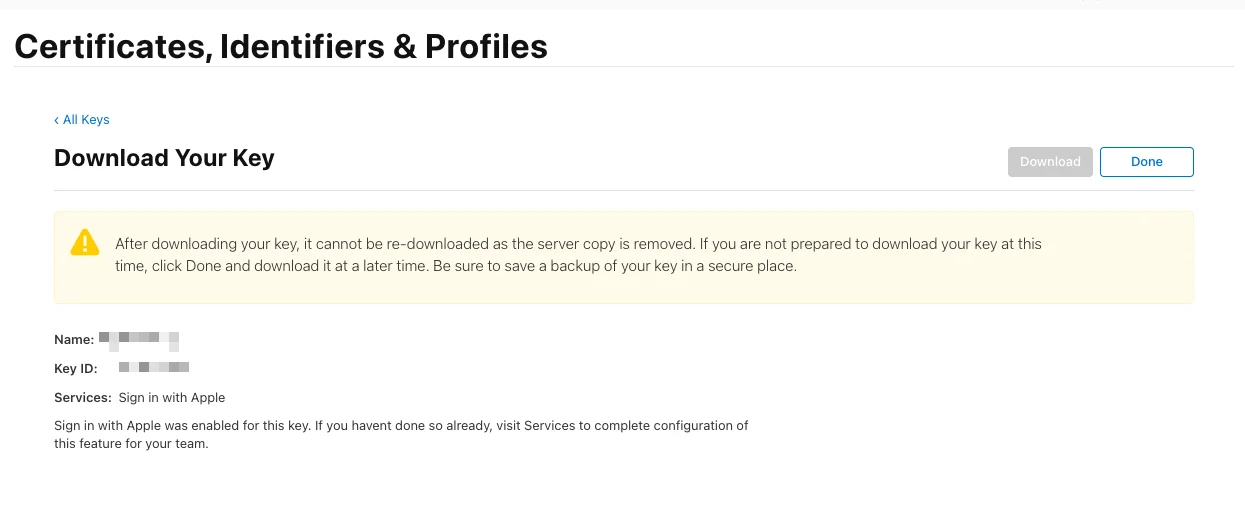
Note
This key for your Apple app has a validity of only 6 months. Please make sure to regenerate a new key after its expiry. This limit is non configurable which means it cannot be extended beyond 6 months. To avoid any service interruptions, we recommend setting a reminder well before the key expires to regenerate it on time.
Update the Service ID
Now go to Service Identifiers and
select the key you made above, then check the box for Sign in with Apple and click configure. Here, you will
add any domains and subdomains associated with your application. For this example, the domains and subdomains
would include minimally mycompany.com and auth.mycompany.com. Then you will also configure the callback URLs,
which would also minimally be https://auth.mycompany.com/v1/auth/oauth/callback and
https://auth.mycompany.com/v1/oauth/callback.
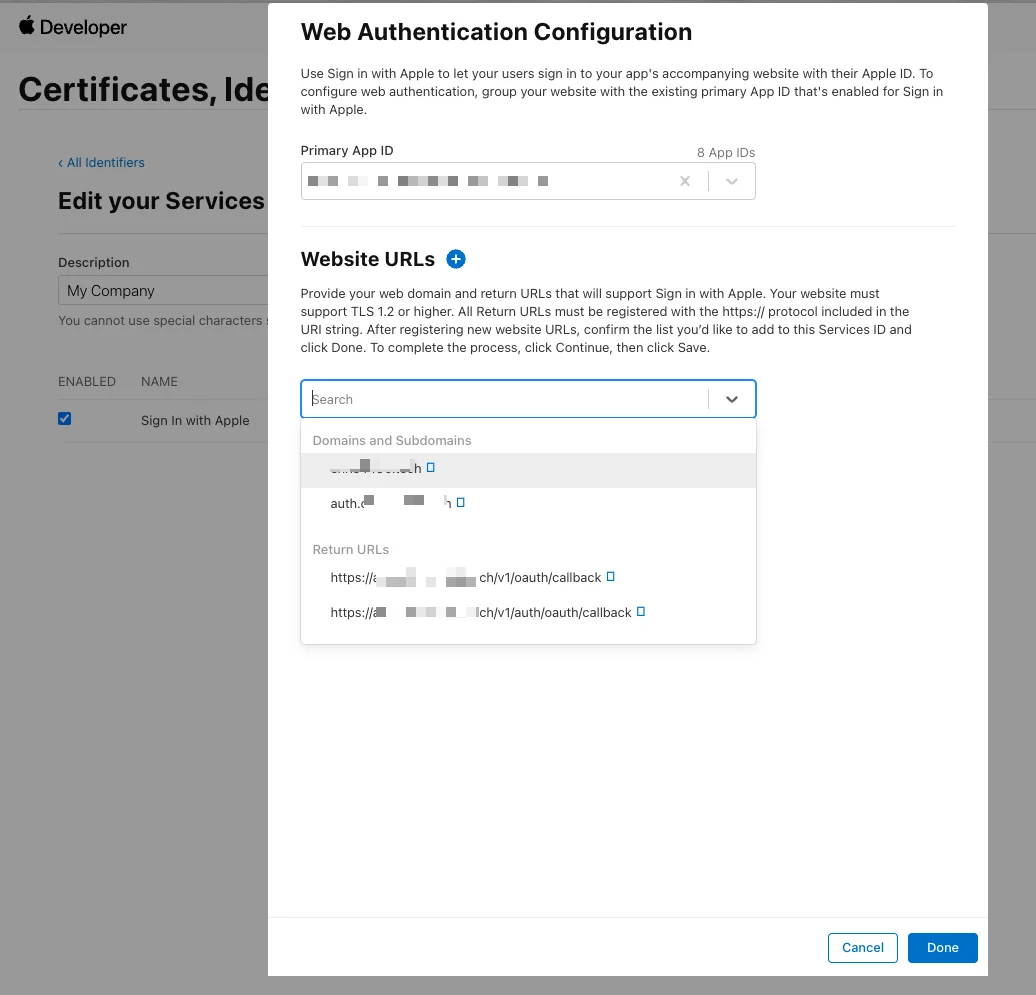
Then click done, continue, etc, until you have saved your Service ID. This completes the configuration within Apple.
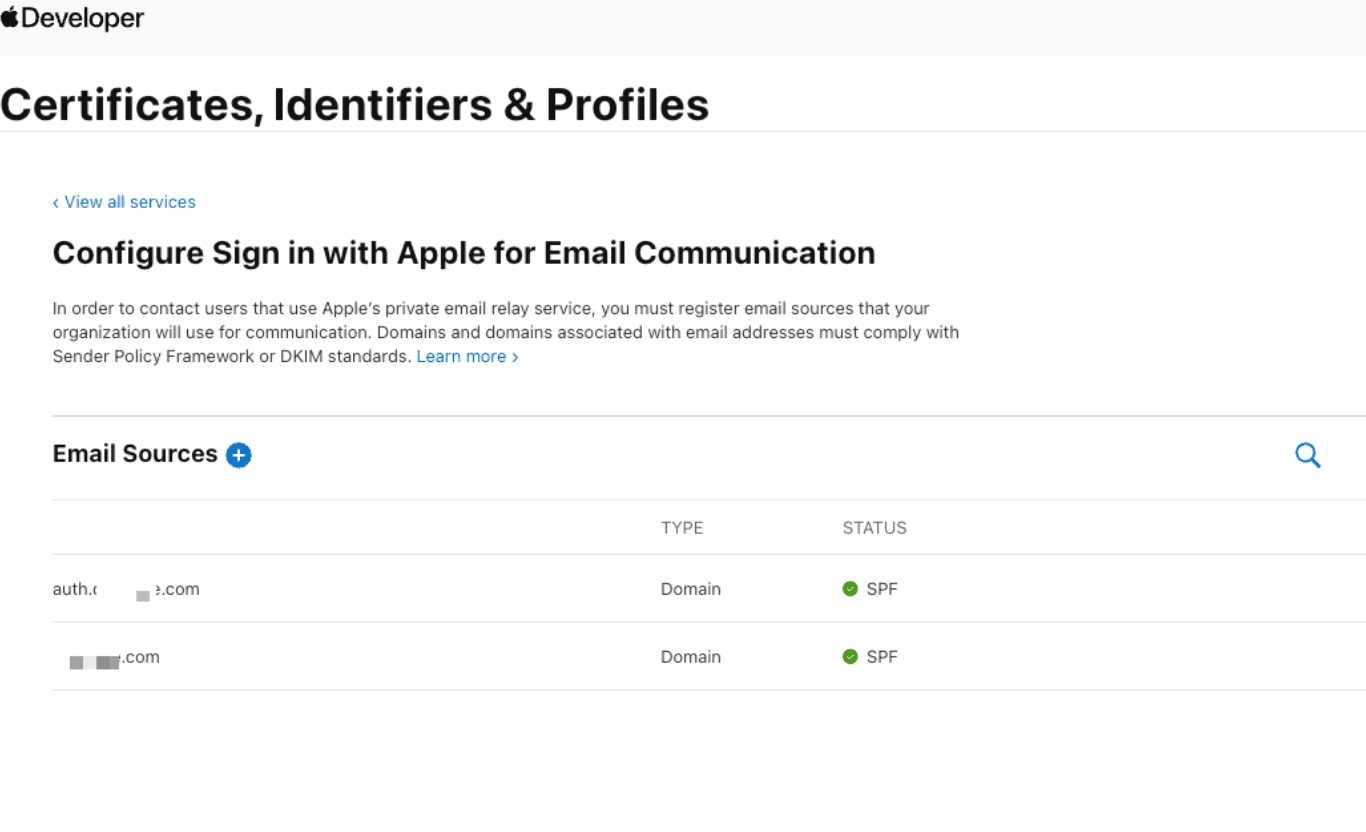
Register domain for private relay
In cases where the user signs up with an option to hide their email, if correct domains are not setup, the email through relay service tends to not be sent to users' inboxes.
There needs to be a way to handle apple's private email relay service. For this to be handled, go to this link
and configure the applicable domains: auth.custom_domaim_cname.com & custom_domaim_cname.com. For more information, refer to thislink.
Configuring Descope
Once you have successfully created your application within your Apple Developer account, it's time to configure your application within Descope in the Authentication Methods page.
JWT Rotation
To configure your Apple provider, you must set up client authentication with Apple. Apple doesn't use tradition client IDs and client secrets, instead it uses a JSON Web Token (JWT) signed with a private key.
Descope supports two modes for this JWT-based client authentication: automatic and manual.
Automatic JWT rotation (recommended)
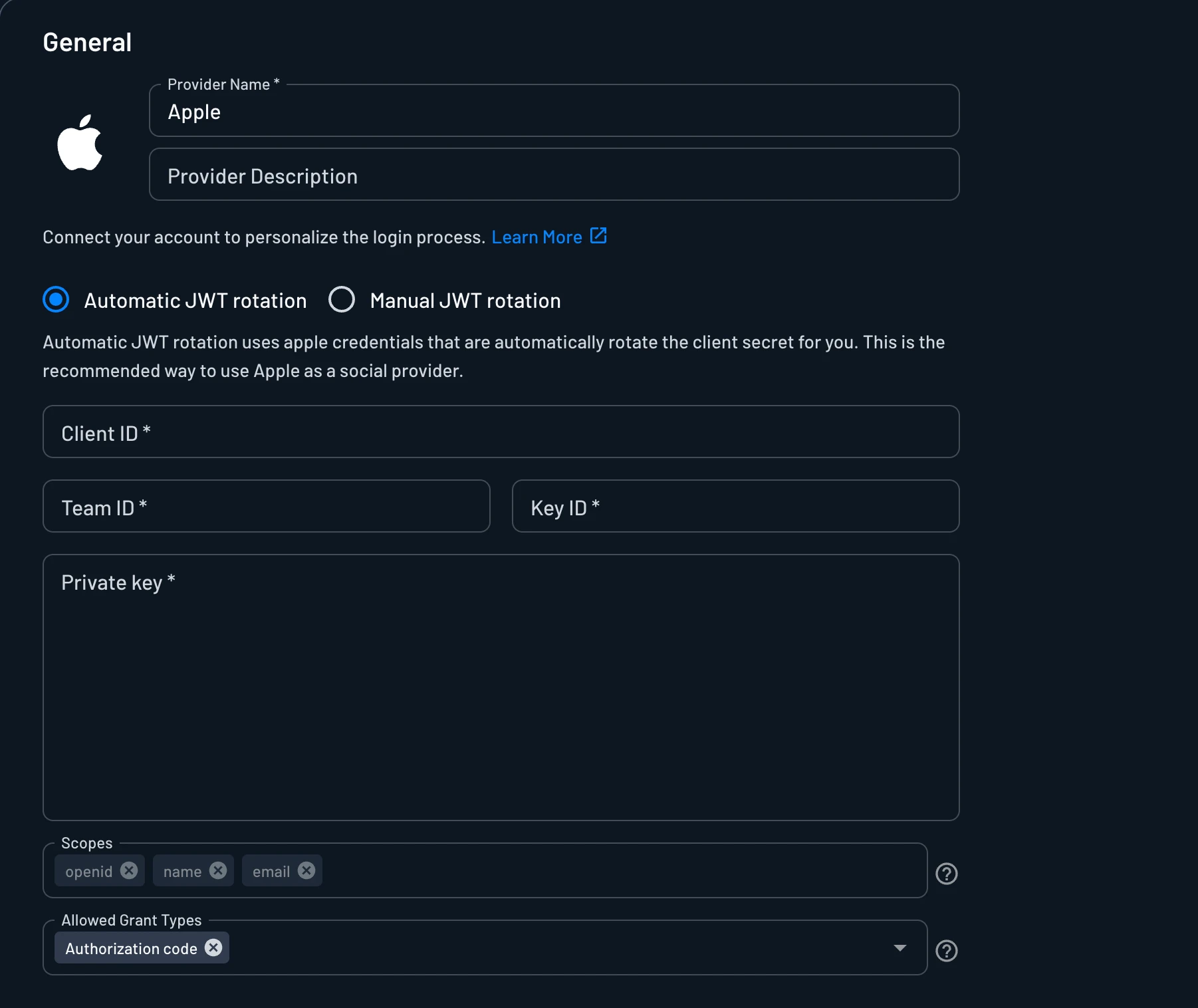
Automatic JWT rotation uses your Apple credentials so Descope can automatically rotate the client secret JWT for you.
This is the recommended way to use Apple as a social provider with your own Apple developer account, and you do not need to run scripts or manually regenerate the client secret before it expires.
When configuring Apple in Descope, select the Automatic JWT rotation option, as opposed to Manual JWT rotation, and provide:
- Client ID: The
Identifierof the Service ID you created. - Team ID: Found at the top right of your Apple Developer console.
- Key ID: Generated when you created the key.
- Private key: The
.p8key file you downloaded when you created the key.
Manual JWT rotation
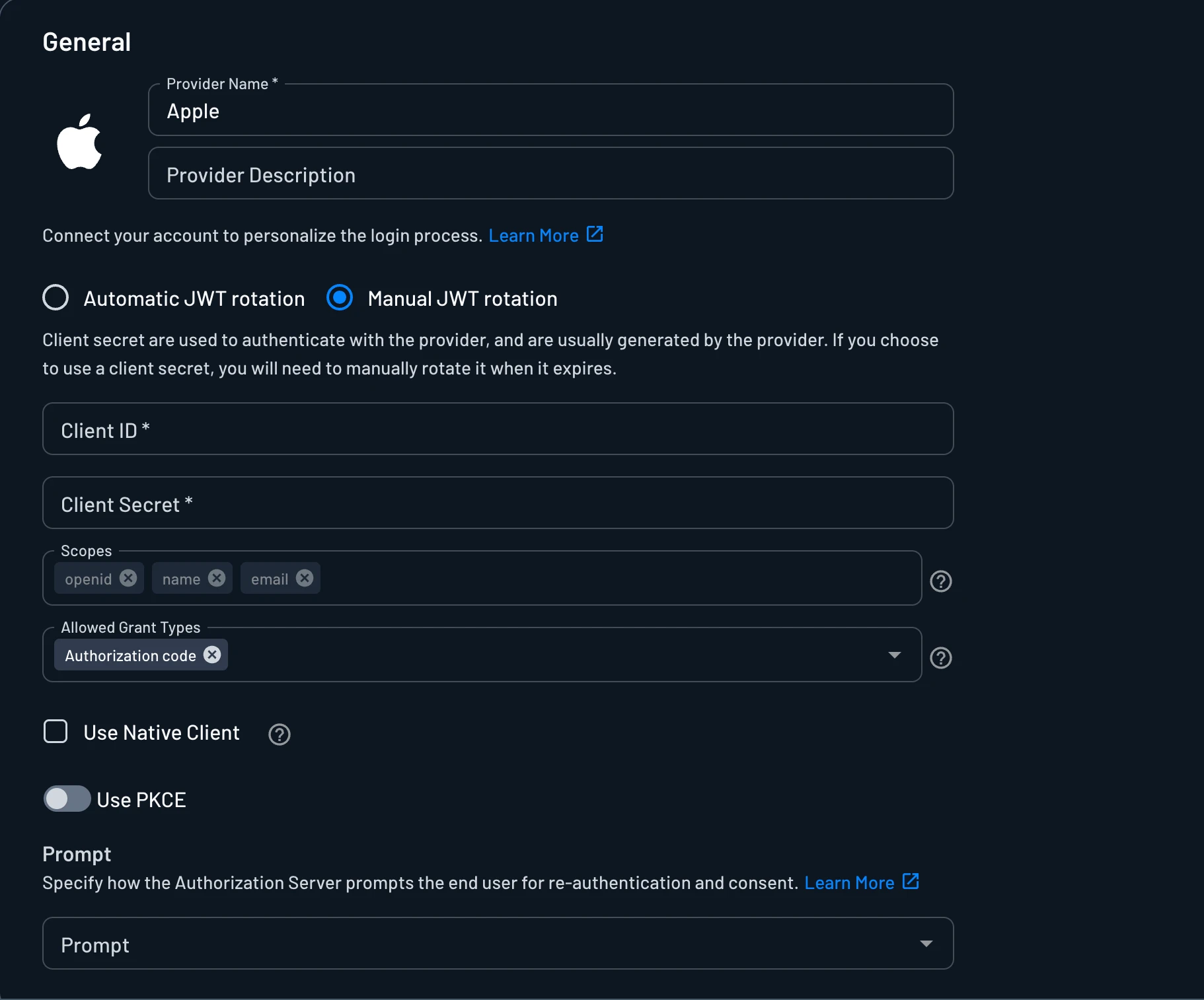
Alternatively, you can generate the client secret yourself with a script. You will need to manually regenerate and update it before it expires, since Descope won't rotate it for you.
To use manual JWT rotation, select the Manual JWT rotation option and provide:
- Client ID: The
Identifierof the Service ID you created. - Client Secret: The client secret JWT, generated using the scripts below.
The client secret is a JWT that you sign with the private key Apple gave you when you created the key. Apple rejects client secrets that expire more than six months after they're issued, so the scripts below set a 180-day expiry. Generate a new secret and update it in Descope before then.
Install Dependencies
npm install jsonwebtokenFill In Your Apple Values
Replace these placeholders in the script, and put the .p8 key file in the same directory:
| Placeholder | Value | Where to find it |
|---|---|---|
<KeyID> | Key ID | Generated when you created the key |
<TeamID> | Team ID | Top right of your Apple Developer console |
<ClientID> | Service ID Identifier | The Service ID you created |
const jwt = require('jsonwebtoken');
const fs = require('fs');

// Replace the placeholders with your values
const keyFilePath = './AuthKey_<KeyID>.p8';
const teamId = '<TeamID>';
const clientId = '<ClientID>';
const keyId = '<KeyID>';

const privateKey = fs.readFileSync(keyFilePath, 'utf8');
const now = Math.floor(Date.now() / 1000);

const token = jwt.sign(
  {
    iss: teamId,
    iat: now,
    exp: now + 180 * 24 * 60 * 60, // 180 days
    aud: 'https://appleid.apple.com',
    sub: clientId,
  },
  privateKey,
  { algorithm: 'ES256', header: { kid: keyId } },
);

console.log(`client_id: ${clientId}`);
console.log(`client_secret: ${token}`);
Run the Script and Paste the Secret
node generate-client-secret.jsPaste the printed client_secret into the Client Secret field in Descope.
Use Native Client
Native Sign in with Apple on iOS authenticates using your app's Bundle Id (set when you created your Application ID) as the client identifier, rather than the Identifier of the Service ID used for the web flow configured above.
If you have a mobile app sharing this same connection, check the Use Native Client checkbox to register that Bundle ID.
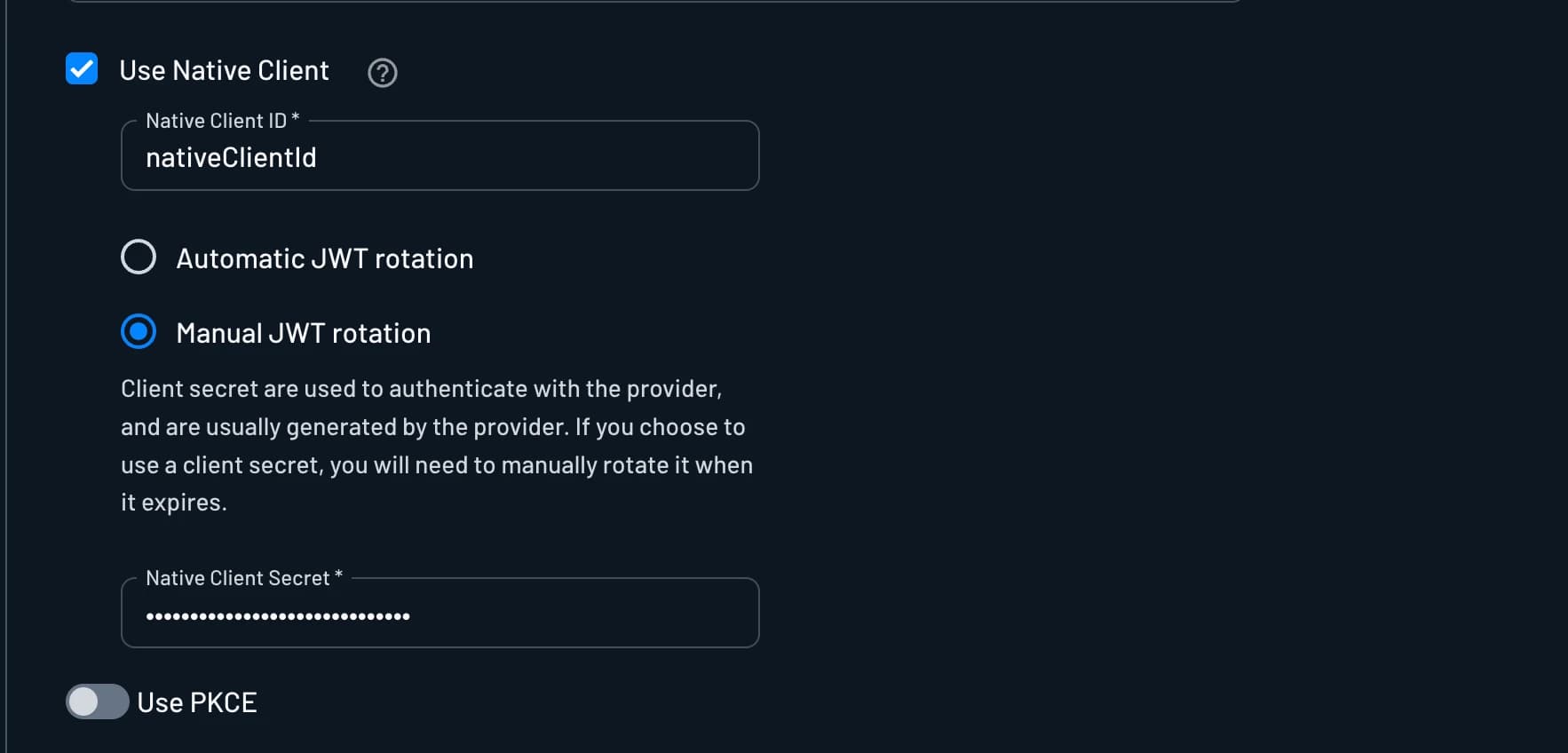
You will need to provide the following information for the native client:
- Native Client ID: The
Bundle Idyou set when you created your Application ID. - Depending on the JWT rotation mode selected for the native client, either a Native Client Secret (Manual) or a Team ID/Key ID/Private key set (Automatic).
Note
The native client needs its own secret. For Manual JWT rotation, rerun the client secret script above with <ClientID> set to this Bundle Id instead of the Service ID's Identifier.
Reusing the web secret will cause the native token exchange to fail, since Apple checks the JWT's sub claim against the client ID in the request.
Use PKCE
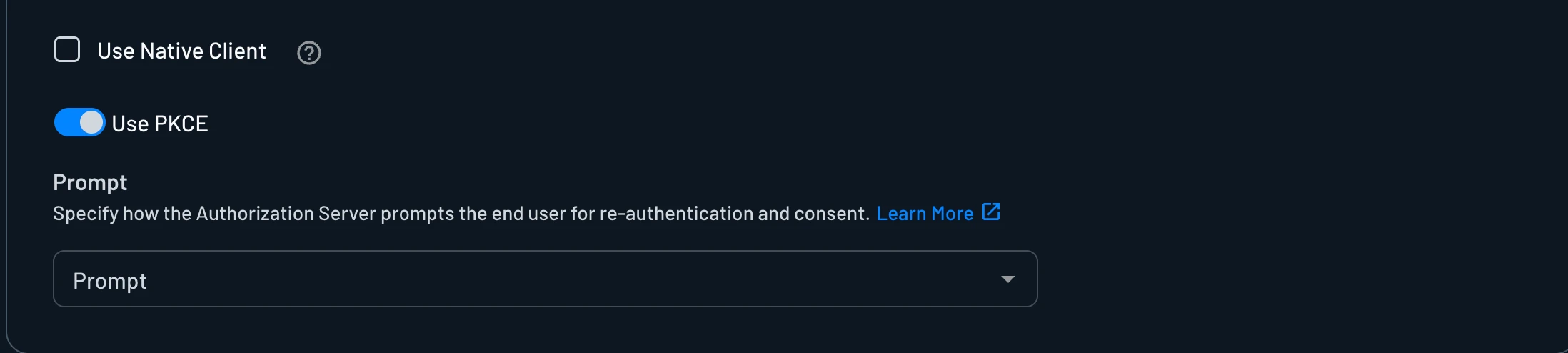
Toggle Use PKCE if you want Descope to use PKCE (Proof Key for Code Exchange) during the authorization code exchange with Apple. See PKCE Support for details on when this is needed and how it works.
Prompt
Note
Prompts can also be overridden in your OAuth-specific flow action.
See Configure the Prompt for what each option does.
The Prompt setting controls how users are prompted when they sign in with Apple, such as forcing them to re-authenticate (login), re-approve permissions (consent), or choose an account (select_account).
User Attribute Mapping
User Attribute Mapping maps the attributes Apple returns to fields on the Descope user, including custom attributes. See Configure User Attribute Mapping for how to set up mappings and when user information is refreshed on login.
Advanced
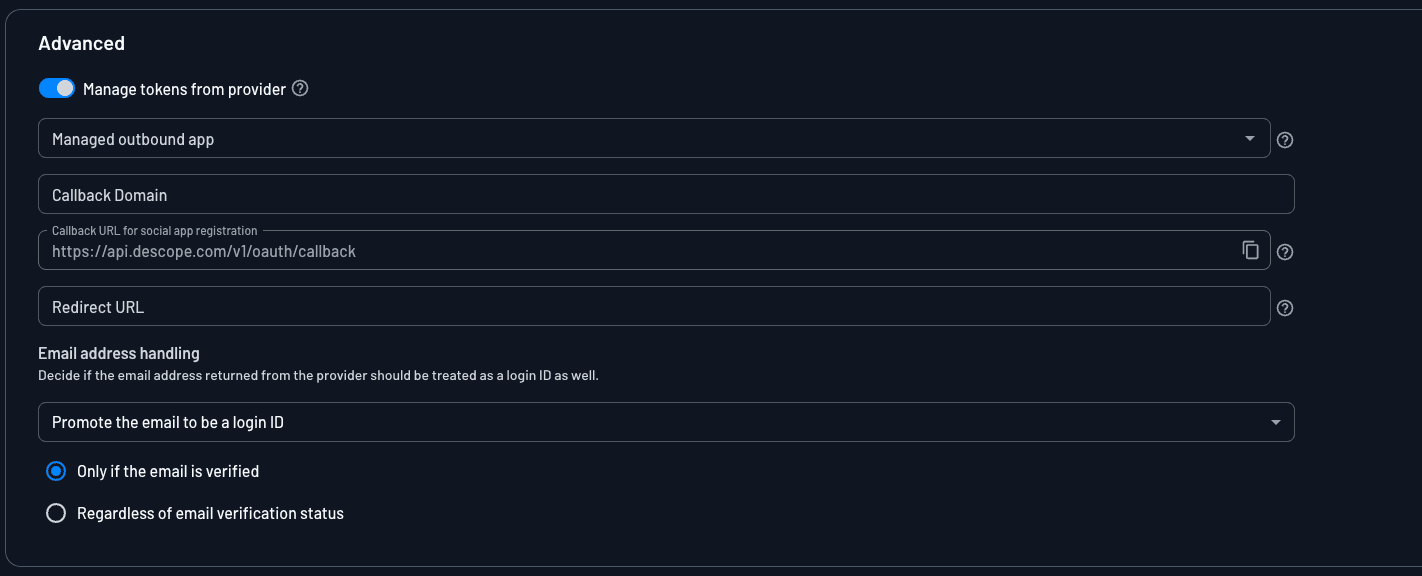
The Advanced section contains optional settings such as Manage tokens from provider, Callback Domain, Redirect URL, and Email address handling. See Configure Advanced Settings for the full list.
Managing Tokens from Provider
Enable Manage tokens from provider and select an Outbound App to have Descope store the user's Apple OAuth tokens. You must first create the Outbound App in the Descope Console before you can select it here. See Configure Advanced Settings for details.
Email Address Handling
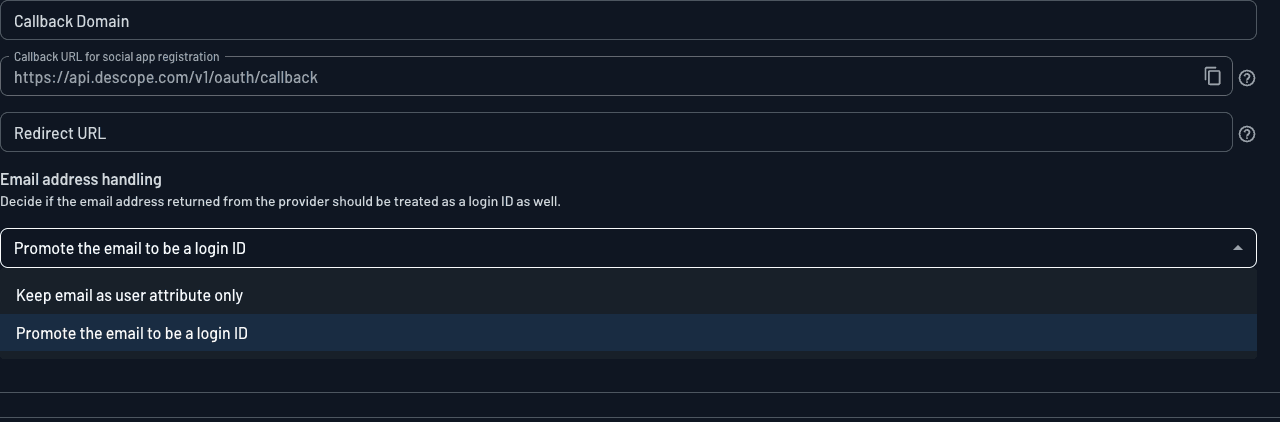
Email address handling controls whether the email address Apple returns is used as a login ID, which allows sign-ins to merge with existing users who have the same email, or is only stored as a user attribute. See Configure Advanced Settings for the available options, and Handling OAuth Providers with Unverified Emails for how verified and unverified emails are handled.
Warning
Selecting Regardless of email verification status can allow account takeover, similar to the "NoAuth" attack vector described in Social Login Merging Settings.