PingDirectory Connector
Use the PingDirectory connector to authenticate users against the PingDirectory LDAP directory server using its REST API. This connector supports traditional username/password authentication.
Setting Up the PingDirectory Connector
To integrate the PingDirectory connector, follow the steps below:
1. Navigate to Connector
- Visit the Connectors page in the Descope Console.
- Choose PingDirectory from the list of connectors.
2. Connector Setup
Set up the necessary inputs:
- Name: The name of your connector
- Description (optional): A short description of what your connector is used for
- Host: The externally reachable hostname or IP address of your PingDirectory REST API server (does not include
https://or the API path, like/directory/v1) - Port: The HTTPS port where the PingDirectory Directory REST API is exposed
3. Test & Save
- Validate your configuration by clicking the
Testbutton and observing theTest Resultssection. - Once successful, click
Createto save the connector.
Implementing the PingDirectory Connector in Your Flow
1. Select or Create a Flow
- Access your Dashboard -> Flows.
- Select an existing flow or create a new one.
2. Integration
In the flow builder, click the "+" icon, select Connector, and choose PingDirectory / Authenticate. Use this command whenever you need to authenticate a user against the PingDirectory directory server.
Parameters:
username(required): The context key for the flow component where the user provides their PingDirectory usernamepassword: The user's password for authentication. Automatically taken from theform.passwordcomponent in your flow
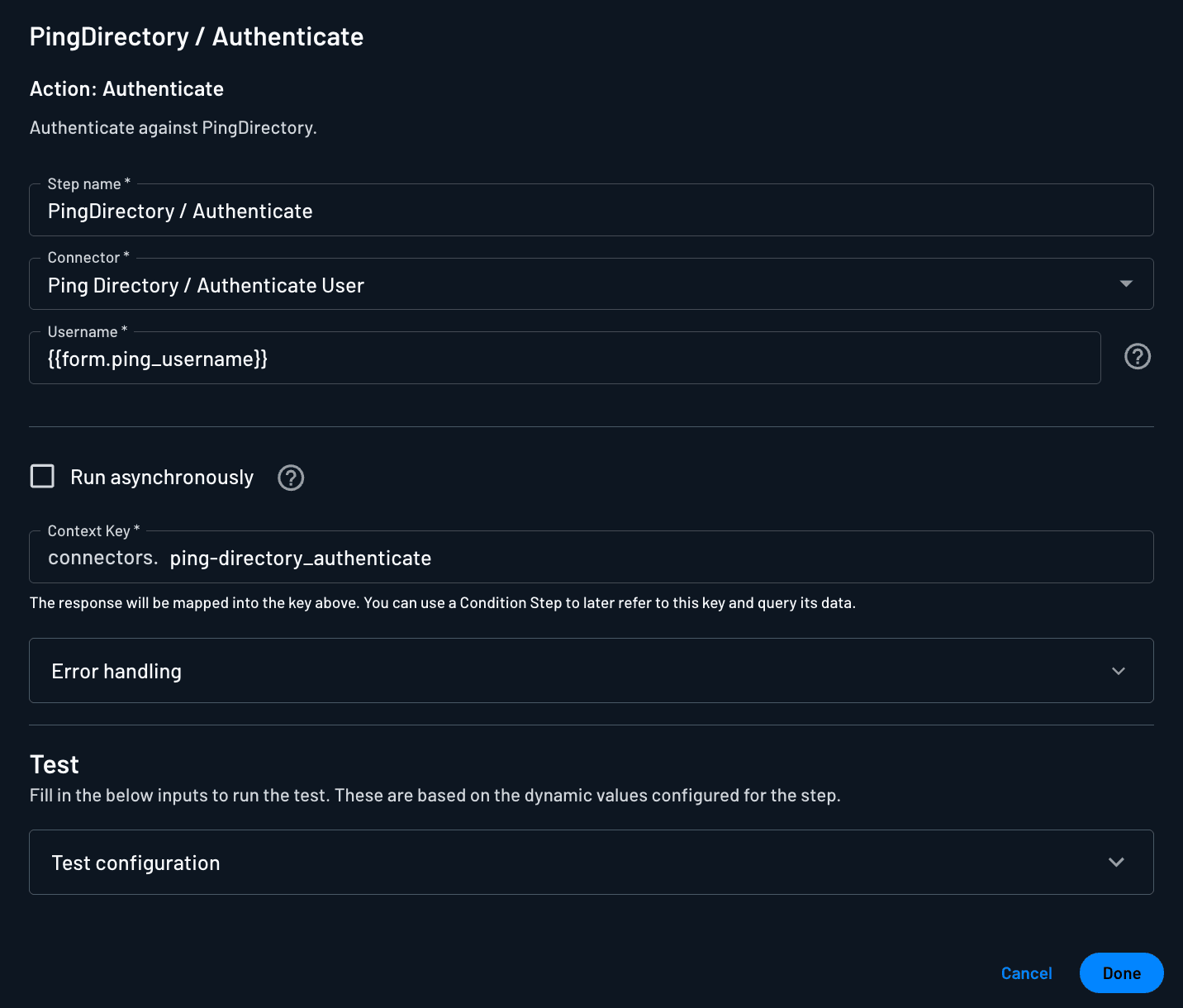
After the Authenticate step runs, access the results in the flow context under the key connectors.ping-directory_authenticate.
Response:
{
  "connectors": {
    "ping-directory_authenticate": {
      "accessToken": "***",
      "resultCode": {
        "name": "success",
        "value": 0
      },
      "userAttributes": {
        "_dn": "uid=descope-test,ou=People,dc=example,dc=com",
        "c": [
          "US"
        ],
        "cn": [
          "Descope Test User"
        ],
        "objectClass": [
          "top",
          "ubidPerson"
        ],
        "sn": [
          "User"
        ],
        "ubidEmailJSON": [
          "{ \"type\":\"work\", \"value\":\"descope-test@example.com\" }"
        ],
        "uid": [
          "descope-test"
        ]
      }
    }
  }
}
Or when authentication fails:
{
  "connectors": {
    "ping-directory_authenticate": {
      "statusCode": 401,
      "statusText": "Unauthorized"
    }
  },
  "error": "Unexpected error occurred. Please try again later"
}
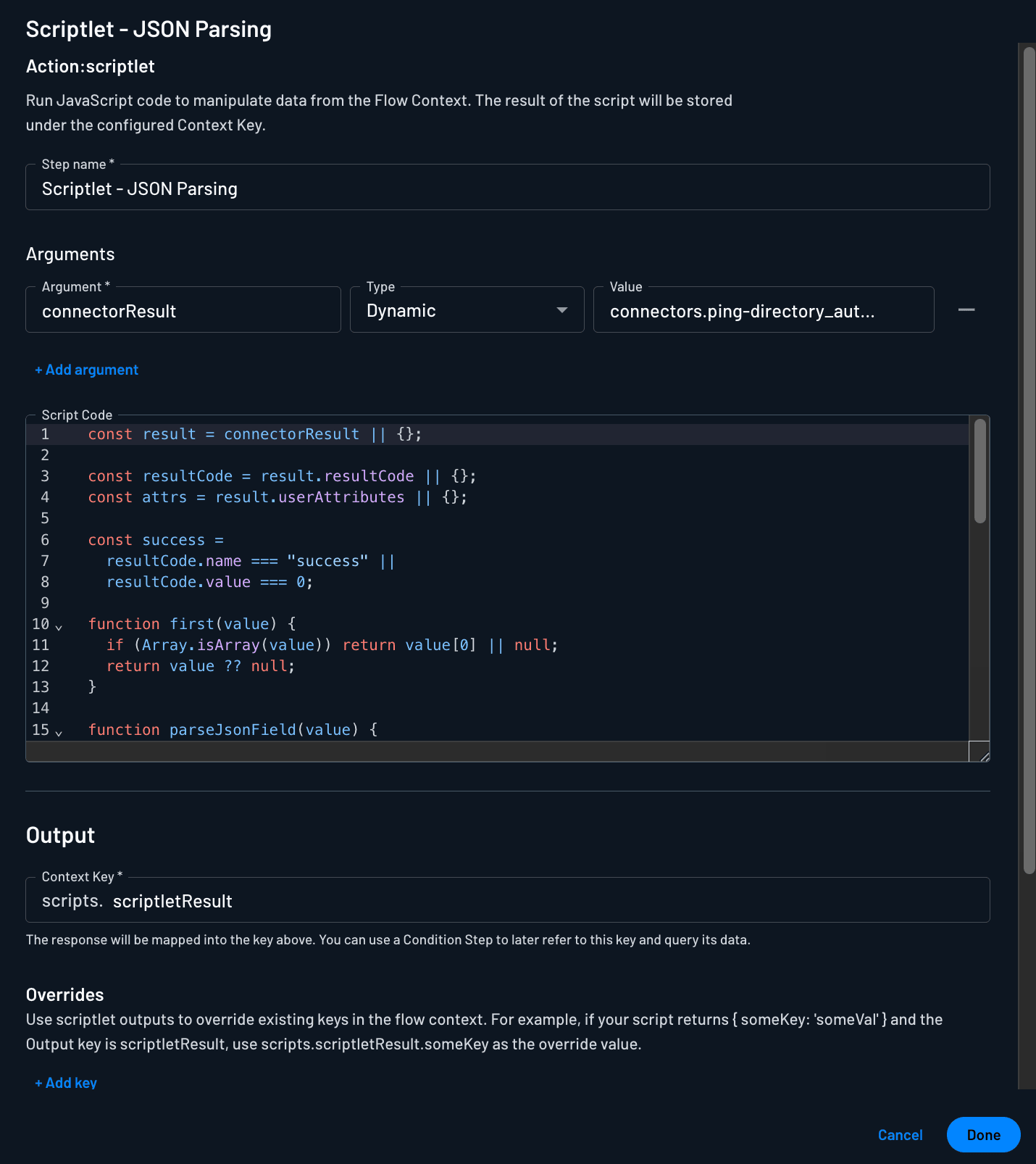
You can access and parse the JSON response from your connector using a Scriptlet Action in your flow. To do this, reference the connector's context key to retrieve its results, as shown below. Within the Scriptlet, you can write custom JavaScript code to implement any logic you need based on the connector's output.
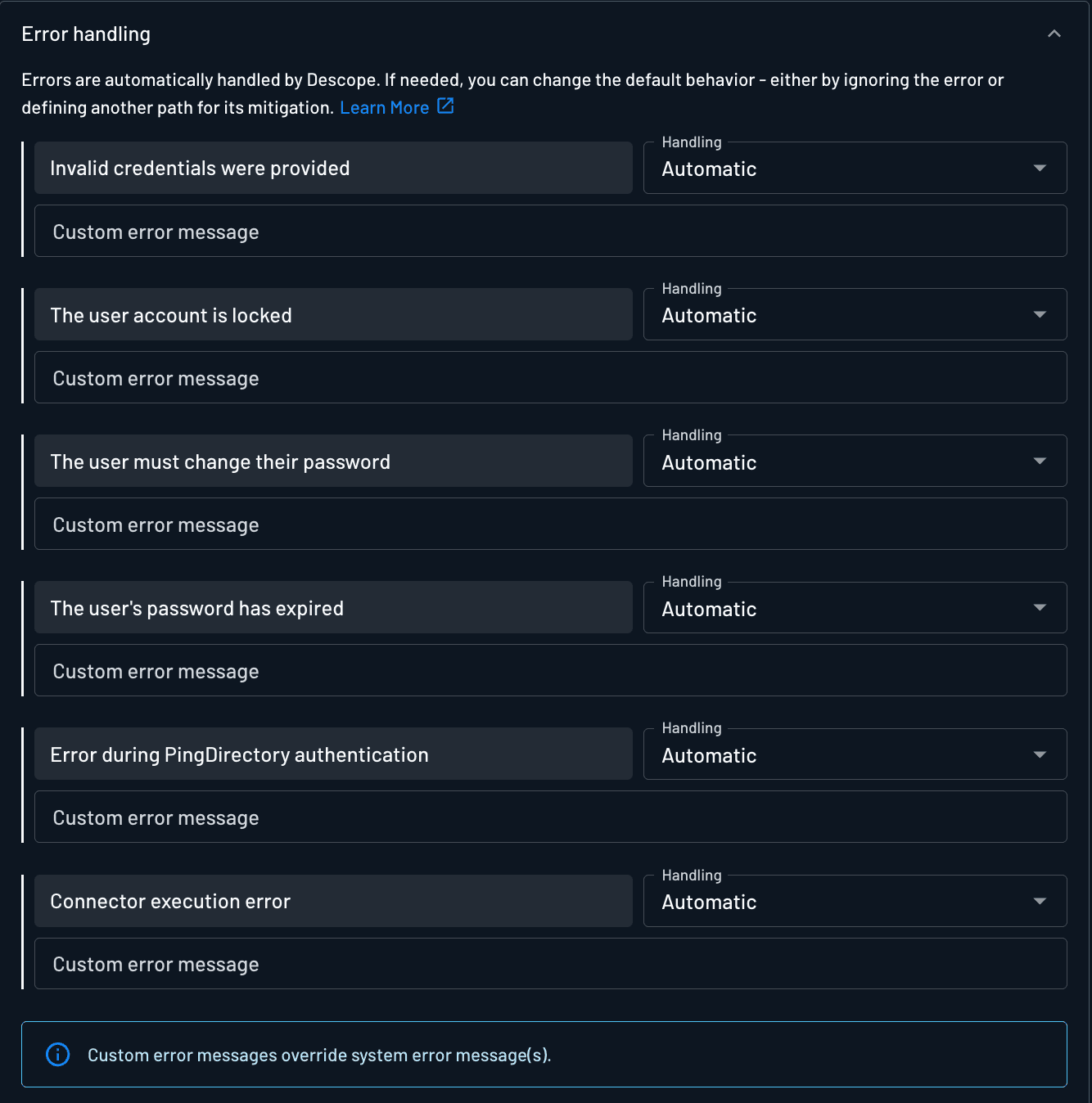
Error Handling
Error handling is built in to the connector when you configure it in your Flow. You can set up custom or automatic error handling for different scenarios. Read more about error handling in Descope Flows here.