Radar Connector
The Radar connector supplies address suggestions to the address input component in your flows. The connector uses the Radar Autocomplete API to suggest real addresses as the user types.
Unlike most connectors, the Radar connector does not run as a step in your flow. The address input requests suggestions from Radar directly in the user's browser with your publishable API key. For a connector with the same role that uses a different provider, see the Google Maps Places connector.
Prerequisites
The connector needs a Radar publishable API key. You can find the key in your Radar dashboard. For more information, see the Radar authentication documentation.
The browser sends the publishable key to Radar, so users can see the key. Use the publishable key, not a secret key.
Configure the Connector
You can create the connector from the Connectors page of the Console.
- Open Connectors in the Descope Console.
- Select Radar.
- Complete the configuration fields.
- Click Create.
The connector has these configuration fields:
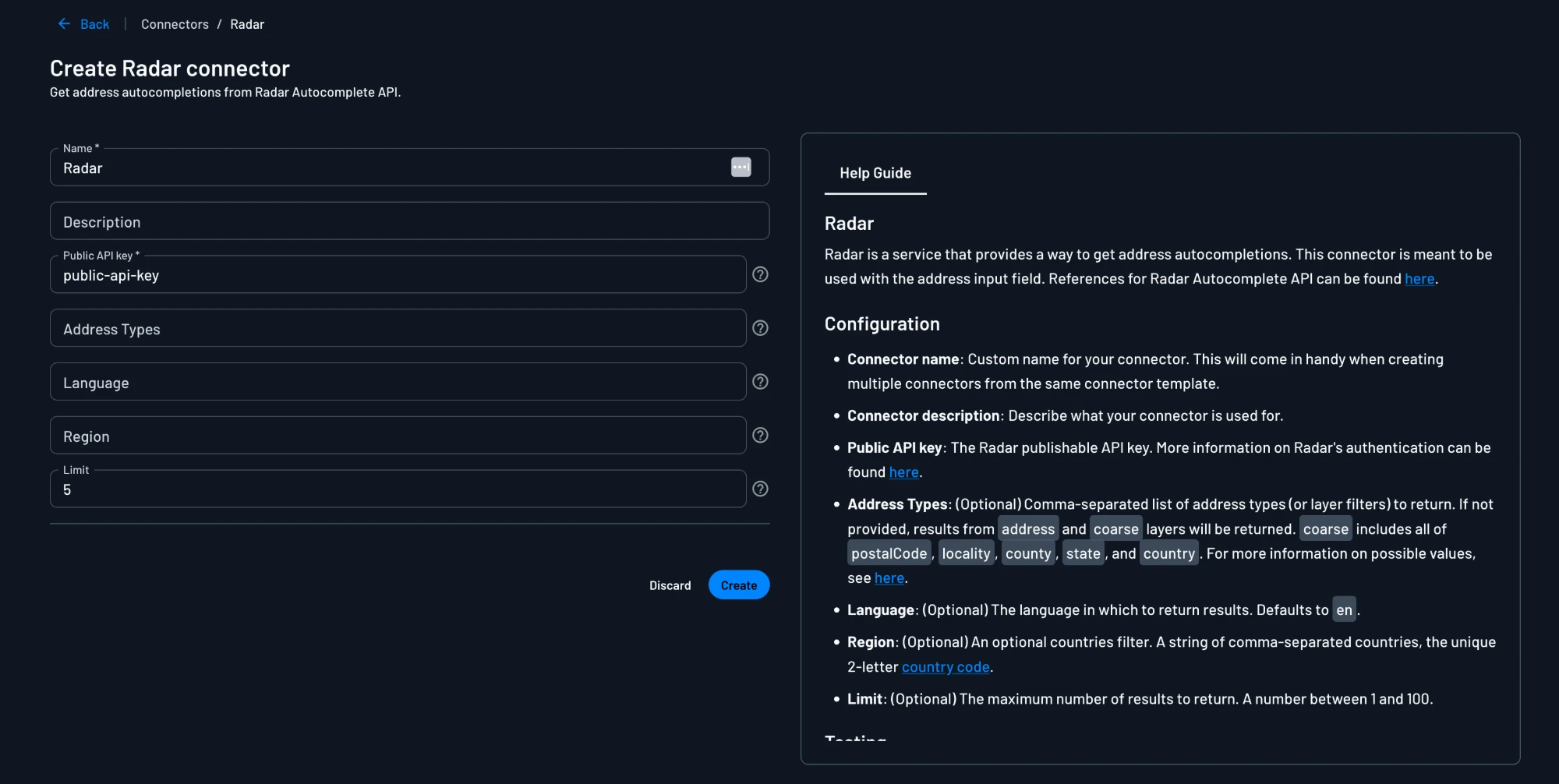
- Name: A custom name for the connector. The name helps you tell apart several connectors from the same template, and the screen editor shows the name in the address input's Connector list.
- Description: (Optional) A description of what you use the connector for.
- Public API key: The Radar publishable API key.
- Address Types: (Optional) A comma-separated list of address types, or layer filters, to return. When the field is empty, Radar returns results from the
addressandcoarselayers. Thecoarselayer includespostalCode,locality,county,state, andcountry. For all values, see the Autocomplete API. - Language: (Optional) The language of the results. The default is
en. - Region: (Optional) A comma-separated list of two-letter country codes. Radar returns results only from these countries.
- Limit: (Optional) The maximum number of results to return, from 1 to 100. The default is 5.
Test the Connector
The connector has no Test button, because the connector runs only in the user's browser. To test the configuration, you can run a flow that has an address input with this connector selected, then type an address.
Next Steps
- Add the address input to a screen and select this connector.
- Learn more about connectors in flows.