Address
The address input is a screen component that suggests real addresses as the user types and stores the selected address as a single string. The suggestions come from a connector to an address provider, which can be Google Maps Places or Radar.
Free-text address fields cause many typos, missing unit numbers, and addresses that do not exist. Splitting the address into separate fields for street, city, state, and postal code reduces some of those errors, but it makes the form longer. The address input keeps one field and lets the user pick a complete, correctly formatted address from a list.
Prerequisites
The address input gets its suggestions from a connector, so you would create an address connector before you add the component to a screen. The screen editor disables the component until your project has at least one address connector. Descope supports two connector templates for the address input:
- Google Maps Places: The connector uses the Google Place Autocomplete Data API. See the Google Maps Places connector setup guide.
- Radar: The connector uses the Radar Autocomplete API. See the Radar connector setup guide.
Both connectors run in the user's browser and use a public API key. Descope does not call the address provider from its servers.
If your project has no address connector, the screen editor disables the Address component in the components list. Hovering over the component shows a message that you need to configure at least one connector.
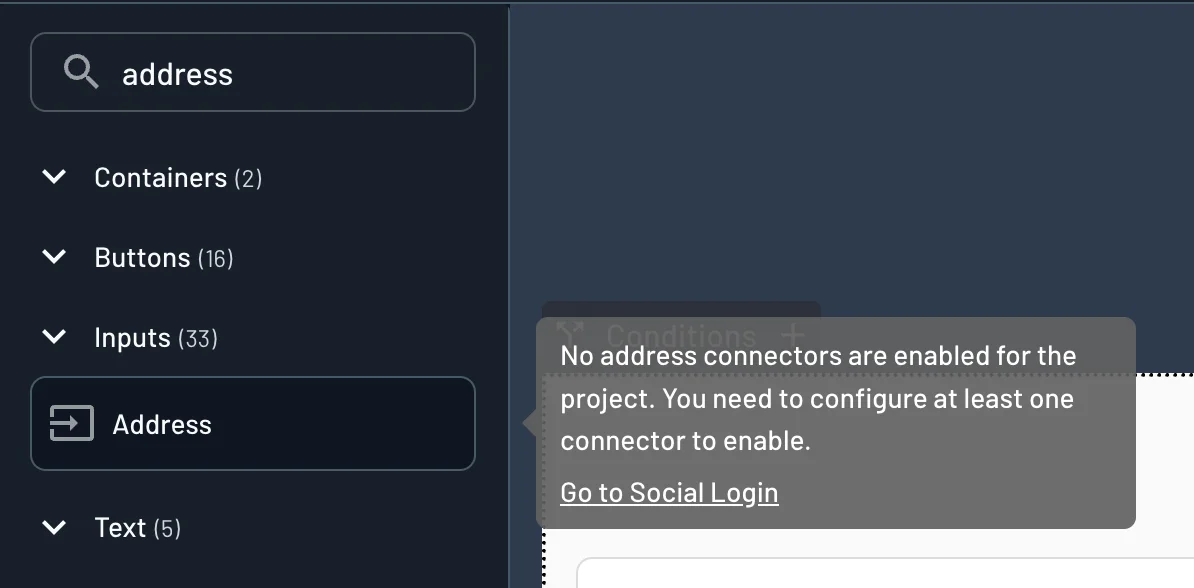
Add the Component to a Screen
After you create a connector, you can add the address input from the screen editor of any flow.
- Open your flow in the Descope Console.
- Open the screen that collects the address.
- Search for "address" in the components list.
- Drag the Address component from the Inputs group onto the screen.
- Open the Behavior tab and confirm the connector.
The screen editor selects your first address connector by default. If your project has more than one, you can change the connector in the Behavior tab.
Design Options
The address input supports the standard design settings of other input components, except Allow copying value. The Design tab groups the settings into Content and Style sections.
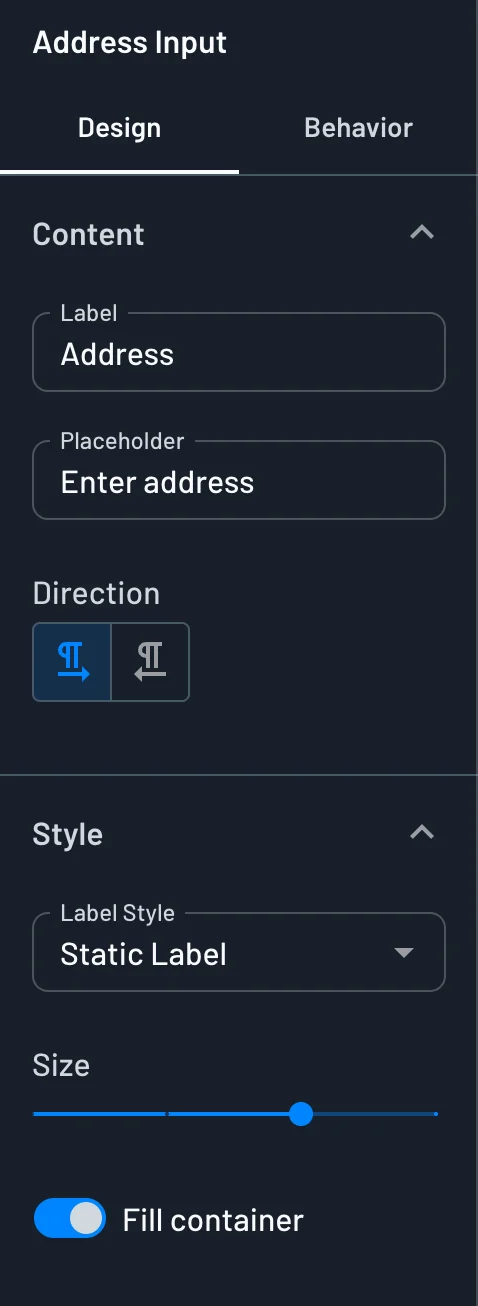
- Label: The text above the field. The default is
Address. - Placeholder: The hint text inside the field before the user types. The default is
Enter address. - Direction: The text direction, left to right or right to left.
- Label Style: The label is static or floating.
- Size: The size of the text inside the field.
- Fill container: The field stretches to the width of its container.
- Context Key: The key that stores the selected address. The default is
form.address.
Behavior Options
The behavior settings control which connector supplies the suggestions and how strict the field is about the final value.
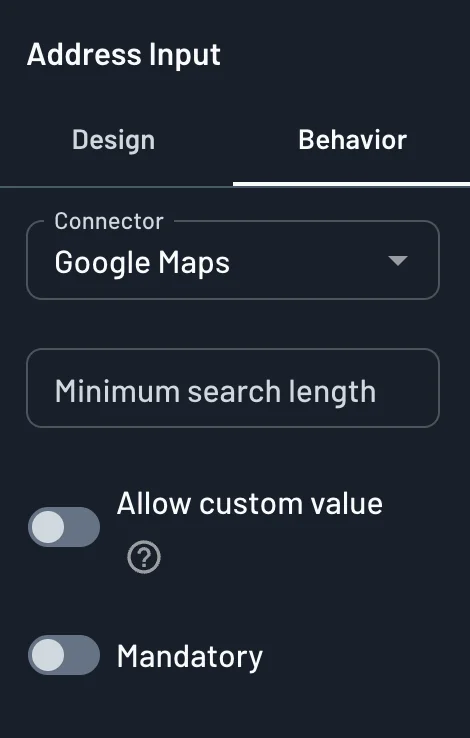
- Connector: The Google Maps Places or Radar connector that supplies the suggestions. The list shows your connectors by name, and it includes only connectors created from those two templates.
- Minimum search length: The number of characters the user types before the field requests suggestions. When the field is empty, the default is 3.
- Allow custom value: When enabled, the user can submit text that does not match a suggestion. When disabled, the user must select an address from the list.
- Mandatory: The user must enter an address to continue to the next step. Descope shows a generic "Missing Value" error, which you can translate in the Localization section of the Console.
A higher minimum search length sends fewer requests to the address provider, which can lower your usage on the provider account.
Using the Address in a Flow
When the user selects a suggestion, the field stores the full address text as a single string under its context key. For example, the default key form.address can hold the value 123 Main Street, Springfield, IL, USA. The exact format depends on the provider and on the Language and Region settings of the connector.
You can reference the value later in the flow with dynamic values, for example {{form.address}}. To keep the address on the user, you can map the context key to a custom attribute in a later action.
Next Steps
- Set up the Google Maps Places connector or the Radar connector.
- Read the general settings shared by all input components.
- Learn how connectors work in flows.